Cannot Verify A DNS Domain In Azure Because You Used .LOCAL or .INTERNAL

A lot of companies have used a non-public domain name for their Active Directory. This meant that they didn’t have to buy an public domain name (but they probably did eventually for email), they had company politics issues, or they wanted to separate public from private (making resolution of external services easier). But this causes a problem when you are trying to federate or sync with Azure Active Directory, and I’ll explain a way to solve that issue here.

The Issue

When we connect a legacy Windows Server AD (LAD) to AAD we need to have both domain names matching. So if the company has an AD called joeelway.internal then they cannot sync or federate that domain to an Azure AD called joeelway.com (the public DNS domain for the company) or joeelwayazure.onmicrosoft.com (a default domain name for an Azure subscription). This is because is we have a user, Barbara, then her UPNs would mismatch:

  • barbara@joeelway.internal VS barbara@joeelway.com OR
  • barbara@joeelway.internal VS barbara@joeelwayazure.onmicrosoft.com

Solution

Method one is extreme and disruptive:

  • Rename the domain and deal with any consequences (eek!)
  • Configure internal DNS to resolve names of company-owned external services
  • Re-educate people about their UPNs if they’ve been using UPN to log in

I think we can agree that method 1 is too disruptive. There is a softer approach that you can use:

  • Configure an additional DNS suffix for your domain
  • Change the UPN of users to use the new DNS suffix
  • Re-educate people about their UPNs if they’ve been using UPN to log in

Adding a suffix is easy:

  1. Launch AD Domains and Trusts
  2. Right-click on Active Directory Domains And Trusts (not the domain name) and select Properties
  3. Enter the desired domain name in Alternative UPS Suffixes and click Add

image

Next you’ll change the UPN of the users. You can do this in AD Users and Computers (very slowly) or Google some PowerShell to do it near instantly at scale.

image #

Users will now have a single UPN for LAD (Azure, Office 365, etc), AAD, (hopefully) their email, and any third party SaaS if you federate your AAD.

A Demo Lab

I bought joeelway.com for my demo lab so I can show the real world solution in classes. If you’re just experimenting, learning, or doing a quick demo, then you can use the Azure default domain name. The default domain name is based on the name of your Azure subscription, for example joeelwayazure.onmicrosoft.com. Use this domain name as the additional suffix in your LAD, and set the UPNs to use this, e.g. barbara@joeelway.onmicrosoft.com; use this UPN for logging into cloud services.

Technorati Tags: ,,

An Open Letter To Scott Guthrie About Azure Backup

Oh baby, it’s one of those posts where Aidan Smash! I think Azure Backup has amazing potential to OWN the online backup market, but thanks to the leadership of that group, Azure Backup is irrelevant. Read on to find out why.

[Update]

Microsoft modified the below announcement and details were confirmed to me. Read here to learn more.

What’s Online Backup and What is the Market?

We all know what on-premises backup is:

  • Something like DPM, Veeam, Altaro, Commvault, ArcServe, etc runs a job to backup files, folders, system state, VMs, or whatever
  • Data is sent to a disk and/or tape archive
  • We restore data from there when it’s corrupted or lost

An old saying in IT goes: you don’t have a backup if you don’t have 3 copies. In IT we know that we should keep off-site copies of data. In the old days, Iron Mountain would pick up a bag of tapes and courier them off to some place. If we needed to go back more than a week, then we’d have to call those tapes in (cost + delay) and that sucked. Plus tapes are fragile.

Some folks implemented site-to-site replication of backup (DPM, Veeam, etc) to counter this. Data is sent off to another location so the data is available no matter what happens to the primary site. But … there’s a cost to keeping an archive.

This is where online backup is meant to come into play. A hosting company can offer huge amounts of cheap storage. An agent is deployed to required machines (roaming user devices, servers, hosts, VMs) and does an online backup. Data might be proxied/stored locally with a short retention period, and stored in the cloud with a long retention period. There’s lots of variations in the offerings so don’t get caught up in the details here.

The Challenge with Online Backup

It’s simple: Price. The dominant service in Ireland (based on reseller-friendly Ahsay) costs anywhere from €0.30 to €1.00 per GB stored per month. So when Microsoft came along with Azure and offered a cheaper alternative you’d think that they’d wipe the floor with the competition, right?

What’s Wrong with Azure Online Backup?

I break up AB into three offerings, to try clarify the mess that Azure Marketing/Branding has created:

  • Azure Backup for IaaS/VMs: Backs up VMs running in Azure to block blob storage
  • DPM + Azure Backup: DPM backs up Hyper-V, files/folders, SQL Server, SharePoint, Exchange, etc, and an AB agent on the DPM server forwards selected data to Azure block blob storage
  • Azure Backup: An agent (called MARS) is installed on each machine that will be backed up, and it can only support files and folders, only files and folders, and nothing but files and folders, and if you ask about anything other than files and folders then you are a complete moron that should walk onto the street and ask to be hit in the head with a baseball bat (it might improve your IQ)

The market for Azure Backup is not the large enterprise. It’s SMEs … as I said it was quite some time ago with Azure Site Recovery (the ASR team has since acknowledged that I was correct). When Azure first went on sale via Open licensing (SMEs) I talked to Microsoft partners about this. The price then was around €0.25 per GB, which then dropped to €0.149/GB and now sits at as little as €0.0.17/GB (approx – I’m too lazy to Google it) plus “instance” charge. So Azure Backup completely took over the Irish market, right? Uh, not so fast, my friend! Anyone selling the incumbent is still selling the incumbent, and that’s because the AB leadership continues to ignore overwhelming feedback. Instead, they focus on scenarios for System Center customers, and although “sales” of System Center to SMEs might be green on the scorecard, that’s because of some “clever tricks” that various news sites have alluded to and the occasional large customer that refuses to buy Select/EA. In the real world, SMEs do not use System Center, so focusing on System Center customers is ignoring the huge breadth market that currently uses online backup solutions that cost much more than AB.

Note: Any Redmond-ites that think SMEs are  just single-server companies are free to step off of their ivory tower and visit the real world outside of insulated and misinformed bubble.

What feature blockers are there to using AB?

  • Centralised management: There is no centralised management for AB. All management is done on a per-machine basis – which sucks. Customers hate this, and the resellers that are the IT department of those customers detest it because it’s unmanageable.
  • Backup support: Ab only does files and folders. Customers always ask about SQL Server, Exchange, Hyper-V and more. The Microsoft answer is: Use DPM. However, SMEs cannot afford DPM because it’s hidden in System Center licensing.
  • Pricing complexity: Have you met instances? Go on – google the pricing for Azure Backup and see what you think. We’ve actually lost Azure deals because of this BS that was introduced on April Fool’s Day.

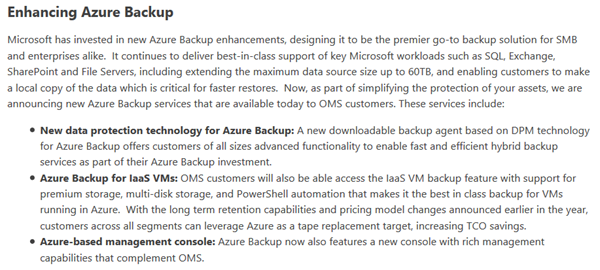
We kept hearing that the AB team was going to fix all of this. And then yesterday, I read a post about Operations Management Suite (OMS) Add-On for System Center. There you will find this piece of text:
image


Here’s what you need to know first: The OMS Add-On can only be bought by System Center customers: 1 Std Add-On for 1 Std SML, 1 DC Add-On for 1 DC SML. And the new features of AB are only available to OMS Add-On customers:

  • Adding DPM technology to the AB agent: I don’t have OMS and I tested the latest agent that I can download. I still can only backup files and folders. It appears that this new agent for AB to solve the issue that AB can only backup files and folders, is only available to customers with DPM licensing. Some genius thought that to solve the lack of DPM, you need to buy DPM, to use a backup agent that isn’t DPM. Friggin’ Einstein, right? Give that person a job running the economy for Greece or Zimbabwe!
  • Centralised management: Only available to DPM customers, the sort that don’t do much online backup, while ignoring the breadth market that will and does backup to the cloud with more expensive alternative vendors that do offer what those customers need.

It’s quite clear that the AB group either doesn’t understand the feedback and/or refuses to listen.

A Request for Scott Guthrie

Scott, I know you’re a smart man. Why do you and how can you tolerate this continued failure? I know you could sell a lot more Azure storage if you opened up Azure Backup to the SME market with improved backup support and centralised management. I could probably have half of the Irish market switched over by now if someone in Microsoft was actually acting on the feedback that they’ve been getting since last summer. Ireland is a tiny market in the grand scheme of things, but the nature of our market is the same across the entire EU and I doubt the USA is much different. That’s a lot of money you’re leaving on the table for competition to take.

I know that someone in Microsoft (probably Dublin) will complain about “that loud MVP” again, and I’ll have the usual conversations. But I know I’m right and I’ve repeatedly given the feedback via forum, direct emails to relevant PMs, and Lync conversations. Give us the product we need, and we’ll sell the heck out of it to people that will use it. So, Scott, I’m imploring you to make the necessary changes. Stop focusing Azure Backup on System Center customers; it’s a waste of dev/test time. Focus on SMEs and resellers and you will take over the online backup market in a year with customers that are actually adopting or using Azure.

First Impressions – Intel Compute Stick

A nice little gadget appeared on my desk at work today: An Intel Compute Stick. Here are my first impressions of this device.

Available at:

So what is an Intel Compute Stick? It’s a teeny tiny PC designed to plug into a HDMI display (monitor or TV). The device runs full blown Windows 8.1 (with Bing) on an x86 CPU (64-bit instruction set according to the spec page). It sets up just like a normal PC, and runs programs and apps like a normal PC. Think of it as an x86 Windows tablet without a monitor (hence the HDMI port). The device is powered by USB (phone lead) – I found that the supplied lead and DC power adapter were required because the Sony TV I tried it with didn’t output enough power.

IntelComputeStick

Intel Compute Stick turns HDMI devices into PCs [Image credit: Intel][/caption]The device has a number of ports:

  • USB 2.0: Required to set up the machine and pair a Bluetooth (4.0) keyboard and mouse (the eventual devices you’ll use to interact with the Stick)
  • Micro-SD: Add on up to 128 GB of storage to supplement in internal 32 GB (18.9 GB free)
  • Power

The device spec:

  • Quad-core 1.3GHz Intel Atom Z3735F – no EPT so you won’t run Client Hyper-V or WS2016 Hyper-V on here
  • 2 GB RAM
  • 32 GB storage (18.9 GB free)
  • WiFi 802.11bgn

IntelComputeStickSpec

The spec of the Intel Compute Stick [Image credit: Intel][/caption]Setting the machine up was tricky because it did require a USB keyboard. I had fun because I tried to set it up while it “drew” power from the TV and eventually it died. Rebooting it on DC power lead to a loop of repair modes, so a keyboard was required to navigate the options. There is no Bluetooth pairing button, so I set up the eventual peripherals using Settings in Windows. After that, it was Windows 8.1 as usual. The machine is not going to be confused with Alienware, but it is fast enough for what it’s intended for: light usage and media streaming. I streamed HD videos over wireless and it handled it well enough.

Let’s not be foolish here; the Intel Compute Stick will not replace the family PC. However, if you’re like me, and you like to have a “PC” connected to your TV (MiraCast suffers audio/video timing issues), then here’s another option (not the only one). What I would like to try is presenting (monitor in the conference room or HDMI projector) with this device instead of using the wireless display adapter.

[Update]

A next-gen version of the Intel Compute Stick will feature:

  • Intel Core M processor
  • 4GB of RAM
  • 64GB of SATA storage
  • USB 3.0
  • 802.11ac WiFi
  • Support for 4K displays
  • MHL (draw power from TV via USB)
Technorati Tags: ,

My 8th MVP Award

July 1st rolled around, and once again I was refreshing my browser nervously checking the MVP portal to see if I was still listed or not. It’s that time of year, when my MVP award for 2014-2015 expires and I find out if I am renewed for 2015-2016. Then around lunch time I noticed a change on my MVP profile page; the Number Of MVP Awards increased from 7 to 8:

Capture

I’ve just gotten the official notification:

Congratulations! We are pleased to present you with the 2015 Microsoft® MVP Award! This award is given to exceptional technical community leaders who actively share their high quality, real world expertise with others. We appreciate your outstanding contributions in Hyper-V technical communities during the past year.

This is my 7th Hyper-V MVP award (my first year was with Configuration Manager). After all these years I still get nervous and I don’t take it for granted that Microsoft will renew my status (see here). It’s quite an honour to be included with my MVP colleagues in a very select program with some career changing opportunities.

Thank you once again to my workmates, the folks at Petri.com, my sponsors and those who have asked me to present, you who attend my presentations and read my stuff here and on Petri.com, the MVP program, the Hyper-V team and the other teams that I interact with (and annoy from time to time – sorry Ben and Sarah!), and, of course, my fiancée Nicole for her support.

OK year 8, who can I annoy this time around? *evil laugh*

Pricing For Azure to Increase In The Euro Zone (11%) & Australia (26%)

Microsoft announced, by email, tonight that pricing for Azure in the Euro Zone will increase by 13%. This is not surprising; The Euro has tanked thanks to Greece over the last 6 months.

image

Effective August 1, 2015, local prices for Azure and Azure Marketplace in euros will increase by 13% percent to more closely align with prices in most markets.

Microsoft goes on to say that:

Customers or partners who purchased Azure through Enterprise Agreements (EA), Enterprise Subscription Agreements (EAS), or Server and Cloud Enrollments (SCE) have price protection on currently offered Azure services and will receive the better of their baseline price or the new market price

If you are in MOSP (direct billing) or Open, or start some other kind of Volume Licensing agreement then prices increase on August 1st.

[Update}

Australia is also getting a price hike – thanks to Danial (comment below) for this tip:

Effective August 1, 2015, local prices for Azure and Azure Marketplace in Australian dollars will increase by 26% percent to more closely align with prices in most markets.

[Update]

After thinking about this overnight, one has to wonder about the motivation of the hikes. Local costs have not increase by this amount. In Europe, power costs have come down and Microsoft already owns the land around North Europe (not hard to find even if I cannot say where it is). If anything, local costs have probably reduced. This would appear to be a bottom line operation to restore profits in the ledger for shareholders to see. As I said in the original post – not unexpected because The Euro has gone from $1.35 to $1.11.

[Update]

It’s amazing how many “journalists” just cannot be bothered spelling my name correctly  when crediting me for this story … lazy tossers.

Technorati Tags: ,

My Early Experiences with Azure AD Connect

I deployed the generally available release of AADConnect to synchronise our Active Directory with Azure AD (Office 365) 24 hours after it was made available. Here’s my early experience.

The download link for Azure AD Connect is quite hard to find! You can download AADConnect from here. The getting started guide/instructions are here.

What is Azure AD Connect?

AADConnect is the new unified way for setting up a connection between your on-premises (“legacy”) Active Directory with Azure AD. The tool is extremely easy to use. For most SMEs, you will:

  1. Create your domain in Azure AD and validate it (operation with your DNS registrar)
  2. Set up an in-cloud service account for Azure AD with global admin rights on the directory
  3. Create a service account in your on-premises AD with Enterprise Admin rights
  4. Install AAD Connect
  5. Run the Express Settings configuration, enter your domain details, and supply the required credentials when prompted

It’s not far from Next > Next > Next. That’s what I did at work to get a directory synchronization using AD Sync.

You can do a customized installation allowing you to:

  • Tweak the configuration
  • Deploy and configure ADFS

image

How I Set It Up At Work

The configuration is actually pretty simple. We have 2 AD sites in our single domain:

  • On-premises
  • In Azure

All the usual AD engineering was done with AD sites, including site links, etc.

The DCs in Azure are Basic machines in an availability set (keeping them in different fault/maintenance domains or zones in Azure). The first one is a Basic A1, which is more than enough for a normal DC. The second machine is where I have installed AAConnect; I have found this needs a bit more RAM so this machine is a Basic A2 (enough for our small company). This in-Azure DC is the one that synchronises with Azure AD.

image

My Experience

I actually set up AADConnect while it was still in preview (2nd release). I didn’t do the express installation – which was a mistake because I wasn’t really sure what I was doing! We had previously been using O365 in a limited way with accounts that were created in the cloud; these accounts were failing to synchronize.

I upgraded AADConnect from preview to GA and the issue persisted – the upgrade ran perfectly, though and I blame me for the sync issue. I then decided to uninstall AADConnect so I could completely reconfigure the synchronization. The uninstall worked perfectly (which did not happen with the first preview release) and I reinstalled and reconfigured it with the express installation. A few minutes later, every account, except one, was showing as “Synced with Active Directory”.

image

The one remaining one was one of the original in-cloud users. That has a sync-generic-failure warning in Synchronization Service Manager (the AAD Sync GUI (C:\Program Files\Microsoft Azure AD Sync\UIShell\miisclient.exe) which betrays some of it’s heritage. The stack trace shows an error of “The object located by DN is a phantom”. A metaverse search doesn’t find the user account … so AADSync doesn’t find the user in on-prem AD, but the user is in AAD. However, I can see the user in on-prem AD. Quite odd!

Anyway, other than that 1 user account, I think AADConnect is superb. It’s a huge step forward from DirSync, which is complex to set up, and I found it to be a house of cards. This product looks much better so far, offering an easy setup for most customers, and easy to access and detailed logs.

[Update]

That one account eventually did sort itself out over the weekend. I have no idea how – it just synchronised and I cannot complain about that! Password write-back is working fine too.

Technorati Tags: ,

Creating & Verifying Your DNS Domain in Azure AD

This post explains how to configure the DNS requirements to configure single sign-on (ADFS) or shared sign-on (synchronisation) in Azure AD (AAD) – you need to create a domain name in Azure AD and prove ownership of the domain to Microsoft.

Why Do You Need Matching Domain Names?

Imagine you have a “legacy” AD (LAD) running on one or more domain controllers called joeelway.com. If you have a user called Mary then her user name might be joeelway\Mary. On the Internet, we’re more likely to use a UPN (user principal name), and in Mary’s case that would be Mary@joeelway.com.

Let’s say that we create an Azure subscription called joeelwayazure. Any user that we create in there will be given a UPN with a suffix of joeelwayazure.onmicrosoft.com. For example, Mary would have Mary@joeelwayazure.onmicrosoft.com. This would be both confusing for Mary and for Azure because it doesn’t know that the two UPNs are actually for the same user.

If we want to configure single sign-on using Azure AD, use RemoteApp, or whatever, then we need to make sure that the UPN of the on-premise user account will match that of the in-cloud user account. And we can only accomplish this by creating a domain in AAD that matches the domain name of the LAD. So if my LAD domain name is joeelway.com then I need to make a domain in AAD called joeelway.com.

Create The Domain

Do the following:

1) Sign into the Azure management portal

2) Browse to Active Directory > Default Directory > Domains

3) Click Add A Custom Domain

4) Enter the name of the domain name. Check the “I plan to configure this domain …” box if you plan to use ADFS for single sign-on.

5) Click Add and then proceed to the next screen.

image

5) Note the verification details.

image

Verify (Prove Ownership Of) Your Domain

You can only use a domain in AAD if you own it. This prevents any Joe from using joeelway.com for the UPNs. You will need to sign into your domain registrar where you manage the DNS domain name (e.g. joeelway.com). In my case, that’s a company called Blacknight.

I logged in, browsed to the joeelway.com domain, and created a new TXT record using the details from the still-open verification screen in the management portal.

image

Now I can return to the Azure management portal, and click Verify. It can take a little time for the record (thanks to the fun of DNS) to be available so you can close the dialog in the management portal. The domain remains in an “Unverified” and unusable state. You can return to the domain, select it, and click Verify at a later time.

Tip: if you are in a lab scenario, you might have old TXT verification records that could prevent verification – make sure you delete these first.

image

With this done, you now have a verified domain ready for single or shared sign-on. Users can be created in your AAD default directory with a UPN suffix that matches your LAD domain name.

Question: what if your on-permises domain name is something like joeelway.local or joeelway.internal? You can’t host those domains on the Internet so you cannot verify them. I’ll deal with this in a later post.

Technorati Tags: ,,

Microsoft News – 29 June 2015

As you might expect, there’s lots of Azure news. Surprisingly, there is still not much substantial content on Windows 10.

Hyper-V

Windows Server

Windows Client

clip_image001_thumb.png

Azure

Office 365

EMS

Misc

Azure’s Biggest “Secret” – Azure Active Directory

Do you know how powerful Azure Active Directory (AAD) is? Do you know it’s not just an Azure or an Office 365 thing? I find that when I talk to people about Azure or when someone else is talking about it, topics like Azure Site Recovery (ASR), VMs in the cloud, or Azure Backup are in the conversation. But very few people talk about AAD, what I think is Microsoft’s killer hybrid service.


image

Connecting Azure AD

I heard a phrase around Ignite 2015 that I hadn’t before: Legacy AD (LAD); apparently that’s what Microsoft now call the AD that you have been running on servers since Windows Server 2000 (W2000). This is because Microsoft is investing in Azure AD, and expecting you to connect your LAD to AAD. This will make, at the lowest level, your users and their passwords available in the cloud:

  • Federation: Using ADFS, you can connect AAD with LAD. AAD doesn’t store user accounts in this design. Instead details are continued to be stored in LAD, and AAD reaches out to LAD to authenticate or authorise users whenever there is a request – no connection = no sign-in. This is a single sign-on solution.
  • Synchronisation: This is a solution that Microsoft has had many tools for, but now Azure AD Connect (AADConnect) does. Usernames and passwords are synchronised beween LAD and AAD, stored in both locations. The solution is more tolerant of failure than federation but not as scalable. This is known as shared sign-on.

Note that I’ve talked about users so far. We can now register devices in AAD (e.g. Windows 10) and via write-back, send these details back to LAD.

You Might Have Already Connected

You might not know this, but AAD is what provides user services for Office 365 (and other MSFT SaaS products). If you’ve deployed Office 365 with DirSync (or another sync tool) or ADFS then you have already accomplished the above. With a few mouse clicks in the O365 admin portal, you can make your domain appear an the Azure management portal.

AAD – Single Security Database for Microsoft SaaS

Microsoft uses AAD for all of their business cloud services:

  • Office 365
  • Azure
  • Intune
  • CRM
  • Azure Rights Management Services
  • And more

This makes it really easy for a business to enable a user to avail of new services once you have configured AAD: you configure the domain, and then you can bring O365 or any of the other Microsoft online business services to those users in seconds.

Single Sign-On With Third-Party SaaS

Microsoft isn’t stupid; they know that you use third-party cloud services, such as SalesForce. And you know what? Microsoft wants to make that easier for you by enabling single sign-on. So not only can users use their single username/password combination to sign into their PC and access their servers, but now the same credentials can work with Microsoft cloud services and third-party services. This brings “shadow IT” under the control of IT. You can use the free Cloud App Discovery to scan a network, find what online services are being used by the business, and reign these services under control using AAD.

There is an upsell here. Microsoft sells AAD Premium (included in the EMS Suite) to enable SSO with more than 10 cloud services. This upgrade also brings in things like self-service password reset.

The Future is Now

Because AAS is a cloud service, it can be developed and improved at cloud pace which is weeks, not years. Feedback and innovation are driving rapid change. You can register devices, including Windows 10 PCs, with AAD. That’s pretty cool:

  • Mobile workers can register with AAD
  • It makes BYOD and remote working easier
  • Cloud-centric SME’s might not need an on-premises DC anymore

Replacing GPO

If LAD is how we control policy on user devices, and we’re replacing LAD with AAD, how do we configure machines? The answer is Microsoft Intune. Intune can configure policy on managed devices. We’re told (I haven’t verified this for myself yet) that:

  • A customer have configured AAD
  • The customer has licensed for Intune with that domain
  • A user registers their device in the AAD domain
  • That device is automatically enrolled for management by Intune – and getting policy from Intune

How I’ve Done It

At work, we deployed the following solution to get AAD configured:

  • We have 2 on-premises DCs, required for our Hyper-V cluster
  • There is an Azure subscription and an O365 E3 subscription
  • We deployed 2 Basic A-series VMs in an availability set in Azure on a VNET
  • There is a site-to-site VPN connection between the on-prem network and the VNET
  • The Azure VMs are joined to the domain and promoted to be DCs
  • AADConnect is installed on one of the in-Azure VMs to connect with AAD (O365)
  • Configure the domain in Azure AD via the O365 Admin Portal

And from there, we’ve opened up all of the power of Azure AD … albeit requiring additional licensing for the Premium edition Smile

Technorati Tags: ,