The 3 Azure Security Mistakes I See During Audits

I’ve performed many Azure audits over the years, both formally and informally while learning new environments. Despite the differences between organisations, the same three security failures appear again and again. I’m going to surprise you here, because my scope is not the defence – it’s what comes after because we must assume that we have already been breached. The three most common reasons that I see failing Azure security are:

  1. Monitoring
  2. Alerting
  3. Response

Pre-2003 Security

Most of you assume that cybersecurity should be based on the 1990s movie, The Net. Build a great big firewall and keep the bad guys on the Internet out. That approach has served us all “well”:

  • Ransomware runs rampant.
  • Cybercrime is earning countless billions per year – we only have hints at pockets of the earnings.

The reality is that the bad guys can bypass your firewall, including but not limited to:

  • PCs (that aren’t sufficiently isolated) that are browsing phishing variant sites and opening malware attachments.
  • Compromised libraries being used by developers or compromised software being installed by system administrators.
  • External vendors/partners/customers are not isolated/untrusted and they become an attack vector.

We assume the bad guy will attack non-application ports. But in reality, they will spread through approved channels if they have to (micro-segmentation).

Modern Security

I did an analysis of recommendations by several national cybersecurity agencies in the EU last year. The common thread was a move away from a purely preventative approach and towards rapid detection and response when prevention inevitably fails, mirroring the requirements of the EUs NIS2 regulation:

  1. Defend
  2. Monitor
  3. Response

I’m not covering “defend” in this post. My focus is points 2 and 3. Don’t misunderstand me – most organisations do a bad job at “Defend”.

Failure 1 – Monitoring

Imagine – you purchase a nice NGFW firewall such as Azure Firewall Premium or something else from the Azure Marketplace. You spend countless hours (hopefully) modelling precise firewall rules to permit only the required traffic, retaining the deny-by-default concept. But, you do not:

  • Gather logs from the firewall.
  • Set security features, such as Threat Intelligence or Intrusion Detection and Prevention System (IDPS) to “Alert & Deny” mode.

Elsewhere, the Web Application Firewall is set up:

  • Without log collection.
  • In detection (log only) mode, not prevention mode.

In the Virtual Networks, you don’t enable VNet Flow Logs, which see everything, including the bad guy probing and attempting to move east/west.

All these tripwires to catch the bad guy inside of your network are commonly ignored. We spend so much time (hopefully) on building a defence, but we ignore the fact that the bad guy will get in and our job is to detect that as soon as possible so we can act.

Failure 2 – Alerting

Assume that we have enabled monitoring to gather the data. Now we need to do something with that data. Having that data sitting around is great for investigations – but how are you going to trigger an investigation:

  • Wait for the ransomware demand after you’ve been shut down?
  • Detect the bad guy before he does (too much) damage?

I’d prefer the latter option. But, I see two situations:

  • Customers who focus on the obvious things like networks, site-to-site connections, firewall appliances, but don’t think about the critical small stuff like what to generate an alert on or where to send it.
  • Giant repositories of monitoring data but no alerts that use that data to trigger a human/automated response.

Failure 3 – Response

This is easily the most ignore aspect of cybersecurity. We’ve detected a bad guy or an attack – now what?

We can break this down to:

  • Immediate response: How do we immediately act, including fast investigation, shutting things down, requesting assistance, etc?
  • Recovery: What do we do to recover from the attack, such as restoring backups, triggering failover, etc?
  • Investigation: Determine the entry point and method, how the attack spread, how did our processes work, what can we do to prevent this from repeating, how can we improve our processes, etc?

Most of the above is procedural. There are two technical elements to consider:

  • Backup
  • Disaster recovery (DR)

Quite honestly, DR in Azure is a mess right now (capacity issues) unless you use a backup solution such as Veeam that can recover all of your compute and data to another available location. There are so many conditions in that sentence!

Let’s focus on backup – unlike many organisations. I bet that most are not retaining backups for very long (to save money), they may use unprotected third-party backup, and I can safely bet that the last test restore was more than 5 years ago, if ever.

If the technical stuff isn’t there, then we can bet that the well documented & communicated processes are fictional too.

What You Can Expect

We should expect that an attacker will eventually gain access. Based on the above, then that experience for most of you will be:

  • The bad guy moves around without being detected.
  • You find out about the attack from your users/customers.
  • You will panic, take too long to respond, and maybe make destructive mistakes.

The time to prevent all this is as-soon-as-possible. Monitoring ingestion will cost money – that’s just how that works. Alerting is matter of getting organised by deciding what the tripwires are and how notifications should be sent – alerts are a micro-cost. You should have backups – we don’t need to say more. Modern backups use differencing-based-retention to keep costs low for keeping data around for months or years. What you really need is time to build processes and implement them – that may be the biggest cost.

Pay Now Or Pay Later

We can argue costs when it comes to cybersecurity. If you’re doing business in or with the EU then you have no choice but to get compliant:

  • The GDPR
  • NIS2

Other countries/regions have their own variants that I know little about. The EU has made it clear that cybersecurity is an organisation leadership issue, not an IT issue. NIS2 is pretty clear, really bad non-compliance cases can lead to directors losing the right to be directors for any organisation.

You can pay the toll now, or you can pay the piper later. Firewalls and security controls may slow attackers down, but monitoring, alerting, and response are what determine whether an intrusion becomes an incident or a disaster.

Find Out Where You Stand

Every failure above was found in a real environment by someone doing exactly this. If you don’t know whether your monitoring, alerting and response would stand up to a real intrusion, then you already have your answer. Cloud Mechanix runs a Fixed-Rate Cloud Environment Review: a fixed price, read-only assessment of your Azure environment, delivered in 5 business days, with a written report and a session to walk you through what we found and what to do about it. No open-ended consulting engagement, and no surprise invoice. Find out what an attacker would find, before they do.

Backup Versus Resiliency Versus Disaster Recovery

Most of us are no strangers to the backup versus disaster recovery conversation. Each is a different problem, typically (but not always) with different business expectations. Lately, resiliency has crawled into the mix, and a lot of social media commentary isn’t helping. In this post, I’m going to explain how I define backup, resiliency, and disaster recovery, and discuss how they impact my Azure designs for service & data availability.

Essential Terminology

There are two essential terms that we have to understand to discuss these problems/solutions:

  • RPO: The recovery point objective is how much data, measured in time, is lost when our solution kicks in.
  • RTO: The recovery time objective is how long, measured in time, services are offline while the solution kicks in.

Backup/Restore

A backup is when we take a copy of our data and (ideally) store that copy elsewhere, and even in several places. The concept is that we can restore our data from a backup if the original data (files, database, VM files, etc) are deleted either accidentally or deliberately.

The base product for backup in Azure is Azure Backup, which supports:

  • Azure VMs
  • Managed disks
  • Azure Files
  • SQL Server in Azure VMs
  • SAP HANA databases in Azure VMs
  • Azure Database for PostgreSQL servers
  • Azure Blobs
  • Azure Database for PostgreSQL Flexible server
  • Azure Kubernetes service
  • Azure Database for MySQL – Flexible Server
  • SAP ASE (Sybase) database on Azure VMs
  • Azure Data Lake Storage
  • Azure Elastic SAN

Quite honestly, that list is much longer than the last time I searched for it! Azure Backup covers a lot, but it doesn’t cover everything. Some solutions, like Azure SQL, feature their own backup solution.

It’s not unusual for people to bring another backup tool to Azure. The one I hear most of is Veeam Backup for Microsoft Azure. While I’ve never used Veeam hands-on, its reputation is excellent, and it has the unique ability to be platform agnostic. Want to restore VMs from Azure to Hyper-V, Nutanix, or VMware if you’re that way inclined ;)? You can with Veeam.

  • RPO: Backup features the longest RPO here. The data loss is depdendent on how often your backup jobs run. Daily backups? You can lose up to 24 hours of data. Backups every 15 minutes? You might lose up to 15 minutes of data.
  • RTO: This is where the pain can be; the RTO is how long it takes to copy your data from the backup storage to the production storage? Restoring an Azure Backup snapshot recovery point is a disk-to-disk copy. Restoring a 10 TB VM from blob storage over the network is going to be a long wait.

Disaster Recovery (DR)

The purpose of DR is to recover from a disaster. Let’s define what a disaster could be using real examples:

  • Hurricane Katrina was a natural disaster that wiped out huge areas of the USA in 2005.
  • The “black summer” bushfires in Australia destroyed millions of hectares of land in 2019-2020.
  • The Indian Ocean Tsunami in 2004 caused devastation in the coastal areas of many countries.
  • Keeping it local for me: post-storm winter floods have caused widespread damage throughout Ireland in the last few years.
  • Three AWS data centres were hit by drone attacks in the UAE & Bahrain in March of this year.

Disasters can be natural or they can be man-made. Disasters rarely target 1 building; they wipe out an area. They are rare – but they happen. There is another kind of disaster, which few think about:

  • KNP Logistics Group, a 125-year-old UK transport firm with over 700 employees, was put out of business because of a ransomware attack in 2025.

Pending (and passed in some countries) EU regulations (NIS2) consider this a disaster that subject organisations must be prepared for.

For cloud planning, if we need to prepare for disaster recovery, then we must plan for the loss of the Azure region ny replicating services/data to another region – typically the paired region. There is no one solution, and there are plenty of complicating factors. Techs that will be in scope include:

  • Azure Site Recovery (ASR) for Azure VMs
  • Geo-redundant storage (GRS) and the various geo-variants
  • PaaS resources that include GRS
  • Database replication
  • DevOps pipelines/workflows to redeploy resources (but not data)

There is a fun grey area here. Veeam is not only a backup solution; it is also a DR solution! You will also find that some people use backup as a budget DR solution – they replicate data from the primary location to the secondary location (Azure Backup Geo-Redundant). The right solution for your organisation is often based on business requirements and budget, with budget being the big elephant in the room.

  • RPO: DR replication is typically based on asynchronous replication. The RPO is often measured in seconds/minutes.
  • RTO: The RTO really is dependent on the complexity of services, the quantity of services to restore, the interdependencies, and how automated the process is once it starts. The RTO should be measured in hours, but a backup solution might be measured in days/weeks.

Resilience

The purpose of resilience is to enable a service to survive a localised issue, such as:

  • A VM crashes.
  • Microsoft are patching an App Service compute instance.
  • An Azure host is getting a firmware update.
  • Microsoft had a networking issue in a single data centre building.

We use resilience to keep the service operational with no perceivable outage to the service consumer. There are many ways to tackle resilience, but they are all based on scaling out:

  • Availability Zones: Most Azure regions have multiple data centre buildings. The buildings are split into what we see as 3 Availability Zones. Each Availability Zone has independent external network connections, power, and cooling. The theory is that if I spread the tier of a service across 3 zones, then that tier can survive 2 zones going offline. Some PaaS services, like Bastion, default to using zones; some have to be opted in. Beware of some PaaS resources, like App Service Environment, that have minimum consumption requirements to be placed across Availability Zones.
  • Availability Sets: If we cannot use Availability Zones (more later on this), then we can place virtual machines in Availability Sets. We can think of Availability Sets as a form of anti-affinity; machines in the same set are placed into different update domains (Azure platform updates) and fault domains (racks) in the same room in the same data centre. Microsoft does this for multi-instance PaaS services that are not using Availability Zones.
  • Zone Redundant Storage (ZRS): Azure storage is based on the concept of storing each block 3 times. ZRS places the replica blocks across 3 different Availability Zones. Your data remains operational even if 2 of the data centres are lost.

There are many architectural considerations to handle when you start resiliency planning.

The old pain-in-the-a** is the legacy line-of-business app that supports just a single VM. There is no scaling out to gain resiliency. Traditionally, VMs used LRS (locally redundant storage) managed disks. LRS managed disks are stored in a single data centre with the VM. There have been issues in the past where storage in a single room has gone offline, taking all three LRS replicas of the disks’ blocks offline. You can choose to use ZRS managed disks. The VM will continue to primarily use the local replica, but two replicas are stored in other Availability Zones in the same region. If the primary storage cluster goes offline, you can perform a manual process to get the VM back online with another replica.

  • RPO: Depending on the architecture and technologies, there is either a zero-RPO (active/active services) or an RPO of a few seconds (replicated storage).
  • RTO: In most cases, the RTO is 0. The one exception that I can think of is the single VM with a ZRS where the RTO is how long it takes you to force-detach the disk and create a new VM with the existing disks in another Availability Zone.

By the way, there are whole areas on networking resiliency that I could type about for hours too!

Confusion

As I have alluded to, I’ve seen some discussions on LinkedIn recently stating that Availability Zones can be used for disaster recovery. They could. Can they? Should they?

What is the disaster that you are planning for? If it’s any of the above natural disasters then I would argue that spreading your services/data across data centres located beside each other is going to lead to a sudden career-ending meeting.

Don’t give me the “Availability Zones are spread apart from each other” line. Suuuuure they are – except any of the ones that I’ve located on Google Maps, such as North Europe, West Europe, or US East to begin with.

Now, let’s get on with the practical realities of following the concept of using Availability Zones for DR. When was the last time you tried to deploy Azure VMs across Availability Zones? What about a firewall? Or App Services? Did you get an “Internal Service Error”, a weird quota error, or at least some helpful message to inform you that there was no capacity in “zone 2”? That’s been my experience for the last 14+ months in any regions that I’ve worked in. So, don’t recommend me to use a technology for emergency DR if I cannot even use it for operational resiliency!

Yes, I know that capacity issues also impact inter-region DR designs. If West Europe were to be flooded, you can be all but sure that you are not getting into North Europe thanks to the instant massive demand from many customers. I know that’s an unlikely scenario – but it’s one that some organisations must plan for. For example, I had a central government customer ask me about Azure region choice. The country in question has an “aggressive” neighbour to the east that likes to wage war on its neighbours. The local Microsoft office asked them to move into the new local Azure region soon after Ukraine was invaded. I asked the customer: “Where would Ukraine be now if all of its IT services were based in a local Azure region under 300 KM from Russia?” I’d extend that with a follow-up question now: “What if you used Availability Zones in that single region for DR?” Yes, the scenario is real – see above. Or consider if a hurricane reached Boydton in Virginia, USA, or a bushfire ran rampant in New South Wales/Victoria, Australia.

Before you go planning, please:

  • Understand the risks you are planning for
  • Have a budget
  • Understand the technologies
  • Comprehend how or if the technologies counter the risks
  • If the technologies are available to you at all!

The Azure IaaS Book Of News – December 2022

Here’s all the news that I thought was interesting for Ops and Security folks working with Azure IaaS from December 2022.

Azure VMware Solution

  • Azure VMware Solution Advanced Monitoring: This solution add-on deploys a virtual machine running Telegraf in Azure with a managed identity that has contributor and metrics publisher access to the Azure VMware Solution private cloud object. Telegraf then connects to vCenter Server and NSX-T Manager via API and provides responses to API metric requests from the Azure portal.

Azure Kubernetes Service

  • Microsoft and Isovalent partner to bring next generation eBPF dataplane for cloud-native applications in Azure: Microsoft announces the strategic partnership with Isovalent to bring Cilium’s eBPF-powered networking data plane and enhanced features for Kubernetes and cloud-native infrastructure. Azure Kubernetes Services (AKS) will now be deployed with Cilium open-source data plane and natively integrated with Azure Container Networking Interface (CNI). Microsoft and Isovalent will enable Isovalent Cilium Enterprise as a Kubernetes container App offering onto Azure Container Marketplace. This will provide a one-click deployment solution to Azure Kubernetes clusters with Isovalent Cilium Enterprise advanced features.
  • Generally Available: Kubernetes 1.25 support in AKS: AKS support for Kubernetes release 1.25 is now generally available. Kubernetes 1.25 delivers 40 enhancements. This release includes new changes such as the removal of PodSecurityPolicy.

Azure Backup

Azure Virtual Desktop

Virtual Machines

  • Public preview: New Memory Optimized VM sizes – E96bsv5 and E112ibsv5: The new E96bsv5 and E112ibsv5 VM sizes part of the Azure Ebsv5 VM series offer the highest remote storage performances of any Azure VMs to date.  The new VMs can now achieve even higher VM-to-disk throughput and IOPS performance with up to 8,000 MBps and 260,000 IOPS.
  • Generally Available: Azure Dedicated Host – Restart: Azure Dedicated Host gives you more control over the hosts you deployed by giving you the option to restart any host. When undergoing a restart, the host and its associated VMs will restart while staying on the same underlying physical hardware.

Governance

  • Public preview: Use tag inheritance for cost management: You no longer need to ensure that every resource is tagged or rely on resource providers to support and emit tags in their billing pipeline for cost management. Aidan’s Note – Restricted to EA/MCA … which unreasonably sucks. The latest example of “cost management” excluding other customers.

App Services

Storage

Azure Site Recovery

  • Public Preview: Azure Site Recovery Higher Churn Support: Azure Site Recovery (ASR) has increased its data churn limit by approximately 2.5x to 50 MB/s per disk. With this, you can configure disaster recovery (DR) for Azure VMs having data churn up to 100 MB/s. This helps you to enable DR for more IO intensive workloads.

Networking

Miscellaneous

Microsoft Ignite 2018: Implement Cloud Backup & Disaster Recovery At Scale in Azure

Speakers: Trinadh Kotturu, Senthuran Sivananthan, & Rochak Mittal

Site Recovery At Scale

Senthuran Sivananthan

WIN_20180927_14_18_30_Pro

Real Solutions for Real Problems

Customer example: Finastra.

  1. BCP process: Define RPO/RTO. Document DR failover triggers and approvals.
  2. Access control: Assign clear roles and ownership. Levarage ASR built-in roles for RBAC. Different RS vault for different BU/tenants. They deployed 1 RSV per app to do this.
  3. Plan your DR site: Leveraged region pairs – useful for matching GRS replication of storage. Site connectivity needs to be planned. Pick the primary/secondary regions to align service availability and quota availability – change the quotas now, not later when you invoke the BCP.
  4. Monitor: Monitor replication health. Track configuration changes in environment – might affect recovery plans or require replication changes.
  5. DR drills: Periodically do test failovers.

Journey to Scale

  • Automation: Do things at scale
  • Azure Policy: Ensure protection
  • Reporting: Holistic view and application breakdown
  • Pre- & Post- Scripts: Lower RTO as much as possible and eliminate human error

Demos – ASR

Rochak for demos of recent features. Azure Policies coming soon.

WIN_20180927_14_33_20_Pro

Will assess if VMs are being replicated or not and display non-compliance.

Expanding the monitoring solution.

Demo – Azure Backup & Azure Policy

Trinadh creates an Azure Policy and assigns it to a subscription. He picks the Azure Backup policy definition. He selects a resource group of the vault, selects the vault, and selects the backup policy from the vault. The result is that any VM within the scope of the policy will automatically be backed up to the selected RSV with the selected policy.

Azure Backup & Security

Supports Azure Disk Encryption. KEK and BEK are backed up automatically.

AES 256 protects the backup blobs.

Compliance

  • HIPAA
  • ISO
  • CSA
  • GDPR
  • PCI-DSS
  • Many more

Built-in Roles

Cumulative:

  • Backup reader – see only
  • Backup Operator: Enable backup & restore
  • Backup contributor: Policy management and Delete-Stop Backup

Protect the Roles

PIM can be used to guard the roles – protect against rogue admins.

  • JIT access
  • MFA
  • Multi-user approval

Data Security

  • PIN protection for critical actions, e.g. delete
  • Alert: Notification on critical actions
  • Recovery: Data kept for 14 days after delete. Working on blob soft delete

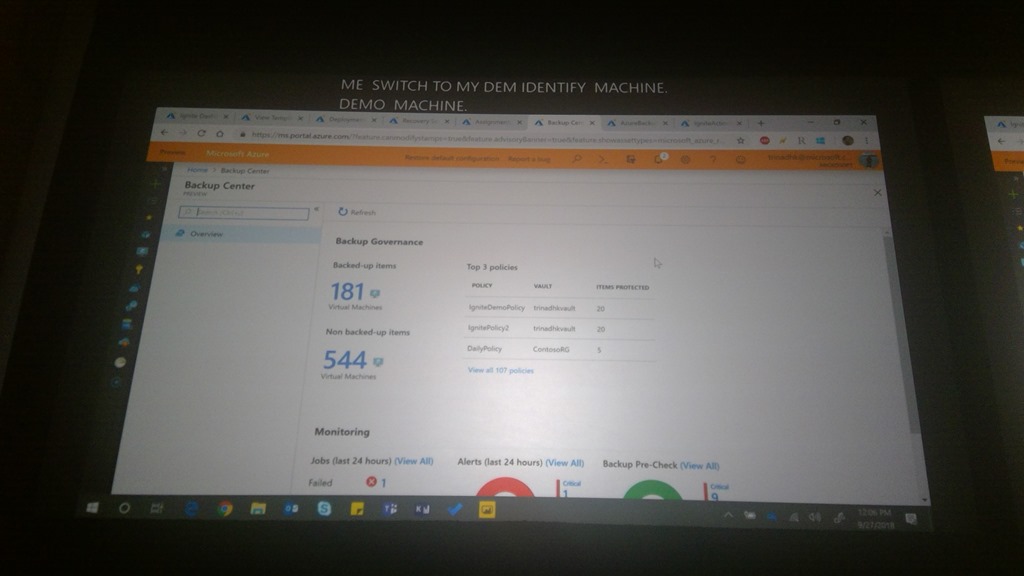
Backup Center Demo

Being built at the moment. Starting with VMs now but will include all backup items eventually.

WIN_20180927_15_06_47_Pro

All RSVs in the tenant (doh!) managed in a central place.

Aimed at the large enterprise.

They also have Log Analytics monitoring if you like that sort of thing. I’m not a fan of LA – I much prefer Azure Monitor.

Reporting using Power BI

Trinadh demos a Power BI reporting solution that unifies backup data from multiple tenants into a single report.

Backup Your Data With Microsoft Azure Backup

Speakers: Saurabh Sensharma & Shivam Garg

Saurabh starts. He shows a real ransomware email. The ransom was 1.7 bitcoins for 1 PC or 29 bitcoins for all PCs. Part of the process to restore was to send files to the attacker to prove decryption works. The two files the customer sent contained customer data! Stuff like this has GDPR implications, brand, etc.

Secure Backup is Your Last Line of Defense

Azure Backup – a built-in service. Lower and predictable TCO. Can be zero-infrastructure. And it offers trust-no-one encryption and secure backups.

Shivam comes up. He’s going to play the role of the customer in this session.

Question: Backup is decades old – what has changed?

Digital transformation. People using the cloud to transform on-prem IT, even if it stays on-prem.

Shivam: Backup should be like a checkbox. Customers want a seamless experience. Backup should not be a distraction.

Azure Backup releases you from the management of a backup infrastructure. Azure Backup is built on:

  • Scalability
  • Availability
  • Resilience

Shivam: What does this “built-in” mean if I have a three-tier .Net app running in the cloud?

We see a demo of restoring a SQL Server database in an Azure VM. We see the point-in-time restore will be an option because there are log backups. Saurabh shows the process to backup SQL Server in Azure VMs. He highlights “auto-protect” – if the instance is being protected then all the databases (even new ones that are created later) are backed up.

Saurabh demos creating a new VM. He highlights the option to enable backup during the VM creation – something many didn’t know was possible when this option wasn’t in the VM creation process. VMs are backed up using a snapshot in local storage. 7 of those are kept, and the incremental is sent to the recovery services vault. If you want to restore from a recent backup, you can restore very quickly from the snapshot.

A new restore option is coming soon – Replace Existing (virtual machine). They place the existing disks of the VM into a staging location – this gives them a rollback if something goes wrong. Then the disks of the VM are replaced from backup. So this solves the availability set issue.

Under the Covers – SQL

Anything that has a native backup engine is referred to as enlightened. Azure Backup talks to the SQL Backup Engine using native APIs via Azure Backup plugin for SQL (VM extension). They ask SQL Backup Engine to create the backup APIs. Data is temporarily stored in VM storage. And then there is a HTTPS transfer using incremental backups to the RSV where they are encrypted at rest using SSE.

It’s all built-in. No manual agents, no backup servers, etc.

Non-Enlightened VM Workloads

E.g. MySQL in a VM. Azure Backup can call a pre-script. This can instruct MySQL to freeze transactions to disk. When you recover, there’s no need to do a fixup. A snapshot of the disks is taken, enabling a backup. And then a post-script is called and the database is thawed. Application providers typically share these on GitHub.

VM Backup

An extension is in every Azure VM. The extension associates itself to a backup policy that you select in the RSV. A command is sent to the backup extension. This executes a snapshot (VSS for Windows). It’s an Instant Recovery Snapshot in the VM storage. A HTTPS transfer to SSE storage as incremental blocks.

Azure Disk Encryption

KEK and BEK keys are stored in Azure Keyvault. These are also protected when you backup the VM. This ensures that the files can be unlocked when restored.

Up to 1000 VMs can be protected in a single RSV now.

Azure VM Restore

VM restore options:

  • Files
  • Disks
  • VM
  • Replace Disks

Replace Disks (new):

  1. They snapshot copy the VMs disks to a staging location. This allows roll backup if the process is broken.
  2. They replace the disks by restore.

This (confirmed) is how restoring a VM will allow you to keep availability set membership.

Azure File Sync

The MS sync/tiering solution. Everything is stored in the cloud. So you can move on-prem backup for file servers to the cloud. Demo of deleting a file and restoring it. Saurabh clicks Manage Backups in the Azure File Share and clicks File Recovery and goes through the process.

When the backup API triggers a backup of Files, it pauses sync to create a snapshot. After the snapshot, the sync resumes. Now they have a means to a file consistent backup.

On-Prem Resources

There is no Azure File Sync in this scenario, but they want to use cloud backup without a backup server. This scenario is Azure Backup MARS agent with Windows Admin Center. A demo of enabling Azure Backup protection via the WAC.

Deleting Backup

  1. Malware cannot delete your backups because this task requires you to manually generate a PIN in the Azure Portal (human authentication)
  2. If a human maliciously deletes a backup, Azure Backup retains backups for 14 days. And it will send an email to the registered notification address(es).

Security

  • Security PIN for critical tasks
  • Azure Disk Encryption support
  • SSE encryption with TLS 1.2
  • RBAC for roles
  • Alerts in the portal and via notifications
  • On-server encryption (on-prem) before transport to Azure

Rich Management

Questions:

  • What’s my storage consumption?
  • Are my backups healthy?
  • Can I get insights by looking at trends?

This is the sort of stuff that normally requires a lot of on-prem infrastructure. Azure leverages Azure features, such as a Storage Account. No infrastructure, enterprise-wide, and it uses an open data model (published online on docs.microsoft.com) that anyone can use (Kusto, etc). You can also integrate with Service Manager, ServiceNow, and more (ITSM).

Custom reports.

And ….. cross-tenant support! Yay! This is a big deal for partners. It’s a PowerBI solution. It’s a content pack that you can import. It ingests Azure reporting data from a storage account.

Once you set this up, it takes up to 24 hours to get data moving, and then it’s real-time after that.

Roadmap

Cloud resources:

  • Azure VM abckup – Standard SSD, resource improvements, 16+ disks, cross-region support
  • Azure Files Backup: Premium Files, 5 TB+ shares, ACL, secondary backups.
  • Workloads: SAP Hana, SQL in Azure VM GA.

Availability Zones:

  • ZRS
  • Recovery from cross-zone backups

And more that I couldn’t grab in time.

Faster & Bigger Azure Backup for Azure VMs

Azure Backup recently rolled out an update to their service for protecting Azure VMs to improve backup speed, restore performance, and to add support for larger disks.

Support for Large Disks

Azure Backup didn’t support disks that were larger than 1 TiB (1 TB is the marketing measure of 1000 GB, and 1 TiB is the computer science measure of 1024 GiB). Those large disks must be popular – I know that people couldn’t get their head around the idea of a volume being spread across disk aggregation (they never heard of RAID, I guess) and wouldn’t touch Azure VMs because of this.

Today, Azure Backup, once upgraded by you, does support the large disks that Azure can offer (over 1 TiB).

Snapshot-Based Backup

People who deploy large VMs have seen that the traditional process of protecting their machines has been slow. Historically Azure Backup would:

  1. Create a snapshot of the virtual machine.
  2. Transfer the backup data from the storage cluster to the recovery services vault (standard tier block blob storage) over a network.

The snapshot was then dispensed with.

The backup was slow (the process of calculating changes, the network transfer and the write to standard storage), and restores were just as slow. It’s one thing for a backup to be slow, but when a restore is a 12 hour job, you’ve got a problem!

Azure made some changes, and now the process of a backup is:

  1. Create a snapshot of the virtual machine and keep 7 snapshots (7 backups).
  2. Use the previous snapshot to speed up the process of identifying changes.
  3. Transfer the backup data from the storage cluster to the recovery services vault (standard tier block blob storage) over a network.

Two things to note:

  • The differencing calculation is faster, speeding up the end-to-end process.
  • But after you upgrade Azure Backup, you can do a restore once the snapshot is complete, and while the backup job (transfer) is still happening!

Capture

7 snapshots are kept, and you can restore a virtual machine from either:

  • A snapshot from the last 7 backups)
  • A recovery point in the recovery services vault from up to the last 99 years, 9999 recovery points, depending on your backup policy.

AzureVMBackupRestoreUsingSnapshot

Restoring from a snapshot should be much quicker, and this will benefit large workloads, such as database servers, where a restore is usually from as recent a backup as possible.

Distributed Disks Restore

The last new feature is that when you restore a virtual machine with un-managed disks (storage account disks) then you can opt to distribute the disks to different storage accounts.

Accessing the Features

A one-time one-way upgrade must be done in each subscription to access the new Azure Backup for IaaS VM features. When you open a (single) recovery services vault, a banner will appear at the top. Click the banner, and then read the blade that opens. When you understand the process, click Upgrade. A quick task will complete and approximately two hours later, your entire subscription will be upgraded and able to take advantage of the features described above.

Was This Post Useful?

If you found this information useful, then imagine what 2 days of training might mean to you. I’m delivering a 2-day course in Amsterdam on April 19-20, teaching newbies and experienced Azure admins about Azure Infrastructure. There’ll be lots of in-depth information, covering the foundations, best practices, troubleshooting, and advanced configurations. You can learn more here.

Windows Server 2019 Announced for H2 2018

Last night, Microsoft announced that Windows Server 2019 would be released, generally available, in the second half of 2018. I suspect that the big bash will be Ignite in Orlando at the end of September, possibly with a release that week, but maybe in October – that’s been the pattern lately.

LTSC

Microsoft is referring to WS2019 as a “long term servicing channel release”. When Microsoft started the semi-annual channel, a Server Core build of Windows Server released every 6 months to Software Assurance customers that opt into the program, they promised that the normal builds would continue every 3 years. These LTSC releases would be approximately the sum of the previous semi-annual channel releases plus whatever new stuff they cooked up before the launch.

First, let’s kill some myths that I know are being spread by “someone I know that’s connected to Microsoft” … it’s always “someone I know” that is “connected to Microsoft” and it’s always BS:

  • The GUI is not dead. The semi-annual channel release is Server Core, but Nano is containers only since last year, and the GUI is an essential element of the LTSC.
  • This is not the last LTSC release. Microsoft views (and recommends) LTSC for non-cloud-optimised application workloads such as SQL Server.
  • No – Windows Server is not dead. Yes, Azure plays a huge role in the future, but Azure Stack and Azure are both powered by Windows, and hundreds of thousands, if not millions, of companies still are powered by Windows Server.

Let’s talk features now …

I’m not sure what’s NDA and what is not, so I’m going to stick with what Microsoft has publicly discussed. Sorry!

Project Honolulu

For those of you who don’t keep up with the tech news (that’s most IT people), then Project Honolulu is a huge effort by MS to replace the Remote Server Administration Toolkit (RSAT) that you might know as “Administrative Tools” on Windows Server or on an admin PC. These ancient tools were built on MMC.EXE, which was deprecated with the release of W2008!

Honolulu is a whole new toolset built on HTML5 for today and the future. It’s not finished – being built with cloud practices, it never will be – but but’s getting there!

Hybrid Scenarios

Don’t share this secret with anyone … Microsoft wants more people to use Azure. Shh!

Some of the features we (at work) see people adopt first in the cloud are the hybrid services, such as Azure Backup (cloud or hybrid cloud backup), Azure Site Recovery (disaster recovery), and soon I think Azure File Sync (seamless tiered storage for file servers) will be a hot item. Microsoft wants it to be easier for customers to use these services, so they will be baked into Project Honolulu. I think that’s a good idea, but I hope it’s not a repeat of what was done with WS2016 Essentials.

ASR needs more than just “replicate me to the cloud” enabled on the server; that’s the easy part of the deployment that I teach in the first couple of hours in a 2-day ASR class. The real magic is building a DR site, knowing what can be replicated and what cannot (see domain controllers & USN rollback, clustered/replicating databases & getting fired), orchestration, automation, and how to access things after a failover.

Backup is pretty easy, especially if it’s just MARS. I’d like MARS to add backup-to-local storage so it could completely replace Windows Server Backup. For companies with Hyper-V, there’s more to be done with Azure Backup Server (MABS) than just download an installer.

Azure File Sync also requires some thought and planning, but if they can come up with some magic, I’m all for it!

Security

In Hyper-V:

  • Linux will be supported with Shielded VMs.
  • VMConnect supported is being added to Shielded VMs for support reasons – it’s hard to fix a VM if you cannot log into it via “console” access.
  • Encrypted Network Segments can be turned on with a “flip of a switch” for secure comms – that could be interesting in Azure!

Windows Defender ATP (Advanced Threat Protection) is a Windows 10 Enterprise feature that’s coming to WS2019 to help stop zero-day threats.

DevOps

The big bet on Containers continues:

  • The Server Core base image will be reduced from 5GB by (they hope) 72% to speed up deployment time of new instances/apps.
  • Kubernetes orchestration will be natively supported – the container orchestrator that orginated in Google appears to be the industry winner versus Docker and Mesos.

In the heterogeneous world, Linux admins will be getting Windows Subsystem on Linux (WSL) for a unified scripting/admin experience.

Hyper-Converged Infrastructure (HCI)

Storage Spaces Direct (S2D) has been improved and more changes will be coming to mature the platform in WS2019. In case you don’t know, S2D is a way to use local (internal) disks in 2+ (preferably 4+) Hyper-V hosts across a high speed network (virtual SAS bus) to create a single cluster with fault tolerance at the storage and server levels. By using internal disks, they can use cheaper SATA disks, as well as new flash formats don’t natively don’t support sharing, such as NVME.

The platform is maturing in WS2019, and Project Honolulu will add a new day-to-day management UI for S2D that is natively lacking in WS2016.

The Pricing

As usual, I will not be answering any licensing/pricing questions. Talk to the people you pay to answer those questions, i.e. the reseller or distributor that you buy from.

OK; let’s get to the messy stuff. Nothing has been announced other than:

It is highly likely we will increase pricing for Windows Server Client Access Licensing (CAL). We will provide more details when available.

So it appears that User CALs will increase in pricing. That is probably good news for anyone licensing Windows Server via processor (don’t confuse this with Core licensing).

When you acquire Windows Server through volume licensing, you pay for every pair of cores in a server (with a minimum of 16, which matched the pricing of WS2012 R2), PLUS you buy User CALs for every user authenticating against the server(s).

When you acquire Windows Server via Azure or through a hosting/leasing (SPLA) program, you pay for Windows Server based only on how many cores that the machine has. For example, when I run an Azure virtual machine with Windows Server, the per-minute cost of the VM includes the cost of Windows Server, and I do not need any Windows Server CALs to use it (RDS is a different matter).

If CALs are going up in price, then it’s probably good news for SPLA (hosting/leasing) resellers (hosting companies) and Azure where Server CALs are not a factor.

The Bits

So you want to play with WS2019? The first preview build (17623) is available as of last night through the Windows Server Insider Preview program. Anyone can sign up.

image

Would You Like To Learn About Azure Infrastructure?

If you found this information useful, then imagine what 2 days of training might mean to you. I’m delivering a 2-day course in Amsterdam on April 19-20, teaching newbies and experienced Azure admins about Azure Infrastructure. There’ll be lots of in-depth information, covering the foundations, best practices, troubleshooting, and advanced configurations. You can learn more here.

Azure Backup MARS Agent System State Support is GA

Microsoft announced last week that they made support for backing up system state using the MARS agent generally available.

System State backup was one of those “I must have this” features that I’ve been hearing about for 3+ years. Today it’s there – update your version of the MARS agent and you’ll have it.

With this added backup, you can protect metadata:

  • Active Directory: Backup your AD so you can do DC recoveries.
  • File Servers: It’s nice being bale to restore files & folders, but what about the shares?
  • IIS Web Servers: Protect that IIS Metabase.

Adding System State to your backup policy is easy; either start a new schedule (new MARS installations) or edit the existing schedule. System State will appear in the Add Items box. Select System State and complete the wizard. It’s easy … the way backup should be!

Was This Post Useful?

If you found this information useful, then imagine what 2 days of training might mean to you. I’m delivering a 2-day course in Amsterdam on April 19-20, teaching newbies and experienced Azure admins about Azure Infrastructure. There’ll be lots of in-depth information, covering the foundations, best practices, troubleshooting, and advanced configurations. You can learn more here.