In this post, I will explain how you can enable Virtual Network (VNet) Flow Logs at scale using a built-in Azure Policy.
Background
Flow logging plays an essential role in Azure networking by recording every flow (and more):
Troubleshooting: Verify that packets get somewhere or pass through an appliance. Check if traffic is allowed by an NSG. And more!
Security: Search for threats by pushing the data into a SIEM, like Microsoft Sentinel, and provide a history of connectivity to investigate a penetration.
Auditing: Have a history of what happened on the network.
There is a potential performance and cross-charging use that I’ve not dug into yet, by using the throughput data that is recorded.
Many of you might have used NSG Flow Logs. Those are deprecated now with an end-of-life date of September 30, 2027. The replacement is VNet Flow Logs, which records more data and requires less configuration – once per VNet instead of once per NSG.
But there is a catch! Modern, zero-trust, Cloud Adoption Framework-compliant designs use many VNets. Each application/workload gets a landing zone, and a landing zone will include a dedicated VNet for every networked workload, probably deployed as a spoke in a hub-and-spoke architecture. A modest organisation might have 50+ VNets with little free admin hours to do configurations. A large, agile organisation might have an ever-increasing huge collection of VNets and struggle with consistency.
Enter Azure Policy
Some security officers and IT staff resist one of the key traits of a cloud: self-service. They see it as insecure and try to lock it down. All that happens, eventually, is that the business gets ticked off that they didn’t get the cloud, and they take their vengeance out on the security officers and/or IT staff that failed to deliver the agile compute and data platform that the business expected – I’ve seen that happen a few times!
Instead, organisations should use the tools that provide a balance between security/control and self-service. One perfect example of this is Azure Policy, which provides curated guardrails against insecure or non-compliant deployments or configurations. For example, you can ban the association of Public IP Addresses with NICs, which the compute marketing team has foisted on everyone via the default options in a virtual machine deployment.
Using Azure Policy With VNet Flow Logs
Our problem:
We will have some/many VNets that we need to deploy Flow Logging to. We might know some of the VNets, but there are many to configure. We need a consistent deployment. We may also have many VNets being created by other parties, either internal or external to our organisation.
This sounds like a perfect scenario for Azure Policy. And we happen to have a built-in policy to deploy VNet Flow Logging called Configure virtual networks to enforce workspace, storage account and retention interval for Flow logs and Traffic Analytics.
The policy takes 5 mandatory parameters:
Virtual Networks Region: A single Azure region that contains the Virtual Networks that will be targeted by this policy.
Storage Account: The storage account that will temporarily store the Flow Logs in blob format. It must be in the same region as the VNets.
Network Watcher: Network Watcher must be configured in the same region as the VNets.
Workspace Resource ID: A Log Analytics Workspace will store the Traffic Analytics data that can be accessed using KQL for queries, visualisations, exported to Microsoft Sentinel, and more.
Workspace Region: The workspace can be in any region. The Workspace can be used for other tasks and with other assignment instances of this policy.
What if you have VNets across three regions? Simple:
Deploy 1 central Workspace.
Deploy 3 Storage Accounts, 1 per region.
Assign the policy 3 times, once per region, for each region.
You will collect VNet Flow Logs from all VNets. The data will be temporarily stored in region-specific Storage Accounts. Eventually, all the data will reside in a single Log Analytics Workspace, providing you with a single view of all VNet flows.
Customisation
It took a little troubleshooting to get this working. The first element was to configure remediation identity during the assignment. Using the GUID of the identity, I was able to grant permanent reader rights to a Management Group that contained all the subscriptions with VNets.
Troubleshooting was conducted using the Activity Log in various subscriptions, and the JSON logs were dumped into regular Copilot to facilitate quick interpretation. ChatGPT or another would probably do as good a job.
The next issue was the Traffic Analytics collection interval. In a manual/coded deployment, one can set it to every 10 or 60 minutes. I prefer the 10-minute option for quicker access (it’s still up to 25 minutes of latency). The parameter for this setting is optional. When I enabled that parameter in the assignment, the save went into a permanent (commonly reported) verifying action without saving the change. My solution was to create a copy of the policy and to change the default option of the parameter from 60 to 10. Job done!
In The Real World
Azure Policy has one failing – it has a huge and unpredictable run interval. There is a serious lag between something being deployed and a mandated deployIfNotExists task running. But this is one of the scenarios where, in the real world, we want it to eventually be correct. Nothing will break if VNet Flow Logs are not enabled for a few hours. And the savings of not having to do this enablement manually are worth the wait.
If You Liked This?
Did you like this topic? Would you like to learn more about designing secure Azure networks, built with zero-trust? If so, then join me on October 20-21 2025 (scheduled for Eastern time zones) for my Cloud Mechanix course, Designing Secure Azure Networks.
In this post, I will show how to use Azure Virtual Network Manager (AVNM) to enforce peering and routing policies in a zero-trust hub-and-spoke Azure network. The goal will be to deliver ongoing consistency of the connectivity and security model, reduce operational friction, and ensure standardisation over time.
Quick Overview
AVNM is a tool that has been evolving and continues to evolve from something that I considered overpriced and under-featured, to something that I would want to deploy first in my networking architecture with its recently updated pricing. In summary, AVNM offers:
Network/subnet discovery and grouping
IP Address Management (IPAM)
Connectivity automation
Routing automation
There is (and will be) more to AVNM, but I want to focus on the above features because together they simplify the task of building out Azure platform and application landing zones.
The Environment
One can manage virtual networks using static groups but that ignores the fact that The Cloud is a dynamic and agile place. Developers, operators, and (other) service providers will be deploying virtual networks. Our goal will be to discover and manage those networks. An organisation might be simple, and there will be a one-size-fits-all policy. However, we might need to engineer for complexity. We can reduce that complexity by organising:
Adopt the Cloud Adoption Framework and Zero Trust recommendations of 1 subscription/virtual network per workload.
Organising subscriptions (workloads) using Management Groups.
Designing a Management Group hierarchy based on policy/RBAC inheritance instead of basing it on an organisation chart.
Using tags to denote roles for virtual networks.
I have built a demo lab where I am creating a hub & spoke in the form of a virtual data centre (an old term used by Microsoft). This concept will use a hub to connect and segment workloads in an Azure region. Based on Route Table limitations, the hub will support up to 400 networked workloads placed in spoke virtual networks. The spokes will be peered to the hub.
A Management Group has been created for dub01. All subscriptions for the hub and workloads in the dub01 environment will be placed into the dub01 Management Group.
Each workload will be classified based on security, compliance, and any other requirements that the organisation may have. Three policies have been predefined and named gold, silver, and bronze. Each of these classifications has a Management Group inside dub01, called dub01gold, dub01silver, and dub01bronze. Workloads are placed into the appropriate Management Group based on their classification and are subject to Azure Policy initiatives that are assigned to dub01 (regional policies) and to the classification Management Groups.
You can see two subscriptions above. The platform landing zone, p-dub01, is going to be the hub for the network architecture. It has therefore been classified as gold. The workload (application landing zone) called p-demo01 has been classified as silver and is placed in the appropriate Management Group. Both gold and silver workloads should be networked and use private networking only where possible, meaning that p-demo01 will have a spoke virtual network for its resources. Spoke virtual networks in dub01 will be connected to the hub virtual network in p-dub01.
Keep in mind that no virtual networks exist at this time.
AVNM Resource
AVNM is based on an Azure resource and subresources for the features/configurations. The AVNM resource is deployed with a management scope; this means that a single AVNM resource can be created to manage a certain scope of virtual networks. One can centrally manage all virtual networks. Or one can create many AVNM resources to delegate management (and the cost) of managing various sets of virtual networks.
I’m going to keep this simple and use one AVNM resource as most organisations that aren’t huge will do. I will place the AVNM resource in a subscription at the top of my Management Group hierarchy so that it can offer centralised management of many hub-and-spoke deployments, even if we only plan to have 1 now; plans change! This also allows me to have specialised RBAC for managing AVNM.
Note that AVNM can manage virtual networks across many regions so my AVNM resource will, for demonstration purposes, be in West Europe while my hub and spoke will be in North Europe. I have enabled the Connectivity, Security Admin, and User-Defined Routing features.
AVNM has one or more management scopes. This is a central AVNM for all networks, so I’m setting the Tenant Root Group as the top of the scope. In a lab, you might use a single subscription or a dedicated Management Group.
Defining Network Groups
We use Network Groups to assign a single configuration to many virtual networks at once. There are two kinds of members:
Static: You add/remove members to or from the group
Dynamic: You use a friendly wizard to define an Azure Policy to automatically find virtual networks and add/remove them for you. Keep in mind that Azure Policy might take a while to discover virtual networks because of how irregularly it runs. However, once added, the configuration deployment is immediately triggered by AVNM.
There are two kinds of members in a group:
Virtual networks: The virtual network and contained subnets are subject to the policy. Virtual networks may be static or dynamic members.
Subnets: Only the subnet is targeted by the configuration. Subnets are only static members.
Keep in mind that something like peering only targets a virtual network and User-Defined Routes target subnets.
I want to create a group to target all virtual networks in the dub01 scope. This group will be the basis for configuring any virtual network (except the hub) to be a secured spoke virtual network.
I created a Network Group called dub01spokes with a member type of Virtual Networks.
I then opened the Network Group and configured dynamic membership using this Azure Policy editor:
Any discovered virtual network that is not in the p-dub01 subscription and is in North Europe will be automatically added to this group.
The resulting policy is visible in Azure Policy with a category of Azure Virtual Network Manager.
IP Address Management
I’ve been using an approach of assigning a /16 to all virtual networks in a hub & spoke for years. This approach blocks the prefix in the organisation and guarantees IP capacity for all workloads in the future. It also simplifies routing and firewall rules. For example, a single route will be needed in other hubs if we need to interconnect multiple hub-and-spoke deployments.
I can reserve this capacity in AVNM IP Address Management. You can see that I have reserved 10.1.0.0/16 for dub01:
Every virtual network in dub01 will be created from this pool.
Creating The Hub Virtual Network
I’m going to save some time/money here by creating a skeleton hub. I won’t deploy a route NVA/Virtual Network Gateway so I won’t be able to share it later. I also won’t deploy a firewall, but the private address of the firewall will be 10.1.0.4.
I’m going to deploy a virtual network to use as the hub. I can use Bicep, Terraform, PowerShell, AZ CLI, or the Azure Portal. The important thing is that I refer to the IP address pool (above) when assigning an address prefix to the new virtual network. A check box called Allocate Using IP Address Pools opens a blade in the Azure Portal. Here you can select the Address Pool to take a prefix from for the new virtual network. All I have to do is select the pool and then use a subnet mask to decide how many addresses to take from the pool (/22 for my hub).
Note that the only time that I’ve had to ask a human for an address was when I created the pool. I can create virtual networks with non-conflicting addresses without any friction.
Create Connectivity Configuration
A Connectivity Configuration is a method of connecting virtual networks. We can implement:
Hub-spoke peering: A traditional peering between a hub and a spoke, where the spoke can use the Virtual Network Gateway/Azure Route Server in the hub.
Mesh: A mesh using a Connected Group (full mesh peering between all virtual networks). This is used to minimise latency between workloads with the understanding that a hub firewall will not have the opportunity to do deep inspection (performance over security).
Hub & spoke with mesh: The targeted VNets are meshed together for interconnectivity. They will route through the hub to communicate with the outside world.
I will create a Connectivity Configuration for a traditional hub-and-spoke network. This means that:
I don’t need to add code for VNet peering to my future templates.
No matter who deploys a VNet in the scope of dub01, they will get peered with the hub. My design will be implemented, regardless of their knowledge or their willingness to comply with the organisation’s policies.
I created a new Connectivity Configuration called dub01spokepeering.
In Topology I set the type to hub-and-spoke. I select my hub virtual network from the p-dub01 subscription as the hub Virtual Network. I then select my group of networks that I want to peer with the hub by selecting the dub01spokes group. I can configure the peering connections; here I should select Hub As Gateway – I don’t have a Virtual Network Gateway or an Azure Route Server in the hub, so the box is greyed out.
I am not enabling inter-spoke connectivity using the above configuration – AVNM has a few tricks, and this is one of them, where it uses Connected Groups to create a mesh of peering in the fabric. Instead, I will be using routing (later) via a hub firewall for secure transitive connectivity, so I leave Enable Connectivity Within Network Group blank.
Did you notice the checkbox to delete any pre-existing peering configurations? If it isn’t peered to the hub then I’m removing it so nobody uses their rights to bypass by networking design.
I completed the wizard and executed the deployment against the North Europe region. I know that there is nothing to configure, but this “cleans up” the GUI.
Create Routing Configuration
Folks who have heard me discuss network security in Azure should have learned that the most important part of running a firewall in Azure is routing. We will configure routing in the spokes using AVNM. The hub firewall subnet(s) will have full knowledge of all other networks by design:
Spokes: Using system routes generated by peering.
Remote networks: Using BGP routes. The VPN Local Network Gateway creates BGP routes in the Azure Virtual Networks for “static routes” when BGP is not used in VPN tunnels. Azure Route Server will peer with NVA routers (SD-WAN, for example) to propagate remote site prefixes using BGP into the Azure Virtual Networks.
The spokes routing design is simple:
A Route Table will be created for each subnet in the spoke Virtual Networks. This design for these free resources will allow customised routing for specific scenarios, such as VNet-integrated PaaS resources that require dedicated routes.
A single User-Defined Route (UDR) forces traffic leaving a spoke Virtual Network to pass through the hub firewall, where firewall rules will deny all traffic by default.
Traffic inside the Virtual Network will flow by default (directly from source to destination) and be subject to NSG rules, depending on support by the source and destination resource types.
The spoke subnets will be configured not to accept BGP routes from the hub; this is to prevent the spoke from bypassing the hub firewall when routing to remote sites via the Virtual Network Gateway/NVA.
I created a Routing Configuration called dub01spokerouting. In this Routing Configuration I created a Rule Collection called dub01spokeroutingrules.
A User-Defined Route, known as a Routing Rule, was created called everywhere:
The new UDR will override (deactivate) the System route to 0.0.0.0/0 via Internet and set the hub firewall as the new default next hop for traffic leaving the Virtual Network.
Here you can see the Routing Collection containing the Routing Rule:
Note that Enable BGP Route Propagation is left unchecked and that I have selected dub01spokes as my target.
And here you can see the new Routing Configuration:
Completed Configurations
I now have two configurations completed and configured:
The Connectivity Configuration will automatically peer in-scope Virtual Networks with the hub in p-dub01.
The Routing Configuration will automatically configure routing for in-scope Virtual Network subnets to use the p-dub01 firewall as the next hop.
Guess what? We have just created a Zero Trust network! All that’s left is to set up spokes with their NSGs and a WAF/WAFs for HTTPS workloads.
Deploy Spoke Virtual Networks
We will create spoke Virtual Networks from the IPAM block just like we did with the hub. Here’s where the magic is going to happen.
The evaluation-style Azure Policy assignments that are created by AVNM will run approximately every 30 minutes. That means a new Virtual Network won’t be discovered straight after creation – but they will be discovered not long after. A signal will be sent to AVNM to update group memberships based on added or removed Virtual Networks, depending on the scope of each group’s Azure Policy. Configurations will be deployed or removed immediately after a Virtual Network is added or removed from the group.
To demonstrate this, I created a new spoke Virtual Network in p-demo01. I created a new Virtual Network called p-demo01-net-vnet in the resource group p-demo01-net:
You can see that I used the IPAM address block to get a unique address space from the dub01 /16 prefix. I added a subnet called CommonSubnet with a /28 prefix. What you don’t see is that I configured the following for the subnet in the subnet wizard:
Private networking, to proactively disable implied public IP addresses for SNAT.
As you can see, the Virtual Network has not been configured by AVNM yet:
We will have to wait for Azure Policy to execute – or we can force a scan to run against the resource group of the new spoke Virtual Network:
Az CLI: az policy state trigger-scan –resource-group <resource group name>
PowerShell: Start-AzPolicyComplianceScan -ResourceGroupName <resource group name>
You could add a command like above into your deployment code if you wished to trigger automatic configuration.
This force process is not exactly quick either! 6 minutes after I forced a policy evaluation, I saw that AVNM was informed about a new Virtual Network:
I returned to AVNM and checked out the Network Groups. The dub01spokes group has a new member:
You can see that a Connectivity Configuration was deployed. Note that the summary doesn’t have any information on Routing Configurations – that’s an oversight by the AVNM team, I guess.
The Virtual Network does have a peering connection to the hub:
The routing has been deployed to the subnet:
A UDR has been created in the Route Table:
Over time, more Virtual Networks are added and I can see from the hub that they are automatically configured by AVNM:
Summary
I have done presentations on AVNM and demonstrated the above configurations in 40 minutes at community events. You could deploy the configurations in under 15 minutes. You can also create them using code! With this setup we can take control of our entire Azure networking deployment – and I didn’t even show you the Admin Rules feature for essential “NSG” rules (they aren’t NSG rules but use the same underlying engine to execute before NSG rules).
Want To Learn More?
Check out my company, Cloud Mechanix, where I share this kind of knowledge through:
Consulting services for customers and Microsoft partners using a build-with approach.
Custom-written and ad-hoc Azure training.
Together, I can educate your team and bring great Azure solutions to your organisation.
Export compliance data (coming), e.g. Power BI – they are doing usability studies at Ignite this week.
Road Ahead For Azure Policy
Regulatory compliance
Multi-tenancy support with Azure Lighthouse
Authoring and language improvement
And more
Policy for Objects within a Resource
Announcing Key Vault preview. Demo shows ability to control child objects in the Key Vault resource.
And something for AKS engine – slide moved too quick. Demo shows assessment of pods inside an AKS cluster. Enables control of source images. Trying to deploy an unauthorised image to a pod fails because of the policy.
Tag: Metadata. Apply tags as metadata to logically organize resources into a taxonomy
Resource graph: Visibility. Query, explore, and analyse cloud resources at scale
Why Resource Graph
Scale. A query of large number of resource will require a complex query via ARM. That query fans out to resource providers and it just doesn’t scale because of performance – available capacity and quota limits.
Resource Graph sends the query to ARM which then makes ONE call to the ARG. ARG is like a big cache of all your resources. Any time that there is a change, that change is notified to ARG very quickly.
ARG – What’s New
Resource Group/Subscription Support
Stored in ResourceContainers table
Resources/subscriptions
Resources/subscriptions/resourcegroups
Resources is default table for all existing resources
Join Support
Supported flavours:
Leftouter
Innter
Innerunique
New operators:
Union
mvexpand – expand an array/collection property
Support For Shared Queries
Save the queries into Graph Explorer.
Save query:
Priavete query
Shared (Microsoft.resourcegraph/queries ARM resource)
Saved to RG
Subject to RBAC
Road Ahead For ARG
Support for management groups
Support for more dimensions
Support for more resource properties, e.g. VM power state
Visibility To Resource Changes
Change History went into public preview earlier this year. Build on resource graph – already constantly informed about changes to resources. They take snapshots, identify the differences, and report on those changes. This is available in all regions and is free because it’s built on already existing functionality in ARG.
What’s New
Support for create/delete changes
Support for change types
Support for property breakdown
Support for change category
Road Ahead
At scale – ability to query across resource containers
Notifications – subscribe to notifications on resources
Correlating “who” – Ability to correlate a change with the user or ID that performed the call
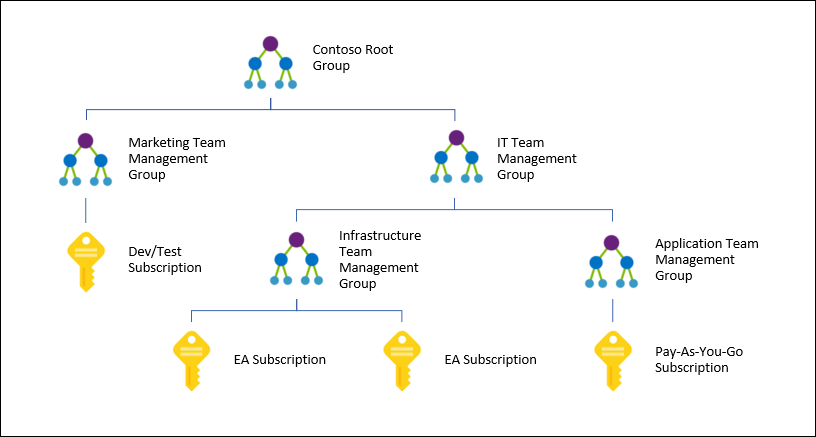
Microsoft has created a new administrative model for organisations that have many Azure subscriptions called Management Groups. With this feature, you can delegate permissions and deploy Azure Policy (governance) to lots of subscriptions at once.
The contents of this post are currently in preview and will definitely change at some point. Think of this post as a means of understanding the concepts rather than being a dummy’s guide to mouse clicking. Also, there are problems with the preview release at the time of writing – please read Microsoft’s original article before trying this out.
Note: Microsoft partners working with lots of customers, each in their own tenant, won’t find this feature useful. But larger organisations with many subscriptions will.
The idea is that you can create a management/policy hierarchy for subscriptions, as shown in this diagram from Microsoft:
The hierarchy:
Can contain up to 10,000 subscriptions in a single tenant.
It can span EA, CSP, MOSP, etc, as long as the subscriptions are attached to a single tenant.
There can be up to 6 levels of groups, not including the root (tenant) and the subscription.
A management group can have a single parent, but a parent can have many children.
Permissions
The tenant has a default root management group, under which all other management groups will be placed. Tenant = Azure AD so we see a cross-over from Azure to Azure AD administration here. By default, the Directory Administrator needs to elevate themselves to manage the default group. You can do this by opening the Azure Portal, browsing to Azure Active Directory > Properties, and setting Global Admin Can Manage Azure Subscriptions And Management Groups to Yes:
Now you have what it takes to configure management groups.
Administration
Allegedly today we can use Azure CLI or PowerShell to create/configure management groups, but I have not been able to from my PC (updated today) or from Azure Cloud Shell. However, the Azure Portal can be used. You’ll find Management Groups under All Services.
Creating a management group is easy; simply click New Management Group and give the new group a unique ID and name.
Here I have created a pair of management groups underneath the root:
To create a child management group, open the parent and click New Management Group:
I can repeat this as required to build up a hierarchy that matches my/your required administration delegation/policy model. How I’ve done it here isn’t probably how you’d do it.
This is what the contents of the Lab management group look like:
Delegating Permissions
In the old model, before management groups, permissions to subscriptions were created at the subscription level, leading to lots of repetitive work for large organisations with lots of subscriptions.
With management groups we can do this work once in the management group hierarchy, and then add subscriptions to the correct locations to pick up the delegations.
The “how” of managing the settings, memberships and permissions of a management group is not obvious. The buttons for managing a management group are hidden behind a “Details” link – not a button! See below:
Once you click Details, the controls for configuring the settings and subscription memberships of a management group are revealed in a new, otherwise hidden, blade:
Universal permissions should be assigned at the top level management group(s). For example, if I click Access Control (IAM) in the settings of the root management group, I can grant permissions to the root management group and, thanks to inheritance, I have implicitly granted permissions to all Azure subscriptions in my hierarchy. So a central Azure admin team would be granted rights at the default root management group, a division admin might be granted rights on a mid-level management group, and a dev might be given rights at a bottom-level management group.
Once you are in Details (settings) for a management group, click on Access Control (IAM) and you can grant permissions here. The users/groups are pulled from your Azure AD (tenant). As usual, users should be added to groups, and permissions should be assigned to well-named groups – I like the format of <management group name>-<role> for the group names.
Azure Policy
You can create a new Azure Policy and save it to a management group. Microsoft recommends that custom policy definitions are saved at a level higher than what you intend to assign it. The safe approach might be to save your custom policy definitions and initiative definitions at the root management group, and then assign them wherever they are required. Note that, just like permissions, any assigned initiative (recommended for easier ownership) or policy (not recommended due to ownership scaling issues) will be inherited. So if my organization requires Security Center to be enabled and OMS agents to be deployed for every VM, I can create a single initiative, stored at the root management group, and assign it to the root management group, and every VM in every subscription in the management group hierarchy will pick up this set of policies.
Here’s an example of where you can select a management group, subscription, or resource group as the target of an initiative definition assignment in Azure Policy:
Adding Subscriptions
Right now, we have a hierarchy but it’s useless because it does not contain any subscriptions. THE SUBSCRIPTIONS MUST COME FROM THE CURRENT TENANT.
Be careful before you do this! The delegated permissions and policies of the hierarchy will be applied to your subscriptions, and this might break existing deployments, administrative models, or governance policies. Be sure to build this stuff up in the management group hierarchy first.
To add a subscription, browse to & open the management group that the subscription will be a part of – a subscription can only be in a single management group, but it will inherit from parent management groups.
Click Add Existing to add a subscription as a member of this management group. This is also how you can convert an existing management group into a child of this management group. A pop-up blade appears. You can select the member object type (subscription or another management group). In this case, I selected a subscription.
The subscription will be registered in the management group hierarchy.
Wrap-Up
And that’s management groups. Don’t waste your time with them if:
You’re a Microsoft partner looking for a delegation model with customer’s tenants/subscriptions because it just cannot be done.
You have only a single subscription – just do your work at the subscription level unless you want to scale to lots of subscriptions later.
If you have a complex organisation with lots of subscriptions in a single tenant, then management groups will be of huge value for setting up your RBAC model and Azure Policy governance at the organisational and subscription levels.
Did you Find This Post Useful?
If you found this information useful, then imagine what 2 days of training might mean to you. I’m delivering a 2-day course in London on July 5-6, teaching newbies and experienced Azure admins about Azure Infrastructure. There’ll be lots of in-depth information, covering the foundations, best practices, troubleshooting, and advanced configurations. You can learn more here.