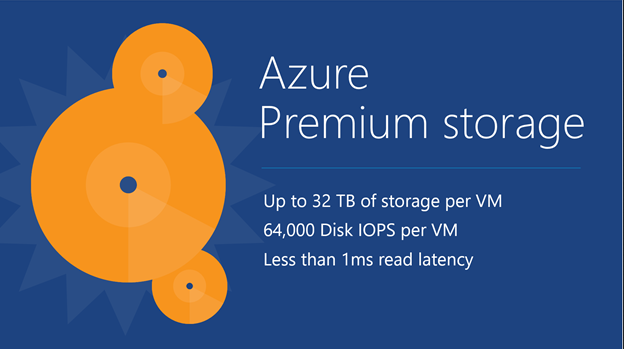
Understanding Azure Premium SSD Data Storage & Pricing

If you are deploying services that require fast data then you might need to use shared SSD storage for your data disks, and this is made possible using a Premium Storage Account with DS-Series or GS-Series virtual machines. Read on to learn more.

More Speed, Scottie!

A typical virtual machine will offer up to 300 IOPS (Basic A-Series) or 500 IOPS (Standard A-Series and up) per data disk. There are a few ways to to improve data performance:

  • More data disks: You can deploy a VM spec that supports more than 1 data disk. If each disk has 500 IOPS, then aggregating the disks multiplies the IOPS. If I store my data across 4 data disks then I have a raw potential 2000 IOPS.
  • Disk caching: You can use a D-Series or G-Series to store a cache of frequently accessed data on the SSD-based temporary drive. SSD is a nice way to improve data performance.
  • Memory caching: Some application offer support for caching in RAM. A large memory type such as the G-Series offers up to 448 GB RAM to store data sets in RAM. Nothing is faster than RAM!

Shared SSD Storage

Although there is nothing faster than RAM there are a couple of gotchas:

  • If you have a large data set then you might not have enough RAM to cache in.
  • G-Series VMs are expensive – the cloud is all about more, smaller VMs.

If an SSD cache is not big enough either, then maybe shared SSD storage for data disks would offer a happy medium: lots of IOPS and low latency; It’s not as fast as RAM, but it’s still plenty fast! This is why Microsoft gave us the DS- and GS-Series virtual machines which use Premium Storage.

Premium Storage

Shared SSD-based storage is possible only with the DS- and GS-Series virtual machines – note that DS- and GS-Series VMs can use standard storage too. Each spec offers support for a different number of data disks. There are some things to note with Premium Storage:

  • OS disk: By default, the OS disk is stored in the same premium storage account as the premium data disks if you just go next-next-next. It’s possible to create the OS disk in a standard storage account to save money – remember that data needs the speed, not the OS.
  • Spanning storage accounts: You can exceed the limits (35 TB) of a single premium storage account by attaching data disks from multiple premium storage accounts.
  • VM spec performance limitations: Each VM spec limits the amount of throughput that it supports to premium storage – some VMs will run slower than the potential of the data disks. Make sure that you choose a spec that supports enough throughput.
  • Page blobs: Premium storage can only be used to store VM virtual hard disks.
  • Resiliency: Premium Storage is LRS only. Consider snapshots or VM backups if you need more insurance.
  • Region support: Only a subset of regions support shared SSD storage at this time: East US2, West US, West Europe, Southeast Asia, Japan East, Japan West, Australia East.
  • Premium storage account: You must deploy a premium storage account (PowerShell or Preview Portal); you cannot use a standard storage account which is bound to HDD-based resources.

imageThe maximum sizes and bandwidth of Azure premium storage

Premium Storage Data Disks

Standard storage data disks are actually quite simple compared to premium storage data disks. If you use the UI, then you can only create data disks of the following sizes and specifications:

image The 3 premium storage disk size baselines

However, you can create a premium storage data disk of your own size, up to 1023 GB (the normal Azure VHD limit). Note that Azure will round up the size of the data disk to determine the performance profile based on the above table. So if I create a 50 GB premium storage VHD, it will have the same performance profile as a P10 (128 GB) VHD with 500 IOPS and 100 MB per second potential throughput (see VM  spec performance limitations, above).

Pricing

You can find the pricing for premium storage on the same page as standard storage. Billing is based on the 3 models of data disk, P10, P20, and P30. As with performance, the size of your disk is rounded up to the next model, and you are charged based on the amount of storage actually consumed.

If you use snapshots then there is an additional billing rate.

Example

I have been asked to deploy an Azure DS-Series virtual machine in Western Europe with 100 GB of storage. I must be able to support up to 100 MB/second. The virtual machine only needs 1 vCPU and 3.5 GB RAM.

So, let’s start with the VM. 1 vCPU and 3.5 GB RAM steers me towards the DS1 virtual machine. If I check out that spec I find that the VM meets the CPU and RAM requirements. But check out the last column; The DS1 only supports a throughput of 32 MB/second which is well below the 100 MB/second which is required. I need to upgrade to a more expensive DS3 that has 4 vCPUs and 14 GB RAM, and supports up to 128 MB/second.

Note: I have searched high and low and cannot find a public price for DS- or GS-Series virtual machines. As far as I know, the only pricing is in I got pricing for virtual machines from the “Ibiza” preview portal. There I could see that the DS3 will cost around €399/month, compared to around €352/month for the D3.

image

[EDIT] A comment from Samir Farhat (below) made me go back and dig. So, the pricing page does mention DS- and GS-Series virtual machines. GS-Series are the same price as G-Series. However, the page incorrectly says that DS-Series pricing is based on that of the D-Series. That might have been true once, but the D-Series was reduced in price and the DV2-Series was introduced. Now, the D-Series is cheaper than the DS-Series. The DS-Series is the same price as the DV2-Series. I’ve checked the pricing in the Azure Preview Portal to confirm.

If I use PowerShell I can create a 50 GB data disk in the standard storage account. Azure will round this disk up to the P10 rate to determine the per GB pricing and the performance. My 50 GB disk will offer:

  • 500 IOPS
  • 100 MB/second (which was more than the DS1 or DS2 could offer)

The pricing will be €18.29 per GB per month. But don’t forget that there are other elements in the VM pricing such as OS disk, temporary disk, and more.

Once could do storage account snapshots to “backup” the VM, but the last I heard it was disruptive to service and not supported. There’s also a steep per GB cost. Use Azure Backup for IaaS VMs and you can use much cheaper blob blobs in standard storage to perform policy-based non-disruptive backups of the entire VM.
Understanding Azure Standard Storage and Pricing

Imagine that you’re brand new to Azure. You’ve been asked to price up a solution with some virtual machines. You use the best pricing tool for Azure and land at a page that has a bewildering collection of 12 items. You read through them, and are left none the wiser. I’m going to try cut through a lot of stuff to help you select the right storage for IaaS solutions such as VMs, backup, and DR.

There are a few things people expect when I present on storage in Azure. They expect LUNs with predefined sizes, they expect to see RAID, and when you talk about duplicate copies, they expect to see each copy. Sorry – it’s actually all much simpler than that – that’s a good thing!

Note that I will cover SSD-based Premium Storage in another post.

Terminology

You do not create LUNs in Azure; storage in Azure comes in units called a storage account. A storage account is an address point in the Azure cloud with 2 secure access keys (a primary key and an alternate secondary key to enable resetting the primary without loss of service).

When you create a storage account you create a unique URL. This could be used publicly … only if you know the very long secret access keys. You do not set a size; you simply store what you need and pay for what you store with up to 500 TB per storage account, and up to 100 storage accounts per subscription (by default). You also set a resiliency level to provide you with some level of protection against physical system failure.

Resiliency Levels

There are 4 resiliency levels, summarized nicely here:

image

  • Locally Redundant Storage (LRS): 3 synchronously replicated copies are stored in a single facility in your region of choice. There is no facility fault tolerance. This is the cheapest resiliency level.
  • Geo-Redundant Storage (GRS): 3 synchronously replicated copies are stored in a single facility in your region of choice. 3 asynchronously replicated (no deprecation in performance) copies are stored in the neighbouring region, offering facility and region fault tolerance. This is the most expensive resiliency level.
  • Read-Access Geo-Redundant Storage (RA-GRS): synchronously replicated copies are stored in a single facility in your region of choice. 3 read only asynchronously replicated (no deprecation in performance) copies are stored in the neighbouring region, offering facility and region fault tolerance, but with read-only access in that other region.
  • Zone Redundant Storage (ZRS): Three copies of your data are stored across 2 to 3 facilities in one or two regions.

Note that we cannot use ZRS for IaaS (VMs, backup, DR). Typically we use LRS or GRS for VMs or backup storage. Azure Site Recovery (ASR) currently requires you to use GRS. You can switch between LRS, GRS and RA-GRS, but not from/to ZRS.

You do not see 3 or 6 copies of your data; this is abstracted from your view of the Azure fabric and you just see your storage account.

Here are the “neighbouring site” pairings:

image

Azure Storage Services

Once you’ve figured out the resiliency levels, the next step in pricing is determining which storage service you will be using. There are four services:

  • Blob storage: In the IaaS world, we use this for Azure Backup. Files you upload are created as blobs. You can also use it to store documents, videos, pictures, and other unstructured text or binary data.
  • File storage: This is a newly available service that allows you to use an shared folder (no server required) to share data between applications using SMB 3.0. This is not to be used for user file sharing – use a VM or O365.
  • Page Blobs & disks: In the IaaS world this is where we store VM virtual hard disks (VHD) for running or replicated (ASR DR) VMs.
  • Tables & Queues: This offers NoSQL storage for unstructured and semi-structured data—ideal for web applications, address books, and other user data. Read that as .. for the devs.

This can be confusing. Do you need to create a blob storage account and a file storage account? What if you select the wrong one? It’s actually rather simple. When you upload a file to Azure it’s placed into blob storage in your storage account. When you create a VM, the disks are put into page blobs & disks automatically. If you start using file storage to share data between services via SMB 3.0, then that’s used automatically. And you can use a single storage account to use all 4 services if you want to – Azure just figures it out and bills you appropriately.

Storage Transactions

I am confused at the time of writing this post. Up until now, transactions (an indecipherable term) were a micro-payment billed at some tiny cost per 100,000. I had no idea what they were, but I know from my labs that the costs were insignificant unless you have a huge storage requirement. In fact, in my presentations I normally said:

The cost of estimating the cost of storage transactions is probably higher than the actual cost of the storage transactions.

And when writing this post, I found that storage transactions were no longer mentioned on the Azure storage pricing web page. Hmm! It would be great if that cost was folded into the price per GB – you can actually only do so much activity anyway because of how rack stamps are designed and performance is price-banded.

I’ve been told that people are still being billed, but no rate is publicly listed on the official site. I’ll update when I find out more.

Examples

Let’s say that I need to deploy a bunch of test Windows Server virtual machines that the business isn’t worried about losing. My goal is to keep costs down. I need 1000 GB of storage, accounting for the 127 GB C: drive, and any additional data disks. I know that this will use page blobs & disks, and I’m going to use LRS for this deployment. If I select North Europe as my region then the cost per GB is €0.0422 so the monthly cost will be around 42.2 – I say around because there will be some other small files maintained on storage.

I have a scenario where I need to replicate 5 TB of vSphere virtual machines to Azure using ASR. ASR requires GSR storage and I will be using page blobs & disks. The costs will be €0.0802/GB for the first 1024 GB and €0.0675/GB for the next 4096 GB. That’s €82.1248 + €276.48 = around €359 per month.

And what if will use 100 GB of storage for Azure Backup (DPM or direct). That’s going to be using blob storage, of either LRS or GRS. I’ll opt for GRS, which will cost €0.0405/GB, so I’ll pay a teeny €4.05 per month for backup storage (Azure Backup has an additional front-end per-instance charge).

Microsoft News – 30 September 2015

Microsoft announced a lot of stuff at AzureCon last night so there’s lots of “launch” posts to describe the features. I also found a glut of 2012 R2 Hyper-V related KB articles & hotfixes from the last month or so.

Hyper-V

Windows Server

Azure

Office 365

EMS

Understanding Microsoft’s Explanation of Azure VM Specs

This post is a part of a series:

I have a great laugh when I am in front of a room and explaining Microsoft’s Azure VM specs to people. Take a look at this screenshot from the pricing site:

imageLet me ask you a few questions about the Basic A1 VM:

  1. How much disk space does that VM have?
  2. How many data disks can that VM be allocated?
  3. What is the max IOPS of each data disk?
  4. What are the maximum number of virtual NICs can that VM have?

Let me give you a clue:

  1. The answer is not 40 GB
  2. You don’t have enough information
  3. You don’t have enough information
  4. You don’t have enough information

We have answered 1/4 questions from the pricing site.

Let’s go dig for information on the Sizes For Virtual Machines page. Here we get a different set of information:

imageLet’s try answer those questions about the Basic A1 again:

  1. The answer is not 1063 (1023 + 40) GB
  2. A maximum of 2 data disks is correct
  3. Each data disk can have up to 300 IOPS. With 2 data disks, we can have an aggregate of 600 IOPS using Storage Spaces, etc, in the guest OS
  4. You still don’t have enough information.

OK, we now can answer 2/4 questions correctly! Let’s go to a reliable tool: Google. I found Create A VM With Multiple NICs. There I have found the below:

image

Now I can update my answers:

  1. The answer is not 1063 (1023 + 40) GB
  2. A maximum of 2 data disks is correct
  3. Each data disk can have up to 300 IOPS. With 2 data disks, we can have an aggregate of 600 IOPS using Storage Spaces, etc, in the guest OS
  4. A Basic A1 VM can have 1 virtual NIC

OK, would someone please tell me how much storage space will be consumed if I deploy a Basic A1 VM with Windows Server?!?!?!?!

The answer is that the C: drive of any Windows Server VM that is deployed from the Marketplace is 127 GB. The D: drive (a temporary drive that you should not store persistent data on) is indicated in the pricing. So, the Basic A1 VM will deploy a 127 GB C: drive and a 40 GB D: drive.

    1. How much disk space does that VM have? 167 GB.
    2. How many data disks can that VM be allocated? 1 maximum of 2.
    3. What is the max IOPS of each data disk? 300 IOPS.
    4. What are the maximum number of virtual NICs can that VM have? It can have 1 vNIC.

[EDIT]

I found another nugget of information today while pricing up DS-Series and GS-Series virtual machines. Microsoft says that DS-Series cost the same as D-Series. That’s no longer the case; D-Series was reduced in price on Oct 1st 2015, and DV2-Series was introduced as an upgrade. Now DS-Series costs the same as Dv2-Series at this time. GS-Series is still (at this time) the same price as G-Series.

If only there was a website with that information!

DataON Gets Over 1 Million IOPS using Storage Spaces With A 2U JBOD

I work for a European distributor of DataON storage. When Storage Spaces was released with WS2012, DataON was one of the two leading implementers, and to this day, despite the efforts of HP and Dell, I think DataON gives the best balance of:

  • Performance
  • Price
  • Stability
  • Up-to-date solutions

A few months ago, DataON sent us a document on some benchmark work that was done with their new 12 Gb SAS JBOD. Here are some of the details of the test and the results.

Hardware

  • DNS-2640D (1 tray) with 24 x 2.5” disk slots
  • Servers with 2x E5-2660v3 CPUs, 32 GB RAM, 2 x LSI 9300-8e SAS adapters, and 2 x SSDs for the OS – They actually used the server blades from the CiB-9224, but this could have been a DL380 or a Dell R7x0
  • Windows Server 2012 R2, Build 9600
  • MPIO configured for Least Blocks (LB) policy
  • 24 x 400GB HGST 12G SSD

Storage Spaces

A single pool was created. Virtual disks were created as follows:

image

Test Results

IOMeter was run against the aggregate storage in a number of different scenarios. The results are below:

image

The headline number is 1.1 million 4K reads per second. But even if we stick to 8K, the JBOD was offering 700,000 reads or 300,000 writes.

I bet this test rig cost a fraction of what the equivalent performing SAN would!

Microsoft News – 28 September 2015

Wow, the year is flying by fast. There’s a bunch of stuff to read here. Microsoft has stepped up the amount of information being released on WS2016 Hyper-V (and related) features. EMS is growing in terms of features and functionality. And Azure IaaS continues to release lots of new features.

Hyper-V

Windows Client

Azure

System Center

Office 365

EMS

Security

Miscellaneous

ReFS Accelerated VHDX Operations

One of the interesting new features in Windows Server 2016 (WS2016) is ReFS Accelerated VHDX Operations (which also work with VHD). This feature is not ODX (VAAI for you VMware-bods), but it offers the same sort of benefits for VHD/X operations. In other words: faster creation and copying of VHDX files, particularly fixed VHDX files.

Reminder: while Microsoft continually tells us that dynamic VHD/Xs are just as fast as fixed VHDX files, we know from experience that the fixed alternative gives better application performance. Even some of Microsoft’s product groups refuse to support dynamic VHD/X files. But the benefit of Dynamic disks is that they start out as a small file that is extended as time requires, but fixed VHDX files take up space immediately. The big problem with fixed VHD/X files is that they take an age to create or extend because they must be zeroed out.

Those of you with a nice SAN have seen how ODX can speed up VHD/X operations, but the Microsoft world is moving (somewhat) to SMB 3.0 storage where there is no SAN for hardware offloading.

This is why Microsoft has added Accelerated VHDX Operations to ReFS. If you format your CSVs with ReFS then ReFS will speed up the creation and extension of the files for you. How much? Well this is why I built a test rig!

The back-end storage is a pair of physical servers that are SAS (6 Gb) connected to a shared DataON DNS-1640 JBOD with tiered storage (SSD and HDD); I built a WS2016 TPv3 Scale-Out File Server with 2 tiered virtual disks (64 KB interleave) using this gear. Each virtual disk is a CSV in the SOFS cluster. CSV1 is formatted with ReFS and CSV2 is formatted with NTFS, 64 KB allocation unit size on both. Each CSV has a file share, named after the CSV.

I had another WS2016 TPv3 physical server configured as a Hyper-V host. I used Switch Embedded Teaming to aggregate a pair of iWARP NICs (RDMA/SMB Direct, each offering 10 GbE connectivity to the SOFS) and created a pair of virtual NICs in the host for SMB Multichannel.

I ran a script on the host to create fixed VHDX files against each share on the SOFS, measuring the time it requires for each disk. The disks created are of the following sizes:

  • 1 GB
  • 10 GB
  • 100 GB
  • 500 GB

Using the share on the NTFS-formatted CSV, I had the following results:

image

A 500 GB VHDX file, nothing that unusual for most of us, took 40 minutes to create. Imagine you work for an IT service provider (which could be a hosting company or an IT department) and the customer (which can be your employer) says that they need a VM with a 500 GB disk to deal with an opportunity or a growing database. Are you going to say “let me get back to you in an hour”? Hmm … an hour might sound good to some but for the customer it’s pretty rubbish.

Let’s change it up. The next results are from using the share on the ReFS volume:

image

Whoah! Creating a 500 GB fixed VHDX now takes 13 seconds instead of 40 minutes. The CSVs are almost identical; the only difference is that one is formatted with ReFS (fast VHD/X operations) and the other is NTFS (unenhanced). Didier Van Hoye has also done some testing using direct CSV volumes (no SMB 3.0), comparing Compellent ODX and ReFS. What the heck is going on here?

The zero-ing out process that is done while creating a fixed VHDX has been converted into a metadata operation – this is how some SANs optimize the same process using ODX. So instead of writing out to the disk file, ReFS is updating metadata which effectively says “nothing to see here” to anything (such as Hyper-V) that reads those parts of the VHD/X.

Accelerated VHDX Operations also works in other subtle ways. Merging a checkpoint is now done without moving data around on the disk – another metadata operation. This means that merges should be quicker and use fewer IOPS. This is nice because:

  • Production Checkpoints (on by default) will lead to more checkpoint usage in DevOps
  • Backup uses checkpoints and this will make backups less disruptive

Does this feature totally replace ODX? No, I don’t think it does. Didier’s testing proves that ReFS’s metadata operation is even faster than the incredible performance of ODX on a Compellent. But, the SAN offers more. ReFS is limited to operations inside a single volume. Say you want to move storage from one LUN to another? Or maybe you want to provision a new VM from a VMM library? ODX can help in those scenarios, but ReFS cannot. I cannot say yet if the two technologies will be compatible (and stable together) at the time of GA (I suspect that they will, but SAN OEMs will have the biggest impact here!) and offer the best of both worlds.

This stuff is cool and it works without configuration out of the box!

Microsoft News – 7 September 2015

Here’s the recent news from the last few weeks in the Microsoft IT Pro world:

Hyper-V

Windows Server

Windows

System Center

Azure

Office 365

Intune

Events

  • Meet AzureCon: A virtual event on Azure on September 29th, starting at 9am Pacific time, 5pm UK/Irish time.

A Roundup of WS2016 TPv3 Links

I thought that I’d aggregate a bunch of links related to new things in the release of Windows Server 2016 Technical Preview 3 (TP3). I think this is pretty complete for Hyper-V folks – as you can see, there’s a lot of stuff in the networking stack.

FYI: it looks like Network Controller will require the DataCenter edition by RTM – it does in TPv3. And our feedback on offering the full installation during setup has forced a reversal.

Hyper-V

Administration

Containers

Networking

Storage


Nano Server

Failover Clustering

Remote Desktop Services

System Center

Microsoft News 13-August-2015

Hi folks, it’s been a while since I’ve posted but there’s a great reason for that – I got married and was away on honeymoon 🙂 We’re back and trying to get back into the normal swing of things. I was away for the Windows 10 launch, happily ignoring the world. Windows 10 in the businesses is not a big deal yet – Microsoft needs to clear up licensing and activation for businesses before they’ll deliberately touch the great new OS – I’ve already had customers say “love it, but not until we get clarification”.

Hyper-V

Windows Server

Windows

Azure

System Center

Office 365

Miscellaneous