Microsoft News Summary – 20 August 2014

The headline news from yesterday is that Steve Ballmer has resigned his new position from the Microsoft board to focus on “teaching” and his duties as the new owner of the Los Angeles Clippers NBA basketball franchise. He’s still the largest independent owner of MSFT stock.

Microsoft

Virtual Machine Manager

  • VMM 2012 Self-Service users cannot open a console session to a virtual machine: When you try to connect to the console session of a virtual machine (VM) that is running in Windows Server 2012 by using Microsoft System Center 2012 R2 Virtual Machine Manager or Microsoft System Center 2012 Virtual Machine Manager Service Pack 1 (SP1), the connection fails, and you receive the following error message – Virtual Machine Manager lost the connection to the virtual machine for one of the following reasons.

Azure

Office 365

Microsoft News Summary – 18 August 2014

The big news this morning is that Microsoft has had to withdraw 4 of last weeks automatic updates. But in other news:

Microsoft News Summary – 15 August 2014

Here’s the latest from the last 24 hours:

KB2980661 – August 2014 Update Rollup for WS2012 R2 Added Tiered Storage Spaces Performance Metrics

This KB informs us that Microsoft added much needed performance counters to Windows Server 2012 R2 for monitoring tiered Storage Spaces. You can find more details here. The new perfmon metrics are:

  • Avg. Tier Bytes/Transfer
  • Tier Transfer Bytes/sec
  • Avg. Tier Queue Length
  • Avg. Tier sec/Transfer
  • Tier Transfers/sec
  • Current Tier Queue Length
  • Avg. Tier Bytes/Write
  • Tier Write Bytes/sec
  • Avg. Tier Write Queue Length
  • Avg. Tier sec/Write
  • Tier Writes/sec
  • Avg. Tier Bytes/Read
  • Tier Read Bytes/sec
  • Avg. Tier Read Queue Length
  • Avg. Tier sec/Read
  • Tier Reads/sec

Microsoft News Summary – 12 August 2014

Welcome to the SMB 3.02 edition of this update. Jose Barreto has been very busy!

Nanu nanu!

Microsoft News Summary – 11 August 2014

I think we can call today’s issue “What’s New in Azure”:

Storage Spaces – Not Just For SMEs

I read a comment today that Storage Spaces was great for small/medium deployments. And yup, it is. I use Storage Spaces to store my invaluable photo library at home (a pair of Toshiba USB 3.0 3 TB drives). At work, we use a single DataOn Storage DNS-1640 24 x slot JBOD that is dual SAS attached to a pair of 2U servers to create an economical Hyper-V cluster. And we have sold 2U DataOn Storage CiB-9220 “Cluster in a Box” units for similar deployments in SMEs.

But most of our sales of JBODs have actually been for larger deployments. Let me give you an example of scalability using an image from my software-defined storage slide decks:

image

In the above diagram there are 4 x DataOn Storage DNS-1660 JBODs. Each has 60 x 3.5” disk slots. Using 6 TB drives (recently certified by DataOn) that gives you up to 1440 TB or just over 1.4 petabytes of raw storage. That’s with 7200 RPM drives and that just won’t do. We can mix in some dual chanel SAS SSDs (using 3.5 to 2.5 adapters) to offer peak performance (read and write).

In the above design there are 4 SOFS cluster nodes, each having 2 x direct SAS connections to each JBOD – 4 JBODs therefore 8 SAS connections in each server. Remember that each SAS cable has 4 SAS ports. So a 6 Gb SAS cable actually offers 24 Gbps of throughput.

Tip from DataOn: If you’re using more than 48 drives then opt for 12 Gb SAS cards, even if your JBOD runs at 6 Gb; the higher spec cards circuitry performs better even with the lower speed SAS disks/JBODs.

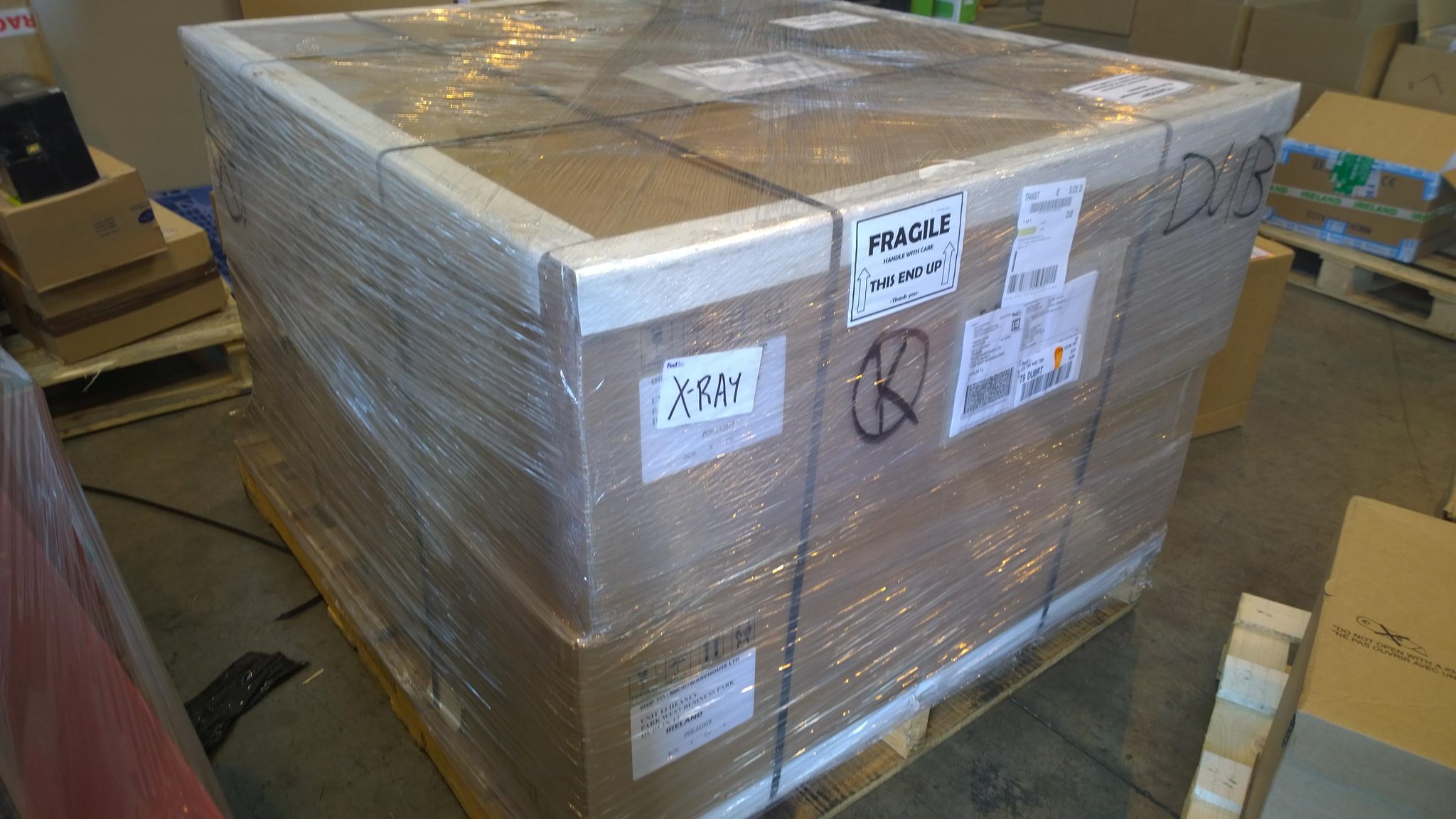
Now this is where you say that this is all great in theory but surely no one is doing this. And there you would be wrong. Very wrong. MVP Carsten Rachfahl has been deploying large installations since late 201 in Germany. The same is also true of MVPs Thomas Maurer and Michael Rüefli in Switzerland. At my job, we’ve been selling quite a few JBODs. In fact, most of those have been to replace more expensive SAN installations from legacy vendors. This week I took this photo of the JBODs in the above architecture while they were passing through our warehouse:

Yup, that’s potentially over 1 PB of raw storage in 16U of rack space sitting on one shipping pallet. The new owner of that equipment is building a SAS solution that will run on Hyper-V and use SMB 3.0 storage. They’ll scale out bigger and cheaper than they would have done with their incumbent legacy storage vendor – and that’s why they’re planning on buying much more of this kind of storage.

Microsoft News Summary – 6 August 2014

I’ve done photography in some of the most rural parts of the world, but I’ve never been without phone or Internet for 3 days before. *exaggeration alert*  Being in a dark valley in Scotland over a long weekend was like having an arm removed. Anywho, here’s the news from the last few days. Note that there is an “August Update for …” Windows 8.1 and Windows Server 2012 R2 coming out next week, what the media will probably called “Update 2 for …”.

KB2989384 – Hyper-V Best Practice Analyzer (BPA) Does Not Close

Microsoft published a KB article to help you when the Hyper-V Best Practice Analyzer (BPA) does not exit or appears to hang/crash.

Symptoms

Hyper-V Best Practice Analyzer (BPA) does not exit under the following conditions:

  • A virtual machine already exists.
  • The virtual machine is connected to a vhd or vhdx as the hard disk drive. However, the vhd or vhdx file itself is renamed or deleted, and does not exist in reality.

Cause

The PowerShell script as seen here runs internally when running the Hyper-V BPA:

C:\Windows\System32\BestPractices\v1.0\Models\Microsoft\Windows\Hyper-V\Hyper-V.ps1

However, due to a defect in the script, the information retrieval process goes into a loop, and the BPA does not exit until timeout.

Workaround

You need to delete the non-existing vhd or vhdx from the virtual machine settings, and then rerun BPA for Hyper-V by following these steps:

  1. Start Hyper-V Manager.
  2. Select the virtual machine that is connected to a non-existing vhd or vhdx, then right-click and open Settings.
  3. From the virtual machine settings window, click on the non-existing hard drive, and then click Delete.
  4. Click OK to close the virtual machine setting window.
  5. Rerun BPA for Hyper-V from Server Manager.

The article claims to apply to Windows Server 2012 (WS2012).

Microsoft News Summary – 28 July 2014

It was a quiet weekend. Note a useful scripts for health checking a Scale-Out File Server (SOFS) by Jose Barreto.