Windows Server 2012 R2 Licensing

As usual, I am not answering any questions about licensing. That’s the job of your reseller or distributor, so ask them.

Microsoft released the updating licensing details for WS2012 R2 several weeks ago.  Remember that once released, you will be buying WS2012 R2, even if you plan to downgrade to W2008 R2.  In this post, I’m going to cover the licensing for “core” editions of Windows Server.

The Core Editions

There aren’t any huge changes to the “core” editions of Windows Server (Datacenter and Standard).  As with WS2012, the two editions are identical technically, having the same scalability and features … except one.

Processors

Both the Standard and Datacenter edition cover a licensed server for 2 processors.  Processors are CPUs or sockets.  Cores are not processors.  A server with 2 Intel Xeon E5 processors with 10 cores each has 2 processors.  It requires one Window Server license.  A server with 4 * 16 core AMD processors has 4 processors.  It needs 2 Windows Server licenses.

This applies no matter what downgraded version you plan to install.

Downgrade Rights

According to Microsoft:

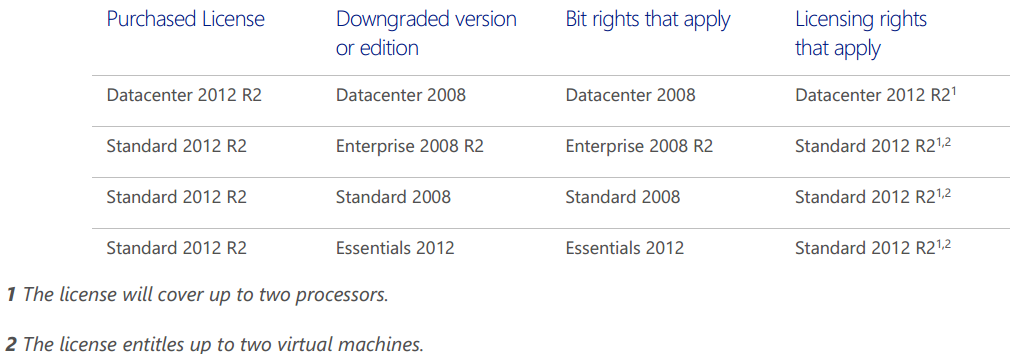
If you have Windows Server 2012 R2 Datacenter edition you will have the right to downgrade software bits to any prior version or lower edition. If you have Windows Server 2012 R2 Standard edition, you will have the right to downgrade the software to use any prior version of Enterprise, Standard or Essentials editions.
image

The One Technical Feature That Is Unique To Datacenter Edition

Technically the Datacenter and Standard editions of WS2012 R2 are identical.  With one exception, which is really due to the exceptional virtualization licensing rights granted with the Datacenter edition.

If you use the Datacenter edition of WS2012 R2 (via any licensing program) for the management OS of your hosts Hyper-V then you get a feature called Automated Virtual Machine Activation (AVMA).  With this you get an AVMA key, that you install into your template VMs (guest OS must be WS2012 R2 DC/Std/Essentials) using SLMGR.  When that template is deployed on to the WS2012 R2 Datacenter hosts, then the guest OS will automatically activate without using KMS or online activation.  Very nice for multi-tenant or Network Virtualization-enabled clouds.

Virtualization Rights

Everything in this section applies to Windows Server licensing on all virtualization platforms on the planet outside of the SPLA (hosting) licensing program.  The key difference between Std and DC is the virtualization rights.  Any host licensed with DC gets unlimited VOSEs.  A VOSE (Virtual Operating System Environment) is licensing speak for a guest OS.  In other words:

  1. Say you license a host with the DC edition of Windows Server.
  2. You can install Windows Server (DC or Std) on an unlimited number of VMs that run on that host.
  3. You cannot transfer those VOSEs (licenses) to another host.
  4. You can transfer a volume license of DC (or Standard for that matter) once every 90 days to another host.  The VOSEs move with that host.

The Standard edition comes with 2 VOSEs.  That means you can install the Std edition of Windows Server in two VMs that run on a licensed host:

  1. Say you license a host with the Std edition of Windows Server.
  2. You can install Windows Server Standard on up to 2 VMs that run on that host.
  3. You cannot transfer those VOSEs (licenses) to another host.
  4. You can transfer a volume license of Standard (or DC for that matter) once every 90 days to another host.  The VOSEs move with that host.

You can stack Windows Server Standard edition licenses to get more VOSEs on a host:

    1. Say you license a host with 3 copies of the Std edition of Windows Server.  This is an accounting operation.  You do not install Windows 3 times on the host.  You do not install 3 license keys on the host.
    2. You can install Windows Server Standard on up to 6 (3 Std * 2 VOSEs) VMs that run on that host.
    3. You cannot transfer those VOSEs (licenses) to another host.
    4. You can transfer a volume license of Standard (or DC for that matter) once every 90 days to another host.  The VOSEs move with that host.

There is a sweet spot (different for every program/region/price band) where it is cheaper to switch from Std licensing to DC licensing for each host.

If you need HA or Live Migration then you license all hosts for the maximum number of VMs that can (not will) run on each host, even for 1 second.  The simplest solution is to license each host for the DC edition.

Upgrade Scenarios

WS2012 CALs do not need an upgrade.  WS2012 server licenses require one of the following to be upgraded:

  • Software Assurance (SA)
  • A new purchase

In my opinion anyone using virtualization is a dummy for not buying SA on their Windows Server licensing.  If you plan on availing of new Hyper-V features (assuming you are using Hyper-V) or you want to install even 1 newer edition of Windows Server, then you need to buy the licenses all over again … SA would have been cheaper, and remember that upgrades are just one of the rights included in SA.

Pricing

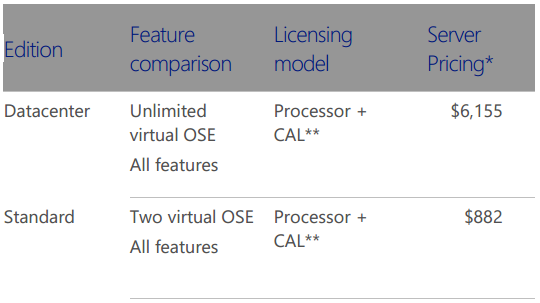
This is what everyone wants to know about!  The $US Open NL (the most expensive volume license) pricing is shown, as it’s the most commonly used example:
image

The Standard edition went up a small amount from W2008 R2 to WS2012.  It has not increased with WS2012 R2.

The Datacenter edition did not increase from W2008 R2 to WS2012.  It has increased with the release of WS2012 R2.  However, think of how much you’re getting with the DC edition: unlimited VOSEs!

Reminder: There is no difference in Windows Server pricing no matter what virtualization you use.  The price of Windows Server on a Hyper-V host is the same as it is on a VMware host.  Please send me the company name/address of your employer or customers if you disagree – I’d love an easy $10,000 for reporting software piracy Open-mouthed smile

Calculating License Requirements

Do the following on a per-server basis.  This applies whether you are using virtualization or not, and no matter what virtualization you plan to use.

Step 1: Count your physical processors

If you have 1 or 2 physical processors in a server then your server needs 1 copy of Windows Server.  If your server will have 4 processors then you need 2 copies of Windows Server.  If your server will have 8 processors then you will need 4 copies of Windows Server.

Step 2: Count your virtual machines

How many virtual machines running Windows Server will possibly run on the host.  This include VMs that normally run on another host, but could be moved (Quick Migration, Live Migration, vMotion) manually or automatically, or failed over due to cluster high availability (HA).

You have 2 hosts in a cluster.  Each is running 2 VMs normally but could run 4 VMs, then you need to license each host for 4 VMs.  A copy of Windows Server Standard gives you 2 VOSEs.  Each host will need 4 VOSEs because 4 VMs could run on each host.  Therefore you need 2 copies of Standard per host.

When is the sweet spot?  That depends on your pricing.  Datacenter costs $6,155 and Standard costs $882 under US Open NL.  $6,155 / $882 = 6.97.  7 copies of Windows Std = the price of Windows DC.  Therefore the sweet spot for switching is 14 VMs per host.  Once you get close to 14 VMs that could run on a host, you would be better off economically by buying the DC edition.
Observing Dynamic Memory in Linux VMs on WS2012 R2 Hyper-V

There are a number of improvements to Linux Support in Windows Server 2012 R2 Hyper-V.  One of the ones we figured out before the announcements, thanks to the public nature of the Linux builds (Linux Integration Services are in the kernel), was the added support for Dynamic Memory in Linux guest OSs … only supported on WS2012 R2 Hyper-V, even if you can get it working on WS2012 Hyper-V.

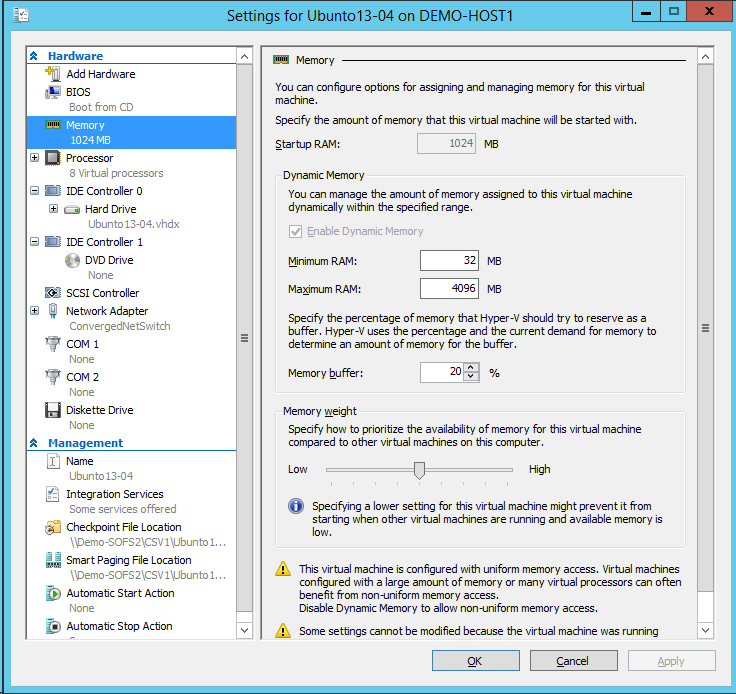
I set up a Ubuntu 13.04 VM … the install on my virtual SOFS via SMB 3.0 was quick because I was using iWARP NICs with vRSS enabled in the guest OS of the virtual file servers.  I configured the memory of the VM as follows.  Note that the Minimum RAM (if idle and the guest OS is able) is 32 MB.

image

I booted the Ubuntu VM up, let it sit for a couple of minutes, and this is what I saw:

image

The memory pressure was low, so the VM ballooned down from the Startup RAM of 1024 MB down to 150 MB, then 144 MB, and then 139 MB.  I’m not even going to say that this would be the lowest point; the memory demand (95 MB above) and assignment (139 MB above) dropped every few minutes while writing this post.  Nice Smile  This will be very good news for hosting companies and large enterprises that want to use Hyper-V to run lots of Linux guests, in addition to the other features that WS2012 R2 Hyper-V can offer.

FYI: do not set up DM for Linux guest as I did.  I suspect a bug (and have logged one): DM and the the guest OS will do their best to get the VM down to the minimum RAM.  So much so, that the OS kills processes one by one until the kernel panics, somewhere at around 121 assigned MB RAM Smile  So be a little more realistic with the minimum RAM setting.

Windows Server 2012 R2 & Windows 8.1 RTM Are Available On MSDN and TechNet

I have just confirmed that the news is true; Windows Server 2012 R2 and Windows 8.1 were in fact legitimately posted by Microsoft onto:

  • MSDN
  • And yes … TechNet

Microsoft blogged about it a little while ago, Mary Jo Foley posted about it, and I got an official email while here in the airport, on my way to London, where I’m demo-ing the Preview build Sad smile

I have personally logged into all 3 services and the media is there.  Woohoo!

Remember:

  • MSDN licenses are for test & dev
  • TechNet is for evaluation
  • The only legit production source is for those who have Software Assurance on their server licenses, and that source is MVLS …. this will not be updated until October 18th when Windows 8.1 and Windows Server 2012 R2 are generally available (GA – available to buy)

You cannot buy WS2012 R2 or Windows 8.1 yet.  Windows 8.1 Enterprise won’t be out for a little while.  System Center 2012 R2 (2012 does not support the new OS) is not out yet either – all will be out at the previously announced GA date.

The Effects Of WS2012 R2 Storage Spaces Write-Back Cache On A Hyper-V VM

I previously wrote about a new feature in Windows Server 2012 R2 Storage Spaces called Write-Back Cache (WBC) and how it improved write performance from a Hyper-V host.  What I didn’t show you was how WBC improved performance from where it counts; how does WBC improve the write-performance of services running inside of a virtual machine?

So, I set up a virtual machine.  It has 3 virtual hard disks:

  • Disk.vhdx: The guest OS (WS2012 R2 Preview), and this is stored on SOFS2.  This is a virtual Scale-Out File Server (SOFS) and is isolated from my tests.  This is the C: drive in the VM.
  • Disk1.vhdx: This is on SCSI 0 0 and is placed on \SOFS1CSV1.  The share is stored on a tiered storage space (50 GB SSD + 150 GB HDD) with 1 column and a write cache of 5 GB.  This is the D drive in the VM.
  • Disk2.vhdx: This is on SCSI 0 1 and is placed on \SOFS1CSV2.  The share is stored on a non-tiered storage space (200 GB HDD) with 4 columns.  There is no write cache.  This is the E: drive in the VM.

I set up SQLIO in the VM, with a test file in each D: (Disk1.vhdx – WBC on the underlying volume) and E: (Disk2.vhdx – no WBC on the underlying volume).  Once again, I ran SQLIO against each test file, one at a time, with random 64 KB writes for 30 seconds – I copied/pasted the scripts from the previous test.  The results were impressive:

image

Interestingly, these are better numbers than from the host itself!  The extra layer of virtualization is adding performance in my lab!

Once again, Write-Back Cache has rocked, making the write performance 6.27 times faster.  A few points on this:

  • The VM’s performance with the VHDX on the WBC-enabled volume was slightly better than the host’s raw performance with the same physical disk.
  • The VM’s performance with the VHDX on the WBC-disabled volume was nearly twice as good as the host’s raw performance with the same physical disk.  That’s why we see a WBC improvement of 6-times instead of 11-times. This is a write-job so it wasn’t CSV Cache.  I suspect sector size (physical versus logical might be what’s caused this.

I decided to tweak the scripts to get simultaneous testing of both VHDX files/shares/Storage Spaces virtual disks, and fired up performance monitor to view/compare the IOPS of each VHDX file.  The red bar is the optimised D: drive with higher write operations/second, and the green is the lower E: drive.

image

They say a picture paints a thousand words.  Let’s paint 2000 words; here’s the same test but over the length of a 60 second run.  Once again, read is the optimised D: drive and green is the E: drive.

image

Look what just 5 GB of SSD (yes, expensive enterprise class SSD) can do for your write performance!  That’s going to greatly benefit services when they have brief spikes in write activity – I don’t need countless spinning HDDs to build up IOS for those once an hour/day spikes, gobbling up capacity and power.  A few space/power efficient SSDs with Storage Spaces Write-Back Cache will do a much more efficient job.

Event – Last Chance To Register For “Transform The Data Centre” In London

Don’t be a fool – make sure you go to the Transform The Data Centre event in London next Tuesday (September 10th) where a bunch of MVPs will be talking about Window Server 2012 R2 and System Center 2012 R2.

image

The agenda:

  • 08:45 Savision: Keynote
  • 09:45 David Allen, MVP: Licensing and what is supported when virtualized with Windows 2012 and System Center?
  • 10:15: Me: An hour stuffed to the gills with Hyper-V and related tech info and demos
  • 11:15 Break: There’s no time for breaks goddamit!  That 15 minutes is mine!!!!
  • 11:30 Damian Flynn, MVP: How to manage your Virtual Environments effectively with System Center Virtual Machine Manager
  • 12:45: Lunch: Only wussies break for lunch.  Must talk with Damian about us taking over the stage Open-mouthed smile
  • 1:45 Gordon McKenna, MVP: Managing any size data centers is by no means an easy task
  • 14:45 Break: More breaks than a KitKat factory
  • 15:00 Simon Skinner, MVP (and the organiser in chief): Let’s not forget the applications!
  • 16:10 Gordon McKenna and David Allen, MVPs: Where next? The future is already here today!
  • 17:10 Q&A … Myself and Damian will probably have to leave for our flights so ask us any questions during breaks/lunches

This event is part of a series of session that are going on next week.  Microsoft UK DPE Andrew Fryer has details of all the days on his blog.

The Effects Of WS2012 R2 Storage Spaces Write-Back Cache

In this post I want to show you the amazing effect that Write-Back Cache can have on the write performance of Windows Server 2012 R2 Storage Spaces.  But before I do, let’s fill in some gaps.

Background on Storage Spaces Write-Back Cache

Hyper-V, and many other applications/services/etc, does something called write-through.  In other words, it bypasses write caches of your physical storage.  This is to avoid corruption.  Keep this in mind while I move on.

In WS2012 R2, Storage Spaces introduces tiered storage.  This allows us to mix one tier of HDD (giving us bulk capacity) with one tier of SSD (giving us performance).  Normally a heap map process runs at 1am (task scheduler, and therefore customisable) and moves around 1 MB slices of files to the hot SSD tier or to the cold HDD tier, based on demand.  You can also pin entire files (maybe a VDI golden image) to the hot tier.

In addition, WS2012 R2 gives us something called Write-Back Cache (WBC).  Think about this … SSD gives us really fast write speeds.  Write caches are there to improve write performance.  Some applications are using write-through to avoid storage caches because they need the acknowledgement mean that the write really went to disk.

What if abnormal increases in write behaviour led to the virtual disk (a LUN in Storage Spaces) using it’s allocated SSD tier to absorb that spike, and then demote the data to the HDD tier later on if the slices are measured as cold.

That’s exactly what WBC, a feature of Storage Spaces with tiered storage, does.  A Storage Spaces tiered virtual disk will use the SSD tier to accommodate extra write activity.  The SSD tier increases the available write capacity until the spike decreases and things go back to normal.  We get the effect of a write cache, but write-through still happens because the write really is committed to disk rather than sitting in the RAM of a controller.

Putting Storage Spaces Write-Back Cache To The Test

What does this look like?  I set up a Scale-Out File Server that uses a DataOn DNS-1640D JBOD.  The 2 SOFS cluster nodes are each attached to the JBOD via dual port LSI 6 Gbps SAS adapters.  In the JBOD there is a tier of 2 * STEC SSDs (4-8 SSDs is a recommended starting point for a production SSD tier) and a tier of 8 * Seagate 10K HDDs.  I created 2 * 2-way mirrored virtual disks in the clustered Storage Space:

  • CSV1: 50 GB SSD tier + 150 GB HDD tier with 5 GB write cache size (WBC enabled)
  • CSV2: 200 GB HDD tier with no write cache (no WBC)

Note: I have 2 SSDs (sub-optimal starting point but it’s a lab and SSDs are expensive) so CSV1 has 1 column.  CSV2 has 4 columns.

Each virtual disk was converted into a CSV, CSV1 and CSV2.  A share was created on each CSV and shared as \Demo-SOFS1CSV1 and \Demo-SOFS1CSV2.  Yeah, I like naming consistency Smile

Then I logged into a Hyper-V host where I have installed SQLIO.  I configured a couple of params.txt files, one to use the WBC-enabled share and the other to use the WBC-disabled share:

  • Param1.TXT: \demo-sofs1CSV1testfile.dat 32 0x0 1024
  • Param2.TXT \demo-sofs1CSV2testfile.dat 32 0x0 1024

I pre-expanded the test files that would be created in each share by running:

  • "C:Program Files (x86)SQLIOsqlio.exe" -kW -s5 -fsequential -o4 –b64 -F"C:Program Files (x86)SQLIOparam1.txt"
  • "C:Program Files (x86)SQLIOsqlio.exe" -kW -s5 -fsequential -o4 -b64 -F"C:Program Files (x86)SQLIOparam2.txt"

And then I ran a script that ran SQLIO with the following flags to write random 64 KB blocks (similar to VHDX) for 30 seconds:

  • "C:Program Files (x86)SQLIOsqlio.exe" -BS -kW -frandom -t1 -o1 -s30 -b64 -F"C:Program Files (x86)SQLIOparam1.txt"
  • "C:Program Files (x86)SQLIOsqlio.exe" -BS -kW -frandom -t1 -o1 -s30 -b64 -F"C:Program Files (x86)SQLIOparam2.txt"

That gave me my results:

image

To summarise the results:

The WBC-enabled share ran at:

  • 2258.60 IOs/second
  • 141.16 Megabytes/second

The WBC-disabled share ran at:

  • 197.46 IOs/second
  • 12.34 Megabytes/second

Storage Spaces Write-Back Cache enabled the share on CSV1 to run 11.44 times faster than the non-enhanced share!!!  Everyone’s mileage will vary depending on number of SSDs versus HDDs, assigned cache size per virtual disk, speed of SSD and HDD, number of columns per virtual hard disk, and your network.  But one thing is for sure, with just a few SSDs, I can efficiently cater for brief spikes in write operations by the services that I am storing on my Storage Pool.

Credit: I got help on SQLIO from this blog post on MS SQL Tips by Andy Novick (MVP, SQL Server).

Event – TechNet Conference 2013 in Berlin

Berlin is the place to be on November 12th and 13th if you’re interested in Windows 8.1, Windows Server 2012 R2, System Center 2012 R2, Windows Intune, Windows Azure, SQL Server 2014 or Office 365 … and you can speak German.

That’s because Microsoft Germany in cooperation with members of the community, including numerous European MVPs, are going to be talking tech, tech, tech, at level 300 and above, at TechNet Conference 2013.  For just a small registration fee, you’ll have access to 2 days of content, each with 3 tracks.

The keynote will be presented by  Mike Schutz, GM Product Marketing for Windows Server and Matt McSpirit, Sr Product Marketing Manager from Microsoft Corporation.  Carsten Rachfahl (MVP) will also be presenting a Best Practices session with the gold sponsor, Wortmann AG.

I’ll be there on the first day (November 12th) talking about Hyper-V Replica and networking in WS2012 R2.  Most of the content is in German.  I will be presenting in English – my ability to speak German is very limited (to asking for a beer) and offends the hearing of fluent speakers.

Other MVPs speaking include Damian Flynn, Hans Vredevoort, Thomas Maurer, Markus Klein, Torsten Meringer, Bernhard Tritsch, Martina Grom, Siggia Jagott, Samuel Zürcher, Nicki Borell, Toni Pohl, Martin Goet, Daniel Neumann, and last but certainly not least, Paula Januszkiewicz.

I wonder why those who were kicking this idea around after the usual expected speaker rejection emails from TechEd might have codenamed this as MVP-ed? Open-mouthed smile  Looking at the list of names speaking, you’re simply not going to find a Microsoft technology event to match this in Europe.  With so much change over the last 18 months and more to come, events like this are priceless, even if the admission is €149 + VAT for the first 100 registrants and €199 + VAT after that. Maybe if you can’t speak German, go learn it, because this is one heck of an agenda.  Ich muss Deutsch lernen.

Comparing TCPIP, Compressed, and SMB WS2012 R2 Hyper-V Live Migration Speeds

I’m building a demo for some upcoming events, blatantly ripping off what Ben Armstrong did at TechEd – copying is the best form of flattery, Ben Smile  In the demo, I have 2 Dell R420 hosts with a bunch of NICs:

  • 2 disabled 1 GbE NICs
  • 2 Enabled 1 GbE NICs teamed for Live Migration
  • 2 10 GbE iWARP (RDMA) NICs not teamed for cluster, SMB Live Migration, and SMB 3.0 storage
  • 2 10 GbE NICs teamed for VM networking and host management

It’s absolutely over the top for real world but it gives me demo flexibility, especially to do the following.  In the demo, I have a PowerShell script that will perform a measured Live Migration of a VM with 8 GB RAM (statically assigned).  The VM is a pretty real workload: it’s running WS2012 R2, SQL Server, and VMM 2012 R2.

The script then does:

  1. Configure the cluster to use the 1 GbE team for Live Migration with TCPIP Live Migration
  2. Live migrate the VM (measured)
  3. Configure the cluster to use the 1 GbE team for Live Migration with Compressed Live Migration
  4. Live migrate the VM (measured)
  5. Configure the cluster to use a single 10 GbE iWARP NIC Live Migration with SMB Live Migration (SMB Direct)
  6. Live migrate the VM (measured)
  7. Configure the cluster to use a both 10 GbE iWARP NIC Live Migration with SMB Live Migration (SMB Direct + Multichannel)
  8. Live migrate the VM (measured)

What I observed in my test runs:

  • TCP/IP: About 95% of a 1 GbE NIC is utilised consistently for the duration.
  • Compressed: The bandwidth utilisation has a saw tooth pattern up to around 98%, as one should expect with the dynamic nature of compression.  CPU utilisation is higher (as expected), but remember that Live Migration will switch to TCP/IP if compression is contending for resources with the host/VMs.
  • SMB Direct: Smile Nearly 10 Gbps over a single NIC.
  • SMB Direct + SMB Multichannel: Open-mouthed smile Nearly 20 Gbps over the two iWARP rNICs.

And the time taken for each Live Migration?

image

Over 78 seconds to move a running VM over a 1 GbE network without optimizations!  Imagine that scaled out to a host with 250 GB RAM of production VM memory, needing to be drained for preventative maintenance.  That’s over 40 minutes, but it could be longer.  That’s a long time to wait to get critical services off of a host before a hardware warning becomes a host failure.

As the Live Migrations get faster they get closer to the theoretical minimum time.  There are four operations:

  1. Build the VM on the destination host (that magic 3% point, where the VM’s dependencies are attempted to be prepared)
  2. Copy RAM
  3. Sync RAM if required
  4. Destroy the VM on the source host

The first and last operation cannot be accelerated, generally taking a couple of seconds each.  In fact, the first operation could take longer if you use Virtual Fiber Channel. 

This test with with a more common VM with 8 GB RAM.  Remember that I moved a VM with 56 GB RAM in 35 seconds using SMB Direct + Multichannel?  That test was 33 seconds earlier today on the same preview release.  Hmm, I think that hardware would take 2.5 minutes to drain 250 GM RAM of VMs, versus 42 minutes of un-optimised Live Migrations.  I hope the point of this post is clear; if you need dense hosts then:

  • Use 10 GbE Networking; If you can’t upgrade to WS2012 R2 Hyper-V and use compression
  • If you’re using rNICs for storage then leverage that bandwidth and offload for optimising Live Migration, subject to QoS and SMB Bandwidth Constraints

WS2012 R2 Hyper-V Virtual Receive Side Scaling (vRSS) In Action

Microsoft added a new feature in Windows Server 2012 R2 Hyper-V called Virtual RSS or vRSS.  Receive Side Scaling (RSS) is a feature used in physical NICs to allow a server’s networking capacity to scale out.  Microsoft describes RSS as:

… a network driver technology that enables the efficient distribution of network receive processing across multiple CPUs in multiprocessor systems.

Long story, short, without RSS inbound networking scalability in a server is bottlenecked by the processing power of Core 0 of CPU 0, no matter how many cores or processors that you have in that server; all the networking interrupts go to that single core.  With RSS in a NIC and enabled in the advanced settings (changes depending on your NIC) then Windows Server 2012 and later can spread the processing load across the cores/processors in the server (including Hyper-V hosts).

As I said, RSS is a function of physical NICs, and therefore a function of physical servers/hosts.  Since WS2012 Hyper-V we have the ability to create massive VMs with 64 virtual processors, 1 TB RAM, and oodles of VHDX storage.  I bet some of those workloads would like to do lots of inbound networking.  Unfortunately, there was no RSS that you could use in the Hyper-V Virtual Ethernet Adapter.

That changes with WS2012 R2 Hyper-V because it allows us to turn on vRSS.  The concept is simple enough.  In the host you have one or more 10 Gbps or faster physical NICs (pNICs) that are connected to the virtual switch, probably via a NIC team (if there is more than one pNIC).  Virtual Machine Queue (VMQ) is enabled in this NICs.  VMQ is a cousin of RSS; it uses the same circuitry to increase the scalability of inbound VM networking on the host.

You can check the status of VMQ using PowerShell if you want using Get-NetAdapterVMQ.

image

You then enable vRSS in the properties of the virtual NIC in the guest OS of the VM.   I went one step further by enabling Jumbo Frames.

image

Alternatively you can enable vRSS in the VM by using PowerShell in the guest OS if you want:

Enable-NetAdapterRSS –Name <AdapterName>

Voila; you have increased the scalability of the VM’s networking … assuming that the VM has lots of virtual prcessors.  Now you can push some data to your VM(s).  Open up Task Manager and the logical processors view and you can see the workload being scaled out across the virtual processors of the VM.

image

My reason for enabling vRSS was that I was building a second Scale-Out File Server, which needed to be virtual due to equipment shortages. I built up 2 VMs with Shared VHDX.  Each VM in the virtual SOFS has 3 virtual NICs:

  1. Management: connected to a 1 Gbps virtual switch
  2. Storage1: connected to a 10 Gbps virtual witch, with dVMQ enabled on the pNIC
  3. Storage2: connected to another 10 Gbps virtual witch, with dVMQ enabled on the pNIC

All my cluster and SMB 3.0 traffic goes over Storage1 and Storage2 via SMB Multichannel.  I enabled vRSS in the guest OS of the VMs.  The above CPU performance was snapped from when I had a job running to create 60 WS2012 R2 VMs on the virtual SOFS.  You can see that the processor load is better balanced … better for the VM’s scalability and probably better for the VM’s neighbours on the host.

Note that the supported guest OS’s are Windows 8.1 and Windows Server 2012 R2.

Note: NVGRE is compatible with vRSS.  SR-IOV is not compatible with vRSS

Microsoft Agrees To Acquire Nokia

A few hours ago (early morning Irish time) Microsoft announced that:

… the Boards of Directors for both companies have decided to enter into a transaction whereby Microsoft will purchase substantially all of Nokia’s Devices & Services business, license Nokia’s patents, and license and use Nokia’s mapping services.

Due to all the usual legal mumbo jumbo the purchase hasn’t completed yet and won’t for some time:

The transaction is expected to close in the first quarter of 2014, subject to approval by Nokia shareholders, regulatory approvals and other customary closing conditions.

This is huge news and it isn’t.  In fact, people have been wondering “when” rather than “if”.  There were a few clues:

1) Devices and Services

Like it or not, Microsoft describes itself as a “devices and services” company now.  It’s hard to be a devices company if you don’t manufacture the most commonly used form of device on the planet, the phone, like your two main rivals do (Apple and Google/Motorola).

2) Dwindling Manufacturer Sentiment

Who makes Windows Phone handsets?  Nokia, obviously.  So do HTC and Samsung.  The rumour mill says that HTC is considering a big shakeup in their models, and the HTC One (great reviews if not sales) might be a factor.  Samsung’s ATIV SP8 handset is doing “so well” that you can pick it up for tap dancing in a store in the UK – it’s not really that bad but not far from it.  I know lots of people with Nokias, some with HTCs, and one with a Samsung.

So Microsoft would be naturally worried about a single third-party vendor ecosystem.  That must have turned into case of the shakes when Huawei started sniffing around in Finland to see if Nokia was worth buying.

There have been rumours of Microsoft building a Surface phone, and even rumours of one being manufactured in China.  Maybe the *ahem* success of the Surface tablet range forced a re-think if Surface Phone really did exist as a program? 

It just makes too much sense for Microsoft to acquire Nokia.  They already had an exclusive arrangement.  Nokia was living off of cash reserves.  Nokia is a company that can build to rival Apple’s design – no more chunky models with the battery life of a Mayfly please!  And Microsoft needs to start building Windows Phone handsets before the partners disappear.

My prediction for the future:  2 handsets per 12-18 months.  One will be high-end device in the €600-700 (or $ because that’s how manufacturers do currency conversions) range.  The other will be a lower price device for the mass market.  Both will be available via AT&T in the USA, and nowhere else in the world.  Cos that’s how Microsoft executive leadership rolls!

Sigh.

EDIT:

OH NO!  This means Nokia CEO Stephen Elop could be coming back to Microsoft.  The horror!  His name was widely being discounted by informed people as a candidate to replace Steve Ballmer.  The general media and bookmakers had him as a lead player.  I threatened on Twitter that I’d switch sides to VMware, Apple, and Google if he became CEO.  Now it’s … it’s … it’s a realistic possibility. 

I might have to buy this Mastering VMware vSphere 5 book by Scott Lowe soon:

On the other hand, let’s look at Stephen Elops big achievements:

  1. He emptied the room with his keynote presentation at TechEd Europe 2009.  I couldn’t even hear at one point because of the noise of people walking out of his bore-fest.  Being an executive on his board could be like catching sleeping sickness.
  2. Nokia’s share value … well … David D’Souza (@davidds) put it well:

image

Dear Mr. Gates, for all that is good and holy, please do not select Stephen Elop as the next CEO of Microsoft!!!!!