News for IT Pros from AzureCon

Microsoft announced a bunch of new stuff in the Azure world today for AzureCon. Here’s a summary of the stuff relevant to IT pros. Azure is growing still:

image

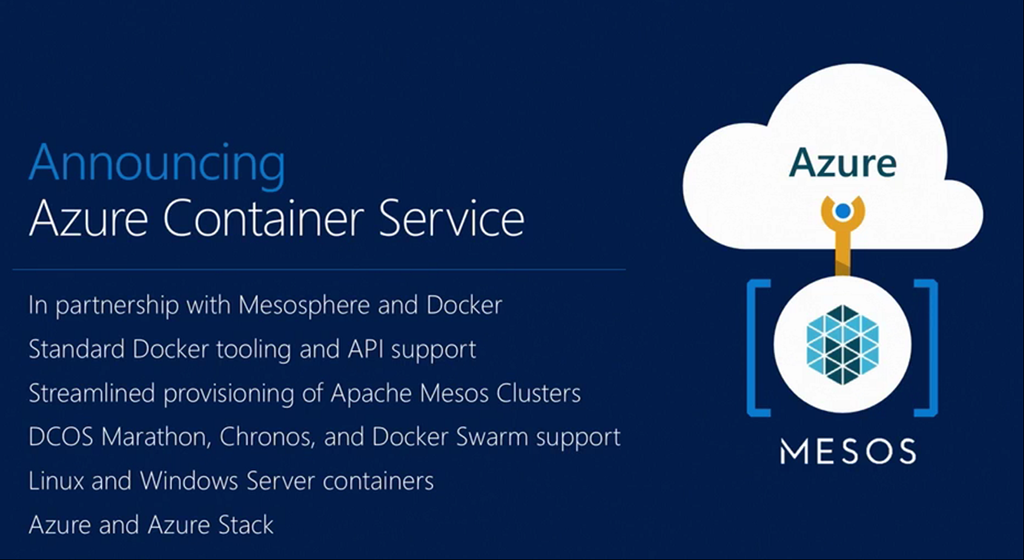
Azure Container Service

Microsoft describes this as:

… an open source container scheduling and orchestration service which builds on our partnerships with both Docker and Mesosphere, as well as our contributions to open source projects in this space.

This gives you Docker service delivery and Apache Mesos orchestrator. Other pieces included are Marathon for launching/scaling container-based application and Chronos, offering distribute cron job and batch workload management.

Azure Container Service will be in preview before the end of 2016.
image

Note that in the above slide (presented at AzureCon by Scott Guthrie) mentions the future on-premises Azure Stack.

More Regions

Three new regions just opened in India:

  • Central Indi (Pune)
  • South India (Chennai)
  • West India (Mumbai)

That should add about 60 new jobs to the Indian economy – it doesn’t take much labour to run one of these regions! Azure is available now, O365 will be there in October, and Dynamics CRM will come in H1 2016.

Azure Security Center

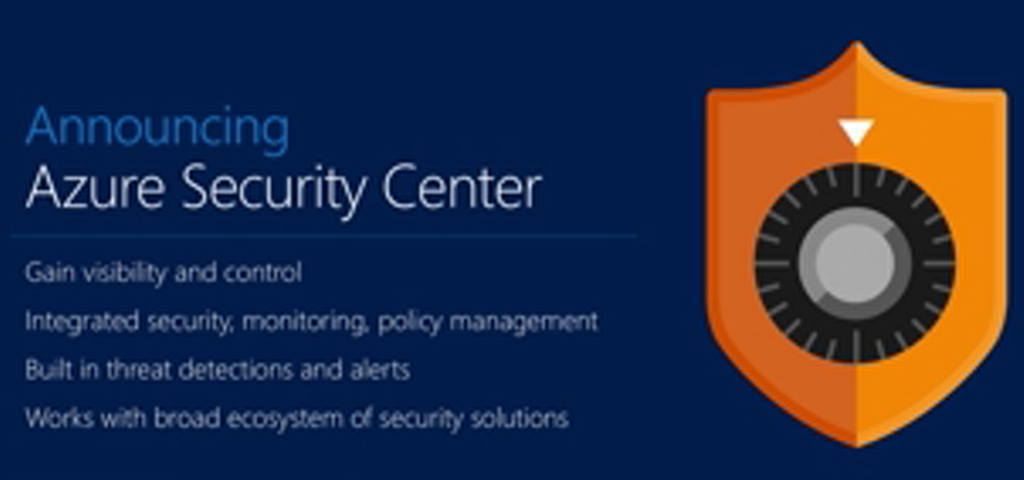
This is similar to something that was launched for O365 recently. Azure Security Center is:

… an integrated security solution that gives customers end to end visibility and control of the security of their Azure resources, helping them to stay ahead of threats as they evolve.

This solution integrates with partner solutions from the likes of Barracuda, Checkpoint, Cisco, CloudFlare, F5 Networks, Imperva, Incapsula, and Trend Micro.

You’ll get the usual monitoring and policy management, but ASC will also use information about global threats and your environment to make recommendations; that’s an interesting development! ASC will be broadly available by the end of 2016.
image

Guthrie said at AzureCon that there is DDOS detection built into this service.

image

Easier deployment of security appliances. And there’s best practices and scanning of network security groups (Extended Port ACLs in Azure). There is security alerting, that ingests data from the various partner vendors. Hadoop is analysing this data. SQL injection and DDOS attacks will appear in the alerts, maybe even pinpointing the location of those attacks.

This is a huge achievement of integrated advanced services.

N-Series VMs

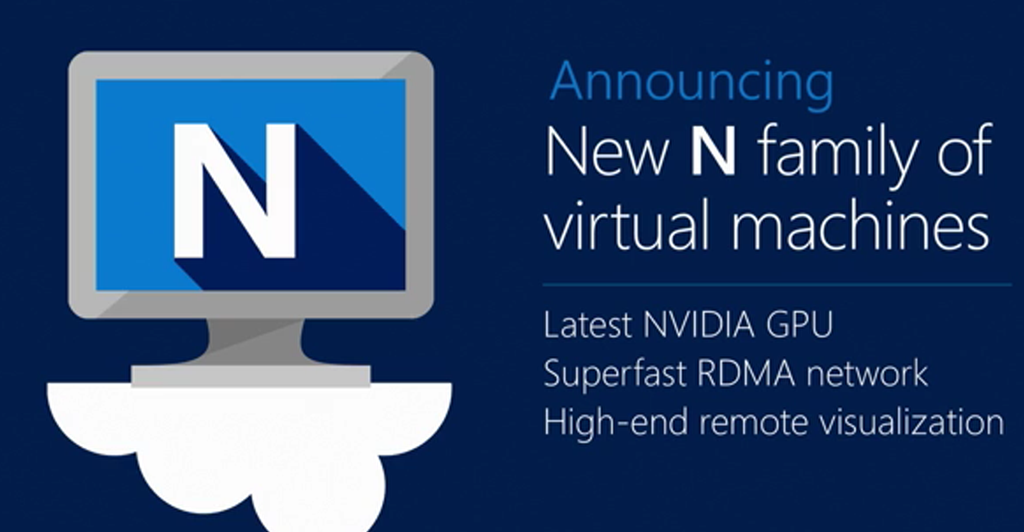
This had to come – N-Series VMs can be thought of as the NVIDIA VMs, because that’s exactly what they are, VMs with GPU capabilities. GPUs are great for graphic and compute intensive workloads. N-Series will be available in preview in the coming months, and will feature:

… NVIDIA Tesla Accelerated Computing Platform as well as NVIDIA GRID 2.0 technology, providing the highest-end graphics support available in the cloud today.
image

I think I heard Guthrie say that N-Series has Infiniband networking.

DV2 D-Series Virtual Machines

DV2 is D-Series Version 2 virtual machines. These VMs use a customized 2.4 GHz Intel Zeon E5 v3. With turbo boost 2.0 the clock can run up to 3.2 GHz, making it 32% faster than current D-series VMs.

Other News

Some bullets:

  • The general availability of ExpressRoute for O365 and Skype for Business, as well as the ability to connect to Microsoft Azure’s Government Cloud via ExpressRoute.
  • New pricing plans for ExpressRoute. Effective Oct 1st 2015, customers will have two different data plans for their ExpressRoute connections.
  • A8-A11 VM instances will be reduced in price by as much as 60%, starting Oct 1st. They needed this – it’s been much cheaper to run big workloads in traditional hosting or on-premises.
  • Azure File Storage is GA. Whoah – it’s based on SMB 3.0!
  • The general availability of Azure Backup of application workloads … Hmm, I’m reading this in-between the lines as the start of Project Venus, and “direct” might not be “direct”.  [EDIT] It was confirmed to me that this is Project Venus, and it is not live yet.
  • Upcoming availability of Azure Resource Health, a new service that exposes the health of each of Azure resources such as Virtual Machines, websites and SQL Databases to help customers quickly identify the root cause of a problem.

Lots of stuff there to keep the Azure bigwigs busy in their AzureCon keynotes.

Understanding Microsoft’s Explanation of Azure VM Specs

This post is a part of a series:

I have a great laugh when I am in front of a room and explaining Microsoft’s Azure VM specs to people. Take a look at this screenshot from the pricing site:

imageLet me ask you a few questions about the Basic A1 VM:

  1. How much disk space does that VM have?
  2. How many data disks can that VM be allocated?
  3. What is the max IOPS of each data disk?
  4. What are the maximum number of virtual NICs can that VM have?

Let me give you a clue:

  1. The answer is not 40 GB
  2. You don’t have enough information
  3. You don’t have enough information
  4. You don’t have enough information

We have answered 1/4 questions from the pricing site.

Let’s go dig for information on the Sizes For Virtual Machines page. Here we get a different set of information:

imageLet’s try answer those questions about the Basic A1 again:

  1. The answer is not 1063 (1023 + 40) GB
  2. A maximum of 2 data disks is correct
  3. Each data disk can have up to 300 IOPS. With 2 data disks, we can have an aggregate of 600 IOPS using Storage Spaces, etc, in the guest OS
  4. You still don’t have enough information.

OK, we now can answer 2/4 questions correctly! Let’s go to a reliable tool: Google. I found Create A VM With Multiple NICs. There I have found the below:

image

Now I can update my answers:

  1. The answer is not 1063 (1023 + 40) GB
  2. A maximum of 2 data disks is correct
  3. Each data disk can have up to 300 IOPS. With 2 data disks, we can have an aggregate of 600 IOPS using Storage Spaces, etc, in the guest OS
  4. A Basic A1 VM can have 1 virtual NIC

OK, would someone please tell me how much storage space will be consumed if I deploy a Basic A1 VM with Windows Server?!?!?!?!

The answer is that the C: drive of any Windows Server VM that is deployed from the Marketplace is 127 GB. The D: drive (a temporary drive that you should not store persistent data on) is indicated in the pricing. So, the Basic A1 VM will deploy a 127 GB C: drive and a 40 GB D: drive.

    1. How much disk space does that VM have? 167 GB.
    2. How many data disks can that VM be allocated? 1 maximum of 2.
    3. What is the max IOPS of each data disk? 300 IOPS.
    4. What are the maximum number of virtual NICs can that VM have? It can have 1 vNIC.

[EDIT]

I found another nugget of information today while pricing up DS-Series and GS-Series virtual machines. Microsoft says that DS-Series cost the same as D-Series. That’s no longer the case; D-Series was reduced in price on Oct 1st 2015, and DV2-Series was introduced as an upgrade. Now DS-Series costs the same as Dv2-Series at this time. GS-Series is still (at this time) the same price as G-Series.

If only there was a website with that information!

DataON Gets Over 1 Million IOPS using Storage Spaces With A 2U JBOD

I work for a European distributor of DataON storage. When Storage Spaces was released with WS2012, DataON was one of the two leading implementers, and to this day, despite the efforts of HP and Dell, I think DataON gives the best balance of:

  • Performance
  • Price
  • Stability
  • Up-to-date solutions

A few months ago, DataON sent us a document on some benchmark work that was done with their new 12 Gb SAS JBOD. Here are some of the details of the test and the results.

Hardware

  • DNS-2640D (1 tray) with 24 x 2.5” disk slots
  • Servers with 2x E5-2660v3 CPUs, 32 GB RAM, 2 x LSI 9300-8e SAS adapters, and 2 x SSDs for the OS – They actually used the server blades from the CiB-9224, but this could have been a DL380 or a Dell R7x0
  • Windows Server 2012 R2, Build 9600
  • MPIO configured for Least Blocks (LB) policy
  • 24 x 400GB HGST 12G SSD

Storage Spaces

A single pool was created. Virtual disks were created as follows:

image

Test Results

IOMeter was run against the aggregate storage in a number of different scenarios. The results are below:

image

The headline number is 1.1 million 4K reads per second. But even if we stick to 8K, the JBOD was offering 700,000 reads or 300,000 writes.

I bet this test rig cost a fraction of what the equivalent performing SAN would!

Upgrade An Azure-Hosted Service By Moving A VIP To A New Cloud Service

Last Friday I talked about how you could reserve and manipulate cloud service VIPs. In this post I’m going to show you how to “upgrade” a service by moving to a new installation of that service running in a new cloud service – this can be done by moving the VIP of the original cloud service to the new cloud service.

Have you wondered how you will upgrade your WS2012 R2 VMs to WS2016 in Azure? The answer is that you won’t. You will have to migrate services to new VMs. Here’s a way to do that migration. This process will keep the original installation running while the new service is being built. Once ready, the VIP (the public IP of the original service) is migrated to the newer cloud service. If all goes well, you remove the old cloud service. If all sucks, you migrate the VIP back to the original cloud service.

In my lab I have two cloud services:

  • OldWeb: This runs a WS2012 R2 VM with IIS
  • NewWeb2016: This runs a WS2016 VM with IIS

image

image

Let’s say I have a site called http://www.joeelway.com. The A records for joeelway.com and http://www.joeelway.com will point to this VIP of the OldWeb cloud service; this is what allows a browser to connect to that site. If I don’t have a reserved VIP then I can create one easily enough with:

New-AzureReservedIP -ReservedIPName "WebsiteVIP" -Location "North Europe" -ServiceName "OldWeb"

This will reserve the existing IPv4 address that is used by OldWeb with the cloud service. This is a non-disruptive change that simply fixes the existing IP address with the cloud service. I can continue to browse to the website using the same VIP as when it was dynamic.

image

image

Now I can build up a new web application using the NewWeb2016 cloud service. This has zero impact on the OldWeb cloud service, running side-by-side but using a different (probably dynamic) VIP:

image

The A records for the joeelway.com domain continue to point at the reserved VIP for OldWeb, so users are still going to the old service.

And then we plan a switchover, with all of the necessary data copy/replication/synchronisation, change controls, reviews, communications, etc. How do I make the change? It’s simple; we run two cmdlets to change the reserved IP association.

The first cmdlet will remove the association of the reserved VIP from the OldWeb cloud service. This forces the old service to get a new dynamic VIP:

Remove-AzureReservedIPAssociation -ReservedIPName "WebsiteVIP" -ServiceName “OldWeb”

This cmdlet takes a few minutes to run so plan for the associated outage that will be caused. The A records for the joeelway.com domain continue to point at the reserved VIP, which is no longer associated with a service. If you browse to the VIP the connection will time out:

image

We want to avoid such a time out experience for the site’s users so we will very quickly associate the VIP with the new cloud service to minimise downtime (scripting is perfect for this!):

Set-AzureReservedIPAssociation -ReservedIPName "WebsiteVIP" -ServiceName "NewWeb2016"

The A records continue to resolve to the reserved VIP, and now the VIP is associated to the new cloud service:

image

If all goes well, you can decommission the old cloud service (VMs, etc), but you can leave them running for a little while as a rollback plan:

  1. Remove the VIP association from the new cloud service
  2. Set the VIP association with the old cloud service

You have to admit that, even if you are a PowerShell hater, this is a nice way to switch clients to a new version of a service.

Microsoft News – 28 September 2015

Wow, the year is flying by fast. There’s a bunch of stuff to read here. Microsoft has stepped up the amount of information being released on WS2016 Hyper-V (and related) features. EMS is growing in terms of features and functionality. And Azure IaaS continues to release lots of new features.

Hyper-V

Windows Client

Azure

System Center

Office 365

EMS

Security

Miscellaneous

AzureCon – A Free Online Azure Conference

Microsoft is hosting a free online conference featuring Azure called AzureCon, starting tomorrow (Tuesday 29th) at 5pm UK/IE time, 9am PDT.

image

There is a mixture of level 200 and 300 content that is aimed at IT Pros, including:

  • Azure for IT implementors (Mark Russinovich): By now you will have heard of Azure and probably have been lost in a plethora of terminology: virtual networks, web apps, worker roles, virtual machines, Azure Active Directory, compute, REST APIs, blobs—the list goes on and on. Doesn’t it just make your head hurt? Come to this session and understand what Azure is, what can be done with it, and what role you can take as an IT pro. Gain a thorough understanding of the components of Azure. Learn how you can integrate on-premises and cloud services, creating solutions for the future. The session is packed with demos.
  • Azure IaaS: proper sizing and cost (Robert Davis): Two of the most frequently asked questions about moving to Azure IaaS are “How do I size it?” and “What will it cost me?” These questions aren’t easy to answer. Many tools will tell you how to move an on-premises computer to an Azure virtual machine assuming that what you have now is exactly what you need in Azure. In this session, you’ll learn that it is possible to accurately determine what size Azure virtual machines you need and how to calculate the most cost-effective way to move to Azure. You’re moving to better, faster hardware, so why would you need the exact same number of virtual machines with the exact same memory and CPUs? Servers can be consolidated and sized appropriately when the recommendations are based on analysis of the actual performance of the existing servers with a mind for consolidation using very precise calculations of the performance capabilities of the Azure environment. In addition to performance, you can accurately determine your best options based on costs for Azure in terms of storage, storage transactions, networking, and Microsoft SQL Server licensing. Would you be better off moving 5 on-premises servers on a standard A7 virtual machine or would 3 servers on a standard A5 and the other 2 on a basic A3 be more cost effective? This can be calculated.
  • Deciding between different virtual machine sizes (Kenaz Kwa): Azure provides a wide range of virtual machine sizes for any workload that you might want to run. Trying to decide which size is right for your workload can seem challenging. Join this session to find out about some of the considerations for selecting virtual machine sizes and learn the differences between different virtual machine size families and their regional availability.
  • Bring Azure to your datacenter with Azure Stack (Anant Sundaram): Modernization of on-premises infrastructure, hybrid approaches, and new models for application delivery all make it possible for IT to help drive business value and transformation. Learn how, with the recently announced Azure Stack, to bring the innovation from our hyper-scale datacenters into yours, enabling agility and productivity for application owners, with flexibility and control for IT.
  • Increase productivity and enhance security with enterprise mobility (Adam Bresson): The rapid growth of mobile devices combined with ubiquitous access to cloud services is changing the way people use devices to get work done. In this session, learn how to deliver enterprise mobility with consistent experiences that enable users to work on the devices they choose, while providing a unified infrastructure for managing applications and protecting corporate data.

This event is starting late for us Europeans. I wish MSFT would repeat this at Euro time zones. Note that the upcoming cloud road show has an audience reach that is too limited.

Register & tune into this event and catch what you can – it should prove to be a learning experience.

How to Reserve The VIP Of An Azure Cloud Service

Microsoft announced earlier this year that we would have the ability to reserve the public IP address (virtual IP or VIP) of a cloud service in Azure. I’d love that:

  • VIPs are non-reserved by default, so if your cloud service is suspended (maybe all VMs are shutdown) then you get a different VIP afterwards. That causes mayhem with traditional DNS.
  • I’ve been using CNAMEs to resolve my domain name to the cloud service’s domain name to abstract the dynamic nature of VIPs. Unfortunately, compliant implementations of CNAME do not support machine names, e.g. www.aidanfinn.com.

What I needed was a reserved VIP. Every now and then I looked for the way to implement this new feature, but I only just found it now.

Fire up Azure PowerShell (make sure it’s up to date) and then log into your subscription using Add-AzureAccount.

Find your service name using Get-AzureService.

Then run the following cmdlet, substituting your choice of label for the VIP, region, and service name:

New-AzureReservedIP -ReservedIPName "MyVIP01" -Location "North Europe" -ServiceName “MyCloudService”

This cmdlet won’t change the VIP of the cloud service; instead it reserves the existing VIP on your cloud service, which is a non-disruptive action. You can query the results in the GUI or by running Get-AzureReservedIP:

image

image

To test, I shutdown all the VMs in the cloud service; this puts the cloud service into a suspended state. Normally the VIP is released when a cloud service is suspended. But when I started up the cloud service (starting 1 VM) the same VIP returned. Yay!

Keep in mind that there is a price plan for reserved VIP addresses. You get the first 5 reserved VIPs for free (subject to change). There is a charge for additional VIPs. And if you don’t use a reserved VIP (you reserve it and leave the cloud service suspended) then there’s a charge for the VIP.

Which leads us to the obvious follow-up question: how do I remove a reserved VIP? It’s not quite a logical undo. First you need to undo the association of the VIP reservation with the cloud service. Note that the following is not Remove-AzureReservedIP (that cost me 10 minutes):

Remove-AzureReservedIPAssociation -ReservedIPName "MyVIP01" -ServiceName “MyCloudService”

Note: I’ve noticed that this cmdlet takes a couple of minutes to run.

If you have the Azure portal open you might see it refresh and change the VIP of your cloud service – what you’ve done is remove the association of the VIP with that cloud service; the VIP is still reserved.

That opens up an interesting scenario. Let’s say I have an application called App1 running in CloudService1, and I’d like to build a new version of the application in CloudService2 and switch users over without them noticing.

  1. Reserve the VIP on CloudService1
  2. Set up DNS records for App1 to the reserved VIP
  3. Time passes by … until we want to migrate users …
  4. Remove the VIP association from CloudServcie1; the VIP is still reserved, but now unused
  5. Set the VIP association with CloudService2

And all of a sudden, people start using App1 on CloudService2 without changing DNS records … nice!

When you want to completely remove a VIP reservation, first make sure that you remove any cloud association with Remove-AzureReservedIPAssociation, and then run:

Remove-AzureReservedIP -ReservedIPName "MyVIP01"

Driver Updates By Windows Update Are Ruining Windows 10 For Me

In previous posts I talked about how Windows Update was breaking the Intel HD graphics adapters in my Lenovo Yoga and Toshiba KIRAbook Ultrabooks, and I also posted a solution that should prevent Windows Update from downloading drivers. Well … nothing has worked, and I regularly face broken graphics drivers on my Ultrabooks.

The only solution that I have to solve the issue is:

  • Uninstall the device in Device Manager
  • Refresh
  • Manually install a driver that I downloaded from Intel – I keep this driver for regularly carrying out this process.

I’ve found that Windows Update can silently install the updated fault driver during the middle of a presentation, and suddenly I am no longer sharing my display with the projector/screen – that’s an interesting problem, that requires 5-10 minutes of fixing.

Some folks have suggested that I use the solution in KB3073930, How to temporarily prevent a Windows or driver update from reinstalling in Windows 10. I did, and that worked for 5 days, until Microsoft shipped replacement versions of the driver, the block rule lapsed, and I was back to Square One.

This is the only issue I’m having with Windows 10 … but it is absolutely driving me nuts.

It’s no wonder that Samsung felt like they had to block all Microsoft updates to give customers a stable Windows experience. Please Microsoft, stop shipping frakked up drivers, or give me actual control over these updates on Windows 10, not just the illusion of it!!!

Let me be very clear: the only source of driver updates should be from the PC manufacturer. Microsoft has always sucked at this, and their new “we know best” model with Windows 10 shows how out of touch they are with this subject.

Configuring Windows Server Containers To Use DHCP Instead Of NAT

Read on if you want to learn how to connect Windows Server containers to an external virtual switch so that you don’t use NAT, and the containers actually talk directly to the LAN via DHCP assigned addresses. You’ll also see why a DHCP enabled container fails to get and address and ends up with a 169.254.x.x APIPA IPv4 configuration.

If you use Microsoft’s setup scripts for Windows Server 2016 (WS2016) Technical Preview 3 (TPv3), the default configuration for container networking is that each VM host will have virtual switch (in the VM), connected the VM’s vNIC. The virtual switch works in NAT mode, and uses a private network range to dynamically address containers that connect to the virtual switch. This set up requires each container to have NAT rules on the VM host so that external clients can connect to the services running in the containers. That … could be messy. In some terms, it could allow for huge network scalability (with tens of thousands of possible ports per VM host) but in others, it could be a nightmare to orchestrate.

What if you wanted your containers to talk directly on the LAN. In other words: no NAT. Yes, your containers can do this, and it’s known as a DHCP configuration – your containers are stateless so it’s pointless assigning them static IP addresses; instead the containers will get their addressing from DHCP services on the LAN.

Remember that there are two scripts that we can run to set up a VM host.

  • Method 1: You download New-ContainerHost.ps1 and run it. This downloads a bunch of stuff, creates a VM host, and then runs Install-ContainerHost.ps1. By default, this will configure the VM host with NAT networking.
  • Method 2: You create your own VM, download and run Install-ContainerHost.ps1. By default, you’ll get NAT networking.

But …

Install-ContainerHost.ps1 includes the option for a flag:

image

If you use method 2 then you could run Install-ContainerHost in the new VM host with the -UseDHCP flag set to $true; the behaviour of the script will change. By default it creates the VM host’s virtual switch in NAT mode. But enabling this flag creates an external virtual switch.

In my lab, I like to create my VM hosts using New-ContainerHost because it’s very quick (thanks to the use of differencing disks) and automates the entire setup. But New-ContainerHost doesn’t include the option for UseDHCP. You could edit any call of Install-ContainerHost from New-ContainerHost, but I do it another way.

Instead I edit Install-ContainerHost. One small change will do the trick. Not far from the top is where the parameters are set as script variables. Look for a line that reads:

$UseDHCP,

Modify this line so it reads:

$UseDHCP = $true,

image

Now every time I either run Install-ContainerHost or New-ContainerHost I’ll get the DHCP networking configuration instead of NATing.

So try this to create/configure a VM host, create a container, use Enter-PSSession to connect to the container, run IPConfig and … viola, you’ll have no DHCP address. Say what?

I was stumped. I tried it again. Nothing. I asked for help and by the time I got home, I got a tip from one of the folks in Redmond. It proved to be my “I’m a moron” moment of the day. If I’d thought about it, DHCP is all about broadcasts and MAC addresses. I have a single VLAN set up in the lab so broadcasts wasn’t the issue. What’s going on with MACs? A VM host has a MAC for itself. And then each container on the VM host that connects to the virtual switch has it’s own MAC address … but the network sees only one interface. Have you figured it out yet?

By default, Hyper-V has MAC spoofing disabled on every virtual NIC – a virtual NIC can only have 1 MAC address. What I needed to do was, at the host level, run the following to enable MAC spoofing on the VM host’s virtual NIC:

Get-VMNetworkAdapter -VMName containers3 | Set-vmNetworkAdapter -MacAddressSpoofing On

Now everything works Smile

Windows Server Containers – “Enter-PSSession : The term ‘Measure-Object’ Is Not Recognized”

If you’ve been working with Windows Server Containers in Windows Server 2016 (WS2016) Technical Preview 3 (TPv3) then you’ve probably experienced something like this:

  1. You create a new container
  2. Then start the container
  3. And try to create a PowerShell session into the container using Enter-PSSession

And then there’s lots of red on the screen:

enter-pssession : The term ‘Measure-Object’ is not recognized as the name of a cmdlet, function, script file, or
operable program. Check the spelling of the name, or if a path was included, verify that the path is correct and try
again.
At line:1 char:1
+ enter-pssession -ContainerId $container.ContainerId
+ ~~~~~~~~~~~~~~~~~~~~~~~~~~~~~~~~~~~~~~~~~~~~~~~~~~~
+ CategoryInfo          : ObjectNotFound: (Measure-Object:String) [Enter-PSSession], CommandNotFoundException
+ FullyQualifiedErrorId : CommandNotFoundException

image

Strangely, I have not been able to recreate this with Invoke-Command, so it appears to be unique to how Enter-PSSession sets up session in the container.

So how do you solve the issue? It’s simple – you rushed from starting your container to trying to log into it. Wait a few seconds and then try again.