Microsoft News – 7 September 2015

Here’s the recent news from the last few weeks in the Microsoft IT Pro world:

Hyper-V

Windows Server

Windows

System Center

Azure

Office 365

Intune

Events

  • Meet AzureCon: A virtual event on Azure on September 29th, starting at 9am Pacific time, 5pm UK/Irish time.

A Roundup of WS2016 TPv3 Links

I thought that I’d aggregate a bunch of links related to new things in the release of Windows Server 2016 Technical Preview 3 (TP3). I think this is pretty complete for Hyper-V folks – as you can see, there’s a lot of stuff in the networking stack.

FYI: it looks like Network Controller will require the DataCenter edition by RTM – it does in TPv3. And our feedback on offering the full installation during setup has forced a reversal.

Hyper-V

Administration

Containers

Networking

Storage


Nano Server

Failover Clustering

Remote Desktop Services

System Center

Windows Server 2016 – Switch Embedded Teaming and Virtual RDMA

WS2016 TPv3 (Technical Preview 3) includes a new feature called Switch Embedded Teaming (SET) that will allow you to converge RDMA (remote direct memory access) NICs and virtualize RDMA for the host. Yes, you’ll be able to converge SMB Direct networking!

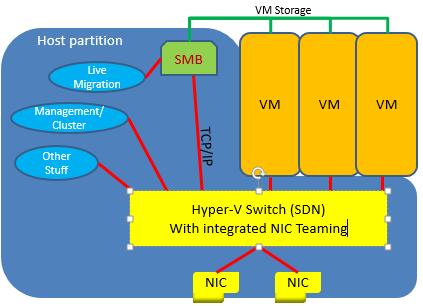
In the below diagram you can see a host with WS2012 R2 networking and a similar host with WS2016 networking. See how:

  • There is no NIC team in WS2012: this is SET in action, providing teaming by aggregating the virtual switch uplinks.
  • RDMA is converged: DCB is enabled, as is recommended – it’s even recommended in iWarp where it is not required.
  • Management OS vNICs using RDMA: You can use converged networks to use SMB Direct.

Network architecture changes


Note, according to Microsoft:

In Windows Server 2016 Technical Preview, you can enable RDMA on network adapters that are bound to a Hyper-V Virtual Switch with or without Switch Embedded Teaming (SET).

Right now in TPv3, SET does not support Live Migration – which is confusing considering the above diagram.

What is SET?

SET is an alternative to NIC teaming. It allows you to converge between 1 and 8 physical networks using the virtual switch. The pNICs can be on the same or different physical switches. Obviously, the networking of the pNICs must be the same to allow link aggregation and failover.

No – SET does not span hosts.

Physical NIC Requirements

SET is much more fussy about NICs than NIC teaming (which continues as a Windows Server networking technology because SET requires a virtual switch, or Hyper-V). The NICs must be:

  1. On the HCL, aka “passed the Windows Hardware Qualification and Logo (WHQL) test in a SET team in Windows Server 2016 Technical Preview”.
  2. All NICs in a SET team must be identical: same manufacturer, same model, same firmware and driver.
  3. There can be between 1 and 8 NICs in a single SET team (same switch on a single host).


SET Compatibility

SET is compatible with the following networking technologies in Windows Server 2016 Technical Preview.

  • Datacenter bridging (DCB)
  • Hyper-V Network Virtualization – NV-GRE and VxLAN are both supported in Windows Server 2016 Technical Preview.
  • Receive-side Checksum offloads (IPv4, IPv6, TCP) – These are supported if any of the SET team members support them.
  • Remote Direct Memory Access (RDMA)
  • SDN Quality of Service (QoS)
  • Transmit-side Checksum offloads (IPv4, IPv6, TCP) – These are supported if all of the SET team members support them.
  • Virtual Machine Queues (VMQ)
  • Virtual Receive Side Scalaing (RSS)

SET is not compatible with the following networking technologies in Windows Server 2016 Technical Preview.

  • 802.1X authentication
  • IPsec Task Offload (IPsecTO)
  • QoS in host or native OSs
  • Receive side coalescing (RSC)
  • Receive side scaling (RSS)
  • Single root I/O virtualization (SR-IOV)
  • TCP Chimney Offload
  • Virtual Machine QoS (VM-QoS)


Configuring SET

There is no concept of a team name in SET; there is just the virtual switch which has uplinks. There is no standby pNIC; all pNICs are active. SET only operates in Switch Independent mode – nice and simple because the switch is completely unaware of the SET team and there’s no networking (no Googling for me).

All that you require is:

  • Member adapters: Pick the pNICs on the host. The benefit is that when VMQ is used because inbound traffic paths are predictable.
  • Load balancing mode: Hyper-V Port or Dynamic. Outbound traffic is hashed and balanced across the uplinks. Inbound traffic is the same as with Hyper-V mode.

Like with WS2012 R2, I expect Dynamic will be the normally recommended option.

VMQ

SET was designed to work well with VMQ. We’ll see how well NIC drivers and firmware behave with SET. As we’ve seen in the past, some manufacturers take up to a year (Emulex on blade servers) to fix issues. Test, test, test, and disable VMQ if you see Hyper-V network outages with SET deployed.

In terms of tuning, Microsoft says:

    • Ideally each NIC should have the *RssBaseProcNumber set to an even number greater than or equal to two (2). This is because the first physical processor, Core 0 (logical processors 0 and 1), typically does most of the system processing so the network processing should be steered away from this physical processor. (Some machine architectures don’t have two logical processors per physical processor so for such machines the base processor should be greater than or equal to 1. If in doubt assume your host is using a 2 logical processor per physical processor architecture.)
    • The team members’ processors should be, to the extent practical, non-overlapping. For example, in a 4-core host (8 logical processors) with a team of 2 10Gbps NICs, you could set the first one to use base processor of 2 and to use 4 cores; the second would be set to use base processor 6 and use 2 cores.

Creation and Management

You’ll hear all the usual guff about System Center and VMM. The 8% that can afford System Center can do that, if they can figure out the UI. PowerShell can be used to easily create and manage a SET virtual switch.

Summary

SET is a great first (or second behind vRSS in WS2012 R2) step:

  • Networking is simplified
  • RDMA can be converged
  • We get vRDMA to the host

We just need Live Migration support and stable physical NIC drivers and firmware.

Old School Thinking Wrecks A Company (@iDMobileIreland) Launch

You’d think that a start-up mobile telecoms company would understand the cloud, right? Today in Ireland, a new virtual mobile telecoms company, iD Ireland, launched their business, promising to give 4G as standard and to offer cheaper and more tailored plans to customers with generous data allocations. That sounds like the sort of thing that I’d want to check out, and it got coverage in every news outlet in Ireland.

So I, like many others, tried to browse their site. And 5 minutes later, the page actually loaded. I bet that most people thought “That’s sh1te” long before the page loaded, closed the browser tab and forgot about iD, thus ruining the potential of their launch. What a waste of great publicity and PR!

So what went wrong there? Old schoolers, that’s what. “Let’s put up 2 web servers and sure that’ll be grand. If we need more then we can build more servers”. You know the sort – you might even be that kind of person.

You know how I would have built such a web presence? I’d have deployed a set of load balanced web sites in Azure. And then I would have enabled auto-scaling. I’d have a minimum number of sites to keep the regular load operating nicely, and enough peak potential to meet the demand one would get after launching a mobile company and successfully getting coverage in every news outlet in the country. And the beauty is – I’d pay for just what is active.

But no; the IT old schoolers won out and the shareholders lost out. Isn’t that how it often happens?

Technorati Tags: ,,

Prevent Windows From Downloading Broken Drivers From Windows Update

Edit: the solution here does not work. The Windows Update Blocker offers a solution that works until Microsoft releases a new broken version of the broken driver. Frustrated much?

The release of Windows 10 has reminded many of us that Windows Update is usually the worst place to get a driver for your device, be it an Intel HD graphics adapter in your tablet or laptop, or a NIC in a Hyper-V host. The best driver always comes from the maker of your computer (HP, Dell, Lenovo, etc) because they distribute drivers for your specific and,  usually, customised chipset.

Recently I upgraded my 2 ultrabooks, a Lenovo Yoga S1 and a Toshiba KIRAbook, from Windows 8.1 to Windows 10. A trip to Device Manager found that the Intel HD graphics cards were broken and I was unable to share my display – projectors are a big part of my job!

I found a fix – but then a day or two later Windows Update decided to reapply Microsoft’s distribution of the driver and I was stuck once again with broken Ultrabooks. I took to Twitter and then I got a response from a Microsoft employee with a solution that should work.

Method 1 – Manual Change

Open up System > Advanced System Settings > Hardware > Device Installation Settings.  Set it to No, Let Me Choose What To Do and set Never Install Driver Software From Windows Update.

image

Method 2 – The Registry

Open REGEDIT and set both of these REG_DWORD values to 0:

  • HKLM\SOFTWARE\MICROSOFT\Windows\CurrentVersion\DriverSearching\SearchOrderConfig
  • HKLM\SOFTWARE\MICROSOFT\Windows\CurrentVersion\Device Metadata\PreventDeviceMetadataFromNetwork

Method 3 – Group Policy

The above are fine if you have one or two machines to modify, but what if you have dozens or hundreds of machines to update? Hopefully these machines are domain members; if so then you can deploy a GPO to them to make the required changes.

Look for a setting called Specify Search Order For Device Driver Locations in Computer Configuration > Administrative Templates > System > Device Installation. Enable the policy and set Select Search Order to Do Not Search Windows Update.

image

You should also enable Prevent Device Metadata Retrieval From The Internet at the same location in GPO.

image

Updating Drivers

Yes, you do need to update drivers – drivers and firmware are the cause of many issues on PCs, Hyper-V hosts, etc. On my PCs/laptops I install the OEM’s updating tool and regularly run a check/update. So where can you get drivers from in a larger environment. Well; always form the OEM. How do you distribute them?

  • Manually
  • A shared folder
  • Cluster Aware Updating – see what Dell has done
  • System Center, possibly even with OEM additions

Introducing Windows Server Containers

Technical Preview 3 of Windows Server 2016 is out and one of the headline feature additions to this build is Windows Server Containers. What are they? And how do they work? Why would you use them?

Background

Windows Server Containers is Microsoft’s implementation of an open source world technology that has been made famous by a company called Docker. In fact:

  • Microsoft’s work is a result of a partnership with Docker, one which was described to me as being “one of the fastest negotiated partnerships” and one that has had encouragement from CEO Satya Nadella.
  • Windows Server Containers will be compatible with Linux containers.
  • You can manage Windows Server Containers using Docker, which has a Windows command line client. Don’t worry – you won’t have to go down this route if you don’t want to install horrid prerequisites such as Oracle VirtualBox (!!!).

What are Containers?

Containers is around a while, but most of us that live outside of the Linux DevOps world won’t have had any interaction with them. The technology is a new kind of virtualisation to enable rapid (near instant) deployment of applications.

Like most virtualisation, Containers take advantage of the fact that most machines are over-resourced; we over-spec a machine, install software, and then the machine is under-utilized. 15 years ago, lots of people attempted to install more than one application per server. That bad idea usually ended up in p45’s (“pink slips”) being handed out (otherwise known as a “career ending event”. That because complex applications make poor neighbours on a single operating system with no inter-app isolation.

Machine virtualisation (vSphere, Hyper-V, etc) takes these big machines and uses software to carve the physical hosts into lots of virtual machines; each virtual machine has its own guest OS and this isolation provides a great place to install applications. The positives are we have rock solid boundaries, including security, between the VMs, but we have more OSs to manage. We can quickly provision a VM from a template, but then we have to install lots of pre-reqs and install the app afterwards. OK – we can have VM templates of various configs, but a hundred templates later, we have a very full library with lots of guest OSs that need to be managed, updated, etc.

Containers is a kind of virtualisation that resides one layer higher; it’s referred to as OS virtualization. The idea is that we provision a container on a machine (physical or virtual). The container is given a share of CPU, RAM, and a network connection. Into this container we can deploy a container OS image. And then onto that OS image we can install perquisites and an application. Here’s the cool bit: everything is really quick (typing the command takes longer than the deployment) and you can easily capture images to a repository.

How easy is it? It’s very easy – I recently got hands-on access to Windows Server Containers in a supervised lab and I was able to deploy and image stuff using a PowerShell module without any documentation and with very little assistance. It had helped that I’d watched a session on Containers from Microsoft Ignite.

How Do Containers Work?

There are a few terms you should get to know:

  • Windows Server Container: The Windows Server implementation of containers. It provides application isolation via OS virtualisation, but it does not create a security boundary between applications on the same host. Containers are stateless, so stateful data is stored elsewhere, e.g. SMB 3.0.
  • Hyper-V Container: This is a variation of the technology that uses Hyper-V virtualization to securely isolate containers from each other – this is why nested virtualisation was added to WS2016 Hyper-V.
  • Container OS Image: This is the OS that runs in the container.
  • Container Image: Customisations of a container (installing runtimes, services, etc) can be saved off for later reuse. This is the mechanism that makes containers so powerful.
  • Repository: This is a flat file structure that contains container OS images and container images.

Note: This is a high level concept post and is not a step-by-step instructional guide.

We start off with:

  • A container host: This machine will run containers. Note that a Hyper-V virtual switch is created to share the host’s network connection with containers, thus network-enabling those containers when they run.
  • A repository: Here we store container OS images and container images. This repository can be local (in TPv3) or can be an SMB 3.0 file share (not in TPv3, but hopefully in a later release).

image

The first step is to create a container. This is accomplished, natively, using a Containers PowerShell module, which from experience, is pretty logically laid out and easy to use. Alternatively you can use Docker. I guess System Center will add support too.

When you create the container you specify the name and can offer a few more details such as network connection to the host’s virtual switch (you can add this retrospectively), RAM and CPU.

You then have a blank and useless container. To make it useful you need to add a container OS image. This is retrieved from the Repository, which can be local (in a lab) or on an SMB 3.0 file share (real world). Note that an OS is not installed in the container. The container points at the repository and only differences are saved locally.

How long does it take to deploy the container OS image? You type the command, press return, and the OS is sitting there, waiting for you to start the container. Folks, Windows Server Containers are FAST – they are Vin Diesel parachuting a car from a plane fast.

image

Now you can use Enter-PSSession to log into a container using PowerShell and start installing and configuring stuff.

Let’s say you want to install PHP. You need to:

  1. Get the installer available to the container, maybe via the network
  2. Ensure that the installer either works silently (unattended) or works from command line

Install the program, e.g. PHP, and then configure it the way you want it (from command line).
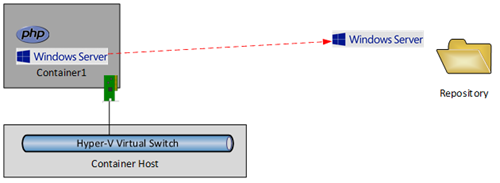
image

Great, we now have PHP in the container. But there’s a good chance that I’ll need PHP in lots of future containers. We can create a container image from that PHP install. This process will capture the changes from the container as it was last deployed (the PHP install) and save those changes to the repository as a container image. The very quick process is:

  1. Stop the container
  2. Capture the container image

Note that container image now has a link to the guest OS image that it was installed on, i.e. there is a dependency link and I’ll come back to this.

Let’s deploy another container with a guest OS image called Container2.

image

For some insane reason, I want to install the malware gateway known as Java into this container.

image

Once again, I can shut down this new container and create a container image from this Java installation. This new container image also has a link to the required container OS image.

image

Right, let’s remove Container1 and Container2 – something that takes seconds. I now have a container OS image for Windows Server 2012 R2 and container images for Java and Linux. Let’s imagine that a developer needs to deploy an application that requires PHP. What do they need to do? It’s quite easy – they create a container from the PHP container image. Windows Server Containers knows that PHP requires the Windows Server container OS image, and that is deployed too.

The entire deployment is near instant because nothing is deployed; the container links to the images in the repository and saves changes locally.
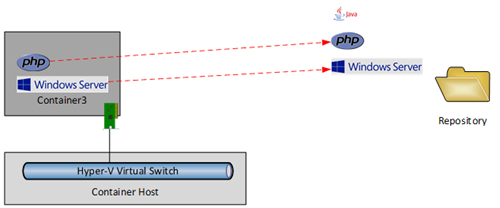
image

Think about this for a second – we’ve just deployed a configured OS in little more time than it takes to type a command. We’ve also modelled a fairly simple application dependency. Let’s complicate things.

The developer installs WordPress into the new container.

image

The dev plans on creating multiple copies of their application (dev, test, and production) and like many test/dev environments, they need an easy way to reset, rebuild, and to spin up variations; there’s nothing like containers for this sort of work. The dev shuts down Container3 and then creates a new container image. This process captures the changes since the last deployment and saves a container image in the repository – the WordPress installation. Note that this container doesn’t include the contents of PHP or Windows Server but it does link to PHP and PHP links to Windows Server.

image

The dev is done and resets the environment. Now she wants to deploy 1 container for dev, 1 for test, and 1 for production. Simple! This requires 3 commands, each one that will create a new container from the WordPress container image, which logically uses the required PHP and PHP’s required Windows Server.

Nothing is actually deployed to the containers; each container links to the images in the repository and saves changes locally. Each container is isolated from the other to provide application stability (but not security – this is where Hyper-V Containers comes into play). And best of all – the dev has had the experience of:

  • Saying “I want three copies of WordPress”
  • Getting the OS and all WordPress pre-requisites
  • Getting them instantly
  • Getting 3 identical deployments

image

From the administrator’s perspective, they’ve not had to be involved in the deployment, and the repository is pretty simple. There’s no need for a VM with Windows Server, another with Windows Server & PHP, and another with Windows Server, PHP & WordPress. Instead, there is an image for Windows Server, and image for PHP and an image for WordPress, with links providing the dependencies.

And yes, the repository is a flat file structure so there’s no accidental DBA stuff to see here.

Why Would You Use Containers?

If you operate in the SME space then keep moving, and don’t bother with Containers unless they’re in an exam you need to pass to satisfy the HR drones. Containers are aimed at larger environments where there is application sprawl and repetitive installations.

Is this similar to what SCVMM 2012 introduced with Server App-V and service templates? At a very high level, yes, but Windows Server Containers is easy to use and probably a heck of a lot more stable.

Note that Containers are best suited for stateless workloads. If you want to save data then save it elsewhere, e.g. SMB 3.0. What about MySQL and SQL Server? Based on what was stated at Ignite, then there’s a solution (or one in the works); they are probably using SMB 3.0 to save the databases outside of the container. This might require more digging, but I wonder if databases would really be a good fit for containers. And I wonder, much like with Azure VMs, if there will be a later revision that brings us stateful containers.

I don’t imagine that my market at work (SMEs) will use Windows Server Containers, but if I was back working as an admin in a large enterprise then I would definitely start checking out this technology. If I worked in a software development environment then I would also check out containers for a way to rapidly provision new test and dev labs that are easy to deploy and space efficient.

[Update]

Here is a link to the Windows Server containers page on the TechNet Library.

We won’t see Hyper-V containers in TPv3 – that will come in a later release, I believe later in 2015.

Windows Server 2016 Technical Preview 3 Is Coming Out Today

There’s enough clues out there to lead one to believe that TPv3 of Windows Server is about to be released, maybe even later today, as confirmed by Mary Jo Foley.

First there’s a new article on TechNet called What’s New in Windows Server 2016 Technical Preview 3 that even Jeffrey Snover has tweeted.

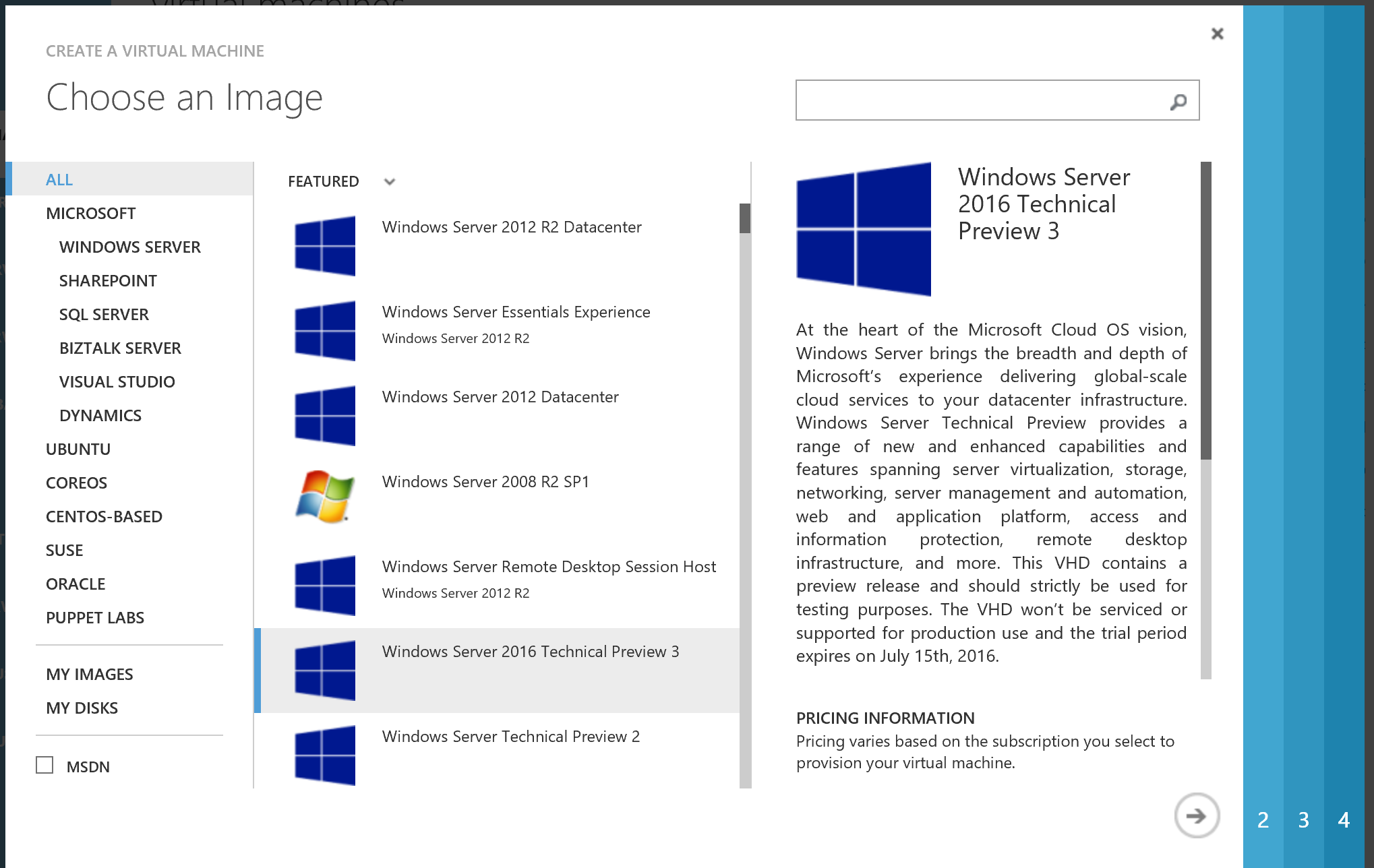
MVP Niklas Akerlund tweeted that he just saw Windows Server Technical Preview 3 on the Azure Marketplace.

https://pbs.twimg.com/media/CMxmRKgVAAEODjT.png:large

System Requirements and Installation was updated to refer to TPv3:

For example, if you choose Server with Desktop Experience at the beginning of the process, enter the product key, accept license terms, and then backtrack to choose Server Technical Preview 3, the installation will fail.

[Update]

GeekWire published Microsoft releases first Windows Server Container preview under Docker partnership, and Windows Server Containers are in TPv3.

The Server & Cloud blog published New Windows Server Preview Fuels Application Innovation with Containers, Software-Defined Datacenter Updates.

Not long now, I guess.

FYI, a tweet by Gabe Aul leads us to believe that a new release of RSAT for Windows 10 is due around the same time.

Intel HD Graphics Family Disabled By Windows 10

I upgraded a couple of Ultrabooks to Windows 10 in the last week and both displayed (sorry!) the same issue; the graphics driver was not working correctly. My Toshiba KIRAbook couldn’t share to an external display. My Lenovo Yoga S1 had the same problem.

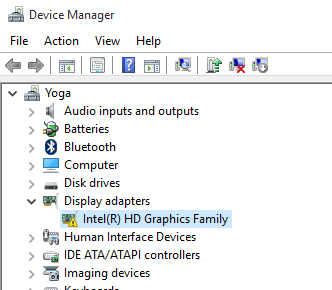
I opened Device Manager and saw the above issue –  a yellow exclamation on the Intel HD Graphics device. Opening the properties revealed that:

Windows has stopped this device because it has reported problems.

Ah, so it appears that Microsoft shipped an untested driver for the most common graphics adapter in laptops and tablets. Is it any wonder that the likes of Samsung prevents Microsoft from updating their drivers?

FYI, Microsoft ships a lot of bad drivers and you should always get the device-specific drivers from the manufacturer of your device.

I checked for software updates from Toshiba and Lenovo and had none, so I went to the source. Intel has a set of drivers shared online. I downloaded “Intel® HD Graphics Driver for Windows® 10 64bit (3rd Gen & BYT)”, published on 7th August (hard to tell with you Americans and your non-standard date formats). I:

  1. Downloaded the zip file
  2. Extracted it to a temporary location
  3. Ran the setup executable from there.

Trying to update the driver from Device Manager didn’t do anything – Windows claimed that the Microsoft driver was more up to date. It might be, but it’s sh1te. Running the setup program fixed the problem.

[Update]

Please read this follow up post on how to prevent installations of Microsoft-supplied drivers from Windows Update.

Note: I later did a clean installation on my Yoga after installing an SSD. The default driver from Microsoft actually worked out of the box. So there appears to be different behaviour on upgraded machines than on cleanly installed machines.

There’s no need to tell us if you saw no problems at all.

Technorati Tags: ,

Microsoft News 13-August-2015

Hi folks, it’s been a while since I’ve posted but there’s a great reason for that – I got married and was away on honeymoon 🙂 We’re back and trying to get back into the normal swing of things. I was away for the Windows 10 launch, happily ignoring the world. Windows 10 in the businesses is not a big deal yet – Microsoft needs to clear up licensing and activation for businesses before they’ll deliberately touch the great new OS – I’ve already had customers say “love it, but not until we get clarification”.

Hyper-V

Windows Server

Windows

Azure

System Center

Office 365

Miscellaneous