Windows Server 2012 Hyper-V Live Migration Changes

I was listening to Jeff Woolsey talk at TechEd North America 2012 and he brought up an interesting piece on Windows Server 2012 Hyper-V Live Migration.  There are some interesting enhancements to Live Migration in WS2012 Hyper-V:

  • Idle memory is synchronised between the source and destination host first.  That makes sense.  No point in moving changing memory first because it will change before the first of up-to-10 synchronisation iterations completes.  So the inactive pages are moved first.
  • After that, the active pages can be synchronised.

Live Migration is “70% faster” than it was in the past.

Windows Server 2012 Continuous Availability Documentation

Microsoft has released some documents to accompany their TechEd 2012 sessions on Continuous Availability.

Windows Server 2012 contains a set of continuously available storage solutions that provide a cost effective alternative to an expensive storage area network (SAN) without sacrificing availability and performance. These solutions are targeted towards traditional information worker workloads and application workloads, and they span the scalability and price point needs for different market segments. Systems go from entry-level solutions to scale-out solutions with up to 400 drives. These solutions are based on software that is developed by several teams at Microsoft, hardware that is already in the market, and hardware that is being developed in cooperation with industry partners. These documents supplement the Microsoft TechEd 2012 sessions related to continuous availability. They introduce the new and enhanced features of Windows Server 2012 and cover topics such as Scale-Out File Server, Cluster-Aware Updating, SMB 3.0, and NIC Teaming.

When To Use And When NOT To Use A Scale-Out File Server

The new transparent failover, scalable, and continuously available active-active file server cluster, better known as Scale-Out File Server (SOFS) sounds really cool.  Big, cheap disk, that can be bundled into a file server cluster that has higher uptime than everything that came before.  It sure sounds like a cool way to provision file shares for end users.

And there’s the problem.  As announced at Build in 2011, that is not what the Scale-Out File Server For Applicaion Data (to give it it’s full name) is intended for.  Let’s figure out why; I always say if you understand how something works then you understand why/how to use something, and how/why not to use it.

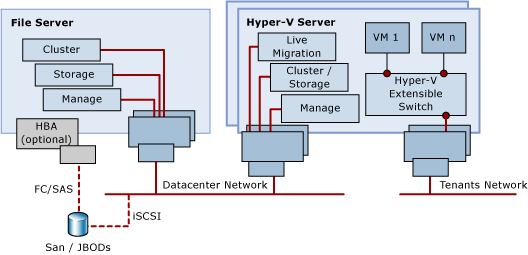
The traditional active/passive clustered file server uses a shared-nothing disk that takes a few seconds to fail over from host to host. And it is active/passive.  The SOFS is active-active.  That means the file share, or the cluster resource, must be accessible on all nodes in the SOFS cluster.  We need a disk that is clustered and available on all nodes at the same time.  Does that sound familiar?  It should if you read this blog: because that’s the same demand Hyper-V has.  And in W2008 R2 we got Clustered Shared Volume (CSV), a clustered file system where one of the nodes orchestrates the files, folders, and access.

In CSV the CSV Coordinator, automatically handled by the cluster and made fault tolerant, handles all orchestration.  Example of that orchestration are:

  • Creating files
  • Checking user permissions

To do this, nodes in the cluster go into redirected mode for the duration of that activity for the relevant CSV.  In Hyper-V, we notice this during VSS backups in W2008 R2 (no longer present in WS2012 for VSS backup).  IO is redirected from the SAS/iSCSI/FC connections to the storage, an sent over a cluster network via the CSV coordinator, which then proxies the IO to the SAN.  This gives the CSV coordinator exclusive access to the volume to complete the action, e.g. create a new file, check file permissions.

This is a tiny deal for something like Hyper-V.  We’re dealing with relatively few files, that are big.  Changes include new VHD/VM deployments, and expansion of dynamic VHDs for VMs running non-coordinator nodes.  SQL is getting support to store it’s files on SOFS, and it also has few, big files, just like Hyper-V.  So no issue there.

Now think about your end user file shares.  Lots and lots of teeny tiny little files, constantly being browsed in Windows Explorer, being opened, modified, and having permissions checks.  Lots and lots of metadata activity.  If these file shares were on an SOFS then it would probably be in near permanent SMB redirected IO mode (as opposed to block level redirected IO mode which was added in WS2012 for data stream redirection, e.g. caused by storage path failure).

We are told that continuously available file shares on a SOFS are:

  • Good for file services with few, big files, with little metadata activity
  • Bad for file services with many, small files, with lots of metadata activity

The official statement from Microsoft for the usage of SOFS can be found on TechNet:

image

In other words, DO NOT use the Scale-Out File Server solution for end user file shares.  Do, and you will be burned.

[EDIT]

It’s been quite a while since I wrote this post, but people still are INCORRECTLY using SOFS as a file server for end users. They end up with problems, such as slow performance and this one. If you want to “use” a SOFS for file shares, then deploy a VM as a file server, and store that VM on the SOFS. Or deploy non-continuously available (legacy highly available) disks and shares on the SOFS for end users, but I prefer the virtual file server approach because it draws a line between fabric and services.

More VMware Compete Wins For Hyper-V

VMware made a cute video to defend themselves against Windows Server 2012 Hyper-V.  But MSFT continues to hand out a GTA IV style baseball beat down at TechEd.

This post would have been impossible without the tweeted pictures by David Davis at http://www.vmwarevideos.com

General Feature Comparison

Does your business have an IT infrastructure so you can play, or to run applications?  What features have you got to improve those services?

Capability vSphere Free vSphere 5.0 Ent + WS2012 Hyper-V
Incremental backups No Yes Yes
Inbox VM replication No No Yes
NIC teaming Yes Yes Yes
Integrated High Availability No Yes Yes
Guest OS Application Monitoring N/A No Yes
Failover Prioritization N/A Yes Yes
Affinity & Anti-Affinity Rules N/A Yes Yes
Cluster-Aware Updating N/A Yes Yes

So Hyper-V has more application integrations.

Live Migration

Capability vSphere Free vSphere 5.0 Ent + WS2012 Hyper-V
VM Live Migration No Yes Yes
1 GB Simultaneous Live Migrations N/A 4 Unlimited
10 GB Simultaneous Live Migrations N/A 8 Unlimited
Live Storage Migration No Yes Yes
Shared Nothing Live Migration No No Yes
Network Virtualisation No Partner Yes

Shared-nothing Live Migration is actually a big deal.  We know that 33% of business don’t cluster their hosts, and another 33% have a mix of clustered and non-clustered hosts.  Share-Nothing Live Migration enables mobility across these platforms.  Flexibility is the #2 reason why people virtualise (see Network Virtualisation later on).

Clustering

Can you cluster hosts, and if so, how many?  How many VMs can you put on a host cluster?  Apps require uptime too, because VMs need to be patched, rebooted, and occasionally crash.

Capability vSphere Free vSphere 5.0 Ent + WS2012 Hyper-V
Nodes/Cluster N/A 32 64
VMs/Cluster N/A 3000 4000
Max Size iSCSI Guest Cluster N/A 0 64 Nodes
Max Size Fibre Channel Guest Cluster 2 Nodes 2 Nodes 64 Nodes
Max Size File Based Guest Cluster 0 0 64 Nodes
Guest Clustering with Live Migration Support N/A No Yes
Guest Clustering with Dynamic Memory Support No No Yes

Based on this data, WS2012 Hyper-V is the superior platform for scalability and fault tolerance.

Virtual Switches

In a cloud, the virtual switch plays a huge role.  How do they stack up against each other?

Capability vSphere Free vSphere 5.0 Ent + WS2012 Hyper-V
Extensible Switch No Replaceable Yes
Confirmed partner extensions No 2 4
PVLAN No Yes Yes
ARP/ND Spoofing Protection No vShield/Partner Yes
DHCP Snooping Protection No vShield/Partner Yes
Virtual Port ACLs No vShield/Partner Yes
Trunk Mode to VMs No No Yes
Port Monitoring Per Port Group Yes Yes
Port Mirroring Per Port Group Yes No

Another win for WS 2012 Hyper-V.  Note that vShield is an additional purchase on top of vSphere.  Hyper-V is the clear feature winner in cloud networking.

Network Optimisations

Capability vSphere Free vSphere 5.0 Ent + WS2012 Hyper-V
Dynamic Virtual Machine Queue (DVMQ) NetQueue netQueue Yes
IPsec Task Offload No No Yes
SR-IOV DirectPath I/O DirectPath I/O Yes
Storage Encryption (CSV vs VMFS) No No Yes
  • NetQueue supports a subset of the VMware HCL
  • Apparently DirectPath I/O VMs cannot vMotion (Live Migrate) without certain Cisco UCS (blade server centres) configurations
  • No physical security for VMFS SANs in the data center or cololated hosting

Hyper-V wins on the optimisation side of things for denser and higher throughput network loads.

VMware Fault Tolerance

FT feature: Run a hot standby VM on another host, taking over if another host should fail.

Required sacrifices:

  • 4 FT VMs per host with no memory overcommit: expensive because of low host density
  • 1 vCPU per FT VM: Surely VMs that require FT would require more than one logical processor (physical thread of execution)?
  • EPT/RVI (SLAT) disabled: No offloaded memory management.  This boosts VM performance by around 20% so I guess this FT VM doesn’t require performance.
  • Hot-plug disabled: no hot adding devices such as disks
  • No snapshots: not such a big deal for a production VM in my opinion
  • No VCB (VSS) backups: This is a big deal, because now you have to do a traditional “iron” backup of the VM, requiring custom backup policy, discarding the benefits of storage level backup for VMs

If cost reduction is the #1 reason for implementing virtualisation, then VMware FT seems like a complete oxymoron to me.  VMware FT is a chocolate kettle.  It sounds good, but don’t try boil water with it.

VMware Autodeploy

Centrally deploy a Hypervisor from a central console.

We have System Center 2012 Virtual Machine Manager for bare metal deployment.  Yes, it’s a bit more complex to setup.  B-u-t … with converged fabrics in WS2012, Hyper-V networking is actually getting much easier.

And even with System Center 2012 Datacenter, the MSFT solution is way cheaper than the vSphere alternative, and provides a complete cloud in the package, whereas vSphere is only the start of your vTaxation for disparate point solutions that contradict desires for a deeply integrated, automated, connected, self-service infrastructure.

More Stuff

I didn’t see anything on SRM versus Hyper-V Replica but I guess it was probably discussed.  SRM is allegedly $250-$400 per VM.  Hyper-V Replica is free and even baked into the free Hyper-V Server.  And Hyper-V Replica works with cloud vendors as well as internal sites.  Orchestration of failover can be done manually, by very simple PowerShell scripts, or with System Center 2012 Orchestrator (demonstrated in day 1 keynote).

I don’t know anything about vSphere support for Infiniband and RDMA, both supported by WS2012.  In fact, today it was reported that WS2012 RC Hyper-V benchmarked at 10.36 GigaBYTES/second (not Gbps) with 4.6% CPU overhead.

I also don’t know if VMware supports network abstraction, as in Hyper-V Network Virtualisation, essential for mobility between different networks and cloud consolidation/migration.

Take some time to review the new features in WS2012 Hyper-V.
Renaming Cluster Networks In Windows Server 2012

When I’m building a Hyper-V cluster, I like to rename the networks so I know what is what when tuning them.  I’ve previously given you a script to configure a converged fabric host and the code to build a cluster.  Instead of manually renaming the networks, you can do this:

(Get-ClusterNetwork | where-object {$_.Address -eq "172.16.2.0"}).Name = "vEthernet (Host-LiveMigration)"

This cmdlet will find the network you want to rename by querying for it’s IP address.  In this case, find the network 172.16.2.0.  I know this will be my migration network.  Using the object oriented nature of PowerShell (everything is either an object or a method, and objects have attributes), I grab the Name of the resulting network and set it to "vEthernet (Host-LiveMigration)".

The cluster network is then renamed from the anonymous Cluster Network X to a more useful and human friendly name, which is also the name I’m using on my converged fabric virtual NICs.

image

Just repeat this for each network in your script and you’ll have automated yet another step in the cluster creation process.

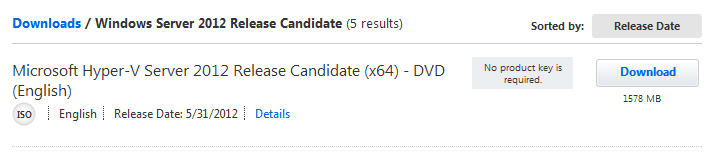
Ssssh! There Is A Hyper-V Server 2012 Release Candidate

Note: Microsoft announced the new licensing for Windows Server 2012 since this post.  Check out the licensing scenarios here.  And note that Hyper-V is free anyway if you are legally licensing your Windows Server VMs.  Hyper-V Server has a place, but usually not when running Windows Server VMs.

I was downloading some stuff from TechNet for the lab at home when I noticed this:

image

In fact, I nearly accidentally downloaded it … ick! Winking smile I didn’t read anything about this release at all.

Hyper-V Server is the free to download hypervisor from Microsoft.  Licensing-wise, it has a teeny tiny niche market.  That’s because you never license VMs for Windows Server, even with VMware or XenServer; you license hosts with Standard (usually SBS Premium), Enterprise (very small site), or Datacenter (makes sense financially with around 7 or more VMs per host).  And if you license the host + VMs with one of those, then you might as well use it.  I prefer the full install, even in WS2012, and others who like Core can flip back/forth to the GUI in WS2012.

Where Hyper-V Server does have a place is:

  • VDI: where you’re not licensing the host for Windows Server VMs.  It might be pointless buying Datacenter edition when those licensing benefits are going to waste and not cancelling out the cost of the host OS.  the free Hyper-V Server has all the same functionality.
  • Linux VMs: Same argument as with VDI.
  • You don’t have licensing for Windows Server, you want to build a host once, and play with downloaded time-bombed demo stuff.

Maybe you’re in that market for Hyper-V Server?  If so, go grab the RC and start playing and learning.

EDIT#1

As soon as I post this, I see tweets that it’s just been announced at TechEd Smile It will continue to match the Datacenter edition for features by the looks of the tweets.

EDIT#2

Oh for the hell of it, let’s have a look at the ESXi free edition comparison, courtesy of a tweet by David Davis:

image


image


Windows Server 2012 Hyper-V & Failover Prioritisation

Remember how Live Migration and HA are 2 different things?  HA is when a clustered host fails.  The that are hosted on VMs have to fail over to another host and boot up.  What if you had some n-tier app running on that host?  Take this example where:

  • There is a web server VM that depends on the app server VM.
  • The app server VM depends on the database server VM.
  • There is a database server VM.

Now what if they all failover at the same time and the web server boots up first.  It’ll go looking for the app server and the web app will break, requiring some manual intervention – how very un-cloud-like.

Windows Server 2012 Failover Clustering allows us to set 1 of 4 failover priorities to our VMs.  They can be:

  1. High: VMs with this value will failover and start first
  2. Medium: Any VM with this priority will failover and start second
  3. Low: Any VM with this priority will failover and start after the the Medium VMs
  4. Do Not Failover: What it says on the tin, intended for non-production VMs that you don’t need – useful when relying on Dynamic Memory to compress virtual workloads on fewer hosts after drastic host failures and you need to conserve RAM for production services.

If you had 10 VMs with the high priority then they all failover and start at the same time.  Then your 20 Medium VMs would start after that.  And your 100 Low VMs would start after the Medium ones.

You cannot create new priorities for yourself.  You must use these priority levels if you want to use this feature.

Note that the failover priority level has absolutely no impact on Live Migration.  And that’s because Live Migration and Failover/HA are two very different things.  Your app dependencies should not be impacted by Live Migration because the VMs’ services will stay online and responsive during the migration.

What Is The Correct Number Of Simultaneous Live Migrations?

Seeing as a VMware marketing employee was so kind as to link to this post from his “independent” blog, I’ll gladly inform his followers of his employers’ desperation and that VMware storage is insecure.  You’re welcome, Eric 🙂

We have the ability to run many live migrations at once between Windows Server 2012 (WS2012) Hyper-V hosts.  By default, we can do 2 simultaneous Live Migrations at once: that’s 2 live migrations and 2 storage migrations.

A word of warning.  Storage live migrations cause a spike in IOPS so you don’t want to do too many of those at once.  Anyway, they are more of a planned move, e.g. relocation of workloads.  The same applies to a shared-nothing live migration where the first 50% of the job is a storage migration.

In this post, I’m more interested in a traditional Live Migration where the storage isn’t moving.  It’s either on a SAN or on an SMB 3.0 share.  In W2008 R2, we could do 1 of these at a time.  In vSphere 5.0, you can do 4 of these at a time.  Windows Server 2012 hasn’t applied a limit, just a default of 2.

image

So how many simultaneous live migrations is the right amount?  How long is a piece of string?  It really does depend.  Remember that a VM live migration is a copy/synchronisation of the VM’s changing memory from one host to another over the network, followed by a pause on hostA with an un-pause on hostB.  Harder working VMs = more memory trash = longer process per VM.  More bandwidth = the ability to run more migrations at once.

So I decided to run a quick test tonight.  This afternoon I build a converged fabric cluster using WS2012 RC.  It’s based on 4 * 10 GbE NICs in a team, with 9014 sized jumbo frames enabled, and I have a QoS poicy to guarantee 10% of bandwidth to Live Migration.  I deployed 60 * 512 MB RAM Ubuntu VMs.  And then I ran 4 sets of tests, 3 in each set, where I changed the number of concurrent live migrations.  I started with 60 simultaneous, dropped to 20, then to 10, and then to the default of 2.

image

Here’s a summary on the findings:

  • There is a sweet spot in my configuration: 20 VMs at once.  With a bit more testing I might have found if the sweet spot was closer to 15 or 25.
  • Running 2 simultaneous live migrations was the slowest by far, over double the time required for 60 concurrent live migrations.

Clearly in my configuration, lots of simultaneous live migrations speeds up the evacuation of a host.  But the sweet spot could change if:

  • The memory trashing of VMs was higher, rather than with idle VMs that I had
  • I was using a different network, such as a single 1 GbE or 10 GbE NIC, for Live Migration instead of a 40 GbE converged fabric

Sow how do you assess the right setting for your farm?  That’s a tough one, especially at this pre-release stage.  My thoughts are that you test the installation just like I did during the pilot.  See what works best.  Then tune it.  If you’re on 1 GbE, then maybe try 10 and work your way down.  If you’re on 10 GbE converged fabric then try something like what I did.  Find the sweet spot and then stick with that.  At least, that’s what I’m thinking at the moment.

Where Do You Set The Live Migration Network In A WS2012 Hyper-V Cluster

Microsoft has moved the location of where you configure the LM network with the release candidate of Windows Server 2012 Hyper-V.  The old location was confusing … right-click on the properties of a single Virtual Machine resource (in the VM group), and that applied to all VMs.  As a speaker, the bewildered and confused look on people’s faces at that point was always worrying.

And thankfully, it is now relocated to somewhere more obvious, and clear that it’s a cluster wide setting:

image

  • Right-click on Networks
  • Select Live Migration Settings

image

In this new dialog box, you can order the networks (from the above Networks node in Failover Cluster Manager), and select which ones are to be used for Live Migration.  I like to make my network names clear, so it’s obvious what is what here.

Updated: PowerShell Script To Create A Converged Fabric For Clustered Windows Server 2012 Hyper-V Host

Last week I published a script to create a converged fabric clustered host.  I wrote that script using the beta of Windows Server 2012 (“8”).  But since then, the release candidate has come out.  And wouldn’t you know it, some of the PowerShell cmdlets in the RC have changed.

Here’s a summary of the changes:

  • When you create a NIC team in the GUI, the device name now matches the NIC team local area connection name.  That’s a good change.  I hated that the local area connection name was tucked away in the advanced settings and threw in a “default” into the name.
  • The cmdlet to set the IP address of the NIC is different.  We used to say –IPv4Address to specify the address.  Now we use –IPAddress.
  • By default, the new virtual NIC took on a meaningless “Wired Ethernet Connection” label for the Local Area Connection name.  I had to rename it to something meaningful, like “Host-Parent”.  Now, the new virtual NIC takes on a meaningful name, such as “vEthernet (Host-Parent)”, so I can delete the cmdlet to delete it.  At first I didn’t like this, but after talking to Hans Vredevoort last night, he changed my mind.
  • I have found that a new management OS virtual NIC can take over 20 seconds to initialise.  That means that any attempt to configure the IP address straight away will fail.  Therefore I’ve moved all the IP config cmdlets to the end of the script, and they only run after a 30 second sleep.

I have updated the original script to reflect these changes.

EDIT #1:

After some testing I found that I had to add a sleep cmdlet before configuring the IP addresses of the virtual NICs.