Hurricane Matthew – Start Those Planned Failovers

A hurricane is about to blast it’s way up the east coast of the USA, making landfall in south Florida probably early on Friday morning, and working it’s way up to Norfolk, VA, by Sunday morning. We know how much damage these hurricanes can do, especially if tides rise and seawater starts mixing with electric, servers, and storage – we’re talking not just business down, but business offline, and maybe even business dead. I’m sorry, but even a stretch cluster to a nearby location is subject to the same mess.

This is when a true DR solution is required. “But I cannot afford a DR solution”, you say. You can’t afford to not have one, but I do know what you could have deployed (it’s too late now, by the way, if you are in the target zone for Hurricane Matthew). Azure Site Recovery (ASR) is an OPEX-based way to get a DR site in the cloud. The cost is a monthly drip feed instead of the CAPEX big bang that a traditional DR site is:

  • $25 per replicated machine per month, in Azure South Central US.
  • Replicated disk storage starts at $0.05 per GB in the same Azure region.

The solution works with:

  • Hyper-V
  • vSphere
  • Physical servers

And it’s really simple to use and reliable; thousands (if not more) of businesses are deploying and testing ASR failovers on a regular basis. This out-of-“the box” shared platform is tested constantly, which makes it way more reliable than some home-baked solution.

You get full orchestration – so if I saw the forecast today, I could start my business continuity plan, start the failover and hit the road. My machines would start a planned failover (ordered and no data loss) to Azure and would be waiting for me when I get to my rendezvous point. Note that my orchestration can also kick off PowerShell scripts (Azure Automation) to do some fancy things, such as redirecting internet traffic that I had routed using Azure Traffic Manager.

If you have ASR and are in one of the areas that will be affected, then do a test failover, do any required remediation’s, and then start that failover. Hopefully, your business is not damaged and you can do a failback afterwards (if you want to). If you don’t have a DR solution, I hope you survive, and have the sense to look at ASR soon afterwards – it is hurricane season!

Technorati Tags: ,,

Future Decoded: My Session Is “Azure Site Recovery – Be A Super Hero!”

I’m going to be talking about Azure’s DR-as-a-Service or DR-site-in-the-cloud solution, Azure Site Recovery (ASR) at Future Decoded, a fantastic IT event by Microsoft UK beside London City Airport, on November 1/2.

“Remember; when disaster strikes, the time to prepare has passed” , Stephen Cyros.

We all think that disasters never happen near us; bushfires, earthquakes and flying cows are things that happen elsewhere. But the truth is very different, disasters strike every day without making headlines, sometimes wiping out a company or just that one critical server, and the cruel thing about disasters is that they tend to strike those that are unprepared; it’s those times that the business needs a hero. Unfortunately, a hero needs to be prepared, and during a disaster is not the time to prepare. IT Pros know that we need to have DR solutions, but often they’ve proven to be too costly or too difficult to implement. Times have changed; cloud computing has democratized and simplified DR. ASR’s low cost OPEX model makes replication of physical, vSphere, or Hyper-V servers to Azure more … more so now, thanks to recent price cuts. Large and small enterprises benefit from ASR’s orchestration which makes failover easy and reliable – you can order failover of machines and build in scripted extensions, and test your orchestrated failover without impacting production systems.

TW_FD-Register-banner_1024x512px (002)

Future Decoded will have lots of great content from a variety of speakers with different backgrounds, and come along to my session to learn how you can be the super hero, and get your business back operational when everyone else is panicking.

Azure VM Price Reductions And Changes

Microsoft released news overnight that they have reduced the cost of some Azure virtual machines, effective October 1st.

I help price up a lot of Azure IaaS solutions. Quite a few of the VM solutions never go anywhere, and I’m pretty sure that the per-minute/hour costs of the VMs play a big role in that (there’s a longer story here, but it’s a tangent). Microsoft has reduced the costs of their workhorse Azure virtual machines to combat this problem. I welcome this news – it might get me a little closer to my targets Smile

  • The costs of Basic A1 and Basic A2 (great for DCs and file servers!) VMs are reduced by up to 50%, A Basic A2 (will run Azure AD Connect for a small-mid biz) will now cost €70.90 per month in North Europe (Dublin).
  • The price of the Dv2 series VMs is being reduced by up to 15%.
  • The fairly new F-Series is seeing reductions of up to 11%.

The launch of the new UK regions made me wonder if Microsoft had deprecated the A-Series VMs – the UK regions cannot run the Basic A- or Standard A-Series VMs. These VMs are old, running on wimpy power consumption optimized Opteron processors. Microsoft went on to announce that a new Av2 series of virtual machines will be launched in November, with prices being up to 36% lower than the current A-Series. This is great news too. The D-, F-, G-, N-Series VMs get all of the headlines but it’s the A-Series machines that do the grunt work, and it would have been a shame if the most affordable series had been terminated.

Technorati Tags: ,

Webinar: An Overview of Azure

I’ve been asked to deliver a webinar this week, focusing on an overview of Microsoft Azure. This overview sessions will talk about what Azure is, what it isn’t, and the types of services that it delivers. I will be focusing on Azure, as sold through the CSP channel (an ARM-only implementation of Azure).

The webinar will be under 1 hour long, starting at 2pm (UK/Ireland) and 3PM (CET), on Thursday 6th October.


image

All the details and registration are here.

Technorati Tags: ,

Satya Nadella & Brad Smith Speaking at Microsoft Ireland Tech Gathering

I attended today’s Microsoft Ireland Tech Gathering, a surprising event for Microsoft Ireland – they do very little in the public anymore. What’s even more surprising is that Microsoft CEO, Satya Nadella, is in town to speak (here, an earlier CEO breakfast, and a later education event by Dublin City University). Nadella is doing the keynote. I’m in the 7th row, and I have a heavy camera to swing/throw if he talks about Cortana – which only works in 10 countries, and Ireland is not one of the ten Open-mouthed smile (just kidding, big security dudes!).

All photos in this post are the property of Aidan Finn and may not be used without my permission – just ask, it’s easy!

Claire Dillon

The group lead of the local DX (Developer Experience) team takes the stage. She explains what DX is, a team now focused on development (technical architects) and business (account managers) in in the cloud, no longer the mix of devs and IT pros that DPE once was.

There’s a quick reminder of the last Microsoft year. And open source is highlighted.

image

The world is changing very rapidly. Mobile, cloud, data growth, machine learning, AI, augmented reality …me: these aren’t endpoints, they are the start of a journey. Industries are changing, and cloud/mobile has set an expectation that goods/services are delivered immediately.

There’s an opportunity for start-up small-in the cloud companies – they are flexible and can be disruptive to the larger incumbents. Microsoft Encarta killed Encyclopaedia Britannia’s 244 year old published product. But EB is more profitable than ever! They adapted and transformed to embrace the Internet for delivering their product. WIkipedia is a newer threat to EB. EB focused on a quality and fact checked product, and customers that required that: education, for example.

IT pros and developers are in for an exciting time. Things are changing, and resistance is futile. Some facts:

  • Outlook.com:400 million active users.
  • Office on 340 million mobile devices.
  • Skype users using 3 billion minutes of calls. Sky Translator doing real time comms in 8 languages.
  • 40% of Azure income coming from small business and start ups. 1 in 3 Azure VM are Linux. The data centres consume less than 50% of the power of traditional data centres. 80% of large enterprises using MSFT cloud.

Today will be all about the digital transformation.

  • Satya Nadella, Brad Smith, and Irish MD will evangelize.
  • Then customers will talk about their journey, including some open source.


Cathriona Hallahan

MD of MS Ireland. Large breath of people here, partners, bloggers, media, small customers and large.

Microsoft has transformed under Satya Nadella.

image

Satya Nadella

CEO of Microsoft.

Vision: to empower every person on the planet to do more. Every product that they make is shaped by this vision. People build institutions to outlast them, including software.

image

It’s not about MS tech, it’s about what happens with that technology when it’s in customers hands, and how they can transform.

Mobility is not about a device, it’s about our mobility across all the devices in our life. Seamless movement is only possible in the cloud. This is why cloud first, mobile first are happening at the same time. Cloud computing is not a single destination – it’s a distributed computing service.

Digital transformation that customers will achieve through this technology is what is important. Microsoft is building this out through a hyper scale global cloud. 6 regions in Europe. The North Europe region (Dublin) is expanding – there are planning applications/decisions in the local news every now and then.

Azure is being built out as the first AI super computer (SkyNet).

Every compute node in Azure has FPGA’s now. You can distribute your AI across this fabric. N-Series NVIDIA chipsets provide great processing for AI too. But raw infrastructure is not enough. The magic is in software. Microsoft is state-of-the-art in speech and object recognition. Doing stuff with deep neural nets.

The Bot framework was launched 6 months ago. 4500 developers are building new kinds of apps on this framework. Graph gets a nod. Dynamics 365 is brought up – how can we think about business process as a continuum of productivity and comms, instead of putting it into a silo? Every company is becoming a digital company. You want to be able to empower every employee in your company with data, information, and analytics. Predictive and analysis power will be the new strength of a business – can you do it better and faster than your competitor and jump on opportunities. Can you predict service failures and proactively remediate? For example, factory can shift from focusing on the thing they make to the service they offer.

He refers to a digital feedback loop – data coming in and coming back out as intelligence.

How is all this going to diffuse through the world? In Europe, they see a broad spectrum of uses in Europe, and by European companies around the world. Access to the technology is critical. A Swiss company called Temenos has democratized access to banking s/w in Asia. They use the public cloud – there’s a video.

image

Some local Irish examples. He met with AIB and talked about their strategies. They are using the cloud and their data centers to transform customer banking. Office 365 is being rolled out to empower employees. Cubic Telecom is working with Automative Industry – to connect every car to a mobile phone network – s/w allows a car to move to any region and have network support without changing hardware. eHealth Ireland is connecting patients with doctors, providing information in patients’ most vulnerable moments.

In the future, this infinite cloud infrastructure and new types of devices (AR, VR, IoT) is what will transform every life and every industry. HoloLens is an infinite display – mixing realities. Another video.

When you change the way you see the world, you change the world you see.

It is incumbent on technology pros and government to ask if a tech is going to help everyone on the planet. MSFT launching a book called a cloud for global good.

image

Brad Smith

Chief legal man in Microsoft.

Started his career in MS France. Talks about the history of MS in Ireland – from manufacturing CDs, to eventually be involved in a global cloud issue. Their data center in Ireland lead to litigation in the USA about the FBI demanding access to a mailbox in Dublin – Microsoft won, in case you didn’t know. It was good news for Microsoft, and great news for the cloud. Microsoft touring Europe this week to talk about the globality of the cloud.

He reckons that the cloud is a new industrial revolution – a recap of what he presented at WPC earlier this year.

The cloud is powering all of the current digital transformations. How do we ensure that this cloud serves everyone and not just the lucky few. We need to act with shared responsibility. The new book as 72 recommendations to ensure a cloud for global good.

image

We need a new set of cyber security rules. We need personal rights for data crossing borders.

We more than just trust. We need a cloud that is responsible, and respects human rights and public safety.

We need to advance sustainability. MS data centers already consuming the same power as a small US state. This is escalating. MS committed to get better every year on use of renewable energy and to be transparent. By 2018, it’s to hit 50% or better, and 60% in the next decade … but they need help with supply.

We need laws to enable AI, but laws to control ethics.

The cloud needs to be more inclusive for people around the world. Form access to digital literacy, developing skills for the next generations.

To build a digital economy, you need to build a learning economy. We need to connect rural communities – the cloud can reduce distances. We need to think about people with disabilities – 300 million are visually impaired. Over 1 billion those with some kind of disability. They have potential to do great, but face obstacles to adopt and achieve.

Ignite 2016 – Storage Spaces Direct

Read the notes from the session recording (original here) on Windows Server 2016 (WS2016) Storage Spaces Direct (S2D) and hyper-converged infrastructure, which was one of my most anticipated sessions of Microsoft Ignite 2016. The presenters were:

  • Claus Joergensen: Program Manager
  • Cosmos Darwin, Program Manager

Definition

Cosmos starts the session.

Storage Spaces Direct (S2D) is software-defined, shared-nothing storage.

  • Software-defined: Use industry standard hardware (not proprietary, like in a SAN) to build lower cost alternative storage. Lower cost doesn’t mean lower performance … as you’ll see Smile
  • Shared-nothing: The servers use internal disks, not shared disk trays. HA and scale is achieved by pooling disks and replicating “blocks”.

Deployment

There’s a bunch of animated slides.

  1. 3 servers, each with internal disks, a mix of flash and HDD. The servers are connected over Ethernet (10 GbE or faster, RDMA)
  2. Runs some PowerShell to query the disks on a server. The server has  4 x SATA HDD and 2 x SATA SSD. Yes, SATA. SATA is more affordable than SAS. S2D uses a virtual SAS bus over the disks to deal with SATA issues.
  3. They form a cluster from the 3 servers. That creates a single “pool” of nodes – a cluster.
  4. Now the magic starts. They will create a software-defined pool of virtually shared disks, using Enable-ClusterStorageSpacesDirect. That cmdlet does some smart work for us, identifying caching devices and capacity devices – more on this later.
  5. Now they can create a series of virtual disks, each which will be formatted with ReFS and mounted by the cluster as CSVs – shared storage volumes. This is done with one cmdlet, New-Volume, which is doing all the lifting. Very cool!

image

There are two ways we can now use this cluster:

  • We expose the CSVs using file shares to another set of servers, such as Hyper-V hosts, and those servers store data, such as virtual machine files, using SMB 3 networking.
  • We don’t use any SMB 3 or file shares. Instead, we enable Hyper-V on all the S2D nodes, and run compute and storage across the cluster. This is hyper-converged infrastructure (HCI)

image

A new announcement. A 3rd scenario is SQL Server 2016 (supported). You install SQL Server 2016 on each node, and store database/log files on the CSVs (no SMB 3 file shares).

image

Scale-Out

So your S2D cluster was fine, but now your needs have grown and you need to scale out your storage/compute? It’s easy. Add another node (with internal storage) to the cluster. In moments, S2D will claim the new data disks. Data will be re-balanced over time across the disks in all the nodes.

Time to Deploy?

Once you have the servers racked/cabled, OS installed, and networking configured, you’re looking at under 15 minutes to get S2D configured and ready. You can automate a lot of the steps in SCVMM 2016.

Cluster Sizing

The minimum number of required nodes is an “it depends”.

  • Ideally you have a 4-node cluster. This offers HA, even during maintenance, and supports the most interesting form of data resilience that includes 3-way mirroring.
  • You could do a 3 node cluster, but that’s limited to 2-way mirroring.
  • And now, as of Ignite, you can do a 2-node cluster.

Scalability:

  • 2-16 nodes in a single cluster – add nodes to scale out.
  • Over 3PB of raw storage per cluster – add drives to nodes to scale up (JBODS are supported).
  • The bigger the cluster gets, the better it will perform, depending on your network.

The procurement process is easy: add servers/disks

Performance

Claus takes over the presentation.

1,000,000 IOPS

Earlier in the week (I blogged this in the WS2016 and SysCtr 2016 session), Claus showed some crazy numbers for a larger cluster. He’s using a more “normal” 4-node (Dell R730xd) cluster in this demo. There are 4 CSVs. Each node has 4 NVMe flash devices and a bunch of HDDs. There are 80 VMs running on the HCI cluster. They’re using a open source stress test tool called VMFleet. The cluster is doing just over 1 million IOPS, over 925,000 read and 80.000 write. That’s 4 x 2U servers … not a rack of Dell Compellent SAN!

Disk Tiering

You can do:

  • SSD + HDD
  • All SSD

You must have some flash storage. That’s because HDD is slow at seek/read. “Spinning rust” (7200 RPM) can only do about 75 random IOs per second (IOPS). That’s pretty pathetic.

Flash gives us a built-in, always-on cache. One or more caching device (a flash disk) is selected by S2D. Caching devices are not pooled. The other disks, capacity devices, are used to store data, and are pooled and dynamically (not statically) bound to a caching device. All writes up to 256 KB and all reads up to 64 GB are cached – random IO is intercepted, and later sent it to capacity devices as optimized IO.

Note the dynamic binding of capacity devices to caching devices. If a server has more than one caching device, and one fails, the capacity devices of the failed caching device are dynamically re-bound.

Caching devices are deliberately not pooled – this allows their caching capability to be used by any pool/volume in the cluster –the flash storage can be used where it is needed.

image

The result (in Microsoft’s internal testing) was that they hit 600+ IOPS per HDD …. that’s how perfmon perceived it … in reality the caching devices were positively greatly impacting the performance of “spinning rust”.

NVMe

WS2016 S2D supports NVMe. This is a PCIe bus-connected form of very fast flash storage, that is many times faster than SAS HBA-connected SSD.

Comparing costs per drive/GB using retail pricing on NewEgg (a USA retail site):

image

Comparing performance, not price:

image

If we look at the cost per IOP, NVMe becomes a very affordable acceleration device:

image

Some CPU assist is require to move data to/from storage. Comparing SSD and NVMe, the NVMe has more CPU for Hyper-V or SQL Server.

image

The highest IOPS number that Microsoft has hit, so far, is over 6,000,000 read IOPS from a single cluster, which they showed earlier in the week.

1 Tb/s Throughput (New Record)

IOPS are great. But IOPS is much like horsepower in a car, we care more about miles/KMs per hour or amounts of data we can actually push in a second. Microsoft recently hit 1 terabit per second. The cluster:

  • 12 nodes
  • All Micron NVMe
  • 100 GbE Mellanox RDMA network adapters
  • 336 VMs, stress tested by VMFleet.

Thanks to RDMA and NVMe, the CPU consumption was only 24-27%.

1 terabit per second. Wikipedia (English) is 11.5 GB. They can move English Wikipedia 14 times per second.

Fault Tolerance

Soooo, S2D is cheaper storage, but the performance is crazy good. Maybe there’s something wrong with fault tolerance? Think again!

Cosmos is back.

Failures are not a failure mode – they’re a critical design point. Failures happen, so Microsoft wants to make it easy to deal with.

Drive Fault Tolerance

  • You can survive up to 2 simultaneous drive failures. That’s because each chunk of data is stored on 3 drives. Your data stays safe and continuously (better than highly) available.
  • There is automatic and immediate repair (self-healing: parallelized restore, which is faster than classic RAID restore).
  • Drive replacement is a single-step process.

Demo:

  1. 3 node cluster, with 42 drives, 3 CSVs.
  2. 1 drive is pulled, and it shows a “Lost Communication” status.
  3. The 3 CSVs now have a Warning health status – remember that each virtual disk (LUN) consumes space from each physical disk in the pool.
  4. Runs: Cluster* | DebugStorageSubSystem …. this cmdlet for S2D does a complete cluster health check. The fault is found, devices identified (including disk & server serial), fault explained, and a recommendation is made. We never had this simple debug tool in WS2012 R2.
  5. Runs: $Volumes | Debug-Volume … returns health info on the CSVs, and indicates that drive resiliency is reduced. It notes that a restore will happen automatically.
  6. The drive is automatically marked as restired.
  7. S2D (Get-StorageJob) starts a repair automatically – this is a parallelized restore writing across many drives, instead of just to 1 replacement/hot drive.
  8. A new drive is inserted into the cluster. In WS2012 R2 we had to do some manual steps. But in WS2016 S2D, the disk is added automatically. We can audit this by looking at jobs.
  9. A rebalance job will automatically happen, to balance data placement across the physical drives.

So what are the manual steps you need to do to replace a failed drive?

  1. Pull the old drive
  2. Install a new drive

S2D does everything else automatically.

Server Fault Tolerance

  • You can survive up to 2 node failures (4+ node cluster).
  • Copies of data are stored in different servers, not just different drives.
  • Able to accommodate servicing and maintenance – because data is spread across the nodes. So not a problem if you pause/drain a node to do planned maintenance.
  • Data resyncs automatically after a node has been paused/restarted.

Think of a server as a super drive.

Chassis & Rack Fault Tolerance

Time to start thinking about fault domains, like Azure does.

You can spread your S2D cluster across multiple racks or blade chassis. This is to create the concept of fault domains – different parts of the cluster depend on different network uplinks and power circuits.

image

You can tag a server as being in a particular rack or blade chassis. S2D will respect these boundaries for data placement, therefore for disk/server fault tolerance.

Efficiency

Claus is back on stage.

Mirroring is Costly

Everything so far about fault tolerance in the presentation has been about 3-copy mirror. And mirroring is expensive – this is why we encounter so many awful virtualization deployments on RAID5. So if 2-copy mirror (like RAID 10) gives us  the raw storage as usable storage, and only 1/3 with 3-way mirroring, this is too expensive.

2-way and 3-way mirroring give us the best performance, but parity/erasure coding/RAID5 give us the best usable storage percentage. We want performance, but we want affordability too.

image

We can do erasure coding with 4 nodes in an S2D cluster, but there is a performance hit.

image

Issues with erasure coding (parity or RAID 5):

  • To rebuild from one failure, you have to read every column (all the disks), which ties up valuable IOPS.
  • Every write incurs an update of the erasure coding, which tiers up valuable CPU. Actively written data means calculating the encoding over and over again. This easily doubles the computational work involved in every write!

Local Reconstruction Codes

A product of Microsoft Research. It enables much faster recovery of a single drive by grouping bits. The XO the groups and restore required bits instead of an entire stripe. It reduces the number of devices that you need to touch to do a restore of a disk when using parity/erasure coding. This is used in Azure and in S2D.

image

This allows Microsoft to use erasure coding on SSD, as do many HCI vendors, but also on HDDs.

The below depicts the levels of efficiency you can get with erasure coding – note that you need 4 nodes minimum for erasure coding. The more nodes that you have, the better the efficiencies.

image

Accelerated Erasure Coding

S2D optimizes the read-modify-write nature of erasure coding. A virtual disk (a LUN) can combine mirroring and erasure coding!

  • Mirror: hot data with fast write
  • Erasure coding: cold data – fewer parity calculations

The tiering is real time, not scheduled like in normal Storage Spaces. And ReFS metadata handling optimizes things too – you should use ReFS on the data volumes in S2D!

Think about it. A VM sends a write to the virtual disk. The write is done to the mirror and acknowledged. The VM is happy and moves on. Underneath, S2D is continuing to handle the persistently stored updates. When the mirror tier fills, the aged data is pushed down to the erasure coding tier, where parity is done … but the VM isn’t affected because it has already committed the write and has moved on.

And don’t forget that we have flash-based caching devices in place before the VM hits the virtual disk!

As for updates to the parity volume, ReFS is very efficient, thanks to it’s way of abstracting blocks using metadata, e.g. accelerated VHDX operations.

The result here is that we get the performance of mirroring for writes and hot data (plus the flash-based cache!) and the economies of parity/erasure coding.

If money is not a problem, and you need peak performance, you can always go all-mirror.

image

Storage Efficiency Demo (Multi-Resilient Volumes)

Claus does a demo using PoSH.

image

Note: 2-way mirroring can lose 1 drive/system and is 50% efficient, e.g. 1 TB of usable capacity has a 2 TB footprint of raw capacity.

  1. 12 node S2D cluster, each has 4 SSDs and 12 HDDs. There is 500 TB of raw capacity in the cluster.
  2. Claus creates a 3-way mirror volume of 1 TB (across 12 servers). The footprint is 3 TB of raw capacity. 33% efficiency. We can lose 2 systems/drives
  3. He then creates a parity volume of 1 TB (across 12 servers). The The footprint is 1.4 TB of raw capacity. 73% efficiency. We can lose 2 systems/drives
  4. 3 more volumes are created, with different mixtures of 3-way mirroring and erasure coding.
  5. The 500 GB mirror + 500 dual parity virtual disk has 46% efficiency with a 2.1 TB footprint.
  6. The 300 GB mirror + 700 dual parity virtual disk has 54% efficiency with a 1.8 TB footprint.
  7. The 100 GB mirror + 900 dual parity virtual disk has 65% efficiency with 1.5 TB footprint.

Microsoft is recommending that 10-20% of the usable capacity in “hybrid volumes” should be 3-way mirror.

If you went with the 100/900 balance for a light write workload in a hybrid volume, then you’ll get the same performance as a 1 TB 3-way mirror volume, but by using half of the raw capacity (1.5 TB instead of 3 TB).

CPU Efficiency

S2D is embedded in the kernal. It’s deep down low in kernel mode, so it’s efficient (fewer context switches to/from user mode). A requirement for this efficiency is using Remote Direct Memory Access (RDMA) which gives us the ultra-efficient SMB Direct.

There’s lots of replication traffic going on between the nodes (east-west traffic).

image

RDMA means that:

  • We use less CPU when doing reads/write
  • But we also can increase the amount of read/write IOPS because we have more CPU available
  • The balance is that we have more CPU for VM workloads in a HCI deployment

Customer Case Study

I normally hate customer case studies in these sessions because they’re usually an advert. But this quick presentation by Ben Thomas of Datacom was informative about real world experience and numbers.

They switched from using SANs to using 4-node S2D clusters with 120 TB usable storage – a mix of flash/SATA storage. Expansion was easy compared to compute + SAN > just buy a server and add it to the cluster. Their network was all Ethernet (even the really fast 100 Gbps Mellanox stuff is Ethernet-based) so they didn’t need fibre networks for SAN anymore. Storage deployment was easy. In SAN there’s create the LUN, zone it, etc. In S2D, 1 cmdlet creates a virtual disk with the required resilience/tiering, formats it, and it appears as a replicated CSV across all the nodes.

Their storage ended up costing them $0.04 / GB or $4 / 1000 IOPS. The IOPS was guaranteed using Storage QoS.

Manageability

Cosmos is back.

You can use PowerShell and FCM, but mid-large customers should use System Center 2016. SCVMM 2016 can deploy your S2D cluster on bare metal.

Note: I’m normally quite critical of SCVMM, but I’ve really liked how SCVMM simplified Hyper-V storage in the past.

If you’re doing a S2D deployment, do a Hyper-V deployment and check a single box to enable S2D and that’s it, you get a HCI cluster instead of a compute cluster that requires storage from elsewhere. Simple!

SCOM provides the monitoring. They have a big dashboard to visualize alerts and usage of your S2D cluster.

image

Where is all that SCOM data coming from? You can get this raw data yourself if you don’t have System Center.

Health Service

New in WS2016. S2D has a health service built into the OS. This is the service that feeds info to the SCOM agents. It has:

  • Always-on monitoring
  • Alerting with severity, description, and call to action (recommendation)
  • Root-cause analysis to reduce alert noise
  • Monitoring software and hardware from SLA down to the drive (including enclosure location awareness)

We actually saw the health service information in an earlier demo when a drive was pulled from an S2D cluster.

image

It’s not just health. There are also performance, utilization, and capacity metrics. All this is built into the OS too, and accessible via PowerShell or API: Cluster* | Get-StorageHealthReport

DataON MUST

Cosmos shows a new tool from DataON, a manufacturer of Storage Spaces and Storage Spaces Direct (S2D) hardware.

If you are a reseller in the EU, then you can purchase DataON hardware from my employer, MicroWarehouse (www.mwh.ie) to resell to your customers.

DataON has made a new tool called MUST for management and monitoring of Storage Spaces and S2D.

Cosmos logs into a cloud app, must.dataonstorage.com. It has a nice bright colourful and informative dashboard with details of the DataON hardware cluster. The data is live and updating in the console, including animated performance graphs.

image

There is an alert for a server being offline. He browses to Nodes. You can see healthy node with all it’s networking, drives, CPUs, RAM, etc.

image

He browses to the dead machine – and it’s clearly down.

Two things that Cosmos highlights:

  • It’s a browser-based HTML5 experience. You can access this tool from any kind of device.
  • DataON showed a prototype to Cosmos – a “call home” feature. You can opt in to get a notification sent to DataON of a h/w failure, and DataON will automatically have a spare part shipped out from a relatively local warehouse.

The latter is the sort of thing you can subscribe to get for high-end SANs, and very nice to see in commodity h/w storage. That’s a really nice support feature from DataON.

Cost

So, controversy first, you need WS2016 Datacenter Edition to run S2D. You cannot do this with Standard Edition. Sorry small biz that was considering this with a 2 node cluster for a small number of VMs – you’ll have to stick with a cluster in a box.

Me: And the h/w is rack servers with RDMA networking – you’ll be surprised how affordable the half-U 100 GbE switches from Mellanox are – each port breaks out to multiple cables if you want. Mellanox price up very nicely against Cisco/HPE/Dell/etc, and you’ll easily cover the cost with your SAN savings.

Hardware

Microsoft has worked with a number of server vendors to get validated S2D systems in the market. DataON will have a few systems, including an all-NVME one and this 2U model with 24 x 2.5” disks:

image

You can do S2D on any hardware with the pieces, Microsoft really wants you to use the right, validated and tested, hardware. you know, you can put a loaded gun to your head, release the safety, and pull the trigger, but you probably shouldn’t. Stick to the advice, and use especially engineered & tested hardware.

Project Kepler-47

One more “fun share” by Claus.

2-nodes are now supported by S2D, but Microsoft wondered “how low can we go?”. Kepler-47 is a proof-of-concept, not a shipping system.

These are the pieces. Note that the motherboard is mini-ITX; the key thing was that it had a lot of SATA connectors for drive connectivity. The installed Windows on a USB3 DOM. 32 GB RAM/node. There are 2 SATA SSDs for caching and 6 HDDs for capacity in each node.

image

There are two nodes in the cluster.

image

It’s still server + drive fault tolerant. They use either a file share witness or a cloud witness for quorum. It has 20 TB of usable mirrored capacity. Great concept for remote/branch office scenario..

Both nodes are 1 cubic foot, 45% smaller than 2U of rack space. In other words, you can fit this cluster into one carry-on bag in an airplane! Total hardware cost (retail, online), excluding drives, was $2,190.

The system has no HBA, no SAS expander, and no NIC, switch or Ethernet! They used Thunderbolt networking to get 20 Gbps of bandwidth between the 2 servers (using a PoC driver from Intel).

Summary

My interpretation:

Sooooo:

  • Faster than SAN
  • Cheaper than SAN
  • Probably better fault tolerance than SAN thanks to fault domains
  • And the same level of h/w support as high end SANs with a support subscription, via hardware from DataON

Why are you buying SAN for Hyper-V?

Ignite 2016 – Discover Shielded VMs And Learn About Real World Deployments

This post is my set of notes from the Azure Backup session recording (original here) from Microsoft Ignite 2016. The presenters were:

  • Dean Wells, Principal Program Manager, Microsoft
  • Terry Storey, Enterprise Technologist, Dell
  • Kenny Lowe, Head of Emerging Technologies, Brightsolid

This is a “how to” presentation, apparently. It actually turned out to be high level information, instead of a Level 300 session, with about 30 minutes of advertising in it. There was some good information (some nice insider stuff by Dean), but it wasn’t a Level 300 or “how to” session.

When The Heck Is A Shielded VM?

A new tech to protect VMs from the infrastructure and administrators. Maybe there’s a rogue admin, or maybe an admin has had their credentials compromised by malware. And a rogue admin can easily copy/mount VM disks.

Shielded VMs:

  • Virtual TPM & BitLocker: The customer/tenant can encrypt the disks of a VM, and the key is secured in a virtual TPM. The host admin has no access/control. This prevents non-customers from mounting a VHD/X. Optionally, we can secure the VM RAM while running or migrating.
  • Host Guardian Service: The HGS is a small dedicated cluster/domain that controls which hosts a VM can run on. A small subset of trusted admins run the HGS. This prevents anyone from trying to run a VM on a non-authorized host.
  • Trusted architecture: The host architecture is secure and trusted. UEFI is required for secure boot.

Shielded VM Requirements

image

Guarded Hosts

image

WS2016 Datacenter edition hosts only. A host must be trusted to get the OK from the HGS to start a shielded VM.

The Host Guardian Service (HGS)

image


A HA service that runs, ideally, in a 3-node cluster – this is not a solution for a small business! In production, this should use a HSM to store secrets. For PoC or demo/testing, you can run an “admin trusted” model without a HSM. The HGS gives keys to known/trusted/healthy hosts for starting shielded VMs.

Two Types of Shielding

image

  • Shielded: Fully protected. The VM is a complete black box to the admin unless the tenant gives the admin guest credentials for remote desktop/SSH.
  • Encryption Supported: Some level of protection – it does allow Hyper-V Console and PowerShell Direct.

Optionally

  • Deploy & manage the HGS and the solution using SCVMM 2016 – You can build/manage HGS using PowerShell. OpenStack supports shielded virtual machines.
  • Azure Pack can be used.
  • Active Directory is not required, but you can use it – required for some configurations.

Kenny (a customer) takes over. He talks for 10 minutes about his company. Terry (Dell) takes over – this is a 9 minute long Dell advert. Back to Kenny again.

Changes to Backup

The infrastructure admins cannot do guest-level backups – they can only backup VMs – and they cannot restore files from those backed up VMs. If you need file/application level backup, then the tenant/customer needs to deploy backup in the guest OS. IMO, a  secure cloud-based backup solution with cloud-based management would be ideal – this backup should be to another cloud because backing up to the local cloud makes no sense in this scenario where we don’t trust the local cloud admins.

The HGS

This is a critical piece infrastructure – Kenny runs it on a 4-node stretch cluster. If your hosting cloud grows, re-evaluate the scale of your HGS.

Dean kicks in here: There isn’t that much traffic going on, but that all depends on your host numbers:

  • A host goes through attestation when it starts to verify health. That health certificate lasts for 8 hours.
  • The host presents the health cert to the HGS when it needs a key to start a shielded VM.
  • Live Migration will require the destination host to present it’s health cert to the HGS to get a key for an incoming shielded VM.

MSFT doesn’t have at-scale production numbers for HGS (few have deployed HGS in production at this time) but he thinks a 3 node cluster (I guess 3 to still have HA during a maintenance cycle – this is a critical infrastructure) will struggle at scale.

Back to Kenny. You can deploy the HGS into an existing domain or a new one. It needs to be a highly trusted and secured domain, with very little admin access. Best practice: you deploy the HGS into it’s own tiny forest, with very few admins. I like that Kenny did this on a stretch cluster – it’s a critical resource.

Get-HGSTrace is a handy cmdlet to run during deployment to help you troubleshoot the deployment.

Disable SMB1 in the HGS infrastructure.

Customer Education

Very good points here. The customer won’t understand the implications of the security you are giving them.

  • BitLocker: They need to protect the key (cloud admin cannot) – consider MBAM.
  • Backup: The cloud admin cannot/should not backup files/databases/etc from the guest OS. The customer should back to elsewhere if they want this level of granularity.

Repair Garage

Concept here is that you don’t throw away a “broken” fully shielded VM. Instead, you move the VM into another shielded VM (owned by the customer) that is running nested Hyper-V, reduce the shielding to encryption supported, console into the VM and do your work.

image

Dean: There are a series of scripts. The owner key of the VM (which only the customer has) is the only thing that can be used to reduce the shielding level of the VM. Otherwise, you download the shielding policy, use the key (on premises) to reduce the shielding, and upload/apply it to the VM.

Dean: Microsoft is working on adding support for shielded VMs to Azure.

There’s a video to advertise Kenny’s company. Terry from Dell does another 10 minutes of advertising.

Back to Dean to summarize and wrap up.

Ignite 2016 – Discover What’s New In Windows Server 2016 Virtualization

This post is a collection of my notes from the Ben Armstrong’s (Principal Program Manager Lead in Hyper-V) session (original here) on the features of WS2016 Hyper-V. The session is an overview of the features that are new, why they’re there, and what they do. There’s no deep-dives.

A Summary of New Features

Here is a summary of what was introduced in the last 2 versions of Hyper-V. A lot of this stuff still cannot be found in vSphere.

image

And we can compare that with what’s new in WS2016 Hyper-V (in blue at the bottom). There’s as much new stuff in this 1 release as there were in the last 2!

image

Security

The first area that Ben will cover is security. The number of attack vectors is up, attacks are on the rise, and the sophistication of those attacks is increasing. Microsoft wants Windows Server to be the best platform. Cloud is a big deal for customers – some are worried about industry and government regulations preventing adoption of the cloud. Microsoft wants to fix that with WS2016.

Shielded Virtual Machines

Two basic concepts:

  • A VM can only run on a trusted & healthy host – a rogue admin/attacker cannot start the VM elsewhere. A highly secured Host Guardian Service must authorize the hosts.
  • A VM is encrypted by the customer/tenant using BitLocker – a rogue admin/attacker/government agency cannot inspect the VM’s contents by mounting the disk(s).

image

There are levels of shielding, so it’s not an all or nothing.

Key Storage Drive for Generation 1 VMs

Shielding, as above, required Generation 2 VMs. You can also offer some security for Generation 1 virtual machines: Key Storage Drive. Not as secure as shielded virtual machines or virtual TPM, but it does give us a safe way to use BitLocker inside a Generation 1 virtual machine – required for older applications that depend on older operating systems (older OSs cannot be used in Generation 2 virtual machines).


image

Virtual Secure Mode (VSM)

We also have Guest Virtual Secure Mode:

  • Credential Guard: protecting ID against pass-the-hash by hiding LSASS in a secured VM (called VSM) … in a VM with a Windows 10 or Windows Server 2016 guest OS! Malware running with admin rights cannot steal your credentials in a VM.
  • Device Guard: Protect the critical kernel parts of the guest OS against rogue s/w, again, by hiding them in a VSM in a Windows 10 or Windows Server 2016 guest OS.

image

Secure Boot for Linux Guests

Secure boot was already there for Windows in Generation 2 virtual machines. It’s now there for Linux guest OSs, protecting the boot loader and kernel against root kits.

image

Host Resource Protection (HRP)

Ben hopes you never see this next feature in action in the field Smile This is because Host Resource Protection is there to protect hosts/VMs from a DOS attack against a host by someone inside a VM. The scenario: you have an online application running in a VM. An attacker compromises the application (example: SQL injection) and gets into the guest OS of the VM. They’re isolated from other VMs by the hypervisor and hardware/DEP, so they attack the host using DOS, and consume resources.

A new feature, from Azure, called HRP will determine that the VM is aggressively using resources using certain patterns, and start to starve it of resources, thus slowing down the DOS attack to the point of being pointless. This feature will be of particular interest to:

  • Companies hosting external facing services on Hyper-V/Windows Azure Pack/Azure Stack
  • Hosting companies using Hyper-V/Windows Azure Pack/Azure Stack

image

This is another great example of on-prem customers getting the benefits of Azure, even if they don’t use Azure. Microsoft developed this solution to protect against the many unsuccessful DOS attacks from Azure VMs, and we get it for free for our on-prem or hosted Hyper-V hosts. If you see this happening, the status of the VM will switch to Host Resource Protection.

Security Demos

Ben starts with virtual TPM. The Windows 10 VM has a virtual TPM enabled and we see that the C: drive is encrypted. He shuts down the VM to show us the TPM settings of the VM. We can optionally encrypt the state and live migration traffic of the VM – that means a VM is encrypted at rest and in transit. There is a “performance impact” for this optional protection, which is why it’s not on by default. Ben also enables shielding – and he loses console access to the VM – the only way to connect to the machine is to remote desktop/SSH to it.

Note: if he was running the full host guardian service (HGS) infrastructure then he would have had no control over shielding as a normal admin – only the HGS admins would have had control. And even the HGS admins have no control over BitLocker.

He switches to a Generation 1 virtual machine with Key Storage Drive enabled. BitLocker is running. In the VM settings (Generation 1) we see Security > Key Storage Drive Enabled. Under the hood, an extra virtual hard disk is attached to the VM (not visible in the normal storage controller settings, but visible in Disk Management in the guest OS). It’s a small 41 MB NTFS volume. The BitLocker keys are stored there instead of a TPM – virtual TPM is only in Generation 2, but it’s using the same sorts of tech/encryption/methods to secure the contents in the Key Storage Drive, but it cannot be as secure as virtual TPM, but it is better than not having BitLocker. Microsoft can make the same promises with data at rest encryption for Generation 1 VMs, but it’s still not as good as a Generation 2 VM with vTPM or even a shielded VM (requires Generation 2).

Availability

The next section is all about keeping services up and running in Hyper-V, whether it’s caused by upgrades or infrastructure issues. Everyone has outages and Microsoft wants to reduce the impact of these. Microsoft studied the common causes, and started to tackle them in WS2016

Cluster OS Rolling Upgrades

Microsoft is planning 2-3 updates per year for Nano Server, plus there’ll be other OS upgrades in the future. You cannot upgrade a cluster node. And in the past we could only do cluster-cluster migrations to adopt new versions of Windows Server/Hyper-V. Now, we can:

  1. Remove cluster node 1
  2. Rebuild cluster node 1 with the new version of Windows Server/Hyper-V
  3. Add cluster node 1 to the old cluster – the cluster runs happily in mixed-mode for a short period of time (weeks), with failover and Live Migration between the old/new OS versions.
  4. Repeat steps 1-3 until all nodes are up to date
  5. Upgrade the cluster functional level – Update-ClusterFunctionalLevel (see below for “Emulex incident”)
  6. Upgrade the VMs’ version level

Zero VM downtime, zero new hardware – 2 node cluster, all the way to a 64 node cluster.

If you have System Center:

  1. Upgrade to SCVMM 2016.
  2. Let it orchestrate the cluster upgrade (above)

Supports starts with WS2012 R2 to WS2016. Re-read that statement: there is no support for W2008/W2008 R2/WS2012. Re-read that last statement. No need for any questions now Smile

image

To avoid an “Emulex incident” (you upgrade your hosts – and a driver/firmware fails even though it is certified, and the vendor is going to take 9 months to fix the issue) then you can actually:

  1. Do the node upgrades.
  2. Delay the upgrade to the cluster functional level for a week or two
  3. Test your hosts/cluster for driver/firmware stability
  4. Rollback the cluster nodes to the older OS if there is an issue –> only possible if the cluster functional level is on the older version.

And there’s no downtime because it’s all leveraging Live Migration.

Virtual Machine Upgrades

This was done automatically when you moved a VM from version X to version X+1. Now you control it (for the above to work). Version 8 is WS2016 host support.

image

Failover Clustering

Microsoft identified two top causes of outages in customer environments:

  • Brief storage “outages” – crashing the guest OS of a VM when an IO failed. In WS2016, when an IO fails, the VM is put in a paused-critical state (for up to 24 hours, by default). The VM will resume as soon as the storage resumes.
  • Transient network errors – clustered hosts being isolated causing unnecessary VM failover (reboot), even if the VM was still on the network. A very common 30 seconds network outage will cause a Hyper-V cluster to panic up to and including WS2012 R2 – attempted failovers on every node and/or quorum craziness! That’s fixed in WS2016 – the VMs will stay on the host (in an unmonitored state) if they are still networked (see network protection from WS2012 R2). Clustering will wait (by default) for 4 minutes before doing a failover of that VM. If a host glitches 3 times in an hour it will be automatically quarantined, after resuming from the 3rd glitch, (VMs are then live migrated to other nodes) for 2 hours, allowing operator inspection.

image

Guest Clustering with Shared VHDX

Version 1 of this in WS2012 R2 was limited – supported guest clusters but we couldn’t do Live Migration, replication, or backup of the VMs/shared VHDX files. Nice idea, but it couldn’t really be used in production (it was supported, but functionally incomplete) instead of virtual fibre channel or guest iSCSI.

WS2016 has a new abstracted form of Shared VHDX – it’s even a new file format. It supports:

  • Backup of the VMs at the host level
  • Online resizing
  • Hyper-V Replica (which should lead to ASR support) – if the workload is important enough to cluster, then it’s important enough to replicate for DR!

image

One feature that does not work (yet) is Storage Live Migration. Checkpoint can be done “if you know what you are doing” – be careful!!!

Replica Support for Hot-Add VHDX

We could hot-add a VHDX file to a VM, but we could not add that to replication if the VM was already being replicated. We had to re-replicate the VM! That changes in WS2016, thanks to the concept of replica sets. A new VHDX is added to a “not-replicated” set and we can move it to the replicated set for that VM.

image

Hot-Add Remove VM Components

We can hot-add and hot-remove vNICs to/from running VMs. Generation 2 VMs only, with any supported Windows or Linux guest OS.

We can also hot-add or hot-remove RAM to/from a VM, assuming:

  • There is free RAM on the host to add to the VM
  • There is unused RAM in the VM to remove from the VM

This is great for those VMs that cannot use Dynamic Memory:

  • No support by the workload
  • A large RAM VM that will benefit from guest-aware NUMA

A nice GUI side-effect is that guest OS memory demand is now reported in Hyper-V Manager for all VMs.

Production Checkpoints

Referring to what used to be called (Hyper-V) snapshots, but were renamed to checkpoints to stop dumb people from getting confused with SAN and VSS snapshots – yes, people really are that stupid – I’ve met them.

Checkpoints (what are now called Standard Checkpoints) were not supported by many applications in a guest OS because they lead to application inconsistency. WS2016 adds a new default checkpoint type called a Production Checkpoint. This basically uses backup technology (and IT IS STILL NOT A BACKUP!) to create an application consistent checkpoint of a VM. If you apply (restore) the checkpoint the VM:

  • The VM will not boot up automatically
  • The VM will boot up as if it was restoring from a backup (hey dumbass, checkpoints are STILL NOT A BACKUP!)

For the stupid people, if you want to backup VMs, use a backup product. Altaro goes from free to quite affordable. Veeam is excellent. And Azure Backup Server gives you OPEX based local backup plus cloud storage for the price of just the cloud component. And there are many other BACKUP solutions for Hyper-V.

Now with production checkpoints, MSFT is OK with you using checkpoints with production workloads …. BUT NOT FOR BACKUP!

image

Demos

Ben does some demos of the above. His demo rig is based on nested virtualization. He comments that:

  • The impact of CPU/RAM is negligible
  • There is around a 25% impact on storage IO

Storage

The foundation of virtualization/cloud that makes or breaks a deployment.

Storage Quality of Service (QOS)

We had a basic system in WS2012 R2:

  • Set max IOPS rules per VM
  • Set min IOPS alerts per VM that were damned hard to get info from (WMI)

And virtually no-one used the system. Now we get storage QoS that’s trickled down from Azure.

In WS2016:

  • We can set reserves (that are applied) and limits on IOPS
  • Available for Scale-Out File Server and block storage (via CSV)
  • Metrics rules for VHD, VM, host, volume
  • Rules for VHD, VM, service, or tenant
  • Distributed rule application – fair usage, managed at storage level (applied in partnership by the host)
  • PoSH management in WS2016, and SCVMM/SCOM GUI image

You can do single-instance or multi-instance policies:

  • Single-instance: IOPS are shared by a set of VMs, e.g. a service or a cluster, or this department only gets 20,000 IOPS.
  • Multi-instance: the same rule is applied to a group of VMs, the same rule for a large set of VMs, e.g. Azure guarantees at least X IOPS to each Standard storage VHD.

image

Discrete Device Assignment – NVME Storage

DDA allows a virtual machine to connect directly to a device. An example is a VM connects directly to extremely fast NVME flash storage.

Note: we lose Live Migration and checkpoints when we use DDA with a VM.

image

Evolving Hyper-V Backup

Lots of work done here. WS2016 has it’s only block change tracking (Resilient Change Tracking) so we don’t need a buggy 3rd party filter driver running in the kernel of the host to do incremental backups of Hyper-V VMs. This should speed up the support of new Hyper-V versions by the backup vendors (except for you-know-who-yellow-box-backup-to-tape-vendor-X, obviously!).

Large clusters had scalability problems with backup. VSS dependencies have been lessened to allow reliable backups of 64 node clusters.

Microsoft has also removed the need for hardware VSS snapshots (a big source of bugs), but you can still make use of hardware features that a SAN can offer.

ReFS Accelerated VHDX Operations

Re-FS is the preferred file system for storing VMs in WS2016. ReFS works using metadata which links to data blocks. This abstraction allows very fast operations:

  • Fixed VHD/X creation (seconds instead of hours)
  • Dynamic VHD/X expansion
  • Checkpoint merge, which impacts VM backup

Note, you’ll have to reformat WS2012 R2 ReFS to get the new version of ReFS.

Graphics

A lot of people use Hyper-V (directly or in Azure) for RDS/Citrix.

RemoteFX Improvements

image

The AVC444 thing is a lossless codec – lossless 3D rendering, apparently … that’s gobbledegook to me.

DDA Features and GPU Capabilities

We can also use DDA to connect VMs directly to CPUs … this is what the Azure N-Series VMs are doing with high-end NVIDIA GFX cards.

  • DirectX, OpenGL, OpenCL, CUDA
  • Guest OS: Server 2012 R2, Server 2016, Windows 10, Linux

The h/w requirements are very specific and detailed. For example, I have a laptop that I can do RemoteFX with, but I cannot use for DDA (SRIOV not supported on my machine).
Headless Virtual Machine

A VM can be booted without display devices. Reduces the memory footprint, and simulates a headless server.

Operational Efficiency

Once again, Microsoft is improving the administration experience.

PowerShell Direct

You can now to remote PowerShell into a VM via the VMbus on the host – this means you do not need any network access or domain join. You can do either:

  • Enter-PSSession for an interactive session
  • Invoke-Command for a once-off instruction

Supports:

  • Host: Windows 10/WS2016
  • Guest: Windows 10/WS2016

You do need credentials for the guest OS, and you need to do it via the host, so it is secure.

This is one of Ben’s favourite WS2016 features – I know he uses it a lot to build demo rigs and during demos. I love it too for the same reasons.

PowerShell Direct – JEA and Sessions

The following are extensions of PowerShell Direct and PowerShell remoting:

  • Just Enough Administration (JEA): An admin has no rights with their normal account to a remote server. They use a JEA config when connecting to the server that grants them just enough rights to do their work. Their elevated rights are limited to that machine via a temporary user that is deleted when their session ends. Really limits what malware/attacker can target.
  • Justin-Time Administration (JITA): An admin can request rights for a short amount of time from MIM. They must enter a justification, and company can enforce management approval in the process.

vNIC Identification

Name the vNICs and make that name visible in the guest OS. Really useful for VMs with more than 1 vNIC because Hyper-V does not have consistent device naming.

image

Hyper-V Manager Improvements

Yes, it’s the same MMC-based Hyper-V Manager that we got in W2008, but with more bells and whistles.

  • Support for alternative credentials
  • Connect to a host IP address
  • Connect via WinRM
  • Support for high-DPI monitors
  • Manage WS2012, WS2012 R2 and WS2016 from one HVM – HVM in Win10 Anniversary Update (The big Redstone 1 update in Summer 2016) has this functionality.

VM Servicing

MS found that the vast majority of customers never updated the Integration services/components (ICs) in the guest OS of VMs. It was a horrible manual process – or one that was painful to automate. So customers ran with older/buggy versions of ICs, and VMs often lacked features that the host supported!

ICs are updated in the guest OS via Windows Update on WS2016. Problem sorted, assuming proper testing and correct packaging!

MSFT plans to release IC updates via Windows Update to WS2012 R2 in a month, preparing those VMs for migration to WS2016. Nice!

Core Platform

Ben was running out of time here!

Delivering the Best Hyper-V Host Ever

This was the Nano Server push. Honestly – I’m not sold. Too difficult to troubleshoot and a nightmare to deploy without SCVMM.

I do use Nano in the lab. Later, Ben does a demo. I’d not seen VM status in the Nano console before, which Ben shows – the only time I’ve used the console is to verify network settings that I set remotely using PoSH Smile There is also an ability to delete a virtual switch on the console.

Nested Virtualization

Yay! Ben admits that nested virtualization was done for Hyper-V Containers on Azure, but we people requiring labs or training environments can now run multiple working hosts & clusters on a single machine!

VM Configuration File

Short story: it’s binary instead of XML, improving performance on dense hosts. Two files:

  • .VMCX: Configuration
  • .VMRS: Run state

Power Management

Client Hyper-V was impacted badly by Windows 8 era power management features like Connected Standby. That included Surface devices. That’s sorted now.

Development Stuff

This looks like a seed for the future (and I like the idea of what it might lead to, and I won’t say what that might be!). There is now a single WMI (Root\HyperVCluster\v2) view of the entire Hyper-V cluster – you see a cluster as one big Hyper-V server. It really doesn’t do much now.

And there’s also something new called Hyper-V sockets for Microsoft partners to develop on. An extension of the Windows Socket API for “fast, efficient communication between the host and the guest”.

Scale Limits

The numbers are “Top Gear stats” but, according to a session earlier in the week, these are driven by Azure (Hyper-V’s biggest customer). Ben says that the numbers are nuts and we normals won’t ever have this hardware, but Azure came to Hyper-V and asked for bigger numbers for “massive scale”. Apparently some customers want massive super computer scale “for a few months” and Azure wants to give them an OPEX offering so those customers don’t need to buy that h/w.

Note Ben highlights a typo in max RAM per VM: it should say 12 TB max for a VM … what’s 4 TB between friends?!?!

image

Ben wraps up with a few demos.

Ignite 2016 – Extend the Microsoft RDS platform in Azure through Citrix solutions

This post is my set of notes from the session that shows us how Citrix are extending Azure functionality, including the 1st public demo of Citrix Express, which will replace Azure RemoteApp in 2017.

The speakers are:

  • Scott Manchester (main presenter), Principal Group Program Manager, Microsoft
  • Jitendra Deshpande, Citrix
  • Kireeti Valicherla, Citrix

RDS

A MSFT-only solution with multiple goals:

image

Two on-prem solutions:

  • Session-based computing
  • VDI

In the cloud:

  • Session-based computing: RDS in VMs or the deprecated Azure RemoteApp
  • VDI “on Windows 10” … Manchester alludes to some licensing change to allow Enterprise edition of the desktop to be used in cloud-based VDI, which is not possible in any way with a desktop OS right now (plenty do it, breaking licensing rules, and some “do it” using a Server OS with GUI).

RDS Improvements in WS2016

  • Increased performance
  • Enhanced scale in the broker
  • Optimized for the cloud – make it easier to deploy it – some is Azure, some RDS, some licensing.

Azure N-Series

There are a set of VMs that are ideal for graphics intensive RDS/Citrix workloads. They use physical NVIDIA GPUs that are presented to the VM directly using Hyper-V DDA (as in WS2016 Hyper-V).

I skip some of the other stuff that is covered in other sessions.

Citrix

Kiritee from Citrix XenApp/XenDesktop takes the stage. He’s focused on XenApp Express, a new from-Azure service that will be out in 2017.

XenApp 7.11 has Day 1 support for WS2016:

  • Host WS2016 workloads
  • Host XenApp and XenDesktop infrastructure
  • Workload provisioning on ARM
  • Deliver new universal apps to any device
  • Accelerate app migration with AppDNA

XenApp/XenDesktop For N-Series VMs

HDX can be used with N-Series Azure VMs. This includes graphics professionals and designers on “single user Windows 10 CBB VMs” with multi-monitor NVENC H.264 hardware encoding.

Options for Azure Migration

Jitendra of Citrix takes over. He works on XenApp cloud and XenApp Express.

image

You can extend workloads to Azure, host workloads in Azure, or  run on a Citrix-managed service in Azure. In the latter, the management is in Citrix, and your workload runs in Azure. Citrix seamlessly update the management pieces and you just use them without doing upgrades.

These are the Citrix/Azure offerings today and in the future:

image

Back to Kireeti.

Next Generation Service for Remoting Apps

XenApp Express, out of the Azure Marketplace, will be the successor to Azure RemoteApp.

image

Citrix Cloud will provide the management – it’s actually hosted on Azure. You bring your own Windows Server Images into XenApp Express, much like we do with Azure RemoteApp – it an image with the apps pre-installed.

Bad news: The customer must have RDS CALs with Software Assurance (Volume Licensing, and yes, SA is required for cloud usage) or RDS SALs (SPLA). The cost of Azure Remote included the monthly cost of RDS licensing.

The VMs that are deployed are run in your Azure subscription and consume credit/billing there.

Management is done via another portal in Citrix Cloud. Yes, you’ll need to use Azure Portal and the Citrix Cloud portal.

image

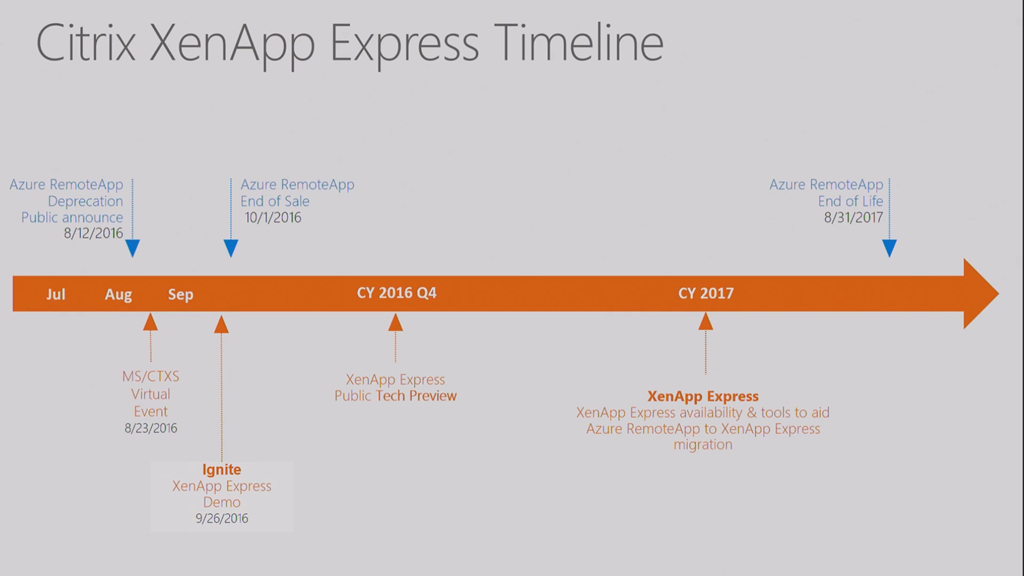
Here is the release timeline. A technical preview will be some time in Q4 of this year.

image

Next up, a demo, by Jitendra (I think – we cannot see the presenters in the video). The demo is with a dev build, which will likely change before the tech preview is launched.

  1. You “buy” Citrix XenApp Express in the Azure Marketplace – this limits transactions to certain kinds of subscriptions, e.g. EA but not CSP.
  2. You start by creating an App Collection – similar to Azure RemoteApp. You can make it domain-joined or not-domain joined. A domain should be available from your Azure VNet.
  3. Add your Azure subscription details – subscription, resource group (region), VNET, subnet.
  4. Enter your domain join details – very similar to Azure RemoteApp – domain, OU, computer account domain-join account name/password.
  5. You can use a Citrix image or upload your own image. Here you also select a VM series/size, configure power settings, etc, to control performance/scale/pricing.
  6. You can set your expected max number of simultaneous users.
  7. The end of the wizard shows an estimated cost calculator for your Azure subscription.
  8. You click Start Deployment
  9. Citrix reaches into your subscription and creates the VMs.
  10. Afterwards, you’ll need to publish apps in your app collection.
  11. Then you assign users from your domain – no mention if this is from a DC or from Azure AD.
  12. The user uses Citrix Receiver or the HTML 5 client to sign into the app collection and use the published apps.

The Best Way To Deliver Windows 10 Desktop From The Cloud

Cloud-based VDI using a desktop OS – not allowed up to now under Windows desktop OS (DESKTOP OS) licensing.

There are “new licensing changes” to move Windows 10 workloads to Azure. Citrix XenDesktop will be based on this.

image

  • XenDesktop for Windows 10 on Azure is managed from Citrix Cloud (as above). You manage and provision the service from here, managing what is hosted in Azure.
  • Windows 10 Enterprise CBB licensing is brought by the customer. The customer’s Azure subscription hosts the VDI VMs and your credit is consumed or you pay the Azure bill. They say it must be EA/SA, but that’s unclear. Is that EA with SA only? Can an Open customer with SA do this? Can a customer getting the Windows 10 E3 license via CSP do this? We do not know.

Timeline – GA in Q4 of this year:

image

Next up, a demo.

  1. They are logged into Citrix Cloud, which is first purchased via the Azure Marketplace – limited to a small set of Azure subscriptions, e.g. EA but not CSP at the moment.
  2. A hosting connection to an Azure subscription is set up already.
  3. They create a “machine catalog” – a bunch of machines.
  4. The wizard allows you to only do a desktop OS (this is a Windows 10 service). The wizard allows pooled/dedicated VMs, and you can configure how user changes are saved (local disk, virtual disk, discarded). You then select the VHD master image, which you supply to Citrix. You can use Standard (HDD) or Premium (SSD) storage in Azure for storing the VM. And then you select the quantity of VMs to create and the series/size (from Azure) to use – this will include the N-Series VMs when they are available. There’s more – like VM networking & domain join that you can do (they don’t show this).
  5. He signs into a Windows 10 Azure VM from a Mac, brokered by Citrix Cloud.

That’s all folks!

Ignite 2016 – Introducing Windows Server and System Center 2016

This session (original here) introduces WS2016 and SysCtr 2016 at a high level. The speakers were:

  • Mike Neil: Corporate VP, Enterprise Cloud Group at Microsoft
  • Erin Chapple: General Manager, Windows Server at Microsoft

A selection of other people will come on stage to do demos.

20 Years Old

Windows Server is 20 years old. Here’s how it has evolved:

image

The 2008 release brought us the first version of Hyper-V. Server 2012 brought us the same Hyper-V that was running in Azure. And Windows Server 2016 brings us the cloud on our terms.

The Foundation of Our Cloud

The investment that Microsoft made in Azure is being returned to us. Lots of what’s in WS2016 came from Azure, and combined with Azure Stack, we can run Azure on-prem or in hosted clouds.

There are over 100 data centers in Azure over 24 regions. Windows Server is the platform that is used for Azure across all that capacity.

IT is Being Pulled in Two Directions – Creating Stresses

  • Provide secure, controlled IT resources (on prem)
  • Support business agility and innovation (cloud / shadow IT)

By 2017, 50% of IT spending will be outside of the organization.

Stress points:

  • Security
  • Data centre efficiency
  • Modernizing applications

Microsoft’s solution is to use unified management to:

  • Advanced multi-layer security
  • Azure-inspired, software-defined,
  • Cloud-read application platform

Security

Mike shows a number of security breach headlines. IT security is a CEO issue – costs to a business of a breach are shown. And S*1t rolls downhill.

Multi-layer security:

  • Protect identity
  • Secure virtual machines
  • Protect the OS on-prem or in the cloud

Challenges in Protecting Credentials

Attack vectors:

  1. Social engineering is the one they see the most
  2. Pass the hash
  3. Admin = unlimited rights. Too many rights given to too many people for too long.

To protect against compromised admin credentials:

image

  • Credential Guard will protect ID in the guest OS
  • JEA limits rights to just enough to get the job done
  • JITA limits the time that an admin can have those rights

The solution closes the door on admin ID vulnerabilities.

Ryan Puffer comes on stage to do a demo of JEA and JITA. The demo is based on PowerShell:

  1. He runs Enter-PSSession to log into a domain controller (DNS server). Local logon rights normally mean domain admin.
  2. He cannot connect to the DC, because his current logon doesn’t have DC rights, so it fails.
  3. He tries again, but adding –ConfiguratinName to add a JEA config to Enter-PSSession, and he can get in. The JEA config was set up by a more trusted admin. The JEA authentication is done using a temporary virtual local account on the DC that resides nowhere else. This account exists only for the duration of the login session. Malware cannot use this account because it has limited rights (to this machine) and will disappear quickly.
  4. The JEA configuration has also limited rights – he can do DNS stuff but he cannot browse the file system, create users/groups, etc. His ISE session only shows DNS Get- cmdlets.
  5. He needs some modify rights. He browses to a Microsoft Identity Manager (MIM) portal and has some JITA roles that he can request – one of these will give his JEA temp account more rights so he can modify DNS (via a group membership). He selects one and has to enter details to justify the request. He puts in a time-out of 30 minutes – 31 minutes later he will return to having just DNS viewer rights. MFA via Azure can be used to verify the user, and manager approval can be required.
  6. He logs in again using Enter-PSSession with the JEA config. Now he has DNS modify rights. Note: you can whitelist and blacklist cmdlets in a role.

Back to Mike.

Challenges Protecting Virtual Machines

VMs are files:

  • Easy to modify/copy
  • Too many admins have access

Someone can mount a VMs disks or copy a VM to gain access to the data. Microsoft believes that attackers (internal and external) are interested in attacking the host OS to gain access to VMs, so they want to prevent this.

This is why Shielded Virtual Machines was invented – secure the guest OS by default:

  • The VM is encrypted at rest and in transit
  • The VM can only boot on authorised hosts

Azure-Inspired, Software-Defined

Erin Chapple comes on stage.

This is a journey that has been going on for several releases of Windows Server. Microsoft has learned a lot from Azure, and is bringing that learning to WS2016.

Increase Reliability with Cluster Enhancements

  • Cloud means more updates, with feature improvements. OS upgrades weren’t possible in a cluster. In WS2016, we get cluster rolling upgrades. This allows us to rebuild a cluster node within a cluster, and run the cluster temproarily in mixed-version mode. Now we can introduce changes without buying new cluster h/w or VM downtime. Risk isn’t an upgrade blocker.
  • VM resiliency deals with transient errors in storage, meaning a brief storage outage pauses a VM instead of crashing it.
  • Fault domain-aware clusters allows us to control how errors affect a cluster. You can spread a cluster across fault domains (racks) just like Azure does. This means your services can be spread across fault domains, so a rack outage doesn’t bring down a HA service.

image

24 TB of RAM on a physical host and 12 TB RAM in a guest OS are supported. 512 physical LPs on a host, and 240 virtual processors in a VM. This is “driven by Azure” not by customer feedback.

Complete Software-Defined Storage Solution

Evolving Storage Spaces from WS2012/R2. Storage Spaces Direct (S2D) takes DAS and uses it as replicated/shared storage across servers in a cluster, that can either be:

  • Shared over SMB 3 with another tier of compute (Hyper-V) nodes
  • Used in a single tier (CSV, no SMB 3) of hyper-converged infrastructure (HCI)

image

Storage Replica introduces per-volume sync/async block-level beneath-the-file system replication to Windows Server, not caring about what the source/destination storage is/are (can be different in both sites) as long as it is cluster-supported.

Storage QoS guarantees an SLA with min and max rules, managed from a central point:

  • Tenant
  • VM
  • Disk

The owner of S2D, Claus Joergensen, comes on stage to do an S2D demo.

  1. The demo uses latest Intel CPUs and all-Intel flash storage on 16 nodes in a HCI configuration (compute and storage on a single cluster, shared across all nodes).
  2. There are 704 VMs run using an open source tool called VMFleet.
  3. They run a profile similar to Azure P10 storage (each VHD has 500 IOPS). That’s 350,000 IOPS – which is trivial for this system.
  4. They change this to Azure P20: now each disk has 2,300 IOPS, summing 1.6 million IOPS in the system – it’s 70% read and 30% write. Each S2D cluster node (all 16 of them) is hitting over 100,000 IOPS, which is about the max that most HCI solutions claim.
  5. Clause changes the QoS rules on the cluster to unlimited – each VM will take whatever IOPS the storage system can give it.
  6. Now we see a total of 2.7 million IOPS across the cluster, with each node hitting 157,000 to 182,000 IOPS, at least 50% more than the HCI vendors claim.

Note the CPU usage for the host, which is modest. That’s under 10% utilization per node to run the infrastructure at max speed! Thank Storage Spaces and SMB Direct (RDMA) for that!

image

  1. Now he switches the demo over to read IO only.
  2. The stress test hits 6.6 million read IOPS, with each node offering between 393,000 and 433,000 IOPS – that’s 16 servers, no SAN!
  3. The CPU still stays under 10% per node.
  4. Throughput numbers will be shown later in the week.

If you want to know where to get certified S2D hardware, then you can get DataON from MicroWarehouse in Dublin (www.mwh.ie):

image

Nano Server

Nano Server is not an edition – it is an installation option. You can install a deeply stripped down version of WS2016, that can only run a subset of roles, and has no UI of any kind, other than a very basic network troubleshooting console.

It consumes just 460 MB disk space, compared to 5.4 GB of Server Core (command prompt only). It boots in less than 10 seconds and a smaller attack surface. Ideal scenario: born in the cloud applications.

Nano Server is not launched in Current Branch for Business. If you install Nano Server, then you are forced into installing updates as Microsoft releases them, which they expect to do 2-3 times per year. Nano will be the basis of Microsoft’s cloud infrastructure going forward.

Azure-Inspired Software-Defined Networking

A lot of stuff from Azure here. The goal is that you can provision new networks in minutes instead of days, and have predictable/secure/stable platforms for connecting users/apps/data that can scale – the opposite of VLANs.

Three innovations:

  • Network Controller: From Azure, a fabric management solution
  • VXLAN support: Added to NVGRE, making the underlying transport less important and focusing more on the virtual networks
  • Virtual network functions: Also from Azure, getting firewall, load balancing and more built into the fabric (no, it’s not NLB or Windows Firewall – see what Azure does)

Greg Cusanza comes on stage – Greg has a history with SDN in SCVMM and WS2012/R2. He’s going to deploy the following:

image

That’s a virtual network with a private address space (NAT) with 3 subnets that can route and an external connection for end user access to a web application. Each tier of the service (file and web) has load balancers with VIPs, and AD in the back end will sync with Azure AD. This is all familiar if you’ve done networking in Azure Resource Manager (ARM).

  1. A bunch of VMs have been created with no network connections.
  2. He opens a PoSH script that will run against the network controller – note that you’ll use Azure Stack in the real world.
  3. The script runs in just over 29 seconds – all the stuff in the screenshot is deploy and the VMs are networked and have Internet connectivity – He can browse the Net from a VM, and can browse the web app from the Internet – he proves that load balancing (virtual network function) is working.

Now an unexpected twist:

  1. Greg browses a site and enters a username and password – he has been phished by a hacker and now pretends to be the attacker.
  2. He has discovered that the application can be connected to using remote desktop and attempts to sign in used the phished credentials. He signs into one of the web VMs.
  3. He uploads a script to do stuff on the network. He browses shares on the domain network. He copies ntds.dit from a DC and uploads it to OneDrive for a brute force attack. Woops!

This leads us to dynamic security (network security groups or firewall rules) in SDN – more stuff that ARM admins will be familiar with. He’ll also add a network virtual appliance (a specialised VM that acts as a network device, such as an app-aware firewall) from a gallery – which we know that Microsoft Azure Stack will be able to syndicate from :

image


  1. Back in PoSH, he runs another script to configure network security groups, to filter traffic on a TCP/UDP port level.
  2. Now he repeats the attack – and it fails. He cannot RDP to the web servers, he couldn’t browse shared folders if he did, and he prevented outbound traffic from the web servers anyway (stateful inspection).

The virtual appliance is a network device that runs a customized Linux.

  1. He launches SCVMM.
  2. We can see the network in Network Service – so System Center is able to deploy/manage the Network Controller.

Erin finished by mentioning the free WS2016 Datacenter license offer for retiring vSphere hosts “a free Datacenter license for every vSphere host that is retired”, good until June 30, 2017 – see www.microsoft.com/vmwareshift

Cloud-Ready Application Platform

Back to Mike Neil. We now have a diverse set of infrastructure that we can run applications one:

image

WS2016 adds new capabilities for cloud-based applications. Containers was a huge thing for MSFT.

A container virtualizes the OS, not the machine. A single OS can run multiple Windows Server Containers – 1 container per app. So that’s a single shared kernel – that’s great for internal & trusted apps, similar to containers that are available on Linux. Deployment is fast and you can get great app density. But if you need security, you can deploy compatible Hyper-V Containers. The same container images can be used. Each container has a stripped down mini-kernal (see Nano) isolated by a Hyper-V partition, meaning that untrusted or external apps can be run safely, isolated from each other and the container host (either physical or a VM – we have nested Hyper-V now!). Another benefit of Hyper-V Containers is staggered servicing. Normal (Windows Server) Containers share the kernal with the container host – if you service the host then you have to service all of the containers at the same time. Because they are partitioned/isolated, you can stagger the servicing of Hyper-V Containers.

Taylor Brown (ex- of Hyper-V and now Principal Program Manager of Containers) comes on stage to do a demo.

image

  1. He has a VM running a simple website – a sample ASP.NET site in Visual Studio.
  2. In IIS Manager, he does a Deploy > Export Application, and exports a .ZIP.
  3. He copies that to a WS2016 machine, currently using 1.5 GB RAM.
  4. He shows us a “Docker File” (above) to configure a new container. Note how EXPOSE publishes TCP ports for external access to the container on TCP 80 (HTTP) and TCP 8172 (management). A PowerShell snap-in will run webdeploy and it will restore the exported ZIP package.
  5. He runs Docker Build –t mysite  … with the location of the docker file.
  6. A few seconds later a new container is built.
  7. He starts the container and maps the ports.
  8. And the container is up and running in seconds – the .NET site takes a few seconds to compile (as it always does in IIS) and the thing can be browsed.
  9. He deploys another 2 instances of the container in seconds. Now there are 3 websites and only .5 GB extra RAM is consumed.
  10. He uses docker run -isolation=hyperv to get an additional Hyper-V Container. The same image is started … it takes an extra second or two because of “cloning technology that’s used to optimize deployment of Hyper-V Containers”.
  11. Two Hyper-V containers and 3 normal containers (that’s 5 unique instances of IIS) are running in a couple of minutes, and the machine has gone from using 1.5 GB RAM to 2.8 GB RAM.

Microsoft has been a significant contributor to the Docker open source project and one MS engineer is a maintainer of the project now. There’s a reminder that Docker’s enterprise management tools will be available to WS2016 customers free of charge.

On to management.

Enterprise-Class Data Centre Management

System Center 2016:

  • 1st choice for Windows Server 2016
  • Control across hybrid cloud with Azure integrations (see SCOM/OMS)

SCOM Monitoring:

  • Best of breed Windows monitoring and cross-platform support
  • N/w monitoring and cloud infrastructure health
  • Best-practice for workload configuration

Mahesh Narayanan, Principal Program Manager, comes on stage to do a demo of SCOM. IT pros struggle with alert noise. That’s the first thing he wants to show us – it’s really a way to find what needs to be overriden or customized.

  1. Tune Management Packs allows you to see how many alerts are coming from each management pack. You can filter this by time.
  2. He click Tune Alerts action. We see the alerts, and a count of each. You can then do an override (object or group of objects).

Maintenance cycles create a lot of alerts. We expect monitoring to suppress these alerts – but it hasn’t yet! This is fixed in SCOM 2016:

  1. You can schedule maintenance in advance (yay!). You could match this to a patching cycle so WSUS/SCCM patch deployments don’t break your heart on at 3am on a Saturday morning.
  2. Your objects/assets will automatically go into maintenance mode and have a not-monitored status according to your schedules.

All those MacGuyver solutions we’ve cobbled together for stopping alerts while patching can be thrown out!

That was all for System Center? I am very surprised!

PowerShell

PowerShell is now open source.

  • DevOps-oriented tooling in PoSH 5.1 in WS2016
  • vNext Alpha on Windows, macOS, and Linux
  • Community supported releases

Joey Aiello, Program Manager, comes up to do a demo. I lose interest here. The session wraps up with a marketing video.