Microsoft GAs The Last Vital Piece For VM Hosting

Microsoft announced that Azure Backup for Azure IaaS virtual machines (VMs) was released to generally availability yesterday. Personally, I think this removes a substantial roadblock from deploying VMs in Azure for most businesses (forget the legal stuff for a moment).

No Backup – Really?

I’ve mentioned many times that I once worked in the hosting business. My first job was as a senior engineer with what was then a large Irish-owned company. We ran three services:

  • Websites: for a few Euros a month, you could get a plan that allowed 10+ websites. We also offered SQL Server and MySQL databases.
  • Physical servers: Starting from a few hundred Euros, you got one or more physical servers
  • Virtual machines: I deployed the VMware (yeah, VMware) farm running on HP blades and EVA, and customers got their own VNET with one or more VMs

The official line on websites was that there was no backup of websites or databases. You lose it, you LOST it. In reality we retained 1 daily backup to cover our own butts. Physical servers were not backed up unless a customer paid extra for it, and they got an Ahsay agent and paid for storage used. The same went for VMware VMs – pay for the agent + storage and you could get a simple form of cloud backup.

Backup-less Azure

Until very recently there was no backup of Azure VMs. How could that be? This line says a lot about how Microsoft thinks:

Treat your servers like cattle, not pets

When Azure VMs originally launched in beta, the VMs were stateless, much like containers. If you rebooted the VM it reset itself. You were supposed to write your applications so that they used Azure storage accounts or Azure SQL databases. There was no DC or SQL Server VM in the cloud – that aws silly because no one deploys or uses stateful machines anymore. Therefore you shouldn’t care if a VM dies, gets corrupted, or is accidentally removed – you just deploy a new one and carry on.

Except …

Almost no one deploys servers like that.

I can envision some companies, like an Ebay or an Amazon running stateless application or web servers. But in my years of working in large and small/medium businesses, I’ve never seen stateless machines, and I’ve never encountered anyone with a need for those style of applications – the web server/database server configuration still dominates AFAIK.

So this is why Azure never had a backup service for VMs. A few years ago, Microsoft changed Azure VMs to be stateful (Hyper-V) virtual machines that we are familiar with and started to push this as a viable alternative to traditional machine deployments. I asked the question: what happens if I accidentally delete a VM – and I got the old answer:

Prepare your CV/résumé.

Mark Minasi quoted me at TechEd North America in one of his cloud Q&A’s with Mark Russinovich 2 years ago – actually he messed up the question a little and Russinovich gave a non-answer. The point was: how could I possibly deploy a critical VM into Azure if I could not back it up.

Use DPM!

Yeah, Microsoft last year blogged that customers should use System Center Data Protection Manager to protect VMs in Azure. You’d install an agent into the guest OS (you have no access to Azure hosts and there is no backup API) and backup files, folders, databases to DPM running in another VM. The only problem with this would be the cost:

  • You’d need to deploy an Azure VM for DPM.
  • You would have to use Page Blobs & Disks instead of Block Blobs, doubling the cost of Azure storage required.
  • The cost of System Center SMLs would have been horrific. A Datacenter SML ($3,607 on Open NL) would cover up to 8 Azure virtual machines.

Not to mention that you could not simply restore a VM:

  • Create a new VM
  • Install applications, e.g. SQL Server
  • Install the DPM agent
  • Restore files/folders/databases
  • Pray to your god and any others you can think of

Azure Backup

Azure has a backup service called Azure Backup. This was launched as a hybrid cloud service, enabling you to backup machines (PCs, servers) to the cloud using an agent (MARS). You can also install the MARS agent onto an on-premises DPM server to forward all/subset of your backup data to the cloud for off-site storage. Azure Backup uses Block Blob storage (LRS or GRS) so it’s really affordable.

Earlier this year, Microsoft launched a preview of Azure Backup for Azure IaaS VMs. With this service you can protect Azure VMs (Windows or Linux) using a very simple VM backup mechanism:

  1. Create a backup policy – when to backup and how long to retain data
  2. Register VMs – installs an extension to consistently backup running VMs
  3. Protect VMs: Associate registered VMs with a policy
  4. Monitor backups

The preview wasn’t perfect. In the first week or so, registration was hit and miss. Backup of large VMs was quite slow too. But the restore process worked – this blog exists today only because I was able to restore the Azure VM that it runs on from an Azure backup – every other restore method I had for the MySQL database failed.

Generally Available

Microsoft made Azure Backup for IaaS VMs generally available yesterday. This means that now you can, in a supported, simple, and reliable manner, backup your Windows/Linux VMs that are running in Azure, and if you lose one, you can easily restore it from backup.

A number of improvements were included in the GA release:

  • A set of PowerShell based cmdlets have been released – update your Azure PowerShell module!
  • You can restore a VM with an Azure VM configuration of your choice to a storage account of your choice.
  • The time required to register a VM or back it up has been reduced.
  • Azure Backup is in all regions that support Azure VMs.
  • There is improved logging for auditing purposes.
  • Notification emails can be sent to administrators or an email address of your choosing.
  • Errors include troubleshooting information and links to documentation.
  • A default policy is included in every backup vault
  • You can create simple or complex retention policies (similar to hybrid cloud backup in MARS agent) that can keep data up to 99 years.

Summary

With this release, Microsoft now has solved my biggest concern with running production workloads in Azure VMs – now we can backup and restore stateful machines that have huge value to the business.

Technorati Tags: ,,

MS15-105 – Vulnerability in Windows Hyper-V Could Allow Security Feature Bypass

Microsoft released a security hotfix for Hyper-V last night. They describe it as:

This security update resolves a vulnerability in Microsoft Windows. The vulnerability could allow security feature bypass if an attacker runs a specially crafted application that could cause Windows Hyper-V to incorrectly apply access control list (ACL) configuration settings. Customers who have not enabled the Hyper-V role are not affected.

This security update is rated Important for all supported editions of Windows 8.1 for x64-based Systems, Windows Server 2012 R2, and Windows 10 for x64-based Systems. For more information, see the Affected Software section.

The security update addresses the vulnerability by correcting how Hyper-V applies ACL configuration settings. For more information about the vulnerability, see the Vulnerability Information section.

KB3091287 does go into any more detail.

CVE-2015-2534 simply says:

Hyper-V in Microsoft Windows 8.1, Windows Server 2012 R2, and Windows 10 improperly processes ACL settings, which allows local users to bypass intended network-traffic restrictions via a crafted application, aka “Hyper-V Security Feature Bypass Vulnerability.”

Affected OSs are:

  • Windows 10
  • Windows 8.1
  • Windows Server 2012 R2

No Windows 8 or WS2012 – that makes me wonder if this is something to do with Extended Port ACLs.

Credit: Patrick Lownds (MVP) for tweeting the link.

ReFS Accelerated VHDX Operations

One of the interesting new features in Windows Server 2016 (WS2016) is ReFS Accelerated VHDX Operations (which also work with VHD). This feature is not ODX (VAAI for you VMware-bods), but it offers the same sort of benefits for VHD/X operations. In other words: faster creation and copying of VHDX files, particularly fixed VHDX files.

Reminder: while Microsoft continually tells us that dynamic VHD/Xs are just as fast as fixed VHDX files, we know from experience that the fixed alternative gives better application performance. Even some of Microsoft’s product groups refuse to support dynamic VHD/X files. But the benefit of Dynamic disks is that they start out as a small file that is extended as time requires, but fixed VHDX files take up space immediately. The big problem with fixed VHD/X files is that they take an age to create or extend because they must be zeroed out.

Those of you with a nice SAN have seen how ODX can speed up VHD/X operations, but the Microsoft world is moving (somewhat) to SMB 3.0 storage where there is no SAN for hardware offloading.

This is why Microsoft has added Accelerated VHDX Operations to ReFS. If you format your CSVs with ReFS then ReFS will speed up the creation and extension of the files for you. How much? Well this is why I built a test rig!

The back-end storage is a pair of physical servers that are SAS (6 Gb) connected to a shared DataON DNS-1640 JBOD with tiered storage (SSD and HDD); I built a WS2016 TPv3 Scale-Out File Server with 2 tiered virtual disks (64 KB interleave) using this gear. Each virtual disk is a CSV in the SOFS cluster. CSV1 is formatted with ReFS and CSV2 is formatted with NTFS, 64 KB allocation unit size on both. Each CSV has a file share, named after the CSV.

I had another WS2016 TPv3 physical server configured as a Hyper-V host. I used Switch Embedded Teaming to aggregate a pair of iWARP NICs (RDMA/SMB Direct, each offering 10 GbE connectivity to the SOFS) and created a pair of virtual NICs in the host for SMB Multichannel.

I ran a script on the host to create fixed VHDX files against each share on the SOFS, measuring the time it requires for each disk. The disks created are of the following sizes:

  • 1 GB
  • 10 GB
  • 100 GB
  • 500 GB

Using the share on the NTFS-formatted CSV, I had the following results:

image

A 500 GB VHDX file, nothing that unusual for most of us, took 40 minutes to create. Imagine you work for an IT service provider (which could be a hosting company or an IT department) and the customer (which can be your employer) says that they need a VM with a 500 GB disk to deal with an opportunity or a growing database. Are you going to say “let me get back to you in an hour”? Hmm … an hour might sound good to some but for the customer it’s pretty rubbish.

Let’s change it up. The next results are from using the share on the ReFS volume:

image

Whoah! Creating a 500 GB fixed VHDX now takes 13 seconds instead of 40 minutes. The CSVs are almost identical; the only difference is that one is formatted with ReFS (fast VHD/X operations) and the other is NTFS (unenhanced). Didier Van Hoye has also done some testing using direct CSV volumes (no SMB 3.0), comparing Compellent ODX and ReFS. What the heck is going on here?

The zero-ing out process that is done while creating a fixed VHDX has been converted into a metadata operation – this is how some SANs optimize the same process using ODX. So instead of writing out to the disk file, ReFS is updating metadata which effectively says “nothing to see here” to anything (such as Hyper-V) that reads those parts of the VHD/X.

Accelerated VHDX Operations also works in other subtle ways. Merging a checkpoint is now done without moving data around on the disk – another metadata operation. This means that merges should be quicker and use fewer IOPS. This is nice because:

  • Production Checkpoints (on by default) will lead to more checkpoint usage in DevOps
  • Backup uses checkpoints and this will make backups less disruptive

Does this feature totally replace ODX? No, I don’t think it does. Didier’s testing proves that ReFS’s metadata operation is even faster than the incredible performance of ODX on a Compellent. But, the SAN offers more. ReFS is limited to operations inside a single volume. Say you want to move storage from one LUN to another? Or maybe you want to provision a new VM from a VMM library? ODX can help in those scenarios, but ReFS cannot. I cannot say yet if the two technologies will be compatible (and stable together) at the time of GA (I suspect that they will, but SAN OEMs will have the biggest impact here!) and offer the best of both worlds.

This stuff is cool and it works without configuration out of the box!

Starting Lab Work With WS2016 TPv3

You might have assumed that I’ve had Windows Server 2016 (WS2016) running in my lab since TPv1 was launched. Well, that would have been nice but although I spend more time in a lab than most, I didn’t have time/resources. All I had time to play with was a virtual S2D SOFS using VMs and VHDX files.

What resources I have had to be allocated toWS2012 R2 because that’s what’s used by most people. For my writing in Petri.com, I’ve stayed mostly with WS2012 R2 because WS2016 is still too fluid.

My day job has been 95% Azure since January of last year so that’s consumed a lot of time. Any hybrid stuff I’ve been doing has required a GA OS so that’s why I’ve had so much WS2012 R2.

But in the last few weeks (sandwiching some vacation time) I’ve been deploying WS2016 in the lab. Right now I have:

  • Some VMs running Windows 10 with RSAT and a WS2016 DC
  • A SOFS running WS2016 with a DataON DNS-1640
  • A pair of Hyper-V hosts using the SOFS (SMB 3.x) and StarWind (iSCSI) for storage

There’s plenty of fun stuff to start looking at. Things I want to play with are Network Controller and Containers. I’ve already had a play with Switch Embedded Teaming – it’s pretty easy to set up. More to come!

Technorati Tags: ,

Microsoft News – 7 September 2015

Here’s the recent news from the last few weeks in the Microsoft IT Pro world:

Hyper-V

Windows Server

Windows

System Center

Azure

Office 365

Intune

Events

  • Meet AzureCon: A virtual event on Azure on September 29th, starting at 9am Pacific time, 5pm UK/Irish time.

A Roundup of WS2016 TPv3 Links

I thought that I’d aggregate a bunch of links related to new things in the release of Windows Server 2016 Technical Preview 3 (TP3). I think this is pretty complete for Hyper-V folks – as you can see, there’s a lot of stuff in the networking stack.

FYI: it looks like Network Controller will require the DataCenter edition by RTM – it does in TPv3. And our feedback on offering the full installation during setup has forced a reversal.

Hyper-V

Administration

Containers

Networking

Storage


Nano Server

Failover Clustering

Remote Desktop Services

System Center

Windows Server 2016 – Switch Embedded Teaming and Virtual RDMA

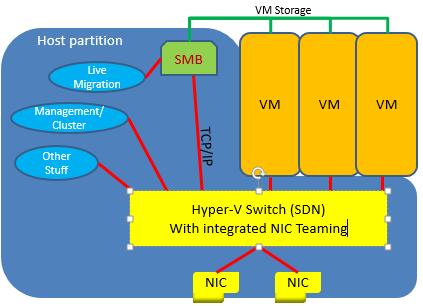
WS2016 TPv3 (Technical Preview 3) includes a new feature called Switch Embedded Teaming (SET) that will allow you to converge RDMA (remote direct memory access) NICs and virtualize RDMA for the host. Yes, you’ll be able to converge SMB Direct networking!

In the below diagram you can see a host with WS2012 R2 networking and a similar host with WS2016 networking. See how:

  • There is no NIC team in WS2012: this is SET in action, providing teaming by aggregating the virtual switch uplinks.
  • RDMA is converged: DCB is enabled, as is recommended – it’s even recommended in iWarp where it is not required.
  • Management OS vNICs using RDMA: You can use converged networks to use SMB Direct.

Network architecture changes


Note, according to Microsoft:

In Windows Server 2016 Technical Preview, you can enable RDMA on network adapters that are bound to a Hyper-V Virtual Switch with or without Switch Embedded Teaming (SET).

Right now in TPv3, SET does not support Live Migration – which is confusing considering the above diagram.

What is SET?

SET is an alternative to NIC teaming. It allows you to converge between 1 and 8 physical networks using the virtual switch. The pNICs can be on the same or different physical switches. Obviously, the networking of the pNICs must be the same to allow link aggregation and failover.

No – SET does not span hosts.

Physical NIC Requirements

SET is much more fussy about NICs than NIC teaming (which continues as a Windows Server networking technology because SET requires a virtual switch, or Hyper-V). The NICs must be:

  1. On the HCL, aka “passed the Windows Hardware Qualification and Logo (WHQL) test in a SET team in Windows Server 2016 Technical Preview”.
  2. All NICs in a SET team must be identical: same manufacturer, same model, same firmware and driver.
  3. There can be between 1 and 8 NICs in a single SET team (same switch on a single host).


SET Compatibility

SET is compatible with the following networking technologies in Windows Server 2016 Technical Preview.

  • Datacenter bridging (DCB)
  • Hyper-V Network Virtualization – NV-GRE and VxLAN are both supported in Windows Server 2016 Technical Preview.
  • Receive-side Checksum offloads (IPv4, IPv6, TCP) – These are supported if any of the SET team members support them.
  • Remote Direct Memory Access (RDMA)
  • SDN Quality of Service (QoS)
  • Transmit-side Checksum offloads (IPv4, IPv6, TCP) – These are supported if all of the SET team members support them.
  • Virtual Machine Queues (VMQ)
  • Virtual Receive Side Scalaing (RSS)

SET is not compatible with the following networking technologies in Windows Server 2016 Technical Preview.

  • 802.1X authentication
  • IPsec Task Offload (IPsecTO)
  • QoS in host or native OSs
  • Receive side coalescing (RSC)
  • Receive side scaling (RSS)
  • Single root I/O virtualization (SR-IOV)
  • TCP Chimney Offload
  • Virtual Machine QoS (VM-QoS)


Configuring SET

There is no concept of a team name in SET; there is just the virtual switch which has uplinks. There is no standby pNIC; all pNICs are active. SET only operates in Switch Independent mode – nice and simple because the switch is completely unaware of the SET team and there’s no networking (no Googling for me).

All that you require is:

  • Member adapters: Pick the pNICs on the host. The benefit is that when VMQ is used because inbound traffic paths are predictable.
  • Load balancing mode: Hyper-V Port or Dynamic. Outbound traffic is hashed and balanced across the uplinks. Inbound traffic is the same as with Hyper-V mode.

Like with WS2012 R2, I expect Dynamic will be the normally recommended option.

VMQ

SET was designed to work well with VMQ. We’ll see how well NIC drivers and firmware behave with SET. As we’ve seen in the past, some manufacturers take up to a year (Emulex on blade servers) to fix issues. Test, test, test, and disable VMQ if you see Hyper-V network outages with SET deployed.

In terms of tuning, Microsoft says:

    • Ideally each NIC should have the *RssBaseProcNumber set to an even number greater than or equal to two (2). This is because the first physical processor, Core 0 (logical processors 0 and 1), typically does most of the system processing so the network processing should be steered away from this physical processor. (Some machine architectures don’t have two logical processors per physical processor so for such machines the base processor should be greater than or equal to 1. If in doubt assume your host is using a 2 logical processor per physical processor architecture.)
    • The team members’ processors should be, to the extent practical, non-overlapping. For example, in a 4-core host (8 logical processors) with a team of 2 10Gbps NICs, you could set the first one to use base processor of 2 and to use 4 cores; the second would be set to use base processor 6 and use 2 cores.

Creation and Management

You’ll hear all the usual guff about System Center and VMM. The 8% that can afford System Center can do that, if they can figure out the UI. PowerShell can be used to easily create and manage a SET virtual switch.

Summary

SET is a great first (or second behind vRSS in WS2012 R2) step:

  • Networking is simplified
  • RDMA can be converged
  • We get vRDMA to the host

We just need Live Migration support and stable physical NIC drivers and firmware.

Old School Thinking Wrecks A Company (@iDMobileIreland) Launch

You’d think that a start-up mobile telecoms company would understand the cloud, right? Today in Ireland, a new virtual mobile telecoms company, iD Ireland, launched their business, promising to give 4G as standard and to offer cheaper and more tailored plans to customers with generous data allocations. That sounds like the sort of thing that I’d want to check out, and it got coverage in every news outlet in Ireland.

So I, like many others, tried to browse their site. And 5 minutes later, the page actually loaded. I bet that most people thought “That’s sh1te” long before the page loaded, closed the browser tab and forgot about iD, thus ruining the potential of their launch. What a waste of great publicity and PR!

So what went wrong there? Old schoolers, that’s what. “Let’s put up 2 web servers and sure that’ll be grand. If we need more then we can build more servers”. You know the sort – you might even be that kind of person.

You know how I would have built such a web presence? I’d have deployed a set of load balanced web sites in Azure. And then I would have enabled auto-scaling. I’d have a minimum number of sites to keep the regular load operating nicely, and enough peak potential to meet the demand one would get after launching a mobile company and successfully getting coverage in every news outlet in the country. And the beauty is – I’d pay for just what is active.

But no; the IT old schoolers won out and the shareholders lost out. Isn’t that how it often happens?

Technorati Tags: ,,

Prevent Windows From Downloading Broken Drivers From Windows Update

Edit: the solution here does not work. The Windows Update Blocker offers a solution that works until Microsoft releases a new broken version of the broken driver. Frustrated much?

The release of Windows 10 has reminded many of us that Windows Update is usually the worst place to get a driver for your device, be it an Intel HD graphics adapter in your tablet or laptop, or a NIC in a Hyper-V host. The best driver always comes from the maker of your computer (HP, Dell, Lenovo, etc) because they distribute drivers for your specific and,  usually, customised chipset.

Recently I upgraded my 2 ultrabooks, a Lenovo Yoga S1 and a Toshiba KIRAbook, from Windows 8.1 to Windows 10. A trip to Device Manager found that the Intel HD graphics cards were broken and I was unable to share my display – projectors are a big part of my job!

I found a fix – but then a day or two later Windows Update decided to reapply Microsoft’s distribution of the driver and I was stuck once again with broken Ultrabooks. I took to Twitter and then I got a response from a Microsoft employee with a solution that should work.

Method 1 – Manual Change

Open up System > Advanced System Settings > Hardware > Device Installation Settings.  Set it to No, Let Me Choose What To Do and set Never Install Driver Software From Windows Update.

image

Method 2 – The Registry

Open REGEDIT and set both of these REG_DWORD values to 0:

  • HKLM\SOFTWARE\MICROSOFT\Windows\CurrentVersion\DriverSearching\SearchOrderConfig
  • HKLM\SOFTWARE\MICROSOFT\Windows\CurrentVersion\Device Metadata\PreventDeviceMetadataFromNetwork

Method 3 – Group Policy

The above are fine if you have one or two machines to modify, but what if you have dozens or hundreds of machines to update? Hopefully these machines are domain members; if so then you can deploy a GPO to them to make the required changes.

Look for a setting called Specify Search Order For Device Driver Locations in Computer Configuration > Administrative Templates > System > Device Installation. Enable the policy and set Select Search Order to Do Not Search Windows Update.

image

You should also enable Prevent Device Metadata Retrieval From The Internet at the same location in GPO.

image

Updating Drivers

Yes, you do need to update drivers – drivers and firmware are the cause of many issues on PCs, Hyper-V hosts, etc. On my PCs/laptops I install the OEM’s updating tool and regularly run a check/update. So where can you get drivers from in a larger environment. Well; always form the OEM. How do you distribute them?

  • Manually
  • A shared folder
  • Cluster Aware Updating – see what Dell has done
  • System Center, possibly even with OEM additions