VMM 2012 R2 Release Notes

Microsoft has published the release notes for System Center 2012 R2 – Virtual Machine Manager (VMM).  There are some important notes there, but I thought I’d highlight a few that stick out:

  • For file server clusters that were not created by VMM, deploying the VMM agent to file server nodes will enable Multipath I/O (MPIO) and claim devices. This operation will cause the server to restart. Deploying the VMM agent to all nodes in a Scale-out File Server cluster will cause all nodes to restart.
  • Generation 2 virtual machines are not supported
  • If System Center 2012 R2 VMM is installed on Windows Server 2012, you cannot manage Spaces storage devices that are attached to a Scale-out File server. Spaces storage requires an updated SMAPI that is included with Windows Server 2012 R2 release version.
  • The Physical-to-Virtual (P2V) feature will be removed from the System Center 2012 R2 release.
  • Windows Server supports storage tiering with Storage Spaces. However, VMM does not manage tiering policy.
  • Windows Server supports specifying write-back cache amount with Storage Spaces. However, VMM does not manage this.
  • Performing a Hyper-V Replica failover followed by a cluster migration causes the VMRefresher service to update the wrong virtual manager, putting the virtual machines into an inconsistent state.
  • VMM does not provide centralized management of World Wide Name (WWM) pools.
  • Failing over and migrating a replicated virtual machine on a cluster node might result in an unstable configuration

And there’s more.  Some have workarounds (see the original article).  Some do not, e.g. removal of P2V from VMM 2012 R2 or lack of support for G2 VMs.  In those cases:

  • Use 3rd party tools or DISK2VHD (no DISK2VHDX tool) for P2V
  • Continue to use G1 VMs if using VMM.  Remember that there is no conversion between G1 and G2

Still No News On Windows Server & System Center 2012 R2 Licensing

Microsoft since released the information and you can find my summary on the core editions here.

As you may know, customers with Windows 8 will be getting a free update to Windows 8.1 via the Windows Store.  That’s a nice deal.  There is no news on what will happen with Windows Server 2012 R2 or System Center 2012 R2 (WSSC 2012 R2).  Note that WS2012 news came out very late in the day.  I heard nothing was presented at WPC on the topic.  So we don’t know:

  • Will WS2012 R2 be a new server OS license, where upgrade rights are only granted to Software Assurance (SA) customers?
  • Will WS2012 CALs be good for WS2012 R2, as I am told W2008 CALs were for W2008 R2?
  • Will WS2012 customers get a free upgrade?
  • Anything about the licensing of WSSC 2012 R2.

Microsoft has to be careful here.  There has been a certain amount of customer/partner alienation over the past year or two.  If they said “no upgrade rights” then Microsoft would piss off a lot of customers.  It would also fragment the install base significantly.  This isn’t just an accounting issue; how many of you working on current OSs feel as comfortable with an OS that’s 2-3 generations old?  I know I lose touch very quickly.

On another point, their field staff are probably fretting right now.  Pretty much everyone in Microsoft field has a sales target of some kind.  How many customers have read about the wonders of WSSC 2012 R2, and are deciding to hold off on buying for 6 months because a purchase now might not give them upgrade rights.  While that doesn’t impact the EA customer (who has upgrade rights through SA), not all large enterprises have SA, and a huge number of businesses are too small to qualify for SA.  All sales are measured!

Microsoft could score big by providing free upgrade rights to all WS2012 customers.  It would be a PR coup and prospective customers could be talked into buying now (the important thing for MSFT), start deploying the core pieces, and upgrade where/when appropriate.

If I could make a recommendation I would say:

  • Allow customers free upgrades to Server/CAL within a major release boundary.  For example, any customer who buys within the 2012 generation (2012, 2012 R2, 2012 R3 if there is one) should get free upgrades within that generation.  If we are getting annual or near annual releases then it makes no financial difference to MSFT, and they’re still getting the same amount of revenue for the same amount of development (note that pre- and release costs have probably increased by a factor of 2 or 3).
  • Do the same for CALs.  A 2012 CAL should be good for 2012 R2 and 2012 R3 – likewise a 2012 R2 CAL should be good for 2012 R2 (if there will be one).
  • In summary, treat R2, R3, etc as if they were service packs, license-wise.  Nice and simple.
  • Keep it simple: Any effort to implement “Dungeons and Dragons” rules (like with Office 365) creates chaos, discontent, ill-will, and accidental software pirates (those who think they are legit but are not – only because of Microsoft-created complexity).

FYI, W2008 R2 customers without SA will have to buy new licenses/CALs, no matter what.  Those with current SA at the time of WSSC 2012 R2 release will be entitled to upgrades, just as they are now to WS2012 2012 and SysCtr 2012.

And before you ask, no, I don’t expect any changes with System Center licensing, and yes, System Center Essentials is a dead-end product.

EDIT:

I was told via Twitter by Ryan Boud (@HmmConfused) that an announcement was made on the Microsoft Virtualization Academy Jump Start regarding CALs.  Microsoft will follow the W2008 R2 precedent and enable WS2012 CALs to be used with WS2012 R2.

Creating & Adding Lots Of Shared VHDX Files To VMs Using PowerShell

As previously mentioned, I want to run a virtual SOFS in my lab using Storage Spaces.  This is completely unsupported, but it’s fine for my lab.  In the real world, the SOFS with Storage Spaces features physical servers with a JBOD.

I’m lazy, and I don’t want to be creating VHDX files, adding disks by hand, configuring sharing, and repeating for each and every VHDX on each and every VM.

First up: creating the VHDX files.  This snippet will create a 1 GB witness and 8 * 100 GB data disks:

$Folder = “E:Shared VHDXDemo-FSC1”

New-VHD -Path “$FolderDemo-FSC1 Witness Disk.vhdx” -Dynamic -SizeBytes 1GB

for ($DiskNumber = 2; $DiskNumber -lt 9; $DiskNumber++)
{
New-VHD -Path “$FolderDemo-FSC1 Data Disk$DiskNumber.vhdx” -Dynamic -SizeBytes 100GB
}

The next snippet will (a) attach the VHDX files to the default SCSI controller of the VMs, and (b) enable Shared VHDX (Persistent Reservations):

$VMName = “Demo-FS1.demo-internal”

Add-VMHardDiskDrive $VMName -ControllerType SCSI -ControllerNumber 0 -ControllerLocation 0 -Path “E:Shared VHDXDemo-FSC1Demo-FSC1 Witness Disk.vhdx” -SupportPersistentReservations

for ($DiskNumber = 1; $DiskNumber -lt 9; $DiskNumber++)
{
Add-VMHardDiskDrive $VMName -ControllerType SCSI -ControllerNumber 0 -ControllerLocation $DiskNumber -Path “E:Shared VHDXDemo-FSC1Demo-FSC1 Data Disk$DiskNumber.vhdx” -SupportPersistentReservations
}

And there’s the power of PowerShell.  In just a few minutes, I figured this out, and saved myself some boredom, and then sped up my job. With a bit more crafting, I could script a hell of a lot more in this:

  • Creation of VMs
  • Copying and attaching OS disks
  • The above
  • Booting the VMs
  • Use functions to group code and an array of user entered VM names

Note: You might want to consider adding more SCSI controllers to the VMs, especially if you have plenty of vCPUs to spare.  And yes, I did use Dynamic VHDX because this is a lab.

Configuring WS2012 R2 Hyper-V Live Migration Performance Options Using PowerShell

Didier Van Hoye (VM MVP like me) beat me to blogging about configuring the new options for Live Migration in Windows Server 2012 R2 Hyper-V.  He’s doing that a lot lately Smile  There Didier shows you how to configure the performance options for Live Migration in the GUI.  Here’s how you can do it using PowerShell:

Set-VMHost –VirtualMachineMigrationPerformanceOption <Option>

Where <Option> can be:

  • Compression: This is the default option in WS2012 R2 and uses idle CPU capacity (only) to reduce the time to live migrate VMs.
  • SMB: Using SMB 3.0 Direct (if RDMA is available) and Multichannel (if multiple NICs are available)
  • TCPIP: The legacy non-optimized Live Migration option

Example:

Set-VMHost –VirtualMachineMigrationPerformanceOption SMB

And that’s how Ben Armstrong probably scripted his host changes in his TechEd 2013 Live Migration demo (obviously with a lot more logic wrapped around it).

Windows 8.1 To RTM In “Late August”

As tweeted yesterday, Microsoft’s Tami Reller revealed in the WPC 2013 keynote that Windows 8.1 will RTM in late August.  All along I’ve theorized that the schedule would be similar to Windows 8, which was similar to Windows 7.  That would mean that GA would be in October.  In fact, Reller said that Windows 8.1 would be available to customers in “a few months” for the Christmas market, once again missing the lucrative back-to-school market when Apple makes a fortune.

Mary Jo Foley has reported that Windows 8.1 may in fact be available to existing Windows 8 customers soon after RTM.  That is the norm for volume license customers – but that’s because they often have agreements that allow instant access and deployment, e.g. Software Assurance.  This time around, Windows 8.1 isn’t a new purchase – it’s a built-in upgrade right for everyone with Windows 8.  So it makes sense that Microsoft would consider this.

OEMs might be pissed off with a move like this … but hey … they deserve to be pissed on because they really dropped the ball with device availability for Windows 8.  It’s 10 months later and devices are only on the shelves in the last month in these parts.  The instant availability of Windows 8.1 could be good for marketing of the OS – a lot of people will upgrade to get their Start Button (there is no Start Menu) and they’ll show customers, friends, family, etc, and that might be a very clever social (version 1) marketing technique.

No news on Windows Server and System Center 2012 R2 availability.  I would guess it’ll happen around the same time as Windows 8.1, in line with the “Blue” concept.  October (same as WS2012) would be the latest GA I think, maybe to give Windows 8.1 marketing a chance to have airtime, and then give WSSC 2012 R2 a chance to have it’s own marketing bandwidth.  But that’s all guessing.  We know that WSSC was developed together and will be released at or around the same time … the first time this will happen.

Configuring Jumbo Frames Using PowerShell

Another new version of Windows Server, more features, and another set of PowerShell scripts to write Smile  My host design will be taking advantage of the fact that I have 4 * 10 GbE NICs in each host to play with, and I’ll be implementing my recent converged networks design for SMB 3.0 storage (use the search tool on the top right).

A key in the design is to use the full bandwidth of the NICs.  That means configuring the packet or payload size of each NIC, aka configuring Jumbo Frames.  You can do this by hand, but that’s going to:

  • Get pretty boring after a couple of NICs.
  • Be mistake prone: please send €10 to me every time you get this setting wrong if you disagree with me and continue to do it by hand.

Untitled

You can configure this setting using PowerShell.  It’s not immediately discoverable, but here’s how I discovered it for my NICs.

I ran Get-NetAdapterAdvancedProperty, targeting a 10 GbE NIC.  That returned the advanced settings and their values of the NIC.  These aren’t the traditional attributes.  Each setting has two values:

  • DisplayName: The NIC setting name
  • DisplayValue: The NIC setting value

I knew from the GUI that the DisplayName was Packet Size and that the desired DisplayValue would be 9014.  Now I could configure the setting:

Set-NetAdapterAdvancedProperty <NIC Name> –DisplayName “Packet Size” –DisplayValue “9014”

I could run that command over and over for each NIC.  Consistent Device Naming (CDN) would make this easier, if my servers were new enough to have CDN Smile  I want to configure all my 10 GbE NICs and not configure my still-enabled 1 GbE NIC (used for remote management).  Here’s how I can target the NICs with the setting:

Get-NetAdapter * | Where-Object { $_.TransmitLinkSpeed –EQ “10000000000” } | Set-NetAdapterAdvancedProperty –DisplayName “Packet Size” –DisplayValue “9014”

The first half of that line finds the 10 GbE NICs, thus filtering out the 1 GbE NICs.  Now I can use that line as part of a greater script to configure my hosts.

Adding A Disk To A SOFS Clustered Storage Pool

Say you need to add a disk to a Scale-Out File Server where you are using Storage Spaces on a JBOD.  You add some disks to the JBOD … and then what?  You browse into Failover Clustering and there’s no way to add a disk there.

Instead, open up Server Manager, connected to on of the SOFS nodes:

  1. Browse to File And Storage Services > Volumes > Storage Pools.
  2. You should see the new disks here as Primordial devices.  Right-click on the storage pool you want to expand, not the primordial devices.  Select Add Physical Disk.
  3. Select the disks and choose the allocation (hot spare, etc). 

image

That’s that.  There’s no painful expansion process as in RAID.  You now have new raw space that the storage pool will use as required.

Remote Desktop Settings For A Hyper-V VM

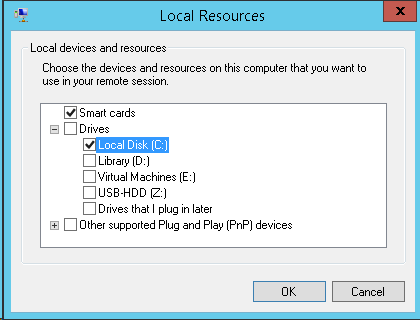
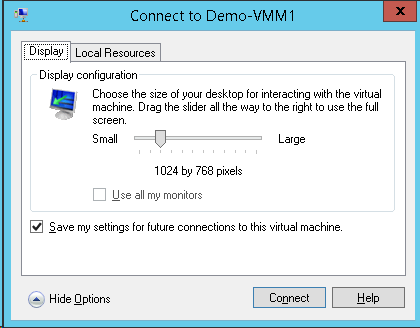
You are prompted for your connection settings when you first connect to a virtual machine using Enhanced Session Mode on WS2012 R2 (Windows Server 2012 R2) Hyper-V.  The below dialog will appear.  You can configure:

  • The screen resolution of the VM connection
  • Whether or not it should use more than one of your PCs monitors
  • If it should save the settings for future usage, so you’re not prompted (this requires you to Show Options.

image

If you do expand Show Options then you get some other … options.  You can configure:

  • How remote audio in the VM is redirected to your PC
  • How local devices are mapped to your VM, including any USB devices (via RemoteFX USB redirection)

image

image

And no, you do not need to enable any RemoteFX stuff or Remote Desktop policies in your VM.  This all works via the Integration Components (via the VMBus).  You just need to enable Enhanced Session Mode in the host settings of the VM’s host.

You can change the Enhance Session Mode settings for a specifiby:

  • Closing any open connection you might have to the VM
  • Right-click on the VM in Hyper-V Manager, and select Edit Session Settings

This will open the above dialog so you can change the settings.  You appear to need to Connect to save the changed settings (at least in the Preview release).

A Snapshot Is Now A Checkpoint

I’ve previously blogged about the Confusion Over Hyper-V and “Snapshots”.  Well, Microsoft listened to the feedback.  A snapshot is now called … a checkpoint.  The benefits of this name change:

  1. It matches VMM
  2. This should end the confusion with VSS snapshots and SAN snapshots … and hopefully stop people from thinking that a Checkpoint is for backup …. IT IS NOT A BACKUP MECHANISM!  (Yes, there are people who think this).

image

There is a PowerShell cmdlet called Checkpoint-VM to create a checkpoint … the thinking in the Hyper-V team in WS2012 was that you checkpointed a VM.  I can’t say I agreed with that thought process Smile  There are other PowerShell cmdlets too:

image

They still use the term “snapshot”.  I don’t know if that will be changed or aliases will be used (for script backwards compatibility).  I hope something is done to keep things consistent but I doubt there’s much time left for anything to be done in the R2 release.

Adding A DVD Drive To A Generation 2 Virtual Machine

By default, Gen2 VMs do not have a DVD drive so you cannot manually install an OS from an ISO file.  It is envisaged that you’re going to either use PXE (which is supported by a Gen2 synthetic NIC) or use a generalized VHDX file.

You can add a DVD drive by:

  1. Editing the settings of the Gen2 VM
  2. Browse to the SCSI controller
  3. Select DVD Drive from the options on the right
  4. Click Add

image

Now you have a DVD drive that can mount an ISO file.