Remote Server Administration Toolkit For Windows 8.1

Microsoft has released the RSAT for Windows 8.1.  This is the toolkit you will install on administrators’ Windows 8.1 PC to manage Windows Server 2012 R2 (WS2012 R2) and older.

Remote Server Administration Tools for Windows 8.1 Preview includes Server Manager, Microsoft Management Console (MMC) snap-ins, consoles, Windows PowerShell cmdlets and providers, and command-line tools for managing roles and features that run on Windows Server 2012 and Windows Server 2012 R2 Preview. In limited cases, the tools can be used to manage roles and features that are running on Windows Server 2008 R2 or Windows Server 2008. Some of the tools work for managing roles and features on Windows Server 2003.

EDIT: The link for this package from the below support matrix still points to the RSAT Preview.  I guess it will get updated soon. The link was updated (reused) to the GA bits.

There are a few important support notes:

  • The IP Address Management (IPAM) console should not be used (not supported) to manage WS2012.
  • The WS2012 R2 and Windows 8.1 PowerShell cmdlets should not be used to manage WS2012.  It is not blocked, but it is not supported.  It is supported to manage WS2012 Hyper-V using the Hyper-V GUI tools (FCM and Hyper-V Manager) from RSAT for Windows 8.1.
  • To manage WS2012 iSCSI target using PowerShell on Windows 8.1 then you must import the WS2012 (RSAT for Windows 8) PowerShell module.

Yes, I agree; This is very messy.

A support matrix for RSAT for Windows 8 and RSAT for Windows 8.1 has also been posted.

You’ll not that some tools are not in RSAT for Windows 8.1, and some are specifically listed as deprecated:

  • SMTP Server Tools: Not included.
  • Storage Explorer Tools: Not included.
  • Storage Manager for Storage Area Network (SAN) Tools: No included.
  • Windows System Resource Manager Tools: Deprecated and not in WS2012 R2.

My BAD Experience Of Upgrading From Windows 8 to Windows 8.1

I deliberately held off from upgrading my Samsung ATIV Windows 8 Pro Atom tablet from Windows 8 to 8.1 to experience the process.  It started kind of rough.

You start, not in the Windows Store, but on Windows.com.

image

Click the link and the upgrade process should start.  Instead, I got a HTTP 403 Forbidden Access Denied error.  Whoops!  First day jitters.  I hope someone quickly deployed more Azure instances! 😉

I tried again about 2 hours later and the link opened the Windows Store where I clicked on Download.

image

Then a download starts.  For me, on a fast line, it was slow.

image

After a long wait I was informed that the machine would reboot automatically after a 15 minute wait.  I triggered it to happen immediately.  The very slow count from 1 to 100% began after the reboot.  Bear in mind that the storage in these tablets appears to be very slow.

My machine hung on a black screen during this stage and that stuffed the install.  I rebooted and it reset this stage of the upgrade.  Another power reset and the issue repeated. 

And then I was greeted by

Restoring Your Previous Version Of Windows

Yes, the upgrade failed for no reason.  So much for the upgrade process.  Looks like I’ll be doing a fresh install instead.

FYI, I saw another machine (also Windows 8 OEM but another hardware brand) even refuse to upgrade for an unknown reason.  This is what I was greeted with when Windows 8 was restored and I logged in.

Couldn’t Upgrade To Windows 8.1

Sorry, we couldn’t complete the update to Windows 8.1.  We’ve restored your previous version of Windows to this PC.

0xC1900101 – 0x40017

This is why there is value in public beta testing, unlike in the much smaller restricted private TAPs.

Windows 8.1, Windows Server & System Center 2012 R2 Go GA

Go to Windows.com (only with IE because this does not work in Firefox in my test) and you’ll get a link to allow your Windows 8 PC to upgrade to Windows 8.1.  As of 12:38 (38 minutes after GA), the upgrade link was dead for me (HTTP 403 – Forbidden: Access is Denied).

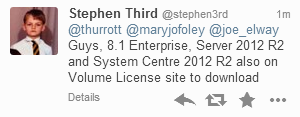
I’ve also been told by Stephen Third that Windows 8.1 Enterprise, Windows Server 2012 R2, and System Center 2012 R2 have appeared on the Microsoft Volume Licensing Service Center.

image

Note!

These are GA releases.  That’s different to an RTM release because the GA media should contain the slipstreamed fixes that Microsoft have been working on since RTM.  So make sure that you use GA media for your future deployments … you shouldn’t be using the previously available MSDN/TechNet media for production usage anyway!

EDIT:

The Microsoft Partner Network benefits have also been updated.  I see WS2012 R2, Windows 8.1 Enterprise, and System Center 2012 R2 in there.

Have fun!

New WS2012 R2 Hyper-V Posters Are Available

Microsoft has published, not one but, a series of new posters for Windows Server 2012 R2 Hyper-V.  Topics cover:

  • Generation 2 Virtual Machines GA
  • Hyper-V and Failover Clustering GA
  • Hyper-V Storage GA
  • Hyper-V Virtual Hard Disk Sharing GA
  • Live Migration GA
  • Session Modes GA
  • Upgrading Your Private Cloud GA

image

KB2885541 – Packet Sniffing Tools Misses Packets Via Hyper-V Port Mirroring

WS2012 Hyper-V (and later) gives you the ability to enable port mirroring in VM network connections.  The source VM mirrors packets to a VM with destination mode enabled.  This is handy for diagnostics of machines that you cannot change or log into; you run a network sniffer on the destination machine without impacting a production VM – no reboots, installs, changes to the guest OS, etc.

Microsoft has released a related KB article for when a packet sniffing tool does not sniff all network traffic through port mirroring on a virtual machine that is hosted by a Windows Server 2012 Hyper-V host.

Symptoms

Consider the following scenario:

  • You create a virtual machine (VM) on a Windows Server 2012-based server that has the Hyper-V server role installed.
  • You connect the VM to a virtual switch that is connected to a physical network.
  • You have two computers (computer A and computer B) that both connect to the physical network.
  • The two computers and the VM are in the same subnet.
  • You set Mirroring Mode to Destination under the Port Mirroring section of Advanced Features in the VM’s network settings.
  • You run a packet sniffing tool on the VM.
  • You ping computer B from computer A.

In this scenario, the packet sniffing tool does not capture the packets between computer B and computer A.

Cause

This issue occurs because the virtual switch does not deliver the packets to the mirroring destination port.

A supported hotfix is available from Microsoft.

Configuring SMB Delegation Just Got Much Easier

To me, there’s no doubt that using SMB 3.0 storage makes a Hyper-V-powered data centre much more flexible.  Getting away from the constraints of traditional block storage data protocols and using “simple” file shares and permissions means that workloads are even more mobile, able to Live Migrate between non-clustered hosts, just the same as with a cluster, and able to use Cross-Version Live Migration to move from WS2012 hosts/clusters to WS2012 R2 hosts/clusters.

One of the pain points in WS2012 of SMB 3.0 storage is the need to configure Kerberos Constrained Delegation for Live Migration between hosts that are not in the same cluster (including non-clustered hosts).  It’s … messy and the process requires that you do one of the following to each host afterwards:

  • Reboot the host – Live Migrate VMs to avoid service downtime.
  • Restart the Virtual Machine Management Service (VMMS) – no downtime to VMs.

Just more stuff to do!

WS2012 R2 adds three cmdlets to the AD PowerShell module (which you can install on your PC via RSAT).  Your AD forest must also be at the “Windows Server 2012” (not necessarily R2) functional level.  The three cmdlets that use the new resource-based delegation functionality are:

  • Get-SmbDelegation –SmbServer X
  • Enable-SmbDelegation –SmbServer X –SmbClient Y
  • Disable-SmbDelegation –SmbServer X [–SmbClient Y] [-Force]

I’ve just tested the cmdlets and no reboots were required.  My test scenario: Hyper-V Replica secondary site hosts require delegation to be configured to store replica VMs on SMB 3.0 shares.  I configured delegation using Enable-SMBDelegation, did not reboot, and the problem was solved.

A Toshiba Z10t “Convertible Ultrabook” (Pro Tablet) Just Landed On My Desk

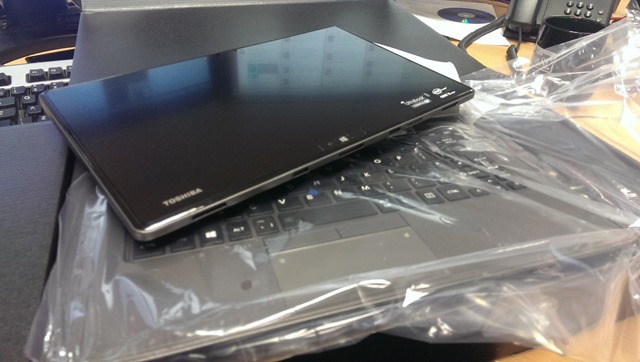
Look what just arrived:

IMAG0084

This is an Intel Core i5 processor powered Toshiba Z10t “tablet”, just like the Surface Pro is.  It docks into a clamshell rigid keyboard (no extra battery)

IMAG0086

Look Pa, no hands:

IMAG0088

And I don’t need to stand 6 foot 5 tall to get the thing to sit on my lap.  Yes, like all the pro tablets, it’s top heavy so it really needs a hand on the keyboard … but that’s where they coincidentally sit when I’m, you know, typing!

Toshiba don’t call this device a tablet.  I think that’s clever.  Say “tablet” to someone and they think $500 or less.  Put an i5, business level build, and a keyboard into a device and you’re talking $1000+.  That’s a big $500 (or more) psychological barrier to get over!

The tablet has a full-sized SD slot (handy for cameras) and USB 3.0 port.  The keyboard adds a USB 2.0 port, a full size HDMI port (they sit better than micro-HDMI), VGA (really needed for presenting at public venues), and RJ45.  It’s that last one that caught my eye when I played with one of these a while ago … that RJ45 means PXE BOOT!  And that means enterprise admin can deploy their Windows 8.1 Enterprise images to this machine using the network based tools that they are using for all other PC types.  This model that we got came with a digitizer stylus.  I find the stylus really useful for OneNote (drawing diagrams) and for using with the Isoboard app to white board via the projector (connected 99.9999% of the time via a VGA cable).

It came with Windows 8 Pro, so I’m upgrading it to Windows 8.1 Pro for demo purposes.

I reckon this is a good business offering for those looking for a hybrid tablet/laptop solution.  In my opinion, the true “lapability” of these device trounces the non-existence of this feature on Surface Pro and Surface Pro 2.

Hopefully I’ll get some time on this machine over the coming weeks/months so I can talk more about it.

Available on:

Event: E2E Virtualisation Conference Rome, November 1-3

Run by Alex Juschin (MVP RDS), this is where virtualisation experts from around Europe gather to share and learn. There’s a heavy Citrix emphasis, but there’s been lots of Hyper-V over the past few events, and this one has a hint of VMware about it 😉 The last one (Copenhagen, 2012) featured several MVPs talking Hyper-V, System Center, and cloud. 

I’ve lost count how many MVPs, CTPs, and vExperts are going to be at this event.  Alex has a bigger community presence than TechEd, in my opinion.  What I love at this event is the expertise from not just the speakers, but many of the attendees.  There are people who attend this event that I’d love to listen presenting.  Formerly known as PubForum, E2EVC stresses the social networking element where you really get to learn new solutions.

The language of E2EVC is English, but you’ll hear lots of languages before, between, and after sessions.

  • 1-3 November, 2013
  • H10 roma città, Via Pietro Blaserna, 101 (Quartiere Marconi), 00146 – Roma – Rome, Italy

You can learn more and register here.

KB2885465 – CPU Not Allocated Correctly VMs On Win8 Or WS2012 Hyper-V

Microsoft has released a KB article for when CPU resources are not allocated correctly for a virtual machine running on Windows 8 Client Hyper-V or Windows Server 2012 Hyper-V.

This article is related to unexpected behaviour with the virtual processor resource control settings of a VM in Hyper-V.  Most people never touch these settings, and probably aren’t even aware of what they do.  My guess is the only people who touch them are maybe hosting companies, and those who want to dedicate processor to SQL Server, Exchange, or SharePoint VMs by reserving 50% or 100% of a logical processor (physical core, or half core with Hyperthreading enabled) capacity to each vCPU in the VM.  That’s probably why this article has appeared now rather than a long time ago.

image

Symptoms

When the Hyper-V role is installed on a Windows Server 2012-based computer, or the Hyper-V feature is enabled on a Windows 8-based computer, you experience the following issues.

Issue 1

When you set the CPU limit on a virtual machine to a value that is 15 percent or less of the total CPU resources on the computer, the virtual machine crashes.
Note This issue does not occur when the virtual machine is running Windows 8, Windows Server 2012, or a later version of Windows.

Issue 2

When you configure the CPU limit on a virtual machine, the virtual machine is allocated less resources than the limit that you configured. For example, if you set the CPU limit on a virtual machine to 20 percent of CPU resources on the computer, the virtual machine is allocated less than 20 percent of CPU resources.


Cause

Cause of Issue 1

This issue occurs because the timer clock interrupts are not sent to the virtual machine in time. Therefore, the virtual machine assumes that a hardware error occurred.

Cause of Issue 2

This issue occurs because the hypervisor throttles the resources that are provided to the virtual machine.

A supported hotfix is available from Microsoft.

Event–TechDays San Francisco

MVPs in the San Francisco Bay Area are sponsoring two virtualization events for the IT Pro community.

The first event is this Friday October 11 from 9am-4pm and is an introduction to all of the new features in Hyper-V features found in Server 2012.  (Combination of lecture and live demos given by MVPs who have been working on a larger Hyper-V deployment.)  Feel free to stop by or refer IT Professional who would like a crash course on the features in Hyper-V.

The second event will be in November the Thursday and Friday 14-15 November.  This event will be a deep dive two day event to discuss the technical details of Hyper-V.   Our goal is to make IT Pros an expert in Hyper-V in two days.

I will be attending and speaking at the second event.  I’m looking forward to the event, if not the actual travel and jetlag – earlier that week I’m speaking in Berlin, Germany, just 9 time zones ahead Confused smile  The line up of speakers that is being arranged is quite impressive.  And I’ve only ever presented on the east coast of the USA.

It’s just a pity that schedules didn’t line up better and allowed me to attend a 49ers game, but I am going to their @ Jaguars game in London in a few weeks.  But hey. maybe next time in the new stadium Smile