Choosing Azure Management Tools

In this post, I will share with you some details on the different options for managing Azure. It’s not all-encompassing; I’m leaving programing REST API and Visual Studio to the nut jobs.

Account Portal

This is where you start off creating your subscription (under Open or direct-billing), and where you go to get a breakdown on your billing. You get a simple UI to break down your costs in this period, and the ability to download a deeper dive.

image

Management Portal

The Management Portal is historically where techies have gone to get stuff going. You get a pretty easy to use UI, with each major element of Azure having it’s own section. When you deploy something in here, there’s usually a Quick Start, some of which can be really simple to use.

image

You might have noticed that there is a second UI portal – yes; it can be confusing. Here’s how I think of things:

  • The management portal is where I go to work with new things like Azure Site Recovery or Remote App
  • The preview portal is where I go to have the best marketplace experience
  • The preview portal is where new sub features often get surfaced, e.g. assigning a reserved IP to a virtual machine

Preview Portal (Codename Ibiza)

Microsoft launched the “Preview Portal” around 14 months ago. It’s gone through many redesigns. Rather than being quick to navigate, it’s got a very “Windows 8” crossed with PhotoShopped-insane UI. But the reality is, if you want to work with new sub-features via a UI, then this site is where you go. If you want as much stuff presented to you as possible, this is where you go. And it does seem that more effort goes into this site as time goes by.

image

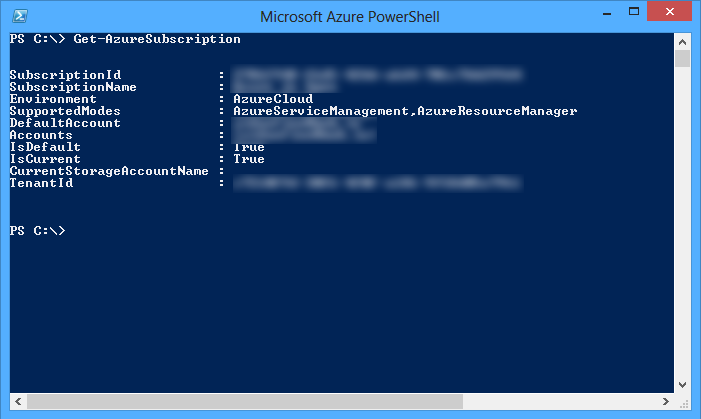
PowerShell

There are at least 2 types of PowerShell that you’ll use with Azure:

  • The MSOL module for Azure Active Directory
  • The Azure PowerShell module

With PowerShell you really can do things much more quickly. Creating, changing (if you can), and removing things in Azure is painfully slow via the UI tools. PowerShell isn’t much quicker, but it allows you to script a number of things you want done while you get coffee or work on something else.
image

There are other options, but as an IaaS person, I’m focused on the above tools.

Azure AD Connect is Generally Available

Thenews that AADConnect is now GA is great for anyone battling with synchronizing to Azure Active Directory (Azure AD or AAD). This tool really is going to be the start of connecting your business to Microsoft’s cloud solutions:

  • Azure
  • Office 365
  • Intune
  • RMS
  • CRM
  • And many more, including third-party solutions via AAD single sign-on

Why? Because you need to get users into the common AAD before these services become meaningful. I’ve used AAD in two different preview releases and found it really simple to get going. Any work that I’ve done with Azure RemoteApp has be done with this tool. Why didn’t I use DirSync? Because I found it to be unreliable. AADConnect solves a big problem too – which AD sync tool should I use – now you use just one tool.

According to Microsoft:

With a rich set of sync and write-back capabilities, you can:

  • Enable your users to perform self-service password reset in the cloud with write-back to on premises AD
  • Enable provisioning from the cloud with user write back to on premises AD
  • Enable write back of “Groups in Office 365” to on premises distribution groups in a forest with Exchange
  • Enable device write back so that your on-premises access control policies enforced by ADFS can recognize devices that registered with Azure AD. This includes the recently announced support for Azure AD Join in Windows 10.
  • Sync custom directory attributes to your Azure Active Directory tenant and consume it from your cloud applications

You can also use AADConnect to connect different AD forests.

In related news Azure AD Connect Health was also released to help customers troubleshoot what’s going on with ADFS. This new feature is included in Azure AD Premium.

This release for ADFS has 3 key capabilities:

  • Alerts based on events, configuration information, synthetic transactions and perf data. So, when something goes wrong, or is about to go wrong, we let you know.
  • Graphs of login activity that you can pivot multiple ways for easy viewing. These “usage insights,” are accessible when you enable auditing on your ADFS servers. They are based on audits generated when user’s login and tokens are generated for applications.
  • Access to key performance indicators across multiple servers, including token request counters, processor, memory, latency, and so forth

A Totally New Blog Design After Restoring From Azure Backup

Monday was one of those days you dread – this site’s server had a catastrophic failure and I had to restore the VM from an Azure Backup. Luckily, the process worked perfectly and I was back online. But I realised that I just wasn’t doing a very good job at running the VM, the software (MySQL and WordPress), and managing the site.

So after getting things back online, I spent a bit of time doing updates and re-engineering the site. And this is the result. The site has a whole new home page with featured posts, and recent posts in several key categories. The blog has much more imagery, and the design is brighter, more modern, and easier to read. Hopefully you agree.

Let’s Get Something Straight About GUI-Less Windows Server

I have been quite vocal about a few things:

  • Microsoft’s bashing of the GUI is unnecessary and unwarranted. I think Nano is a great idea. In fact, one of my first pieces of feedback as a Hyper-V MVP many years ago was that I wanted a version of Hyper-V that was even more stripped down than Hyper-V Server. However, in reality, the driver/firmware eco-system is not solid enough for Nano outside cloud-scale deployments. That’s limited to around 100 data centers in the world (guess). Nano’s biggest customer will be (or already is) Azure. And do you think that MSFT is buying the same server as you and putting up with Emulex or Broadcom crap? Hah! Moron!
  • I don’t like that Microsoft removed a full install from the installation of WS2016 TPv2. Out here in the real world, stuff like that affects adoption rates. The presence of Metro and lack of Start menu has actually prevented WS2012+ installations. This is not hyperbole – I deal with this quite frequently.

Some of you are self-elected thought police: “You should just get with the program”. To you I say: shut up. What’s right for you isn’t right for anyone.

Let’s get on to what I have not said:

  • I have not said: “Get rid of Nano”. See above.
  • I have not said: “Remove the core install from WS2016”. Some of you (30%) install Core/MinShell and that’s fine. How exactly does returning the Full install option hurt you?
  • I have not said: “Remote administration is bad”. How does having a full UI on my server prevent remote administration? I prefer to manage servers from my PC using tools on my PC. But you know what, sometimes I work from home and have to log into a server over a latent VPN connection. Sometimes sh1t happens on a server and I need to work locally because it’s faster or the network card driver/firmware is frakked (see eco-system above).
  • I have not said: “Automation is bad”. I use PowerShell a lot of the time, yeah, with full install Hyper-V hosts and SOFS nodes. My sessions at Ignite 2015 and TechEd Europe 2014 consisted of 75 minutes of Hyper-V/clustering PowerShell demonstrations! But there are times where a GUI is faster and more efficient. If you don’t get that then you don’t live in the real world of dealing with things breaking. Maybe you’d like to have SCOM without a UI too?

Have you imagined that I’ve said any of the above things? If so then please go search for and highlight where I said those things. Find where I said it? Hmm? Reading an comprehension issues, have you?

Microsoft News 02-June-2015

The big news of the last 24 hours is that Windows 10 will be released on July 29th. I posted before The Verge, etc, that I will be away and not reporting on the release on that date.

Hyper-V

Windows Server

Windows Client

Azure

Miscellaneous

clip_image001

How To Kill Your Business In 5 Simple Steps – By Microsoft

This infographic was released by Microsoft over the past couple of days and I love it. It’s the same sort of tone that I use to talk down to XP and W2003 usage defenders – you know the ones, they shrug their shoulders and make excuses. I haven’t seen this graphic anywhere else on Microsoft, and it was released under the title of “SMB Mentor Project”; it appears to be aimed at resellers.

image

Microsoft News 28-May-2015

Very little to cover here, except one possibly controversial article on Hyper-V that you long-time readers might expect me to write an angry response to …

Hyper-V

Windows Server

Azure

Office 365

Living with & Paying for Azure VM Backup

This site is running on an Azure Basic A2 VM with 127 GB of storage. I back it up in two ways:

  • There is an Azure Backup (AB) agent installed in the guest OS, and that backs up an export of MySQL and the IIS content.
  • I use the (preview) feature that allows you to grab a daily backup of a VM. This is what I want to focus on.

I have deployed a GRS backup vault. The usage summary is:

image

The storage cost of the backup this month will be around €2.5776 (72 * €0.0358 per GB) and the instance cost will be €7.447 (The VM size falls into 50-500 GB).

There is a daily backup with 4 weeks of retention. Right now, there are 29 days of history:

image

Backup can be slow (ranges from 47 minutes to 4 hours and 13 minutes), but I haven’t had any issues.

image

I haven’t had to do a restore, but so far, so good.

Technorati Tags: ,,

My First Blog Post Written & Posted Using OneNote

Hey genius, I know that the text of this article is clipped. Why don’t you read why before commenting?

Late yesterday afternoon, Microsoft announced that they had released a OneNote Publisher plug-in for WordPress that allows you to:

  1. Write your blog post using OneNote on any device of your choosing
  2. Log into your WordPress admin page and directly import your post from your online OneNote account to publish it, formatting and all.

How well does it work? I’ll let you be the judge of that because this is the very first post that I’ve written for AidanFinn.com that wasn’t written using Microsoft Live Writer.

You install the plugin as normal in WordPress. Then follow the help to configure a link to your OneNote account. The plug-in adds a button to the Add New Post page in WordPress. Click that button to connect to OneNote and select your article.

A pop-up window opens. This requires you to log into your Microsoft Account, and the very first access will require you to link your site with your OneNote account. Give it a few seconds, and the window will populate with all your notebooks, sections, and pages. Select the page that is your article and click OK.

It takes about 20 seconds for the article to appear in the Add New Post window, with most of your formatting – text formatting is fine but image location (centre) is lost, and more bad things happen which become apparent after clicking Publish (see later).

At this point, format your images, and sort out the metadata and SEO stuff in wp-admin and you can publish your article.

What do I think of this integration? I love the ability to write on any device, even offline, and have my work available on any other device. I’ve often started a post in place A and finished it in place B on a different device, requiring me to either remember to “post draft to blog” or use remote connectivity to get to the first machine.

What do I not like? I am losing some of the metadata stuff that Live Writer makes easy, but the silver lining on that cloud is that it would force me to do that stuff better in wp-admin. Formatting of line spacing is poor. And if your text box in OneNote is too wide then the article line width gets messed up. You should see some of that here.

Am I going to try use this new method of writing and posting? I’ve actually changed my mind about this. I originally posted “absolutely”. Now I have to say “absolutely; when Microsoft sorts out some of the bugs”. The potential for a GREAT solution is there, but right now, it’s just potential.