Reminder of Windows Server 2012 and Windows 8 Licensing For VL Purchases

You can now buy Windows Server 2012 and Windows 8 via volume license channels.  Here’s a quick reminder of the changes in licensing:

  • The Windows 8 editions: Remember that the RT edition is sold only on ARM tablets and is not in VL.  The Enterprise edition is a benefit for when you add Software Assurance (SA) to Windows 8 Pro.
  • Paul Thurrott and Rafael Rivera: The authors of Windows 8 Secrets did a much more complete job of comparing the editions of Windows 8 than the original Microsoft table did.
  • Windows Server 2012 Licensing In Detail: Windows Server Standard and Datacenter are GA.  Essentials is still in RC.  I’ve no idea about Foundation, but it’ll only be available via OEM channels and is not a VL SKU.
  • Windows Server 2012 Virtualisation Licensing Scenarios: If you are doing virtualisation of Windows Serer on any kind of hypervisor (including VMware) then you need to read this. These rules are not constrained to Hyper-V.

Don’t forget that the virtual launch for Windows Server 2012 is tomorrow afternoon, at 16:00 GMT.  We should expect TechNet and MSDN to be populated sometime around/after that.

Licensing The Sideloading Apps on Windows 8 PCs

Something weird popped up on the Microsoft Volume Licensing pricelist today that the sales folks had to ask me about.  I guessed that this was related to sideloading of apps as was promised in Windows 8, but I wasn’t sure of the specifics.  I did some Googling.

There’s a very good chance that mid-to-large enterprises will want to develop their own in house MetroWindows 8 StyleModern UI … *For Fu*k’s Sake!!!* Metro apps to run on their Windows 8 PCs.  It’s extremely unlikely that they’ll want to do this through the Microsoft Store.  It is possible to sideload those apps onto Windows 8, bypassing the Microsoft Store.  The tools will certify your app, making it a trusted app (see the GPO stuff later).

Note, this applies only to Metro apps.  Desktop apps are installed the same way as they always have, and don’t need to be treated any differently as they were on XP, Vista, or Windows 7.

There are two things you need to deal with.

Allow Apps To Be Sideloaded To Windows

There are two steps to enabling Windows to allow an app to be sideloaded:

  1. Sign/package the app with a trusted certificate.
  2. Configure the registry manually, via script, or via group policy to allow trusted apps to be added to Windows.

You can configure domain-joined machines to permit trusted apps to be sideloaded using Group Policy:

  1. Start the Group Policy editor (gpedit.msc).
  2. Navigate to  Local Computer Policy, Computer Configuration, Administrative Templates, Windows Components, App Package Deployment.
  3. Open the Allow All Trusted Apps To Install setting.
  4. Click Enabled and then click OK.

This GPO configuration will set the following registry setting: HKEY_LOCAL_MACHINESoftwarePoliciesMicrosoftWindowsAppxAllowAllTrustedApps = 1. 

Allow Sideloaded Apps To Be Run

If have Windows 8 Enterprise (only available if your Windows 8 Pro PC is licensed with Software Assurance) or Windows Server 2012 then you can enable sideloading of apps on those machines by:

  1. Joining the machines to a domain
  2. Configuring the above Allow All Trusted Applications To Install GPO.

Alternatively, if you have any other edition of Windows 8 (such as Windows 8 Pro) or if the machine must not be domain-joined then you must:

  1. Configure the above registry key.
  2. Activate a sideloading product key using Slmgr.vbs.  And that’s the new SKU that our sales people saw in this month’s Microsoft VL price list.

Deploying the App

According to Microsoft there are two ways to deploy the app.

To inject an app into a WIM image before PC deployment then you can use DISM:

DISM /Add-ProvisionedAppxPackage /PackagePath:C:App1.appx /SkipLicense

If the PC is already deployed then you can use PowerShell:

Add-AppxPackage C:ContosoAppExpenseApp.appx

You can use Get-Appxpackage to determine if an app is installed and perform updates to it by running:

Add-AppxPackage \FileserverContosoAppv1.1ExpenseApp.appx

Windows RT

All of the above applies to the x86/x64 editions of Windows 8.  If you’re running Windows RT then the experience is simpler by using a “management client”.  Don’t ask me a thing about it; like 99.9999% of the world’s population, I’ve not see Windows RT in person yet.

Technorati Tags: ,

Volume Licensing for Windows Server 2012 And Windows 8 Are Now Available

Come and get ‘em while they’re hot!  The volume license price lists have been updated.  Windows Server 2012 Standard and Datacenter are there and you can buy it today.

Windows 8 is also on the volume license price list and you can buy it today too.

Windows 8 Devices At GA

I am no longer maintaining this list.  We’re at GA and it’ll be too hard to track from now on.

Here is my best effort listing of designed-for-Windows 8 devices that will be available at or soon after Windows 8 general availability (GA). I am not including laptops or PCs that are Windows 7 machines that “can be upgraded for 15 quid”.

This is based on best effort.  You’d be amazed how inconsistent some of this information is, e.g. no one was able to agree on the name of the new Toshiba “slider” … it’s actually called the U920, not the U925.

Technorati Tags: ,

More Windows 8 Devices At IFA 2012

The news keeps coming! Yesterdays news is here.

Dell

The Dell XPS 10 Windows RT tablet was announced.

Like most of the transformers, there are batteries in the tablet and in the keyboard.  Dell is claiming a 20+ hour life with this device. Nice!  Pocket Lint has more information and photos of this tablet.  Damn it is thin.

There will also be an XPS One 27 AiO with 10 point mutlitouch 27” screen. I reckon the home PC is shifting completely to the AiO design.  Maybe the business machine will eventually – but that might be many years away because most companies buy towers and reuse existing monitors, expecting a very long life for those monitors.  An XPS Duo 12 convertible laptop was also announced … I don’t like the look of the XPS converters that have been around for a while.

Samsung

They didn’t rest on their laurels yesterday. Samsung continued with the announcements with an ATIV WP8 handset and a traditional 10.1” Windows 8 tablet called the ATIV Tab, running Windows RT.

Engadget reckons it’s lower spec than the newest Android Tab from Samsung.  It weighs 570g and is 8.9mm thick.

HP

Guess who is back in the tablet space!?!?! The Envy x2 is a 11.6” transformer, which is proving to be the most popular of the designs from the manufacturers. I believe I read that this has an Atom “Clover Trail” processor. If it’s like the Spectre Ultrabook, then it’ll be on the higher end of the price range.  It looks like it’ll cost over $1000, pricing it out of the tablet range and putting it into a convertible laptop space.

There will be a Windows 8 Spectre XT Touchsmart Ultrabook too ($1,399.99).  This is the first Intel Ultrabook I’ve seen with Thunderbolt connectivity.  According to Techcentral.ie it

.. is 17.9mm thick and weighs 2.16kg. The laptop also features USB 3.0, Ethernet and HDMI ports.

They also say there will be an Envy Touchsmart Ultrabook with:

14" touch screen and a choice of Intel’s latest Core processors. The ultrabook weighs 2.16kg and offers up to eight hours of battery life.

Toshiba

I love the designed-for-Windows 7 Z930 ultrabooks from Toshiba.  They keyboard is way better than the one in my Asus UX31.  Toshiba have opted to go for the hybrid ultrabook/tablet or slider form factor with the U925t Ultrabook.  Neowin reports that it will have:

an Intel Core i5 processor inside, along with a 128 GB SSD, two USB 3.0 ports, a HDMI port, two cameras (front and rear) and a media card reader. The keyboard has an LED backlight and a CkickPad with Windows 8 gesture support While the Satellite U925t will be released when Windows 8 launches on October 26th.

It’s a nice looking device, and it appears to inherit a lot of features from the Z930.

Technorati Tags: ,

Windows 8 Devices Emerge At IFA 2012

IFA (pr. eefa) 2012 in Berlin is the place to be if you want to get the inside track on new Windows 8 devices. Announcements started coming out:

Samsung

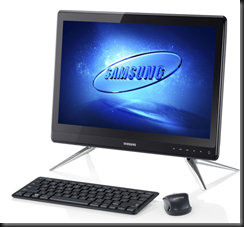
They have revealed some Series 5 and Series 7 All-In-One PCs (AiOs) that are 27”, 23.6” and 21.5”.

image

Ubergizmo has a breakdown of the specs that I’ve not seen elsewhere since the model news broke earlier this week.

Asus

They have announced four new laptops

Zenbook U500VZ, a 19.7mm-thick 15-incher with a full HD screen, full-size keyboard, Intel i7 quad-core processor and the option for Nvidia GT650M graphics and up to 512GB of SSD storage

There’s a UX21A Touch with multitouch and 256 GB SSD.  It looks very like the UX31 that I own.  The Asus Taichi is that awful looking dual screen laptop with a screen on the outside (tablet) and a screen on the inside (laptop with keyboard).

Asus also announced their tablets called Vivo (previously 810 Transformer) and Vivo RT (previously 600 Transformer)

asus vivo tab

The Vivo RT device is a Tegra with 2 GB RAM and 32 GB SSD.  That’s OK.  The Vivo is an Intel dual core Atom with 2 GB RAM and 64 GB SSD.  Atom.  Hmm.

Sony

Not to be left out, Sony has announced two devices at IFA 2012 as well.  The Vaio Duo 11 is an 11” slider device. 

sony-vaio-duo-11-pr[1]

It’s basically an Ultrabook with a touchscreen in an interesting new design. It lies flat and you use it as a tablet with the various sensors you’d expect. You need a keyboard?  Slide up the screen and there you go, something similar to a laptop. It looks like it’s coming in i3 to i7 with up to 256 GB SSD.

Confession time: I did an NDA reveal of this one while presenting on Windows 8 and had some hands on. It got a lot of attention from those present.  My #1 requirement of a device is that I can use it on my lap.  I was concerned because the screen extends out so much.  But this device passed the test with flying colours because the base counter balances it and makes it stable. This is a powerful machine – I played with the i7 256 GB SSD model – that cuts it both as your laptop and as your tablet.

photo (2)

A really interesting 20” machine called the Vaio TAP 20 was also released.  I describe it as a portable AiO. 1600 * 900 resolution, up to 1 TB storage, multi-touch (10 I think), and it converts from a tabletop to a propped up monitor.  And that’s where the magic is.

Yup, I also got some hands on with the TAP 20.  In fact, everyone wanted to play with it.  Standing up, it’s a PC, offering a nice group interaction experience. Raise the kickstand, and you can pick it up easily, bring it to another room, lay it flat and it’s a table top flat gaming platform.  I demonstrated it drawing with 10 touch points so it can be a multiuser experience.  Everyone who tried or saw it was intrigued by the possibilities.

Technorati Tags: ,

Setting Up Windows To Go & Enabling The Windows Store

Windows To Go (WTG) is a new feature for Windows 8 Enterprise edition (the edition of Windows 8 that is available to customers with Software Assurance, e.g. OVS or Windows Intune) that allows you to install Windows 8 Enterprise on a USB 3.0 stick. That can be useful for a few reasons:

  • BYOD: Allow users to buy their own machines (with USB 3.0 ports) and bring them onto the company network.  Something like NAP/NAQ will keep their home OS isolated.  Supply the end users with WTG USB sticks that are complete with the corporate build.  They can then get onto the network and access company resources from their own machines by booting up using the company image on the stick.
  • Test/Evaluation/Demo: You have a Windows 7 build on your machine but you want to be able to show or use Windows 8 without dual booting or wiping. That’s the case with my Ultrabook; I am in the middle of writing a book and don’t want to disturb my working environment. Every other machine I have is on Windows 8 but my Ultrabook is a nice machine to demo with because it is light and small, but there is no room on the SSD to dual boot.  Booting from USB 3.0 gives me a portable temporary environment that doesn’t impact what’s installed on my laptop’s SSD.

WTG supports BitLocker which is great; USB sticks are easy to lose and losing a WTG stick would be like losing your laptop. That’s bad if the thing is unencrypted. With BitLocker you have protected the OS and data on the stick so the only pain is the pain of losing an expensive USB 3.0 stick.

Hardware Requirements For Windows To Go

The machine that will boot from Windows To Go must have a USB 3.0 port. 

The USB 3.0 stick must be one of the supported devices.  One of those is made by Kingston, and I’m lucky enough to have their WTG device in my possession – I work for a Kingston distributor.

Setting Up Windows To Go

Insert your USB 3.0 stick. Next you need to supply a Windows 8 Enterprise image, which can be:

  • Original image such as install.wim on the Windows 8 Enterprise media
  • A captured generalized image with your corporate build on it

Go into the Metro new UI and type Windows To Go.  That will do a search (below) and change the context to Settings.  The Windows To Go shortcut will appear.  Start it.

image

I’ve selected my Kingston DT Ultimate device as the destination for the image deployment.  Notice the warning?  I’m building the image on my PC, and it does not have a USB 3.0 port.  That’ll slow down the image deployment, but I need a USB 3.0 port to boot this thing up reliably.  The second USB in my example is my Windows 8 Enterprise installer.

image

Now pick an image to deploy on the USB 3.0 stick:

image

Now you can turn on and configure BitLocker to encrypt the USB 3.0 stick:

image

Now you can go ahead and create the stick!

image

Eventually the wizard finishes. You now have the option of rebooting your machine to boot up using the USB 3.0 stick.  Remember that your machine must be configured to boot from USB 3.0.


image

And that’s it!  Your stick is prepared.

Booting Up Windows To Go

Pop the USB 3.0 stick into the USB 3.0 port of the machine you want to boot up on.  Power up the machine.  In the case of my UX31, I press <ESC> to bring up a boot menu and select the Kingston USB 3.0 stick.

WP_000040

Enter the BitLocker password to access the device and then answer any setup questions.

WP_000041

My machine boots up in 12 seconds flat with WTG on the Kingston USB 3.0 device.  BTW, the stick gets HOT.  I’m told that it is a real SSD inside the stick.

The Windows Store

Open it in WTG and you’ll be told that:

Windows Store isn’t available on Windows To Go workspaces

According to TechNet:

Apps licensed through the store are linked to hardware for licensing. Since Windows To Go is designed to roam to different host PCs access to the store is disabled. You can enable the store if your Windows To Go workspaces won’t be roaming to multiple PC hosts.

USB 3.0 is portable between devices and therefore the Store is disabled.

You can override this behaviour to enable the Windows Store using Local Group Policy

  1. Open MMC. (Click Start, click in the Start Search box, type mmc, and then press ENTER.)
  2. On the File menu, click Add/Remove Snap-in.
  3. In the Add or Remove Snap-ins dialog box, click Group Policy Object Editor, and then click Add.
  4. In the Select Group Policy Object dialog box, click Browse.
  5. Click This computer to edit the Local Group Policy object, or click Users to edit Administrator, Non-Administrator, or per-user Local Group Policy objects.
  6. Click Finish.

If you want to enable the Windows Store in your Windows To Go workspace then the policy you want to edit is Allow Store To Install Apps On Windows To Go Workspaces which is found at \Computer ConfigurationAdministrative TemplatesWindows ComponentsStore.  Enable this setting, and run GPUPDATE /FORCE to apply the GPO.

Although your WTG stick will be portable, the apps won’t be because they are licensed by the Store to the PC that the stick is in when they are installed.  Therefore:

Apps purchased from the Store are bound to the host PC’s hardware, using Windows To Go on another host PC will cause all the apps purchased from the Store to be disabled. Line of business apps that are side-loaded and default Windows Store apps will continue to work.

And:

If you are not going to enable the use of the Store on your Windows To Go workspace, we recommend that you remove the default Windows Store apps that come with the Enterprise image since you won’t be able to update the default apps unless you turn on the Store.

This might be nicer if the apps were licensed to the storage that they are on instead of the tin … but that would then cause a problem if you were replacing the storage in your machine.  I guess Microsoft had to do something and this was probably the best approach.

Enterprise Deployment

System Center 2012 Configuration Manager with SP1 will support Windows To Go.

You can use AD GPO to manage the Windows Store.

Technorati Tags:

First Few Days Of Using Windows 8 At Work

Most people are wondering what the Windows 8 work experience will be like.  I rebuilt the PC at work with Windows 8 last week and here are my thoughts:

I am rarely in the UI formerly known as Metro.  The tools I use most are Word, Excel, Outlook, an RSS reader, MetroTwit (desktop), Lync, and MSTSC.  I have got some Metro apps installed but not nearly as many as I do on my slate PC at home.  Conversely, I am almost always in Metro when using the slate PC at home where what I want to do and how I want to do it are very different things.

I have pinned everything I normally used on the task bar.  I only had the regular stuff pinned on Windows 7.  This compensates for the lack of a Start Menu. 

I’ve had no compatibility issues but I don’t do anything exotic with my PCs.

I am using the PC (HP 8200 tower) with a Microsoft touch mouse and a normal HP keyboard.  I’m used to the new UI and where to move the mouse.  To be honest, the traditional key sequences do most of what I need to flip between things.  It’s been a non-disruptive move for me.

Technorati Tags:

Installing .Net 3.5 Fails on Windows 8 With 0x800F0906 Error

I tried to install Live Essentials 2012 on Windows 8 and it required .NET 3.5.  I tried to install it (both download and from Programs and Features) and the installer tried to download the code.  The download would fail with a 0x800F0906 error:

Windows couldn’t connect to the Internet to download necessary files. Make sure that you’re connected to the Internet, and click Retry to try again.

Some googling ensued and I found a fix.  Pop in the installation media for Windows 8 and run DISM from an elevated (admin) command prompt.  E: was the path to my Windows 8 installation USB.

image

Not exactly user friendly!  The Live Essentials 2012 install worked fine after that.

It appears that this is caused by the machine being policy configured to use WSUS or similar with the download of .NET 3.5 not being available.

Technorati Tags: ,

Windows 8 Available to Silver/Gold Microsoft Partners

Jon Roskill announced that Windows 8 is available to Microsoft partners for internal usage with Silver or Gold competencies through the Digital Distribution Center.  You will find it on the banner page:

image

Windows Server 2012 has not been added. We’re left to guess that it won’t be available until at/after Sept 4th. Extremely disappointing because businesses are more likely to deploy Windows Server 2012 before Windows 8 – it’s the server that enables the business features of the desktop.

August 20th is the day for MAP (Microsoft Action Pack) subscribers for Windows 8.

Technorati Tags: