KB2885541 – Packet Sniffing Tools Misses Packets Via Hyper-V Port Mirroring

WS2012 Hyper-V (and later) gives you the ability to enable port mirroring in VM network connections.  The source VM mirrors packets to a VM with destination mode enabled.  This is handy for diagnostics of machines that you cannot change or log into; you run a network sniffer on the destination machine without impacting a production VM – no reboots, installs, changes to the guest OS, etc.

Microsoft has released a related KB article for when a packet sniffing tool does not sniff all network traffic through port mirroring on a virtual machine that is hosted by a Windows Server 2012 Hyper-V host.

Symptoms

Consider the following scenario:

  • You create a virtual machine (VM) on a Windows Server 2012-based server that has the Hyper-V server role installed.
  • You connect the VM to a virtual switch that is connected to a physical network.
  • You have two computers (computer A and computer B) that both connect to the physical network.
  • The two computers and the VM are in the same subnet.
  • You set Mirroring Mode to Destination under the Port Mirroring section of Advanced Features in the VM’s network settings.
  • You run a packet sniffing tool on the VM.
  • You ping computer B from computer A.

In this scenario, the packet sniffing tool does not capture the packets between computer B and computer A.

Cause

This issue occurs because the virtual switch does not deliver the packets to the mirroring destination port.

A supported hotfix is available from Microsoft.

KB2885465 – CPU Not Allocated Correctly VMs On Win8 Or WS2012 Hyper-V

Microsoft has released a KB article for when CPU resources are not allocated correctly for a virtual machine running on Windows 8 Client Hyper-V or Windows Server 2012 Hyper-V.

This article is related to unexpected behaviour with the virtual processor resource control settings of a VM in Hyper-V.  Most people never touch these settings, and probably aren’t even aware of what they do.  My guess is the only people who touch them are maybe hosting companies, and those who want to dedicate processor to SQL Server, Exchange, or SharePoint VMs by reserving 50% or 100% of a logical processor (physical core, or half core with Hyperthreading enabled) capacity to each vCPU in the VM.  That’s probably why this article has appeared now rather than a long time ago.

image

Symptoms

When the Hyper-V role is installed on a Windows Server 2012-based computer, or the Hyper-V feature is enabled on a Windows 8-based computer, you experience the following issues.

Issue 1

When you set the CPU limit on a virtual machine to a value that is 15 percent or less of the total CPU resources on the computer, the virtual machine crashes.
Note This issue does not occur when the virtual machine is running Windows 8, Windows Server 2012, or a later version of Windows.

Issue 2

When you configure the CPU limit on a virtual machine, the virtual machine is allocated less resources than the limit that you configured. For example, if you set the CPU limit on a virtual machine to 20 percent of CPU resources on the computer, the virtual machine is allocated less than 20 percent of CPU resources.


Cause

Cause of Issue 1

This issue occurs because the timer clock interrupts are not sent to the virtual machine in time. Therefore, the virtual machine assumes that a hardware error occurred.

Cause of Issue 2

This issue occurs because the hypervisor throttles the resources that are provided to the virtual machine.

A supported hotfix is available from Microsoft.

Beware of Windows Server and System Center Update Rollups

Tomorrow is the first Patch Tuesday of the quarter, and going on history, this is when we tend to see Update Rollups for Windows Server and/or System Center be released via Windows Update.  While this type of release confuses people (normally QFEs/hotfixes must be manually downloaded and security fixes/service packs come via Windows Update – yes I know update rollup is a Windows Update category) this is not what I want to discuss.

I don’t know for certain that there will be any update rollups this month. But if I was a betting man, if there will be any, then I’d put money down on there being issues with any hypothetical update rollup.  History has taught us that update rollups are dangerous.  Cause in point, July:

  • Window Server 2012: One of the most common clustered Hyper-V host networking configurations was broken by a contained fix: Live Migration caused a bugcheck.  You can imagine how painful that was to fix.
  • System Center Data Protection Manager 2012 SP1: Agents could not be updated.
  • System Center Data Protection Operations Manager 2012 SP1: An incompatibility with KB2775511 (Windows 7 and W2008 R2) caused agents to fail their heartbeat and grey out.
  • Exchange: Ask any Exchange MVP what the history of URs has been like for that product.

My advice: let the uninformed out there test any update rollup for you.  Do not automatically approve update rollups.  Do not push them out.  Go reconfigure your auto-approval rules now.  Watch the TechNet forums, Twitter feeds, and the usual blogs.  And then after a month, you can deploy the release if it’s clean … or wait for V2 or V3 of the update with the required fix.

If you’re using System Center Configuration Manager, then configure your auto-approval rules to delay deployment for 30-45 days.  That gives you automation and caution.

EDIT:

An update rollup actually was released for Windows 8, Windows Server 2012, and Windows RT.  Another one was released for Windows Server 2012 Essentials.  My advice stands: let some other mug test it for you, wait, and watch.  Give it a month, and then deploy if all is well.

Option To Select Physical GPU Is Unavailable In Hyper-V Settings

Microsoft posted a KB article to explain how to resolve an issue when a Windows Server 2012 Remote Desktop Virtualization Host is added to a domain and the default domain policy is applied, the option to select a physical GPU used for Remote FX (within Hyper-V settings) is unavailable.

This is caused because the Users group has been removed from he “Allow log on locally” policy. RemoteFX uses a system account called RDV Graphics Service which is a member of Users. 

The fix is to ensure that:

  1. Users has the Allow Log On Locally right and
  2. Users is not added to the Deny Logon Locally policy.

Note that this issue is fixed in WS2012 R2.

Putting The Scale Into The Scale-Out File Server

Why did Microsoft call the “highly file server for application data” the Scale-Out File Server (SOFS)?  The reason might not be obvious unless you have lots of equipment to play with … or you cheat by using WS2012 R2 Hyper-V Shared VHDX as I did on Tuesday afternoon Smile

The SOFS can scale out in 3 dimensions.

0: The Basic SOFS

Here we have a basic example of a SOFS that you should have seen blogged about over and over.  There are two cluster nodes.  Each node is connected to shared storage.  This can be any form of supported storage in WS2012/R2 Failover Clustering.

image

1: Scale Out The Storage

The likely bottleneck in the above example is the disk space.  We can scale that out by attaching the cluster nodes to additional storage.  Maybe we have more SANs to abstract behind SMB 3.0?  Maybe we want to add more JBODs to our storage pool, thus increasing capacity and allowing mirrored virtual disks to have JBOD fault tolerance.

image

I can provision more disks in the storage, add them to the cluster, and convert them into CSVs for storing the active/active SOFS file shares.

2: Scale Out The Servers

You’re really going to have to have a large environment to do this.  Think of the clustered nodes as SAN controllers.  How often do you see more than 2 controllers in a single SAN?  Yup, not very often (we’re excluding HP P4000 and similar cos it’s weird).

Adding servers gives us more network capacity for client (Hyper-V, SQL Server, IIS, etc) access to the SOFS, and more RAM capacity for caching.  WS2012 allows us to use 20% of RAM as CSV Cache and WS2012 R2 allows us to use a whopping 80%!

image

3: Scale Out Using Storage Bricks

GO back to the previous example.  There you saw a single Failover Cluster with 4 nodes, running the active/active SOFS cluster role.  That’s 2-4 nodes + storage.  Let’s call that a block, named Block A.  We can add more of these blocks … into the same cluster.  Think about that for a moment.

EDIT: When I wrote this article I referred to each unit of storage + servers as a block.  I checked with Claus Joergensen of Microsoft and the terms being used in Microsoft are storage bricks or storage scale units.  So wherever you see “block” swap in storage brick or storage scale unit.

image

I’ve built it and it’s simple.  Some of you will overthink this … as you are prone to do with SOFS.

What the SOFS does is abstract the fact that we have 2 blocks.  The client servers really don’t know; we just configure them to access a single namespace called \Demo-SOFS1 which is the CAP of the SOFS role.

The CSVs that live in Block A only live in Block A, and the CSVs that live in Block B only live in Block B.  The disks in the storage of Block A are only visible to the servers in Block A, and the same goes for Block B.  The SOFS just sorts out who is running what CSV and therefore knows where share responsibility is.  There is a single SOFS role in the entire cluster, therefore we have the single CAP and UNC namespace.  We create the shares in Block A in the same place as we create them for Block B .. in that same single SOFS role.

A Real World Example

I don’t have enough machinery to demo/test this so I fired up a bunch of VMs on WS2012 R2 Hyper-V to give it a go:

  • Test-SOFS1: Node 1 of Block A
  • Test-SOFS2: Node 2 of Block A
  • Test-SOFS3: Node 1 of Block B
  • Test-SOFS4: Node 2 of Block B

All 4 VMs are in a single guest cluster.  There are 3 shared VHDX files:

  • BlockA-Disk1: The disk that will store CSV1 for Block A, attached to Test-SOFS1 + Test-SOFS2
  • BlockB-Disk1: The disk that will store CSV1 for Block B, attached to Test-SOFS3 + Test-SOFS4
  • Witness Disk: The single witness disk for the guest cluster, attached to all VMs in the guest cluster

Here are the 4 nodes in the single cluster that make up my logical Blocks A (1 + 2) and B (3 + 4).  There is no “block definition” in the cluster; it’s purely an architectural concept.  I don’t even know if MSFT has a name for it.

image

Here are the single witness disk and CSVs of each block:

image

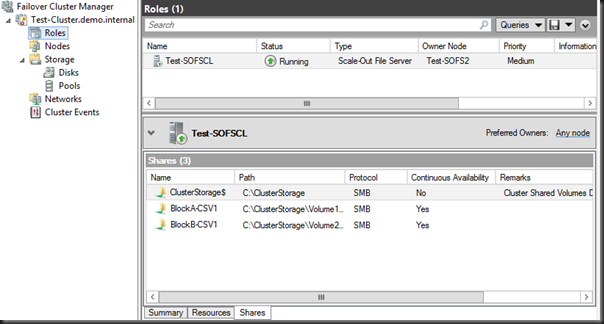
Here is the single active/active SOFS role that spans both blocks A and B.  You can also see the shares that reside in the SOFS, one on the CSV in Block A and the other in the CSV in Block B.
image

And finally, here is the end result; the shares from both logical blocks in the cluster, residing in the single UNC namespace:

image

It’s quite a cool solution.

Storage Spaces & Scale-Out File Server Are Two Different Things

In the past few months it’s become clear to me that people are confusing Storage Spaces and Scale-Out File Server (SOFS).  They seem to incorrectly think that one requires the other or that the terms are interchangeable.  I want to make this clear:

Storage Spaces and Scale-Out File Server are completely different features and do not require each other.


Storage Spaces

The concept of Storage Spaces is simple: you take a JBOD (a bunch of disks with no RAID) and unify them into a single block of management called a Storage Pool.  From this pool you create Virtual Disks.  Each Virtual Disk can be simple (no fault tolerance), mirrored (2-way or 3-way), or parity (like RAID 5 in concept).  The type of Virtual Disk fault tolerance dictates how the slabs (chunks) of each Virtual Disk are spread across the physical disks included in the pool.  This is similar to how LUNs are created and protected in a SAN.  And yes, a Virtual Disk can be spread across 2, 3+ JBODs.

Note: In WS2012 you only get JBOD tray fault tolerance via 3 JBOD trays.

Storage Spaces can be used as the shared storage of a cluster (note that I did not limit this to a SOFS cluster).  For example, 2 or more (check JBOD vendor) servers are connected to a JBOD tray via SAS cables (2 per server with MPIO) instead of connecting the servers to a SAN.  Storage Spaces is managed via the Failover Cluster Manager console.  Now you have the shared storage requirement of a cluster, such as a Hyper-V cluster or a cluster running the SOFS role.

Yes, the servers in the cluster can be your Hyper-V hosts in a small environment.  No, there is no SMB 3.0 or file shares in that configuration.  Stop over thinking things – all you need to do is provide shared storage and convert it into CSV that is used as normal by Hyper-V.  It is really that simple. 

Yes, JBOD + Storage Spaces can be used in a SOFS as the shared storage.  In that case, the virtual disks are active on each cluster node, and converted into CSVs.  Shares are created on the CSVs, and application servers access the shares via SMB 3.0.

Scale-Out File Server (SOFS)

The SOFS is actually an active/active role that runs on a cluster.  The cluster has shared storage between the cluster nodes.  Disks are provisioned on the shared storage, made available to each cluster node, added to the cluster, and converted into CSVs.  Shares are then created on the CSV and are made active/active on each cluster node via the active/active SOFS cluster role. 

SOFS is for application servers only.  For example Hyper-V can store the VM files (config, VHD/X, etc) on the SMB 3.0 file shares.  SOFS is not for end user shares; instead use virtual file servers that are stored on the SOFS.

Nowhere in this description of a SOFS have I mentioned Storage Spaces.  The storage requirement of a SOFS is cluster supported storage.  That includes:

  • SAS SAN
  • iSCSI SAN
  • Fibre Channel SAN
  • FCoE SAN
  • PCI RAID (like the Dell VRTX)
  • … and SAS attached shared JBOD + Storage Spaces

Note that I only mentioned Storage Spaces with the JBOD option.  Each of the other storage options for a cluster uses hardware RAID and therefore Storage Spaces is unsupported.

Summary

Storage Spaces works with a JBOD to provide a hardware RAID alternative.  Storage Spaces on a shared JBOD can be used as cluster storage.  This could be a small Hyper-V cluster or it could be a cluster running the active/active SOFS role.

A SOFS is an alternative way of presenting active/active storage to application servers. It requires cluster supported storage, which can be a shared JBOD + Storage Spaces.

Configuring Quorum on Storage Spaces For A 2 Node WS2012 (and WS2012 R2) Cluster

In this post I’m going to talk about building a 2 node Windows Server 2012/R2 failover cluster and what type of witness configuration to choose to achieve cluster quorum when the cluster’s storage is a JBOD with Storage Spaces.

I’ve been messing about in the lab with a WS2012 R2 cluster, in particular, a Scale-Out File Server (SOFS) running on a failover cluster with Storage Spaces on a JBOD.  What I’m discussing applies equally to:

  • A Hyper-V cluster that uses a SAS attached JBOD with Storage Spaces as the cluster storage
  • A SOFS based on a JBOD with Storage Spaces

Consider the build process of this 2 node cluster:

  • You attach a JBOD with raw disks to each cluster member
  • You build the cluster
  • You prepare Storage Spaces in the cluster and create your virtual disks

Hmm, no witness was created to break the vote and get an uneven result.  In fact, what happens is that the cluster will rig the vote to ensure that there is an uneven result.  If you’ve got 2 just nodes in the cluster with no witness then one has a quorum vote and the other doesn’t.  Imagine Node1 has a vote and Node2 does not have a vote.  Now Node1 goes offline for whatever reason.  Node2 does not have a vote and cannot achieve quorum; you don’t have a cluster until Node1 comes back online.

There are 2 simple solutions to this:

1) Create A File Share Witness

Create a file share on another highly available file server – uh … that’ll be an issue for small/medium business because all the virtual machines (including the file server) were going to be stored on the JBOD/Storage Spaces.  You can configure the file share as a witness for the cluster.

2) (More realistically) Create a Storage Spaces Virtual Disk As A Witness Disk

Create a small virtual disk (2-way or 3-way mirror for JBOD fault tolerance) and use that disk for quorum as the witness disk.  A 1 GB disk will do; the smallest my Storage Spaces implementation would do was 5 GB but that’s such a small amount anyway.  This solution is pretty what you’d do in a single site cluster with traditional block storage.

We could go crazy talking about quorum options in cluster engineering.  I’ve given you 2 simple options, with the virtual disk as a witness being the simplest.  Now each node has a vote for quorum with a witness to break the vote, and the cluster can survive either node failing.

WS2012 Hyper-V Networking On HP Proliant Blades Using Just 2 Flex Fabric Virtual Connects

On another recent outing I got to play with some Gen8 HP blade servers.  I was asked to come up with a networking design where (please bear in mind that I am not a h/w guy):

  • The blades would have a dual port 10 Gbps mezzanine card that appeared to be doing FCoE
  • There were 2 Flex Fabric virtual connects in the blade chassis
  • They wanted to build a WS2012 Hyper-V cluster using fiber channel storage

I came up with the following design:

The 2 FCoE (I’m guess that’s what they were) adapters were each given a static 4 Gbps slice of the bandwidth from each Virtual Connect (2 * 4 Gbps), which would match 4 Gbps Fiber Channel (FC).  MPIO was deployed to “team” the FC HBA’s.

One Ethernet NIC was presented from each Virtual Connect to each blade (2 per blade), with each NIC getting 6 Gbps.  WS2012 NIC teaming was used to team these NICs, and then we deployed a converged networks design in WS2012 using virtual NICs and QoS to dynamically carve up the bandwidth of the virtual switch (attached to the NIC team).

Some testing was done and we were running Live Migration at a full 6 Gbps, moving a 35 GB RAM VM via TCP/IP Live Migration in 1 minute and 8 seconds.

For WS2012 R2, I’d rather have 2 * 10 GbE for the 2 cluster & backup networks and 2 * 1 or 10 GbE for the management and VM network.  If the VC allowed it (didn’t have the time), I might have tried the below.  This would reduce the demands on the NIC team (actual VM traffic is usually light, but assessment is required to determine that) and allow an additional 2 non-teamed NICs:

Leaving the 2 new NICs (running at 4 Gbps) non-teamed leaves open the option of using SMB 3.0 storage (without RDMA/SMB Direct) on a Scale-Out File Server.  However, the big plus of SMB 3.0 Multichannel would be that I would now have a potential 8 Gbps to use for Live Migration via SMB 3.0 Open-mouthed smile But this is assuming that I could carve up the networking like this via Virtual Connects … and I don’t know if that is actually possible.

ODX–Not All SANs Are Created Equally

I recently got to play with a very expensive fiber channel SAN for the first time in a while (I normally only see iSCSI or SAS in the real world).  This was a chance to play with WS2012 Hyper-V on this SAN, and this SAN supported Offloaded Data Transfer (ODX).

Put simply, ODX is a SAN feature that allows Windows to offload certain file operations to the SAN, such as:

  • Server to server file transfer/copy
  • Creating a VHD file

That latter was of interest to me, because this should accelerate the creation of a fixed VHD/X file, making (self-service) clouds more responsive.

The hosts were fully patched, both hotfixes and update rollups.  Yes, that includes the ODX hotfix that is bundled into the May clustering bundle.  We created a 60 GB fixed size VHDX file … and it took as long as it would without ODX.  I was afraid of this.  The manufacturer of this particular SAN has … a certain reputation for being stuck in the time dilation of an IT black hole since 2009.

If you’re planning on making use of ODX then you need to understand that this isn’t like making a jump from 1 Gbps to 10 Gbps where there’s a predictable 10x improvement.  Far from it; the performance of ODX on one vendors top end SAN can be very different to that of another manufacturer.  Two of my fellow Hyper-V MVPs have done a good bit of work looking into this stuff.

Hans Vredevoort (@hvredevoort) tested the HP 3PAR P10000 V400 with HP 3PAR OS v3.1.2.  With ODX enabled (it is by default on the SAN and WS2012) when creating a pretty regular 50 GB VHDX Hans saw the time go from an unenhanced 6.5 minutes to 2.5 minutes.  On the other hand, a 1 TB VHDX would take 33 minutes with ODX enabled.

Didier Van Hoye (@workinghardinit) decided to experiment with his Dell Compellent.  Didier created 10 * 50 GB VHDX files and 10 * 475 GB fixed VHDX files in 42 seconds.  That was 5.12 TB of files created nearly 2 minutes faster than the 3PAR could create a single 50 GB VHDX file.  Didier has understandably gone on a video recording craze showing off how this stuff works.  Here is his latest.  Clearly, the Compellent rocks where others waltz.

These comparisons reaffirm what you should probably know: don’t trust the whitepapers, brochures, or sales-speak from a manufacturer.  Evidently not all features are created equally.

Video: Me Talking About The Microsoft Cloud At E2EVC Copenhagen

I spoke about Windows Server 2012 Hyper-V, System Center 2012 SP1, and the Microsoft clouds at the recent E2EVC event in Copenhagen.  You can find the video of this here:

The event was before the 2012 R2 announcements at TechEd North America.