Microsoft News – 25-May-2015

It’s taken me nearly all day to fast-read through this lot. Here’s a dump of info from Build, Ignite, and since Ignite. Have a nice weekend!

Hyper-V

Windows Server

Windows Client

System Center

Azure

Office 365

Intune

  • Announcing support for Windows 10 management with Microsoft Intune: Microsoft announced that Intune now supports the management of Windows 10. All existing Intune features for managing Windows 8.1 and Windows Phone 8.1 will work for Windows 10.
  • Announcing the Mobile Device Management Design Considerations Guide: If you’re an IT Architect or IT Professional and you need to design a mobile device management (MDM) solution for your organization, there are many questions that you have to answer prior to recommending the best solution for the problem that you are trying to solve. Microsoft has many new options available to manage mobile devices that can match your business and technical requirements.
  • Mobile Application Distribution Capabilities in Microsoft Intune: Microsoft Intune allows you to upload and deploy mobile applications to iOS, Android, Windows, and Windows Phone devices. In this post, Microsoft will show you how to publish iOS apps, select the users who can download them, and also show you how people in your organization can download these apps on their iOS devices.
  • Microsoft Intune App Wrapping Tool for Android: Use the Microsoft Intune App Wrapping Tool for Android to modify the behavior of your existing line-of-business (LOB) Android apps. You will then be able to manage certain app features using Intune without requiring code changes to the original application.

Licensing

Miscellaneous

Give Your Feedback on Future Windows Server Releases

You have probably already heard about Windows Insider, a program for providing feedback and shaping the future of Windows on client devices – not that I did not say “Windows 10” because the Insiders program will live beyond the RTM of Windows 10 this summer.

Similarly, the Windows Server group has launched a feedback forum. Here you can:

  • Search for or browse for feedback
  • Comment on and vote for existing feedback
  • Submit your own unique ideas

Now let’s be realistic – not everything will be done:

  • Some ideas are daft 🙂
  • You’ll find a few things that are already in the TPv2 release of WS2016
  • Some things won’t suit Microsoft’s strategy
  • And some things will take more time than is available – but maybe planning for future releases will be impacted

Here’s what I’ve voted for, commented on or submitted so far:

  • Remember Domain Logins: I find it really annoying that the TPv2 release won’t remember previous domain logons and I have to type my domain\username over and over and over and …
  • Storage Replica Requirement of Datacenter Edition: Microsoft is planning to only include SR in the Datacenter edition of WS2016. Most of the storage machines I see are physical and licensed with Standard or Storage Server editions. It’ll probably be cheaper to go with 3rd party software than DC edition 🙁
  • Storage Spaces advanced tiering: I like the idea of bringing a cloud tier to Windows Server, instead of reserving it in the silly StorSimple appliance. I don’t agree with restricting it to Storage Spaces.
  • Create a Hyper-V Cluster without AD: Imagine a HYPER-V world (don’t let the SQL heads muddy the waters) without Kerberos!!! Simple SOFS, simple Live Migration, and yes, System Center would need to catch up.
  • VM Placement Without System Center: Even those who can afford or want to deploy SCVMM often choose not to enable Dynamic Optimization. Let’s bring this feature into Windows Server, where it belongs.
  • New integrated UI for Hyper-V: Let’s replace Hyper-V Manager, Failover Cluster Manager, and SCVMM with one integrated Hyper-V tool that is a part of Windows Server. The cloud folks can use Azure Stack. SCVMM is broken, and the experience is fragmented. Everyone agrees except fanboys and SCVMM team members.
  • Change how Hyper-V Manager creates VM folder structure: Sarah, Ben & Taylor – if you fix this, I guarantee a round of applause at the next Ignite. This is the CMD prompt CTRL+V of Hyper-V.

This is your opportunity to shape Windows Server. I’ve had that privilege as an MVP – it’s not always immediate but there are headline things in WS2016 that I’ve contributed some feedback for and it feels damned good to see them presented on stage. You can feel that too. If you choose to stay silent, then please stay that way when you’re unhappy.

Hyper-V Amigos Chatting At Microsoft Ignite 2015

Didier Van Hoye, myself and Carsten Rachfahl (all Hyper-V MVPs) were at Microsoft Ignite last week and we met up at the end to record a chat between the 3 of us, where we discussed some of our highlights from the conference. You can catch this video on the Hyper-V Amigos site.

image

Oh yeah, it was painful watching myself in this video 🙂 That was the last time Carsten will let me hold a microphone!

Setting Up WS2016 Storage Spaces Direct SOFS

In this post I will show you how to set up a Scale-Out File Server using Windows Server 2016 Storage Spaces Direct (S2D). Note that:

  • I’m assuming you have done all your networking. Each of my 4 nodes has 4 NICs: 2 for a management NIC team called Management and 2 un-teamed 10 GbE NICs. The two un-teamed NICs will be used for cluster traffic and SMB 3.0 traffic (inter-cluster and from Hyper-V hosts). The un-teamed networks do not have to be routed, and do not need the ability to talk to DCs; they do need to be able to talk to the Hyper-V hosts’ equivalent 2 * storage/clustering rNICs.
  • You have read my notes from Ignite 2015
  • This post is based on WS2016 TPv2

Also note that:

  • I’m building this using 4 x Hyper-V Generation 2 VMs. In each VM SCSI 0 has just the OS disk and SCSI 1 has 4 x 200 GB data disks.
  • I cannot virtualize RDMA. Ideally the S2D SOFS is using rNICs.

Deploy Nodes

Deploy at least 4 identical storage servers with WS2016. My lab consists of machines that have 4 DAS SAS disks. You can tier storage using SSD or NVMe, and your scalable/slow tier can be SAS or SATA HDD. There can be a max of tiers only: SSD/NVMe and SAS/SATA HDD.

Configure the IP addressing of the hosts. Place the two storage/cluster network into two different VLANs/subnets.

My nodes are Demo-S2D1, Demo-S2D2, Demo-S2D3, and Demo-S2D4.

Install Roles & Features

You will need:

  • File Services
  • Failover Clustering
  • Failover Clustering Manager if you plan to manage the machines locally.

Here’s the PowerShell to do this:

Add-WindowsFeature –Name File-Services, Failover-Clustering –IncludeManagementTools

You can use -ComputerName <computer-name> to speed up deployment by doing this remotely.

Validate the Cluster

It is good practice to do this … so do it. Here’s the PoSH code to validate a new S2D cluster:

image

Create your new cluster

You can use the GUI, but it’s a lot quicker to use PowerShell. You are implementing Storage Spaces so DO NOT ADD ELGIBLE DISKS. My cluster will be called Demo-S2DC1 and have an IP of 172.16.1.70.

New-Cluster -Name Demo-S2DC1 -Node Demo-S2D1, Demo-S2D2, Demo-S2D3, Demo-S2D4 -NoStorage -StaticAddress 172.16.1.70

There will be a warning that you can ignore:

There were issues while creating the clustered role that may prevent it from starting. For more information view the report file below.

What about Quorum?

You will probably use the default of dynamic quorum. You can either use a cloud witness (a storage account in Azure) or a file share witness, but realistically, Dynamic Quorum with 4 nodes and multiple data copies across nodes (fault domains) should do the trick.

Enable Client Communications

The two cluster networks in my design will also be used for storage communications with the Hyper-V hosts. Therefore I need to configure these IPs for Client communications:

image

Doing this will also enable each server in the S2D SOFS to register it’s A record of with the cluster/storage NIC IP addresses, and not just the management NIC.

Enable Storage Spaces Direct

This is not on by default. You enable it using PowerShell:

(Get-Cluster).DASModeEnabled=1

Browsing Around FCM

Open up FCM and connect to the cluster. You’ll notice lots of stuff in there now. Note the new Enclosures node, and how each server is listed as an enclosure. You can browse the Storage Spaces eligible disks in each server/enclosure.

image

Creating Virtual Disks and CSVs

I then create a pool called Pool1 on the cluster Demo-S2DC1 using PowerShell – this is because there are more options available to me than in the UI:

New-StoragePool  -StorageSubSystemName Demo-S2DC1.demo.internal -FriendlyName Pool1 -WriteCacheSizeDefault 0 -FaultDomainAwarenessDefault StorageScaleUnit -ProvisioningTypeDefault Fixed -ResiliencySettingNameDefault Mirror -PhysicalDisk (Get-StorageSubSystem  -Name Demo-S2DC1.demo.internal | Get-PhysicalDisk)

Get-StoragePool Pool1 | Get-PhysicalDisk |? MediaType -eq SSD | Set-PhysicalDisk -Usage Journal

The you create the CSVs that will be used to store file shares in the SOFS. Rules of thumb:

  • 1 share per CSV
  • At least 1 CSV per node in the SOFS to optimize flow of data: SMB redirection and redirected IO for mirrored/clustered storage spaces

Using this PoSH you will lash out your CSVs in no time:

$CSVNumber = “4”
$CSVName = “CSV”
$CSV = “$CSVName$CSVNumber”

New-Volume -StoragePoolFriendlyName Pool1 -FriendlyName $CSV -PhysicalDiskRedundancy 2 -FileSystem CSVFS_REFS –Size 200GB
Set-FileIntegrity “C:\ClusterStorage\Volume$CSVNumber” –Enable $false

The last line disables ReFS integrity streams to support the storage of Hyper-V VMs on the volumes. You’ll see from the screenshot what my 4 node S2D SOFS looks like, and that I like to rename things:

image

Note how each CSV is load balanced. SMB redirection will redirect Hyper-V hosts to the owner of a CSV when the host is accessing files for a VM that is stored on that CSV. This is done for each VM connection by the host using SMB 3.0, and ensures optimal flow of data with minimized/no redirected IO.

There are some warnings from Microsoft about these volumes:

  • They are likely to become inaccessible on later Technical Preview releases.
  • Resizing of these volumes is not supported. 

    Oops! This is a technical preview and this should be pure lab work that your willing to lose.

    Create a Scale-Out File Server

    The purpose of this post is to create a SOFS from the S2D cluster, with the sole purpose of the cluster being to store Hyper-V VMs that are accessed by Hyper-V hosts via SMB 3.0. If you are building a hyperconverged cluster (not supported by the current TPv2 preview release) then you stop here and proceed no further.

    Each of the S2D cluster nodes and the cluster account object should be in an OU just for the S2D cluster. Edit the advanced security of the OU and grand the cluster account object create computer object and delete compute object rights. If you don’t do this then the SOFS role will not start after this next step.

    Next, I am going to create an SOFS role on the S2D cluster, and call it Demo-S2DSOFS1.

    New-StorageFileServer  -StorageSubSystemName Demo-S2DC1.demo.internal -FriendlyName Demo-S2DSOFS1 -HostName Demo-S2DSOFS1Create a  -Protocols SMB

    Create and Permission Shares

    Create 1 share per CSV. If you need more shares then create more CSVs. Each share needs the following permissions:

    • Each Hyper-V host
    • Each Hyper-V cluster
    • The Hyper-V administrators

    You can use the following PoSH to create and permission your shares. I name the share folder and share name after the CSV that it is stored on, so simply change the $ShareName variable to create lots of shares, and change the permissions as appropriate.

    $ShareName = “CSV1”
    $SharePath = “$RootPath\$ShareName\$ShareName”

    md $SharePath
    New-SmbShare -Name $ShareName -Path $SharePath -FullAccess Demo-Host1$, Demo-Host2$, Demo-HVC1$, “Demo\Hyper-V Admins”
    Set-SmbPathAcl -ShareName $ShareName

    Create Hyper-V VMs

    On your hosts/clusters create VMs that store all of their files on the path of the SOFS, e.g. \\Demo-S2DSOFS1\CSV1\VM01, \\Demo-S2DSOFS1\CSV1\VM02, etc.

    Remember that this is a Preview Release

    This post was written not long after the release of TPv2:

    • Expect bugs – I am experiencing at least one bad one by the looks of it
    • Don’t expect support for a rolling upgrade of this cluster
    • Bad things probably will happen
    • Things are subject to change over the next year

Ignite 2015 – Windows Server Containers

Here are my notes from the recording of Microsoft’s New Windows Server Containers, presented by Taylor Brown and Arno Mihm. IMO, this is an unusual tech because it is focused on DevOps – it spans both IT pro and dev worlds. FYI, it took me twice as long as normal to get through this video. This is new stuff and it is heavy going.

Objectives

  • You will now enough about containers to be dangerous 🙂
  • Learn where containers are the right fit
  • Understand what Microsoft is doing with containers in Windows Server 2016.

Purpose of Containers

  • We used to deploy 1 application per OS per physical server. VERY slow to deploy.
  • Then we got more agility and cost efficiencies by running 1 application per VM, with many VMs per physical server. This is faster than physical deployment, but developers still wait on VMs to deploy.

Containers move towards a “many applications per server” model, where that server is either physical or virtual. This is the fastest way to deploy applications.

Container Ecosystem

An operating system virtualization layer is placed onto the OS (physical or virtual) of the machine that will run the containers. This lives between the user and kernel modes, creating boundaries in which you can run an application. Many of these applications can run side by side without impacting each other. Images, containing functionality, are run on top of the OS and create aggregations of functionality. An image repository enables image sharing and reuse.

image

When you create a container, a sandbox area is created to capture writes; the original image is read only. The Windows container sees Windows and thinks it’s regular Windows. A framework is installed into the container, and this write is only stored in the sandbox, not the original image. The sandbox contents can be preserved, turning the sandbox into a new read-only image, which can be shared in the repository. When you deploy this new image as a new container, it contains the framework and has the same view of Windows beneath, and the container has a new empty sandbox to redirect writes to.

You might install an application into this new container, the sandbox captures the associated writes. Once again, you can preserve the modified sandbox as an image in the repository.

What you get is layered images in a repository, which are possible to deploy independently from each other, but with the obvious pre-requisites. This creates very granular reuse of the individual layers, e.g. the framework image can be deployed over and over into new containers.

Demo:

A VM is running Docker, the tool for managing containers. A Windows machine has the Docker management utility installed. There is a command-line UI.

Docker Images < list the images in the repository.

There is an image called windowsservercore. He runs:

docker run –rm –it windowsservercore cmd

Note:

  • –rm (two hyphens): Remove the sandbox afterwards
  • –it: give me an interactive console
  • cmd: the program he wants the container to run

A container with a new view of Windows starts up a few seconds later and a command prompt (the desired program) appears. This is much faster than deploying a Windows guest OS VM on any hypervisor.  He starts a second one. On the first, he deletes files from C: and deletes HKLM from the registry, and the host machine and second container are unaffected – all changes are written to the sandbox of the first container. Closing the command prompt of the first container erases all traces of it (–rm).

Development Process Using Containers

The image repository can be local to a machine (local repository) or shared to the company (central repository).

First step: what application framework is required for the project … .Net, node.js, PHP, etc? Go to the repository and pull that image over; any dependencies are described in the image and are deployed automatically to the new container. So if I deploy .NET a Windows Server image will be deployed automatically as a dependency.

The coding process is the same as usual for the devs, with the same tools as before. A new container image is created from the created program and installed into the container. A new “immutable image” is created. You can allow selected people or anyone to use this image in their containers, and the application is now very easy and quick to deploy; deploying the application image to a container automatically deploys the dependencies, e.g. runtime and the OS image. Remember – future containers can be deployed with –rm making it easy to remove and reset – great for stateless deployments such as unit testing. Every deployment of this application will be identical – great for distributed testing or operations deployment.

You can run versions of images, meaning that it’s easy to rollback a service to a previous version if there’s an issue.

Demo:

There is a simple “hello world” program installed in a container. There is a docker file, and this is a text file with a set of directions for building a new container image.

The prereqs are listed with FROM; here you see the previously mentioned windowsservercore image.

WORKDIR sets the baseline path in the OS for installing the program, in this case, the root of C:.

Then commands are run to install the software, and then run (what will run by default when the resulting container starts) the software. As you can see, this is a pretty simple example.

image

He then runs:

docker build -t demoapp:1 < which creates an image called demoapp with a version of 1. -t tags the image.

Running docker images shows the new image in the repository. Executing the below will deploy the required windowsservercore image and the version 1 demoapp image, and execute demoapp.exe – no need to specity the command because the docker file specified a default executable.

docker run –rm -it demoapp:1

He goes back to the demoapp source code, compiles it and installs it into a container. He rebuilds it as version 2:

docker build -t demoapp:2

And then he runs version 2 of the app:

docker run –rm -it demoapp:2

And it fails – that’s because he deliberately put a bug in the code – a missing dependent DLL from Visual Studio. It’s easy to blow the version 2 container away (–rm) and deploy version 1 in a few seconds.

What Containers Offer

  • Very fast code iteration: You’re using the same code in dev/test, unit test, pilot and production.
  • There are container resource controls that we are used to: CPU, bandwidth, IOPS, etc. This enables co-hosting of applications in a single OS with predictable levels of performance (SLAs).
  • Rapid deployment: layering of containers for automated dependency deployment, and the sheer speed of containers means applications will go from dev to production very quickly, and rollback is also near instant. Infrastructure no longer slows down deployment or change.
  • Defined state separation: Each layer is immutable and isolated from the layers above and below it in the container. Each layer is just differences.
  • Immutability: You get predictable functionality and behaviour from each layer for every deployment.

Things that Containers are Ideal For

  • Distributed compute
  • Databases: The database service can be in a container, with the data outside the container.
  • Web
  • Scale-out
  • Tasks

Note that you’ll have to store data in and access it from somewhere that is persistent.

Container Operating System Environments

  • Nano-Server: Highly optimized, and for born-in-the-cloud applications.
  • Server Core: Highly compatible, and for traditional applications.

Microsoft-Provided Runtimes

Two will be provided by Microsoft:

  • Windows Server Container: Hosting, highly automated, secure, scalable & elastic, efficient, trusted multi-tenancy. This uses a shared-kernel model – the containers run on the same machine OS.
  • Hyper-V Container: Shared hosting, regulate workloads, highly automated, secure, scalable and elastic, efficient, public multi-tenancy. Containers are placed into a “Hyper-V partition wrap”, meaning that there is no sharing of the machine OS.

Both runtimes use the same image formats. Choosing one or the other is a deployment-time decision, with one flag making the difference.

Here’s how you can run both kinds of containers on a physical machine:

image

And you can run both kinds of containers in a virtual machines. Hyper-V containers can be run in virtual machine that is running the Hyper-V role. The physical host must be running virtualization that supports virtualization of the VT instruction sets (ah, now things get interesting, eh?). The virtual machine is a Hyper-V host … hmm …

image

Choosing the Right Tools

You can run containers in:

  • Azure
  • On-premises
  • With a service provider

The container technologies can be:

  • Windows Server Containers
  • Linux: You can do this right now in Azure

Management tools:

  • PowerShell support will be coming
  • Docker
  • Others

I think I read previously that System Center would add support. Visual Studio was demonstrated at Build recently. And lots of dev languages and runtimes are supported. Coders don’t have to write with new SDKs; what’s more important is that

Azure Service Fabric will allow you to upload your code and it will handle the containers.

Virtual machines are going nowhere. They will be one deployment option. Sometimes containers are the right choice, and sometimes VMs are. Note: you don’t join containers to AD. It’s a bit of a weird thing to do, because the containers are exact clones with duplicate SIDs. So you need to use a different form of authentication for services.

When can You Play With Containers?

  • Preview of Windows Server Containers: coming this summer
  • Preview of Hyper-V Containers: planned for this year

Containers will be in the final RTM of WS2016. You will be able to learn more on the Windows Server Containers site when content is added.

Demos

Taylor Brown, who ran all the demos, finished up the session with a series of demos.

docker history <name of image> < how was the image built – looks like the dockerfile contents in reverse order. Note that passwords that are used in this file to install software appears to be legible in the image.

He tries to run a GUI tool from a container console – no joy. Instead, you can remote desktop into the container (get the IP of the container instance) and then run the tool in the Remote Desktop session. The tool run is Process Explorer.

If you run a system tool in the container, e.g. Process Explorer, then you only see things within the container. If you run a tool on the machine, then you have a global view of all processes.

If you run Task Manager, go to Details and add the session column, you can see which processes are owned by the host machine and which are owned by containers. Session 0 is the machine.

Runs docker run -it windowsservercore cmd < does not put in –rm which means we want to keep the sandbox when the container is closed. Typing exit in the container’s CMD will end the container but the sandbox is kept.

Running ps -a shows the container ID and when the container was created/exited.

Running docker commit with the container ID and a name converts the sandbox into an image … all changes to the container are stored in the new image.

Other notes:

The IP of the container is injected in, and is not the result of a setup. A directory can be mapped into a container. This is how things like databases are split into stateless and stateful; the container runs the services and the database/config files are injected into the container. Maybe SMB 3.0 databases would be good here?

Questions

  • How big are containers on the disk? The images are in the repository. There is no local copy – they are referred to over the network. The footprint of the container on the machine is the running state (memory, CPU, network, and sandbox), the size of which is dictated by your application.
  • There is no plan to build HA tech into containers. Build HA into the application. Containers are stateless. Or you can deploy containers in HA VMs via Hyper-V.
  • Is a full OS running in the container? They have a view of a full OS. The image of Core that Microsoft will ship is almost a full image of Windows … but remember that the image is referenced from the repository, not copied.
  • Is this Server App-V? No. Conceptually at a really really high level they are similar, but Containers offer a much greater level of isolation and the cross-platform/cloud/runtime support is much greater too.
  • Each container can have its own IP and MAC address> It can use the Hyper-V virtual switch. NATing will also be possible as an alternative at the virtual switch. Lots of other virtualization features available too.
  • Behind the scenes, the image is an exploded set of files in the repository. No container can peek into the directory of another container.
  • Microsoft are still looking at which of their own products will be support by them in Containers. High priority examples are SQL and IIS.
  • Memory scale: It depends on the services/applications running the containers. There is some kind of memory de-duplication technology here too for the common memory set. There is common memory set reuse, and further optimizations will be introduced over time.
  • There is work being done to make sure you pull down the right OS image for the OS on your machine.
  • If you reboot a container host what happens? Container orchestration tools stop the containers on the host, and create new instances on other hosts. The application layer needs to deal with this. The containers on the patched host stop/disappear from the original host during the patching/reboot – remember; they are stateless.
  • SMB 3.0 is mentioned as a way to present stateful data to stateless containers.
  • Microsoft is working with Docker and 3 containerization orchestration vendors: Docker Swarm, Kubernetes and Mesosphere.
  • Coding: The bottom edge of Docker Engine has Linux drivers for compute, storage, and network. Microsoft is contributing Windows drivers. The upper levels of Docker Engine are common. The goal is to have common tooling to manage Windows Containers and Linux containers.
  • Can you do some kind of IPC between containers? Networking is the main way to share data, instead of IPC.

Lesson: run your applications in normal VMs if:

  • They are stateful and that state cannot be separated
  • You cannot handle HA at the application layer

Personal Opinion

Containers are quite interesting, especially for a nerd like me that likes to understand how new techs like this work under the covers. Containers fit perfectly into the “treat them like cattle” model and therefore, in my opinion, have a small market of very large deployments of stateless applications. I could be wrong, but I don’t see Containers fitting into more normal situations. I expect Containers to power lots of public cloud task -based stuff. I can see large customers using it in the cloud, public or private. But it’s not a tech for SMEs or legacy apps. That’s why Hyper-V is important.

But … nested virtualization, not that it was specifically mentioned, oh that would be very interesting 🙂

I wonder how containers will be licensed and revealed via SKUs?

Ignite 2015 – Storage Spaces Direct (S2D)

This session, presented by Claus Joergensen, Michael Gray, and Hector Linares can be found on Channel 9:

Current WS2012 R2 Scale-Out File Server

This design is known as converged (not hyper-converged). There are two tiers:

  1. Compute tier: Hyper-V hosts that are connected to storage by SMB 3.0 networking. Virtual machine files are stored on the SOFS (storage tier) via file shares.
  2. Storage tier: A transparent failover cluster that is SAS-attached to shared JBODs. The JBODs are configured with Storage Spaces. The Storage Spaces virtual disks are configured as CSVs, and the file shares that are used by the compute tier are kept on these CSVs.

The storage tier or SOFS has two layers:

  1. The transparent failover cluster nodes
  2. The SAS-attached shared JBODs that each SOFS node is (preferably) direct-connected to

System Center is an optional management layer.

image

Introducing Storage Spaces Direct (S2D)

Note: you might hear/see/read the term SSDi (there’s an example in one of the demos in the video). This was an old abbreviation. The correct abbreviation for Storage Spaces Direct is S2D.

The focus of this talk is the storage tier. S2D collapses this tier so that there is no need for a SAS layer. Note, though, that the old SOFS design continues and has scenarios where it is best. S2D is not a replacement – it is another design option.

S2D can be used to store VM files on it. It is made of servers (4 or more) that have internal or DAS disks. There are no shared JBODs. Data is mirrored across each node in the S2D cluster, therefore the virtual disks/CSVs are mirrored across each node in the S2D cluster.

S2D introduces support for new disks (with SAS disks still being supported):

  • Low cost flash with SATA SSDs
  • Better flash performance with NVMe SSDs

image

Other features:

  • Simple deployment – no eternal enclosures or SAS
  • Simpler hardware requirements – servers + network, and no SAS/MPIO, and no persistent reservations and all that mess
  • Easy to expand – just add more nodes, and get storage rebalancing
  • More scalability – at the cost of more CPUs and Windows licensing

S2D Deployment Choice

You have two options for deploying S2D. Windows Server 2016 will introduce a hyper-converged design – yes I know; Microsoft talked down hyper-convergence in the past. Say bye-bye to Nutanix. You can have:

  • Hyper-converged: Where there are 4+ nodes with DAS disks, and this is both the compute and storage tier. There is no other tier, no SAS, nothing, just these 4+ servers in one cluster, each sharing the storage and compute functions with data mirrored across each node. Simple to deploy and MSFT thinks this is a sweet spot for SME deployments.
  • Converged (aka Private Cloud Storage): The S2D SOFS is a separate tier to the compute tier. There are a set of Hyper-V hosts that connect to the S2D SOFS via SMB 3.0. There is separate scaling between the compute and storage tiers, making it more suitable for larger deployments.

image

Hyper-convergence is being tested now and will be offered in a future release of WS2016.

Choosing Between Shared JBODs and DAS

As I said, shared JBOD SOFS continues as a deployment option. In other words, an investment in WS2012 R2 SOFS is still good and support is continued. Node that shared JBODs offer support for dual parity virtual disks (for archive data only – never virtual machines).

S2D adds support for the cheapest of disks and the fastest of disks.

image

Under The Covers

This is a conceptual, not an architectural, diagram.

A software storage bus replaces the SAS shared infrastructure using software over an Ethernet channel. This channel spans the entire S2D cluster using SMB 3.0 and SMB Direct – RDMA offers low latency and low CPU impact.

On top of this bus that spans the cluster, you can create a Storage Spaces pool, from which you create resilient virtual disks. The virtual disk doesn’t know that it’s running on DAS instead of shared SAS JBOD thanks to the abstraction of the bus.

File systems are put on top of the virtual disk, and this is where we get the active/active CSVs. The file system of choice for S2D is ReFS. This is the first time that ReFS is the primary file system choice.

Depending on your design, you either run the SOFS role on the S2D cluster (converged) or you run Hyper-V virtual machines on the S2D cluster (hyper-converged).

image

System Center is an optional management layer.

Data Placement

Data is stored in the form of extents. Each extent is 1 GB in size so a 100 GB virtual disk is made up of 100 extents. Below is an S2D cluster of 5 nodes. Note that extents are stored evenly across the S2D cluster. We get resiliency by spreading data across each node’s DAS disks. With 3-way mirroring, each extent is stored on 3 nodes. If one node goes down, we still have 2 copies, from which data can be restored onto a different 3rd node.

Note: 2-way mirroring would keep extents on 2 nodes instead of 3.

Extent placement is rebalanced automatically:

  • When a node fails
  • The S2D cluster is expanded

How we get scale-out and resiliency:

  • Scale-Out: Spreading extents across nodes for increased capacity.
  • Resiliency: Storing duplicate extents across different nodes for fault tolerance.

This is why we need good networking for S2D: RDMA. Forget your 1 Gbps networks for S2D.

image

Scalability

  • Scaling to large pools: Currently we can have 80 disks in a pool. in TPv2 we can go to 240 disks but this could be much higher.
  • The interconnect is SMB 3.0 over RDMA networking for low latency and CPU utilization
  • Simple expansion: you just add a node, expand the pool, and the extents are rebalanced for capacity … extents move from the most filled nodes to the most available nodes. This is a transparent background task that is lower priority than normal IOs.

You can also remove a system: rebalance it, and shrink extents down to fewer nodes.

Scale for TPv2:

  • Minimum of 4 servers
  • Maximum of 12 servers
  • Maximum of 240 disks in a single pool

Availability

S2D is fault tolerance to disk enclosure failure and server failure. It is resilient to 2 servers failing and cluster partitioning. The result should be uninterrupted data access.

Each S2D server is treated as the fault domain by default. There is fault domain data placement, repair and rebalancing – means that there is no data loss by losing a server. Data is always placed and rebalanced to recognize the fault domains, i.e. extents are never stored in just a single fault domain.

If there is a disk failure, there is automatic repair to the remaining disks. The data is automatically rebalanced when the disk is replaced – not a feature of shared JBOD SOFS.

If there is a temporary server outage then there is a less disruptive automatic data resync when it comes back online in the S2D cluster.

When there is a permanent server failure, the repair is controlled by the admin – the less disruptive temporary outage is more likely so you don’t want rebalancing happening then. In the event of a real permanent server loss, you can perform a repair manually. Ideally though, the original machine will come back online after a h/w or s/w repair and it can be resynced automatically.

ReFS – Data Integrity

Note that S2D uses ReFS (pronounced as Ree-F-S)  as the file system of choice because of scale, integrity and resiliency:

  • Metadata checksums protect all file system metadata
  • User data checksums protect file data
  • Checksum verification occurs on every read of checksum-protected data and during periodic background scrubbing
  • Healing of detected corruption occurs as soon as it is detected. Healthy version is retrieved from a duplicate extent in Storage Spaces, if available; ReFS uses the healthy version to get Storage Spaces to repair the corruption.

No need for chkdsk. There is no disruptive offline scanning in ReFS:

  • The above “repair on failed checksum during read” process.
  • Online repair: kind of like CHKDSK but online
  • Backups of critical metadata are kept automatically on the same volume. If the above repair process fails then these backups are used. So you get the protection of extent duplication or parity from Storage Spaces and you get critical metadata backups on the volume.

ReFS – Speed and Efficiency

Efficient VM checkpoints and backup:

  • VHD/X checkpoints (used in file-based backup) are cleaned up without physical data copies. The merge is a metadata operation. This reduces disk IO and increases speed. (this is clever stuff that should vastly improve the disk performance of backups).
  • Reduces the impact of checkpoint-cleanup on foreground workloads. Note that this will have a positive impact on other things too, such as Hyper-V Replica.

Accelerated Fixed VHD/X Creation:

  • Fixed files zero out with just a metadata operation. This is similar to how ODX works on some SANs
  • Much faster fixed file creation
  • Quicker deployment of new VMs/disks

Yay! I wonder how many hours of my life I could take back with this feature?

Dynamic VHDX Expansion

  • The impact of the incremental extension/zeroing out of dynamic VHD/X expansion is eliminated too with a similar metadata operation.
  • Reduces the impact too on foreground workloads

Demo 1:

2 identical VMs, one on NTFS and one on ReFS. Both have 8 GB checkpoints. Deletes the checkpoint from the ReFS VM – The merge takes about 1-2 seconds with barely any metrics increase in PerfMon (incredible improvement). Does the same on the NTFS VM and … PerfMon shows way more activity on the disk and the process will take about 3 minutes.

Demo 2:

Next he creates 15 GB fixed VHDX files on two shares: one on NTFS and one on ReFS. ReFS file is created in less than a second while the previous NTFS merge demo is still going on. The NTFS file will take …. quite a while.

Demo 3:

Disk Manager open on one S2D node: 20 SATA disks + 4 Samsung NVMe disks. The S2D cluster has 5 nodes. There is a total of 20 NVMe devices in the single pool – a nice tidy aggregation of PCIe capacity. The 5 node is new so no rebalancing has been done.

Lots of VMs running from a different tier of compute. Each VM is running DiskSpd to stress the storage. But distributed Storage QoS is limiting the VMs to 100 IOPs each.

Optimize-StoragePool –FriendlyName SSDi is run to bring the 5th node into the cluster (called SSDi) online by rebalancing. Extents are remapped to the 5th node. The system goes full bore to maximize IOPS – but note that “user” operations take precedence and the rebalancing IOPS are lower priority.

Storage Management in the Private Cloud

Management is provided by SCOM and SCVMM. This content is focused on S2D, but the management tools also work with other storage options:

  • SOFS with shared JBOD
  • SOFS with SAN
  • SAN

Roles:

  • VMM: bare-metal provisioning, configuration, and LUN/share provisioning
  • SCOM: Monitoring and alerting
  • Azure Site Recovery (ASR) and Storage Replica: Workload failover

Note: You can also use Hyper- Replica with/without ASR.

image

Demo:

He starts the process of bare-metal provisioning a SOFS cluster from VMM – consistent with the Hyper-V host deployment process. This wizard offers support for DAS or shared JBOD/SAN; this affects S2D deployment and prevents unwanted deployment of MPIO. You can configure existing servers or deploy a physical computer profile to do a bare-metal deployment via BMCs in the targeted physical servers. After this is complete, you can create/manage pools in VMM.

File server nodes can be added from existing machines or bare-metal deployment. The disks of the new server can be added to the clustered Storage Spaces pool. Pools can be tiered (classified). Once a pool is created, you can create a file share – this provisions the virtual disk, configures CSV, and sets up the file system for you – lots of automation under the covers. The wizard in VMM 2016 includes resiliency and tiering.

Monitoring

Right now, SCOM must do all the work – gathering a data from a wide variety of locations and determining health rollups. There’s a lot of management pack work there that is very hardware dependent and limits extensibility.

Microsoft reimagined monitoring by pushing the logic back into the storage system. The storage system determines health of the storage system. Three objects are reported to monitoring (PowerShell, SCOM or 3rd party, consumable through SMAPI):

  • The storage system: including node or disk fails
  • Volumes
  • File shares

Alerts will be remediated automatically where possible. The system automatically detects the change of health state from error to healthy. Updates to external monitoring takes seconds. Alerts from the system include:

  • Urgency
  • The recommended remediation action

Demo:

One of the cluster nodes is shut down. SCOM reports that a node is missing – there isn’t additional noise about enclosures, disks, etc. The subsystem abstracts that by reporting the higher error – that the server is down. The severity is warning because the pool is still online via the rest of the S2D cluster. The priority is high because this server must be brought back online. The server is restarted, and the alert remediates automatically.

Hardware Platforms

Storage Spaces/JBODs has proven that you cannot use just any hardware. In my experience, DataON stuff (JBOD, CiB, HGST SSD and Seagate HDD) is reliable. On the other hand, SSDs by SanDisk are shite, and I’ve had many reports of issues with Intel and Quanta Storage Spaces systems.

There will be prescriptive configurations though partnerships, with defined platforms, components, and configuration. This is a work in progress. You can experiment with Generation 2 VMs.

S2D Development Partners

I really hope that we don’t see OEMs creating “bundles” like they did for pre-W2008 clustering that cost more than the sum of the otherwise-unsupported individual components. Heck, who am I kidding – of course they will do that!!! That would be the kiss of death for S2D.

image

FAQ

image

The Importance of RDMA

Demo Video:

They have two systems connected to a 4 node S2D cluster, with a sum total of 1.2 million 4K IOPS with below 1 millisecond latency, thanks to (affordable) SATA SSDs and Mellanox ConnectX-3 RDMA networking (2 x 40 Gbps ports per client). They remove RDMA from each client system. IOPS is halved and latency increases to around 2 milliseconds. RDMA is what enables low latency and low CPU access to the potential of the SSD capacity of the storage tier.

Hint: the savings in physical storage by using S2D probably paid for the networking and more.

Questions from the Audience

  • DPM does not yet support backing up VMs that are stored on ReFS.
  • You do not do SMB 3.0 loopback for hyper-convergence. SMB 3.0 is not used … Hyper-V just stores the VMs on the local CSVs of the S2D cluster.
  • There is still SMB redirecting in the converged scenario, A CSV is owned by a node, with CSV ownership balancing. When host connects to a share, it is redirected to the owner of the CSV, therefore traffic should be balanced to the separate storage tier.
  • In hyper-convergence, the VM might be on node A and the CSV owner might be on another node, with extents all over the place. This is why RDMA is required to connect the S2D nodes.
  • Which disk with the required extents do they read from? They read from the disk with the shorted queue length.
  • Yes, SSD tiering is possible, including write-back cache, but it sounds like more information is yet to be released.
  • They intend to support all-flash systems/virtual disks

Ignite 2015 – Harden the Fabric: Protecting Tenant Secrets in Hyper-V

This post is HEAVY reading. It might take a few reads/watches.

This post is my set of notes from the session presented by Allen Marshall, Dean Wells, and Amitabh Tamhane at Microsoft Ignite 2015. Unfortunately it was on at the same time as the “What’s New” session by Ben Armstrong and Sarah Cooley. The focus is on protecting VMs so that fabric administrators:

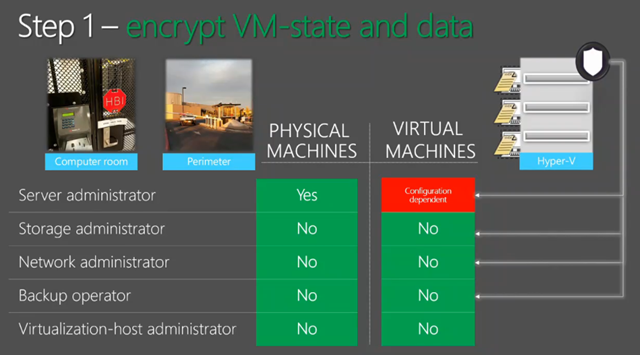
  • Can power on or off VMs
  • Cannot inspect the disks
  • Cannot inspect the processes
  • Cannot attach debuggers to the system
  • Can’t change the configuration

This is to build a strong barrier between the tenant/customer and the administrator … and in turn, the three-letter agencies that are overstepping their bounds.

The Concern

Security concerns are the primary blocker in public cloud adoption. It’s not just the national agencies; people feature the operators and breached admin accounts of the fabric too. Virtual machines make VMs easier to move … and their disks to steal.

The obvious scenario is hosted. The less obvious scenario is a private cloud. A fabric admin is usually the admin of everything, and therefore and see into everything; is this desirable?

Now Hyper-V is defending the VM from the fabric.

image

What is a Shielded VM?

The data and state of a shielded VM are protected against inspection, theft, and tampering from both malware and data centre administrators)

Who is this for?

image

The result of shielding is:

image

Note: BitLocker is used to encrypt the disks of the VM from within the guest OS using a virtual TPM chip.

A service that runs outside of Hyper-V, the Host Guardian Service, is responsible for allowing VMs to boot up. Keys to boot the VM are only granted to the host when it is known and healthy – something that the host must prove.

FAQ

  • Can Azure do this? It doesn’t have shielding but it encrypts data at rest.
  • Can it work with Linux? Not yet, but they’re working on it.
  • What versions of guest OS? WS2012 and later are supported now, and they’re working on W2008 and W2008 R2. There are issues because they only work in Generation 1 VMs and shielding is a Generation 2 feature.

Demo

Scenario is that he has copied the data VHD of an un-shielded vDC and mounted it on his laptop where he has local admin rights. He browses the disk, alters ACLs on the folders and runs a scavenge & brute force attack (to match hashes) to retrieve usernames and passwords from the AD database. This sort of attack could also be done on vSphere or XenServer.

He now deploys a shielded VM from a shielded template using Windows Azure Pack – I guess this will be Azure Stack by RTM. Shielding data is the way that administrator passwords and RDP secrets are passed via a special secure/encyrpted package that the “hoster” cannot access. The template disk is also secured by a signature/hash that is contained in the package to ensure that the “hoster” has not altered the disk.

Another example: a pre-existing -non-shielded VM. He clicks Configure > Shielding and selects a shielding package to be used to protect the VM.

A console connection is not possible to a shielded VM by default.

He now tries to attach a shielded VHD using Disk Manager. The BitLocker protected disk is mounted but is not accessible. There are “no supported protectors”. This is real encryption and the disk is random 1s and 0s for everything but the owner VM.

Now even the most secure of organizations can deploy virtual DCs and sensitive data in virtual machines.

Security Assurances

  • At rest and in-flight encryption. The disks are encrypted and both VM state and Live Migration are encrypted.
  • Admin lockout: Host admins have no access to disk contents or VM state.
  • Attestation of health: VMs can only run on known and “healthy” (safe) hosts via the Host Guardian Service.

Methods of Deployment

There are two methods of deployment. The first is TPM-based and intended for hosters (isolation and mutlti-forest) and extremely difficult (if at all) to break. The second is AD-based and intended for enterprises (integrated networks and single forest) and might be how enterprises dip their tow into Shielded VMs before looking at TPM where all of the assurances are possible.

image

The latter is AD/Kerberos based. Hosts are added to a group and the Host Guardian Service ensures that the host is a member of the group when the host attempts to power up a shielded VM. Note that the Admin-trusted (AD) model does not have forced code integrity, hardware-rooted trust, or measured boot – the TPM model these features ensure trust of the host code.

TPM v2.0 is required on the host for h/w-trusted model. This h/w is not available yet on servers.

image

image

image

Architecture

Admin-trusted is friction-free with little change required.

A minimum of one WS2016 server is required to be the Host Guardian Service node. This is in it’s own AD forest of it’s own, known as a safe harbour active directory. Joining this service to the existing AD poisons it – it is the keys to the keys of the kingdom.

image

The more secure hardware-trusted model has special h/w requirements. Note the HSM, TPM 2.0 and UEFU 2.3.1 requirements. The HSM secures the certificates more effectively than software.

image

The HGS should be deployed with at least 3 nodes. There should be physical security and have limited number of admins. The AD should be dedicated to the HGS – each HGS nodes is a DC. The HGS client is a part of WS2016 Hyper-V. TPM is required and SecureBoot is recommended.

Virtualization Based Security (VBS)

Based on processor extensions in the hardware. VBS may be used by the host OS and the guest OS. This is also used by Device Guard in the Enterprise edition of Windows 10.

The hypervisor is responsible for enforcing security. It’s hardware protected and runs at a higher privilege level (ring -1) than the management OS, and it boots before the management OS (already running before the management OS starts to boot since WS2012). Hypervisor binaries can be measured and protected by Secure Boot. There are no drivers or installable code in Hyper-V, so no opportunity to attack there. The management OS kernel is code protected by the hypervisor too.

Physical presence, hardware and DOS attacks are still possible. The first 2 are prevented by good practice.

Hardware Requirements

image

SLAT is the key part that enables Hyper-V to enforce memory protection. Any server chipset from the last 8 or so years will have SLAT so there’s likely not an issue in production systems.

Security Boundaries Today (WS2012 R2)

Each VM has a VMWP.EXE (worker process) in the management OS that is under the control of the fabric admin. A rogue admin can misuse this to peer into the VM. The VHD/X files and others are also in the same trust boundary of the fabric admin. The hypervisor fully trusts the management OS. There are a litany of attacks that are possible by a rogue administrator or malware on the management OS.

image

Changing Security Boundaries in Hyper-V

  • Virtual Secure Mode: an enlightenment that any partition (host or guest) can take advantage of. There’s a tiny runtime environment in there. In there are trust-lets running on IUM and SMART Secure Kernel, aka SMART or SKERNEL).
  • The hypervisor now enforces code integrity for the management OS (hypervisor is running first) and for shielded VMs
  • A hardened VMWP is sued for shielded VMs to protect their state – e.g. prevent attaching a debugger.
  • A virtual TPM (vTPM) can be offered to a VM, e.g. disk encryption, measurement, etc.
  • Restrictions on host admin access to guest VMs
  • Strengthened the boundary to protect the hypervisor from the management OS.

Virtual Secure Mode (VSM)

VSM is the cornerstone of the new enterprise assurance features.

  • Protects the platform, shielded VMs, and Device Guard
  • It’s a tiny secure environment where platform secrets are kept safe

It operates based on virtual trust levels (VTLs). Kind of like user/kernel mode for the hypervisor. Two levels now but the design allows for future scalability. The higher the number, the higher the level of protection. The higher levels control access privileges for lower levels.

  • VTL 0: “normal world”
  • VTL 1: “secure world”

VTLs provide memory isolation and are created/managed by the hypervisor at the time of page translation. VTLs cannot be changed by the management OS.

Inside the VSM, trustlets execute on the SKERNEL. No third party code is allowed. Three major (but not all) components are:

  • Local Security Authority Sub System (LSASS) – credentials isolation, defeating “pass the hash”
  • Kernel code integrity – moving the kernel code integrity checks into the VSM
  • vTPM – provides a synthetic TPM device to guest VMs, enabling guest disk encryption

There is a super small kernel, meaning there’s a tiny attack surface. The hypervisor is in control of transitions/interactions between the management OS and the VSM.

The VSM is a rich target, so direct memory attacks (DMA) are likely. To protect against it, the IOMMUs in the system (Intel VT-D) prevents arbitrary access.

Protecting VM State

  • Requires a Generation 2 VM.
  • Enables secure boot
  • Support TPM 2.0
  • Supports WS2012 and later, looking at W2008 and W2008 R2.
  • Using Virtual Secure Mode in the guest OS requires WS2012 R2 – VSM is a hypervisor facility offered to enlightened guests (WS2016 only and not being backported).

vTPM

  • It is not backed by a physical TPM. Ensures that the VM is mobile.
  • Enables BitLocker in the guest OS, e.g. BitLocker in Transparent Mode – no need to sit there and type a key when it boots.
  • Hardened VMWP hosts the vTPM virtual device for protected VMs.

This hardened VMWP handles other encryption other than just at rest (BitLocker):

  • Live migration where egress traffic is enrypted
  • All other at rest files: runtime state file, saved state, checkpoint
  • Hyper-V Replica Log (HRL) file

There are overheads but they are unknown at this point.

VMWP Hardening

  • Run as “protected process light” (originally created for DRM)
  • Disallows debugging and restricts handles access – state and crash dump files are encrypted
  • Protected by code integrity
  • New permissions with “just enough access” (JEA)
  • Removes duplicate handles to VMWP.EXE

Restricted Access to Shielded VMs

Disallowed:

  • Basic mode of VMConnect
  • RemoteFX
  • Insecure WMI calls, screenshot, thumbnail, keyboard, mouse
  • Insecure KVPs: Host Only items, Host Exchange items, Guest Exchange items
  • Guest File Copy integration service (out-of band or OOB file copy)
  • Initial Machine Config registry hive injection – a way to inject a preconfigured registry hive into a new VM.

VM Generation ID is not affected.

Custom Security Configurations

How to dial back the secure-by-default configuration to suit your needs. Maybe the host admin is trusted or maybe you don’t have all of the host system requirements. Three levels of custom operation:

  • Basic TPM Functionality: Enable vTPM for secure boot, disk encryption, or VSC
  • Data at Rest Protections: Includes Basic TPM. The hardened VMWP protects VM state and Live Migration traffic. Console mode access still works.
  • Fully Shielded: Enables all protections, including restrictions of host admin operations.

The WS2016 Hyper-V Security Boundaries

image

Scenarios

  • Organizations with strict regulatory/compliance requirements for cloud deployments
  • Virtualising sensitive workloads, e.g. DCs
  • Placing sensitive workloads in physically insecure locations (HGS must be physically secure)

Easy, right?

Ignite 2015–Exploring Storage Replica in Windows Server 2016

Speaker: Net Pyle.

What is a Disaster?

Answer: McDonalds running out of food at Ignite. But I digress … you lose your entire server room or data centre.

Hurricane Sandy wiped out Manhattan. Lots of big hosting facilities went offline. Some stayed partially online. And a handful stayed online.

Storage Replica Overview

Synchronous replication between cities. Asynchronous replication between countries. Not just about disaster recovery but also disaster avoidance.

It is volume based. Uses SMB 3.1.1. Works with any Windows data volume. Any fixed disk storage: iSCSI, Spaces, local disk or any storage fabric (iSCSI, FCoE, SAS, etc). You manage it using FCM (does not require a cluster), PowerShell, WMI, and in the future: Azure Site Recovery (ASR).

This is a feature of WS2016 and there is no additional licensing cost.

Demo

A demo that was done before, using a 2 node cluster, file changes in a VM in site A, replicates, and change shows up after failover.

Scenarios in the new Technical Preview

  • Stretch Cluster
  • Server to Server
  • Cluster to Cluster, e.g. S2D to S2D
  • Server to self

Stretch Cluster

  • Single cluster
  • Automatic failover
  • Synchronous

Cluster to Cluster

  • Two separate cluster
  • Manual failover
  • Sync or async replication

Server to Server

  • Two separate servers, even with local storage
  • Manual failover
  • Sync or asynch replication

Server to Self

Replicate one volume to another on the same server. Then move these disks to another server and use them as a seed for replication.

Blocks, not Files

Block based replication. It is not DFS-R. Replication is done way down low. It is unaware of the concept of files so doesn’t know that they are used. It only cares about write IO. Works with CSVFS, NTFS and ReFS.

2 years of work by 10 people to create a disk filter driver that sits between the Volume Manager and the Partition Manager.

Synch Workflow

A log is kept of each write on primary server. The log is written through to the disk  The same log  is kept on the secondary site. The write is sent to the log in parallel on both sites. Only when the secondary site has written to the log in both sites is the write acknowledged

Asynch Workflow

The write goes to the log on site A and acknowledged. Continuous replication sends the write to the log in the secondary site. Not interval based.

SMB 3.1.1.

RDMA/SMB Direct can be used long range with Mellanox InfiBand Metro-X and Chelsio iWarp can do long distance. MSFT have tested 10KM, 25 KM, and 40KM networks to test this. Round trip latencies are hundreds of microseconds for 40 KM one-way (very low latency). SMB 3.1.1 has optimized built-in encryption. They are still working on this and you should get to the point where you want encryption on all the time.

Questions

  • How Many Nodes? 1 cluster with 64 nodes or 2 clusters with 64 nodes each.
  • Is the log based on Jet? No; The log is based on CLFS

Requirements

  • Windows Server Datacenter edition only – yes I know.
  • AD is required … no schema updates, etc. They need access to Kerberos.
  • Disks must be GPT. MBR is no supported.
  • Same disk geometry (between logs, between data) and partition fo rdata.
  • No removable drives.
  • Free space for logs on a Windows NTFS/ReFS volume (logs are fixed size and manually resized)
  • No %Systemroot%, page filem hibernation file or DMP file replication.

Firewall: SMB and WS-MAN

Synch Replication Recommendations

  • <5 MS round trip latency. Typically 30-50 KM in the real world.
  • > 1 Gbps bandwidth end-end between the servers is a starting point. Depends on a lot.
  • Log volume: Flash (SSD, NVME, etc). Larger logs allow faster recovery from larger outages and less rollover, but cost space.

Asynchronous Replication

Latency not an issue. Log volume recommendations are the same as above.

Can we make this Easy?

Test-SRTopology cmdlet. Checks requirements and recommendations for bandwidth, log sizes, IPS, etc. Runs for specified duration to analyse a potential source server for sizing replication. Run it before configuration replication against a proposed source volume and proposed destination.

Philosophy

Async crash consistency versus application consistency. Guarantee mountable volume. App must guarantee a usable file

Can replicate VSS snapshots.

Management Rules in SR V1

You cannot use the replica volume. In this release they only do 1:1 replication, e.g. 1 node to 1 node, 1 cluster to 1 cluster, and 1 half cluster to another half cluster. You cannot do legs of replication.

You can do Hyper-V Replica from A to B and SR from B to C.

Resizing replicated volumes interrupts replication. This might change – feedback.

Management Notes

Latest drivers. Most problems are related to drivers, not SR. Filter drivers can be dodgy too.

Understand your performance requirements. Understand storage latency impact on your services. Understand network capacity and latency. PerfMon and DiskSpd are your friends. Test workloads before and after SR.

Where can I run SR?

In a VM. Requires  WS2016 DC edition. Work on any hypervisor. It works in Azure, but no support statement yet.

Hyper-V Replica

HVR understands your Hyper-V workload. It works with HTTPS and certificates. Also in Std edition.

SR offers synchronous replication. Can create stretched guest clusters. Can work in VMs that are not in Hyper-V.

SQL Availability Groups

Lots of reasons to use SQL AGs. SR doesn’t require SQL Ent. Can replicate VMs at host volume level. SR might be easier than SQL AGs. You must use write ordering/consistency if you use any external replication of SQL VMs – includes HVR/ASR.

Questions

  • Is there a test failover: No
  • Is 5MS a hard rule for sync replication. Not in the code. But over 5 MS will be too slow and degrade performance.
  • Overhead? Initial sync can be heavy due to check-summing. There is a built-in throttle to prevent using too much RAM. You cannot control that throttle in TP2 but you will later.

What SR is Not

  • It is not shared-nothing clustering. That is Storage Spaces Direct (S2D).
  • However, you can use it to create a shared-nothing 2 node cluster.
  • It is not a backup – it will replicate deletions of data very very well.
  • It is not DFS-R, multi-endpoint, not low bandwidth (built to hammer networks),
  • Not a great branch office solution

It is a DR solution with lots of bandwidth between them.

Stretch Clusters

  • Synchronous only
  • Asymmetric storage,e.g. JBOD in one site and SAN in another site.
  • Manage with FCM
  • Increase cluster DR capabilities.
  • Main use cases are Hyper-V and general use file server.

Not for stretch-cluster SOFS – you’d do cluster-to-cluster replication for that.

Cluster-Cluster or Server-Server

  • Synch or asynch
  • Supports S2D

PowerShell

  • New-SrPartnership
  • Set-SRPartnership
  • Test-SrTopology

DiskSpd Demo on Synch Replication

Runs DiskSpd on volume on source machine.

  • Before replication: 63,000 IOPS on source volume
  • After replication: In TPv2 it takes around 15% hit. In latest builds, it’s under 10%.

In this demo, the 2 machines were 25 KM apart with an iWarp link. Replaced this with fibre and did 60,000 IOPS.

Azure Site Recovery

Requires SCVMM. You get end-end orchestration. Groups VMs to replicate together. Supports for Azure Automation runbooks. Support for planned/unplanned failover. Preview in July/August.

Questions:

  • Tiered storage spaces: It supports tiering, but the geometry must be identical in both sides.
  • Does IO size affect performance? Yes.

The Replication Log

Hidden volume.

Known Issues in TP2

  • PowerShell remoting for server-server does not work
  • Performance is not there yet
  • There are bugs

A guide was published on Monday on TechNet.

Questions to srfeed <at> microsoft.com

Ignite 2015–Stretching Failover Clusters and Using Storage Replica in Windows Server 2016

Speakers: Elden Christensen & Ned Pyle, Microsoft

A pretty full room to talk fundamentals.

Stretching clusters has been possible since Windows 2000, making use of partners. WS2016 makes it possible to do this without those partners, and it’s more than just HA, but also a DR solution. There is built-in volume replication so you don’t need to use SAN or 3rd-party replication technologies, and you can use different storage systems between sites.

Assuming: You know about clusters already – not enough time to cover this.

Goal: To use clusters for DR, not just HA.

RTO & RPO

  • RTO: Accepted amount of time that services are offline
  • RPO: Accepted amount of data loss, measured in time.
  • Automated failover: manual invocation, but automated process
  • Automatic failover: a heartbeat failure automatically triggers a failure
  • Stretch clusters can achieve low RPO and RTO
  • Can offer disaster avoidance (new term) ahead of a predicted disaster. Use clustering and Hyper-V features to move workloads.

Terminology

  • Stretch cluster. What used to be aclled a multi-site cluster, metro cluster or geo cluster.

Stretch Cluster Network Considerations

Clusters are very aggressive out of the box: once per second heartbeat and 5 missed heartbeats = failover. PowerShell = (Get-Cluster).SameSubnetThreshold = 10 and (Get-Cluster).CrossSubnetThreshold = 20

Different data centers = different subnets. They are using Network Name Resources  for things like file shares which are registered in DNS depending on which site the resource is active in. The NNR has IP address A and IP Address B. Note that DNS registrations need to be replicated and the TTL has to expire. If you failover something like a file share then there will be some time of RTO depending on DNS stuff.

If you are stretching Hyper-V clusters then you can use HNV to abstract the IPs of the VMs after failover.

Another strategy is that you prefer local failover. HA scenario is to failover locally. DR scenario is to failover remotely.

You can stretch VLANs across sites – you network admins will stop sending you XMas cards.

There are network abstraction devices from the likes of Cisco, which offer the same kind of IP abstraction that HNV offers.

(Get-Cluster).SecurityLevel =2 will encrypt cluster traffic on untrusted networks.

Quorum Considerations

When nodes cannot talk to each other then they need a way to reconcile who stays up and who “shuts down” (cluster activities). Votes are assigned to each node and a witness. When a site fails then a large block of votes disappears simultaneously. Plan for this to ensure that quorum is still possible.

In a stretch cluster you ideally want a witness in site C via independent network connection from Site A – Site B comms. The witness is available even if one site goes offline or site A-B link goes down. This witness is a file share witness. Objections: “we don’t have a 3rd site”.

In WS2016, you can use a cloud witness in Azure. It’s a blob over HTTP in Azure.

Demo: Created a storage account in Azure. Got the key. A container contains a sequence number, just like a file share witness. Configures a cluster quorum as usual. Chooses Select a Witness, and slect Configure a Cloud Witness. Enters the storage account name and pastes in the key. Now the cluster starts using Azure as the 3rd site witness. Very affordable solution using a teeny bit of Azure storage. The cluster manages the permissions of the blob file. The blob stores only a sequence number – there is no sensitive private information. For an SME: a single Azure credit ($100) might last a VERY long time. In testing, they haven’t been able to get a charge of even $0.01 per cluster!!!!

Controlling Failover

Clustering in WS2012 R2 can survive a 50% loss of votes at onces. One site is automatically elected to win. It’s random by default but you can configure it. You can configure manual failover between sites. You do this by manually toggling the votes in the DR site – remove the votes from DR site nodes. You can set preferred owners for resources too.

Storage Considerations

Elden hands over to Ned. Ned will cover Storage Replica. I have to leave at this point … but Ned is covering this topic in full length later on today.

Ignite 2015–What’s New in Windows Server Hyper-V

Speakers: Ben Armstrong & Sarah Cooley

This is a detailed view of everything you can do with Hyper-V in Windows Server 2016 TPv2 build. 14 demos. This is not a complete overview of everything in the release. This is what you can realistically do in labs with the build at the moment. A lot of the features are also in Windows 10.

Nano Server

Cloud-first refactoring. Hyper-V and storage are the two key IaaS scenarios for Nano Server.

Containers

Hyper-V can be used to deploy containers. Not talking about in this session – there was another session by Taylor Brown on this. Not in this build – coming in the future.

Making Cloud Great

This is how the Hyper-V team thinks: everything from Azure, public, private and small “clouds”.

Virtual Machine Protection:

Trust in the cloud is biggest blocker to adoption. Want customers to know that their data is safe.

A virtual TPM can be injected into a VM. Now we can enable BiLocker in the VM and protect data from anyone outside of the VM. I can run a VM on someone else’s infrastructure and they cannot see or use my data.

Secure boot is enabled for Linux. The hardware can verify that the kernel mode code is uncompromised. Secure boot is already in Windows guest OSs in WS2012 R2.

Shielded VMs

Virtual TPM is a part of this story. This is a System Center & Hyper-V orchestrated solution for highly secure VMs. Shielded VMs can only run in fabrics that are designated as owners of that VM.

Distributed Storage QoS

See my previous post.

Host Resource Protection

Dynamically detect VMs that are not “playing well” and reduce their resource allocation. Comes from Azure. Lots of people deploy VMs and do everything they can to break out and attack Azure. No one has ever broken out, but their attempts eat up a lot of resources. HRP detects “patterns of access”, e.g. loading kernel code that attacks the system, to reduce their resource usage. A status will appear to say that HRP has been enabled on this VM.

Storage and Cluster Resiliency

What happens when the network has a brief glitch between cluster nodes? This can cause more harm than good by failing over and booting up the VMs again – can take longer than waiting out the issue.

Virtual Machine Cluster Resiliency:

  • Cluster doesn’t jump to failover after immediate time out.
  • The node goes into isolated state and VM goes unmonitored.
  • If the node returns in under 4 minutes (default) then the node returns and VM goes back to running state.
  • If a host is flapping, the host is put into a quarantine. All VMs will be live migrated off of the node to prevent issues.

Storage Resiliency:

  • If the storage disappears: the VM is paused ahead of a timeout to prevent a crash.
  • Once the storage system resumes, the VM un-pauses and IOPS continues.

Shared VHDX

Makes it easy to do guest clustering. But WS2012 R2 is v1.0 tech. Can’t do any virtualization features with it, e.g. backup, online resize.

In TPv2, starting to return features:

  • Host-based, no agent in the guest, backup of guest clusters with shared VHDX.
  • You will also be able to do online resizing of the shared VHDX.
  • Shared drive has it’s own h/w category when you Add Hardware in VM settings. Underlying mechanism is the exact same, just making the feature more obvious.

VHDS is the extension of shared VHDX files.

Hyper-V Replica & Hot-Add

By default, a newly added disk won’t replicated. Set-VMReplication –ReplicatedDisks (Get-VMHardDiskDrive VM01) will add a disk to the replica set.

Behind the scenes there is an initial copy happening for the new disk while replication continues for the original disks.

Runtime Memory Resize

You can:

  • Resize the memory of a VM with static RAM while it running.
  • You can see the memory demand of static RAM VMs – useful to resize.

Hot Add/Remove Network Adapters

This can be done with Generation 2 VMs.

Rolling Cluster Upgrade

No need to build a new cluster to deploy a new OS. You actually rebuild 1 host at a time inside the cluster. VMs can failover and live migrate. You need WS2012 R2 to start off. Once done, you upgrade the version of the cluster to use new features. You can also rollback a cluster from WS2016 to WS2012 R2.

New VM Upgrade Process

Previous versions of Hyper-V automatically upgraded a VM automatically once it was running on a new version of Hyper-V. This has changed.

There is now a concept of a VM configuration version. It is not upgraded automatically – done manually. This is necessary to allow rollback from Cluster Rolling Upgrade.

Version 5.0 is the configuration version of WS2012 R2. Version 2.1a was WS2012 R2 SP1. The configuration version was always there for internal usage, and was not displayed to users. In TPv2 they are 6.2.

A VM with v5.0 works with that host’s features. A v5.0 VM on WS2016 runs with compatibility for WS2012 R2 Hyper-V. No new features are supplied to that VM. Process for manually upgrading:

  1. Shutdown the VM
  2. Upgrade the VM config version via UI or PoSH
  3. Boot up again – now you get the v6.2 features.

Production Checkpoints

Uses VSS in the guest OS instead of saved state to create checkpoint. Restoring a production checkpoint is just like restoring a system backup. S/W inside of the guest OS, like Exchange or SQL Server, understand what to do when they are “restored from backup”, e.g. replay logs, etc.

Now this is a “supported in production” way to checkpoint production VMs that should reduce support calls.

PowerShell Direct

You can run cmdlets against the guest OS via the VMBus. Easier administration – no need for network access.

ReFS Accelerated VHDX Operations

Instant disk creation and checkpoint merging. Ben created a 5TB fixed VHDX w/o ODX and it took 22 hours.

Creating 1GB disk. Does a demo of 1 GB disk on non-accelerated volume on same physical disks takes 71 seconds on ReFS and it takes: 4.77 seconds. 50 GB takes 3.9 seconds.

DOes a merge on non-accelerated volume and it takes 68 seconds. Same files on ReFS and it takes 6.9 seconds. This has a huge impact on backup of large volumes – file-based backup uses checkpoints and merge. There is zero data copy involved.

Hyper-V Manager and PoSh Improvements

  • Support for alternate credentials
  • Connecting via IP address
  • Connecting via WinRM

There’s a demo to completely configure IIS and deploy/start a website from an admin machine without logging into the VM, using PowerShell Direct with no n/w access.

Cross-Version Management

You can manage WS2012 and WS2012 R2 hosts with Hyper-V Manager. There are two versions of PowerShell 1.1 and 2.0.

Integration Services

Insert Integration Components is gone from the UI. It did not scale out. VM Drivers re updated via Windows Update (critical update). Updates go to VMs on correct version of Hyper-V.

Hyper-V Backup

File-based backup and built-in change tracking. No longer dependent on h/w snapshots, but able to use them if they are there.

VM Configuration Changes

New configuration file format. Moving to binary format away from XML for performance efficiency when you have thousands of VMs. New file extensions:

  • VMCX:
  • VMRS:

This one was done for Azure, and trickles down to us. Also solves the problem of people editing the XML which was unsupported. Everything can be done via PowerShell anyway.

Hyper-V Cluster Management

A new under-the-covers administration model that abstracts the cluster. You can manage a cluster like a single host. You don’t need to worry about cluster resource and groups to configure VMs anymore.

Updated Power Management

Conencted Standby Works

RemoteFX

OpenGL 4.4 and OpenCL 1.1 API supported.