Technical Preview 3 of Windows Server 2016 is out and one of the headline feature additions to this build is Windows Server Containers. What are they? And how do they work? Why would you use them?
Background
Windows Server Containers is Microsoft’s implementation of an open source world technology that has been made famous by a company called Docker. In fact:
- Microsoft’s work is a result of a partnership with Docker, one which was described to me as being “one of the fastest negotiated partnerships” and one that has had encouragement from CEO Satya Nadella.
- Windows Server Containers will be compatible with Linux containers.
- You can manage Windows Server Containers using Docker, which has a Windows command line client. Don’t worry – you won’t have to go down this route if you don’t want to install horrid prerequisites such as Oracle VirtualBox (!!!).
What are Containers?
Containers is around a while, but most of us that live outside of the Linux DevOps world won’t have had any interaction with them. The technology is a new kind of virtualisation to enable rapid (near instant) deployment of applications.
Like most virtualisation, Containers take advantage of the fact that most machines are over-resourced; we over-spec a machine, install software, and then the machine is under-utilized. 15 years ago, lots of people attempted to install more than one application per server. That bad idea usually ended up in p45’s (“pink slips”) being handed out (otherwise known as a “career ending event”. That because complex applications make poor neighbours on a single operating system with no inter-app isolation.
Machine virtualisation (vSphere, Hyper-V, etc) takes these big machines and uses software to carve the physical hosts into lots of virtual machines; each virtual machine has its own guest OS and this isolation provides a great place to install applications. The positives are we have rock solid boundaries, including security, between the VMs, but we have more OSs to manage. We can quickly provision a VM from a template, but then we have to install lots of pre-reqs and install the app afterwards. OK – we can have VM templates of various configs, but a hundred templates later, we have a very full library with lots of guest OSs that need to be managed, updated, etc.
Containers is a kind of virtualisation that resides one layer higher; it’s referred to as OS virtualization. The idea is that we provision a container on a machine (physical or virtual). The container is given a share of CPU, RAM, and a network connection. Into this container we can deploy a container OS image. And then onto that OS image we can install perquisites and an application. Here’s the cool bit: everything is really quick (typing the command takes longer than the deployment) and you can easily capture images to a repository.
How easy is it? It’s very easy – I recently got hands-on access to Windows Server Containers in a supervised lab and I was able to deploy and image stuff using a PowerShell module without any documentation and with very little assistance. It had helped that I’d watched a session on Containers from Microsoft Ignite.
How Do Containers Work?
There are a few terms you should get to know:
- Windows Server Container: The Windows Server implementation of containers. It provides application isolation via OS virtualisation, but it does not create a security boundary between applications on the same host. Containers are stateless, so stateful data is stored elsewhere, e.g. SMB 3.0.
- Hyper-V Container: This is a variation of the technology that uses Hyper-V virtualization to securely isolate containers from each other – this is why nested virtualisation was added to WS2016 Hyper-V.
- Container OS Image: This is the OS that runs in the container.
- Container Image: Customisations of a container (installing runtimes, services, etc) can be saved off for later reuse. This is the mechanism that makes containers so powerful.
- Repository: This is a flat file structure that contains container OS images and container images.
Note: This is a high level concept post and is not a step-by-step instructional guide.
We start off with:
- A container host: This machine will run containers. Note that a Hyper-V virtual switch is created to share the host’s network connection with containers, thus network-enabling those containers when they run.
- A repository: Here we store container OS images and container images. This repository can be local (in TPv3) or can be an SMB 3.0 file share (not in TPv3, but hopefully in a later release).

The first step is to create a container. This is accomplished, natively, using a Containers PowerShell module, which from experience, is pretty logically laid out and easy to use. Alternatively you can use Docker. I guess System Center will add support too.
When you create the container you specify the name and can offer a few more details such as network connection to the host’s virtual switch (you can add this retrospectively), RAM and CPU.
You then have a blank and useless container. To make it useful you need to add a container OS image. This is retrieved from the Repository, which can be local (in a lab) or on an SMB 3.0 file share (real world). Note that an OS is not installed in the container. The container points at the repository and only differences are saved locally.
How long does it take to deploy the container OS image? You type the command, press return, and the OS is sitting there, waiting for you to start the container. Folks, Windows Server Containers are FAST – they are Vin Diesel parachuting a car from a plane fast.

Now you can use Enter-PSSession to log into a container using PowerShell and start installing and configuring stuff.
Let’s say you want to install PHP. You need to:
- Get the installer available to the container, maybe via the network
- Ensure that the installer either works silently (unattended) or works from command line
Install the program, e.g. PHP, and then configure it the way you want it (from command line).
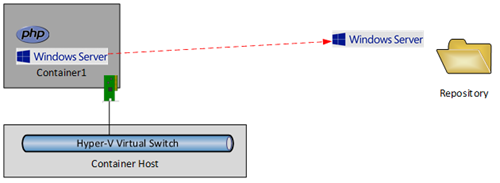
Great, we now have PHP in the container. But there’s a good chance that I’ll need PHP in lots of future containers. We can create a container image from that PHP install. This process will capture the changes from the container as it was last deployed (the PHP install) and save those changes to the repository as a container image. The very quick process is:
- Stop the container
- Capture the container image
Note that container image now has a link to the guest OS image that it was installed on, i.e. there is a dependency link and I’ll come back to this.
Let’s deploy another container with a guest OS image called Container2.

For some insane reason, I want to install the malware gateway known as Java into this container.

Once again, I can shut down this new container and create a container image from this Java installation. This new container image also has a link to the required container OS image.

Right, let’s remove Container1 and Container2 – something that takes seconds. I now have a container OS image for Windows Server 2012 R2 and container images for Java and Linux. Let’s imagine that a developer needs to deploy an application that requires PHP. What do they need to do? It’s quite easy – they create a container from the PHP container image. Windows Server Containers knows that PHP requires the Windows Server container OS image, and that is deployed too.
The entire deployment is near instant because nothing is deployed; the container links to the images in the repository and saves changes locally.
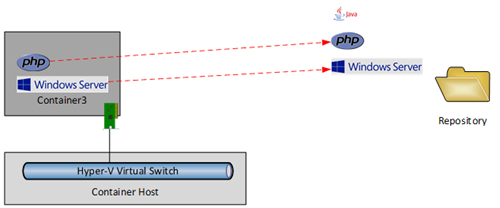
Think about this for a second – we’ve just deployed a configured OS in little more time than it takes to type a command. We’ve also modelled a fairly simple application dependency. Let’s complicate things.
The developer installs WordPress into the new container.

The dev plans on creating multiple copies of their application (dev, test, and production) and like many test/dev environments, they need an easy way to reset, rebuild, and to spin up variations; there’s nothing like containers for this sort of work. The dev shuts down Container3 and then creates a new container image. This process captures the changes since the last deployment and saves a container image in the repository – the WordPress installation. Note that this container doesn’t include the contents of PHP or Windows Server but it does link to PHP and PHP links to Windows Server.

The dev is done and resets the environment. Now she wants to deploy 1 container for dev, 1 for test, and 1 for production. Simple! This requires 3 commands, each one that will create a new container from the WordPress container image, which logically uses the required PHP and PHP’s required Windows Server.
Nothing is actually deployed to the containers; each container links to the images in the repository and saves changes locally. Each container is isolated from the other to provide application stability (but not security – this is where Hyper-V Containers comes into play). And best of all – the dev has had the experience of:
- Saying “I want three copies of WordPress”
- Getting the OS and all WordPress pre-requisites
- Getting them instantly
- Getting 3 identical deployments

From the administrator’s perspective, they’ve not had to be involved in the deployment, and the repository is pretty simple. There’s no need for a VM with Windows Server, another with Windows Server & PHP, and another with Windows Server, PHP & WordPress. Instead, there is an image for Windows Server, and image for PHP and an image for WordPress, with links providing the dependencies.
And yes, the repository is a flat file structure so there’s no accidental DBA stuff to see here.
Why Would You Use Containers?
If you operate in the SME space then keep moving, and don’t bother with Containers unless they’re in an exam you need to pass to satisfy the HR drones. Containers are aimed at larger environments where there is application sprawl and repetitive installations.
Is this similar to what SCVMM 2012 introduced with Server App-V and service templates? At a very high level, yes, but Windows Server Containers is easy to use and probably a heck of a lot more stable.
Note that Containers are best suited for stateless workloads. If you want to save data then save it elsewhere, e.g. SMB 3.0. What about MySQL and SQL Server? Based on what was stated at Ignite, then there’s a solution (or one in the works); they are probably using SMB 3.0 to save the databases outside of the container. This might require more digging, but I wonder if databases would really be a good fit for containers. And I wonder, much like with Azure VMs, if there will be a later revision that brings us stateful containers.
I don’t imagine that my market at work (SMEs) will use Windows Server Containers, but if I was back working as an admin in a large enterprise then I would definitely start checking out this technology. If I worked in a software development environment then I would also check out containers for a way to rapidly provision new test and dev labs that are easy to deploy and space efficient.
[Update]
Here is a link to the Windows Server containers page on the TechNet Library.
We won’t see Hyper-V containers in TPv3 – that will come in a later release, I believe later in 2015.