Microsoft Assessment & Planning Toolkit 7.0 Goes Live – Supports Windows 8 and Server 2012

I just received an email informing me that MAP 7.0 is live, and it now supports assessment to help you plan the deployment of Windows 8, Windows Server 2012, and Windows Server 2012 Hyper-V.  You can start planning now, with the products coming down the pipe soon.

The new version which you can download now allows you to:

  • Understand your readiness to deploy Windows Server 2012 in your environment
  • Determine Windows 8 readiness
  • Investigate how Windows Server and System Center can manage your heterogeneous environment through VMware migration and Linux server virtualization assessments
  • Size your desktop virtualization needs for both Virtual Desktop Infrastructure (VDI) and session-based virtualization using Remote Desktop Services
  • Ready your information platform for the cloud with the SQL Server 2012 discovery and migration assessment
  • Evaluate your licensing needs with usage tracking for Lync 2010, active users and devices, SQL Server 2012, and Windows Server 2012

You should know that I believe that assessment is a critical early step in a virtualisation project, be it XenServer, VMware, or Hyper-V.  Without it, you’re shooting blind, and you’ll end up being an anecdote in a presentation on how to do a crap project.

Notes: Continuously Available File Server – Under The Hood

Here are my notes from TechEd NA session WSV410, by Claus Joergensen.  A really good deep session – the sort I love to watch (very slowly, replaying bits over).  It took me 2 hours to watch the first 50 or so minutes 🙂

image

For Server Applications

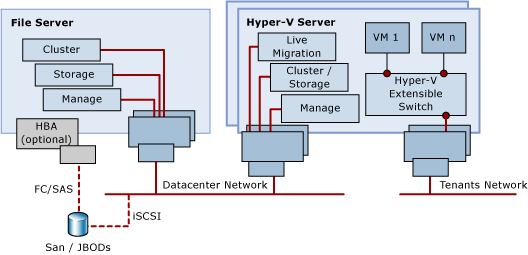
The Scale-Out File Server (SOFS) is not for direct sharing of user data.  MSFT intend it for:

  • Hyper-V: store the VMs via SMB 3.0
  • SQL Server database and log files
  • IIS content and configuration files

Required a lot of work by MSFT: change old things, create new things.

Benefits of SOFS

  • Share management instead of LUNs and Zoning (software rather than hardware)
  • Flexibility: Dynamically reallocate server in the data centre without reconfiguring network/storage fabrics (SAN fabric, DAS cables, etc)
  • Leverage existing investments: you can reuse what you have
  • Lower CapEx and OpEx than traditional storage

Key Capabilities Unique to SOFS

  • Dynamic scale with active/active file servers
  • Fast failure recovery
  • Cluster Shared Volume cache
  • CHKDSK with zero downtime
  • Simpler management

Requirements

Client and server must be WS2012:

  • SMB 3.0
  • It is application workload, not user workload.

Setup

I’ve done this a few times.  It’s easy enough:

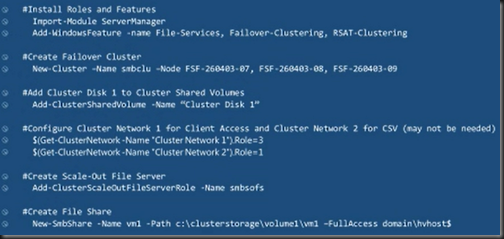
  1. Install the File Server and Failover Clustering features on all nodes in the new SOFS
  2. Create the cluster
  3. Create the CSV(s)
  4. Create the File Server role – clustered role that has it’s own CAP (including associated computer object in AD) and IP address.
  5. Create file shares in Failover Clustering Management.  You can manage them in Server Manager.

Simple!

Personally speaking: I like the idea of having just 1 share per CSV.  Keeps the logistics much simpler.  Not a hard rule from MSFT AFAIK.

And here’s the PowerShell for it:
image

CSV

  • Fundamental and required.  It’s a cluster file system that is active/active.
  • Supports most of the NTFS features.
  • Direct I/O support for file data access: whatever node you come in via, then Node 2 has direct access to the back end storage.
  • Caching of CSVFS file data (controlled by oplocks)
  • Leverages SMB 3.0 Direct and Multichannel for internode communication

Redirected IO:

  • Metadata operations – hence not for end user data direct access
  • For data operations whena  file is being accessed simultaneously by multiple CSVFS instances.

CSV Caching

  • Windows Cache Manager integration: Buffered read/write I/O is cached the same way as NTFS
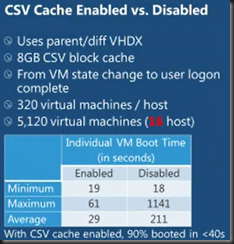
  • CSV Block Caching – read only cache using RAM from nodes.  Turned on per CSV.  Distributed cache guaranteed to be consistent across the cluster.  Huge boost for polled VDI deployments – esp. during boot storm.

CHDKDSK

Seamless with CSV.  Scanning is online and separated from repair.  CSV repair is online.

  • Cluster checks once/minute to see if chkdsk spotfix is required
  • Cluster enumerates NTFS $corrupt (contains listing of fixes required) to identify affected files
  • Cluster pauses the affected CSVFS to pend I/O
  • Underlying NTFS is dismounted
  • CHKDSK spotfix is run against the affected files for a maximum of 15 seconds (usually much quicker)  to ensure the application is not affected
  • The underlying NTFS volume is mounted and the CSV namespace is unpaused

The only time an application is affected is if it had a corrupted file.

If it could not complete the spotfix of all the $corrupt records in one go:

  • Cluster will wait 3 minutes before continuing
  • Enables a large set of corrupt files to be processed over time with no app downtime – assuming the apps’ files aren’t corrupted – where obviously the would have had downtime anyway

Distributed Network Name

  • A CAP (client access point) is created for an SOFS.  It’s a DNS name for the SOFS on the network.
  • Security: creates and manages AD computer object for the SOFS.  Registers credentials with LSA on each node

The actual nodes of the cluster nodes are used in SOFS for client access.  All of them are registered with the CAP.

DNN & DNS:

  • DNN registers node UP for all notes.  A virtual IP is not used for the SOFS (previous)
  • DNN updates DNS when: resource comes online and every 24 hours.  A node added/removed to/from cluster.  A cluster network is enabled/disabled as a client network.  IP address changes of nodes.  Use Dynamic DNS … a lot of manual work if you do static DNS.
  • DNS will round robin DNS lookups: The response is a list of sorted addresses for the SOFS CAP with IPv6 first and IPv4 done second.  Each iteration rotates the addresses within the IPv6 and IPv4 blocks, but IPv6 is always before IPv4.  Crude load balancing.
  • If a client looks up, gets the list of addresses.  Client will try each address in turn until one responds.
  • A client will connect to just one cluster node per SOFS.  Can connect to multiple cluster nodes if there are multiple SOFS roles on the cluster.

SOFS

Responsible for:

  • Online shares on each node
  • Listen to share creations, deletions and changes
  • Replicate changes to other nodes
  • Ensure consistency across all nodes for the SOFS

It can take the cluster a couple of seconds to converge changes across the cluster.

SOFS implemented using cluster clone resources:

  • All nodes run an SOFS clone
  • The clones are started and stopped by the SOFS leader – why am I picturing Homer Simpson in a hammock while Homer Simpson mows the lawn?!?!?
  • The SOFS leader runs on the node where the SOFS resources is actually online – this is just the orchestrator.  All nodes run independently – moving or crash doesn’t affect the shares availability.

Admin can constrain what nodes the SOFS role is on – possible owners for the DNN and SOFS resource.  Maybe you want to reserve other nodes for other roles – e.g. asymmetric Hyper-V cluster.

Client Redirection

SMB clients are distributed at connect time by DNS round robin.  No dynamic redistribution.

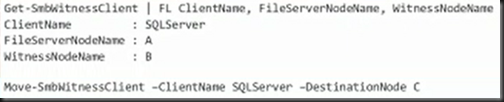
SMB clients can be redirected manually to use a different cluster node:
image

Cluster Network Planning

  • Client Access: clients use the cluster nodes client access enable public networks

CSV traffic IO Redirection:

  • Metadata updates – infrequent
  • CSV is built using mirrored storage spaces
  • A host loses direct storage connectivity

Redirected IO:

  • Prefers cluster networks not enabled for client access
  • Leverages SMB Multichannel and SMB Direct
  • iSCSI Networks should automatically be disabled for cluster use – ensure this is so to reduce latency.

Performance and Scalability
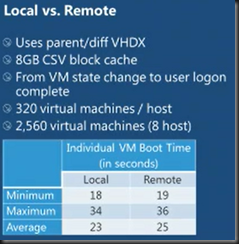
image

image

SMB Transparent Failover

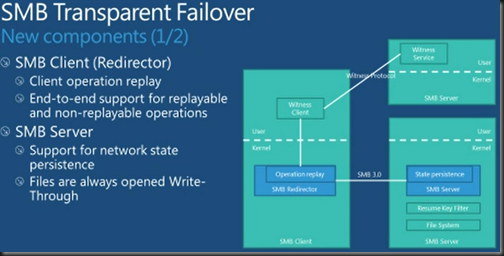
Zero downtime with small IO delay.  Supports planned and unplanned failovers.  Resilient for both file and directory operations.  Requires WS2012 on client and server with SMB 3.0.
image

Client operation replay – If a failover occurs, the SMB client reissues those operations.  Done with certain operations.  Others like a delete are not replayed because they are not safe.  The server maintains persistence of file handles.  All write-throughs happen straight away – doesn’t effect Hyper-V.
image

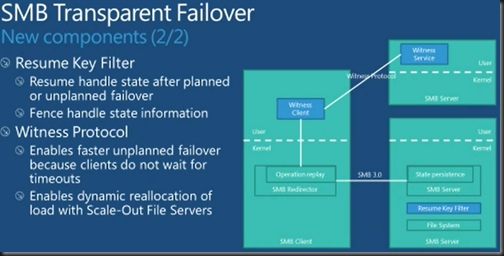
The Resume Key Filter fences off file handles state after failover to prevent other clients grabbing files when the original clients expect to have access when they are failed over by the witness process.  Protects against namespace inconsistency – file rename in flight.  Basically deals with handles for activity that might be lost/replayed during failover.

Interesting: when a CSV comes online initially or after failover, the Resume Key Filter locks the volume for a few seconds (less than 3 seconds) for a database (state info store in system volume folder) to be loaded from a store.  Namespace protection then blocks all rename and create operations for up to 60 seconds to allow for local file hands to be established.  Create is blocked for up to 60 seconds as well to allow remote handles to be resumed.  After all this (up to total of 60 seconds) all unclaimed handles are released.  Typically, the entire process is around 3-4 seconds.  The 60 seconds is a per volume configurable timeout.

Witness Protocol (do not confuse with Failover Cluster File Share Witness):

  • Faster client failover.  Normal SMB time out could be 40-45 seconds (TCP-based).  That’s a long timeout without IO.  The cluster informs the client to redirect when the cluster detects a failure.
  • Witness does redirection at client end.  For example – dynamic reallocation of load with SOFS.

Client SMB Witness Registration

  1. Client SMB connects to share on Node A
  2. Witness on client obtains list of cluster members from Witness on Node A
  3. Witness client removes Node A as the witness and selects Node B as the witness
  4. Witness registers with Node B for notification of events for the share that it connected to
  5. The Node B Witness registers with the cluster for event notifications for the share

Notification:

  1. Normal operation … client connects to Node A
  2. Unplanned failure on Node A
  3. Cluster informs Witness on Node B (thanks to registration) that there is a problem with the share
  4. The Witness on Node B notifies the client Witness that Node A went offline (no SMB timeout)
  5. Witness on client informs SMB client to redirect
  6. SMB on client drops the connection to Node A and starts connecting to another node in the SOFS, e.g. Node B
  7. Witness starts all over again to select a new Witness in the SOFS. Will keep trying every minute to get one in case Node A was the only possibility

Event Logs

All under Application and Services – Microsoft – Windows:

  • SMBClient
  • SMBServer
  • ResumeKeyFilter
  • SMBWitnessClient
  • SMBWitnessService

When To Use And When NOT To Use A Scale-Out File Server

The new transparent failover, scalable, and continuously available active-active file server cluster, better known as Scale-Out File Server (SOFS) sounds really cool.  Big, cheap disk, that can be bundled into a file server cluster that has higher uptime than everything that came before.  It sure sounds like a cool way to provision file shares for end users.

And there’s the problem.  As announced at Build in 2011, that is not what the Scale-Out File Server For Applicaion Data (to give it it’s full name) is intended for.  Let’s figure out why; I always say if you understand how something works then you understand why/how to use something, and how/why not to use it.

The traditional active/passive clustered file server uses a shared-nothing disk that takes a few seconds to fail over from host to host. And it is active/passive.  The SOFS is active-active.  That means the file share, or the cluster resource, must be accessible on all nodes in the SOFS cluster.  We need a disk that is clustered and available on all nodes at the same time.  Does that sound familiar?  It should if you read this blog: because that’s the same demand Hyper-V has.  And in W2008 R2 we got Clustered Shared Volume (CSV), a clustered file system where one of the nodes orchestrates the files, folders, and access.

In CSV the CSV Coordinator, automatically handled by the cluster and made fault tolerant, handles all orchestration.  Example of that orchestration are:

  • Creating files
  • Checking user permissions

To do this, nodes in the cluster go into redirected mode for the duration of that activity for the relevant CSV.  In Hyper-V, we notice this during VSS backups in W2008 R2 (no longer present in WS2012 for VSS backup).  IO is redirected from the SAS/iSCSI/FC connections to the storage, an sent over a cluster network via the CSV coordinator, which then proxies the IO to the SAN.  This gives the CSV coordinator exclusive access to the volume to complete the action, e.g. create a new file, check file permissions.

This is a tiny deal for something like Hyper-V.  We’re dealing with relatively few files, that are big.  Changes include new VHD/VM deployments, and expansion of dynamic VHDs for VMs running non-coordinator nodes.  SQL is getting support to store it’s files on SOFS, and it also has few, big files, just like Hyper-V.  So no issue there.

Now think about your end user file shares.  Lots and lots of teeny tiny little files, constantly being browsed in Windows Explorer, being opened, modified, and having permissions checks.  Lots and lots of metadata activity.  If these file shares were on an SOFS then it would probably be in near permanent SMB redirected IO mode (as opposed to block level redirected IO mode which was added in WS2012 for data stream redirection, e.g. caused by storage path failure).

We are told that continuously available file shares on a SOFS are:

  • Good for file services with few, big files, with little metadata activity
  • Bad for file services with many, small files, with lots of metadata activity

The official statement from Microsoft for the usage of SOFS can be found on TechNet:

image

In other words, DO NOT use the Scale-Out File Server solution for end user file shares.  Do, and you will be burned.

[EDIT]

It’s been quite a while since I wrote this post, but people still are INCORRECTLY using SOFS as a file server for end users. They end up with problems, such as slow performance and this one. If you want to “use” a SOFS for file shares, then deploy a VM as a file server, and store that VM on the SOFS. Or deploy non-continuously available (legacy highly available) disks and shares on the SOFS for end users, but I prefer the virtual file server approach because it draws a line between fabric and services.

Yesterday’s Fun In OpsMgr: Failed to store data in the Data Warehouse

Actually, the full error in the alert in this System Center Operations Manager 2007 R2 install was:

Failed to store data in the Data Warehouse.Failed to store data in the Data Warehouse. Cannot resolve the collation conflict between "SQL_Latin1_General_CP1_CI_AS" and "Latin1_General_CI_AS" in the equal to operation.

A bit of quick checking and I found that the SQL server instance had the default and incorrect collation of Latin1_General_CI_AS while the OpsMgr databases had the correct collation of SQL_Latin1_General_CP1_CI_AS (check the properties of SQL Server and the databases in SQL Management Studio to verify).

And this pretty much explained why reports from new management packs weren’t appearing in OpsMgr.  The odd thing is that this problem went unnoticed for over 6 months and many management packs functioned perfectly well.

I knew what was ahead of me: a SQL rebuild.  So that’s what I did, with some guidance from a blog post by Marnix Wolf, MVP.  I veered a little from the guidance he gave.  I opted to start with a new SQL Reporting DB because it was easier to do this and I had no customisations to rescue.  So I didn’t restore it, I didn’t run ResetSRS, and I just needed to reinstall OpsMgr Reporting and supply the details.

Interestingly, the OpsMgr Reporting installed froze about half way through.  There were no visible issues, no performance bottlenecks, no clues, nothing to explain the setup hang … except for the Application Log in Event Viewer.  There McAfee reported that it was preventing lots of .Net stuff.  Uh oh!  I temporarily disabled the McAfee protection and the installer wrapped up almost immediately.

Once everything was back I verified that monitoring worked, that the datawarehouse was still OK, and that reports were repopulating and working.  But then a flood of alerts came in:

Microsoft.EnterpriseManagement.Common.UnknownServiceException: The service threw an unknown exception. See inner exception for details. —> System.ServiceModel.FaultException`1[System.ServiceModel.ExceptionDetail]: Execution of user code in the .NET Framework is disabled. Enable "clr enabled" configuration option. (Fault Detail is equal to An ExceptionDetail, likely created by IncludeExceptionDetailInFaults=true, whose value is: …

That looked nasty but the fix was easy enough.  As Alexy Zhuravlev said, run this on the SQL server against the OperationsManager database:

sp_configure @configname=clr_enabled, @configvalue=1
GO
RECONFIGURE
GO

After that, everything was okey dokely and the SQL 2008 R2 DB was updated to get it OpsMgr 2012 ready Smile

SQL Server 2012 RTM

I read yesterday that SQL Server 2012 had RTMd.  It’s not on MSDN yet.  The online launch event is later today at 16:00 GMT.  There’s lots more information about this new release on TechNet.  There’s a lot of new features, way too many for me to cover here, but the best one might be AlwaysOn.  That’s a new database (or group of databases) availability feature, similar to DAG in Exchange. 

Please take note that SQL 2012 licensing is very different from what you are used to and there is a migration path for those with Software Assurance/upgrade rights.

Before you go upgrading your SQL, make sure that your products support SQL Server 2012.  Don’t just go assuming that they will, e.g. System Center.

EDIT1:

SQL 2012 general availability will be April 1st.  Please, no jokes Smile

Technorati Tags:

SQL 2012 Editions & Licensing Announced … What Are They Smoking?

Every year they promise us simplification.  Let’s see how they’ve score this time around …

The major versions are:

  • Enterprise: moves up to replace the now gone Datacenter, and is only licensed on a per-core basis.  Yup, not server + CAL.
  • Business Intelligence (BI): slots in the middle and is only available under server + CAL (just to confuse).
  • Standard: Available under server + CAL, as well as per-core.

By the way, there is a lovely contradiction about Enterprise being available and limited on server + CAL basis.  But everywhere else, it says per Core only for this edition.  There’s a reason (see later).

image

We are told that:

“SQL Server 2012 will continue to be available in Developer, Express and Compact editions. Web Edition will be offered in a Services Provider License Agreement (SPLA – hosting licensing) model only. Datacenter Edition is being retired with all capabilities now available in Enterprise. Workgroup and Small business Editions are also being retired”.

If you are licensing per core then you buy the licenses in 2-core packs, with a minimum of 4 cores per physical processor.

image

If you are licensing on a per-VM basis then you have two options:

image

Note how they are counting virtual cores?  It used to be that we had a formula to count physical CPUs being used by the VM and licensed that.  Maybe the price works out similarly – I’ll have to check that out later.

More on virtualised SQL 2012:

  • To license a VM with core-based licenses, simply pay for the virtual cores allocated within the virtual machine (minimum of 4 core licenses per VM).
  • To license a VM under the Server + CAL model (for the Business Intelligence and Standard Editions of SQL Server 2012), you can buy the server license and buy associated SQL Server CALs for each user.
  • Each licensed VM that is covered with Software Assurance can be moved frequently within your server farm or to a third party hoster or cloud services provider.
  • The Enterprise Edition with Software Assurance allows you to deploy an unlimited number of database VMs on the server (or server farm) in a heavily consolidated virtualized deployment to achieve further savings.

They note that:

  • Further savings can be achieved by operating a database server utility or SQL private cloud. This is a great option for customers who want to take advantage of the full computing power of their physical servers and have very dynamic provisioning and de-provisioning of virtual resources.
  • Customers will be able to deploy an unlimited number of virtual machines on the server and utilize the full capacity of the licensed hardware.
  • They can do so by fully licensing the server (or server farm) with Enterprise Edition core licenses and Software Assurance based on the total number of physical cores on the servers.  This allows customers the ability to have unlimited virtual machines to handle their dynamic workloads and fully utilize the hardware’s computing power.

In other words, if you will have lots of SQL VMs then you should have a dedicated virtualisation (any platform) cluster for your SQL VMs, and license it using Enterprise per-core licenses with SA.  That’s what we currently advise to save on licensing – you have to do the maths on additional Windows Server + hardware + power + management time/licenses VS SQL license cost reduction.

If you want to license Enterprise SQL via server + CAL then you better move quick:

“New Server licenses for EE will only be available for purchase through 6/30/2011. Additional EE licenses in the Server and CAL license model will not be sold thereafter.

Both newly purchased Server licenses for SQL Server EE 2012 or EE licenses with SA upgraded to SQL Server EE 2012 will be limited to server deployments with 20 cores or less. If you purchased SQL Server 2008 R2 Enterprise Edition in the Server + CAL model with Software Assurance and at the launch of SQL Server 2012 are running on a server with > 20 physical cores, contact your Microsoft representative for help transitioning to the new licensing model”.

The SA upgrade story looks confusing.  I’m not going to try interpret it.  I’ll leave it with this thought …. WTF are they thinking and who OKd this!?!?!  I’ve said it before and I’ll say it in public now: this stuff makes an EU treaty look easy to comprehend.  My advice to MSFT is to burn the licensing rules, and start over.

BTW, I am one to say I told you so:

“Microsoft licensing never stays still for very long. Microsoft licensing is a maze of complexity that even the experts argue over. Microsoft will lose revenue as host/CPU capacities continue to grow unless they make a change. And Microsoft is not in the business of losing money”.

Technorati Tags: ,,

Licensing A VM for SQL Server Per Proc in a Virtual Machine

If your virtual machine has 4 vCPUs and it’s running on a multiple CPU host, how many SQL Per Proc licenses do you need to buy (if you’re not doing Server/CAL)?  Well this question just came up at work and we wanted to get it right for the customer.

There are two sources of information.  This blog post distils it down and this whitepaper explains it on page 5.

Right now, the answer is usually 1 per Proc license per virtual OSE (VOSE or virtual operating system environment – aka a guest OS in a VM) in the Hyper-V world.   And here’s why.

Take a 4 vCPU VM running on a host with 2 * quad core CPUs.  4 vCPUs = 4 logical processors.  With hyperthreading disabled (or enabled in this case) this VM never runs on more than 1 physical CPU.  We can license SQL Server by pCPU.  So if it never runs on 1 pCPU then we can buy just 1 copy of SQL Server per proc. 

What if this VM runs on a Hyper-V cluster?  Do we need to buy 1 per Proc license per host?  Nope.  We buy the licensing for the VOSE (VM OS).

Let’s change it up.  What if the host has 2 dual core CPUs with no hyperthreading?  Now we need to use a formula:

VOSE SQL Server Per Proc Licenses = A / B where

  • A = number of VPUs in the VM
  • B = Cores/CPU

In this case the number of SQL Server per proc licenses = 4/2 = 2.  And that makes sense; the 4 vCPUs in the VM run on 4 logical processors, and the 4 logical processors are made up by 2 dual core CPUs.

Things are kind of easy right now with Windows Server 2008 R2 Hyper-V (maximum of 4 vCPUs per VM).  But what about Windows Server 8 or vSphere 5.0 where it increases to 32 vCPUs/VM?  Let’s have a 32 vCPU VM running on 4 * 10 core Intel CPUs with hyperthreading enabled.  Ouch, my head hurts already.

  • A = 32
  • B = 20 (10 cores by 2 threads)

The formula gives us 32/20 = 1.6 pCPUs.  The VM can’t run on 1.6 pCPUs; it will span 2 pCPUs (we always round up).  That means the 32 vCPU VM can be licensed with just 2 SQL Server Per Proc licenses on this host.

Who wants to do division, fractions, and roundups?  This might sound like hassle but it’s good because it saves you money and keeps you legal.  In our most basic example above, the customer pays for 1 per proc license instead of 4.  In the most complex one, they pay for 2 per proc licenses instead of 32.

And that’s how to license a single VM.  Things get a whole lot more complex when licensing many SQL VMs and then you start looking at buying SQL Enterprise/Datacenter licensing at the host level, and then throw in virtualisation clustering where your SQL licensing impacts on your virtualisation design so you can save large amounts of money.  I covered that one about a year ago and am happy to leave it there for the moment Smile

Technorati Tags: ,,

SQL Server 2008 R2 Service Pack 1

I hate SQL Service Packs.  Yeah, you heard me!  They just add so much more time to the installation time.  Yeah, you can “slipstream” them, but only a few people ever do it.

Good news everybody!  SQL Server 2008 R2 SP1 is launched.  Some new features are listed on that page but it’s all beyond an accidental DBA like me so I won’t copy/paste and present to understand it all.

Don’t just lash this SP out and hope for the best.  Check your application compatibility.  That applies to your System Center admins too!  There are support lists and you shouldn’t go upgrading without checking for support first.  Assuming there is support is your problem, not Microsoft’s.  You break it – you fix it Smile

Technorati Tags: ,

Will Hardware Scalability Change Microsoft Virtualisation Licensing?

One of the nice things about virtualising Microsoft software (on any platform) is that you can save money.  Licensing like Windows Datacenter, SMSD, SQL Datacenter, or ECI all give you various bundles to license the host and all running virtual machines on that host. 

Two years ago, you might have said that you’d save a tidy sum on licensing over a 2 or 3 year contract.  Now, we have servers where the sweet spot is 16 cores of processor and 192 GB of RAM.  Think about that; that’s up to 32 vCPUs of SQL (pending assessment, using the 2:1 ratio for SQL) Server VMs.  Licensing one two pCPUs could license all those VMs with per-processor licensing, dispensing with the need to count CALs!

In it’s just getting crazier.  The HP DL980 G7 has 64 pCPU cores.  That’s 128 up to vCPUs that you could license for SQL (using the 2:1 ratio for SQL).  And I just read about a SGI machine with 2048 pCPU cores and 16TB of RAM.  That sort of hardware scalability is surely just around the corner from normal B2B. 

And let’s not forget that CPUs are growing in core counts.  AMD have led the way with 12 core pCPUs.  Each of those gives you up to 24 SQL vCPUs.  Surely we’re going to see 16 core or 24 core CPUs in the near future.

Will Microsoft continue to license their software based on sockets, while others (IBM and Oracle) count cores?  Microsoft will lose money as CPUs grow in capacity.  That’s for certain.  I was told last week that VMware have shifted their licensing model away from per host licensing, acknowledging that hosts can have huge workloads.  They’re allegedly moving into a per-VM pricing structure.  Will Microsoft be far behind?

I have no idea what the future holds.  But some things seem certain to me.  Microsoft licensing never stays still for very long.  Microsoft licensing is a maze of complexity that even the experts argue over.  Microsoft will lose revenue as host/CPU capacities continue to grow unless they make a change.  And Microsoft is not in the business of losing money.