Adding A Disk To A SOFS Clustered Storage Pool

Say you need to add a disk to a Scale-Out File Server where you are using Storage Spaces on a JBOD.  You add some disks to the JBOD … and then what?  You browse into Failover Clustering and there’s no way to add a disk there.

Instead, open up Server Manager, connected to on of the SOFS nodes:

  1. Browse to File And Storage Services > Volumes > Storage Pools.
  2. You should see the new disks here as Primordial devices.  Right-click on the storage pool you want to expand, not the primordial devices.  Select Add Physical Disk.
  3. Select the disks and choose the allocation (hot spare, etc). 

image

That’s that.  There’s no painful expansion process as in RAID.  You now have new raw space that the storage pool will use as required.

Creating A Virtual WS2012R2 SOFS with Shared VHDX & Storage Spaces

In this post, I’ll show you how I created a Windows Server 2012 R2 SMB 3.0 Scale-Out File Server that uses Shared VHDX to create a simulated JBOD for clustered Storage Spaces.  This is completely unsupported for production, but is nice for the lab to demo, teach and learn.

Shared VHDX allows us to build a guest cluster without complicating storage (SAN, SMB 3.0, iSCSI, etc).  Yesterday I blogged about how I was creating a demo Scale-Out File Server using a VMM 2012 R2 Service Template.  That template used an iSCSI target VM.  Why did I do it that way?  Shared VHDX requires that:

  • Your hosts are clustered – net necessarily in the same cluster
  • The shared VHDX file is placed on SMB 3.0 or CSV – note that an SMB 3.0 file share can be used by multiple host clusters

In my lab, my virtual SOFS is placed onto a single storage box that is running Hyper-V.  At TechEd, Jose Barreto mentioned a solution for labs that is unsupported but works.  Using this I can use my single non-clustered host to run VMs that access a shared VHDX.  I can then cluster those VMs to create a guest cluster, e.g. a virtual SOFS.

The steps:

  1. Run (PowerShell) Install-WindowsFeature Failover-Clustering on the host.  There is no need to create a cluster from this host.
  2. Identify the volume that will store the shared VHDX files, e.g. D: drive.
  3. Run FLTMC.EXE attach svhdxflt D: where D: is the drive letter that you just identified.

Now you’re ready to create a shared VHDX.  My VMs are in D:Virtual Machines.  I’m creating a guest cluster called Demo-FSC1.  The shared VHDX files will be stored in D:Shared VHDXDemo-SOFS1.  I created Demo-FSC1 Witness Disk.VHDX (1 GB in size) and Demo-FSC1 Disk1.VHDX (100 GB in size) and stored it in that folder (D:Shared VHDXDemo-SOFS1).

Now for the VMs:

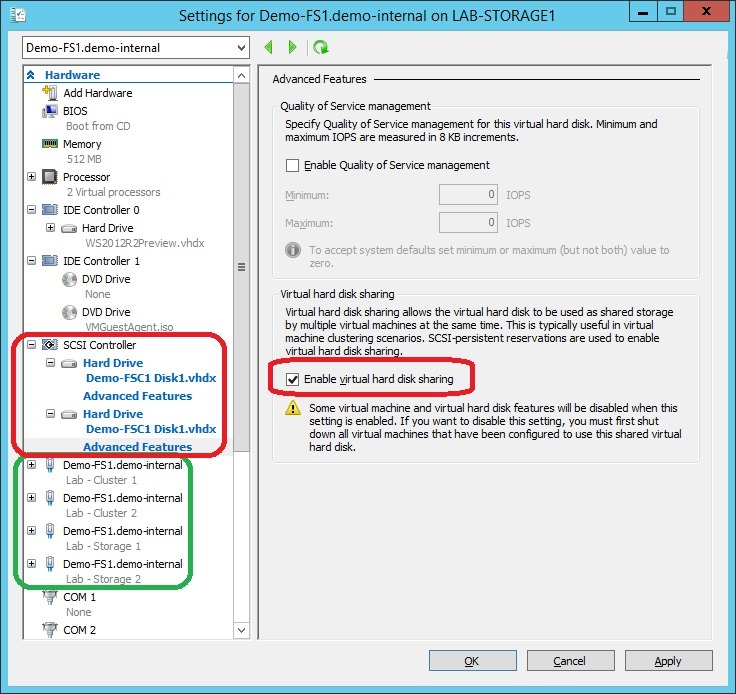
  1. I created 2 VMs for my virtual SOFS, Demo-FS1 and Demo-FS2, giving them all enough network connections for my design (see below screenshot, highlighted in green [requires guest OS QoS]).
  2. I added the shared VHDX files to the first SCSI controller on both virtual machines.  Don’t overthink this – there is no replication so please don’t ask.  I couldn’t possibly make this clearer.  Each individual VHDX (a total of 2) is connected to each of the 2 VMs (see below).
  3. I make sure to open up the advanced settings of the shared VHDX on both VMs and check the box Enable Virtual Hard Disk Sharing.
  4. I went on to create and add Demo-FSC1 Disk2.VHDX and Demo-FSC1 Disk3.VHDX, both 100 GB in size.

EnableSharedVHDX

At this point, I do all the usual storage, networking and clustering stuff in the guest OS of the 2 VMs.  In the cluster, I made sure both storage networks had client access enabled (with an IP address).  When creating the guest cluster, I did not add storage.  Instead, I did something else that is unsupported.

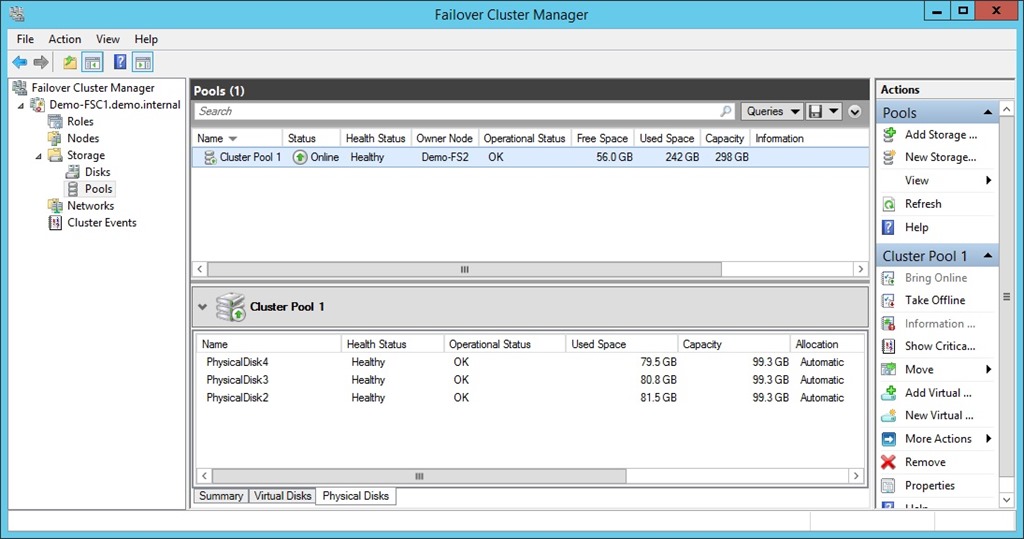
I took the 3 shared VHDX data disks, and created a new storage space.

StoragePool

From this, I created 2 virtual disks, one with NTFS and one with ReFS, and converted bot volumes into CSV.  Now I have what I need to finish off the creation of the SOFS role on the file server cluster.

Finsihed Storage

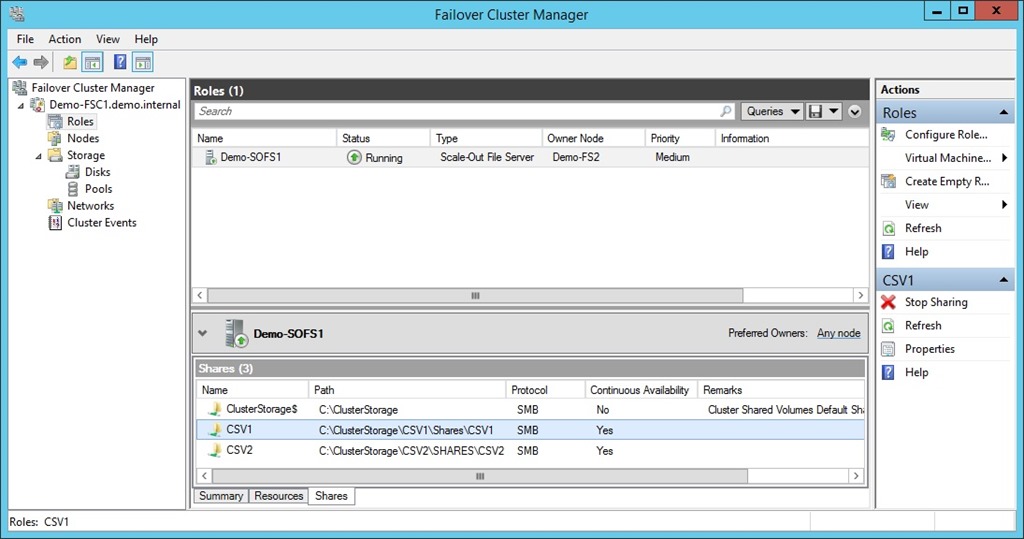
Now I add the SOFS role (File Server for Application Data) to the cluster, wait a while for the CAP to come online (remember to delegate permissions to the cluster’s OU to the cluster object so the cluster can create the SOFS computer object), and then create the file shares.

SOFS with Shares

What I haven’t done or shown:

  • QOS for the storage NICs.
  • SMB Constraints

Now I have my storage.  It’s time to prep VMM 2012 R2 to do some bare metal host deployment and get a Hyper-V cluster up and running.

Building A WS2012R2 Preview Test/Demo/Learning Lab

I’m in the midst of deploying a new lab for learning, demo-ing, and delivering training on Windows Server 2012 R2 and System Center 2012 R2 (WSSC 2012 R2).  I’ve flattened the WS2012 lab and am starting from scratch … by using the MSFT vision.  The first thing up was a management host running Hyper-V.  Second: a DC.  Third: VMM 2012 R2.

My plan is to use VMM to build everything else.  My "management" host is actually a storage box.  It runs my System Center VMs, but it’s also where I run my virtual storage machines, including iSCSI target, and SMB 3.0 Scale-Out File Server VMs.  I want my storage to be up before my demo hosts/cluster, and I also want to be able to re-deploy my storage quickly.

Hmm, that sounds like I need a Service Template.  So I created a generalized VHDX for WS2012 R2, created a bunch of VM templates with the roles/features I need, and created a 2-tier service template:

  1. A VM running the iSCSI Target: My shared storage for the SOFS – no I can’t use Shared VHDX because that must live on shared storage … and the iSCSI Target/SOFS will be my lab’s shared storage … in this iteration anyway.
  2. 2 VMs with clustering and file services: My SOFS nodes.

The demo SOFS is deploying right now as I type:

DeployingVirtualSOFS

Once the storage is running, I will turn my attention to Hyper-V.  The plan is to build up server profiles, logical switch, etc, and do bare metal host deployment.  It should be fun Smile #Nerd

What’s The Big “Story” With WSSC 2012 R2?

Last time around, Windows Server 2012 R2, the big story was enabling the cloud using Windows Server 2012.  We techies boiled that down to … Hyper-V.  It was a big Hyper-V release, that happened to have lots of new networking and storage stuff, and loads of other things in AD, remote access, etc, but we focused on Hyper-V. 

System Center 2012 SP1’s story was simple: try to catch up with Windows Server 2012 and Windows 8.  They didn’t quite get all the way there.  The OSs were supported, but numerous features were missing.  The schedules of the then 2 product groups were misaligned, System Center was just done releasing the 2012 products and then out comes a new version of Windows.  Doh!

Then less than a year later, the preview of Windows Server & System Center tells us something important.  This is a unified development and release.  From a business perspective, that might actually be the big story of WSSC 2012 R2.  I don’t remember seeing this level of timing from Microsoft before. 

The story that MSFT is marketing this time around is based, again, on the Cloud OS and this time it is Hybrid Networking.  This uses Hyper-V Network Virtualization and System Center to create 1 consistent and integrated platform from private cloud, hosted (public or private) cloud, and Windows Azure IaaS.  However, we nerds are looking at WSSC 2012 R2 as …

… a storage release.  Yup, this is the turning point.  All the bits in Storage Spaces that people wanted to see to consider Windows Server SMB 3.0 as a block storage alternative are there.  You should expect to hear lots and lots about Storage Spaces, virtual disks, SMB 3.0 (Direct and Multichannel), tiered storage, Write-Back Cache, System Center integration & management, etc.

Yes, of course, I am excited by the cool Hyper-V stuff in this release.  I’m also looking forward to deploying it on SMB 3.0 Smile  And don’t forget DAL.

Windows Server 2012 R2 Hyper-V – Guest Clustering With Shared VHDX

Windows Server 2012 Hyper-V allows you to create guest clusters of up to 64 nodes.  They need some kind of shared storage and that came in the form of:

  • SMB 3.0 file shares
  • iSCSI
  • Fibre Channel

There are a few problems with this:

  • It complicates host architecture. Take a look at my converged network/fabric designs for iSCSI.  Virtual Fibre Channel is amazing but there’s plenty of work: virtual SANs, lots of WWNs to zone, and SAN vendor MPIO to install in the guest OS.
  • It creates a tether between the VMs and the physical infrastructure that limits agility and flexibility
  • In the cloud, it makes self-service a near (if not total) impossibility
  • In a public cloud, the hoster is going to be unwilling to pierce the barrier between infrastructure and untrusted tenant

So in Windows Server 2012 R2 we get a new feature: Shared VHDX.  You attach a VHDX to a SCSI controller of your VMs, edit the Advanced settings of the VHDX, and enable sharing.  This creates a persistent reservation passthrough to the VHDX, and the VMs now see this VHDX as a shared SAS disk.  You can now build guest clusters with this shared VHDX as the cluster storage.

image

There are some requirements:

  • Obviously you have to be clustering the VMs to use the storage.
  • The hosts must be clustered.  This is to get a special filter driver (svhdxflt.sys).
  • The VHDX must be on shared storage, either CSV or SMB 3.0.

Yes, this eliminates running a guest cluster with Shared VHDX on Windows 8.1 Client Hyper-V.  But you can do it on a single WS2012 R2 machine by creating a single node host cluster.  Note that this is a completely unsupported scenario and should be for demo/evaluation labs only

Another couple of gotchas:

  • You cannot do host-level backups of the guest cluster.  This is the same as it always was.  You will have to install backup agents in the guest cluster nodes and back them up as if they were physical machines.
  • You cannot perform a hot-resize of the shared VHDX.  But you can hot-add more shared VHDX files to the clustered VMs.
  • You cannot Storage Live Migrate the shared VHDX file.  You can move the other VM files and perform normal Live Migration.

Even with the gotchas, that I expect MSFT will sort out quickly, this is a superb feature.  I would have loved Shared VHDX when I worked in the hosting business because it makes self-service and application HA a realistic possibility.  And I will absolutely eat it up in my labs Smile

EDIT1:

I had a question from Steve Evans (MVP, ASP.NET/IIS) about using Shared VHDX: Is Shared VHDX limited to a single cluster?  On the physical storage side, direct-attached CSV is limited to a single cluster.  However, SMB 3.0 file shares are on different physical infrastructure and can be permissioned for more than one host/cluster.  Therefore, in theory, a guest cluster could reside on more than one host cluster, with the Shared VHDX stored on a single SMB 3.0 file share (probably SOFS with all this HA flying about).  Would this be supported?  I checked with Jose Barreto: it’s a valid use case and should be supported.  So now you have a solution to quadruple HA your application:

  1. Use highly available virtual machines
  2. Use more than one host cluster to host those HA VMs
  3. Create guest clusters from the HA VMs
  4. Store the shared VHDX on SOFS/SMB 3.0 file shares

Windows Server 2012 R2 Hyper-V – Storage QoS

A fear of cloud administrators is that some tenant or VM goes nuts and eats up a host’s bandwidth to the storage.  System Center has the ability to deal with this.  VMM Dynamic Optimization is like DRS in vSphere; it will load balance workloads at a triggered threshold.  And Performance and Resource Optimization (PRO) allows OpsMgr to detect an immediate issue and instruct VMM to use Intelligent Placement to react to it.

But maybe we want to prevent the issue from happening at all.  Maybe we want to cap storage bandwidth based on price bands – you pay more and you get faster storage.  Maybe a VM has gone nuts and we want to limit the damage it does while we figure out what has gone wrong.  Maybe we want alerts when certain VMs don’t have enough bandwidth; we could have an automated response in System Center to deal with that.

WS2012 R2 Hyper-V gives us Storage QoS.  We can configure Storage QoS on a per-virtual hard disk basis using the IOPS measurement:

  • Maximum: This is a hard cap on how many IOPS a virtual hard disk can perform
  • Minimum alert: We will get an alert if a virtual hard disk cannot perform at this minimum level

The settings can be configured while a virtual machine is running.  That allows a tenant to improve their plan and get more storage bandwidth.

Note: there are IOPS PerfMon counters to help you figure out what good and bad metrics actually are.

Windows Server 2012 R2 Hyper-V – Linux Support Improvements

Yes, Hyper-V supports many Linux distros, architectures, and versions, and that support has been improved in WS2012 R2 Hyper-V.

It’s no secret that there were some changes to the Linux Integration Services that are built into the Linux kernel.  Those changes were intended for and supported on WS2012 R2 Hyper-V (not WS2012 Hyper-V).  Those two changes are:

  • Dynamic Memory: Linux guest OSs can use the balloon driver to have the exact same support for Dynamic Memory as Windows (add and remove).  Bear in mind the constraints of the Linux distro itself.  And remember the recommendations of Linux when assigning large amounts of CPU/RAM to a machine.  These are Linux recommendations/limits, not Hyper-V ones.
  • Online backup: You can now perform a file system freeze in the Linux guest OS to get a file system consistent backup of a Linux guest OS without pausing the VM.  Linux does not have VSS (like Windows) so we cannot get application consistency.  But this is still a huge step forward.  According to Microsoft, WS2012 R2 Hyper-V is now the best way to virtualize and backup Linux; you can use any backup tool that supports Hyper-V to reliably backup your Linux VMs without using some script that does a dumb file copy.

Remember that online VHDX resizing is a host function, so Linux guest OSs support this too.  Don’t ask me how to resize Linux partitions or make use of the new free space Smile

There is also a new video driver for Linux.  This gives you a better video experience as with the Windows guest OS, including better mouse support – but hey, real Linux admins don’t click!

To take advantage of these features, make sure you have an up-to-date Linux kernel in your VMs, and your running them on WS2012 R2 Hyper-V.

Windows Server 2012 R2 Hyper-V – Online Resizing of VHDX

The most common excuse given for using pass-through disks instead of VHDX files was “I want to be able to change the size of my disks without shutting down my VMs”.  OK, WS2012 R2 Hyper-V fixes that by adding hot-resizing of VHDX files.

Yes, on WS2012 R2 Hyper-V, you can resize a VHDX file that is attached to a VM’s SCSI controller without shutting down the VM.  There’s yet another reason to place data in dedicated VHDX files on the SCSI controller.

You can:

  • Expand a VHDX – you’ll need to expand the partition in Disk Manager (or PoSH) in the VM – maybe there’s an Orchestrator runbook possibility
  • Shrink a VHDX – the VHDX must has un-partitioned space to be shrunk

This resize is a function of the host and has no integration component dependencies.

That’s one more objection to eliminating the use of pass-through disks eliminated.

A Converged Networks Design For SMB 3.0 Storage & SMB Direct Live Migration

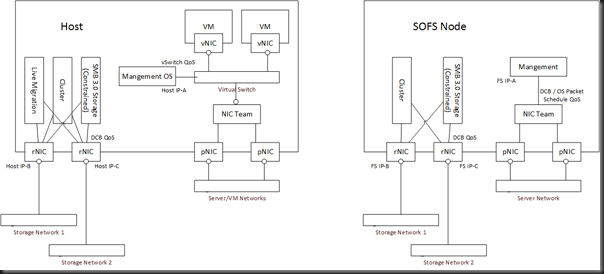
I recently posted a converged networks design for Hyper-V on SMB 3.0 storage with RDMA (SMB Direct).  Guess what – it was *consultant speak alert* future proofed.  Take a look at the design, particularly the rNICs (NICs that support RDMA) in the host(s):

There you have 2 non-teamed rNICs.  They’re not teamed because RDMA is incompatible with teaming.  They are using DCB because the OS packet scheduler cannot apply QoS rules to the “invisible” RDMA flow of data.  The design accounts for SMB to the SOFS node, Cluster communications, and …. Live Migration.

That’s because in Windows Server 2012 R2 (and thus the free Hyper-V Server 2012 R2), we can use SMB Live Migration on 10 GbE or faster rNICs.  That gives us:

  • SMB Multichannel: The live migration will use both NICs, thus getting a larger share of the bandwidth.  SMB Multichannel makes the lack of teaming irrelevant because of the dynamic discovery and fault tolerant nature of it.
  • SMB Direct: Live Migration offloads to hardware meaning lower latency and less CPU utilization.

With 3 rNICs on PCI3 slots, the memory on my host could be the bottleneck in Live Migration speed Smile  In other words … damn! 

What does it all mean?  It means VMs with big RAM assignments can be moved in a reasonable time.  It means that dense hosts can be vacated quickly. 

What will adding SMB Live Migration cost you?  Maybe nothing more than you were going to spend because this is all done using rNICs that you might already be purchasing for SMB 3.0 storage anyway.  And hey, SMB 3.0 storage on Storage Spaces is way cheaper and better performing than block storage.

Oh, and thanks to QoS we get SLA enforcement for bandwidth + dynamic bursting for the other host communications such as SMB 3.0 to the Scale-Out File Server and cluster communications (where redirected IO can leverage SMB 3.0 between hosts too).

In other words … damn!

Hey Eric, is having faster vMotions/Live Migrations not worth while now? Smile with tongue out

TechEd NA 2013 – Software Defined Storage In Windows Server & System Center 2012 R2

Speakers: Elden Christensen, Hector Linares, Jose Barreto, and Brian Matthew (last two are in the front row at least)

4:12 SSDs in 60 drive jbod.

Elden kicks off. He owns Failover Clustering in Windows Server.

New Approach To Storage

  • File based storage: high performance SMB protocol for Hyper-V storage over Ethernet networks.  In addition: the scale-out file server to make SMB HA with transparent failover.  SMB is the best way to do Hyper-V storage, even with backend SAN.
  • Storage Spaces: Cost-effective business critical storage

Enterprise Storage Management Scenarios with SC 2012 R2

Summary: not forgotten.  We can fully manage FC SAN from SysCtr via SMI’-S now, including zoning.  And the enhancements in WS2012 such as TRIM, UNMAP, and ODX offer great value.

Hector, Storage PM in VMM, comes up to demo.

Demo: SCVMM

Into the Fabric view of the VMM console.  Fibre Channel Fabrics is added to Providers under Storage.  He browses to VMs and Services and expands an already deployed 1 tier service with 2 VMs.  Opens the Service Template in the designer.  Goes into the machine tier template.  There we see that FC is surfaced in the VM template.  It can dynamically assign or statically assign FC WWNs.  There is a concept of fabric classification, e.g. production, test, etc.  That way, Intelligent Placement can find hosts with the right FC fabric and put VMs there automatically for you.

Opens a powered off VM in a service.  2 vHBAs.  We can see the mapped Hyper-V virtual SAN, and the 4 WWNs (for seamless Live Migration).  In Storage he clicks Add Fibre Channel Array.  Opens a Create New Zone dialog.  Can select storage array and FC fabric and the zoning is done.  No need to open the SAN console.  Can create a LUN, unmask it at the service tier …. in other words provision a LUN to 64 VMs (if you want) in a service tier with just a couple of mouse clicks … in the VMM console.

In the host properties, we see the physical HBAs.  You can assign virtual SANs to the HBAs.  Seems to offer more abstraction than the bare Hyper-V solution – but I’d need a €50K SAN and rack space to test Smile

So instead of just adding vHBA support, but they’ve given us end-end deployment and configuration.

Requirement: SMI-S provider for the FC SAN.

Demo: ODX

In 30 seconds, 3% of BITS VM template creation is done.  Using same setup but with ODX, but the entire VM can be deployed and customized much more quickly.  In just over 2 minutes the VM is started up.

Back to Elden

The Road Ahead

WS2012 R2 is cloud optimized … short time frame since last release so they went with a focused approach to make the most of the time:

  • Private clouds
  • Hosted clouds
  • Cloud Service Providers

Focus on capex and opex costs.  Storage and availability costs

IaaS Vision

  • Dramatically lowering the costs and effort of delivering IaaS storage services
  • Disaggregated compute and storage: independent manage and scale at each layer. Easier maintenance and upgrade.
  • Industry standard servers, networking and storage: inexpensive networks. inexpensive shared JBOD storage.  Get rid of the fear of growth and investment.

SMB is the vision, not iSCSI/FC, although they got great investments in WS2012 and SC2012 R2.

Storage Management Pillars

picture053

Storage Management API (SM-API)

DSCN0086

VMM + SOFS & Storage Spaces

  • Capacity management: pool/volume/file share classification.  File share ACL.  VM workload deployment to file shares.
  • SOFS deployment: bare metal deployment of file server and SOFS.
  • Spaces provisioning

Guest Clustering With Shared VHDX

See yesterday’s post.

iSCSI Target

  • Uses VHDX instead of VHD.  Can import VHD, but not create. Provision 64 TB and dynamically resize LUNs
  • SMI-S support built in for standards based management, VMM.
  • Can now manage an iSCSI cluster using SCVMM

Back to Hector …

Demo: SCVMM

Me: You should realise by now that System Center and Windows Server are developed as a unit and work best together.

He creates a Physical Computer Profile.  Can create a VM host (Hyper-V) or file server.  The model is limited to that now, but later VMM could be extended to deploy other kinds of physical server in the data centre.

Hector deploys a clustered file server.  You can use existing machine (enables roles and file shares on existing OS) OR provision a bare metal machine (OS, cluster, etc, all done by VMM).  He provisions the entire server, VMM provisions the storage space/virtual disk/CSV, and then a file share on a selected Storage Pool with a classification for the specific file share.

Now he edits the properties of a Hyper-V cluster, selects the share, and VMM does all the ACL work.

Basically, a few mouse clicks in VMM and an entire SOFS is built, configured, shared, and connected.  No logging into the SOFS nodes at all.  Only need to touch them to rack, power, network, and set BMC IP/password.

SMB Direct

  • 50% improvement for small IO workloads with SMB Direct (RDMA) in WS2012 R2.
  • Increased performance for 8K IOPS

Optimized SOFS Rebalancing

  • SOFS clients are now redirected to the “best” node for access
  • Avoids uneccessary redirection
  • Driven by ownership of CSV
  • SMB connections are managed by share instead of per file server.
  • Dynamically moves as CSV volume ownership changes … clustering balances CSV automatically.
  • No admin action.

Hyper-V over SMB

Enables SMB Multichannel (more than 1 NIC) and Direct (RDMA – speed).  Lots of bandwidth and low latency.  Vacate a host really quickly.  Don’t fear those 1 TB RAM VMs Smile

SMB Bandwidth Management

We now have 3 QoS categories for SMB:

  • Default – normal host storage
  • VirtualMachine – VM accessing SMB storage
  • LiveMigration – Host doing LM

Gives you granular control over converged networks/fabrics because 1 category of SMB might be more important than others.

Storage QoS

Can set Maximup IOPS and Minimum IOPS alerts per VHDX.  Cap IOPS per virtual hard disk, and get alerts when virtual hard disks aren’t getting enough bandwidth – could lead to auto LM to another better host.

Jose comes up …

Demo:

Has a 2 node SOFS.  1 client: a SQL server.  Monitoring via Perfmon, and both the SOFS nodes are getting balanced n/w utilization caused by that 1 SQL server.  Proof of connection balancing.  Can also see that the CSVs are balanced by the cluster.

Jose adds a 3rd file server to the SOFS cluster.  It’s just an Add operation of an existing server that is physically connected to the SOFS storage.  VMM adds roles, etc, and adds the server.  After a few minutes the cluster is extended.  The CSVs are rebalanced across all 3 nodes, and the client traffic is rebalanced too.

That demo was being done entirely with Hyper-V VMs and shared VHDX on a laptop.

Another demo: Kicks off an 8K IO worklaod.  Single client talking to single server (48 SSDs in single mirrored space) and 3 infiniband NICs per server.  Averaging nearly 600,000 IOPS, sometimes getting over that.  Now he enables RAM caching.  Now he gets nearly 1,000,000 IOPS.  CPU becomes his bottleneck Smile 

Nice timing: question on 32K IOs.  That’s the next demo Smile  RDMA loves large IO.  500,000 IOPS, but now the throughput is 16.5 GIGABYTES (not Gbps) per second.  That’s 4 DVDs per second.  No cheating: real usable data, going to real file system, nor 5Ks to raw disk as in some demo cheats.

Back to Elden …

Data Deduplication

Some enhancements:

  • Dedup open VHD/VHDX files.  Not supported with data VHD/VHDX.  Works great for volumes that only store OS disks, e.g. VDI.
  • Faster read/write of optimized files … in fact, faster than CSV Block Cache!!!!!
  • Support for SOFS with CSV

The Dedup filter redirects read request to the chunk store.  Hyper-V does buffered IO that bypasses the cache.  But Dedup does cache.  So Hyper-V read of deduped files is cached in RAM, and that’s why dedupe can speed up the boot storm.

Demo: Dedup

A PM I don’t know takes the stage.  This demo will be how Dedup optimizes the boot storm scenario.  Starts up VMs… one collection is optimized and the other not.  Has a tool to monitor boot up status.  The deduped VMs start up more quickly.

Reduced Mean Time To Recovery

  • Mirrored spaces rebuild: parallelized recovery
  • Increased throughput during rebuilds.

Storage Spaces

See yesterday’s notes.  They heapmap the data and automatically (don’t listen to block storage salesman BS) promote hot data and demote cold data through the 2 tiers configured in the virtual disk (SSD and HDD in storage space).

Write-Back Cache: absorbs write spikes using SSD tier.

Brian Matthew takes the stage

Demo: Storage Spaces

See notes from yesterday

Back to Elden …

Summary

DSCN0087