Microsoft News – 19 November 2014

Pay attention to the security update for Windows that was released out of band last night. It’s an important one that prevents people from crafting custom Kerberos tickets.

Hyper-V

Windows Server

Azure

Security

Office 365

Microsoft News – 17 November 2014

I’ve had a crazy few weeks with TechEd Europe 2014, followed by the MVP Summit, followed by a week of events and catchup at work. Today, I’ve finally gotten to go through my news feeds. There is a LOT of Azure stuff from TEE14.

Hyper-V

Windows Server

System Center

Windows Client

  • Windows 10 – Making Deployment Easier: Using an in-place upgrade instead of the traditional wipe-and-load approach that organizations have historically used to deploy new Windows versions. This upgrade process is designed to preserve the apps, data, and configuration from the existing Windows installation, taking care to put things back the way they need to be after Windows 10 has been installed on the system. And support for traditional deployment tools.
  • Windows 10 – Manageability Choices: Ensuring that Windows works better when using Active Directory and Azure Active Directory together. When connecting the two, users can automatically be signed-in to cloud-based services like Office 365, Microsoft Intune, and the Windows Store, even when logging in to their machine using Active Directory accounts. For users, this will mean no longer needing to remember additional user IDs or passwords.

Azure

clip_image001

ASR SAN replication topology

Office 365

Intune

Operational Insights

Licensing

TEE14 Scripted Demo 5 – Out-Of-Band File Copy

In my fight demo at TechEd Europe 2014, the topic was OOB File Copy, the ability to place a file into a VM’s storage, via the VMBus, and without network connectivity to the VM (e.g. tenant isolation).

The script does the following:

  1. Cleans up the demo
  2. Opens up notepad. I manually copy and paste text from a website into the file and save it.
  3. Enable the Guest Service Interface for the VM to enable OOB File Copy
  4. Copy the file to the VM
  5. Disable Guest Service Interface
  6. Connect to the VM. I manually log in and open the file to verify that the file I created is now inside of the VM
  7. Clean up the demo


function KillProcess ($Target)
{
    $Processes = Get-Process
    Foreach ($Process in  $Processes)
    {
        if ($Process.ProcessName -eq $Target)
        {
            Stop-Process $Process
        }   
    }
}

cls

$DemoHost1 = "Demo-Host1"
$DemoVM1 = “OOBFileCopy”
$DemoFile = "CopyFile.txt"
$DemoFilePath = "C:\Scripts\TechEd\$DemoFile"
$VMConnect = "C:\Windows\system32\vmconnect.exe"
$VMConnectParams =  "$DemoHost1 $DemoVM1"

#Prep the demo
#Use a remote command to delete the file from the VM
Invoke-Command -ComputerName $DemoVM1 -ScriptBlock {Remove-Item -ErrorAction SilentlyContinue "C:\CopyFile.txt" -Confirm:$False | Out-Null}
Disable-VMIntegrationService $DemoVM1 -Name "Guest Service Interface"
Remove-Item -ErrorAction SilentlyContinue $DemoFilePath -Confirm:$False | Out-Null
New-Item $DemoFilePath -ItemType File | Out-Null

#Start the demo

#Note to self – script the network disconenct of the VM along with a continuous ping to confirm it.

Read-Host "`nStart the demo"
Write-Host "`nCreate a file to be copied into the virtual machine" -foregroundcolor red -backgroundcolor yellow
Start-Process "c:\windows\system32\notepad.exe" -ArgumentList $DemoFilePath

#Copy the file
Read-Host "`nEnable the Guest Service Interface integration service"
Write-Host "`nEnable-VMIntegrationService $DemoVM1 -Name `"Guest Service Interface`""
Enable-VMIntegrationService $DemoVM1 -Name "Guest Service Interface"

Read-Host "`nCopy the file to the VM"
Write-Host "`nCopy-VMFile $DemoVM1 -SourcePath $DemoFilePath -DestinationPath C: -FileSource Host"
Copy-VMFile $DemoVM1 -SourcePath $DemoFilePath -DestinationPath C: -FileSource Host

Read-Host "`nDisable the Guest Service Interface integration service"
Write-Host "`nDisable-VMIntegrationService $DemoVM1 -Name `"Guest Service Interface`""
Disable-VMIntegrationService $DemoVM1 -Name "Guest Service Interface"

#Check the file
Read-Host "`nLog into the virtual machine to check the file"

Set-VMHost -EnableEnhancedSessionMode $true | Out-Null
Start-Process $VMConnect -ArgumentList $VMConnectParams

#End the demo
Read-Host "`nEnd the demo"
KillProcess "vmconnect"
Disable-VMIntegrationService $DemoVM1 -Name "Guest Service Interface"
Remove-Item -ErrorAction SilentlyContinue $DemoFilePath -Confirm:$False | Out-Null
#Use a remote command to delete the file from the VM
Invoke-Command -ComputerName $DemoVM1 -ScriptBlock {Remove-Item -ErrorAction SilentlyContinue "C:\CopyFile.txt" -Confirm:$False | Out-Null}


TEE14 Scripted Demo 5 – Out-Of-Band File Copy

In my fight demo at TechEd Europe 2014, the topic was OOB File Copy, the ability to place a file into a VM’s storage, via the VMBus, and without network connectivity to the VM (e.g. tenant isolation).

The script does the following:

  1. Cleans up the demo
  2. Opens up notepad. I manually copy and paste text from a website into the file and save it.
  3. Enable the Guest Service Interface for the VM to enable OOB File Copy
  4. Copy the file to the VM
  5. Disable Guest Service Interface
  6. Connect to the VM. I manually log in and open the file to verify that the file I created is now inside of the VM
  7. Clean up the demo


function KillProcess ($Target)
{
    $Processes = Get-Process
    Foreach ($Process in  $Processes)
    {
        if ($Process.ProcessName -eq $Target)
        {
            Stop-Process $Process
        }   
    }
}

cls

$DemoHost1 = "Demo-Host1"
$DemoVM1 = “OOBFileCopy”
$DemoFile = "CopyFile.txt"
$DemoFilePath = "C:\Scripts\TechEd\$DemoFile"
$VMConnect = "C:\Windows\system32\vmconnect.exe"
$VMConnectParams =  "$DemoHost1 $DemoVM1"

#Prep the demo
#Use a remote command to delete the file from the VM
Invoke-Command -ComputerName $DemoVM1 -ScriptBlock {Remove-Item -ErrorAction SilentlyContinue "C:\CopyFile.txt" -Confirm:$False | Out-Null}
Disable-VMIntegrationService $DemoVM1 -Name "Guest Service Interface"
Remove-Item -ErrorAction SilentlyContinue $DemoFilePath -Confirm:$False | Out-Null
New-Item $DemoFilePath -ItemType File | Out-Null

#Start the demo

#Note to self – script the network disconenct of the VM along with a continuous ping to confirm it.

Read-Host "`nStart the demo"
Write-Host "`nCreate a file to be copied into the virtual machine" -foregroundcolor red -backgroundcolor yellow
Start-Process "c:\windows\system32\notepad.exe" -ArgumentList $DemoFilePath

#Copy the file
Read-Host "`nEnable the Guest Service Interface integration service"
Write-Host "`nEnable-VMIntegrationService $DemoVM1 -Name `"Guest Service Interface`""
Enable-VMIntegrationService $DemoVM1 -Name "Guest Service Interface"

Read-Host "`nCopy the file to the VM"
Write-Host "`nCopy-VMFile $DemoVM1 -SourcePath $DemoFilePath -DestinationPath C: -FileSource Host"
Copy-VMFile $DemoVM1 -SourcePath $DemoFilePath -DestinationPath C: -FileSource Host

Read-Host "`nDisable the Guest Service Interface integration service"
Write-Host "`nDisable-VMIntegrationService $DemoVM1 -Name `"Guest Service Interface`""
Disable-VMIntegrationService $DemoVM1 -Name "Guest Service Interface"

#Check the file
Read-Host "`nLog into the virtual machine to check the file"

Set-VMHost -EnableEnhancedSessionMode $true | Out-Null
Start-Process $VMConnect -ArgumentList $VMConnectParams

#End the demo
Read-Host "`nEnd the demo"
KillProcess "vmconnect"
Disable-VMIntegrationService $DemoVM1 -Name "Guest Service Interface"
Remove-Item -ErrorAction SilentlyContinue $DemoFilePath -Confirm:$False | Out-Null
#Use a remote command to delete the file from the VM
Invoke-Command -ComputerName $DemoVM1 -ScriptBlock {Remove-Item -ErrorAction SilentlyContinue "C:\CopyFile.txt" -Confirm:$False | Out-Null}


New Features in Windows Server 2016 (WS2016) Hyper-V

I’m going to do my best (no guarantees – I only have one body and pair of ears/eyes and NDA stuff is hard to track!) to update this page with a listing of each new feature in Windows Server 2016 (WS2016) Hyper-V and Hyper-V Server 2016 after they are discussed publicly by Microsoft. The links will lead to more detailed descriptions of each feature.

Note, that the features of WS2012 can be found here and the features of WS2012 R2 can be found here.

This list was last updated on 25/May/2015 (during Technical Preview 2).


Active memory dump

Windows Server 2016 introduces a dump type of “Active memory dump”, which filters out most memory pages allocated to VMs making the memory.dmp file much smaller and easier to save/copy.


Azure Stack

A replacement for Windows Azure Pack (WAPack), bringing the code of the “Ibiza” “preview portal” of Azure to on-premises for private cloud or hosted public cloud. Uses providers to interact with Windows Server 2016. Does not require System Center, but you will want management for some things (monitoring, Hyper-V Network Virtualization, etc).


Azure Storage

A post-RTM update (flight) will add support for blobs, tables, and storage accounts, allowing you to deploy Azure storage on-premises or in hosted solutions.


Backup Change Tracking

Microsoft will include change tracking so third-party vendors do not need to update/install dodgy kernel level file system filters for change tracking of VM files.


Binary VM Configuration Files

Microsoft is moving away from text-based files to increase scalability and performance.


Cluster Cloud Witness

You can use Azure storage as a witness for quorum for a multi-site cluster. Stores just an incremental sequence number in an Azure Storage Account, secured by an access key.


Cluster Compute Resiliency

Prevents the cluster from failing a host too quickly after a transient error. A host will go into isolation, allowing services to continue to run without disruptive failover.


Cluster Functional Level

A rolling upgrade requires mixed-mode clusters, i.e. WS2012 R2 and Windows Server vNext hosts in the same cluster. The cluster will stay and WS2012 R2 functional level until you finish the rolling upgrade and then manually increase the cluster functional level (one-way).


Cluster Quarantine

If a cluster node is flapping (going into & out of isolation too often) then the cluster will quarantine a node, and drain it of resources (Live Migration – see MoveTypeThreshold and DefaultMoveType).


Cluster Rolling Upgrade

You do not need to create a new cluster or do a cluster migration to get from WS2012 R2 to Windows Server vNext. The new process allows hosts in a cluster to be rebuilt IN THE EXISTING cluster with Windows Server vNext.


Containers

Deploy born-in-the-cloud stateless applications using Windows Server Containers or Hyper-V Containers.


Converged RDMA

Remote Direct Memory Access (RDMA) NICs (rNICs) can be converged to share both tenant and host storage/clustering traffic roles.


Delivery of Integration Components

This will be done via Windows Update


Differential Export

Export just the changes between 2 known points in time. Used for incremental file-based backup.


Distributed Storage QoS

Enable per-virtual hard disk QoS for VMs stored on a Scale-Out File Server, possibly also available for SANs.


File-Based Backup

Hyper-V is decoupling from volume backup for scalability and reliability reasons


Host Resource Protection

An automated process for restricting resource availability to VMs that display unwanted “patterns of access”.


Hot-Add & Hot-Remove of vNICs

You can hot-add and hot-remove virtual NICs to/from a running virtual machine.


Hyper-convergence

This is made possible with Storage Spaces Direct and is aimed initially at smaller deployments.


Hyper-V Cluster Management

A new administration model that allows tools to abstract the cluster as a single host. Enables much easier VM management, visible initially with PowerShell (e.g. Get-VM, etc).


Hyper-V Replica & Hot Add of Disks

You can add disks to a virtual machine that is already being replicated. Later you can add the disks to the replica set using Set-VMReplication.


Hyper-V Manager Alternative Credentials

With CredSSP-enabled PCs and hosts, you can connect to a host with alternative credentials.


Hyper-V Manager Down-Level Support

You can manage Windows Server vNext, WS2012 R2 and WS2012 Hyper-V from a single console


Hyper-V Manager WinRM

WinRM is used to connect to hosts.


MS-SQOS

This is a new protocol for Microsoft Storage QoS. It uses SMB 3.0 as a transport, and it describes the conversation between Hyper-V compute nodes and the SOFS storage nodes. IOPS, latency, initiator names, imitator node information is sent from the compute nodes to the storage nodes. The storage nodes, send back the enforcement commands to limit flows, etc.


Nested Virtualization

Yes, you read that right! Required for Hyper-V containers in a hosted environment, e.g. Azure. Side-effect is that WS2016 Hyper-V can run in WS2016 via virtualization of VT-X.


Network Controller

A new fabric management feature built-into Windows Server, offering many new features that we see in Azure. Examples are a distributed firewall and software load balancer.


Online Resize of Memory

Change memory of running virtual machines that don’t have Dynamic Memory enabled.


Power Management

Hyper-V has expanded support for power management, including Connected Standby


PowerShell Direct

Target PowerShell at VMs via the hypervisor (VMbus) without requiring network access. You still need local admin credentials for the guest OS.


Pre-Authentication Integrity

When talking from one machine to the next via SMB 3.1.1. This is a security feature that uses checks on the sender & recipient side to ensure that there is no man-in-the-middle.


Production Checkpoints

Using VSS in the guest OS to create a consistent snapshots that workload services should be able to support. Applying a checkpoint is like performing a VM restore from backup.


Nano Server

A new installation option that allows you to deploy headless Windows Servers with tiny install footprint and no UI of any kind. Intended for storage and virtualization scenarios at first. There will be a web version of admin tools that you can deploy centrally.


RDMA to the Host

Remote Direct Memory Access will be supported to the management OS virtual NICs via converged networking.


ReFS Accelerated VHDX Operations

Operations are accelerated by converting them into metadata operations: fixed VHDX creation, dynamic VHDX extension, merge of checkpoints (better file-based backup).


RemoteFX

OpenFL 4.4 and OpenCL 1.1 API are supported.


Replica Support for Hot-Add of VHDX

When you hot-add a VHDX to a running VM that is being replicated by Hyper-V Replica, the VHDX is available to be added to the replica set (MSFT doesn’t assume that you want to replicate the new disk).


Replica support for Cross-Version Hosts

Your hosts can be of different versions.


Runtime Memory Resize

You can increase or decrease the memory assigned to Windows Server vNext guests.


Secure Boot for Linux

Enable protection of the boot loader in Generation 2 VMs


Shared VHDX Improvements

You will be able to do host-based snapshots of Shared VHDX (so you get host-level backups) and guest clusters. You will be able to hot-resize a Shared VHDX.

Shared VHDX will have its own hardware category in the UI. Note that there is a new file format for Shared VHDX. There will be a tool to upgrade existing files.


Shielded Virtual Machines

A new security model that hardens Hyper-V and protects virtual machines against unwanted tampering at the fabric level.


SMB 3.1.1

This is a new version of the data transport protocol. The focus has been on security. There is support for mixed mode clusters so there is backwards compatibility. SMB 3.02 is now called SMB 3.0.2.


SMB  Negotiated Encryption

Moving from AES CCM to AES GCM (Galois Counter Mode) for efficiency and performance. It will leverage new modern CPUs that have instructions for AES encryption to offload the heavy lifting.


SMB Forced Encryption

In older versions of SMB, SMB encryption was opt-in on the client side. This is no longer the case in the next version of Windows Server.


Storage Accounts

A later release of WS2016 will bring support for hosting Azure-style Storage accounts, meaning that you can deploy Azure-style storage on-premises or in a hosted cloud.


Storage Replica

Built-in, hardware agnostic, synchronous and asynchronous replication of Windows Storage, performed at the file system level (volume-based). Enables campus or multi-site clusters.

Requires GPT. Source and destination need to be the same size. Need low latency. Finish the solution with the Cluster Cloud Witness.


Storage Spaces Direct (S2D)

A “low cost” solution for VM storage. A cluster of nodes using internal (DAS) disks (SAS or SATA, SSD, HDD, or NVMe) to create a consistent storage spaces pools that stretch across the servers. Compute is normally on a different cluster (converged) but it can be on one tier (hyper-converged)


Storage Transient Failures

Avoid VM bugchecks when storage has a transient issue. The VM freezes while the host retries to get storage back online.


Stretch Clusters

The preferred term for when Failover Clustering spans two sites.


System Center 2016

Those of you who can afford the per-host SMLs will be able to get System Center 2016 to manage your shiny new Hyper-V hosts and fabric.


System Requirements

The system requirements for a server host have been increased. You now must have support for Second-Level Address Translation (SLAT), known as Intel EPT or AMD RVI or NPT. Previously SLAT (Intel Nehalem and later) was recommended but not required on servers and required on Client Hyper-V. It shouldn’t be an issue for most hosts because SLAT has been around for quite some time.


Virtual Machine Groups

Group virtual machines for operations such as orchestrated checkpoints (even with shared VHDX) or group checkpoint export.


Virtual Machine ID Management

Control whether a VM has same or new ID as before when you import it.


Virtual Network Adapter Identification

Not vCDN! You can create/name a vNIC in the settings of a VM and see the name in the guest OS.


Virtual Secure Mode (VSM)

A feature of Windows 10 Enterprise that protects LSASS (secret keys) from pass-the-hash attacks by storing the process in a stripped down Hyper-V virtual machine.


Virtual TPM (vTPM)

A feature of shielded virtual machines that enables secure boot, disk encrypting within the virtual machine, and VSC.


VM Storage Resiliency

A VM will pause when the physical storage of that VM goes offline. Allows the storage to come back (maybe Live Migration) without crashing the VM.


VM Upgrade Process

VM versions are upgraded manually, allowing VMs to be migrated back down to WS2012 R2 hosts with support from Microsoft.


VXLAN Support

The new Network Controller will support VXLAN as well as the incumbent NVGRE for network virtualization.


Windows Containers

This is Docker in Windows Server, enabling services to run in containers on a shared set of libaries on an OS, giving you portability, per-OS density, and fast deployment.

TEE14 – Software Defined Storage in Windows Server vNext

Speaker: Siddhartha Roy

Software-Defined Storage gives you choice. It’s a breadth offering and unified platform for MSFT workloads and public cloud scale. Economical storage for private/public cloud customers.

About 15-20% of the room has used Storage Spaces/SOFS.

What is SDS? Cloud scale storage and cost economics on standard, volume hardware. Based on what Azure does.

Where are MSFT in the SDS Journey Today?

In WS2012 we got Storage Spaces as a cluster supported storage system. No tiering. We could build a SOFS using cluster supported storage, and present that to Hyper-V hosts via SMB 3.0.

  • Storage Spaces: Storage based on economical JBOD h/w
  • SOFS: Transparent failover, continuously available application storage platform.
  • SMB 3.0 fabric: high speed, and low latency can be added with RDMA NICs.

What’s New in Preview Release

  • Greater efficiency
  • More uptime
  • Lower costs
  • Reliability at scale
  • Faster time to value: get customers to adopt the tech

Storage QoS

Take control of the service and offer customers different bands of service.

image

Enabled by default on the SOFS. 2 metrics used: latency and IOPS. You can define policies around IOPS by using min and max. Can be flexible: on VHD level, VM level, or tenant/service level.

It is managed by System Center and PoSH. You have an aggregated end-end view from host to storage.

Patrick Lang comes on to do a demo. There is a file server cluster with 3 nodes. The SOFS role is running on this cluster. There is a regular SMB 3.0 file share. A host has 5 VMs running on it, stored on the share. One OLTP VM is consuming 8-10K IOPS using IOMETER. Now he uses PoSH to query the SOFS metrics. He creates a new policy with min 100 and max 200 for a bunch of the VMs. The OLTP workload gets a policy with min of 3000 and max of 5000. Now we see its IOPS drop down from 8-10K. He fires up VMs on another host – not clustered – the only commonality is the SOFS. These new VMs can take IOPS. A rogue one takes 2500 IOPS. All of the other VMs still get at least their min IOPS.

Note: when you look at queried data, you are seeing an average for the last 5 minutes. See Patrick Lang’s session for more details.

Rolling Upgrades – Faster Time to Value

Cluster upgrades were a pain. They get much easier in vNext. Take a node offline. Rebuild it in the existing cluster. Add it back in, and the cluster stays in mixed mode for a short time. Complete the upgrades within the cluster, and then disable mixed mode to get new functionality. The “big red switch” is a PoSH cmdlet to increase the cluster functional level.

image

Cloud Witness

A third site witness for multi-site cluster, using a service in Azure.

image

Compute Resiliency

Stops the cluster from being over aggressive with transient glitches.

image

Related to this is quarantine of flapping nodes. If a node is in and out of isolation too much, it is “removed” from the cluster. The default quarantine is 2 hours – give the admin a chance to diagnose the issue. VMs are drained from a quarantined node.

Storage Replica

A hardware agnostic synchronous replication system. You can stretch a cluster with low latency network. You get all the bits in the box to replicate storage. It uses SMB 3.0 as a transport. Can use metro-RDMA to offload and get low latency. Can add SMB encryption. Block-level synchronous requires <5MS latency. There is also an asynchronous connection for higher latency links.

image

The differences between synch and asynch:

image

Ned Pyle, a storage PM, comes on to demo Storage Replica. He’ll do cluster-cluster replication here, but you can also do server-server replication.

There is a single file server role on a cluster. There are 4 nodes in the cluster. There is assymetric clustered storage. IE half the storage on 2 nodes and the other half on the other 2 nodes. He’s using iSCSI storage in this demo. It just needs to be cluster supported storage. He right-clicks on a volume and selects Replication > Enable Replication … a wizard pops up. He picked a source disk. Clustering doesn’t do volumes … it does disks. If you do server-server repliction then you can replicate a volume. Picks a source replication log disk. You need to use a GPT disk with a file system. Picks a destination disk to replicate to, and a destination log disk. You can pre-seed the first copy of data (transport a disk, restore from backup, etc). And that’s it.

Now he wants to show a failover. Right now, the UI is buggy and doesn’t show a completed copy. Check the event logs. He copies files to the volume in the source site. Then moves the volume to the DR site. Now the replicated D: drive appears (it was offline) and all the files are there in the DR site ready to be used.

After the Preview?

Storage Spaces Shared Nothing – Low Cost

This is a no-storage-tier converged storage cluster. You create storage spaces using internal storage in each of your nodes. To add capacity you add nodes.

You get rid of the SAS layer and you can use SATA drives. The cost of SSD plummets with this system.

image

You can grow pools to hundreds of disks. A scenario is for primary IaaS workloads and for storage for backup/replication targets.

There is a prescriptive hardware configuration. This is not for any server from any shop. Two reasons:

  • Lots of components involved. There’s a lot of room for performance issues and failure. This will be delivered by MSFT hardware partners.
  • They do not converge the Hyper-V and storage clusters in the diagram (above). They don’t recommend convergence because the rates of scale in compute and storage are very different. Only converge in very small workloads. I have already blogged this on Petri with regards to converged storage – I don’t like the concept – going to lead to a lot of costly waste.

VM Storage Resiliency

A more graceful way of handling a storage path outage for VMs. Don’t crash the VM because of a temporary issue.

image

CPS – But no … he’s using this as a design example that we can implement using h/w from other sources (soft focus on the image).

image

Not talked about but in Q&A: They are doing a lot of testing on dedupe. First use case will be on backup targets. And secondary: VDI.

Data consistency is done by a Storage Bus Layer in the shared notching Storage Spaces system. It slips into Storage Spaces and it’s used to replicate data across the SATA fabric and expands its functionality. MSFT thinking about supporting 12 nodes, but architecturally, this feature has no limit in the number of nodes.

TEE14 – Keynote

Welcome to TechEd Europe 2014, blogged live to you by me from Barcelona, Spain. It’s early, I got in to near of the front of the hall, and the crowd is streaming in as a DJ Joey Snow mixes.

image

The stage is lit blue and purple, with the press sitting front and centre.
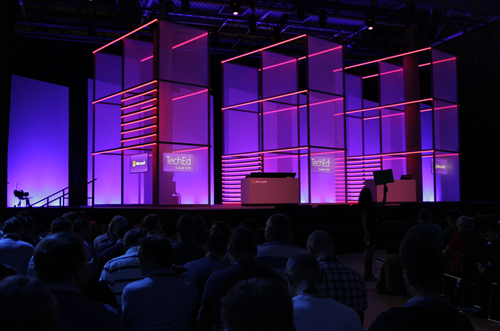
image

The crowd is awaiting the show to start.

image

Cameras are rolling.

image

And here we go ….

Alex Zander VP of Azure comes out. He starts on the pitch about the number of devices. The number of connected devices now outnumbers the number of humans on the planet. This brings up IoT. Here comes mobile-first, cloud-first.
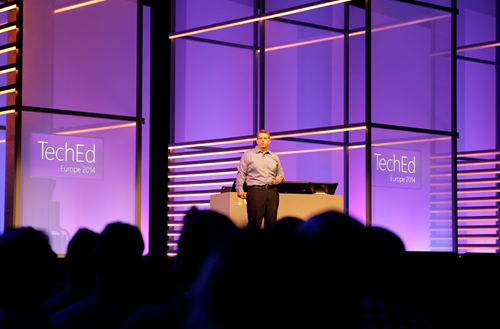
image


What are Microsoft enabling in enterprise devices to expand your digital work and personal lives?

Here comes Joe Belfiore to talk about Windows 10 in the Enterprise.

image

1) Windows 10 delivers a single platform across a wide range of devices to ensure your investment covers a wide array of devices

2) Provide users with a platform that they will love to use.

3) Provide protection against modern security threats.

4) A way to manage all devices in a way that makes sense for businesses

Breadth of Devices

This covers everything from sensors in a jet plan to PCs, to tablets, to phones, to giant computing systems.

Love to Use

Interesting topic: Windows 8 has some “mixed response”. Customer satisfaction for keyboard/mouse users of Windows 8 was lower than that for touch users. Now they are making non-touch and emphasis point.

They have focused on that large group of Windows 7 users on classic PCs. The Start Menu is shown. Search is now a part of the Start Menu and is shown – this includes web searches so they are adding value to “Windows 7 features”. Windows 8 Live Tiles are added to the familiar start menu – adding value to familiar features. So this isn’t a big disruptive change for users – it’s more evolutionary.

Live Tiles add personalisation to a work environment – to make Windows more enjoyable for users.

Now he starts on the apps and the store. Today, they are not being used as much as MSFT would like because “the apps behave so differently”. Apps of all kinds are in the start menu and launch in Windows that run on the desktop.

And then he gets a big round of applause for CTRL+V at the command prompt:

image

Two more power user features coming in the next flight of Windows Insiders releases.

He has a multiple monitors display set up. Right now you cannot snap a window to the joining edge of a multi-monitor display. But Snap in Windows 10 allows you to snap a window to the “join”.

Now he moves over to the Surface Pro. Touchpads are all differently by the OEMs. MSFT are adding their own multi touch gestures on Windows 10 for the touchpad. 3 finger up/down hides/reveals all windows. Left/right does alt-tab with 3 finger swipe.

End user/consumer stuff will come in the new year. Then he shows the Continuum UI for hybrid devices (see previous posts).

Protecting Corporate Data

IT can control the PC’s apps that are used on the corporate network – allegedly.

Demo: Windows 10 PC that the user logs into. The company authorizes some apps to use company data and appear in the Start Menu. The user can also run non-authorized apps (including 3rd party). When she hits save as in Word she has Personal and Company stores that she can see. The user cannot save company data into a non-corporate store. For example, she cannot paste from Word (company app) into Twitter (non-company app). Policy allows a user override … assuming that the user enters a reason, and this goes into an audit log that IT is managing.

You’ll see this in Windows Phone too – one OS, remember?

Protecting User ID

Lots MSFT thinks they can do to protect against modern security threats. Today you can do 2 factor authentication but it’s cumbersome to deploy. They are going to enable cheaper two factor auth and fingerprint biometrics.

They user the Windows Phone as a second factor. When you log into the PC, the phone prompts you to enter a pin on the phone via Bluetooth. Do that, and now your log in on the PC is completed. No additional devices – just the company phone that you might have been buying anyway.Demo was done with Windows Phone.

Windows 10 Management for continuous Innovation

Improving the app store so you can use it to deploy your own or your licensed s/w. Hmm, SCCM? You’ll have a choice of GPO or MDM to manage all kinds of devices – “it’s your choice” – MSFT will faciliate 3rd party MDM.

Volume License support is coming via license claim and reuse in the Store. No MSA is required to use the Store infrastructure in the future. You can set up your own company store to manage your licensing.

Managed in-place upgrades are coming. They are ending the era of wipe and reload. Making OOBE more user friendly in the biz: a user gets a PC, goes through OOBE and corporate policy will be applied. There’s a “my organization owns it” option in OOBE. There’s a sign-in (looks like workplace join) dialog and policy is then applied accordingly. There will be 2 factor auth via Admin managed SMS. Now policy and pre-assigned apps are deployed. Custom data protection, authentication, security policy, etc are all deployed.

This is like a merger of SCCM and AD GPO into a cloud-based solution. I like the message. Lets see what the final product looks like.

Cloud

Back to Alex Zander again to talk cloud. Let’s watch the crowd to see what happens to them. It didn’t go well in Houston in May.

Asked to store more data and increase agility, security, and data privacy. Costs must be reduced while increasing flexibility for everyone. The pace of innovation is advancing at a dizzying rate. Businesses that adapt to this will thrive. Right now, SMEs are doing this.

image

MSFT cloud is more than Azure and O365. It’s also on-premises and with partner hosting companies. Three USPs to the cloud OS:

  • Hybrid
  • Enterprise grade
  • Hyper-scale

Key investments in Windows Server vNext in software-defined everything, such as the new Network Controller. This can run your software-defined networking.

Many are coming off of W2003 and are looking for new features, etc. MSFT wants to make that seamless: www.microsoft.com/ws2003eos.

A way to get started with the cloud is to just connect and extend functionalities using hybrid solutions, such as Azure Site Recovery Services for DR in the cloud.

Announcing: Azure Operational Insights. Install an agent on existing on-premises machines and start to log information into th cloud to do deep insights on how things are running and visualize that data. There are security, capacity planning and change management insight packs. You can do a fast search and fix incidents. See System Center Advisor *cough*

Bring Azure to your on-premises data centre. This is Windows Azure Pack (WAP). You get the same skin as Azure, powered by the same hypervisor (Hyper-V) and System Center.

Jeff Woolsey comes out to talk new stuff.

Storage Replica: Storage replication, storage agnostic, built into the box. Do replication between clusters or stretch clusters between sites.  Demo: 2 notes in NY and 2 nodes in NJ. Seemless failover with no data loss thanks to synchronous replication. A cloud witness gives you quorum with a virtual witness site. Doesn’t require SANs and it woks with standalone servers. SIMPLE to set up.

image

System Center Advisor has come a long way:
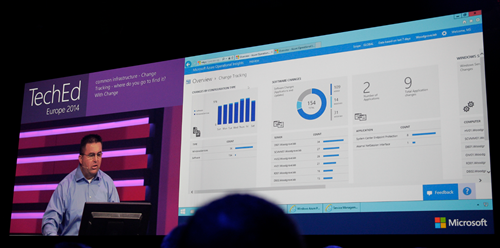
image

Capacity planning allows you to project future usage based on empirical data and usage. Lots of information presented in a nice layout with lots of graphs. All powered by search. You can create personalized dashboards.

Manage your infrastructure using WAP to create Azure consistent clouds on premises using Windows Server and System Center.

Back to Alex Zander. He’s now going to pitch CPS. This is MSFT sold hardware running pre-packaged on-premises cloud, based on Dell h/w with lots of custom work done on drivers and firmware. Only Fortune 100’s need apply.

Half of the Microsoft hosting partners running the Cloud OS are in Europe.

On to Hyper-Scale. Over the last few decades, the industry is defined by the scarcity of resources: we are always struggling to find more, squeeze in more, etc. What if that was flipped on its head and we could use a hyper scale cloud with effectivly infinite resources.

Australia went live yesterday – now there are 19 Azure regions. The immense scale of Azure makes them cheaper and we can deploy cheaper “infrastructure” and services. Over 30 trillion storage objects in Azure. Over 1.2 million SQL DBs. Over 140m WAAD users.

image

Reminder of the G series of large memory VMs – the largest available on the public market. Intended for data processing. Also announced durable SSD storage in Azume Premium Storage with 50K IOPS with <1 MS read latency. Intended for workloads that might have been on bare metal.

Azure Batch preview is a job scheduling service in the cloud at a massive scale. Rich API and simple portal. Do batch jobs more quickly with massive elastic compute scale. You might use it for batch scale our and in on a scheduled basis to reduce VM costs.

1/5 of VMs in Azure are running Linux. CoreOS is supported now – a containerized tiny Linux OS.

Mark Russinovich, CTO and Azure, comes out to demo Azure Batch. He demos an open source 3d rendering app called Blender. He has a basic model that he will ray trace to make complete. he shows it before batch and it’s like watching paint dry. Now he adds a plug in to submit work to Azure Batch. How many VM instances you want are entered ina  dialog. He uses 8 x A8 compute intensive VMs with 40 GBps Infiniband networking. submits the job and now he can track the job status via the plugin. The rendering accelerates. We get a nice picture. He compares with the non-optimized job and it’s barely got started.

He now starts to talk about Docker containers on CoreOS. Docker is normally managed from Linux We see Docker management from Windows for the first time:

image

He manages containers running in a Ubuntu VM. He creates a wordpress site from Windows, via the CoreOS management host, running in a container on the Ubuntu VM. Takes about 1 second to fire up.

Now he moves on to premium storage. There are 3 VMs, one on standard storage. IOMETER running in the VM to stress test the IOPS of the VM. Hits 500-600 IOPS (min guarantee is 500). The second is a D-Series VM with premium storage. Same test gives 4082 IOPS (single premium disk). 3rd VM has 16 disks on premium storage and they’re striped. Appears as 16 TB volume. IOMETER gives 61623 IOPS.

image

Microsoft are the only big 3 cloud vendor with enterprise grade, hyper scale, and hybrid cloud. Gartner has Microsoft as the leading cloud vendor in 4 key areas:
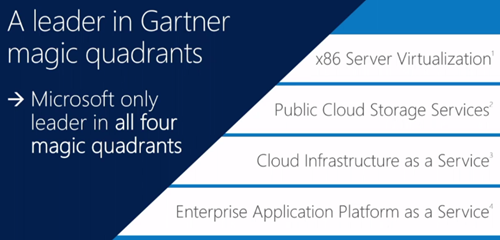
image

Amazon only has 12 MPLS WAN networked locations for hybrid cloud. Google has none.

Azure Marketplace offers ahuge collection of partner provided and curated VM services. See names like Kemp, Oracle, SAP, IBM, Riverbed, Dell, Symantec, Kaspersky, Barracuda, and many more.

Enterprise Productivity

Users expect to be connected from anywhere with access to resources with no IT-created complications. Workers coming into the workforce work very differently than my generation. Touch, connectivity, collaboration, discoverability of information are their norm. BYOD .. that’s a cultural thing that affects the USA more, according to IDC.

We go back to device management, applications, and identity.

Some old info here on MDM. Sleepy time.

New Windows Intune updates arriving in the coming months. Manage Office mobile apps, MDM for Office 365 so you can manage docs and email and do selective wipe of O365 data on lost devices.

Office 365

Julia White is out to demo. She shows the new Azure AD Connect Preview tool for linking on-premises AD to WAAD. Goal is to simplify a previous complicated process.

Azure AD app proxy allows you to bring all apps into a single control plane. She has a Sharepoint on-prem app that she adds to Azure AD. Users now go to one place for authentication and authorization. Is AD MOVING (not just extending) to the cloud? User logs into the app via an iDevice.

Feedback on Office for iPad is that IT wants to manage those apps and corporate data. Intune will enable this in near future. White sets up a configuration policy. Can set up so managed apps can only copy/paste to other managed apps. Can manage deployment of managed apps. Make available the app out from the admin portal. Back to the iPad. Runs Ourlook. There’s an email with an Excel attachment and opens that. The only app possible in the selection is Excel. That’s the only managed spread sheet tool so the unmanged ones are not available. Tries to copy/paste into the Apple email tool – cannot. But can paste into Word because it is managed.

There’s a new O365 SDK for iPad apps. Devs can reach into O35 data from the Apple tablet.

MSFT is the only global provider to be approved for Article 29 pan European data privacy. O365 data is encrypted at rest. DLP is a feature of the E3 plan that allows you to protect against data leakage. Users can see it in action and understand the purpose of it – therefore no excuse for trying to work around it.

Brings up a report to see amount of overrides on opt-in DLP policy. Too high, so she decides to change the policy. There’s a credit card DLP policy that’s being overriden. Modifies it, and adds an action for overrides. Adds and RMS policy to disable forwards when the policy is overridden. If it’s overriden, a notification can be sent to auditors.

Creates a new email with an attachment. Straight away Office detects the DLP rule and notifies the user. The user overrides. The recipient gets the doc in an email – RMS prevents snipit, forward, print, etc. os the credit card details are secure.

That’s a wrap, folks!


Microsoft News – 23 October 2014

It’s the calm before the storm of announcements from TechEd Europe 2014.

Window Server

Desktop

Azure

Events

Microsoft News Summary – 22 October 2014

Hyper-V

Windows Server

Azure

System Center

Microsoft Partners

Miscellaneous

Microsoft News Summary – 8 October 2014

Welcome to today’s cloud-heavy Microsoft news compilation.

Windows Server

clip_image001

Windows Client

Azure

  • Introducing the Azure Automation Runbook Gallery: The time it takes to create functional, polished runbooks is a little faster thanks to the new Azure Automation Runbook Gallery.
  • More Changes to Azure by Scott Guthrie: Including support for static private IP support in the Azure Preview Portal, Active Directory authentication, PowerShell script converter, runbook gallery, hourly scheduling support.
  • Microsoft Certification Test Tool Preview for Azure Certified: The Microsoft Certification Test Tool for Azure Certified is designed to provide an assessment of compliance to technical requirements as part of the Azure Certified program. The test tool includes a wizard style automated section and questionnaire section to assess characteristics of a Virtual Machine image running in Microsoft Azure and generate results logs. More information on the Azure Certified program is available.
  • Announcing Support for Backup of Windows Server 2008 with Azure Backup: Due to feedback. Please note that this is x64 only and that there are system requirements.
  • Hybrid Connection Manager ClickOnce Application: ClickOnce installer for the Hybrid Connection Manager.
  • D-Series Performance Expectations: The new D-Series VMs provide great performance for applications needing fast, local (ephemeral) storage or a faster CPU; however, it’s important to understand a little about how the system is configured to ensure you’re getting an optimal experience.
  • Cloud App Discovery – Now with Excel and PowerBI Support: One of the top customer requests was to be able to perform analytics on the data collected in tools like Excel and PowerBI. Now you can take cloud app discovery data offline and explore and analyze the data with tools you already know–Excel and PowerBI.
  • A new region will open in India by the end of 2015: It makes sense; there are 1 billion people and some big corporations there.
  • Microsoft Azure Speed Test: Which Azure region is closest to you (remember that Internet geography is different to the planet’s geography. For example, where I work is a few miles from Europe North (Dublin), but the test shows me that Europe West provides me with lower latency (beaten, obviously, by CDN). My own testing using Azure Traffic Manager with geo-dispersed websites has verified this.

clip_image002

Office 365

Miscellaneous