Creating a VNet-to-VNet VPN in Microsoft Azure

A while ago I read about how to connect VMs between two VNets and it was nasty: before we could create a VPN tunnel we had to open Endpoints (punch holes through firewalls) and hope for the best!

Since TechEd NA 2014, we have had new functionality where we can connect two VNets, in the same or different data centers, in the same or different regions, or in the same or different subscriptions, via an encrypted & secure VPN tunnel.

As usual, this stuff is announced normally via blogs (it was mentioned in the TechEd keynote I think) and finding instructions can be fun. The first few guides I found were messy, involving exporting VNet configs, editing XML files, and importing configs.

You do not need to do this to set up a simple configuration to connect two VNets. I looked at the instructions, used by experience from site-to-site VPNs with Azure, and tried out a method that uses a temporary local network to enable you to create the VPN gateway and gateway VIPs for each vNet – these are required to create a local network for each VNet. We use local networks to define the details (public VPN IP address and routable private network IP address) of the network that will connect to a VNet.

I tried my method and it worked. And then I found instructions on MSDN that are similar to the method that I used. My method:

  1. Create the two VNets
  2. Create a temporary local network with made up gateway IP address (public VPN IP) and address space (private network address that will route to the VNet subnets)
  3. Configure each VNet to allow site-to-site VPN connections from the temporary local network
  4. Enable the gateway with dynamic routing on each VNet. This can take 15-20+ minutes for Azure to do for you. Plan other work or a break for this step.
  5. Record the address space and gateway IP address of both VNets
  6. Create a local network for each VNet – use the Gateway IP Address and Address Space of the VNet for the details of its local network
  7. Modify the site-to-site VPN configuration of each VNet to dump the temporary local network and use the local network of the other VNet – you’re telling the VNet the details of the other VNet for connection and routing
  8. Use Azure PowerShell cmdlets to run Set-AzureVNetGatewayKey. This will be used to configure a common VPN shared key for both VNets.
  9. Wait … the VPN connection will start automatically … there might be a failure before or just after you st the shared key. Be patient, and one VNet might show a connected status before the other. Be patient!

And that’s it. There is a FAQ on this topic. I’ll be publishing some deeper articles on the subject on Petri.com in the next few weeks.

Microsoft News Summary – 4 July 2014

Not much news for you to read today:

SQL Server Now Requires SA For A Cold Replica

When you replicate a virtual machine from site A to site B then typically the replica VM in site B is powered down. Note that I haven’t specified a hypervisor or replication method, so this article applies to Hyper-V and vSphere, and not just to Hyper-V Replica.

In the past, if you ran SQL Server in a VM in a production site, you could replicate that VM to a secondary site. If the replica VM was powered down, i.e. cold, then you were granted a free license for that cold VM. This has changed with the release of SQL Server 2014, as covered by this post. Now you must have Software Assurance (SA) to cover the cold VM’s license for SQL Server.

This brings SQL Server in line with Windows Server’s SA offsite cold replica benefit.

There are restrictions on failover in the secondary site:

  • You can perform a brief test failover (lasting 1 week) once every 90 days.
  • The production system in the primary site must be powered off to legally perform a failover.
  • You can power up the secondary site VM for a “brief time” during the disaster while the production system is running in the primary site.

Microsoft News Summary – 3 July 2014

After a month of neglect, I have finally caught up with all of my feeds via various sources. Here are the latest bits of news, mixed up with other Microsoft happenings from the last month.

Microsoft News Summary-2 July 2014

It’s been a long times since I posted one of these! I’ve just trawled my feeds for interesting articles and came up with the following. I’ll be checking news and Twitter for more.

KB2966407 – Backing Up WS2012 R2 Hyper-V VMs Fails When Using CSV Writer After Installing KB2919355

Microsoft released a KB article for when Backing up virtual machines fails when using the CSV writer after installation of update 2919355 in Windows.

Symptoms

Assume that you install update 2919355 on a Windows 8.1-based or Windows Server 2012 R2-based computer. When you try to back up some Hyper-V virtual machines that reside on cluster shared volumes, you receive an error message that indicates the backup request has failed.
Here is a sample of the error messages that you may encounter when this issue occurs:

Error(s): vss_e_unexpected_provider_error
Csv writer is in failed state with unexpected error

Note The error message that an end-user will see is surfaced by the backup vendor products, and therefore it will vary by vendor.

A hotfix is available to resolve this issue.

Download Hyper-V Server 2012 R2

It has come to the attention of myself and several other Hyper-V MVPs that people are having a nightmare searching for the download ISO for Hyper-V Server 2012 R2. I’ve verified the problem on Bing and Google and Microsoft are aware of the issue.

In the meantime you here is the download page for Hyper-V Server 2012 R2.

July 16th Webcast – 3 New Storage Features in WS2012 R2

I will be one of the presenters in a webcast hosted by the Petri IT Knowledgebase and sponsored by Veeam on July 16th at 13:00 EDT (18:00 UK/Irish Time). In this presentation I’ll be explaining the technologies that enabled Windows Server 2012 R2 (WS2012 R2) software-defined storage and Hyper-V over SMB 3.0. Chris Henley from Veeam will also discuss their backup and disaster recovery technology. And then there will be a Q&A session. There will be a moderator so you can fire in your questions for us to answer.

image

My 7th Microsoft MVP Award

Yesterday (July 1st) was that my Microsoft Most Valuable Professional (MVP) award either expired or was renewed. Thankfully, my status as a Hyper-V MVP was renewed by Microsoft, as confirmed by the below (edited by me) email that arrived in yesterday afternoon:

image

A lot of work goes into my efforts, either here on my blog, writing for the Petri IT Knowledgebase, answering questions on forums, or presenting. This is a nice recognition for those efforts, and quite honestly, it is a career changer thanks to the access to information that we MVPs get … and should share with the community.

My efforts are only made possible thanks to the support of friends and family, the flexibility of my employers at MicroWarehouse, those in Microsoft who value the MVP program, and other community members who give me opportunities in webcasts, podcasts, speaking at events, and so on. Thank you all!

Here’s looking forward to a very interesting and eventful FY2015 (Microsoft financial year runs July to June).

How I Improved Hyper-V Storage Read Performance By 12x With Proximal Data AutoCache

Storage is the bedrock of all virtualisation. If you get the storage wrong, then you haven’t a hope. And unfortunately I have seen too many installs where the customer/consultant has focused on capacity, and the performance has been dismal; so bad, in fact, that IT are scared to do otherwise normal operations that will impact production systems because the storage system cannot handle the load.

Introducing AutoCache

I was approached by TechEd NA 2014 by some folks from a company called Proximal Data. Their product, AudoCache, which works with Hyper-V and vSphere is designed to improve the read performance of storage systems.

image

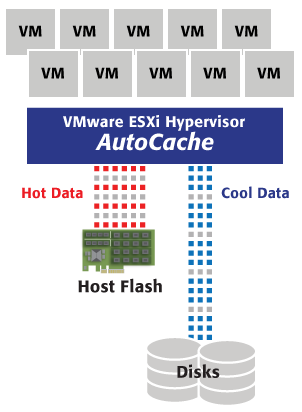
A read cache is created on the hosts. This cache might be an SSD that is plugged into each host. Data is read from the storage. Data deemed hot is cached on the SSD. The next time that data is required, it is read from the SSD, thus getting some serious speed potential. Cooler data is read from the storage, and writes go direct to the storage.

Installation and management is easy. There’s a tiny agent for each host. In the Hyper-V world, you license AutoCache, configure the cache volume, and monitor performance using System Center Virtual Machine Manager (SCVMM). And that’s it. AutoCache does the rest for you.

So how does it perform?

The Test Lab

I used the test lab at work to see how AutoCache performed. My plan was simple: I created a single generations 1 virtual machine with a 10 GB Fixed VHDX D: drive on the SCSI controller . I installed SQLIO in the virtual machine. I created a simple script to run SQLIO 10 times, one after the other. Each job would perform 120 seconds of random 4K reads. That’s 20 minutes of thumping the storage system per benchmark test.

I have two hosts: Dell R420s, each connected to the storage system via dual iWARP (10 GbE RMDA) SFP+ NICs. Each host is running a fully patched WS2012 R2 Hyper-V. The hosts are clustered.

One host, Demo-Host1, had AutoCache installed. I also installed a Toshiba Q Series Pro SATA SSD (554 MB/s and 512 MB/S write) into this host. I licensed AutoCache in SCVMM, and configured a cache drive on the SSD. Note: that for each test involving this host, I deleted and recreated the cache to start with a blank slate.

The storage was a Scale-Out File Server (SOFS). Two HP DL360 G7 servers are the nodes, each allowing hosts to connect via dual iWARP NICs. The HP servers are connected to a single DataOn DNS-1640 JBOD. The JBOD contains:

  • 8 x Seagate Savvio® 10K.5 600GB HDDs
  • 4 x SanDisk SDLKAE6M200G5CA1 200 GB SSDs
  • 2 x STEC S842E400M2 SSDs

There is single storage pool. A 3 column tiered 2-way mirrored virtual disk (50 SSD + 550 HDD) was used in the test. To get clean results, I pinned the virtual machine files either to the SSD tier or to the HDD tier; this allowed me to see the clear impact of AutoCache using a local SSD drive as a read cache.

Tests were run on Demo-Host1, with AutoCache and a Cache SDD, and then the virtual machine was live migrated to Demo-Host2, which does not have AutoCache or a cache SSD.

To be clear: I do not have a production workload. I create VMs for labs and tests, that’s it. Yes, the test is unrealistic. I am using a relatively large cache compared to my production storage and storage requirements. But it’s what I have and the results do show what the product can offer. In the end, you should test for your storage system, servers, network, workloads, and work habits.

The Results – Using HDD Storage

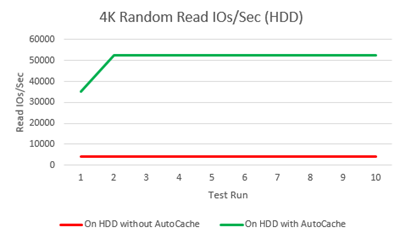
My first series of tests on Demo-Host1 and Demo-Host2 were set up with the virtual machine pinned to the HDD tier. This would show the total impact of AutoCache using a single SSD as a cache drive on the host. First I ran the test on Demo-Host2 without AutoCache, and then I ran the test on Demo-Host1 with AutoCache. The results are displayed below:

image

image

We can see that the non-enhanced host offered and average of 4143 4K random reads per second. That varied very little. However, we can see that once the virtual machine was on a host with AutoCache, running the tests quickly populated the cache partition and led to increases in read IOPS, eventually averaging at around 52522 IOPS.

IOPS is interesting but I think the DBAs will like to see what happened to read latency:

image

image

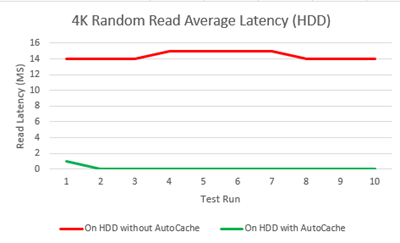
Read latency average 14.4 milliseconds without AutoCache. Adding AutoCache to the game reduced latency almost immediately, eventually settling at a figure so small that SQLIO reported it as zero milliseconds!

So, what does this mean? AutoCache did an incredible job, boosting throughput 12 times above it’s original level using a single consumer grade SSD as the local cache in my test. I think those writing time sensitive SQL queries will love that latency will be near 0 for hot data.

The Results – Using SSD Storage

I thought it might be interesting to see how AutoCache would perform if I pinned the virtual machine to the SSD tier. Here’s why: My SSD tier consists of 6 SSDs (3 columns). 6 SSDs is faster than 1! The raw data is presented below:

image

image

Now things get interesting. The SSD tier of my storage system offered up an average of 62,482 random 4K read operations without AutoCache. This contrasts with the AutoCache-enabled results where we got an average of 52,532 IOPS once the cache was populated. What happened? I already alluded to the cause: the SSD tier of my virtual disk offered up more IOPS potential than the single local SSD that AutoCache was using as a cache partition.

So it seems to me, that if you have a suitably sized SSD tier in your storage spaces, then this will offer superior read performance to AutoCache and the SSD tier will also give you write performance via a Write-Back Cache.

HOWEVER, I know that:

  • Not everyone is buying SSD for Storage Spaces
  • Not everyone is buying enough SSDs for their working set of data

So there is a market to use fewer SSDs in the hosts as read cache partitions via AutoCache.

What About Other Kinds Of Storage?

From what I can see, AutoCache doesn’t care what kind of storage you use for Hyper-V or vSphere. It operates in the host and works by splitting the IO stream. I decided to run some tests using a WS2012 R2 iSCSI target presented directly to my hosts as a CSV. I moved the VM onto that iSCSI target. Once again, I saw almost immediate boosts in performance. The difference was not so pronounced (around 4.x), because of the different nature of the physical storage that the iSCSI target VM was on (20 HDDs offering more IOPS than 8), but it was still impressive.

Would I Recommend AutoCache?

Right now, I’m saying you should really consider evaluating AutoCache on your systems to see what it can offer.