KB2799728–VM Enters Paused State Or CSV Goes Offline When Backup WS2012 Hyper-V Cluster

Please note the below comments.  There are memory leak issues being reported with this hotfix.

Please pay special attention to this hotfix.  It’s the sort of one I expect to see on forums and be asked about for the next 18 months.  I recommend making this patch a standard part of your install of WS2012 Hyper-V clusters.

The scenario is when a virtual machine enters a paused state or a CSV volume goes offline when you try to create a backup of the virtual machine on a Windows Server 2012-based failover cluster.

Consider the following scenario:

  • You enable the Cluster Shared Volumes (CSV) feature on a Windows Server 2012-based failover cluster.
  • You create a virtual machine on a CSV volume on a cluster node.
  • You start the virtual machine.
  • You try to create a backup of the virtual machine on the CSV volume by using Microsoft System Center Data Protection Manager (DPM) or any backup software that uses the Microsoft Software Shadow Copy Provider.

In this scenario, one of the following issues occurs:

  • The backup is created, and the virtual machine enters a paused state.
  • The CSV volume goes offline. Therefore, the virtual machine goes offline, and the backup is not created.

Additionally, the following events are logged in the Cluster log and System log respectively:

Software snapshot creation on Cluster Shared Volume(s) (‘volume location‘) with snapshot set id ‘snapshot id‘ failed with error ‘HrError(0x80042308)(2147754760)’. Please check the state of the CSV resources and the system events of the resource owner nodes.


Log Name: System
Source: Microsoft-Windows-FailoverClustering
Date: Date and time
Event ID: 5120
Task Category: Cluster Shared Volume
Level: Error
Keywords:
User: SYSTEM
Computer: Computer name
Description: Cluster Shared Volume ‘Volume1’ (‘name’) is no longer available on this node because of ‘STATUS_IO_TIMEOUT(c00000b5)’. All I/O will temporarily be queued until a path to the volume is reestablished.


Log Name:      System
Source:        Microsoft-Windows-FailoverClustering
Date:          Date and time
Event ID:      5142
Task Category: Cluster Shared Volume
Level:         Error
Keywords:
User:          SYSTEM
Computer:      Computer name
Description: Cluster Shared Volume ‘Volume3’ (‘Cluster Disk 4’) is no longer accessible from this cluster node because of error ‘ERROR_TIMEOUT(1460)’. Please troubleshoot this node’s connectivity to the storage device and network connectivity.

The virtual machine enters a paused state because the Ntfs.sys driver incorrectly reports the available space on the CSV volume when the backup software tries to create a snapshot of the CSV volume. Additionally, the CSV volume goes offline because the CSV volume does not resume from a paused state after an I/O delay issue or an I/O error occurs.
Note The CSV volume is resilient.

A supported hotfix is available from Microsoft.

There is more:

After you install the hotfix, CSV volumes do not enter paused states as frequently. Additionally, a cluster’s ability to recover from expected paused states that occur when a CSV failover does not occur is improved.

To avoid CSV failovers, you may have to make additional changes to the computer after you install the hotfix. For example, you may be experiencing the issue described in this article because of the lack of hardware support for Offloaded Data Transfer (ODX). This causes delays when the operating system queries for the hardware support during I/O requests.

In this situation, disable ODX by changing the FilterSupportedFeaturesMode value for the storage device that does not support ODX to 1. For more information about how to disable ODX, go to the Microsoft website.

Windows Server 2012 NIC Teaming Part 6 – NIC Teaming In The Virtual Machine

Windows Server 2012 NIC Teaming Part 1 – Back To Basics

Windows Server 2012 NIC Teaming Part 2 – What’s What?

Windows Server 2012 NIC Teaming Part 3 – Switch Connection Modes

Windows Server 2012 NIC Teaming Part 4 – Load Distribution

Windows Server 2012 NIC Teaming Part 5 – Configuration Matrix

Up to now in this series of posts, I’ve been focusing on scenarios where you want to do NIC teaming using physical NICs on the host (configured in the management OS).  But what if you wanted to do NIC teaming in the virtual machine?  You can do this if you’re using:

  • Windows Server 2012 Hyper-V
  • Windows Server 2012 as the guest OS

Why the hell would you want to create NIC teams in the guest OS?  Look at the following image.  The virtual switch is connected to a NIC team.  If any physical NIC or fault tolerant physical network appliance fails then the virtual machines stay online.  That gives us LBFO for the single virtual NICs.

But this architecture is not always applicable.  What if you decided to implement Single Root IO Virtualization (SR-IOV)?  With this architecture, virtual machine network traffic will bypass the management OS network stack, and this means it bypasses the NIC team!  Virtual machines connect directly to Virtual Functions (VFs) on the physical NIC.  The host won’t give you LBFO then.  So what do you do?

The below illustration is the NIC teaming architecture for SR-IOV.  There is no NIC team in the host.  In my example, each physical NIC is connected to a different physical access switch.  This gives network path fault tolerance.  A virtual switch is created for each physical NIC.  Note: no NIC team in the management OS.  The virtual machine is created with 2 NICs.  The guest OS (WS2012) is deployed/installed in the virtual machine, and WS2012 NIC teaming is configured in the guest OS.

Note: I said that the SR-IOV enabled NIC route traffic through a virtual switch.  That is true, most of the time.  The virtual switch is mapped to a Physical Function (PF) on the NIC, the virtual NIC is connected to the virtual switch, and this creates an association with the physical NIC.  Traditional virtual network is employed during Live Migration and maintained if the destination host does not support SR-IOV.  And that’s why the below diagram is drawn as it is.

image

The benefit here is you get all the scalability and performance of SR-IOV, and you get LBFO.  The problem is that you’re now having to do LBFO in every VM that will require it (and we know they all will) instead of creating the NIC team once in the management OS.  This would prove to be tricky in clouds, where IT has nothing to do with a VM – clouds feature self service.  That means guest OS administration is the responsibility of the delegated admin (a “user”: developer, tester, application administrator, a branch office admin, and so on).  These are often the people you least want to have touching complex infrastructure.

My advice when it comes to considering mixing SR-IOV and NIC teaming in a self-service cloud: be very careful.  I would not mix them.  I would do the legacy architecture without SR-IOV in a self-service cloud.  I would only use SR-IOV for those hosts that require it, and the ones that will run virtual machines that IT will be managing.

There are some support statements from Microsoft for guest OS teaming:

Hyper-V Switches

To be supported the virtual NICs in the guest OS NIC team must be on different virtual switches, as in the above diagram.  There is nothing to stop you from putting all the virtual NICs on the same virtual switch.  But it is not supported.

The virtual switches must be external virtual switches.  The team will be offline if connected to internal or private virtual switches.

Virtual NICs

Although you can have 12 virtual NICs in a virtual machine (by mixing Legacy and Synthetic types), a guest OS NIC team supports just 2 virtual NICs.  There is nothing to stop you creating larger NIC teams, but they will not be supported.

Do not configure VLAN IDs for virtual NICs that will be teamed. 

Note: NIC teaming must be enabled in the advanced properties of the virtual NIC in the VM’s properties to do guest OS NIC teaming.

The Guest OS NIC Team

The only valid configuration for a NIC team created inside of a VM is:

  • Switch Independent: The team is connected to two Hyper-V external virtual switches.  They are not stacked, and they do not support static or LACP teaming.
  • Address Hashing: The team will use 1 of the three hashing methods to distribute network traffic through the team members (virtual NICs).

Helpfully, the GUI (LBFOADMIN.EXE) greys out these two settings when you create a NIC team in a guest OS.  Just keep these settings in mind if you try to create a guest OS NIC team using New-NetLBFOTeam.

This information has been brought to you by Windows Server 2012 Hyper-V Installation and Configuration Guide (available on pre-order on Amazon) where you’ll find lots of PowerShell like in this script:

image


Technorati Tags: Windows Server 2012,Hyper-V,Networking

Monitor Web Site Health From Around The World Using System Center 2012 SP1

When I worked in the VM hosting business, we offered monitoring via System Center Operations Manager as a part of the service.  It was great for us as a service provider because we were aware of everything that was happening.  One of the things I tried to do for customers was website monitoring, using an agent to fire client perspective tests at the customers’ website(s) to see if they were responsive.  On more than one occasion, a customer would upload new code, assume it was OK, and OpsMgr would see the code failure in the form of an offline website.  The customer (and us) got the alerts and they could quickly undo the change.

When you work in hosting, you learn what a mess the Internet is.  Consider this example.  I worked for a hosting company in Dublin (that’s on the east coast of Ireland).  Our helpdesk got a bunch of calls from customers saying that the services we were providing to them were “offline”.  That sent the networking engineers into a bit of a tizzy – oh, did I mention this was happening as 99% of the staff were leaving for our Christmas party?  Nice timing!  The strange thing was that not all customers were having a problem.  That suggested a routing issue and the networking folks started making calls.  In the end it turned out that only customers of a certain ISP were affected.  Their route sent packets to a router in Dublin, possibly only a kilometre away from our data centre (almost all of the major datacenters, including the Dublin “Azure” one, are on one glow-in-the-dark road in south-west Dublin).  From there, packets were routed to Germany.  They bounced around there, and normally, came back to Dublin to our data center.  Something went wrong in Germany and packets went in a loop before timing out.  From the customers’ perspective, we were offline.  A simple traceroute test would have highlighted the issue but most (not all) hosting customers are … hmm … how do I put this? … special Smile

image

Hosting (or as it’s called now, the public cloud) customers typically sell services globally.  They need their product available everywhere.  That means you have routes all over the globe to contend with.  Take the above example, and turn it into a rats nest of ISPs and peering all over the world.  Those global;y available web services are typically not just simple websites placed in a single site, either.  Any service needing a responsive user experience must use content distribution.  That throws another variable into the mix.  Testing the availability of the website from a single location will not do.  You need to test globally.

Using an older style tool, including client perspective website monitoring in OpsMgr 2007, you could do this by renting VMs in globally located data centres and installing agents on them.  The problems with this are:

  • Increased complexity.
  • A reliance on those global data centres – would you rely on the Virginia Amazon data centre that’s made lots of headlines in recent months?  What about Honest Jose’s Hosting in Argentina?
  • Renting VMs is adding a cost to the hosting company, that must be passed onto the customer, and every cent add to the per-month charges makes the cloud service less competitive.

System Center 2012 SP1 Operations Manager includes a new feature called Global Service Monitoring (GSM).  It’s an Azure based service that will perform the synthetic web transactions of client perspective monitoring for you, from locations around the world.  This is an invaluable feature for any public facing service, such as a public cloud (IaaS, web, or SaaS).  The hosting/service provider can see how available (uptime and performance) their service is to customers worldwide, whether the problem is internal infrastructure or an ISP routing related issue.

The most difficult helpdesk ticket is the “slow” website.  Using traditional tools you can do only so much.  The warehouse in OpsMgr can rule out disk, memory, and CPU bottlenecks, but that doesn’t satisfy the customer.  I haven’t tried this yet, but apparently GFSM adds  360 degree dashboards, offering you availability and performance information using internal (from the data centre) and external (from GSM) metrics.  That would be very useful when troubleshooting performance issues; you can see where the slowness begins if it happens externally, and you can redirect the customer to their local ISP if the fault lies there.

If I was still in the hosting business, GSM is one of the features that would have driven me to upgrade OpsMgr to 2012 SP1.

See these Microsoft TechNet posts for more:

If I Was Asked These Interview Questions …

Silicon Republic has a story about strange interview questions asked by some of the most highly rated companies in the world.  You know: the “why are manholes round?” (not all are!) and “how many golf balls can you put in a mini?” (why are you wasting your employers time putting golf balls in a car?”).

Here’s how I would respond to such a question in an interview …

“Why are you wasting my time?  Thank you.  Good bye”.  And I might just blog and tell the story to everyone I know too … *evil laugh*

KB2754704 – DSM Notifies MPIO On W2008 And W2008 R2 That A Path Is Back Online

Not a Hyper-V fix per se, but it is one that a number of you will care about.  The article by Microsoft describes a hotfix that provides a mechanism for Microsoft Device Specific Module (DSM) to notify Microsoft Multipath I/O (MPIO) that a particular path is back online. This hotfix adds a new notification type to the existing DsmNotification interface.

KB2710870–No DHCPv4 Address After Restarting Hyper-V VM with Vista, Win7, W2008 or W2008 R2

Microsoft has posted a support article that deals with a situation where a DHCPv4 IP address cannot be obtained after you restart a Hyper-V virtual machine that is running Windows Vista, Windows 7, Windows Server 2008 or Windows Server 2008 R2.

The description is:

The time zone on the virtual machine is set to a time zone other than Pacific Standard Time (PST). In this situation, you may experience a DHCP IP address acquisition issue in the following scenarios:

  • The guest operating system and the host operating system are set to use the same time zone other than PST, such as Eastern Standard Time (EST). The Hyper-V time synchronization service is enabled. In this situation, the DHCPv4 IP address cannot be obtained after you restart the guest operating system for the first time.
    Note This issue only occurs after you restart the virtual machine for the first time.
  • The guest operating system and the host operating system are set to use different time zones. For example, the guest operating system uses the PST time zone, and the host operating system uses the EST time zone. The Hyper-V time synchronization service is enabled. In this scenario, the DHCPv4 IP address cannot be obtained after you restart the guest operating system.
    Note This issue occurs every time that you restart the virtual machine.

A hotfix is available from Microsoft to fix the issue.

KB2781512 – WinRM “PUT” operations to Hyper-V fail on a W2008R2 With WMF 3.0 Installed

WMF 3.0 is appearing a lot online, and not in good ways.  Another KB article has been posted related this this release where WinRM "PUT" operations to Hyper-V fail on a Windows Server 2008 R2-based computer that has Windows Management Framework 3.0 installed.

Consider the following scenario:

  • You install the Hyper-V role on a Windows Server 2008 R2-based computer.
  • You install Windows Management Framework (WMF) 3.0 on the computer.
  • You install one or more virtual machines on the computer.
  • You use Microsoft System Center Virtual Machine Manager (SCVMM) to manage the computer and the virtual machines.

In this scenario, "PUT" operations between Windows Remote Management (WinRM) and Hyper-V fail. Therefore, SCVMM cannot manage updates to the computer or to the virtual machines. When this issue occurs, you receive an error message that resembles the following:

Error number: -2147024882 0x8007000E
Not enough storage is available to complete this operation.

Note This issue also occurs in Windows Server 2008 R2 Service Pack 1 (SP1). However, the hotfix that this article describes resolves the issue in RTM versions of Windows Server 2008 R2 only. The hotfix for Windows Server 2008 SP1 will be released at a later date.

A supported hotfix is available from Microsoft.

Windows Server 2012 NIC Teaming Part 5 – Configuration Matrix

Windows Server 2012 NIC Teaming Part 1 – Back To Basics

Windows Server 2012 NIC Teaming Part 2 – What’s What?

Windows Server 2012 NIC Teaming Part 3 – Switch Connection Modes

Windows Server 2012 NIC Teaming Part 4 – Load Distribution

In the last two posts I’ve discussed how to configure the switch connection modes and the traffic distribution algorithms of a NIC team to give you LBFO.  What’s the right overall design?

I said it before, but considering the length of this topic, it’s probably gotten lost: the configuration of the switch connection modes will depend primarily on what switch design you go with.  Very often, you have to use what is already there.  But in a greenfield implementation, you’ll have a choice.

I keep the choice of traffic distribution algorithm pretty simple.  I ask this question – Is the NIC team used for a Hyper-V external virtual switch?

  • Yes: use Hyper-V Switch Port
  • No: use Address Hashing

It’s not always that simple, but it probably will be for 99.99% of implementations.

That means there are 4 basic configurations of NIC team, excluding things like hot standby and additional team interfaces, and without using PowerShell to set specific Address Hash algorithms:

  • Switch Independent with Hyper-V Switch Port
  • Switch Independent with Address Hash
  • Switch Dependent with Hyper-V Switch Port
  • Switch Dependent with Address Hash

Each configuration behaves differently, and each one has best-use cases:

Switch Independent with Hyper-V Switch Port

Every team member in the team is used to send packets.  Remember that each virtual NIC (or port on the virtual switch) is limited to a single team member (and its bandwidth) for inbound and outbound traffic.  Inbound and outbound traffic goes through the same NIC, making it perfect for DVMQ.

Microsoft says that this configuration is best used when:

a) The number of VMs well-exceeds the number of team members; and

b) A restriction of a VM to not greater than one NIC’s bandwidth is acceptable

Don’t get all caught up in a virtual NIC being limited to a single NIC; we consolidated using virtualization because we were underutilizing physical server resources anyway!

Switch Independent with Address Hash

This NIC team configuration will send data out across all team members.  The packets are load balanced across the team members using address hashing based on the destination details of each packet.

Inbound traffic to this team is limited to a single team member.  That is because the IP addresses being used by the team interfaces or virtual NICs can only register with one MAC address on the physical network, and the physical network will send traffic to those IP addresses via those MAC addresses (the team member with that MAC).

Microsoft says that this configuration is best used when:

a) Native mode teaming where switch diversity is a concern;

b) Active/Standby mode teams; and

c) Teaming in a VM (I’ll be coming to this in a future post)

Switch Dependent with Hyper-V Switch Port

Once again, outbound packets are sent across all NICs, with each virtual NIC (or virtual switch port) being associated and restricted to a single team member.

“Switch dependent” should tell you what’s going to happen to inbound traffic: it’s up to the physical switch(es) that the team is connected with to determine how to best send traffic into the team.  We expect the switch to distribute traffic across the entire team.

Microsoft says that this configuration is best used when:

a) Hyper-V teaming when VMs on the switch well-exceed the number of team members and

b) When policy calls for switch dependent (e.g., LACP) teams and

a) When the restriction of a VM to not greater than one NIC’s bandwidth is acceptable.

Switch Dependent with Address Hash

It’s Address Hash so each outbound packet is inspected and routed to the physical network via the resulting physical NIC (team member) that is picked by the hashing algorithm.

Once again, inbound traffic distribution is determined by the physical switch(es) that the team members are connected to.  There is no affinity like with Hyper-V Switch Port.

Microsoft says that this configuration is best used when:

a) Native teaming for maximum performance and switch diversity is not required; or

b) Teaming under the Hyper-V switch when an individual VM needs to be able to transmit at rates in excess of what one team member can deliver.

This information has been brought to you by Windows Server 2012 Hyper-V Installation and Configuration Guide (available on pre-order on Amazon) where you’ll find lots of PowerShell like in this script:

image

Technorati Tags: Windows Server 2012,Hyper-V,Networking

Log Into And Use 2 Lync Accounts At Once

I have two Lync online accounts:

  • My personal one
  • And my work one

Both run through Office 365, and I wanted to have them both running.  Doing this with Live Messenger was possible using 3rd party clients, but I’ve not seen such a client for Lync. 

How to do it?  Well, there’s a few ways to run Lync clients, and they can all run in parallel:

  1. Install the desktop client – this is the best user experience and should be used for the account that is most important (presence and chat)
  2. Log into Lync via the OWA interface in the O365 portal … it’s basic but it allows people to talk to you
  3. Install the Windows Store Lync app on Windows 8 – it’s not as good as the desktop client but it works

At work, I use the full desktop client and the Windows Store App.  Both can be running at the same time, and logged in with different user accounts.  Sorted!

Now if only we had a desktop client that supported dual accounts ….

Technorati Tags: ,

Windows Server 2012 NIC Teaming Part 4 – Load Distribution

Windows Server 2012 NIC Teaming Part 1 – Back To Basics

Windows Server 2012 NIC Teaming Part 2 – What’s What?

Windows Server 2012 NIC Teaming Part 3 – Switch Connection Modes

With a team formed you have the failover part of LBFO figured out.  But what about the load balancing piece of LBFO?  That’s what this post is going to discuss.

First, think about some concepts:

  • A packet sent into the NIC team should not be fragmented and sent across multiple NICs.  We like BIG packets because they fill bandwidth and reduce the time to get data from A to B.
  • Sometimes we need to make the path of traffic predictable … very predictable.  And sometimes we don’t … but there still needs to be some organisation.

There are 2 traffic or load distribution algorithms in WS2012 NIC teaming (actually it’s more if you dig into it).  The one you choose when creating/configuring a team depends on the traffic and the purpose of the team.

Hyper-V Switch Port

Generally speaking, this is the load distribution that you should use when creating a NIC team that will be used to connect a Hyper-V external virtual switch to the LAN, as below.

image

However, you do not have to choose this type of load distribution for this architecture, but it is my rule of thumb.  Let’s get into specifics.

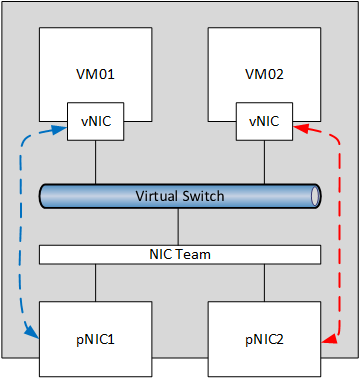
Hyper-V Switch Port will route traffic from a virtual NIC (either in a VM or in the management OS) to a single physical NIC in the team (a team member).  Let’s illustrate that.  In the below diagram, the NIC team is associating the traffic from the vNIC in VM01 with the team member called pNIC1.  The traffic from the vNIC in VM02 is being sent to pNIC2.  Two things to note:

  • The traffic path is predictable (unless a team member fails).  Incoming traffic to the virtual NICs is also going to flow through their associated physical NICs
  • This is not a per-VM association.  It is a per-virtual NIC association.  If we add a second virtual NIC to VM01 then the traffic for that virtual NIC could be associated with any team member by the NIC team.

image

This is one of the things that can confuse people.  They see a team of 2 NICs, maybe giving them a “2 Gbps” or “20 Gbps” pipe.  True, there is a total aggregation of bandwidth, but access to that bandwidth is given on per-team member basis.  That means the virtual NIC in VM02 cannot exceed 1 Gbps or 10 Gbps, depending on the speeds of the team members (physical NICs in the team).

Hyper-V Switch Port is appropriate if the team is being used for an external virtual switch (like the above examples) and:

  • You have more virtual NICs than you have physical NICs.  Maybe you have 2 physical NICs and 20 virtual machines.  Maybe you have 2 physical NICs and you are creating a converged fabric design with 4 virtual NICs in the management OS and several virtual machines.
  • You plan on using the Dynamic Virtual Machine Queue (DVMQ) hardware offload then you should use Hyper-V Switch Port traffic distribution.  DVMQ uses an RSS queue device in a team member to accelerate inbound traffic to a virtual NIC.  The RSS queue must be associated with the virtual NIC and that means the path of inbound traffic must come through the same team member every time… and Hyper-V Switch Port happens to do this via the association process.

As I said, there are times, when you might not use Hyper-V Switch Port.  Maybe you have some massive host, and you’re going to have just 2 massive VMs on it.  You could use one of the alternative load distribution algorithms then.  But that’s a very rare scenario.  I like to keep it simple for people: use Hyper-V Switch Port if you are creating the NIC team for a Hyper-V external virtual switch … unless you understand what’s going on under the hood and have one of those rare situations to vary.

Address Hashing

This method of traffic distribution in the NIC team does not associate virtual NICs with team members.  Instead, each packet that is sent down to the NIC team by the host/server is inspected.  The destination details of the packet (which can include MAC address, IP address, and port numbers) are inspected by the team to determine which team member to send the packet to.

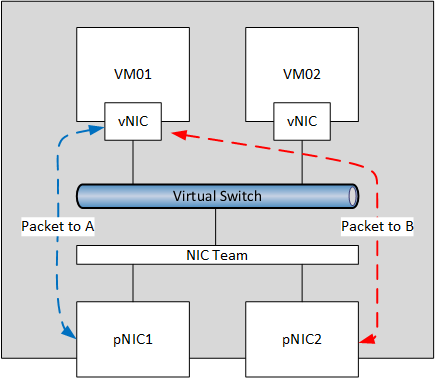
You can see an example of this in the below diagram.  VM01 is sending 2 packets, one to address A and the other to address B.  The NIC team receives the packets, performs a hashing algorithm (hence the name Address Hashing) on the destination details, and uses the results to determine the team member (physical NIC) that will send each packet.  In this case, the packet being send to A goes via pNIC1 and the packet being sent to B is going via pNIC2.

image

In theory, this means that a virtual NIC can take advantage of all the available bandwidth in the NIC team, e.g. the full 2 Gbps or 20 Gbps.  But this is completely dependent on the results of the hashing algorithm.   Using the above example, if all data is going to address A, then all packets will travel through pNIC1.

And that brings us to a most common question about NIC teams and bandwidth.  Say I have a host (or any server) that uses a nice big fat 20 GbE NIC team for Live Migration (or any traffic of a specific protocol).  I want to test Live Migration and the NIC team.  I pause the host, open up PerfMon and expect to see Live Migration using up all 20 Gbps of my NIC team.  What is going on here, under the hood?

  • Host1 is sending data to the single IP address of Host2 on the Live Migration network.
  • Live Migration is sending packets down to the NIC team.  The NIC team inspects each packet, and every one of them has the same destination details: the same MAC address, the same IP address, and same TCP port on Host2.
  • The destination details are hashed and result in all of the packets being sent via a single team member, pNIC1 in this case (see the below figure).
  • This limits Live Migration to the bandwidth of a single team member in the team.

image

That doesn’t mean Live Migration (or any other protocol – I just picked Live Migration because that’s the one Hyper-V engineers are likely to test with first) is limited to just a single team member.  Maybe I have a 3rd host, Host3, and pausing Host1 will cause VMs to Live Migrate to both Host2 and Host3.  The resulting hashing of destination addresses might cause the NIC team to use both team members in Host1 and give me a much better chance at fully using my lovely 20 GbE NIC team (other factors impact bandwidth utilization by Live Migration).

image

A misconception of Address Hashing is that packet1 to addressA will go via teamMember1, and pack2 to the same address (addressA) will go via teamMember2.  I have shown that this is not the case.  However, in most situations, traffic is going to all sorts of addresses and ports, and over the long term you should see different streams of traffic balancing across all of the team members in the NIC team … unless you have a 2 node Hyper-V cluster and are focusing on comms between the two hosts.  In that case, you’ll see 50% utilization of a 2-team-member NIC team – and you’ll be getting the FO part of LBFO until you add a third host.

If you configure a team in the GUI, you are only going to see Hyper-V Switch Port or Address Hash as the Load Balancing Mode options.  Using PowerShell, however, and you can be very precise about the type of Address Hashing that you want to do.  Note that the GUI “Address Hashing” option will use these in order of preference depending on the packets:

  1. TransportPorts (4-Tuple Hash): Uses the source and destination UDP/TCP ports and the IP addresses to create a hash and then assigns the packets that have the matching hash value to one of the available interfaces.
  2. IPAddresses (2-Tuple Hash): Uses the source and destination IP addresses to create a hash and then assigns the packets that have the matching hash value to one of the available interfaces. Used when the traffic is not UDP- or TCP-based, or that detail is hidden (such as with IPsec)
  3. MacAddresses: Uses the source and destination MAC addresses to create a hash and then assigns the packets that have the matching hash value to one of the available interfaces.  Used when the traffic is not IP-based.

My rule of thumb for Address Hashing is that I’ll use it for NIC teams that are nothing to do with a Hyper-V virtual switch, such as a NIC team in a non-host server, or a NIC team in a host that is nothing to do with a virtual switch.  However, if I am using the NIC team for an external virtual switch, and I have fewer virtual NICs connecting to the virtual switch than I have team members, then I might use Address Hashing instead of Hyper-V Switch Port.

EDIT:

WS2012 R2 added a new load distribution mode called Dynamic. It is enabled by default and should be used. It is a blend of Address Hashing for outbound traffic and Hyper-V Port for inbound traffic. Microsoft urges you to use this default load balancing method on WS2012 R2.

END EDIT

This information has been brought to you by Windows Server 2012 Hyper-V Installation and Configuration Guide (available on pre-order on Amazon) where you’ll find lots of PowerShell like in this script:
image


Windows Server 2012 NIC Teaming Part 5 – Configuration Matrix

Technorati Tags: Windows Server 2012,Hyper-V,Networking