Windows Server 2012 Hyper-V Live Migration Changes

I was listening to Jeff Woolsey talk at TechEd North America 2012 and he brought up an interesting piece on Windows Server 2012 Hyper-V Live Migration.  There are some interesting enhancements to Live Migration in WS2012 Hyper-V:

  • Idle memory is synchronised between the source and destination host first.  That makes sense.  No point in moving changing memory first because it will change before the first of up-to-10 synchronisation iterations completes.  So the inactive pages are moved first.
  • After that, the active pages can be synchronised.

Live Migration is “70% faster” than it was in the past.

KB2711774 – AltGr Key Does Not Work In Red Hat Linux virtual VM On A W2008R2 Hyper-V

Another hotfix for Linux VMs on Windows Server 2008 R2 Hyper-V.  This time it is for when the AltGr key does not work in a Red Hat Linux virtual machine on a Windows Server 2008 R2-based computer.

Consider the following scenario:

  • You install the Hyper-V role on a computer that is running Windows Server 2008 R2.
  • You install Red Hat Linux on a virtual machine.
  • You connect to the virtual machine from a computer that is connected to a non-US keyboard.

In this scenario, the AltGr key does not work in the Red Hat Linux virtual machine.

A supported hotfix is available from Microsoft.

KB2711771 – Incorrect Available Space Displayed In A Linux VM On W2008R2 Hyper-V

Microsoft has just released a KB article for when incorrect available space is displayed in a Linux Hyper-V virtual machine on a Windows Server 2008 R2-based computer.

Consider the following scenario:

  • You install the Hyper-V server role on a computer that is running Windows Server 2008 R2.
  • You install Linux on a Hyper-V virtual machine on the computer.
  • You attach a virtual hard disk (VHD) that is larger than 127 gigabytes (GB) to the Hyper-V virtual machine.

In this scenario, Linux displays only 127 GB of available space.

This issue occurs because Hyper-V cannot set bits in the LBA48 code.

A hotfix is available to fix this problem.

TechEd 2012 Sessions Now Appearing Online For Streaming/Download

As promised, the sessions from TechEd North America 2012 are appearing on an Channel 9 event site

image

You can watch the videos online, look at the slides, or even download the videos and slides.

There are, I believe, 26 sessions on Hyper-V.  Wow!  That’s around 26 hours of Hyper-V.

I could probably have swung expenses to attend but I just didn’t have time to get away from the office.  Watching the recorded sessions is a close second place to being there in person.  The content is free, so there is no excuse for not updating your skills and learning more … other than simple lack of interest in your career.

Technorati Tags:

Windows Server 2012 Continuous Availability Documentation

Microsoft has released some documents to accompany their TechEd 2012 sessions on Continuous Availability.

Windows Server 2012 contains a set of continuously available storage solutions that provide a cost effective alternative to an expensive storage area network (SAN) without sacrificing availability and performance. These solutions are targeted towards traditional information worker workloads and application workloads, and they span the scalability and price point needs for different market segments. Systems go from entry-level solutions to scale-out solutions with up to 400 drives. These solutions are based on software that is developed by several teams at Microsoft, hardware that is already in the market, and hardware that is being developed in cooperation with industry partners. These documents supplement the Microsoft TechEd 2012 sessions related to continuous availability. They introduce the new and enhanced features of Windows Server 2012 and cover topics such as Scale-Out File Server, Cluster-Aware Updating, SMB 3.0, and NIC Teaming.

When To Use And When NOT To Use A Scale-Out File Server

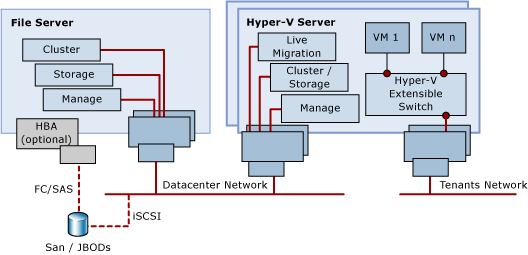
The new transparent failover, scalable, and continuously available active-active file server cluster, better known as Scale-Out File Server (SOFS) sounds really cool.  Big, cheap disk, that can be bundled into a file server cluster that has higher uptime than everything that came before.  It sure sounds like a cool way to provision file shares for end users.

And there’s the problem.  As announced at Build in 2011, that is not what the Scale-Out File Server For Applicaion Data (to give it it’s full name) is intended for.  Let’s figure out why; I always say if you understand how something works then you understand why/how to use something, and how/why not to use it.

The traditional active/passive clustered file server uses a shared-nothing disk that takes a few seconds to fail over from host to host. And it is active/passive.  The SOFS is active-active.  That means the file share, or the cluster resource, must be accessible on all nodes in the SOFS cluster.  We need a disk that is clustered and available on all nodes at the same time.  Does that sound familiar?  It should if you read this blog: because that’s the same demand Hyper-V has.  And in W2008 R2 we got Clustered Shared Volume (CSV), a clustered file system where one of the nodes orchestrates the files, folders, and access.

In CSV the CSV Coordinator, automatically handled by the cluster and made fault tolerant, handles all orchestration.  Example of that orchestration are:

  • Creating files
  • Checking user permissions

To do this, nodes in the cluster go into redirected mode for the duration of that activity for the relevant CSV.  In Hyper-V, we notice this during VSS backups in W2008 R2 (no longer present in WS2012 for VSS backup).  IO is redirected from the SAS/iSCSI/FC connections to the storage, an sent over a cluster network via the CSV coordinator, which then proxies the IO to the SAN.  This gives the CSV coordinator exclusive access to the volume to complete the action, e.g. create a new file, check file permissions.

This is a tiny deal for something like Hyper-V.  We’re dealing with relatively few files, that are big.  Changes include new VHD/VM deployments, and expansion of dynamic VHDs for VMs running non-coordinator nodes.  SQL is getting support to store it’s files on SOFS, and it also has few, big files, just like Hyper-V.  So no issue there.

Now think about your end user file shares.  Lots and lots of teeny tiny little files, constantly being browsed in Windows Explorer, being opened, modified, and having permissions checks.  Lots and lots of metadata activity.  If these file shares were on an SOFS then it would probably be in near permanent SMB redirected IO mode (as opposed to block level redirected IO mode which was added in WS2012 for data stream redirection, e.g. caused by storage path failure).

We are told that continuously available file shares on a SOFS are:

  • Good for file services with few, big files, with little metadata activity
  • Bad for file services with many, small files, with lots of metadata activity

The official statement from Microsoft for the usage of SOFS can be found on TechNet:

image

In other words, DO NOT use the Scale-Out File Server solution for end user file shares.  Do, and you will be burned.

[EDIT]

It’s been quite a while since I wrote this post, but people still are INCORRECTLY using SOFS as a file server for end users. They end up with problems, such as slow performance and this one. If you want to “use” a SOFS for file shares, then deploy a VM as a file server, and store that VM on the SOFS. Or deploy non-continuously available (legacy highly available) disks and shares on the SOFS for end users, but I prefer the virtual file server approach because it draws a line between fabric and services.

More VMware Compete Wins For Hyper-V

VMware made a cute video to defend themselves against Windows Server 2012 Hyper-V.  But MSFT continues to hand out a GTA IV style baseball beat down at TechEd.

This post would have been impossible without the tweeted pictures by David Davis at http://www.vmwarevideos.com

General Feature Comparison

Does your business have an IT infrastructure so you can play, or to run applications?  What features have you got to improve those services?

Capability vSphere Free vSphere 5.0 Ent + WS2012 Hyper-V
Incremental backups No Yes Yes
Inbox VM replication No No Yes
NIC teaming Yes Yes Yes
Integrated High Availability No Yes Yes
Guest OS Application Monitoring N/A No Yes
Failover Prioritization N/A Yes Yes
Affinity & Anti-Affinity Rules N/A Yes Yes
Cluster-Aware Updating N/A Yes Yes

So Hyper-V has more application integrations.

Live Migration

Capability vSphere Free vSphere 5.0 Ent + WS2012 Hyper-V
VM Live Migration No Yes Yes
1 GB Simultaneous Live Migrations N/A 4 Unlimited
10 GB Simultaneous Live Migrations N/A 8 Unlimited
Live Storage Migration No Yes Yes
Shared Nothing Live Migration No No Yes
Network Virtualisation No Partner Yes

Shared-nothing Live Migration is actually a big deal.  We know that 33% of business don’t cluster their hosts, and another 33% have a mix of clustered and non-clustered hosts.  Share-Nothing Live Migration enables mobility across these platforms.  Flexibility is the #2 reason why people virtualise (see Network Virtualisation later on).

Clustering

Can you cluster hosts, and if so, how many?  How many VMs can you put on a host cluster?  Apps require uptime too, because VMs need to be patched, rebooted, and occasionally crash.

Capability vSphere Free vSphere 5.0 Ent + WS2012 Hyper-V
Nodes/Cluster N/A 32 64
VMs/Cluster N/A 3000 4000
Max Size iSCSI Guest Cluster N/A 0 64 Nodes
Max Size Fibre Channel Guest Cluster 2 Nodes 2 Nodes 64 Nodes
Max Size File Based Guest Cluster 0 0 64 Nodes
Guest Clustering with Live Migration Support N/A No Yes
Guest Clustering with Dynamic Memory Support No No Yes

Based on this data, WS2012 Hyper-V is the superior platform for scalability and fault tolerance.

Virtual Switches

In a cloud, the virtual switch plays a huge role.  How do they stack up against each other?

Capability vSphere Free vSphere 5.0 Ent + WS2012 Hyper-V
Extensible Switch No Replaceable Yes
Confirmed partner extensions No 2 4
PVLAN No Yes Yes
ARP/ND Spoofing Protection No vShield/Partner Yes
DHCP Snooping Protection No vShield/Partner Yes
Virtual Port ACLs No vShield/Partner Yes
Trunk Mode to VMs No No Yes
Port Monitoring Per Port Group Yes Yes
Port Mirroring Per Port Group Yes No

Another win for WS 2012 Hyper-V.  Note that vShield is an additional purchase on top of vSphere.  Hyper-V is the clear feature winner in cloud networking.

Network Optimisations

Capability vSphere Free vSphere 5.0 Ent + WS2012 Hyper-V
Dynamic Virtual Machine Queue (DVMQ) NetQueue netQueue Yes
IPsec Task Offload No No Yes
SR-IOV DirectPath I/O DirectPath I/O Yes
Storage Encryption (CSV vs VMFS) No No Yes
  • NetQueue supports a subset of the VMware HCL
  • Apparently DirectPath I/O VMs cannot vMotion (Live Migrate) without certain Cisco UCS (blade server centres) configurations
  • No physical security for VMFS SANs in the data center or cololated hosting

Hyper-V wins on the optimisation side of things for denser and higher throughput network loads.

VMware Fault Tolerance

FT feature: Run a hot standby VM on another host, taking over if another host should fail.

Required sacrifices:

  • 4 FT VMs per host with no memory overcommit: expensive because of low host density
  • 1 vCPU per FT VM: Surely VMs that require FT would require more than one logical processor (physical thread of execution)?
  • EPT/RVI (SLAT) disabled: No offloaded memory management.  This boosts VM performance by around 20% so I guess this FT VM doesn’t require performance.
  • Hot-plug disabled: no hot adding devices such as disks
  • No snapshots: not such a big deal for a production VM in my opinion
  • No VCB (VSS) backups: This is a big deal, because now you have to do a traditional “iron” backup of the VM, requiring custom backup policy, discarding the benefits of storage level backup for VMs

If cost reduction is the #1 reason for implementing virtualisation, then VMware FT seems like a complete oxymoron to me.  VMware FT is a chocolate kettle.  It sounds good, but don’t try boil water with it.

VMware Autodeploy

Centrally deploy a Hypervisor from a central console.

We have System Center 2012 Virtual Machine Manager for bare metal deployment.  Yes, it’s a bit more complex to setup.  B-u-t … with converged fabrics in WS2012, Hyper-V networking is actually getting much easier.

And even with System Center 2012 Datacenter, the MSFT solution is way cheaper than the vSphere alternative, and provides a complete cloud in the package, whereas vSphere is only the start of your vTaxation for disparate point solutions that contradict desires for a deeply integrated, automated, connected, self-service infrastructure.

More Stuff

I didn’t see anything on SRM versus Hyper-V Replica but I guess it was probably discussed.  SRM is allegedly $250-$400 per VM.  Hyper-V Replica is free and even baked into the free Hyper-V Server.  And Hyper-V Replica works with cloud vendors as well as internal sites.  Orchestration of failover can be done manually, by very simple PowerShell scripts, or with System Center 2012 Orchestrator (demonstrated in day 1 keynote).

I don’t know anything about vSphere support for Infiniband and RDMA, both supported by WS2012.  In fact, today it was reported that WS2012 RC Hyper-V benchmarked at 10.36 GigaBYTES/second (not Gbps) with 4.6% CPU overhead.

I also don’t know if VMware supports network abstraction, as in Hyper-V Network Virtualisation, essential for mobility between different networks and cloud consolidation/migration.

Take some time to review the new features in WS2012 Hyper-V.
TechEd North America 2012 Day 2 Keynote

Antoine Leblond, Corporate Vice President is speaking, and the topic is Windows 8.

Over 600,000,000 copies of Windows 7 have been sold.  The enterprise features of Windows 8 are based on, but evolved from Windows 7.  We have moved on from the desktop-centric world when Windows 7 was launched.  Over 75% of consumer machines being bought in USA this year are laptops.  Next year it is projected that tablets will outsell PCs.  More machines will run off of the battery than DC power.  Every microwatt of power saved extends the battery life of the machine.  Tablets = touch UI.  If projections are right, then touch becomes the primary UI.

Connectivity is ubiquitous.  We have moved from a world of local content to a world of multi-cloud stored data: flickr, facebook, Skydrive, Office365, and many others.

The hard split between how I use a machine at home and how I use a machine at work has been blurred or completely dissolved.  Users have reimagined how they use PCs, and Microsoft has reimagined Windows.

Demo Business Apps

We see a bunch of bespoke apps with live tiles.  Info is flashed up so user can see current status.  The dev has use semantic zoom … a conceptual zoom rather than a graphic zoom. 

A CRM app uses GPS sensor to find out where the sales person is, and then shows the location of customers in a map.  Clever.

Linda Averett

Demo on Samsung Ultrabook with mouse/keyboard and a “modern touchpad”.  The Windows 8 gestures are recognised by the touchpad.  Kind of Mac-like I guess, handy if you don’t have touch screen – or are one of those OCD people who hates fingerprints on their screen.

A NewEgg app is shown, with search, filter and contracts being shown off.

Antoine Leblond

Now we see a sales pipeline automation app that is a beta/test app by SAP.  Looks very sexy … and it’s by SAP!  What an oxymoron!  Using touch, the user can explore the data that is graphically presented, changing variables and seeing the results.  Don’t thing columns and rows of numbers.  It was all imagery that was designed for exploring and touch.

Linda Averett – Business Features

She has a Lenovo laptop, but it has a touch screen.  Windows 7 is running in a Hyper-V VM on Windows 8.  As you should know by reading here, Hyper-V is in Windows 8 Pro and Enterprise.  It seems to get biggest cheer of anything in the keynotes so far (audience has been very quiet these 2 days).  Cut The Rope is running in IE 9 in the Win7 VM. 

BitLocker (AES256 full disk encryption) is shown off – it and BitLocker-To-Go now are in Windows 8 Pro, not just in the Enterprise edition.  Great for customers – not great for those of us trying to sell Software Assurance Smile 

Then lots of dev stuff and then the end of the keynote.

Technorati Tags: ,

Import/Export OVF With Hyper-V Using System Center 2012

A new extension has been released for System Center 2012 Virtual Machine Manager (VMM) that allows you to import and export virtual appliances using the Open Virtualisation Format (OVF).  OVF is a vendor neutral format for out-of-band migration of virtual appliance VMs.  This is the perfect way to get from one cloud to another, where specialisations would make direct import/export impossible.

There is more on this tool on TechNet

VMware also has an OVF tool that you can download.  I think that XenServer 5.6 has XenServer support baked in.

You can learn more about OVF on Wikipedia.

Renaming Cluster Networks In Windows Server 2012

When I’m building a Hyper-V cluster, I like to rename the networks so I know what is what when tuning them.  I’ve previously given you a script to configure a converged fabric host and the code to build a cluster.  Instead of manually renaming the networks, you can do this:

(Get-ClusterNetwork | where-object {$_.Address -eq "172.16.2.0"}).Name = "vEthernet (Host-LiveMigration)"

This cmdlet will find the network you want to rename by querying for it’s IP address.  In this case, find the network 172.16.2.0.  I know this will be my migration network.  Using the object oriented nature of PowerShell (everything is either an object or a method, and objects have attributes), I grab the Name of the resulting network and set it to "vEthernet (Host-LiveMigration)".

The cluster network is then renamed from the anonymous Cluster Network X to a more useful and human friendly name, which is also the name I’m using on my converged fabric virtual NICs.

image

Just repeat this for each network in your script and you’ll have automated yet another step in the cluster creation process.