TechEd Europe 2012 Day 1 Keynote Notes #TEE12

Great that TechEd is back in Amsterdam.  I wish I was there.  Berlin is a nice city, but the Messe is a hole.

Brad Anderson

Mentions the Yammer acquisition, Windows Phone 8, and the new Surface tablets.  He’s talking about change.  Is it chaos or is it opportunity?  Pitching the positive spin of innovation in change.

Think of storage, compute, and network as one entity, manage it as such.  In other words: Windows Server 2012, System Center 2012, and Azure are integration into a single solution – you pick and choose the ingredients that you want in the meal.

Patrick Lownds has tweeted a great word: convergence.  This is beyond hybrid cloud; this is converged clouds.

Design with the knowledge that failures happen.  That’s how you get uptime and continuous availability of the service.  Automation of process allows scalability.

Hyper-V: “no workload that you cannot virtualise and run on Hyper-V”.  We’re allegedly going to see the largest every publicly demonstrated virtual machine.

Jeff Woolsey

The energetic principal PM for Windows Server virtualisation.  “Extend to the cloud on your terms”.  Targeted workloads that were not virtualisable.  Dozens of cores.  Hundreds of MB RAM.  Massive IOPS requirements.  This demo (40 SSDs) is same as 10 full sized fully populated racks of traditional SAN disk.  MSFT using SSD in this demo.  VMware: up to 300,000 IOPS.  Hyper-V now beats what it did in TechEd USA: Over 1,000,000 (1 million) IOPS from a Hyper-V VM.

Iometer

Now we see the Cisco Nexus 1000v Hyper-V Switch extension (not a switch replacement like in VMware).  Shows off easy QoS policy deployment.

PowerShell:  Over 2400 cmdlets in WS2012.  Now we’re going to see Hyper-V Replica management via System Center 2012 Orchestrator.  A Site Migration runbook.  It verifies source/destination, and then it brings up the VMs in the target location in the order defined by the runbook.  And we see lots of VMs power up.

Once again, we see System Center 2012 App Controller integrating with a “hosting company” and enabling additional VM hosting capacity beyond the private cloud.

I”m wrapping up here … looks like the keynote is mostly the same as the USA one (fine for 99% of the audience who aren’t hooked to their Twitter/RSS like myself) and I have to head to work.

This keynote recording will be available on Channel 9, and the USA one is already there.  Enjoy!

Technorati Tags:

Windows Server Backup Supports WS2012 Hyper-V Clusters

On Sunday evening I tweeted about something I’ve been playing with for the last week …

image

… and I was called a tease Smile  Caught, red handed!

Windows Server Backup (WSB) in Windows Server 2012, out of the box with no registry edits, can backup:

  • Running virtual machines on a standalone host – a slight improvement over the past where a registry edit was required to register the VSS Hyper-V Writer
  • Running virtual machines on a cluster shared volume (CSV) – this is absolutely new

Note that WSB does not support VMs that are stored on SMB 3.0 file shares.  You’ll need something else for that.

I’ve done a lot of testing over the last week, trying out different scenarios in the cluster, and restoring “lost” VMs.  Everything worked.  You can backup to a volume, a drive, or a file share.  This is a very nice solution for a small company that wants a budget virtualisation solution. 

As for my step-by-steps … I’m working on it but you’ll have to wait for that … and that is another tease Smile

Microsoft Private Cloud Computing Available In Paperback

Last Sunday Wiley released the electronic version of Microsoft Private Cloud Computing in Amazon Kindle, and other formats such as iTunes

Oddly enough, the paper version is usually released before the digital ones.  I know that sounds backwards but it has always been my experience.  I can confirm that the paper editions are actually available.  There seems to have been an issue with distribution so Amazon still don’t have stock but should have soon.

image

How To Move Highly Available VMs to a WS2012 Hyper-V Cluster

I’ve been asked over and over and over how to upgrade from a Windows Server 2008 R2 Hyper-V cluster to a Windows Server 2012 Hyper-V cluster.  You cannot do an in-place upgrade of a cluster.  What I’ve said in the past, and it still holds true, is that you can:

  1. Buy new host hardware, if your old hardware is out of support, build a new cluster, and migrate VMs across (note that W2008 R2 does not support Shared-Nothing Live Migration), maybe using export/import or VMM.
  2. Drain a host in your W2008R2 cluster of VMs, rebuild it with WS2012, and start a new cluster.  Again, you have to migrate VMs over.

The clustering folks have another way of completing the migration in a structured way.  I have not talked about it yet because I didn’t see MSFT talk about it publicly, but that changes as of this morning.  The Clustering blog has details on how you can use the Cluster Migration Wizard to migrate VMs from one cluster to another

There is still some downtime to this migration.  But that is limited by migrating the LUNs instead of the VHDs using unmask/mask – in other words, there is no time consuming data copy.

Features of the Cluster Migration Wizard include:

  • A pre-migration report
  • The ability to pre-stage the migration and cut-over during a maintenance window to minimize risk/impact of downtime.  The disk and VM configurations are imported in an off state on the new cluster
  • A post-migration report
  • Power down the VMs on the old cluster
  • You de-zone the CSV from the old cluster – to prevent data corruption by the LUN/VM storage being accessed by 2 clusters at once
  • Then you zone the CSV for the new cluster
  • You power up the VMs on the new cluster

Read the post by the clustering group (lots more detail and screenshots), and then check out a step-by-step guide.

Things might change when we migrate from Windows Server 2012 Hyper-V to Windows Server vNext Hyper-V, thanks to Shared-Nothing Live Migration Smile

EDIT#1:

Fellow Virtual Machine MVP, Didier Van Hoye, beat me to the punch by 1 minute on this post Smile  He also has a series of posts on the topic of cluster migration.

How To Scale Beyond A Hyper-V Cluster-In-A-Box

Earlier this week I posted some notes from a TechEd North America 2012 session that discussed the Cluster-In-A-Box solution.  Basically, this product is a single box unit, probably with two server blades, all the cluster networking, and JBOD storage attached by SAS Expanders, all in a single chassis.  For a small implementation, you can install Hyper-V on the blades in the box, and use the shared JBOD storage to create a small, economic cluster.

I’ve been thinking about the process for expanding our scaling beyond this box.  At the moment, without playing with it because it doesn’t exist in the wild yet, I can envision three scenarios.

Scale Up

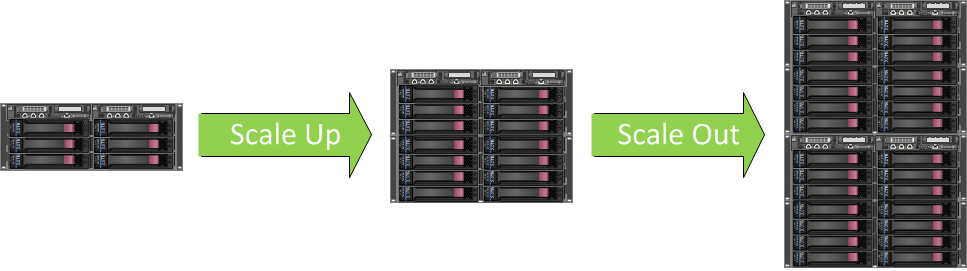
On the left I have put together a cluster-in-a-box.  It has 2 server blades and a bunch of disk.  Eventually the company grows.  If the blades can handle it, I can add more CPU and RAM.  It is likely that the box solution will also allow me to add one or more disk trays.  This would allow me to scale up the installation.

image

Scale Out

I’ve reset back to the original installation, and the company wants to grow once again.  However, circumstances have changed.  Maybe one of the following is true:

  • I’ve reached my CPU or RAM limit in the blades
  • My box won’t support disk trays
  • I’m concerned with putting two many eggs in one basket, and want to have more hosts

In that case, I can scale out by buying another cluster-in-a-box, with the obvious price of having another cluster and storage subsystem to manage.

image

Scale Up & Out

I’ve reset once again.  Now the company wants to grow.  Step #1 because my box allows it, is to scale up.  I add more disk and CPU and grow the VM density of my 2 node cluster.  But eventually I start approaching a certain trigger point where I need to buy once again.  What I can do now is add a second cluster in a box, probably starting with a basic kit, and grow it with more disk and CPU as the company grows.

image

Migrate To Traditional Cluster & Scale-Out-File-Server (SOFS)

Let’s consider another scenario.  The company starts with a cluster in a box and scales it up.  We’re approaching the point where we need to scale out.  We have a choice:

  • Scale out with another cluster in a box?
  • Migrate to a traditional cluster with dedicated storage?

My big concern might be flexibility and simplicity as I scale the size of the infrastructure.  Having lots of clusters is with isolated storage might be good … but I think that’s a minority of situations.  Maybe we should migrate to something more traditional … but not iSCSI because we already own a cool storage platform!

In this case, I’m going to leverage a few things we can do in Windows Server 2012:

  • Shared Nothing Live Migration will allow me to move my virtual machines from the cluster in a box to a Hyper-V cluster made up of traditional rack/blade servers.
  • SMB 3.0 (with Multichannel and Direct) gives me great storage performance so I can re-use the cluster in a box as a storage platform.
  • I can convert the cluster in a box into a Scale-Out File Server (SOFS). 

Obviously I have not tested this but here’s how I think it could go:

  1. Enable SOFS on the cluster in a box with a single initial share on each CSV
  2. Prepare the Hyper-V hosts and cluster them without storage
  3. Grant admins and the Hyper-V hosts full permission to the SOFS shares
  4. Use Shared Nothing Live Migration to move the VMs to the new Hyper-V cluster, placing VMs in the same CSV as before via the share … this will require some free disk space.

image

With this solution you can grow the environment.  The cluster in a box becomes a dedicated storage platform, and you can add disk to it.  Your single Hyper-V cluster can scale well beyond the 2 node limit of the cluster in a box.  And you can do that without any service downtime … well, that’s what I think at the moment Smile  We’ll find out more in the future, I guess.

Caught Another Blog Post Thief – Meet Roger Jennings of Oakleaf Systems

I was checking activity on my site and spotted a glut of incoming links from a single site.  That gets my attention.  Meet Roger Jennings (@rogerjenn), of Oakleaf Systems, CA, USA:

image

You see, Roger was named on of the top 20 big data influencers by Forbes.  I bet he was just too busy to do his own work, so he though he’d steal from others.  I bet Forbes didn’t know that!

Want some proof?  OK go visit:

Hell, just do a Google site search and you’ll see how much Roger has been copying and pasting.

He is copying entire blog posts.  Stealing in my opinion.  Check this out:

image

Now compare it with the original:

image

It’s not just me either; Roger Jennings like to copy the work of lots of people.  I wonder if he’ll copy this post?

Oh Roger, I have ways of making it hurt.  Google (hosts of the blog) are now aware, as are a certain other cloud company Smile Remove my blog posts now.

Very sincerely,

Aidan Finn.

Update #1 (25/06/2012):

I received a message overnight from Roger that he’d be removing all the offending posts.  The excuse given: Only 2 other people had complained of his content theft in the past 8 years.  I’m sure a lot of others would complain if they’d only known.

Going To TechEd Europe 2012? It’s Going To Be A Difficult Week For You

If TechEd Europe is anything like TechEd North America then you’re in for a challenge.  So far, I have around 50 hours of video downloaded.  A friend who was speaking at the NA event said there were typically 4 sessions in each time slot that he wanted to attend.  What a great problem to have!

Unfortunately I won’t be attending.  I’ve been to a number of events in the past year.  I’m also snowed under with work, trying to prepare some training materials – not to mention a side project that will consume quite a bit of time.  We are sending someone else from the office – there’s just too much new information to ignore.

Fellow Irish MVP and co-author Damian Flynn is not only attending TechEd, but he’s also speaking in four sessions.  Be sure to check out what “Captain Cloud” (I’m calling him that now) has to say.  Damian is an honest and entertaining speaker – and he knows a lot about creating a private cloud with System Center.

Another co-author and UK MVP, Patrick Lownds, is scheduled to be working at the HP stand.  Be sure to check out what he has to tell you in the Exhibition Hall.

My first TechEd was Amsterdam in 2004.  I love the venue there … it was big, well organised, easy to get around, and well connected to the city (bus, street tram, and train from Central).  I’m sure some of you will *ahem* enjoy the local tourist amenities – but make sure you make the most of the sessions.  There is an incredible amount of information being shared at these events.

Technorati Tags:

Altaro Blog Post – Hyper-V Guest Design: Fixed vs. Dynamic VHD

I still encounter people who are confused by the disk options in Hyper-V.  Altaro have updated their blog with a post, discussing the merits of passthrough (raw) disk, fixed VHD, and dynamic VHD and it’s worth a read.  Being a storage company, it’s worth paying attention to their observations.

Further to their notes I’d add:

  • Windows Server 2012 adds a new VHDX format that is 4K aligned and expands out to 64 TB (VHD max is 2040 GB and VMDK is 2 TB).
  • Storage level backup cannot be done using passthrough disks so you have to revert to traditional backup processes.
  • Passthrough disks lock your VM into a physical location and you lose flexibility.
  • Advanced features like snapshots and Hyper-V Replica cannot be implemented with passthrough disks.
  • In production I always favour Fixed VHD over Dynamic.  However, I can understand if you choose Dynamic VHD for your OS VHDs (with no data at all) and place these onto a dedicated CSV (with no data VHDs on it) – assuming that data VHDs are fixed and placed on different CSVs.

Have a read of the Altaro post and make up your own mind.

Why Would Microsoft Launch Surface Now?

Then again, why would Microsoft release Surface at all?  Windows 8 is a huge play call by Microsoft.  By re-imagining Windows, they are bringing in major change.  And there hasn’t been anything like this amount of change since Windows 95.  It’s a risk and everyone wants to mitigate risk.

What we’ve learned in the last 3 years is that the device plays as much of a role in the consumer sale as the operating system, if not more.  Microsoft has always relied on hardware partners for the most part.  Yes, they’ve built a better mouse, a better web cam, and the XBox.  But in the PC realm, they relied on partners.

Look at some of the devices that we’ve seen announced.  There have been many slate PCs and tablets that offer nothing new – just more of the same that used to run Android and would now run Windows 8 – former wannabe iPad killers.  In the the Ultrabook market we have seen some rather strange device choices too … that one with the screen on the outside was ridiculous.

Not all have been silly or lacked innovation.  I like the look of some of the slide-out slates/tablets where the keyboard lives under the screen and can slide out to produce a more normal looking laptop experience.

My guess is that Microsoft wanted to lead on the success of Windows 8, rather than depend on the hardware leadership of others.  By creating Surface, Microsoft has built sexy, stylish, and innovative devices, something that the OEMs should have done.  They have challenged the OEMs to produce something different, something better.  Don’t just reinvent the same old thing with a different OS and new processor version.  Be creative.  Use new form factors.  Take advantage of new components.  Challenge each other and steal the lead from Microsoft.

By launching now instead of at Windows GA (October is my guess) it’s giving the OEMs time to get their act in gear sooner rather than later.  I hope the OEMs do respond positively – I’d like to see cool devices for Windows 8 being sold outside of the USA.

That’s my 2 cents on the matter.

Technorati Tags: ,,

Windows Server 2012 NIC Teaming and Multichannel

Notes from TechEd NA 2012 WSV314:

image

Terminology

  • It is a Team, not NIC bonding, etc.
  • A team is made of Team Members
  • Team Interfaces are the virtual NICs that can connect to a team and have IP stacks, etc.  You can call them tNICs to differentiate them from vNICs in the Hyper-V world.

image

Team Connection Modes

Most people don’t know the teaming mode they select when using OEM products.  MSFT are clear about what teaming does under the cover.  Connection mode = how do you connect to the switch?

  • Switch Independent can be used where the switch doesn’t need to know anything about the team.
  • Switch dependent teaming is when the switch does need to know something about the team. The switch decides where to send the inbound traffic.

There are 2 switch dependent modes:

  • LACP (Link Aggregation Control Protocol) is where the is where the host and switch agree on who the team members are. IEEE 802.1ax
  • Static Teaming is where you configure it on the switch.

image

Load Distribution Modes

You also need to know how you will spread traffic across the team members in the team.

1) Address Hash comes in 3 flavours:

  • 4-tuple (the default): Uses RSS on the TCP/UDP ports. 
  • 2-tuple: If the ports aren’t available (encrypted traffic such as IPsec) then it’ll go to 2-tuple where it uses the IP address.
  • MAC address hash: If not IP traffic, then MAC addresses are hashed.

2) We also have Hyper-V Port, where it hashes the port number on the Hyper-V switch that the traffic is coming from.  Normally this equates to per-VM traffic.  No distribution of traffic.  It maps a VM to a single NIC.  If a VM needs more pipe than a single NIC can handle then this won’t be able to do it.  Shouldn’t be a problem because we are consolidating after all.

Maybe create a team in the VM?  Make sure the vNICs are on different Hyper-V Switches. 

SR-IOV

Remember that SR-IOV bypasses the host stack and therefore can’t be teamed at the host level.  The VM bypasses it.  You can team two SR-IOV enabled vNICs in the guest OS for LBFO.

Switch Independent – Address Hash

Outbound traffic in Address Hashing will spread across NICs. All inbound traffic is targeted at a single inbound MAC address for routing purposes, and therefore only uses 1 NIC.  Best used when:

  • Switch diversity is a concern
  • Active/Standby mode
  • Heavy outbound but light inbound workloads

Switch Independent – Hyper-V Port

All traffic from each VM is sent out on that VM’s physical NIC or team member.  Inbound traffic also comes in on the same team member.  So we can maximise NIC bandwidth.  It also allows for maximum use of VMQs for better virtual networking performance.

Best for:

  • Number of VMs well exceeds number of team members
  • You’re OK with VM being restricted to bandwidth of a single team member

Switch Dependent Address Hash

Sends on all active members by using one of the hashing methods.  Receives on all ports – the switch distributes inbound traffic.  No association between inbound and outbound team members.  Best used for:

  • Native teaming for maximum performance and switch diversity is not required.
  • Teaming under the Hyper-V switch when a VM needs to exceed the bandwidth limits of a single team member  Not as efficient with VMQ because we can’t predict the traffic.

Best performance for both inbound and outbound.

Switch Dependent – Hyper-V Port

Sends on all active members using the hashed port – 1 team member per VM.  Inbound traffic is distributed by the switch  on all ports so there is no correlation to inbound and outbound.  Best used when:

  • When number of VMs on the switch well exceeds the number of team members AND
  • You have a policy that says you must use switch dependent teaming.

When using Hyper-V you will normally want to use Switch Independent & Hyper-V Port mode. 

When using native physical servers you’ll likely want to use Switch Independent & Address Hash.  Unless you have a policy that can’t tolerate a switch failure.

Team Interfaces

There are different ways of interfacing with the team:

  • Default mode: all traffic from all VLANs is passed through the team
  • VLAN mode: Any traffic that matches a VLAN ID/tag is passed through.  Everything else is dropped.

Inbound traffic passes through to one team interface at once.

image

The only supported configuration for Hyper-V is shown above: Default mode passing through all traffic t the Hyper-V Switch.  Do all the VLAN tagging and filtering on the Hyper-V Switch.  You cannot mix other interfaces with this team – the team must be dedicated to the Hyper-V Switch.  REPEAT: This is the only supported configuration for Hyper-V.

A new team has one team interface by default. 

Any team interfaces created after the initial team creation must be VLAN mode team interfaces (bound to a VLAN ID).  You can delete these team interfaces.

Get-NetAdapter: Get the properties of a team interface

Rename-NetAdapter: rename a team interface

Team Members

  • Any physical ETHERNET adapter with a Windows Logo (for stability reasons and promiscuous mode for VLAN trunking) can be a team member.
  • Teaming of InfiniBand, Wifi, WWAN not supported.
  • Teams made up of teams not supported.

You can have team members in active or standby mode.

Virtual Teams

Supported if:

  • No more than 2 team members in the guest OS team

Notes:

  • Intended for SR-IOV NICs but will work without it.
  • Both vNICs in the team should be connected to different virtual switches on different physical NICs

If you try to team a vNIC that is not on an External switch, it will show up fine and OK until you try to team it.  Teaming will shut down the vNIC at that point. 

You also have to allow teaming in a vNIC in Advanced Properties – Allow NIC teaming.  Do this for each of the VM’s vNICs.  Without this, failover will not succeed. 

PowerShell CMDLETs for Teaming

The UI is actually using POSH under the hood.  You can use the NIC Teaming UI to remotely manage/configure a server using RSAT for Windows 8.  WARNING: Your remote access will need to run over a NIC that you aren’t altering because you would lose connectivity.

image

Supported Networking Features

NIC teaming works with almost everything:

image

TCP Chimney Offload, RDMA and SR-IOV bypass the stack so obviously they cannot be teamed in the host.

Limits

  • 32 NICs in a team
  • 32 teams
  • 32 team interfaces in a team

That’s a lot of quad port NICs.  Good luck with that! Winking smile 

SMB Multichannel

An alternative to a team in an SMB 3.0 scenario.  Can use multiple NICs with same connectivity, and use multiple cores via NIC RSS to have simultaneous streams over a single NIC (RSS) or many NICs (teamed, not teamed, and also with RSS if available).  Basically, leverage more bandwidth to get faster SMB 3.0 throughput.

Without it, a 10 GbE NIC would only be partly used by SMB – single CPU core trying to transmit.  RSS makes it multi-threaded/core, and therefore many connections by the data transfer.

Remember – you cannot team RDMA.  So another case to use Multichannel and get an LBFO effect is to use SMB Multichannel …. or I should say “use” … SMB 3.0 turns it on automatically if multiple paths are available between client and server.

SMB 3.0 is NUMA aware.

Multichannel will only use NICs of same speed/type.  Won’t see traffic spread over a 10 GbE and a 1 GbE NIC, for example, or over RDMA-enabled and non-RDMA NICs. 

In tests, the throughput on RSS enabled 10 GbE NICs (1, 2, 3, and 4 NICs), seemed to grow in a predictable near-linear rate.

SMB 3.0 uses a shortest queue first algorithm for load balancing – basic but efficient.

SMB Multichannel and Teaming

Teaming allows for faster failover.  MSFT recommending teaming where applicable.  Address-hash port mode with Multichannel can be a nice solution.  Multichannel will detect a team and create multiple connections over the team.

RDMA

If RDMA is possible on both client and server then SMB 3.0 switches over to SMB Direct.  Net monitoring will see negotiation, and then … “silence” for the data transmission.  Multichannel is supported across single or multiple NICs – no NIC teaming, remember!

Won’t Work With Multichannel

  • Single non-RSS capable NIC
  • Different type/speed NICs, e.g. 10 GbE RDMA favoured over 10 GbE non-RDMA NIC
  • Wireless can be failed from but won’t be used in multi-channel

Supported Configurations

Note that Multichannel over a team of NICs is favoured over multichannel over the same NICs that are not in a team.  Added benefits of teaming (types, and fast failover detection).  This applies, whether the NICs are RSS capable or not.  And the team also benefits non-SMB 3.0 traffic.

image

Troubleshooting SMB Multichannel

image

Plenty to think about there, folks!  Where it applies in Hyper-V?

  • NIC teaming obviously applies.
  • Multichannel applies in the cluster: redirected IO over the cluster communications network
  • Storing VMs on SMB 3.0 file shares