HP ProLiant Gen8 Servers Launched

HP has launched their Gen8 (not G8) line of ProLiant servers.  The machine I was most interested in was the DL380p Gen8 because that’s the model I’d most encounter in virtualisation.  Some highlights:

  • 2 CPU sockets handling up to 8 cores each
  • 24 DIMM slots (requires HP SmartMemory for warrantee and performance) with a maximum of 768 GB (!!!) RAM using 32 GB RDIMM.
  • Choice between 4 * 1 GbE or 2 * 10 GbE NICs on board.
  • iLO 4

On board management has taken a bit of a leap forward:

  • HP iLO: The HP iLO management processor is the core foundation for HP iLO Management Engine. HP iLO for HP ProLiant servers simplify server setup, engage health monitoring, power and thermal control, and promote remote administration for HP ProLiant ML, DL, BL and SL servers. Furthermore with the new HP iLO is the ability to access, deploy, and manage your server anytime from anywhere with your Smartphone device.
  • HP Agentless Management: With HP iLO Management Engine in every HP ProLiant Gen8 server, the base hardware monitoring and alerting capability is built into the system (running on the HP iLO chipset) and starts working the moment that a power cord and an Ethernet cable is connected to the server.
  • HP Active Health System: HP Active Health System is an essential component of the HP iLO Management Engine. It provides: Diagnostics tools/scanners wrapped into one; Always on, continuous monitoring for increased stability and shorter downtimes; Rich configuration history; Health and service alerts; Easy export and upload to Service and Support.
  • HP Intelligent Provisioning (previously known as SmartStart): HP Intelligent Provisioning offers the ability for out-of-the box single-server deployment and configuration without the need for media”.

On the blade front, there is a new BL460c Gen8:

  • 2 CPU sockets handling up to 8 cores each
  • 16 DIMM slots (requires HP SmartMemory for warrantee and performance) with a maximum of 512 GB RAM using 32 GB RDIMM.
  • One (1) HP FlexFabric 10Gb 2-port 554FLB FlexibleLOM
  • iLO 4

There’s crazy big scalability in each host if you can justify it.  To counter that you have the “too many eggs in one basket” argument.  I wonder how much a 32 GB SmartMemory DIMM costs Smile  To reach the densities that this hardware can offer, you will absolutely need to install the very best of networking such as 10 GbE.  I’d even start wondering about InfiniBand!

KB2681638 – Network Connectivity Is Lost On Hyper-V VMs If VMQ Feature Is Enabled On HOST Network Cards

New new KB article was posted for Hyper-V:

“Consider the scenario:

  • A server running Windows Server 2008 R2 with Hyper-V installed or Microsoft Hyper-V Server 2008 R2.
  • Live migration of VMs would result in drop of network connections on Guest VM that use VLAN. Network is restored when migration is complete.
  • Issue occurs only if Virtual Machine Queue (VMQ) is enabled on the HOST network and disabled on virtual networks.

Note: If we disable VMQ on Host network, Live migration of Guest VMs is successful without Network drop.

NICs are introduced with new feature "VMQ- Virtual Machine Queues". Earlier Hyper-V used to create the queue and segregate the traffic between the VMs, however with VMQ enabled, this option is offloaded to NICs. Creating and sorting of queues are done by the NICs.

Just enabling VMQ on NIC is not sufficient. VMQ does require some registry for VMSMP to understand the VMQ feature and support it.

Caution This section contains steps that tell you how to modify the registry. However, serious problems might occur if you modify the registry incorrectly. Therefore, make sure that you follow these steps carefully. For added protection, back up the registry before you modify it. Then, you can restore the registry if a problem occurs.
To resolve this particular issue, follow below steps to add registry subkeys on the host server.

  1. To open an elevated Command Prompt window, click Start, point to All Programs, click Accessories, right-click Command Prompt, and then click Run as administrator.
  2. Type regedit, and then press ENTER.
  3. In the Registry Editor, open the sub-key HKEY_LOCAL_MACHINESYSTEMCurrentControlSetControlClass{4D36E972-E325-11CE-BFC1-08002BE10318 and locate the sub-key for the network adapter you want to work with. Sub-keys are four numbers (for example 0003 and 0010). Make a note of it. You will need it later in this procedure.
  4. Return to the elevated command prompt window.
  5. At the command prompt, type the following commands based on the type of network adapter you are using. For each command, substitute the sub-key from earlier in this procedure for ID.
    1. For 1 GBPS network adapters, type
      reg add HKEY_LOCAL_MACHINESYSTEMCurrentControlSetControlClass{4D36E972-E325-11CE-BFC1-08002BE10318ID /v *MaxRssProcessors /t REG_DWORD /d 1 /f
      press ENTER
      reg add HKEY_LOCAL_MACHINESYSTEMCurrentControlSetControlClass{4D36E972-E325-11CE-BFC1-08002BE10318ID /v *RssBaseProcNumber /t REG_DWORD /d 0 /f
      and then press ENTER.
    2. For 10 GBPS network adapters, type
      reg add HKEY_LOCAL_MACHINESYSTEMCurrentControlSetControlClass{4D36E972-E325-11CE-BFC1-08002BE10318ID /v *MaxRssProcessors /t REG_DWORD /d 3 /f
      press ENTER,
      reg add HKEY_LOCAL_MACHINESYSTEMCurrentControlSetControlClass{4D36E972-E325-11CE-BFC1-08002BE10318ID /v *RssBaseProcNumber /t REG_DWORD /d 0 /f
      and then press ENTER.
    3. Reboot the Host server for registry changes to take affect.

Important: If you are configuring more than one network adapter, each adapter should have a different value assigned to the *RssBaseProcNumber sub-key with sufficient difference so that there are no overlapping RSS processors.
For example, if Network Adapter A has a value of 0 assigned to *RssBaseProcNumber and a value of 3 assigned to *MaxRssProcessors, Network Adapter B should have an *RssBaseProcNumber of 4”.

SQL Server 2012 RTM

I read yesterday that SQL Server 2012 had RTMd.  It’s not on MSDN yet.  The online launch event is later today at 16:00 GMT.  There’s lots more information about this new release on TechNet.  There’s a lot of new features, way too many for me to cover here, but the best one might be AlwaysOn.  That’s a new database (or group of databases) availability feature, similar to DAG in Exchange. 

Please take note that SQL 2012 licensing is very different from what you are used to and there is a migration path for those with Software Assurance/upgrade rights.

Before you go upgrading your SQL, make sure that your products support SQL Server 2012.  Don’t just go assuming that they will, e.g. System Center.

EDIT1:

SQL 2012 general availability will be April 1st.  Please, no jokes Smile

Technorati Tags:

Windows Server 2012 Hyper-V Replica … In Detail

If you asked me to pick the killer feature of WS2012 Hyper-V, then Replica would be high if not at the top of my list (64 TB VHDX is right up there in the competition).  In Ireland, and we’re probably not all that different from everywhere else, the majority of companies are in the small/medium enterprise (SME) space and the vast majority of my customers work exclusively in this space.  I’ve seen how DR is a challenge to enterprises and to the SMEs alike.  It is expensive and it is difficult.  Those are challenges an enterprise can overcome by spending, but that’s not the case for the SME.

Virtualisation should help.  Hardware consolidation reduces the cost, but the cost of replication is still there.  SAN’s often need licenses to replicate.  SAN’s are normally outside of the reach of the SME and even the corporate regional/branch office.  Software replication which is aimed at this space is not cheap either, and to be honest, some of them are more risky than the threat of disaster.  And let’s not forget the bandwidth that these two types of solution can require.

Isn’t DR Just An Enterprise Thing?

So if virtualisation mobility and the encapsulation of a machine as a bunch of files can help, what can be done to make DR replication a possibility for the SME?

Enter Replica (Hyper-V Replica), a built-in software based asynchronous replication mechanism that has been designed to solve these problems.  This is what Microsoft envisioned for Replica:

  • If you need to replicate dozens or hundreds of VMs then you should be using a SAN and SAN replication.  Replica is not for the medium/enterprise sites.
  • Smaller branch offices or regional offices that need to replicate to local or central (head office or HQ data centre) DR sites.
  • SME’s who want to replicate to another office.
  • Microsoft partners or hosting companies that want to offer a service where SME’s could configure important Windows Server 2012 Hyper-V host VMs to replicate to their data centre – basically a hosted DR service for SMEs.  Requirements of this is that it must have Internet friendly authentication (not Kerberos) and it must be hardware independent, i.e. the production site storage can be nothing like the replica storage.
  • Most crucially of all: limited bandwidth.  Replica is designed to be used on commercially available broadband without impacting normal email or browsing activity – Microsoft does also want to sell them Office 365, after all Smile How much bandwidth will you need?  How long is a piece of string?  Your best bet is to measure how much change there is to your customers VMs every 5 minutes and that’ll give you an idea of what bandwidth you’ll need.

Figure 1  Replicate virtual machines

In short, Replica is designed and aimed at the ordinary business that makes up 95% of the market, and it’s designed to be easy to set up and invoke.

What Hyper-V Replica Is Not Intended To Do

I know some people are thinking of this next scenario, and the Hyper-V product group anticipated this too.  Some people will look at Hyper-V Replica and see it as a way to provide an alternative to clustered Hyper-V hosts in a single site.  Although Hyper-V Replica could do this, it is not intended for for this purpose.

The replication is designed for low bandwidth, high latency networks that the SME is likely to use in inter-site replication.  As you’ll see later, there will be a delay between data being written on host/cluster A and being replicated to host/cluster B.

You can use Hyper-V Replica within a site for DR, but that’s all it is: DR.  It is not a cluster where you fail stuff back and forth for maintenance windows – although you probably could shut down VMs for an hour before flipping over – maybe – but then it would be quicker to put them in a saved state on the original host, do the work, and reboot without failing over to the replica.

How It Works

I describe Hyper-V Replica as being a storage log based asynchronous disaster recovery replication mechanism.  That’s all you need to know …

But let’s get deeper Smile

How Replication Works

Once Replica is enabled, the source host starts to maintain a HRL (Hyper-V Replica Log file) for the VHDs.  Every 1 write by the VM = 1 write to VHD and 1 write to the HRL.  Ideally, and this depends on bandwidth availability, this log file is replayed to the replica VHD on the replica host every 5 minutes.  This is not configurable.  Some people are going to see the VSS snapshot (more later) timings and get confused by this, but the HRL replay should happen every 5 minutes, no matter what.

The HRL replay mechanism is actually quite clever; it replays the log file in reverse order, and this allows it only to store the latest writes.  In other words, it is asynchronous (able to deal with long distances and high latency by write in site A and later write in site B) and it replicates just the changes.

Note: I love stuff like this.  Simple, but clever, techniques that simplify and improve otherwise complex tasks.  I guess that’s why Microsoft allegedly ask job candidates why manhole covers are circular Smile

As I said, replication or replay of the HRL will normally take place every 5 minutes.  That means if a source site goes offline then you’ll lose anywhere from 1 second to nearly 10 minutes of data.

I did say “normally take place every 5 minutes”.  Sometimes the bandwidth won’t be there.  Hyper-V Replica can tolerate this.  After 5 minutes, if the replay hasn’t happened then you get an alert.  The HRL replay will have another 25 minutes (up to 30 completely including the 5) to complete before going into a failed state where human intervention will be required.  This now means that with replication working, a business could lose between 1 second and nearly 1 hour of data.

Most organisations would actually be very happy with this. Novices to DR will proclaim that they want 0 data loss. OK; that is achievable with EUR100,000 SANs and dark fibre networks over short distances. Once the budget face smack has been dealt, Hyper-V Replica becomes very, very attractive.

That’s the Recovery Point Objective (RPO – amount of time/data lost) dealt with.  What about the Recovery Time Objective (RTO – how long it takes to recover)?  Hyper-V Replica does not have a heartbeat.  There is not automatic failover.  There’s a good reason for this.  Replica is designed for commercially available broadband that is used by SMEs.  This is often phone network based and these networks have brief outages.  The last thing an SME needs is for their VMs to automatically come online in the DR site during one of these 10 minute outages.  Enterprises avoid this split brain by using witness sites and an independent triangle of WAN connections.  Fantastic, but well out of the reach of the SME.  Therefore, Replica will require manual failover of VMs in the DR site, either by the SME’s employees or by a NOC engineer in the hosting company.  You could simplify/orchestrate this using PowerShell or System Center Orchestrator.  The RTO will be short but have implementation specific variables: how long does it take to start up your VMs and for their guest operating systems/applications to start?  How long will it take for you to get your VDI/RDS session hosts (for remote access to applications) up, running and accepting user connections?  I’d reckon this should be very quick, and much better with the 4-24 hours that many enterprises aim for.  I’m chuckling as I type this; the Hyper-V group is giving SMEs a better DR solution than most of the Fortune 1000’s can realistically achieve with oodles of money to spend on networks and storage replication, regardless of virtualisation products.

A common question I expect: there is no Hyper-V integration component for Replica.  This mechanism works at the storage level, where Hyper-V is intercepting and logging storage activity.

Replica and Hyper-V Clusters

Hyper-V Replica works with clusters.  In fact you can do the following replications:

  • Standalone host to cluster
  • Cluster to cluster
  • Cluster to standalone host

The tricky thing is the configuration replication and smooth delegation of replication (even with Live Migration and failover) of HA VMs on a cluster.  How can this be done?  You can enable a HA role called a Hyper-V Replica Broker on a cluster (once only).  This is where you can configure replication, authentication, etc, and the Broker replicates this data out to cluster nodes.  Replica settings for VMs will travel with them, and the broker ensures smooth replication from that point on.

Configuring Hyper-V Replica

I don’t have my lab up and running yet, but there are already many step-by-step posts out there.  I wanted to focus on the how it works and why to use it.  But here are the fundamentals:

On the replica host/cluster, you need to enable Hyper-V Replica.  Here you can control what hosts (or all) can replicate to this host/cluster.  You can do things like have one storage path for all replicas, or creating individual policies based on source FQDN such as storage paths or enabling/pausing/disabling replication.

You do not need to enable Hyper-V Replica on the source host.  Instead, you configure replication for each required VM.  This includes things like:

  • Authentication: HTTP (Kerberos) within the AD forest, or HTTPS (destination provided SSL certificate) for inter-forest (or hosted) replication.
  • Select VHDs to replicate
  • Destination
  • Compressing data transfer: with a CPU cost for the source host.
  • Enable VSS once per hour: for apps requiring consistency – not normally required because of the logging nature of Replica and it does cause additional load on the source host
  • Configure the number of replicas to retain on the destination host/cluster: Hyper-V Replica will automatically retain X historical copies of a VM on the destination site.  These are actually Hyper-V snapshots on the destination copy of the VM that are automatically created/merged (remember we have hot-merge of the AVHD in Windows 8) with the obvious cost of storage.  There is some question here regarding application support of Hyper-V snapshots and this feature.

Initial Replication Method

I’ve worked in the online backup business before and know how difficult the first copy over the wire is.  The SME may have small changes to replicate but might have TBs of data to copy on the first synchronisation.  How do you get that data over the wire?

  • Over-the-wire copy: fine for a LAN, if you have lots of bandwidth to burn, or if you like being screamed at by the boss/customer.  You can schedule this to start at a certain time.
  • Offline media: You can copy the source VMs to some offline media, and import it to the replica site.  Please remember to encrypt this media in case it is stolen/lost (BitLocker-To-Go), and then erase (not format) it afterwards (DBAN).  There might be scope for an R2/Windows 9 release to include this as part of a process wizard.  I see this being the primary method that will be used.  Be careful: there is no time out for this option.  The HRL on the source site will grow and grow until the process is completed (at the destination site by importing the offline copy).  You can delete the HRLs without losing data – it is not like a Hyper-V snapshot (checkpoint) AVHD.
  • Use a seed VM on the destination site: Be very very careful with this option.  I really see it as being a great one for causing calls to MSFT product support.  This is intended for when you can restore a copy of the VM in the DR site, and it will be used in a differencing mechanism where the differences will be merged to create the synch.  This is not to be used with a template or similar VMs.  It is meant to be used with a restored copy of the same VM with the same VM ID.  You have been warned.

And that’s it.  Check out the social media and you’ll see how easy people are saying Hyper-V Replica is to set up and use.  All you need to do now is check out the status of Hyper-V Replica in the Hyper-V Management Console, Event Viewer (Hyper-V Replica log data using the Microsoft-Windows-Hyper-V-VMMSAdmin log), and maybe even monitor it when there’s an updated management pack for System Center Operations Manager.

Failover

I said earlier that failover is manual.  There are two scenarios:

  • Planned: You are either testing the invocation process or the original site is running but unavailable.  In this case, the VMs start in the DR site, there is guaranteed zero data loss, and the replication policy is reversed so that changes in the DR site are replicated to the now offline VMs in the primary site.
  • Unplanned: The primary site is assumed offline.  The VMs start in the DR site and replication is not reversed. In fact, the policy is broken.  To get back to the primary site, you will have to reconfigure replication.Can I Dispense With Backup?No, and I’m not saying that as the employee of a distributor that sells two competing backup products for this market.  Replication is just that, replication.  Even with the historical copies (Hyper-V snapshots) that can be retained on the destination site, we do not have a backup with any replication mechanism.  You must still do a backup, as I previously blogged, and you should have offsite storage of the backup.Many will continue to do off-site storage of tapes or USB disks.  If your disaster affects the area, e.g. a flood, then how exactly will that tape or USB disk get to your DR site if you need to restore data?  I’d suggest you look at backup replication, such as what you can get from DPM:


    The Big Question: How Much Bandwidth Do I Need?

  • Ah, if I knew the answer to that question for every implementation then I’d know many answers to many such questions and be a very rich man, travelling the world in First Class.  But I am not.

    There’s a sizing process that you will have to do.  Remember that once the initial synchronisation is done, only changes are replayed across the wire.  In fact, it’s only the final resultant changes of the last 5 minutes that are replayed.  We can guestimate what this amount will be using approaches such as these:

    • Set up a proof of concept with a temporary Hyper-V host in the client site and monitor the link between the source and replica: There’s some cost to this but it will be very accurate if monitored over a typical week.
    • Do some work with incremental backups: Incremental backups, taken over a day, show how much change is done to a VM in a day.
    • Maybe use some differencing tool: but this could have negative impacts.

    Some traps to watch out for on the bandwidth side:

    • Asynchronous broadband (ADSL):  The customer claims to have an 8 Mbps line but in reality it is 7 Mbps down and 300kbps up.  It’s the uplink that is the bottleneck because you are sending data up the wire.  Most SME’s aren’t going to need all that much.  My experience with online backup verifies that, especially if compression is turned on (will consume source host CPU).
    • How much bandwidth is actually available: monitor the customer’s line to tell how much of the bandwidth is being consumed or not by existing services.  Just because they have a functional 500 kbps upload, it doesn’t mean that they aren’t already using it.

    Very Useful Suggestion

    Think about your servers for a moment.  What’s the one file that has the most write activity?  It is probably the paging file.  Do you really want to replicate it from site A to site B, needlessly hammering the wire?

    Hyper-V Replica works by intercepting writes to VHDs.  It has no idea of what’s inside the files.  You can’t just filter out the paging file.  So the excellent suggestion from the Hyper-V product group is to place the paging file of each VM onto a different VHD, e.g. a SCSI attached D drive.  Do not select this drive for replication.  When the VMs are failed over, they’ll still function without the paging file, just not as well.  You can always add one after if the disaster is sustained.  The benefit is that you won’t needlessly replicate paging file changes from the primary site to the DR.

    Summary

    I love this feature because it solves a real problem that the majority of businesses face.  It is further proof that Hyper-V is the best value virtualisation solution out there.  I really do think it could give many Microsoft Partners a way to offer a new multi-tenant business offering to further reduce the costs of DR.

    EDIT:

    I have since posted a demo video of Hyper-V Replica in action, and I have written a guest post on Mary Jo Foley’s blog.

    EDIT2:

    I have written around 45 pages of text (in Word format) on the subject of Hyper-V Replica for a chapter in the Windows Server 2012 Hyper-V Installation and Configuration Guide book. It goes into great depth and has lots of examples. The book should be out Feb/March of 2013 and you can pre-order it now:


    Do You Have A Production Need for SMI-S In The Microsoft iSCSI Target?

    The Microsoft iSCSI target enables you to turn Windows into an iSCSI storage platform.  This can provide economic storage, or give you an iSCSI gateway into a different type of storage.  It’s a free download right now, and will be built into Windows Server 8.

    Now for the question:

    If you could have it, would you use SMI-S in the Microsoft iSCSI target in a production scenario?  I am not talking about labs, or demos, or proof of concept for VMM 2012.  I am talking about production use of SMI-S and the Microsoft iSCSI target.

    If you do have a case then please let me know.  I’ll need specifics – customer, case, how it’ll be used, etc.  Who knows …

    Caught A Guy Copying My Blog

    I decided to scroll down through the posts in my pinned Hyper-V Twitter search just before I went to bed last night.  And there I found some guy (Wagner Pilar, Brazil, with his Twitter ID claiming he was a NOS3 –or-something lead in Dell) I never heard of posting about Windows Server 8 Hyper-V Virtual Fibre Channel.  I wondered if he was linking to my post so I had a look.  Nope, it was to his on WordPress blog.  But the article looked very familiar.  I ran a translation and it was my blog word-for-word with a small piece removed.  This cheeky frakker was ripping of my blog and letting people think it was his own.

    I tweeted the offender and CC’d @Dell seeing as he claiming he was working for them.

    Not long after, he started following me on Twitter, maybe hoping I’d follow him back – arse to that!  Then he pinged me, hoping I’d be OK with a credit.  Again, arse!  He can link to my article, but not rip it off.  It was too late.  He sinned, now he had to be punished.  I demanded the removal of the post.

    Another few messages via different mechanisms went out to Dell to let them know a person was using a profile with his relationship with them be used in this way.  I am evil that way Smile

    This morning I awoke to find that:

    • He had locked his Twitter handle
    • He had deleted/disabled his entire blog

    Don’t worry Wagner, I’m sure Dell know someone in Twitter and WordPress if they want to investigate if their employees are plagiarising someone while showing their employment status with Dell in their profile.  Or of course, they could just search the Google cache.  Compare that with my original post, called Windows Server 8 Hyper-V Virtual Fibre Channel.

    image

    Ah, don’t you love how the Internet never forgets?

    I’m not precious about my stuff. I’m far from being the only blogger on Hyper-V.  Plenty of others are busy in their communities, and I love to find them and recommend them for MVP status if they’re putting in the hours and showing the expertise, especially if they are original in how they do it.  I was delighted to spend some time last week with some people I nominated who do just that.  Like me, they found a niche, and did the work.  If someone is doing their own thing and doing it well, I’m happy to link to them and see them “get theirs”.  They, like me, spend time learning and writing.  We don’t make money from this, but we don’t want to be ripped off either.

    Here’s how he could have done everything correctly and I wouldn’t have broken his balls over this:

    1. Write a blog post that links to and credits my blog post
    2. Quote small pieces from my original post, and add his own original comments
    3. Not rip me off by just copying the entire post – and in his case translating it, thinking that Google translator wouldn’t be able to figure it out.

    We swim in a very small pool.  If I hadn’t found you, one of my friends would have.  Given how the blog-o-sphere works, I’m sure there are others doing this, and I’m sure I’ll get to kick someone else in the virtual nads too.

    Windows Server 2012 Hyper-V Live Migration

    Live Migration was the big story in Windows Server 2008 R2 Hyper-V RTM and in WS2012 Hyper-V it continues to be a big part of a much BIGGER story. Some of the headline stuff about Live Migration in Windows Server 2012 Hyper-V was announced at Build in September 2012. The big news was that Live Migration was separated from Failover Clustering. This adds flexibility and agility (2 of the big reasons beyond economics why businesses have virtualised) to those who don’t want to or cannot afford clusters:

    • Small businesses or corporate branch offices where the cost of shared storage can be prohibitive
    • Hosting companies where every penny spent on infrastructure must be passed onto customers in one way or another, and every time the hosting company spends more than the competition they become less competitive.
    • Shared pools of VDI VMs don’t always need clustering. Some might find it acceptable if a bunch of pooled VMs go offline if a host crashes, and the user is redirected to another host by the broker.

    Don’t get me wrong; Clustered Hyper-V hosts are still the British Airways First Class way to travel. It’s just that sometimes the cost is not always justified, even though the SMB 3.0 and Scale Out File Server story brings those costs way down in many scenarios where the hardware functions of SAS/iSCSI/FC SANs aren’t required.

    Live Migration has grown up. In fact, it’s grown up big time. There are lots of pieces and lots of terminology. We’ll explore some of this stuff now. This tiny sample of the improvements in Windows Server 2012 Hyper-V shows how much work the Hyper-V group have done in the last few years. And as I’ll show you next, they are not taking any chances.

    Live Migration With No Compromises

    Two themes have stood out to me since the Build announcements. The first theme is “there will be no new features that prevent Hyper-V”. In other words, any developer who has some cool new feature for Microsoft’s virtualisation product must design/write it in such a way that it allows for uninterrupted Live Migration. You’ll see the evidence of this as you read more about the new features of Windows Server 2012 Hyper-V. Some of the methods they’ve implemented are quite clever.

    The second and most important theme is “always have a way back”. Sometimes you want to move a VM from one host to another. There are dependencies such as networking, storage, and destination host availability. The source host has no control over these. If one dependency fails, then the VM cannot be lost, leaving the end users to suffer. For that reason, new features always try to have a fallback plan where the VM can be left running on the source host if the migration fails.

    With those two themes in mind, we’ll move on.

    Tests Are Not All They Are Cracked Up To Be

    The first time I implemented VMware 3.0 was on a HP blade farm with an EVA 8000. Just like any newbie to this technology (and to be honest I still do this with Hyper-V because it’s a reassuring test of the networking configurations that I have done) I created a VM and did a live migration (vMotion) of a VM from one host to another while doing a Ping test. I was saddened to see 1 missed ping during the migration.

    What exactly did I test? Ping is an ICMP tool that is designed to have very little tolerance of faults. Of course there is little to no tolerance; it’s a network diagnostic tool that is used to find faults and packet loss. Just about every application we use (SMB, HTTP, RPC, and so on) are TCP based. TCP (or Transmission Control Protocol) is designed to handle small glitches. So where Ping detects a problem, something like a file copy or streaming media might have a bump in the road that we humans probably won’t perceive. And event applications that use UDP, such as the new RemoteFX in Windows Server 2012, are built to be tolerant of a dropped packet if it should happen (they choose UDP instead of TCP because of this).

    Long story, short: Ping is a great test but bear in mind that you have a strong chance of seeing just 1 packet will slightly increased latency or even a single missed ping. The eyeball test with a file copy, an RDP session, or a streaming media session is the real end user test.

    Live Migration – The Catchall

    The term Live Migration is used as a big of a catchall In Windows Server 2012 Hyper-V. To move a VM from one location to another, you’ll start off with a single wizard and then have choices.

    Live Migration – Move A Running VM

    In Windows Server 2008 R2, we had Live Migration built into Failover Clustering. A VM had two components: it’s storage (VHDs usually) and it’s state (processes and memory). Failover Clustering would move responsibility for both the storage and state from one host to another. That still applies in a Windows Server 2012 Hyper-V cluster, and we can still do that. But now, at it’s very core, Live Migration is the movement of the state of a VM … but we can also move the storage as you’ll see later.

    AFAIK, how the state moves hasn’t really changed because it works very well. A VM’s state is it’s configuration (think of it as the specification, such as processor and memory), it’s memory contents, and it’s state (what’s happening now).

    The first step is to copy the configuration from the source host to the destination host. Effectively you now have a bank VM sitting on the destination host, waiting for memory and state.

    clip_image001

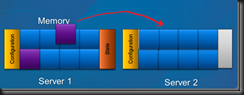
    Now the memory of the VM is copied, one page at a time from the source host while the VM is running. Naturally, things are happening on the running VM and it’s memory is changing. Any previously copied pages that subsequently change are marked as dirty so that they can be copied over again. Once copied, they are marked as clean.
    clip_image002

    Eventually you get to a point where either everything is copied or there is almost nothing left (I’m simplifying for brevity – brevity! – me! – hah!). At this point, the VM is paused on the source host. Start the stopwatch because now we have “downtime”. The state, which is tiny, is copied from the source host to the VM in the destination host. The now complete VM on the destination is not complete. It is placed “back” into a running state, and the VM in the source site is removed. Stop the stopwatch. Even in a crude lab, at most I miss is one ping here, and as I stated earlier, that’s not enough to impact applications.

    clip_image003

    And that’s how Live Migration of a running VM works without getting to bogged down in the details.

    Live Migration on a Cluster

    The process for Live Migration of a VM is simple enough:

    • The above process happens to get a VM’s state from the source host to the destination host.
    • As a part of the switch over, responsibility for the VM’s files on the shared storage is passed from the source host to the destination host.

    This combined solution is what kept everything pretty simple from our in-front-of-the-console perspective. Things get more complicated with Windows Server 2012 Hyper-V because Live Migration is now possible without a cluster.

    SMB Live Migration

    Thanks to SMB 3.0 with it’s multichannel support, and added support for high-end hardware features such as RDMA, we can consider placing a VM’s files on a file share.

    clip_image004

    The VMs continue to run on Hyper-V hosts, but when you inspect the VMs you’ll find their storage paths are on a UNC path such as \FileServer1VMs or \FileServerCluster1VMs. The concept here is that you an use a more economic solution to store your VMs on a shared storage solution, with full support for things like Live Migration and VSS backup. I know you’re already questioning this, but by using multiple 1 Gbps or even 10 Gbps NICs with multichannel (SMB 3.0 simultaneously routing file share traffic over multiple NICs without NIC teaming) then you can get some serious throughput.

    There are a bunch of different architectures which will make for some great posts at a later point. The Hyper-V hosts (in the bottom of the picture) can be clustered or not clustered.

    Back to Live Migration, and this scenario isn’t actually that different to the Failover Cluster model. The storage is shared, with both the source and destination hosts having file share and folder permissions to the VM storage. Live Migration happens, and responsibility for files is swapped. Job done!

    Shared Nothing Live Migration

    This is one scenario that I love. I wish I’d had it when I was hosting with Hyper-V in the past. It gives you mobility of VMs across many non-clustered hosts without storage boundaries.

    In this situation we have two hosts that are not clustered. There is no shared storage. VMs are storage on internal disk. For example, VM1 could be on the D: drive of HostA, and we want to move it to HostB.

    A few things make this move possible:

    • Live Migration: we can move the running state of the VM from HostA to HostB using what I’ve already discussed above.
    • Live Storage Migration: Ah – that’s new! We had Quick Storage Migration in VMM 2008 R2 where we could relocate a VM with a few minutes of downtime. Now we get something new in Hyper-V with zero downtime. Live Storage Migration enables us to relocate the files of a VM. There’s two options: move all the files to a single location, or we can choose to relocate the individual files to different locations (useful if moving to a more complex storage architecture such as Fasttrack).

    The process of Live Storage Migration is pretty sweet. It’s really the first time MSFT has implemented it, and the funny thing is that they created it while, at the same time, VMware was having their second attempt (to get it right) at vSphere 5.0 Storage vMotion.

    Say you want to move a VM’s storage from location A to location B. The first step done is to copy the files.

    clip_image005

    IO operations to the source VHD are obviously continuing because the VM is still running. We cannot just flip the VM over after the copy, and lose recent actions on the source VHD. For this reason, the VHD stack simultaneously writes to both the source and destination VHDs as the copy process is taking place.

    clip_image006

    Once the VHD is successfully copied, the VM can switch IO so it only targets the new storage location. The old storage location is finished with, and the source files are removed. Note that they are only removed after Hyper-V knows that they are no longer required. In other words, there is a fall back in case something goes wrong with the Live Storage Migration.

    Note that both hosts must be able to authenticate via Kerberos, i.e. domain membership.

    Bear this in mind: Live Storage Migration is copying and synchronising a bunch of files, and at least one of them (VHD or VHDX) is going to be quite big. There is no way to escape this fact; there will be disk churn during storage migration. It’s for that reason that I wouldn’t consider doing Storage Migration (and hence Shared Nothing Storage Migration) every 5 minutes. It’s a process that I can use in migration scenarios such as storage upgrade, obsoleting a standalone host, or planned extended standalone host downtime.

    Back to the scenario of Live Migration without shared storage. We now have the 2 key components and all that remains is to combine and order them:

    1. Live Storage Migration is used to replicate and mirror storage between HostA and HostB. This mirror is kept in place until the entire Shared Nothing Live Migration is completed.
    2. Live Migration copies the VM state from HostA to HostB. If anything goes wrong, the storage of the VM is still on HostA and Hyper-V can fall back without losing anything.
    3. Once the Live Migration is completed, the storage mirror can be broken, and the VM is removed from the source machine, HostA.

    Summary

    There is a lot of stuff in this post. There are a few things to retain from this post:

    • Live Migration is a bigger term than it was before. You can do so much more with VM mobility.
    • Flexibility & agility are huge. I’ve always hated VMware Raw Device Mapping and Hyper-V Passthrough disks. The much bigger VHDX is the way forward (score for Hyper-V!) because
      it offers scale and unlimited mobility.
    • It might read like I’ve talked about a lot of technologies that make migration complex. Most of this stuff is under the covers and is revealed through a simple wizard. You simply want to move/migrate a VM, and then you have choices based on your environment.
    • You will want to upgrade to Windows Server 2012 Hyper-V.


    Microsoft BitLocker Administration and Monitoring (MBAM)

    To be honest, I hadn’t heard of this MBAM toolset until this morning; it’s tucked away in MDOP (Microsoft Desktop Optimization Pack).  In Microsoft’s words:

    “Microsoft BitLocker Administration and Monitoring (MBAM) provides a simplified administrative interface to BitLocker drive encryption (a feature included in Windows 7 Enterprise/Ultimate). MBAM lets you select BitLocker encryption policy options appropriate to your enterprise so that you can monitor client compliance with those policies and report on the encryption status of the enterprise in addition to individual computers. Also, you can access recovery key information when a user forgets their PIN or password, or when their BIOS or boot record changes”.

    It includes:

    • Administration & monitoring server: here you have the admin console and a portal, apparently with self-service support for recovery.
    • Compliance and audit database: stores compliance data for managed clients.
    • Recovery & hardware database: stores recovery data for managed clients.
    • Compliance & audit reports: Use SQL Reporting Services to generate reports from the databases.
    • Group policy template: Configure managed clients using AD GPO.
    • Microsoft BitLocker Administration and Monitoring client agent: Used to manage and configure machines for BitLocker, and return data to the above administration components.

    Documentation for MBAM can be downloaded from here.

    Technorati Tags: ,,

    Hyper-V Server 8 Beta

    I’ve been asked, and I’ve seen others are asking, about the future of Hyper-V Server and if there will be a Hyper-V Server 8.  I can confirm that, yes, there will be.  In fact you can get the beta here.

    Hyper-V Server 8 is the free Hyper-V product, that includes all the functionality of Hyper-V and Failover Clustering.  The market for it is actually very small.  If you have 4 or more Windows VMs, and if you license them correctly and legally, it’s actually cheaper to license the host (and avail of the virtualisation rights) to license the VMs (BTW, the license is always assigned to the host even if you think you licensed a VM, and Windows volume licenses can only move once every 90 days). 

    However, a small percentage benefit from Hyper-V Server, including those doing VDI or Linux virtualisation.

    Setting Up Windows 8 Windows To Go on USB 3.0

    Windows 8 includes support for a new mobile “device” function called Windows To Go.  The idea is that you can install Windows 8 Enterprise on a supported USB 3.0 removable storage device, such as the Kingston DT Ultimate G2 32 GB that I have.  This means that you can have a working installation of Windows 8 that you can theoretically take around with you, plug into machines with a USB 3.0 port, and boot them up into your mobile workspace.

    NOTE! The Kingston DT Ultimate G2 is not supported by Windows To Go.  It worked back in the beta days, but no longer.  You have to be very precise about what you purchase: http://legacy.kingston.com/wtg/


    Note that the two supported device ranges (restricted because of performance) at this point (post updated on 13/June/2012) are:

    • Kingston DT Ultimate: luckily the one I bought, and the range we’re distributors for at work 🙂
    • SuperTalent RC8

    I set up my stick so I could boot my Ultrabook up into Windows 8.  It’s configured with Windows 7, and the 128 GB SSD is not big enough to dual boot.  It’s my primary machine at home so I didn’t want to put a beta on the internal drive.

    Here’s how I set it up.  C: is my laptop’s internal drive, and E: is my USB 3.0 stick.

    1. I got a copy of ImageX and BCDBoot from the latest version of WAIK (Windows Automated Installation Kit).
    2. I copied install.wim from the sources folder of the Windows 8 ISO.
    3. I put all my files in C:Source
    4. I inserted the USB 3.0 drive (E:)
    5. Run DiskPart from an elevated command prompt
    6. Run List Disk.  Identify the USB drive.
    7. Type Select Disk X where X is the number of the identified USB drive
    8. Run Clean if you are sure you have selected the USB drive.  This will erase it.
    9. Now type Create Partition Primary to create a partition.
    10. Format fs=ntfs quick will quick format the new partition.
    11. Active will mark it for boot
    12. Type Exit to quit DiskPart
    13. Now I ran C:sourceimagex.exe /apply C:sourceinstall.wim 1 e: to install Windows 8 from install.wim to the USB 3.0 drive
    14. Running Bcdboot.exe e:windows /s e: will configure the USB 3.0 to boot Windows 8

    Now you have a generalised USB 3.0 stick.  You can pop it into your USB 3.0 port, boot from it, and Bob’s your uncle!

    Quick note: I had tried this with the developer preview of Windows 8 but it refused to boot from my ultrabook (inacessible boot device Sad Face Of Death).  I did configure my BIOS to do a UEFI boot – this might be required and I haven’t tried booting without it.

    If you’re mass producing sticks then you might want to look at injecting drivers, etc, into the install.wim file to reduce specialisation when you deploy the sticks.

    In terms of performance, obviously it is not as fast as the SSD in my machine.  But it isn’t bad at all.

    Technorati Tags: ,