There Are Now 730 Hours In An Azure Month

It was only back in November that we noticed, at work, that the average Azure month had shrunk to 732 hours, the average length of a month in a leap year.

It appears that Azure has moved a little closer to the sun, because the average Azure month has just shrunk to 730 hours.

Where does 730 come from? Let’s do the math:

  1. 730 hours * 12 months = 8760 hours in a year.
  2. 8760 hours / 24 hours = 365 days in a year.

So 730 hours in an average Azure month is based on a year of 365 days. And how said pricing the cloud was hard?

Was This Post Useful?

If you found this information useful, then imagine what 2 days of training might mean to you. I’m delivering a 2-day course in Amsterdam on April 19-20, teaching newbies and experienced Azure admins about Azure Infrastructure. There’ll be lots of in-depth information, covering the foundations, best practices, troubleshooting, and advanced configurations. You can learn more here.

Azure-to-Azure Site Recovery Fails – Connection Cannot Be Established

In this post, I’ll explain how to fix the following errors when you attempt to replicate an Azure virtual machine from one Azure Region to another:

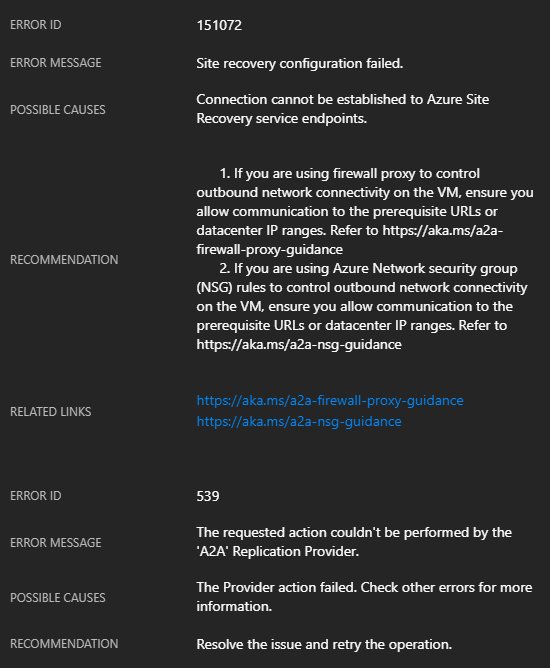
Error 151072: Connection cannot be established to Azure Site Recovery service endpoints.

And:

Error 539: The requested action couldn’t be performed by the ‘A2A’ Replication Provider.

The Cause

A2ASR (the abbreviation of the ASR service for Azure VMs) uses an extension (guest OS agent) called the Mobility Service to migrate disk contents from a source virtual machine to a target (secondary) region (or DR site). The Mobility Service is using the networking of the virtual machine to talk the ASR endpoints in the secondary region. That traffic is therefore going over the NIC and virtual network of the VM, and then to the target region via the Azure backbone.

if you have restricted outbound traffic for your virtual machines, then you might have blocked this traffic:

  • Third party firewall appliances
  • Using Network Security Groups (NSGs), as I documented here

The Fix

Woops! Don’t worry, you’ve already created exceptions to allow your virtual machine to boot up. You can create more exceptions to allow the virtual machines to talk to the ASR endpoints (see the below screenshot). Let’s imagine that I am replicating from North Europe to West Europe.


image

I’ll need at least one set of rules, enabling outbound traffic from my VNet/NICs in the source region, North Europe, to the two IP addresses of the target region, West Europe.

I will also have to enable inbound traffic from my target region, West Europe, to my destination region, North Europe. Why? Isn’t all my traffic going from North Europe to West Europe? That’s true – now. But if you failover to West Europe, you will need to reverse replication afterwards, so you might as well get things right now.

A Script

It all looks messy at first. It probably isn’t too bad. But if you’d like to deploy a canned script to update NSGs, you can. Microsoft has shared a script that you can run. You will need a few pieces of information:

  • NSG name
  • NSG resource group name
  • Subscription ID
  • Source region
  • Target region

Run the script (it will prompt you to log in) from source to target, and then reverse the details, treating the target as the source, and vice versa with the NSG(s) in the DR site.

Where’s the Service Tags?

Storage accounts and Azure SQL all have service accounts, but ASR does not. I believe that ASR should have service tags to avoid all of this IP messiness. If you agree, vote here, or forever stay quiet on the subject.

Was This Kind of Information Useful?

If you found this information useful, then imagine what 2 days of training might mean to you. I’m delivering a 2-day course in Amsterdam on April 19-20, teaching newbies and experienced Azure admins about Azure Infrastructure. There’ll be lots of in-depth information, covering the foundations, best practices, troubleshooting, and advanced configurations. You can learn more here.

Speaking at Global Azure Bootcamp 2018, Birmingham UK

I will be speaking at the Birmingham Global Azure Bootcamp on April 21st. This is a global event, community-lead in most locations. Typically, you’ll find a mix of content from expert speakers; infrastructure, data & platform, for beginners and experts.

I have two sessions:

  • Building highly available VM solutions
  • Monitoring Azure IaaS

The event is in the The Priory Rooms Meeting & Conference Centre, and runs from 09:00 until 17:00.  When I last checked, only 6 of the tickets were left, so act fast if you plan to attend!

Replicate VM Managed Disks Between Azure Regions

Last week, Microsoft announced that Azure Site Recovery (ASR) for Azure Virtual Machines (in preview still), the system for replicating Azure virtual machines from one region to another, added support for managed disks. To this I say …

Waaahoooooo!

Managed disks are the best way to deploy Azure VM storage because they’re easier to plan for (performance), have predictable pricing (Standard), and have way more management features. Unfortunately, I still found myself advising some customers to use un-managed disks (disks in storage accounts) because those customers needed to be able to replicate VMs from one region to another, e.g. North Europe to West Europe.

But now we have support for managed disks in the preview replication service.

All is not entirely rosy. I’ve been waiting on this feature for this web server since before a “non-“hurricane hit Ireland late last year. I tried to enable the feature (nice experience in the Azure portal, btw) but the replication fails because of a weird “disk.name” error. I’ve reported the issue and hopefully it’ll be fixed.

Would You Like To Learn How To Enable This Feature?

If you found this information useful, then imagine what 2 days of training might mean to you. I’m delivering a 2-day course in Amsterdam on April 19-20, teaching newbies and experienced Azure admins about Azure Infrastructure. There’ll be lots of in-depth information, covering the foundations, best practices, troubleshooting, and advanced configurations. You can learn more here.

Just Emailed My First Azure Newsletter

I’ve decided to start a monthly e-mail newsletter, summarising the previous month’s Azure IaaS news. The first copy went out just a few minutes ago to anyone who has signed up. The content includes:

  • My Azure tip of the month
  • The Azure story of the month
  • A summary of my blog posts here and on Petri.com
  • A list of interesting articles from Microsoft over the previous month
  • Details on where I’ve scheduled to speak
  • And this month included another small news item

You can sign up using the widget on the right-hand side of this site.

Subscribe to our mailing list

* indicates required


Azure: PowerShell versus ARM Templates

In this post, I’m going to make the PowerShell acolytes angry (not hard) by explaining why they are too slow, and ARM/JSON is they best way to deploy things in Azure.

The PowerShell Experience

Let’s imagine that you & your significant other go into a restaurant, and let’s say you order a steak and your other wants to order something else. How does the ordering process go? Is it something like this .. let’s start with your order:

  • Customer: Waiter!
  • <Wait 1 minute>
  • Waiter: What would you like sir?
  • Customer: Could you ask the chef to go to the fridge?
  • <Wait while the chef is asked to go to the fridge>
  • Waiter: Yes?
  • Customer: Would you ask the chef to open the fridge?
  • <Wait while the chef opens the fridge>
  • Waiter: Yes?
  • Customer: Would you ask the chef to take a steak out of the fridge?
  • <Wait while the chef takes a steak out of fridge>
  • Waiter: Yes?
  • Customer: Please ask the check to put a pan on the cooker.
  • <Wait while the chef puts a pan on the cooker>
  • Waiter: Yes?

You see what’s going on here? Meanwhile your significant other is getting no love from the restaurant. Ouch!

With PowerShell you describe the deployment process, one step at a time, connecting each and every dot. The deployment is serialized, with no parallelism unless you use PowerShell features to run parallel jobs. The result isn’t much faster than you doing all the clicking for yourself.

The ARM Experience

I like to describe the ARM as a waiter, and the Azure resource providers as the kitchen cooks. How does the order go?

  • Customer: Waiter, I would like a Salmon dish for my wife and steak for myself.
  • Waiter: Yes, sir, in the meantime, would you like a drink?

That’s a bit better, right?

ARM or JSON templates describe the result, not the process. Once you submit the deployment, ARM divides up the job and orders the deployment based on your dependencies. That means that the deployment can be parallelized. If I need 100 web servers, all 100 will be deployed at once, not in some 1..100 loop, one at a time (or 5 at a time if you are clever).

Best of Both Worlds

For some of the training that I do at work, I deploy the training lab in Azure as follows:

  • A PowerShell script that asks me how many attendees there are, and then it runs a glorified 2 line loop.
  • The loop iterates through different subscriptions, adding a resource group and then doing an ARM deployment.

In other words, PowerShell automates my very fast ARM deployments.

PowerShell Still Required

PowerShell is still very useful for some fiddly deployment things that don’t have ARM options, or are once-offs and don’t have a GUI option. To be honest, I do use GUI for most of my once-offs because it is convenient and gets the end result faster than researching/tweaking/fixing PowerShell examples. When it comes to learning about settings and troubleshooting, PowerShell can be pretty awesome.

But PowerShell is much slower than ARM for deployments. Now let’s hear the screams of outraged PowerShellers!

Was This Post Interesting?

If you found this information useful, then imagine what 2 days of training might mean to you. I’m delivering a 2-day course in Amsterdam on April 19-20, teaching newbies and experienced Azure admins about Azure Infrastructure. There’ll be lots of in-depth information, covering the foundations, best practices, troubleshooting, and advanced configurations. You can learn more here.

Got a Surface Pro

As you might have noticed, myself and my wife have started a new Azure training business called Cloud Mechanix. The thing I fear the most, as a presenter, is my laptop dying. I don’t want to use my employer’s device (a Surface Book) because that would be a conflict of interest. My personal laptop is a 4-year old Lenovo Thinkpad Yoga, which still runs well, but is showing it’s age … Thinkpads have a great build reputation but the rubber feel and logos were all gone in 18 months. Many moons ago, I had a laptop die in England the night before I was to present at an MVP event. I ended up having to borrow a machine, and that’s not a position that I can tolerate as a trainer. So the Yoga will be my backup machine, and I needed something new and suitable for presentations.

Choice

My requirements were:

  • Weight: I wanted this machine to be light because I will be travelling light with no checked-in bags.
  • Moderate performance: An i5 was fine, 8-16 GB RAM. I’m not running Visual Studio or games, but I want the machine to run and age well.
  • Touch: I use touch when I’m reading.
  • Stylus: I whiteboard a lot. Hotels charge a fortune for things like flipcharts, and I prefer to use Windows 10 inking, e.g. Microsoft Whiteboard, because it’s being projected onto a big screen. I often draw over my PowerPoint for convenience.

So, that left me with plenty of options. Lenovo was ruled out because of build quality and price – see above. I really liked the look of the recently Dell XPS 13, until I saw what Dell had done with the webcam. Imagine doing Skype calls when everyone is looking up your nose! HP have some nice machines that are similar to the Dell XPS 13. I was tempted by USB-C, but then I thought … how many devices will I hang from my presentation machine? My office machine has 8 on-board USB 2.0 ports and an additional 4 x PCI USB 3.0 ports, most of which are used. But I will be travelling light, so all I’ll need are:

  • Video  out
  • USB 2.0/3.0 for a clicker
  • USB 3.0 for a gigabit network adapter

FYI, Acer, Asus, and Samsung were all ruled out because of terrible post-sales hardware support.

That left me with Microsoft: Surface Laptop and Surface Pro. I like the Surface Laptop. It’s thin, light, and pretty much the Surface Pro in laptop form. I was tempted – if it had been a convertible then I would have pulled the trigger. But what did it for me was the ability to remove or flip up the keyboard of the Surface Pro. Form time to time, I have been known to connect to the screen/projector via Miracast, pick up my device, and walk around while presenting. It’s also handy in a meeting when whiteboarding on screen – get the keyboard out of the way and draw/talk; the flexible stand helps there too.

Post-Sale

The purchase was easy; Cloud Mechanix as a service provider is able to buy from my employer (a distributor) at trade prices plus support would be easy for me. The OOBE setup of Windows 10 was interesting:

  • The OOBE was defaulting to UK English/UK as the location so Cortana was there. She walked me through the setup. I had never heard Cortana during setup before, and I never even knew it was possible.
  • I was forced to do Windows updates at the end of the OOBE. A 3 GB download/install was required (I guess 1709 was not in the image). That start at around 4PM and finished sometime after 9PM – I actually left it running in the back of the car when I was driving home from work.

The Surface Pro has 1 x USB 3.0 port, which is not enough for my basic presentation requirements. That’s easily solved. I added a Macally U3HUBGBA USB/Ethernet hub – also purchased through work via trade. From a single (shared bandwidth) USB 3.0 port, I get 3 more ports and a “Gigabit” Ethernet adapter. That’s all my connectivity requirements sorted –

image

I added the Cobalt stylus and a signature keyboard. The alcantara of the keyboard doesn’t feel like a fabric; it feels more like what it is: the result of 2 chemicals companies cooperating on something. It feels smooth to the touch and like it will wear well. The keyboard is rigid enough to work well, and I haven’t had any issues typing on it, which I often do with some Lenovo and HP machines when they get funky with keyboard layouts, e.g. moving CTRL or ALT.

It’s only been a few days, so a review isn’t justifiable, and others wrote reviews last year.

Adding Azure Monitor Performance Alerts Using PowerShell

Below is a sample script for adding Azure Metrics alerts using Azure Monitor. It is possible to create alerts using the Azure Portal, but that doesn’t scale well because each alert is specific to one VM. For example, if you have 4 alerts per VM, and 10 VMs, then you have to create 40 alerts! One could say: Use Log Analytics, but there’s a cost to that, and I find the OMS Workspace to be immature. Instead, one can continue to use Resource/Azure Monitor metrics, but script the creation of the metrics alerts.

Once could use JSON, but again, there’s a scale-out issue there unless you build this into every deployment. But the advantage with PowerShell is that you can automatically vary thresholds based on the VM’s spec, as you will see below – some metric thresholds vary depending on the spec of a machine, e.g. the number of cores.

The magic cmdlet for doing this work is Add-AzureRmMetricAlertRule. And the key to making that cmdlet work is to know the name of the metric. Microsoft’s docs state that you can query for available metrics using Get-AzureRmMetricDefinition, but I found that with VMs, it only returned back the Host metrics and not the Guest metrics. I had to do some experimenting, but I found that the names of the guest metrics are predictable; they’re exactly what you see in the Azure Portal, e.g. \System\Processor Queue Length.

The below script is made up of a start and 2 functions:

  1. The start is where I specify some variables to define the VM, resource group name, and query for the location of the VM. The start can then call a series of functions, one for each metric type. In this example, I call ProcessorQLength.
  2. The ProcessorQLength function takes the VM, queries for it’s size, and then gets the number of cores assigned to that VM. We need that because the alert should be triggers if the average queue length per core is over 4, e.g. 12 for a 4 core VM. The AddMetric function is called with a configuration for the \System\Processor Queue Length alert.
  3. The AddMetric function is a generic function capable of creating any Azure metrics alert. It is configured by the parameters that are fed into it, in this case by the ProcessorQLength function.

Here’s my example:

#A generic function to create an Azure Metrics alert
function AddMetric ($FunMetricName, $FuncMetric, $FuncCondition, $FuncThreshold, $FuncWindowSize, $FuncTimeOperator, $FuncDescription)
{
    $VMID = (Get-AzureRmVM -ResourceGroupName $RGName -Name $VMName).Id
    Add-AzureRmMetricAlertRule -Name $FunMetricName -Location $VMLocation -ResourceGroup $RGName -TargetResourceId $VMID -MetricName $FuncMetric -Operator $FuncCondition -Threshold $FuncThreshold -WindowSize $FuncWindowSize -TimeAggregationOperator $FuncTimeOperator -Description $FuncDescription
}

#Create an alert for Processor Queue Length being 4x the number of cores in a VM
function ProcessorQLength ()
{
    $VMSize = (Get-AzureRMVM -ResourceGroupName $RGName -Name $VMName).HardwareProfile.VmSize
    $Cores = (Get-AzureRMVMSize -Location $VMLocation | Where-Object {$_.Name -eq $VMSize}).NumberOfCores
    $QThreshold = $Cores * 4
    AddMetric "$VMname - CPU Q Length" "\System\Processor Queue Length" "GreaterThan" $QThreshold "00:05:00" "Average" "Created using PowerShell"
}

#The script starts here
#Specify a VM name/resource group
$VMName = "vm-test-01"
$RGName = "test"
$VMLocation = (Get-AzureRMVM -ResourceGroupName $RGName -Name $VMName).Location

#Start running functions to create alerts
ProcessorQLength

Was This Post Useful?

If you found this information useful, then imagine what 2 days of training might mean to you. I’m delivering a 2-day course in Amsterdam on April 19-20, teaching newbies and experienced Azure admins about Azure Infrastructure. There’ll be lots of in-depth information, covering the foundations, best practices, troubleshooting, and advanced configurations. You can learn more here.

Azure VMs–Block Outbound Traffic to the Internet (Updated)

In theory, it was possible to deny all outbound traffic to the Internet from an Azure VM. In theory, I can also place a loaded gun to my head, but my doctor disapproves of that.

Here’s what would happen:

  • You created an outbound rule to Deny all traffic to a service tag (location) called Internet.
  • The VM worked fine … for a while.
  • The VM was rebooted, maybe for a guest OS patch cycle.
  • The VM would not reboot.
  • Your boss screamed at you, if you were lucky.

The problem is that Azure included all Azure services under the service tag of “Internet”. And Azure VMs need to talk to Azure to boot up – to be specific, they need to talk to Azure Storage if the IaaSDiagnostics (Azure Performance Diagnostics) extension is configured. If a VM can’t talk to that storage account, the VM will fail to boot. There was a scripted workaround, but it was far from pretty.

Recently Microsoft made a Network Security Group service tags generally available. Service tags take those old locations and expand them to more than just Virtual Network, Load Balancer (probe), and Internet. Now you can specify Azure storage (storage account) and Azure SQL services, globally and locally (a specific region).

image

So for example, I can let a VM connect (Azure) Storage globally, in West Europe, or to connect to Azure SQL in North Europe. Now we can block outbound access to the Internet, but still allow access to Azure storage in the same region for diagnostics & metrics.

image

I’ve tested, and yes, my VM rebooted Smile

Was This Post Useful?

If you found this information useful, then imagine what 2 days of training might mean to you. I’m delivering a 2-day course in Amsterdam on April 19-20, teaching newbies and experienced Azure admins about Azure Infrastructure. There’ll be lots of in-depth information, covering the foundations, best practices, troubleshooting, and advanced configurations. You can learn more here.