Adding Address Spaces To An Azure Virtual Network

Have you ever run out of addresses in an Azure virtual network? Have you ever needed to add a different scope or address space to an existing Azure virtual network? If so, this post is for you.

Quite honestly, I did not know that this was possible until recently – it’s a setting in an Azure virtual network that I have never used or even looked at:

image

When you create a virtual network, you give it an address space. Typically that will be a 10.x.x.x range because that’s what the Azure Portal steers you towards and if offers a lot of address space to carve up. In the above virtual network, I created a virtual network with an address space of 192.168.1.0/24, one that should be very familiar to you. And the blades for setting up the virtual network created a single subnet consuming all of that space. What if I wanted to add another subnet? I used to think that it wasn’t possible, but I was wrong.

You can click Address Space in the Settings of the virtual network and add extra address spaces. In the above, I’ve added 10.0.0.0/16 and 172.16.0.0/16 (extreme but vivid examples) to my subnet. If that was an on-premises network, based on VLANs and routing, then life would get complicated. But this is software defined networking. These addresses are more for our comfort than for the “machine” that runs the network. In the end, NVGRE which powers the Azure network, is copying packets from a source NIC to destination NIC and is abstracts the underlying physical complexity through encapsulation (dig up Damian Flynn’s old NVGRE presentations on VMM logical software defined networks). In short … you add these address spaces, then create subnets and the subnets will route automatically across those spaces.

image

If you go into subnets, you now can create subnets within the address spaces of the virtual network and they just route.

image

To prove this simplicity, I deployed a VM in 192.168.1.0/24 and another in 172.16.1.0/24. I modified Windows Firewall to allow ICMP in (ping) and then ran some ping and tracert tests between the two machines in different address spaces. In a normal VLAN world, the results would illustrate the underlying complexity. In Azure’s software defined network, these are just 2 subnets in the same virtual network.

Pretty cool, right?

Physical Disks are Missing in Disk Management

In this post, I’ll explain how I fixed a situation where most of my Storage Spaces JBOD disks were missing in Disk Management and Get-PhysicalDisk showed their OperationalStatus as being stuck on “Starting”.

I’ve had some interesting hardware/software issues with an old lab at work. All of the hardware is quite old now, but I’ve been trying to use it in what I’ll call semi-production. The WS2016 Hyper-V cluster hardware consists of a pair of Dell R420 hosts and an old DataON 6 Gbps SAS Storage Spaces JBOD.

Most of the disks disappeared in Disk Management and thus couldn’t be added to a new Storage Spaces pool. I checked Device Manager and they were listed. I removed the devices and rebooted but the disks didn’t appear in Disk Management. I then ran Get-PhysicalDisk and this came up:

image

As you can see, the disks were there, but their OperationalStatus was hung on “Starting” and their HealthStatus was “Unknown”. If this was a single disk, I could imagine that it had failed. However, this was nearly every disk in the JBOD and spanned HDD and SSD. Something else was up – probably Windows Server 2016 or some firmware had threw a wobbly and wasn’t wrapping up some task.

The solution was to run Reset-PhysicalDisk. The example on docs.microsoft.com was incorrect, but adding a foreach loop fixed things:

$phydisk = (Get-Physicaldisk | Where-Object -FilterScript {$_.HealthStatus -Eq “Unknown”})

foreach ($item in $phydisk)
{
Reset-PhysicalDisk -FriendlyName $item.FriendlyName
}

A few seconds later, things looked a lot better:

image

I was then able to create the new pool and virtual disks (witness + CSVs) in Failover Cluster Manager.

(SOLUTION) Azure File Sync–Tiering & Synchronisation Won’t Work

I recently had a problem where I could not get Azure File Sync (AFS) to work correctly for me. The two issues I had were:

  • I could not synchronise a share to a new file server (new office or disaster recovery) when I set the new server endpoint to be tiered.
  • When I enabled tiering to an existing server endpoint, the cloud tiering never occurred.

I ran FileSyncErrorsReport.ps1 from the sync agent installation folder. The error summary was:

0x80c80203 – There was a problem transferring a file but sync will try again later

Each file in the share had an additional message of:

0x80c80203 There was a problem transferring a file but sync will try again later.

Both problems seemed to indicate that there was an issue with tiering. I suspected that an old bug from the preview v2.3 sync agent had returned – I was wrong because it was something different. I decided to disable tiering on a new server endpoint that wasn’t synchronising – and the folder started to synchronise.

When this sort of thing happens in AFS, you suspect that there’s a problem with the storagesync filter, which you can investigate using fltmc.exe. I reached out to the AFS product group and they investigated over two nights (time zone differences). Eventually the logs identified the problem.

In my lab, I deployed 3 file servers as Hyper-V virtual machines. Each machine had Dynamic Memory enabled:

  • Startup Memory: 1024MB
  • Minimum Memory: 512MB
  • Maximum Memory: 4096MB

This means that each machine has access to up to 4 GB RAM. The host was far from contended so there should not have been an issue. But it turns out, there was an issue. The AfsDiag traces that I created showed that one of the machines had only 592 MB RAM free of 1907 MB free… remember that’s RAM free from the currently assigned RAM, not from the possible maximum RAM.

The storagesync filter requires more than that – the release notes for the sync agent that that the agent requires 2 GB of RAM. The team asked me to modify the dynamic memory settings of one of the file servers as follows to test. Shut down the VM and modified the memory settings to:

  • Startup Memory: 2048MB
  • Minimum Memory: 2048MB
  • Maximum Memory: 4096MB

I started up the VM and things immediately started to work as expected. The new server endpoints populated with files and the tiered endpoints started replacing cold files with reparse pointers to the cloud replicas.

The above settings might not work for you. Remember that the storage sync agent requires 2 GB RAM. Your settings might require more RAM. You’ll have to tune things specifically to your file server, particularly if you are using Dynamic Memory; tt might be worth exploring the memory buffer setting to ensure that there’s always enough free RAM for the sync agent, e.g. if the VM is set up as above set the buffer to 50% to add an extra 1 GB to the startup amount.

Thanks to Will, Manish, and Jeff in the AFS team for their help in getting to the bottom of this.

Lots of Conference Stuff Coming Up

A busy few months are coming up. Work on Azure, etc, with MicroWarehouse continues to be extremely busy, Cloud Mechanix continues, and that’s all before some speaking that I’m doing.

Evolve, National Conference Center Birmingham, UK – September 10

I’ll be presenting my “Azure PaaS for the Server Engineer” session at this community event. PaaS can be scary for server people – imagine a world with no servers! Not so quick! It turns out that this stuff isn’t so alien and our role is increasing, not shrinking in the dev side of Azure. Join me to learn more.

IP Expo Europe 2018, EXCEL London, UK – October 3-4

At this conference, I will be representing Altaro. The session I’m doing is a new one called “Solving the Azure Storage Maze”. Azure storage offers a confusing variety of storage options, and figuring out up from down can be mind boggling. My plan is to make this easy for people, boiling it down to a few simple questions/choices.

European SharePoint, Office 365, Azure Conference Copenhagen, Denmark – November 26-29

This event is pretty big, but historically it’s been a SharePoint thing so those outside of that community don’t know of it. I’ll be talking about getting more performance from your Azure VMs, including planning, implementation, and management.

Microsoft Ignite 2018, Orlando, USA – Sept 24-28

I registered to attend Ignite yesterday. I did not apply for any speaking positions. Speaking at Ignite is a buzz, but I do lots of speaking. The obligations of that are required of speakers in the expo hall are too much for my liking. I’d rather be a normal attendee that makes the most of the Monday-Thursday content. This year, I will be doing lots of Azure, but I’ll also be trying to catch up on Windows Server. Ideally, I’d have a time turner at this conference, but no one has invented that yet.

Cloud Camp 2018, Convention Centre Dublin, Ireland – Oct 17

I’m one of the organisers behind this event, sponsored by MicroWarehouse, that will feature expert community speakers (mostly MVPs) from around Europe. An opening keynote will set the scene for 20 breakout sessions across 4 cloud, productivity & security, and Windows Server 2019 & hybrid tracks. And then a closing keynote with Mary Jo Foley and Paul Thurrott will wrap things up. It’s going to be quite the show!

Cannot Create a Basic Tier Virtual Network Gateway in Azure

There is a bug in the Azure Portal that prevents you from selecting a virtual network when you pick the Basic Tier of the virtual network gateway, and you are forced into selecting the more expensive VpnGw1. I’ll show you how to workaround this bug in this post.

Background

I recently ran a hands-on Azure class in London. Part of the class required deploying & configuring a VPN gateway in the West Europe region. I always use the Basic tier because:

  • It’s cheaper – $26.79 for Basic versus $141.36 for VpnGw1 per month
  • That’s what most (by a long shot) of my customers deploy in production because it meets their needs.

I’ve had a customer in Northern Ireland report the same problem in North Europe.

The process goes like this:

  1. You select VPN gateway type
  2. Select Route-Based
  3. Select Basic as the SKU
  4. Then you attempt to select the virtual network that you want to use – it already has a gateway subnet
  5. You cannot continue because the virtual network is greyed out

image

The error shown is:

The following issues must be fixed to use this virtual network: The VPN gateway cannot have a basic SKU in order for it to coexist with an existing ExpressRoute gateway.

In all cases so far, the subscriptions have been either brand new CSP/trial subscriptions with no previous resources, or my lab subscription where I’ve used a new virtual network to demonstrate this scenario – and I have never deployed ExpressRoute in any subscription.

Workaround

Credit where credit is due – some of my attendees last week figured out how to beat the UI bug.

  1. Close the Choose Virtual Network blade if it is open.
  2. Select the VpnGw1 tier gateway in the Create Virtual Network Gateway blade – don’t worry, you won’t be creating it if you don’t want to pay the price.
  3. Click Choose A Virtual Network
  4. Select your virtual network
  5. Change the SKU of the gateway back to Basic
  6. Finish the wizard

image

I know – it’s a daft UI bug, but the above workaround works.

Call For Speakers – Cloud Camp, October 17th

My employers, MicroWarehouse, are running a community event in the Dublin Convention Centre on October 17th. Cloud Camp is a tech event, with four tracks covering:

  • Azure Infrastructure: Virtual machines, storage, networking, etc
  • Azure Platform: Web Apps, Containers, etc
  • Productivity & Security: Office 365, EMS, etc
  • Windows Server 2019 & Hybrid: Windows Admin Center, virtualization, clustering, storage, networking, private cloud, etc

UPDATE: We have enough submissions on Office, Intune, and M365 overviews. We need more on Azure IaaS and Azure PaaS. But we really want sessions on Windows Admin Center, Windows Server 2019, and data protection using Azure Information Protection & Client App Security.

9563009141_9152529403_z

Samuel Beckett bridge and Dublin Convention Center – Daniel Dudek, https://www.flickr.com/photos/dansapples/9563009141

We’re looking for speakers from around Europe to fill the slots. Expenses are being covered:

  • Flights
  • 2 nights accommodation – the nights before and after the event
  • Tickets to the event

If you’re interested in speaking then please submit your bio and session proposal(s) here.

Not A Hyper-V MVP Anymore

It’s with some sadness that I have to report that I am no longer a Hyper-V MVP.

11 years ago, I got and email to say that I had been awarded MVP status … in System Center Configuration Manager. Yes, I used to do a lot of stuff on ConfigMgr. But by the time I’d been awarded, that had all stopped and I had refocused on server stuff, particularly virtualization and especially Hyper-V. A year later, my expertise was changed to that of Hyper-V, which later merged into a larger grouping of Cloud & Datacenter Management.

Being a Hyper-V MVP changed my career. I had early access to information and I was able to pose questions about things to my fellow MVPs and the program managers of Hyper-V, Failover Clustering, networking, and Windows Server storage. I learned an incredible amount, and the many posts on this site and my books all had input from my time as an MVP. Job openings appeared because of the knowledge I obtained, and I got to write for Petri.com. And being an MVP opened up speaking opportunities at many events around the world, including TechEd Europe and the very first Ignite.

There’s so many people to thank from over the years. I won’t name names because I’ll offend someone  because I’ll surely forget someone. My (ex-)fellow Hyper-V MVPs are an awesome bunch. We all found are niche areas and I can remember many times we’d meet at a user group event and pool our knowledge to make each other better. In particular, I remember speaking at an event in Barcelona during the build-up to WS2012 and spending hours in a meeting room, going over things that we’d learned in that dizzyingly huge release.

I want to thank the Program Managers in Windows Server, Hyper-V, Failover Clustering & Storage, and Networking for the many hours of deep dive sessions, the answers they’ve given, the time they’ve taken to explain, the tips given, and the opportunity to contribute. Yes, I got a lot out of being a Hyper-V MVP, and I love looking at the feature list and thinking to myself, “me and <person X> were the ones that asked for that”. The PMs are a patient bunch … they have to be to deal with the likes of me … but they’re the ones that make the MVP program work. I’d love to tell stories, but you know … NDAs Smile

I knew that this day when I’d stop being a Hyper-V MVP was coming. Actually, that suspicion started back in the WS2012 era when I saw where MS was going with Hyper-V. The product was evolving for a market that is very small in Ireland. I knew I had to change, and that was triggered when Microsoft Ireland came to our office at work, and asked us to help develop the Azure business with Microsoft Partners. 4.5 years ago, I made the change, and I started to work with the largest Hyper-V clusters around.

Last year I was made a dual-expertise MVP with Azure being added. I work nearly 100% on Azure, and I have always written about what I work with. Anytime I find a solution, or learn something cool (that I can talk about) I write about it. I was re-awarded yesterday as an Azure MVP, but my Cloud & Datacenter Management expertise was dropped. I expected it because I simply had not earned the privilege over the last year to be re-awarded. I have a full and happy family life and I don’t have enough time to give a dual-expertise status what I think it deserves from me. I was not surprised, but I was a bit sad because being a Hyper-V MVP was a career changer for me and I made lots of great friends.

For those of you who are new to the program or who want to get involved in being an MVP, I have some advice: Make the most of it. The opportunity is awesome but you only get from it what you put in. Take part, learn, contribute, and share. It’s a virtuous cycle, and the more you do, the more you get out from it.

Being a part of the community hasn’t ended for me. I’ll still be writing and speaking about Azure. In fact, my employers are running a big community event on October 17th in Dublin (details to come soon) on Azure, Windows Server 2019, and more. And who knows … maybe I’ll still write some about Hyper-V every now and then Smile

Left to right: Tudor Damian, me, Carsten Rachfahl, Ben Armstrong (Hyper-V), Didier Van Hoye – Hyper-V MVPs with Ben at Cloud & Datacenter Conference Germany 2017.

This Subscription Is Not Registered With The Microsoft.Insights Resource Provider

It is possible to get the error, This Subscription Is Not Registered With The Microsoft.Insights Resource Provider sometimes with a new Azure subscription. The latest example I had of this was when using Azure Monitor.

image

A provider is an element in the backend of Azure Resource Manager – think of it as wait staff in the Azure restaurant that takes your order and passes it back to the chef who figures out how to make it happen. Sometimes, a provider that is normally registered with a subscription … isn’t. You can fix this with PowerShell:

Register-AzureRmResourceProvider –ProviderNamespace Microsoft.Insights

It can take several minutes for the provider to register. You can check the status with:

Get-AzureRmResourceProvider –ProviderNamespace Microsoft.Insights

Or you can just use the Azure Portal. Browse to Subscriptions > select your subscription > Resource Providers (under Settings). Here you can see the registration status of the provider, and you can register the provider in the GUI:

image

Click Register and the status will switch from NotRegistered to Registering. Give it 5-15 minutes, refresh the blade, and see if it’s registered. Your problem will be fixed then.

image

Did you Find This Post Useful?

If you found this information useful, then imagine what 2 days of training might mean to you. I’m delivering a 2-day course in London on July 5-6, teaching newbies and experienced Azure admins about Azure Infrastructure. There’ll be lots of in-depth information, covering the foundations, best practices, troubleshooting, and advanced configurations. You can learn more here.

Azure Preview – Standard SSD Disks

Say what?!?! Standard SSD disks? And we thought that Standard = HDD and Premium = SSD! But that’s no longer the case.

In the coming world of Azure (we’re not there yet), Premium will be just that, but Standard will be normal deployments of either HDD or SSD. How do the three tiers of managed disks break down?

  • Premium: For when you need the highest IOPS, throughput and lowest latency.
  • Standard SSD: For production workloads when you need predictable IOPS performance (500 per disk) with lower latency than HDD.
  • Standard HDD: Test and archive storage in VMs, with IOPS listed as up to 500 IOPS – spinning disks are based on serial access and bursts of activity lead to access queues and lower performance levels.

Let’s set expectations: Standard SSD is in very limited preview today. Only North Europe (Dublin) is supported today, with several more regions coming online internationally by mid-June:

  • France Central
  • East US 2
  • Central US
  • Canada Central
  • East Asia
  • Korea South
  • Australia East

There is no Azure Portal support today. If you want to deploy Standard SSD disks, you must do it using ARM templates:

  • apiVersion for Microsoft.Compute/virtualMachines must be set as “2018-04-01” (or later)
  • storageAccountType as “StandardSSD_LRS”

image

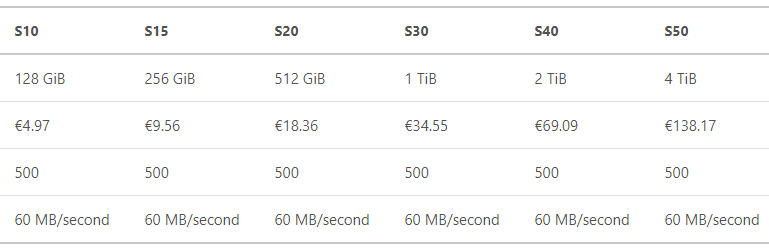
Won’t SSD be too expensive compared to HDD? That was my first thought. But check out the RRP pricing (North Europe in Euros). The per-GB pricing for Standard HDD is:

image

But the per-GB pricing for Standard SSD disks is:

image

The per-GB cost of Standard SSD is LOWER than that of Standard HDD. How could that be? Electricity is a huge cost in data centers, and disk arrays eat up a lot of power. SSD is way more efficient, the cost of SSD has been falling, and Microsoft eats the commodity storage hardware dog food.

If you read the pricing small print, you will notice that the micro-cost of storage transactions in Standard SSD is €0.000844 per 10,000 transactions, double the Standard HDD cost of €0.000422 per 10,000 transactions but that’s one of those costs that’s tucked away at the bottom of the bill that few ever notice because it’s tiny.

Standard SSD, managed disks only, is LRS only, as with other managed disks. They also come with the usual 99.999% availability, and Microsoft’s claimed ZERO percent annualized failure rate.

I’m looking forward to the day that Standard SSD is GA and I can start telling customers to switch over to it as their normal disk, when Premium isn’t required.

Azure Traffic Manager: Geography Versus Latency

A recent #AzureTrivia question on Twitter asked how you would configure Azure Traffic Manager to redirect clients to the closest endpoint (a place hosting a web application). That question made me go hmm – how do you define closest?

image

Defining Closeness

Do  you measure closeness by kilometres as the crow flies or on the road? Or do you measure closeness by how packets travel across the Internet, from the client to the actual Azure data centre? Here’s a story I tell in my Azure training when talking about this topic.

I once worked for a hosting company in Dublin, Ireland. It was the end of a workday in December and we were all excited because it was the night of our Christmas party. We were going to a restaurant in the city and the MD was paying for everything. Fun times! Sales, engineering, support, etc were in the top floor and we piled down the stairs to the NOC to get the folks who were coming off their shift. A few of us walked into the NOC and the staff were in a bit of a tizzy. A customer, not very far away from us, claimed that we were offline. Earlier that year, we did have a catastrophic outage caused by an electrician’s mistake, so we were a bit touchy about things like this. Straight away, us engineers ran back upstairs and started doing tests. The networking guys quickly verified that we were actually online, but the customer was adamant. NOC got the customer (in Ireland, remember) to run a tracert. We quickly found that the customer’s ISP connected to the rest of the Internet in Germany, and that there was a router fault in Germany that was nothing to do with us – there was an infinite loop and packets were timing out.

image

So this customer, only a few kilometres from us, was connected to the rest of the world through Germany. We were geographically close to the customer, but in terms of latency, the customer could have had a “closer” hosting company in Germany. When you use a phrase such as “closest” in networking, that typically means latency, and is nothing to do with an atlas or map book.

Controlling Traffic Manager

Traffic Manager is a DNS redirection Azure feature for services running across multiple Azure/other locations. The redirection of each Traffic Manager profile works in one of 4 ways:

  • Priority: You can think of this as a failover method. Traffic goes to endpoint 1, if that fails it goes to endpoint 2. If endpoint 2 fails, it goes to endpoint 3, and so on.
  • Weighted: This is a weight-based distribution method, i.e. load balancing. You might set one endpoint with a weight of 40 (40% in this case) and two other endpoints each with a weight of 30 (30%).
  • Performance: I’ll use Microsoft’s definition here … when you have endpoints in different geographic locations and you want end users to use the “closest” endpoint in terms of the lowest network latency.
  • Geographic: Using Microsoft’s definition again … users are directed to specific endpoints (Azure, External, or Nested) based on which geographic location their DNS query originates from.

So if you want to configure Traffic Manager to send clients to the closest Azure region, you use the Performance routing method.

In my above Europe example, I might have a web application running in North Europe (Dublin) and West Europe (Netherlands), unified and abstracted at the DNS level by Traffic Manager. If I set Geographic as the routing method, the customer would normally be sent to North Europe. If I set the routing method as Performance, the customer would normally be sent to West Europe because it is closer in terms of latency.

Want to Learn More Azure Stuff Like This?

If you found this information useful, then imagine what 2 days of training might mean to you. I’m delivering a 2-day course in London on July 5-6, teaching newbies and experienced Azure admins about Azure Infrastructure. There’ll be lots of in-depth information, covering the foundations, best practices, troubleshooting, and advanced configurations. You can learn more here.