I Am Co-Hosting A Webinar On ODX/VAAI For Optimising Storage

On April 21st and 2pm ET (USA) or 7PM UK/IE, I will be co-hosting a StarWind Software webinar with Max Kolomyeytsev. I will be talking about using ODX in a Hyper-V scenario, and Max will talk about it (VAAI) from the vSphere perspective.

image

Register here.

My Hyper-V Presentation On Ignite Schedule Builder

Microsoft has posted my Windows Server 2012 R2 Hyper-V session on the Microsoft Ignite schedule builder.

image

Note that it should read “Windows Server 2012 R2”.

Currently, the day/time is January 1st at 12am. Yup, there will be fireworks and some auld lang syne. Please ignore the day/time and add the session to your builder if you are interested in the content. Hopefully a day/time will be fixed soon.

My session is on Tuesday May 5th at 5:00 pm – 6:15 pm.

My Hyper-V Session at Microsoft Ignite

The details of my session have been confirmed. The session is called “The Hidden Treasures of Windows Server 2012 R2 Hyper-V”, and the description is:

It’s one thing to hear about and see a great demo of a Hyper-V feature. But how do you put them into practice? This session takes you through some of those lesser-known elements of Hyper-V that have made for great demonstrations, introduces you to some of the lesser-known features, and shows you best practices, how to increase serviceability & uptime, and design/usage tips for making the most of your investment in Hyper-V.

Basically, there’s lots of stuff in Hyper-V that many folks don’t know exists. These features can make administration easier, reduce the time to get things done, and even give you more time at home. These are the hidden treasures of Hyper-V, and are there for everyone from the small biz to the large enterprise.

I went WS2012 R2 because:

  • That’s the Hyper-V that you can use in production now.
  • We’re a long way from the release of vNext.
  • There’s lots of value there that most aren’t aware of.
  • Plenty of excellent MSFT folks will be talking about vNext.

The session isn’t on the catalogue yet but I expect it to be there soon.

Follow Up From Altaro Webinar On Hyper-V vNext

I really enjoyed presenting today on the next version of Hyper-V with Rick Claus (Microsoft) and Andrew Syrewicze (Hyper-V MVP). We had some tech glitches at the start and during the session, which always makes a session memorable Smile

We ran out of time at the end. Andy was the moderator but his ISP crapped out, so we didn’t get a chance to do Q&A properly.

If you have any questions then please either hit us on Twitter or post a comment below.

Thank you to Altaro for hosting this webinar! Make sure to check out their excellent backup products, which also features a free version.

Windows Server Technical Preview – Storage Transient Failure

Nothing will make a Hyper-V admin bald faster than storage issues. Whether it’s ODX on HP 3par or networking issues caused by Emulex, even if the blip is transient, it will crash your VMs. This all changes in vNext.

The next version of Hyper-V is more tolerant of storage issues. A VM will enter a paused state when the hypervisor detects an underlying storage issue. This will protect the VM from an unnecessary stoppage in the case of a transient issue. If the storage goes offline just for a few seconds, then the VM goes into a pause state for a few seconds, and there’s no stoppages, reboots, or database repairs.

Windows Server Technical Preview – Hot Memory Resizing

Dynamic Memory was added in W2008 R2 SP1 to allow Hyper-V to manage the assignment of memory to enabled virtual machines based on the guest OSs demands. Today in WS2012 R2, a VM boots up with a start-up amount of RAM, can grow, based on in-guest pressure and host availability, up to the maximum amount allowed by the host administrator, and shrink to a minimum amount.

But what if we need more flexibility? Not all workloads are suitable for Dynamic Memory. And in my estimation, only about half of those I encounter are using the feature.

The next version of Hyper-V includes hot memory resizing. This allows you to add and remove memory from a running virtual machine. The operation is done using normal add/remove administration tools. Some notes:

  • At this time you need a vNext guest OS
  • You cannot add more memory than is available on the host
  • Hyper-V cannot remove memory that is being used – you are warned about this if you try, and any free memory will be de-allocated.

This new feature will save a lot of downtime for virtualised services when administrators/operators need to change the memory for a production VM. I also wonder if it might lead to a new way of implementing Dynamic Memory.

Windows Server Technical Preview – Network Adapter Identification

Have you ever built a Hyper-V virtual machine with 2 or more NICs, each on different networks, and struggled with assigning IP stacks in the guest OS? I sure have. When I was writing materials with virtual SOFS clusters, I often had 3-6 NICs per VM, each requiring an IPv4 stack for a different network. I needed to ensure that VMs were aligned and able to talk on those networks.

With modern physical hardware, we get a feature called Consistent Device Naming (CDN). This allows the BIOS to name the NIC and that’s how the NIC appears in the physical WS2012 (or later) install. Instead of the random “Local Area Connection” or “Ethernet” name, you get a predictable “Slot 1 1” or similar, based on the physical build of the server.

With Windows Server vNext, we are getting something similar, but not identical. This is not vCDN as some commentators have called it because it does require some work in the guest OS to enable the feature. Here’s how it works (all via PowerShell):

  1. You create a vNIC for a VM, and label that vNIC in the VM settings (you can actually do that now on WS2012 or later, as readers of WS2012 Hyper-V Installation and Configuration Guide might know!).
  2. Run a single cmdlet in the guest OS to instruct Windows Server vNext to name the connection after the adapter.

Armed with this feature, the days of disconnecting virtual NICs in Hyper-V Manager to rename them in the guest OS are numbered. Thankfully!

Windows Server Technical Preview – Hot-Add & Hot-Remove of vNICs

You might have noticed a trend that there are a lot of features in the next version of Hyper-V that increase uptime. Some of this is by avoiding unnecessary failovers. Some of this is by reducing the need to shutdown a VM/service in order to do engineering. This is one of the latter.

Most of the time, we only need single-homed (single vNIC) VMs. But there are times where we want to assign a VM to multiple networks. If we want to do this right now on WS2012 R2, we have to shut down the VM, add the NIC, and start it up again.

With Hyper-V vNext we will be able to hot-add and hot-remove vNICs and this much requested feature will save administrators some time and grief from service owners.

Windows Server Technical Preview – Distributed Storage QoS

One of the bedrocks of virtualization or a cloud is the storage that the virtual machines (and services) are placed on. Guaranteeing performance of storage is tricky –some niche storage manufacturers such as Tintrí (Irish for lightning) charge a premium for their products because they handle this via black box intelligent management.

In the Microsoft cloud, we have started to move towards software-defined storage based on the Scale-Out File Server (SOFS) with SMB 3.0 connectivity. This is based on commodity hardware, and with WS2012 R2, we currently have a very basic form of storage performance management. We can set:

  • Maximum IOPS per VHD/X: to cap storage performance
  • Minimum IOPS per VHD/X: not enforced, purely informational

This all changes with vNext where we get distributed storage QoS for SOFS deployments. No, you do not get this new feature with legacy storage system deployments.

A policy manager runs on the SOFS. Here you can set storage rules for:

  • Tenants
  • Virtual machines
  • Virtual hard disks

Using a new protocol, MS-SQOS, the SOFS passes storage rule information back to the relevant hosts. This is where rate limiters will enforce the rules according to the policies, set once, on the SOFS. No matter which host you move the VM to, the same rules apply.
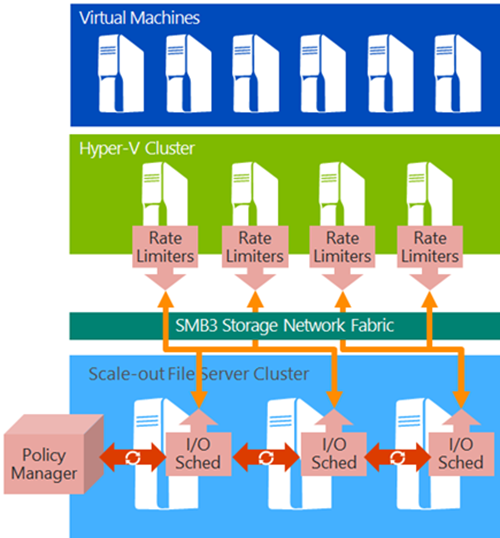
image

The result is that you can:

  • Guarantee performance: Important in a service-centric world
  • Limit damage: Cap those bad boys that want everything to themselves
  • Create a price banding system: Similar to Azure, you can set price bands where there are different storage performance capabilities
  • Offer fairly balanced performance: Every machine gets a fair share of storage bandwidth

At this point, all management is via PowerShell, but we’ll have to wait and see what System Center brings forth for the larger installs.

Windows Server Technical Preview – Cluster Quarantine

Most of us have dealt with some piece of infrastructure that is flapping, be it a switch port that’s causing issues, or a driver that’s causing a server to bug-check. These are disruptive issues. Cluster Compute Resiliency is a feature that prevents unwanted failovers when a host is having a transient issue. But what if that transient issue is repetitive? For example, what if a cluster keeps going into network-isolation and the VMs are therefore going offline too often?

If a clustered host goes into isolation too many times within a set time frame then the cluster will place this host into quarantine. The cluster will move virtual machines from a quarantined host, ideally using your pre-defined migration method (defaulting to Live Migration, but allowing you to set Quick Migration for a priority of VM or selected VMs).

The cluster will not place further VMs onto the quarantined host and this gives administrators time to fix whatever the root cause is of the transient issues.

This feature, along with Cluster Compute Resiliency are what I would call “maturity features”. They’re the sorts of features that make life easier … and might lead to fewer calls at 3am when a host misbehaves because the cluster is doing the remediation for you.