Using VMM 2012 SP1 Baselines & Compliance To Orchestrate Patching Of Hyper-V Hosts

System Center 2012 Virtual Machine Manager SP1 includes the ability to manage the patching of your Hyper-V hosts (Windows Server 2012 or Windows Server 2008 R2) from the VMM console.

WSUS is used to synchronize the catalog and download updates from Microsoft.  You can use a dedicated WSUS installation (on your VMM server for small environments or dedicated VM otherwise) or you can use a shared WSUS install (such as with ConfigMgr).

Then you need to add the WSUS server to your fabric in VMM.  Go to Fabric, Update Server, and click Add Resources (Ribbon) > Update Server.  Step through the wizard to take control of your WSUS server from VMM.

What you’ll see won’t look too unusual if you’re used to WSUS administration.  In my lab, I only sync updates for Windows Server 2012 and Windows Server 2008 R2.

image

Here’s a gotchya: VMM does not sync the catalog automatically.  You synchronize by right-licking on the Update Server, and selecting the Synchronize action.  You can figure out the POSH to do this and set up a scheduled task.

Now you’re pulling down updates.  The next step is to figure out what updates need to be applied.  This requires one or more Baselines, which you’ll manage in Library > Update Catalog And Baselines > Update Baselines.  The role of a baseline is to list a set of updates that you expect to find on your hosts.  If they are not present then VMM can install them for you.

You can create a new Baseline from the Ribbon by clicking Create > Baseline.  You have to manually select the updates that you want to include in the baseline.  This is … not pleasant.  There may be a POSH way to do this – I’ve not looked into it.  You also set the scope of the fabric that you want to update too.  This includes clusters, hosts, and parts of the VMM fabric too.

image

Now you’re going to check host/cluster compliance.  Go back to Fabric, navigate to the cluster or host, and select Compliance in the Ribbon.  Hit Scan on the Ribbon and wait – tip: do not scan a cluster and a cluster member at the same time or you’ll create a refresher job deadlock that renders the cluster unmanageable from VMM. 

The compliance of the hosts with the assigned baseline will be presented, as shown here.  You can right lick on the compliance properties to see what updates are missing.  You can create exemptions for updates on specific hosts if required.

image

To fix the compliance issue, select the cluster/host and hit Remediate in the Ribbon.  A new job will start.  This will put hosts into maintenance and use Live Migration to vacate cluster nodes of highly available VMs (keeping services online and operational without affecting SLAs).  Patching and reboots will happen.  As usual with Windows Updates, you may require several runs/reboots to get compliant.

image

Note that you do not need to configure the usual Windows Update GPOs or registry values to use this feature; the patch deployment is an action of the VMM agent and operates independently of these settings.  In my lab, the hosts are configured via GPO to download patches from another WSUS server with manual patching install.  I still can use VMM to do baseline compliance scanning and remediation.

What do I think of this feature?  In my opinion, this is not a solution for regular patching.  The amount of required manual effort is not good; manual patching = no patching.  Conficker has proven this.  I’m sure POSH wizards can automate all of this but it’ll be fragile. I would much rather prefer to use Windows Server 2012 Failover Clustering.

However, I still see uses for this VMM solution:

  • Compliance Scanning: Maybe TeamA manages WSUS for the entire network.  TeamB might manage the fabric and use Baselines and Compliance to verify that their fabric is up to date.  The remediation has nothing to do with the system and settings that are used by TeamA.
  • Some organizations, e.g. pharma, need complete control over change.  The manual nature of patch selection, compliance, and remediation may suit their challenging needs.
  • WS2012 has CAU to automate the orchestration of patching on clustered hosts.  Windows Server 2008 R2 does not have this feature.  Some wizards might figure out how to do this using System Center 2012 Orchestrator SP1 (here’s an Opalis [pre-Orchestrator] link), but others might choose to do the patching via VMM.

I think I would try to restrict my usage of this VMM feature purely to compliance operations, maybe done once per year or quarter.  CAU is a superior and easier to manage feature, and leverages existing investments in patching that span the entire network including the cloud, data centre and client devices.
Creating A WS2012 Hyper-V CSV Using VMM 2012 SP1 Via SMI-S

In this post I’ll show you how to very easily create a Cluster Shared Volume on a Windows Server 2012 Hyper-V cluster using SMI-S in System Center 2012 Virtual Machine Manager Service Pack 1.

My storage is a WS2012 iSCSI target and I’m using the VMM SMI-S provider for the iSCSI target.

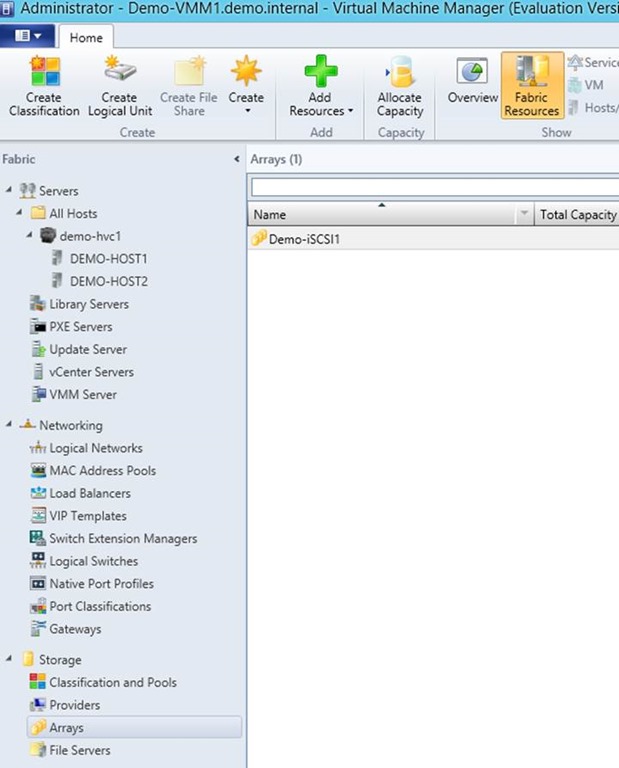
First step is to ensure that the array (the iSCSI target) is configured and it’s physical LUNs are managed and classified.  Classification allows you to label the LUNS, e.g. silver for SATA, gold for SAS, platinum for SSD, or maybe RAID10, RAID5, or whatever suits your needs.  I like bronze, silver, gold, etc, because users get it.

clip_image002

I’ll check each managed LUN on the iSCSI target and classify the LUNs accordingly.  You can create your classifications here or reuse existing ones.

clip_image004

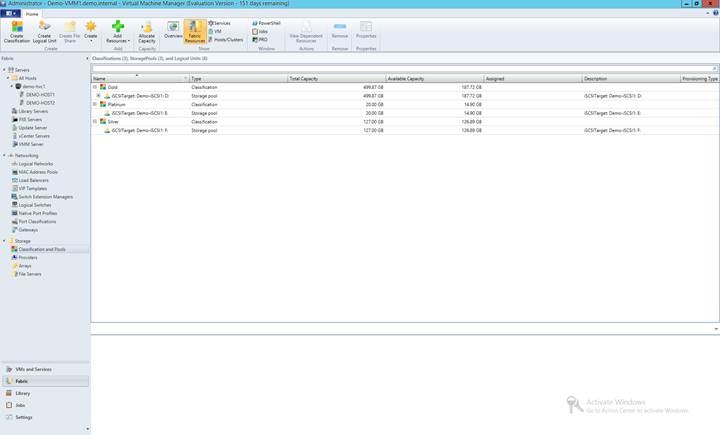
The final result will appear under Classifications and Pools (Fabric).

clip_image006

Now, to create a CSV.  We are not going to use the SAN admin tool, Hyper-V Manager, Disk Manager, or Failover Cluster Manager.  Edit the properties of a Hyper-V cluster.  Go to Shared Volumes and click Add.

clip_image008

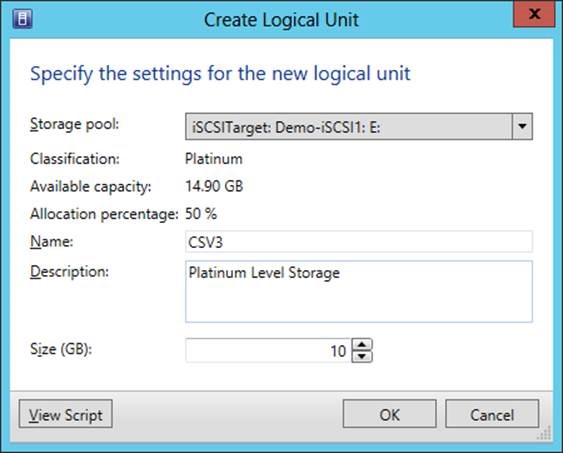
Clicking Add steps you through creating a new LUN in a storage pool (a physical disk on the iSCSI target).  This would be like creating a virtual disk in a disk group on your SAN.  Note how if I change the Storage Pool, the classification is shown, as is free space and allocated space.  I can select how big my new CSV will be. 

clip_image010

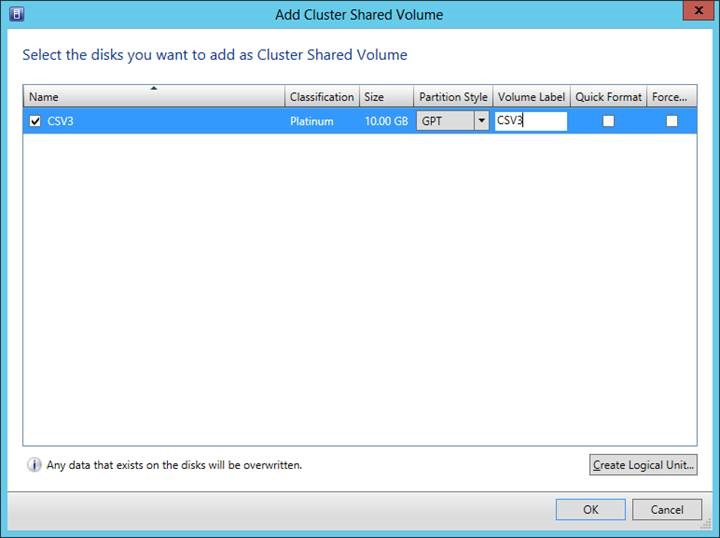
Now to prep the disk volume.  I’ll pick a partition style (MBR or GPT), a volume label, and select how it’ll be formatted.

clip_image012

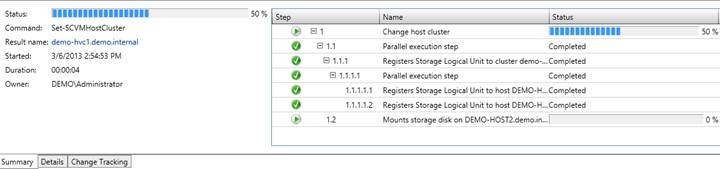
Click OK and go check out what happens in Jobs in VMM.

clip_image014

After a few moments a new LUN is created, it is mounted by the cluster, formatted/labelled, and converted into a CSV.  Easy peasy.

And before you ask, yes, you can unmount the volume from the properties of the cluster, you can create/mount/manage non-CSV volumes, and you can delete the LUNs from the SAN.

In fact, I have come  to the conclusion that if you have storage that supports SMI-S, using VMM for (not only bare-metal host/network provisioning) storage creation/allocation/management might be the preferred method.

Adding Cluster To VMM Results in 13805 Error

This relates to when you attempt to add a Hyper-V cluster to VMM and it fails with this message:

Unable to contact cluster service on <name of cluster>

There is a whole bunch of stuff you can try:

  • Verify that the cluster object exists in a local replica of AD
  • A bunch of WMI crap

Instead, why not start simple at a place where AD admins always check first: DNS – verify that the A record in DNS for the cluster is correct.  In my lab I’ve been building my cluster by hand (PowerShell where I control the cluster IP) and by VMM (where I get assigned some IP from the IP pool for the network site).

I was not cleaning up the A record after rebuilds.  My last cluster build was done from a script and used a different IP that I was assigning.  I didn’t notice that the A record was not updated; I guess it was a permissions thing.

I attempted to add the cluster to VMM and I got the above error.  After some thought, I decided to check name resolution and that’s when I saw the issue.  I corrected the A record, flushed the DNS cache on the DNS server and the VMM server, reattempted the cluster add, and it worked OK.

Mapping The Virtual Networking In System Center 2012 SP1 Virtual Machine Manager

I’ve spent the last few days working on the new networking in VMM 2012 SP1 to build new Windows Server 2012 hosts/clusters from bare metal and deploy virtual machines.  There are a lot of parts in this puzzle.  And the terminology is quite different to what we’re used to in Hyper-V.  In the end, I was deploying hosts with converged fabrics and creating clusters with SMB 3.0 (Scale-Out File Server) storage.

With so many pieces I thought it would be a good idea to map out everything that was required in my lab deployment.  Here’s what it looks like … note that you might need to look at the original image by clicking on it.

image

I have not gone further with the map, e.g. mapping to service templates, clouds, etc.  I’ve focused here on host and virtual machine networking deployment.


Virtual Machine Servicing Tool 2012 Is Released

VMST 2012 has been released by Microsoft:

Virtual Machine Servicing Tool (VMST) 2012 is designed to work with System Center 2012 Virtual Machine Manager (VMM), System Center 2012 Configuration Manager and Windows Server Update Services (WSUS) 3.0 SP2.

VMST 2012 helps you reduce IT costs by making it easier to update your offline virtual machines, templates, and virtual hard disks with the latest operating system and application patches—without introducing vulnerabilities into your IT infrastructure.

This Solution Accelerator includes the following components:

  • Brief Overview. Available online only on Microsoft TechNet. Summary for business and technical managers that briefly explains how this Solution Accelerator can fit into an organization’s IT infrastructure management strategy.
  • VMServicing_x64 and VMServicing_x86. Setup files for the tool, for 64 bit and 32 bit versions of Windows with System Center 2012 – Virtual Machine Manager.
  • Virtual Machine Servicing Tool Getting Started Guide. Provides information about how the tool works, explains prerequisites for the tool, and describes how to install and configure the tool.
  • VM_Servicing_Tool_2012_Release_Notes Notes provide information about this release, describe known issues in the tool, and include feedback instructions.
Technorati Tags: ,

Got My Paperback Copies of Microsoft Private Cloud Computing

After a 2 week snafu by the local An Post office in my town and me being abroad, I finally gotten my copies of Microsoft Private Cloud Computing this morning.

photo

This is the point when you can finally say “it’s finished”.  Now on to other things …

Virtual Machine Servicing Tool 2012 Beta

Microsoft has launched the beta for VMST 2012.  This tool is used in conjunction with System Center 2012 Virtual Machine Manager (VMM) to update offline virtual machine resources from ConfigMgr/WSUS.

VMST 2012 helps you more effectively—and safely—manage the workflow of updating you offline virtualization environment. Using VMST 2012, you can now service:

– Offline virtual machines in a SCVMM library.

– Stopped and saved state virtual machines on a host.

– Virtual machine templates.

– Offline virtual hard disks in a SCVMM library by injecting update packages.

Microsoft Private Cloud Computing Available In Paperback

Last Sunday Wiley released the electronic version of Microsoft Private Cloud Computing in Amazon Kindle, and other formats such as iTunes

Oddly enough, the paper version is usually released before the digital ones.  I know that sounds backwards but it has always been my experience.  I can confirm that the paper editions are actually available.  There seems to have been an issue with distribution so Amazon still don’t have stock but should have soon.

image

Microsoft Private Cloud Computing Book Is Available On Kindle

If you want to learn how to use System Center 2012 to build and manage the fabrics of your private cloud then you can go to Amazon and buy Microsoft Private Cloud Computing.  It’s available on Kindle now … even before any of the authors have seen the finished product Smile