Deploying New Hyper-V Integration Components

Imagine this: you are running a pretty big Hyper-V environment, Microsoft releases a service pack that adds a great new feature like Dynamic Memory (DM), legacy OS’s will require the new ICs, and you really want to get DM up and running.  Just how will you get those ICs installed in all those VMs?

First you need to check your requirements for Dynamic Memory.  The good news is that any Windows Server 2008 R2 with SP1 VM will have the ICs.  But odds are that if you have a large farm then things aren’t all that simple for you.  Check out the Dynamic Memory Configuration Guide to see the guest requirements for each supported OS version and edition. 

OK, let’s have a look at a few options:

By Hand

Log into each VM, install the ICs, and reboot.  Yuk!  That’s only good in the smallest of environments or if you’re just testing out DM on one or two VMs.

VMM

VMM has the ability to install integration components into VMs.  The process goes like this:

  1. Shut down a number of VMs
  2. Select the now shut down VMs (CTRL + select)
  3. Right-click and select the option to install new integration components
  4. Power up the VMs

You’ll see the VM’s power up and power down during the installation process.  Now you’re done.

WSUS

Here’s an unsupported option that will be fine in a large lab.  You can use the System Center Updates Publisher to inject updates into a WSUS server.  Grab the updates from a W2008 R2 SP1 Hyper-V server and inject them into the WSUS server.  Now you let Windows Update take care of your IC upgrade.

Configuration Manager

This is the one I like the most.  ConfigMgr is the IT megalomaniac’s dream come true.  It is a lot of things but at it’s heart is the ability to discover what machines are and distribute software to collections of machines that meet some criteria.  So for example, you can discover if a Windows machine is a Hyper-V VM and put it in a collection.  You can even categorise them.

You may notice that Windows Server 2008 with SP2 Web and Standard editions require a prerequisite update to get DM working

So, you can advertise the ICs to a collection of W2008 with SP2 standard and web editions, making that update a requirement.  The update gets installed, and then the ICs get installed.  All other OS’s: it’s just an update.  And of course, you just need to install SP1 on your W2008 R2 VMs.  As you may have noticed, I’[m not promoting the use of the updates function of ConfigMgr; I’m talking about the ability to distribute software.

I’ll be honest – I don’t know if the ConfigMgr method is supported or not (like the WSUS option) but it’s pretty tidy, and surely must be the most attractive of all in a large managed environment.  And because it’s a simple software distribution, I can’t see what the problem might be.

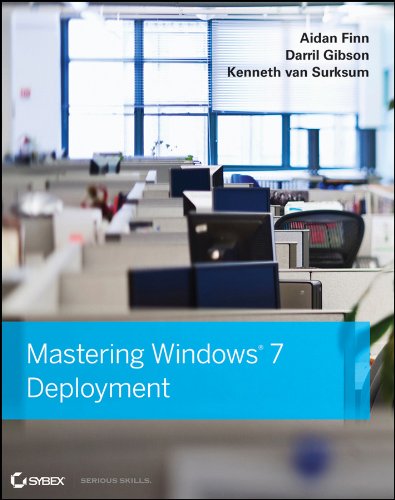
Mastering Windows 7 Deployment is Published

I’ve just recived an email from Sybex to say that the third book that I’ve been involved with, Mastering Windows 7 Deployment, has just started shipping from their warehouse(s).  Right now, Amazon.com is still on preorder but that will likely change in the coming hours or days.  The Wiley (Sybex is part of the Wiley group) site is live right now.

Who contributed?  Me, Darril Gibson (trainer/consultant, also of Mastering Windows Server), Kenneth van Surksum (Dutch MVP and well known blogger), Rhonda Layfield (deployment MVP, author, speaker, trainer), not to mention deployment MVPs/gurus Johan Arwidmark and Mikael Nystrom.  It was quite a cast to work with!  Big thanks to anyone I worked with on the project, especially those in Sybex who worked on the project.

The book takes a very practical look at how to do a Windows 7 deployment project.  It starts out by doing the assessment using MAP.  From there, issues with application compatibility are dealt with.  You learn about WAIK, using WDS, MDT, user state transfer, and even how to do zero touch installations using System Center Configuration Manager 2007 (including R2/R3).  I’d buy it if I wasn’t one of the contributors 🙂

Sample Chapter: Mastering Windows 7 Deployment

Last year was pretty busy.  Not only did I write Mastering Hyper-V Deployment (with MVP Patrick Lownds helping), but that project was sandwiched by me writing a number of chapters for Mastering Windows 7 Deployment.  That Windows 7 book is due out somethime this month.

If you browse onto the Sybex website you can get a sneak peak into what the book is like.  There is a sample exceprt from the book, along with the TOC.

The book aims to cover all the essential steps in a Windows 7 deployment … from the assessment, solving application compatibility issues, understanding WAIK (and digging deeper), learnign about WDS for the first time (and digging deeper), more of that on MDT, and even doing zero touch deployments using Configuration Manager 2007.  A good team of people contributed on the book from all over the place … and the tech reviewers were some of the biggest names around (I wet myself with fear when I saw who they were).

Give it a look, and don’t be shy of placing an order if you like what you see 🙂

Community Event: From The Desktop to the Cloud: Let’s Manage, Monitor and Deploy

We’ve just announced the details of the latest user group event in Dublin … it’s a biggie!  I’ll be presenting two of the deployment sessions, on MAP and MDT.

Join us at the Guinness Store House on February 24th at 09:00 for a full day of action packed sessions covering everything from the desktop to The Cloud, and maybe even a pint of Guinness afterwards.

We have our a fantastic range of speakers ranging from MVPs to Microsoft Staff and leading industry specialists to deliver our sessions ensuring a truly unique experience.  During this day, you will have the choice of attending sessions of your choice, covering topics such as Windows 7/Office 2010 deployment, management using System Center, and cloud computing for the IT pro (no developer content – we promise!).

We have our a fantastic range of speakers ranging from MVPs to Microsoft staff and leading industry specialists to deliver our sessions ensuring a truly unique experience. During this day, you will have the choice of attending sessions of your choice, covering topics such as Windows 7/Office 2010 deployment, management using System Center, and cloud computing for the IT pro (no developer content – we promise!).

We promised bigger and better and we meant it.  This session will feature 3 tracks, each with four sessions.  The tracks are:

  1. The Cloud: Managed by Microsoft Ireland
  2. Windows 7/Office 2010 Deployment: Managed by the Windows User Group
  3. Systems Management: Managed by the System Center User Group

You can learn more about the event, tracks, sessions, and speaker on the Windows User Group site.

You can register here.  Please only register if you seriously intend to go; Spaces are limited and we want to make sure as many can attend as possible.

The Twitter tag for the event is #ugfeb24.

74% Of Workers Plug Personal Devices Into Work Network

I’ve just read a story on techcentral.ie that discusses a Virgin Media (UK-based ISP) report.  It says that 74% of company employees are bringing personal devices into work and plugging them into the company network.  This is the sort of thing I was talking about in my previous millenials post.  It’s also the sort of thing that has impacted decision making by corporates: personal preferences for a better appliance or utility can improve the working experience, and the corporate decision making process.  We have to decide how we respond?

Do we try to block everything?  We can try.  Group Policy and utilities like DeviceLock can lock down what is plugged into PCs.  Network Access Protection (Windows)/Network Access Control (Cisco) can control what is allowed to connect to the network.  I’ve taken the device lock approach before.  But a valid business case always overrules global policy, and you might be surprised how many people come up with “valid” business cases.  Soon the policy resembles swiss cheese, only affecting the minority of users.  The result is that IT is disliked – it’s a blocking force once again.

The user-centric approach that we’re seeing with private cloud, App-V, and System Configuration Manager 2012 is an example of how we need to think.  My millenials post also suggests a way forward.  Maybe we need to allow personal appliances, but use those policy tools like Network Access Control to place the appliances into networks that are not central, kind of like the guest network that is often used.  Or maybe we need to change how we think about the PC altogether and treat the entire PC network as a guest network. 

The latter approach might work very well with the user-centric approach.  If end users are using their own PCs, tablets, and phones, then we cannot apply corporate policy to them.  Maybe we just provide user-centric self-service mechanisms and let them help themselves.  Or maybe things like VDI and/or RemoteApp are the way forward for LOB client delivery.  If everythign was cloud (public/provate) and web-client based then application delivery would be irrelevant.  Maybe it’s a little bit from column A and a little from column B?

It’s a big topic and would require a complete shift in thinking … and a complete re-deployment of the client network, including LOB application interfaces.

What are Millennials and Why Should an IT Pro Care?

Before yesterday I had never heard the term Millennial.  I was at an event for UK/Ireland MVPs and this was the topic of the keynote.  It’s a term to describe the current generation of people.  So we had the baby boomers in the 50’s, Generation X in the 60’s and 70’s, Generation Y in the 80’s and 90’s, and since then, the Millennial generation has been entering the work force.  They are very different to the baby boomers.

Baby boomers expect everything to be locked down, controlled by policy, restricted, and so on.  Colleagues who worked with me when I was last a domain admin know that’s how I liked to run a Windows network.  Users had no administrative rights unless they had a valid (and approved) business case.  IT did everything when it came to changes.  We minimised the effort by using things like GPO and System Center.  This is how Baby Boomers like it … and the folks in charge right now are Baby Boomers.

People who are entering the workplace are not baby boomers.  They are the Millennials.  They’ve grown up with PCs in their bedroom, phones with always-on Internet access, netbooks with wifi hotspots and 3G cards, and the ability to download and run apps on an as-needed basis.  They are entering the workplace and finding it stifling.  It’s choking their ability to work.  Why?  Because we have implemented a baby boomer infrastructure and expect younger people who think very differently to work in an environment that is 100% alien to them.

Why should the business care?  I’ll keep it quick with 2 arguments.

Employee Competition

Even though there is massive unemployment and graduates have next to know opportunities, there is still some recruiting going on.  Those companies want to hire the very best graduates.  Given the choice, will an employee join the company with the tied down, IBM-esque suit-and-tie environment, where they wait 6 weeks for a laptop, have no administrative rights, can’s use social media, and have forbidding IT usage policies that threaten them with unemployment if they dare look at a news website?  Or will they choose to work for a company that has a more liberal working environment that favours results over appearances, where IT is seen as a tool instead of a 10 foot wall, and where they are free to use their imagination to accomplish their goals?

Business Flexibility

Imagine this: a user is given a task that requires using an application tool set that is not available to them right now.  They need to do some research to find out what is best.  They can reach out on Twitter or Facebook to get some advice.  Now they find the best tools to use.  They check the IT-maintained library, and request an application.  A workflow starts and their boss approves the request.  The application starts installing immediately.  They may need another tool.  This could be available online as an app that can be downloaded or run in the cloud.  They subscribe to it and now they can start working.  They get the results the business needs and they accomplish it in a timely manner, making profit for the company.

Compare it with this.  A user identifies a need for some applications.  They have no means to research what is the best tool, other than vendor sites full of marketing material that glorify their wares.  The user identifies four possible alternatives and requests IT to look into them.  IT gets some demos and sets up a trial for the user after a week or two.  The user picks two tools and a purchasing process starts.  Security get involved to validate the tools, Internal Audit have their say, and after a few more weeks the tools are purchased.  By now, the user has had to give up on getting the tools and attempts to accomplish their goals in an inadequate fashion.  The results are late and the company fails to win the business.

Sound familiar?  It’s the basis of cloud computing.  In other words, IT cannot predict the needs of the business, and the result is that IT becomes a blocking force for the businesses need to change and compete in a fluid and competitive world.

We baby boomer-ish IT admins and decision makers need to adopt new technologies that cater for the desired working environment of the Millennials and provide the business with a flexible working environment. 

I’ve heard it discussed before that we need to consider letting them bring their own computers to work.  I know that some major corporations are looking into this.  That causes complications about ownership of applications and data.  Maybe Remote Desktop Services or VDI are the answers here.  Maybe App-V is.  Maybe a client hypervisor with a company virtual machine is.  Or maybe we don’t have the correct solution yet because this is a new challenge.

Old school thinking on network design needs to be reconsidered.  If users are bringing in their own PC’s then they need to be isolated from company resources.  We have to validate the machines for security and health (MS NAP/Cisco NAC?).  Internet usage policies need to be opened up to allow for social media.  Businesses need to be more concerned about results than clock punching.

Mobility is a huge factor.  The traditional team has gone by the wayside.  Teams are dynamic now.   A person floats between teams on projects.  They can be a member of many teams at once if they work on many projects.  This impacts collaboration (Lync and SharePoint), mobility (wifi) and work presence (home, mobile working, and hot-desking).

Microsoft often refer to their Netherlands office as a new working place.  Back in 2001, I worked in the new DVG campus in Hannover, Germany.  It’s a huge version of that same concept.  It was effectively a giant glass canopy, with buildings, gardens and pathways beneath it.  Employees were assigned to a floor in a building.  They came in the morning and either took and office or an open area desk depending on the type of work they were doing.  They system I worked on enabled their application toolset to follow them from one PC to another (laptops were still very expensive), and they used “mobile” phones that charged overnight in a locker.  IT was using technology from 10 years ago but it was way ahead of what many companies do today.  And I have to say it was one of the most relaxing work places I’ve ever been in.

We IT pros, architects, consultants, and decision makers have a lot to think about in the coming years.  Business requires more flexibility than ever to face up to the current economic challenges.  We need the very best employees and they need the very best tools.  We have to change how we deliver IT to the information worker.

Things to check out:

  • App-V
  • System Center Configuration Manager 2012
  • Remote Desktop Services Session Hosts
  • VDI
  • Private Cloud Computing
  • DirectAccess
  • Network Access Protection

System Center Configuration Manager 2007 R3 RTM

Microsoft announced last night that ConfigMgr (SCCM) 2007 R3 had RTM’d.  R3, like R2 before it, is not a service pack.  It is a new release level that requires new licensing (covered by software assurance).  The deployment will require an update, described in KB977384.  This hotfix is required for the following computers that are running System Center Configuration Manager 2007 Service Pack 2 (SP2):

  • Primary and secondary site servers
  • Remote administrator console servers
  • Remote provider servers
  • Client computers

ConfigMgr 2007 R3 can be referred to as the power management release.  Steve Rachui of Microsoft goes into some depth on this in a blog post.  Long story short: You can audit and report on power utilisation and costs in your organisation.  You can identify waste using these reports.  Using collections, you can apply a power policy to Windows computers.  Then you can compare your earlier reports with new reports to see how and what you have saved.

As Steve notes, there are some other changes:

  • Delta AD Discovery: Changes are picked up instead of doing a full discovery.
  • Dynamic Collection Updating: One of the time consumers in new deployments is the time required for collection membership update intervals.  This new interval type is used in a few key scenarios where time is critical.  MS is recommending sparse usage.
  • Pre-Staged Media: This is aimed at organisations who offload OS deployment to the OEM.  Media can be created from your OSD and sent out to the likes of Dell who build your PCs OS in their factory.
  • Scalability: Up to 300,000 clients are supported in a hierarchy. 

Doing a Windows 7 Assessment in the Real World

Last night I talked about how I needed to use ConfigMgr to help with my MAP assessment.  Today, I had to drop MAP.

I have to be realistic with this project.  The site has a mix of PCs.  Some are old and some are new.  There are 32-bit and 64-bit processors.  Some users require 4 GB RAM or more (and thus 64 bit processors).  And as with everyone, money cannot just be thrown at a problem.  In this project, PCs with what we see as inferior processors will be recycled (or donated) after being securely wiped.  New PCs will be purchased, prepared, and given to power users.  Their old PCs will be reconditioned and re-used.  PCs with not enough RAM or disk will be upgraded where possible.  64-bit operating systems will be used where possible but it is likely that most will be 32-bit (unless more than 3 GB RAM is required).

And this is where MAP fails:

  • It doesn’t tell me what size a disk is, only that it has a certain amount of free space.
  • It doesn’t give me information about 64-bit processor functionality.
  • It doesn’t give me hardware model information so that I can check if I can put more than 2 GB RAM into the chassis.

I also had another problem with MAP.  Remember that this is a site where there are lots of old machines with old builds.  Remote access of WMI (even with all the permissions and policies configured) doesn’t seem to work.  Plus people are in and out with laptops so I have to time my scan perfectly.

So I went back to ConfigMgr and its reports.  The benefit is that an installed agent will do the hardware inventory and report back to the ConfigMgr server.  No remote WMI required.  This makes it more reliable.  I also get a scan when the agent is installed.  And I’ve done that 3 ways:

  1. ConfigMgr push.
  2. Start-up script.
  3. Sneaker-net: This is a crusty network and I noticed that the agent push was not as successful as it should have been.

There are some basic reports for Vista and Windows 7 assessments.  I stress basic.  The same problems exist here.  But the reports gave me a template that I could work with.  I started off by creating a report that queries for the number of each of the different models of computer on the network.  That gives me the information I need to check hardware maximum capacities.  I then created a collection that contains all agent managed desktops and laptops.  I took the Windows 7 assessment report, cloned it, and rewrote the SQL query for the report.  I then ran that report against my new managed client computer collection.  It gives me the following for each computer:

  • Computer name
  • Computer model
  • CPU model, speed, and 64-bit support
  • Physical memory
  • Physical disk size

I’ve enough information there to plan everything I need.  I can dump it into Excel and work away to create my reports.  I can price hardware component upgrades and computer replacements.  I can plan the OS deployment.  It would have been nice to do this with MAP but unfortunately the basic nature of the reports and the lack of an agent (for circumstances such as those that I’ve encountered on this project) did not help.

ConfigMgr continues to rock!  Plus I was able to show it off to some of the folks at the site.

Using MAP in a Messy Network

I’ve been doing an assessment for a Windows 7 deployment in a network that’s not had any regular maintenance in a long time.  For example, there are 400+ computer accounts with around 100 real machines.  I can’t even use oldcmp to clean up because some of those “stale” account are associated with machines that are archived/stored for old projects that might need to be recovered.  I also have an issue where machines are not responding as expected to MAP, despite all the policies being in place.  Solution?  The Swiss Army Knife of systems management: System Center Configuration Manager.

I set up a ConfigMgr (licenses are there) and deployed an agent to all machines.  That had limited success as expected (see above).  I then set up a start up script to hit the machines when the reboot – which is not very often (it is a bit of a “wild garden” network).  The perk of this is that I get a client install that will audit machines are report back information, regardless of firewall, etc.

Over time the number of managed agents has doubled, giving me a good sample to work with.  I was able to run a report to get the computer names of all the desktop machines.  Now I took that CSV and converted it into a text file, each line having a computer name.  That’s perfect for a text file discovery in MAP.

I ran a discovery and assessment using that and got much better results than before.  It’s still not perfect and that’s because we are in the real world.  Many of the machines are offline, either out of the office or turned off.  Some machines haven’t been rebooted or powered up to get the ConfigMgr agent.  So there will be some sneaker net to take care of that. 

And that’s how I’ve done an assessment in a wild network that a simple MAP deployment would not have succeeded in.

Newest Book: Mastering Windows 7 Deployment

No sooner than Mastering Hyper-V Deployment is done, I’m working on Mastering Windows 7 Deployment.  I’m contributing 6 chapters to this one and I’m half way through writing the draft editions.  This book is providing all the steps and all the methods to do a Windows 7 deployment project using the MS product set.  I don’t know what the schedule is at the moment.  I’d suspect early next year will be the RTM.