Disable VMQ on 1 GbE NICs … no matter what … yes, that includes you … I don’t care what your excuse is … yes; you.
That’s because VMQ on 1 GbE NICs is:
On by default despite the requests and advice of Microsoft
It breaks Hyper-V networking
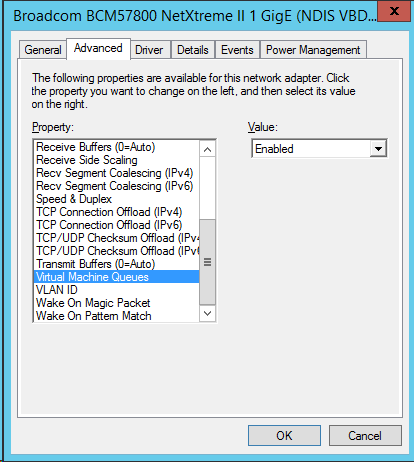
Here’s what I saw on a brand new dell R730, factory fresh with a NIC firmware/driver update:
Now what do you think is the correct action here? Let me give you the answer:
Change Virtual Machine Queues to Disabled
Click OK
Repeat on each 1 GbE NIC on the host.
Got any objections to that? Go to READ HERE above. Still got questions? Go to READ HERE above. Got some objections? Go to READ HERE above. Want to comment on this post? Go to READ HERE above.
This BS is why I want Microsoft to disable all hardware offloads by default in Windows Server. The OEMs cannot be trusted to deploy reliable drivers/firmware, and neither can many of you be trusted to test/configure the hosts correctly. If the offloads are off by default then you’ve opted to change the default, and it’s up to you to test – all blame goes on your shoulders.
So what modification do you think I’m going to make to these new hosts? See READ HERE above 😀
EDIT:
FYI, basic 1 GbE networking was broken on these hosts when I installed WS2012 R2 with all Windows Updates – the 10 GbE NICs were fine. I had to deploy firmware and driver updates from Dell to get the R730 to reliably talk on the network … before I did what is covered in READ HERE above.
We’ve known since Ignite 2015 that Microsoft was going to have two kinds of containers in Windows Server 2016 (WS2016):
Windows Server Containers: Providing OS and resource virtualization and isolation.
Hyper-V Containers: The hypervisor adds security isolation to machine & resource isolation.
Beyond that general description, we knew almost nothing about Hyper-V Containers, other than expect them in preview during Q4 of 2015 – Technical Preview 4 (TPv4), and that it is the primary motivation for Microsoft to give us nested virtualization.
That also means that nested virtualization will come to Windows Server 2016 Hyper-V in TPv4.
We have remained in the dark since then, but Mark Russinovich appeared on Microsoft Mechanics (a YouTube webcast by Microsoft) and he explained a little more about Hyper-V Containers and he also did a short demo.
Some background first. Normally, a machine has a single user mode running on top of kernel mode. This is what restricts us to the “one app per OS” best practice/requirement, depending on the app. When you enable Containers on WS2016, an enlightenment in the kernel allows multiple user modes. This gives us isolation:
Namespace isolation: Each container sees it’s own file system and registry (the hives in the containers hosted files).
Resource isolation: How much process, memory, and CPU a container can use.
Kernel mode is already running when you start a new container, which improves the time to start up a container, and thus it’s service(s). This is great for deploying and scaling out apps because a containerised app can be deployed and started in seconds from a container image with no long term commitment, versus minutes for an app in a virtual machine with a longer term commitment.
But Russinovich goes on to say that while containers are great for some things that Microsoft wants to do in Azure, they also have to host “hostile multi-tenant code” – code uploaded by Microsoft customers that Microsoft cannot trust and that could be harmful or risky to other tenants. Windows Server Containers, like their Linux container cousins, do not provide security isolation.
In the past, Microsoft has placed such code into Hyper-V (Azure) virtual machines, but that comes with a management and direct cost overhead. Ideally, Microsoft wants to use lightweight containers with the security isolation of machine virtualization. And this is why Microsoft created Hyper-V Containers.
Hyper-V provides excellent security isolation (far fewer vulnerabilities found than vSphere) that leverages hardware isolation. DEP is a requirement. WS2016 is introducing IOMMU support, VSM, and Shielded Virtual Machines, with a newly hardened hypervisor architecture.
Hyper-V containers use the exact same code or container images as Windows Server Containers.That makes your code interchangeable – Russinovich shows a Windows Server Container being switched into a Hyper-V container by using PowerShell to change the run type (container attribute RuntimeType).
The big difference between the two types, other than the presence f Hyper-V, is that Hyper-V Containers get their own optimized instance of Windows running inside of them, as the host for the single container that they run.
The Hyper-V Container is not a virtual machine – Russinovich demonstrates this by searching for VMs with Get-VM. It is a container, and is manageable by the same commands as a Windows Server Container.
In his demos he switches a Windows Server Container to a Hyper-V Container by running:
So the images and the commands are common across Hyper-V Containers and Windows Server Containers. Excellent.
It looked to me that starting this Hyper-V Container is a slower operation than starting a Windows Server Container. That would make sense because the Hyper-V container requires it’s own operating system.
I’m guessing that Hyper-V Containers either require or work best with Nano Server. And you can see why nested virtualization is required. A physical host will run many VM hosts. A VM host might need to run Hyper-V containers – therefore the VM Host needs to run Hyper-V and must have virtualized VT-x instructions.
Russinovich demonstrates the security isolation. Earlier in the video he queries the processes running in a Windows Server Container. There is a single CSRSS process in the container. He shows that this process instance is also visible on the VM host (same process ID). He then does the same test with a Hyper-V Container – the container’s CSRSS process is not visible on the VM host because it is contained and isolated by the child boundary of Hyper-V.
What about Azure? Microsoft wants Azure to be the best place to run containers – he didn’t limit this statement to Windows Server or Hyper-V, because Microsoft wants you to run Linux containers in Azure too. Microsoft announced the Azure Container Service, with investments in Docker and Mesospehere for deployment and automation of Linux, Windows Server, and Hyper-V containers. Russinovich mentions that Azure Automation and Machine Learning will leverage containers – this makes sense because it will allow Microsoft to scale out services very quickly, in a secure manner, but with less resource and management overhead.
That was a good video, and I recommend that you watch it.
Microsoft Azure Backup Server: Download the MAB (based on DPM) to get on-premises backup of Hyper-V, SQL, Exchange, SharePoint and clients that you can forward to Azure Backup vaults.
IIS and Azure Files: Can I host my IIS web content in the cloud using Azure Files? Yes you can put your websites in Azure Files and use shared configuration for shared web content between a farm of auto-scaling, load balanced VMs in an availability set with auto-scaling enabled. Yum!
One of the biggest hitting articles on my site, written in 2009 (!!!) is “Can You Install Hyper-V in a VM?”. The short answer has always been “yes, if you know how”, but the long/compelete answer continues with “the hypervisor will not start and you will not be able to boot any virtual machines”.
This was because Hyper-V did not support nested virtualization – the ability to run Hyper-V in a VM that is running on Hyper-V (yes, I know there are hacks to get Hyper-V to run in a VM on VMware). A requirement of Hyper-V is a processor feature, VT-x from Intel or AMD-V from AMD. Hyper-V takes control of this feature and does not reveal it to the guests running on the host. This means that a system requirement of Hyper-V is not present in the virtual machine, and you cannot use the virtual machine as a real host.
Microsoft released Build 10565 of Windows 10 to Windows Insiders this week and announced that the much anticipated nested Hyper-V virtualization is included. Yup, I’ve tried it and it works. Microsoft has made this work by revealing processor virtualization on a per-VM basis to VMs that will be Hyper-V hosts – let’s call these VM hosts to keep it consistent with the language of Windows Server Containers. This means that I can:
Install Hyper-V on a physical host
Create a VM
Enable nested virtualization for that VM, making it a VM host
Install a guest OS in that VM host and enable Hyper-V
Create VMs that will actually run in the VM host.
Applications of Nested Virtualization
I know lots of you have struggled with learning Hyper-V due to lack of equipment. You might have a PC with some RAM/CPU/fast disk and can’t afford more, so how can you learn about Live Migration, SOFS, clustering, etc. With nested virtualization, you can run lots of VMs on that single physical machine, and some of those VMs can be VM hosts, in turn hosting more VMs that you can run, back up, migrate, failover, and so on (eventually, because there are limitations at this point).
Consultants and folks like me have struggled with doing demonstrations on the road. At TechEd Europe and Ignite, I used a VPN connection back to a lab in Dublin where a bunch of physical machines resided. I know one guy that travels with a Pelicase full of of Intel NUC PCs (a “cloud in a case”). Now, one high spec laptop with lots of SSD could do the same job, without relying on dodgy internet connections at event venues!
A big part of my job is delivering training. In the recent past, we nearly bought 20 rack servers (less space consumed than PCs, and more NICs than NUC can do) to build a hands-on training lab. With a future release of WS2016, all I need is some CPU and RAM, and maybe I’ll build a near-full experience hands-on training lab that I can teach Hyper-V, Failover Clustering, and SOFS with, instead of using the limited experience solution that Microsoft uses with Azure VMs (no nested virtualization at this time). Personally I think this feature could revolutionize how Hyper-V training is delivered, finally giving Microsoft something that is extremely badly required (official Hyper-V training is insufficient at this time).
Real world production uses include:
The possibility of hosted private cloud: Imagine running Hyper-V on Azure, so you can do private cloud in a public cloud! I think that might be pricey, but who knows!
Hyper-V Containers: Expected with TPv4 of WS2016, Hyper-V Containers will secure the boundaries between containerized apps.
It’s the latter that has motivated Microsoft to finally listen to our cries for this feature.
Release Notes
Nested virtualization is a preview feature and not to be used in production.
AMD-v is not supported at this time. Intel VT-x must be present and enabled in the physical host.
You cannot virtualize third-party hypervisors at this time – expect VMware to work on this.
The physical host and the VM host must be running Build 10565 or later. You cannot use Windows 10 GA, WS2012 R2 or WS2016 TPv3 as the physical host or the VM host.
Dynamic Memory is not supported.
The following features don’t work yet: Hot-memory resize, Live Migration, applying checkpoints, save/restore.
MAC spoofing must be enabled on the VNIC of the VM host.
Virtual Secure Mode (VSM) / Virtualization Based Security (VBS) / Credential Guard (a Windows 10 Enterprise feature) must be disabled to allow virtualization extensions.
Enabling Nested Virtualization
1 – Install the Physical Host
Install Build 10565 of Windows or later on the physical host. Enable the Hyper-V role and configure a virtual switch.
2- Create a VM Host
Deploy a VM (static RAM) with Build 10565 or later as the guest OS. Connect the VM to the virtual switch of the physical host.
3 – Enable Nested Virtualization
Run the following, using an elevated PowerShell window, on the physical host to execute the enablement script (shared on GitHub):
Run the following on the physical host, targeting the VM host. This will enable MAC spoofing on the VM host. Modify this cmdlet to specify a vNIC if the VM will have NIC just for nested VMs to communicate on.
Set-VMNetworkAdapter -VMName <VMName> -MacAddressSpoofing on
5 – Enable Hyper-V in the VM Host
Enable the Hyper-V role in the VM host and configure a virtual switch on the vNIC that is enabled for MAC spoofing.
6 – Create Nested VMs
Create VMs in the VM host, power them up and deploy operating systems. Have fun!
And bingo, there you go!
How Useful is Nested Virtualization Now?
I won’t be rushing out to buy a new laptop or re-deploy the lab yet. I want to run this with WS2016 so I have to wait. I’ll wait longer for Live Migration support. So right now, it’s cool, but with WS2016 TPv4 (hopefully), I’ll have something substantial.
In this article I want to explain how you can backup Azure virtual machines using Azure Backup. I’ll also describe how to price up this solution.
Backing up VMs
Believe it or not, up until a few weeks ago, there was no supported way to backup production virtual machines in Azure. That meant you had no way to protect data/services that were running in Azure. There were work-arounds, some that were unsupported and some that were ineffective (both solution and cost-wise). Azure Backup for IaaS VMs was launched in preview, and even if it was slow, it worked (I relied on it once to restore the VM that hosts this site).
The service is pretty simple:
You create a backup vault in the same region as the virtual machines you want to protect.
Set the storage vault to be LRS or GRS. Note that Azure Backup uses the Block Blob service in storage accounts.
Create a backup policy (there is a default one there already)
Discover VMs in the region
Register VMs and associate them with the backup policy
Like with on-premises Azure Backup, you can retain up to 366 recovery points, and using an algorithm, retain X dailies, weeklies, monthlies and yearly backups up to 99 years. A policy will backup a VM to a selected storage account once per day.
This solution creates consistent backups of your VMs, supporting Linux and Windows, without interrupting their execution:
Application consistency if VSS is available: Windows, if VSS is functioning.
File system consistency: Linux, and Windows if VSS is not functioning.
The speed of the backup is approximately:
The above should give you an indication of how long a backup will take.
Pricing
There are two charges, a front-end charge and a back-end charge. Here is the North Europe pricing of the front-end charge in Euros:
The front-end charge is based on the total disk size of the VM. If a VM has a 127 GB C:, a 40 GB D: and a 100 GB E: then there are 267 GB. If we look at the above table we find that this VM falls into the 50-500 GB rate, so the privilege of backing up this VM will cost me €8.44 per month. If I deployed and backed up 10 of these VMs then the price would be €84.33 per month.
Backup will consume storage. There’s three aspects to this, and quite honestly, it’s hard to price:
Initial backup: The files of the VM are compressed and stored in the backup vault.
Incremental backup: Each subsequent backup will retain differences.
Retention: How long will you keep data? This impacts pricing.
Your storage costs are based on:
How much spaces is consumed in the storage account.
If have 5 VMs in North Europe, each with 127 GB C:, 70 GB D:, and 200 GB E:. I want to protect these VMs using Azure Backup, and I need to ensure that my backup has facility fault tolerance.
Let’s start with that last bit, the storage. Facility fault tolerance drives me to GRS. Each VM has 397 GB. There are 5 VMs so I will require at most €1985 for the initial backup. Let’s assume that I’ll require 5 TB including retention. If I search for storage pricing, and look up Block Blob GRS, I’ll see that I’ll pay:
€0.0405 per GB per month for 1 TB = 1024 * €0.0405 = €41.48
€0.0399 per GB per month for the next 49 TB = 4096 * €0.0399 = €163.44
For a total of €204.92 for 5 TB of geo-redundant backup storage.
The VMs are between 50-500 GB each, so they fall into the €8.433 per protected instance bracket. That means the front-end cost will be €8.433 * 5 = €42.17.
So my total cost, per month, to backup these VMs is estimated to be €42.17 + €204.92 = €247.09.
If you are deploying services that require fast data then you might need to use shared SSD storage for your data disks, and this is made possible using a Premium Storage Account with DS-Series or GS-Series virtual machines. Read on to learn more.
More data disks: You can deploy a VM spec that supports more than 1 data disk. If each disk has 500 IOPS, then aggregating the disks multiplies the IOPS. If I store my data across 4 data disks then I have a raw potential 2000 IOPS.
Disk caching: You can use a D-Series or G-Series to store a cache of frequently accessed data on the SSD-based temporary drive. SSD is a nice way to improve data performance.
Memory caching: Some application offer support for caching in RAM. A large memory type such as the G-Series offers up to 448 GB RAM to store data sets in RAM. Nothing is faster than RAM!
Shared SSD Storage
Although there is nothing faster than RAM there are a couple of gotchas:
If you have a large data set then you might not have enough RAM to cache in.
G-Series VMs are expensive – the cloud is all about more, smaller VMs.
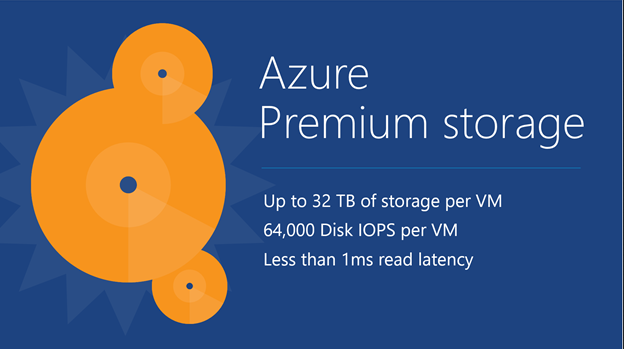
If an SSD cache is not big enough either, then maybe shared SSD storage for data disks would offer a happy medium: lots of IOPS and low latency; It’s not as fast as RAM, but it’s still plenty fast! This is why Microsoft gave us the DS- and GS-Series virtual machines which use Premium Storage.
Premium Storage
Shared SSD-based storage is possible only with the DS- and GS-Series virtual machines – note that DS- and GS-Series VMs can use standard storage too. Each spec offers support for a different number of data disks. There are some things to note with Premium Storage:
OS disk: By default, the OS disk is stored in the same premium storage account as the premium data disks if you just go next-next-next. It’s possible to create the OS disk in a standard storage account to save money – remember that data needs the speed, not the OS.
Spanning storage accounts: You can exceed the limits (35 TB) of a single premium storage account by attaching data disks from multiple premium storage accounts.
VM spec performance limitations: Each VM spec limits the amount of throughput that it supports to premium storage – some VMs will run slower than the potential of the data disks. Make sure that you choose a spec that supports enough throughput.
Page blobs: Premium storage can only be used to store VM virtual hard disks.
Resiliency: Premium Storage is LRS only. Consider snapshots or VM backups if you need more insurance.
Region support: Only a subset of regions support shared SSD storage at this time: East US2, West US, West Europe, Southeast Asia, Japan East, Japan West, Australia East.
Premium storage account: You must deploy a premium storage account (PowerShell or Preview Portal); you cannot use a standard storage account which is bound to HDD-based resources.
The maximum sizes and bandwidth of Azure premium storage
Premium Storage Data Disks
Standard storage data disks are actually quite simple compared to premium storage data disks. If you use the UI, then you can only create data disks of the following sizes and specifications:
The 3 premium storage disk size baselines
However, you can create a premium storage data disk of your own size, up to 1023 GB (the normal Azure VHD limit). Note that Azure will round up the size of the data disk to determine the performance profile based on the above table. So if I create a 50 GB premium storage VHD, it will have the same performance profile as a P10 (128 GB) VHD with 500 IOPS and 100 MB per second potential throughput (see VM spec performance limitations, above).
Pricing
You can find the pricing for premium storage on the same page as standard storage. Billing is based on the 3 models of data disk, P10, P20, and P30. As with performance, the size of your disk is rounded up to the next model, and you are charged based on the amount of storage actually consumed.
If you use snapshots then there is an additional billing rate.
Example
I have been asked to deploy an Azure DS-Series virtual machine in Western Europe with 100 GB of storage. I must be able to support up to 100 MB/second. The virtual machine only needs 1 vCPU and 3.5 GB RAM.
So, let’s start with the VM. 1 vCPU and 3.5 GB RAM steers me towards the DS1 virtual machine. If I check out that spec I find that the VM meets the CPU and RAM requirements. But check out the last column; The DS1 only supports a throughput of 32 MB/second which is well below the 100 MB/second which is required. I need to upgrade to a more expensive DS3 that has 4 vCPUs and 14 GB RAM, and supports up to 128 MB/second.
Note: I have searched high and low and cannot find a public price for DS- or GS-Series virtual machines. As far as I know, the only pricing is in I got pricing for virtual machines from the “Ibiza” preview portal. There I could see that the DS3 will cost around €399/month, compared to around €352/month for the D3.
[EDIT] A comment from Samir Farhat (below) made me go back and dig. So, the pricing page does mention DS- and GS-Series virtual machines. GS-Series are the same price as G-Series. However, the page incorrectly says that DS-Series pricing is based on that of the D-Series. That might have been true once, but the D-Series was reduced in price and the DV2-Series was introduced. Now, the D-Series is cheaper than the DS-Series. The DS-Series is the same price as the DV2-Series. I’ve checked the pricing in the Azure Preview Portal to confirm.
If I use PowerShell I can create a 50 GB data disk in the standard storage account. Azure will round this disk up to the P10 rate to determine the per GB pricing and the performance. My 50 GB disk will offer:
500 IOPS
100 MB/second (which was more than the DS1 or DS2 could offer)
The pricing will be €18.29 per GB per month. But don’t forget that there are other elements in the VM pricing such as OS disk, temporary disk, and more.
Once could do storage account snapshots to “backup” the VM, but the last I heard it was disruptive to service and not supported. There’s also a steep per GB cost. Use Azure Backup for IaaS VMs and you can use much cheaper blob blobs in standard storage to perform policy-based non-disruptive backups of the entire VM.
Any prices shown are Euro for North Europe and were correct at the time of writing.
Pick a VM Type
Determine some of the hardware features that you require from the VM. You’re thinking about:
Is it a normal VM or a machine with fast processors??
Do you need fast paging or disk caching?
Must data be on really fast shared storage?
Do you need lots of RAM?
Do you need Infiniband networking?
Is Xeon enough, or do you need GPU computational power?
A-Series: Pick a Tier
If you opt for an A-Series VM then you need to pick a tier. Here you’re considering fabric-provided features such as:
Load balancing
Data disk IOPS
Auto-scaling
CPU and RAM
Specifying a an Azure virtual machine is not much different to specifying a Hyper-V/vSphere virtual machine or a physical server. You need to know a few basic bits of information:
How many virtual CPUs do I require?
How much RAM do I require?
How much disk space is needed for data?
With on-premises systems you might have asked for a machine with 4 cores, 16 GB RAM and 200 GB disk. You cannot do that in Azure. Azure, like many self-service clouds, implements the concept of a template. You can only deploy VMs using these templates which have an associated billing rate. Those templates limit the hardware spec of the machine. So let’s say we need a 4 core machine with 16 GB RAM for a normal workload (A-Series) with load balancing (Standard tier). If we peruse the available specs then we can see that we see the following Standard A-Series VMs:
There is no 16 GB VM. You can’t select a 14 GB RAM A5 and increase the RAM. Instead, your choice is a Standard A4 with 14 GB RAM, a Standard A5 with 14 GB RAM, or Standard A6 with 28 GB RAM. You need 4 cores, so that reduces the options to the A4 (8 cores) or the A6 (4 cores). The A4 costs €0.6072/hour to run, and the A6 costs €0.506/hour to run. So, the VM with the higher model number (A6) offers the 16 GB RAM (actually 28 GB) and 4 cores.
The above example teaches you to look beyond the apparent boundary. There’s more … Look at the pricing of D-Series VMs. There are a few options there that might be applicable … note that these VMs run on higher spec host CPUs (Intel Xeon) and have SSD-based temporary drives and offer “60% faster processors than the A-Series”. The D12 has 4 cores and 28 GB RAM and costs €0.506/hour – the same as the A6! But if you were flexible with RAM, you could have the D3 (4 cores, 14 GB RAM) for €0.4352/hour, saving around €53 per month.
After that, you now add disks. Windows VMs from the Marketplace (template library) come with a 127 GB C: drive and you add multiple data disks (up to 1 TB each) to add data storage capacity and IOPS.
Born-in-the-Cloud
On more than one occasion I’ve been asked to price up machines with 32 GB or 64 GB RAM in Azure. As you’ve now learned, no such thing exists. And at the costs you’ve seen, it would be hard to argue that the cloud is competitive with on-premises solutions where memory costs have been falling over the years – disk is usually the big bottleneck now, in my experience, because people are still hung up on ridiculously priced SANs.
Whether you’re in Azure, AWS, or Google, you should learn that the correct way forward is lots of smaller VMs working in unison. You don’t spec up 2 big load balanced VMs; instead you deploy a bunch of load balanced Standard A-Series or D/DS/DV2 VMs with auto-scaling turned on – this powers up enough VMs to maintain HA and to service workloads at an acceptable rate, and powers down VMs where possible to save money (you pay for what is running).
Other Considerations
Keep in mind that the following are also controlled by the VM spec:
We’ll keep things simple: you can change the spec of a VM within it’s “family” (what the host is capable of). So you can move from a Basic A1 to a Standard A7 with a few clicks and a VM reboot. But moving to a D-Series VM is trickier – you need to delete the VM while keeping the disks, and then create a new VM that is attached to the existing disks.
EDIT:
Make sure you read this detailed post by Samir Farhat on resizing Azure VMs.
“Just give me a normal virtual machine” … AAAARGGHHH!
Deploying a type of virtual machine is like selecting a type of server. It’s is tuned for certain types of performance, so you need to understand your workload before you deploy a virtual machine. Here’s a breakdown of your options:
A-Series
The A-Series virtual machines are, for the most part, hosted on servers with AMD Opteron 4171 HE 2,1 GHz CPUs. There are two tiers of A-Series virtual machine, Basic and Standard. These are what I would call “normal” machines, intended for your every day workload. They are also perfect for scale-out jobs, where the emphasis is on lots of small and affordable machines.
A-Series Compute Intensive
These are a set of machine that offer VMs that run on hosts with Intel Xeon E5-2670 2.6 GHz CPUs. The VMs offer more RAM (up to 112 GB) than the normal A-Series VMs. These machines are good for CPU intensive workloads like HPC, simulations, or video encoding.
A-Series Network Optimized
These VMs are similar to the A-Series Compute Intensive machines, except there is an additional 40 Gbps Infiniband NIC that offers low latency and low CPU impact RDMA networking. These machines are ideal for the same scenarios as the Compute Intensive machines, but where RDMA networking is also required.
D-Series
The D-Series machines are based on hosts that offer Intel Xeon E5-2660 2.2 GHz CPUs (60% faster processors than the normal A-series). The big feature of these VMs is that the D: drive, the temporary & paging drive, is stored on an SSD drive that is local to the host. Data disks are still stored on standard shared HDD storage; the data disks still run at the same 500 IOPS per disk as a Standard tier A-Series VM.
D-Series VMs offer really fast temporary storage. So if you need a fast disk-based cache or paging file then this is the machine for you.
Dv2-Series
This is an improvement on the existing D-Series virtual machines, based on hosts with customised Intel Xeon E5-2673 v3 2.4 GHz CPUs, that can reach 3.2 GHz using Intel Turbo Boost Technology 2.0. Microsoft claims speeds are 35% faster than the D-Series VMs.
DS-Series
The DS-Series is a modification of the D-Series VMs. The temporary drive continues to be on local SSD storage, but data disks are stored on shared SSD Premium Storage. This offers high throughput, low latency, and high IOPS (at a cost) for data storage and access.
G-Series
These are the Goliath virtual machines, offering huge amounts of memory per virtual CPU. The biggest machine currently offers 448 GB RAM. The hosts are based on a 2.0 GHz Intel Xeon E5-2698B v3 CPU. If you need a lot of memory, maybe for caching a database in RAM, then these very expensive VMs are your choice.
GS-Series
The GS-Series/G-Series relationship is similar to the D/DS one. The GS-Series takes the G series and replaces standard shared storage with shared SSD Premium Storage.
N-Series
These VMs are not available at the time of writing – to be launched in preview “within the next few months”. The N-Series VMs are based on hosts with NVIDIA GPU (K80 and M60 will be supported) capabilities, for compute and graphics-intensive workloads. The hosts offer NVIDIA Tesla Accelerated Computing Platform as well as NVIDIA GRID 2.0 technology. N-Series VMs will also feature Infinband RDMA networking (like Network Intensive A-Series VMs).
Examples
I need to run a few machines that will be domain controllers, file servers and database servers for a small/medium enterprise. The ideal machines are the A-Series, and I’ll select Basic or Standard tier VMs depending on Azure feature requirements.
I’m going to deploy a database server that requires a fast disk based cache. The database will only require 2000 IOPS. In this case, I’ll select a D- or a DV2-Series VM, depending on CPU requirements. The SSD-based temporary drive is great for non-persistent caching, and I can deploy 4 or more data disks ( 4 x 500 IOPS) to get the required 2000 IOPS for the database files.
An OLTP database is required. Thing needs super fast database queries that even SSD cannot keep up with. Well, I’m probably going to deploy SQL 2014 (using the “Hekaton” feature) in a G-Series VM, where there’s enough memory to store indexes and tables in RAM.
I need really fast storage for terabytes of data. Aggregating disks with 500 IOPS each won’t be enough because I need faster throughput and lower latency. I need a VM that can use shared SSD-based Premium Storage, so I can use either a DS-Series VM or a GS-Series VM, depending on my CPU-to-RAM requirements.
A university is building a VM-based HPC cluster to perform scaled-out computations on cancer research or whale song analysis. They need fast networking and extreme compute power. At the time of writing this article, the Network Intensive Standard A-Series VMs are suitable; Xeon processors for compute and Infinitude networking for CPU-efficient, low latency, and high throughput data transfers. In a few months, the N-Series VMs will be better suited thanks to the computational power of the N-Series VMs.
If you are trying to figure out how much RAM you have left for virtual machines then this is the post for you.
When Microsoft launched Dynamic Memory with W2008 R2 SP1, we were introduced to the concept of a host reserve (nothing to do with the SCVMM concept); the hypervisor would keep so much memory for the Management OS, and everything else was fair game for the VMs. The host reserve back then was a configurable entry in the registry (MemoryReserve [DWORD] in HKEY_LOCAL_MACHINE\SOFTWARE\Microsoft\Windows NT\CurrentVersion\Virtualization). Things changed with WS2012 when we were told that Hyper-V would look after the reserve and we should stay away from it. That means we don’t know how much memory is left for VMs. I could guess it roughly but I had no hard facts.
And then I saw a KB article from about a month ago that deals with a scenario where it appears that a host has free memory but VMs still cannot start.
There’s two interesting piece of information in that post. The first is how to check how much RAM is actually available for VMs. Do not use Task Manager or other similar metrics. Instead, use PerfMon and check Hyper-V Dynamic Memory Balancer\Available Memory (instance: System Balancer). This metric shows how much memory is available for starting virtual machines.
The second fact is is the size of the host reserve, which is based on the amount of physical RAM in the host. The following table is an approximation of results of the algorithm:
Microsoft goes on to give an example. You have a host with 16 GB RAM:
The Mangement OS uses 2 GB.
The host reserve is up to 2.5 GB.
That leaves you with 11.5 GB RAM for VMs.
So think about it:
You log into the host with 16 GB RAM, and fire up Task Manger.
There you see maybe 13.5 GB RAM free.
You create a VM with 13 GB RAM, but it won’t start because the Management OS uses 2 GB and the host reserve is between 2-2.5 GB, leaving you with 11.5-12GB RAM for VMs.
If you are looking at deploying an A-Series virtual machine in Azure then there are two tiers to choose from:
Basic
Standard
There are a few differences between the two tiers.
Load Balancing
You can load balance Standard tier virtual machines for free. This includes external and internal load balancing. Note that this is port-level load balancing, not application layer. If you want to do load balancing at the application layer then look in the Azure marketplace for some appliances. There you’ll find well known names such as Kemp, Citrix, and more.
There is no load balancing with Basic tier VMs.
Auto-Scaling
Say a business needs to handle unpredictable peak capacity, without human effort or lost business opportunities. This might be a few times a day or every few weeks. How do they do it? The old way was to deploy lots of machines, load balance them, and eat the cost when there was no peak business … no seriously … they deployed enough for normal demand and lost business during periods of peak demand. Auto-scaling says:
Deploy the Standard tier VMs you need to handle peak demand
Power up VMs based on demand
Power down VMs when demand drops
And it’s all automatic using rules you define
VMs are billed based on storage consumed (very cheap) and hours running. So those VMs that aren’t running incur very little cost, and you only generate more costs when you are generating more business to absorb those costs.
There is no auto-scaling with Basic tier VMs.
IOPS
A virtual machine can have 1 or more data disks, depending on the spec of the VM. Basic tier VMs offer a max IOPS of 300 per data disk. Standard tier VMs offer a max IOPS of 500 per data disk. If a VM has more than one data disk then you can aggregate the IOPS potential of each data disk of that VM by mirroring/striping the disks in the guest OS.
Higher Specs
The highest spec Basic A-Series VM is the Basic A4 with 8 vCPUs (AMD processor on the physical host), 14 GB RAM, and up to 16 data disks. Basic VMs can only have 1 vNIC.
Standard A-Series VMs include similar and higher specs. There are also some higher spec Standard A-Series that offer Xeon processors on the host, a lot more RAM, and even an extra Infiniband (RDMA) 40 Gbps NIC.
Examples
I need a pair of domain controllers for a mid-sized business. I’ll probably opt for Basic tier VMs, such as the Basic A2, because I can’t use load balancing or auto-scaling with domain controllers. I don’t need much IOPS for the data disk (where SYSVOL, etc will be stored) and DC’s have a relatively light workload.
What if I want an application that has no software-based load balancing and will need somewhere between 2 and 10 VMs depending on demand? I need load balancing from the Azure fabric and it sounds like I’ll need auto-scaling too. So I’ll opt for a Standard A-Series VM.