Event – TechNet Conference 2013 in Berlin

Berlin is the place to be on November 12th and 13th if you’re interested in Windows 8.1, Windows Server 2012 R2, System Center 2012 R2, Windows Intune, Windows Azure, SQL Server 2014 or Office 365 … and you can speak German.

That’s because Microsoft Germany in cooperation with members of the community, including numerous European MVPs, are going to be talking tech, tech, tech, at level 300 and above, at TechNet Conference 2013.  For just a small registration fee, you’ll have access to 2 days of content, each with 3 tracks.

The keynote will be presented by  Mike Schutz, GM Product Marketing for Windows Server and Matt McSpirit, Sr Product Marketing Manager from Microsoft Corporation.  Carsten Rachfahl (MVP) will also be presenting a Best Practices session with the gold sponsor, Wortmann AG.

I’ll be there on the first day (November 12th) talking about Hyper-V Replica and networking in WS2012 R2.  Most of the content is in German.  I will be presenting in English – my ability to speak German is very limited (to asking for a beer) and offends the hearing of fluent speakers.

Other MVPs speaking include Damian Flynn, Hans Vredevoort, Thomas Maurer, Markus Klein, Torsten Meringer, Bernhard Tritsch, Martina Grom, Siggia Jagott, Samuel Zürcher, Nicki Borell, Toni Pohl, Martin Goet, Daniel Neumann, and last but certainly not least, Paula Januszkiewicz.

I wonder why those who were kicking this idea around after the usual expected speaker rejection emails from TechEd might have codenamed this as MVP-ed? Open-mouthed smile  Looking at the list of names speaking, you’re simply not going to find a Microsoft technology event to match this in Europe.  With so much change over the last 18 months and more to come, events like this are priceless, even if the admission is €149 + VAT for the first 100 registrants and €199 + VAT after that. Maybe if you can’t speak German, go learn it, because this is one heck of an agenda.  Ich muss Deutsch lernen.
Remote Desktop Settings For A Hyper-V VM

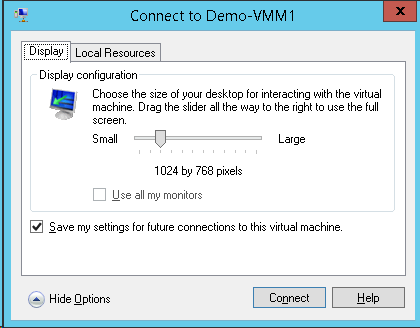
You are prompted for your connection settings when you first connect to a virtual machine using Enhanced Session Mode on WS2012 R2 (Windows Server 2012 R2) Hyper-V.  The below dialog will appear.  You can configure:

  • The screen resolution of the VM connection
  • Whether or not it should use more than one of your PCs monitors
  • If it should save the settings for future usage, so you’re not prompted (this requires you to Show Options.

image

If you do expand Show Options then you get some other … options.  You can configure:

  • How remote audio in the VM is redirected to your PC
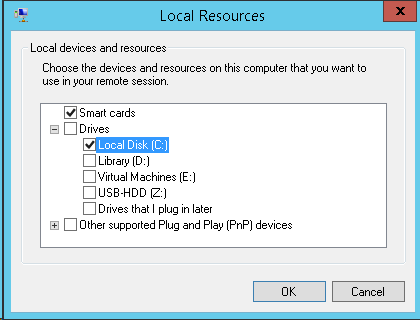
  • How local devices are mapped to your VM, including any USB devices (via RemoteFX USB redirection)

image

image

And no, you do not need to enable any RemoteFX stuff or Remote Desktop policies in your VM.  This all works via the Integration Components (via the VMBus).  You just need to enable Enhanced Session Mode in the host settings of the VM’s host.

You can change the Enhance Session Mode settings for a specifiby:

  • Closing any open connection you might have to the VM
  • Right-click on the VM in Hyper-V Manager, and select Edit Session Settings

This will open the above dialog so you can change the settings.  You appear to need to Connect to save the changed settings (at least in the Preview release).

KB2770440 – Poor Performance With RemoteFX Enabled On AMD Powered WS2012 Hyper-V Hosts

Microsoft has released a new hotfix to deal with an issue where you have poor performance when you enable RemoteFX in Hyper-V on a Windows Server 2012-based computer that uses AMD processors.

Symptoms

Consider the following scenario:

  • You have a Windows Server 2012-based computer that uses AMD processors.
  • You install a Hyper-V role on the computer.
  • You install the Remote Desktop Virtualization Host (RD Virtualization Host) role service on the computer.
  • You create one or more virtual machines on the computer.
  • You use the Microsoft RemoteFX feature to improve user experience in virtual machines.

In this scenario, graphics performance in the virtual machines is poor.


Cause

This issue occurs because Hypervisor incorrectly configures the Page Address Table (PAT) cache type for root partitions on AMD systems.

A supported hotfix is available from Microsoft.

KB2795531 – You Cannot Log In To A VM Running Windows 8 Or Windows Server 2012 In A VDI Environment

This isn’t exactly a Hyper-V issue (it’s RDS) but Hyper-V is running on the affected WS2012 hosts. 

Consider the following scenario:

  • You deploy a Virtual Desktop Infrastructure (VDI) environment in a network.
  • You enable the Remote Desktop Virtualization Host (RD Virtualization Host) role service on the Windows Server 2012-based computers.
  • You try to log on to a virtual machine that is running Windows 8 or Windows Server 2012 in the VDI environment.

In this scenario, you cannot log on to the virtual machine. The logon screen appears but the logon process cannot be completed.
Notes

  • The previous corresponding remote session to the RD Virtualization Host does not log off.
  • You may receive the following error message when you try to manually logoff the session in the Server Manager console:

    RD Connection Broker failed to process the connection request for user <domain><userid>.
    Failed while checking for disconnected session.
    Error: User is trying to connect to the same Pool more than once simultaneously.

This issue occurs because the host computer does not receive a notification that the previous session has ended during the logoff operation. Therefore, the previous session does not log off successfully.

A supported hotfix is available from Microsoft.

Office 365 and Remote Desktop Services

This post is out of date. Please talk to your reseller or your distributor.

Great news for customers of Office 365.  When you get your free bundled Office 2013, you’ll be entitled to use it on Remote Desktop Services (aka Terminal Services).  In other words, if your company is into server-based computing, you’re going to save money.

You can find out the specifics in the Microsoft Product Usage Rights (PUR) document.  Under Office 365 ProPlus:

  1. Each user to whom you assign a User SL may activate the software for local or remote use on up to five concurrent OSEs.
  2. The Licensed User may also use the software activated by another user under a different User SL.
  3. Each user may also use one of the five activations on a network server with the Remote Desktop Services (RDS) role enabled.
  4. You may allow other users to remotely access the software solely to provide support services.

This appears to apply to:

  • Office 365 ProPlus User SL, or
  • Office 365 Enterprise E3-A4 User SL, or
  • Office Professional Plus A User SL, or
  • Office 365 Academic A3-A4 User SL, or
  • Core CAL Suite* with Office 365 Academic A3 (A4) User SL Add-on, or
  • Enterprise CAL Suite* with Office 365 Academic A3 (A4) User SL Add-on, or
  • Core CAL Suite* with Office Pro Plus* and Office 365 Academic A3 (A4) User SL Add-on, or
  • Enterprise CAL Suite* with Office Pro Plus* and Office 365 Academic A3 (A4) User SL Add-on, or
  • Office Pro Plus* with Office 365 Academic A3 (A4) User SL Add-on, or
  • Office Professional Plus G User SL, or
  • Office 365 Government G3 User SL, or
  • Office 365 Government G4 User SL, or
  • Office 365 Midsize Business User SL

*  Denotes “with current Software Assurance”

An important note, possibly related to online activation renewal:

Each user to whom you assign a User SL must connect each device upon which they have installed the software to the Internet at least once every 30 days. If a user does not comply with this requirement, the functionality of the software may be affected.

Server Posterpedia –Windows Server Poster App

A new app that features the feature poster apps for a number of server products, not just Hyper-V, has been released. You can download this app from the Microsoft Store for Windows 8.

image

Click on a poster, and it’s displayed for you:

image

You can zoom and scroll through the poster. Cleverly, the actions that you can run from the app will link you to additional information on TechNet. And there is even a link to download the original poster.  What a handy way to start learning the features of server products.  This is worth installing Windows 8 for!

Ben Armstrong posted about the app overnight, including a video of the app in action.

image

Finally Some Sense – Gartner Says “Cost Savings” Of VDI Are Fiction

I think I’ve talked about how VDI makes no financial sense once or twice before.  The Register has a story on how Gartner has analysed the costs of implementing and owning VDI.  Long story short: it costs as much if not more (I say much more) than buying and owning PCs.  The reason to implement VDI isn’t simplified management, it isn’t reduced costs.  It is the side effects of centralisation such as easier data access and stricter security. 

Personally I think RDS Session Hosts (Terminal Servers) are a much more cost effective way of getting these same results, possibly with App-V to prevent application silos.

Windows Server 2012 UK Events Reminder – Come See What’s In The Release Candidate

Here’s quick reminder of the WS2012 Rocks events that are being run in a week’s time in the UK.  Myself and Alex Juschin (MVP) are presenting on Windows Server 2012 in a 4 hour event in Edinburgh (June 15th) and London (June 14th). 

Alex will be presenting on Windows Server management and the impressive advanced in RDS.  Seriously … would you like to deploy a VDI solution in a few mouse clicks?  Then you gotta attend.

I’ll be presenting on the advances in networking, with some storage thrown in for good measure … it’s hard to separate the two.  And then I cover Hyper-V … and you seriously will want to see the demo I have lined up for the UK to wrap up my sessions.  The Dublin demo was cool, but this one is way beyond what I did a few weeks ago.

This is, in my opinion, the biggest and most important release of Windows Server since 2000 … maybe even ever.  That’s not just hyperbole, as you can see by the list of virtualisation features alone.  Don’t get left behind.  Come to the event, see why we’re so excited, and get your career ahead of the pack.

For those of you in the UK, please feel free to spread the word of these events.  By the way London, Edinburgh is way ahead of you in registrations.  Are you really going to let that happen? Smile with tongue out

Windows Server 2012 Community Events

Microsoft is organising a series of community events globally to spread the word about Windows Server 2012.  I say community because the speakers will be MVPs.  The event site will be updated over the coming months with news of more events, and watch out communications from your local sources

Here, we have events in Belfast (May 21st, Wellington Park Hotel) and Dublin (May 22nd, Microsoft Building 2, Leopardstown).  The agenda of the events is:

  • 13:00     Registration opens
  • 13:30     Introduction                              Dave Northey
  • 13:50     Manageability                           Alex Juschin
  • 14:35     Storage and Availability            Aidan Finn
  • 15:20     Coffee
  • 15:40     Virtualisation (Hyper-V)             Aidan Finn
  • 16:25     Remote Desktop Services          Alex Juschin
  • 17:10     End

It’s a long time since we had a release like Windows Server 2012.  It would be considered a huge release with the Hyper-V changes.  If you’re serious about server, then don’t get left behind.

EDIT1:

Details have just been announced for the London (June 14th) and Edinburgh (June 15th) events in GB.  I’ll be taking time off to present so hopefully I’ll see you there Smile

Windows Server 8 Beta Downloads and Documentation

Microsoft released a lot of documentation/downloads to go with the Windows Server 8 beta release of last week.  Here’s your chance to start learning and playing:

  • Understand and Troubleshoot Virtualized Domain Controller (VDC) in Windows Server "8" Beta: Windows Server "8" Beta introduces the first specific virtualization capabilities to Active Directory Domain Services. Virtualized Domain Controller (VDC) takes lessons learned from twelve years of virtualizing Active Directory and makes a more supportable, more flexible, more intuitive administrative experience for architects and administrators.
  • Test Lab Guide: Demonstrate Virtualized Domain Controller (VDC) in Windows Server "8" Beta: This document contains instructions for setting up the Virtualized Domain Controller test lab through: • Deploying a virtualized domain controller through cloning • Safely restoring a domain controller snapshot
  • Test Lab Guide: Base Test Lab Guide for Windows Server "8" Beta: This Microsoft Test Lab Guide (TLG) provides you with step-by-step instructions to create the Windows Base Configuration test lab, using computers running Windows 8 Consumer Preview or Windows Server “8” Beta. With the resulting test lab environment, you can build test labs based on other Windows Server "8" Beta-based TLGs from Microsoft, TLG extensions in the TechNet Wiki, or a test lab of your own design that can include Microsoft or non-Microsoft products. For a test lab based on physical computers, you can image the drives for future test labs. For a test lab based on virtual machines, you can create snapshots of the base configuration virtual machines. This enables you to easily return to the base configuration test lab, where most of the routine infrastructure and networking services have already been configured, so that you can focus on building a test lab for the product, technology, or solution of interest.
  • Creating Continuously Available File Shares with Windows Server “8” Beta: Windows Server “8” Beta contains a set of continuously available storage solutions that provide a cost effective alternative to an expensive storage area network (SAN) without sacrificing availability and performance. These solutions are targeted towards both traditional information worker workloads and application workloads, and they span the scalability and price point needs for different market segments, with systems going from entry-level sub-$10k solutions to scale-out solutions with up to 400 drives. These solutions are based on software developed by several teams at Microsoft, hardware that is already in the market and hardware that is being developed in cooperation with industry partners. This white paper introduces the reader to these new and enhanced features of Windows Server “8” Beta.
  • Understand and Troubleshoot Scale-out File Servers in Windows Server "8" Beta: This Understanding and Troubleshooting Guide (UTG) enables you to learn technical concepts, functionality, and troubleshooting methods for Scale-Out File Servers in Windows Server “8” Beta. This UTG provides you with: • A technical overview and functional description of this feature. • Technical concepts to help you successfully install, configure, and manage this feature. • User Interface options and settings for configuration and management. • Relevant architecture of this feature, with dependencies, and technical implementation. • Primary troubleshooting tools and methods for this feature.
  • Understand and Troubleshoot Storage Spaces in Windows Server "8" Beta: This Understanding and Troubleshooting Guide (UTG) enables you to learn technical concepts, functionality, and troubleshooting methods for Storage Spaces in Windows Server “8” Beta. This UTG provides you with: • A technical overview and functional description of this feature. • Technical concepts to help you successfully install, configure, and manage this feature. • User Interface options and settings for configuration and management. • Relevant architecture of this feature, with dependencies, and technical implementation. • Primary troubleshooting tools and methods for this feature.
  • Understand and Troubleshoot Microsoft Online Backup Service in Windows Server "8" Beta (!?!?!?!?): This Understand and Troubleshoot Guide (UTG) enables you to learn technical concepts, functionality, and troubleshooting methods for Microsoft Online Backup Service in Windows Server “8” Beta. This UTG provides you with: • A technical overview and functional description of this feature. • Technical concepts to help you successfully install, configure, and manage this feature. • User Interface options and settings for configuration and management. • Relevant architecture of this feature, with dependencies, and technical implementation. • Primary troubleshooting tools and methods for this feature.
  • Test Lab Guide: Demonstrate DNS Security Extensions (DNSSEC) in Windows Server "8" Beta: DNS Security Extensions (DNSSEC) is a suite of extensions that add security to the DNS protocol. RFCs 4033, 4034, 4035, and 5155 specify the core DNSSEC extensions and add origin authority, data integrity, and authenticated denial of existence to DNS. In addition to several new concepts and operations for both the DNS server and the DNS client, DNSSEC introduces new resource records (DNSKEY, RRSIG, NSEC, NSEC3, and DS) to DNS.
  • Test Lab Guide: Demonstrate IP Address Management (IPAM) in Windows Server "8" Beta: Internet Protocol Address Management (IPAM) is a framework for discovering, monitoring, auditing, and managing the Internet Protocol (IP) address space used in a network. IPAM in Windows Server "8" Beta provides components for IP address space management, audit of configuration changes, monitoring and management of DHCP and DNS services, and IP address usage tracking.
  • Understand and Troubleshoot DHCP Failover in Windows Server "8" Beta: This Understand and Troubleshoot Guide (UTG) enables you to learn technical concepts, functionality, and troubleshooting methods for DHCP Failover in Windows Server “8” Beta. This UTG provides you with: • A technical overview and functional description of this feature. • Technical concepts to help you successfully install, configure, and manage this feature. • User Interface options and settings for configuration and management. • Relevant architecture of this feature, with dependencies, and technical implementation. • Primary troubleshooting tools and methods for this feature.
  • Test Lab Guide: Demonstrating DHCP Failover in Windows Server "8" Beta: Dynamic Host Configuration Protocol (DHCP) failover in Windows Server "8" Beta provides the ability for administrators to deploy a highly resilient DHCP service to support a large enterprise. The main goals of the feature are the following. • Provide DHCP service availability at all times on the enterprise network • If a DHCP server is no longer reachable, the DHCP client is able to extend the lease on its current IP address by contacting another DHCP server on the enterprise network.
  • Understand and Troubleshoot Printing in Windows Server "8" Beta: This Understand and Troubleshoot Guide (UTG) enables you to learn technical concepts, functionality, and troubleshooting methods for Printing in Windows Server “8” Beta. This UTG provides you with: • A technical overview and functional description of this feature. • Technical concepts to help you successfully install, configure, and manage this feature. • User Interface options and settings for configuration and management. • Relevant architecture of this feature, with dependencies, and technical implementation. • Primary troubleshooting tools and methods for this feature.
  • Test Lab Guide: Demonstrate Windows Server "8" Beta Print and Document Services:

    This paper contains an introduction to Windows Server "8" Beta Printing and step-by-step instructions for extending the Test Lab Guide Base Configuration to demonstrate Printing Services in Windows Server "8" Beta.

  • Understand and Troubleshoot High Availability Printing in Windows Server "8" Beta: This Understand and Troubleshoot Guide (UTG) enables you to learn technical concepts, functionality, and troubleshooting methods for High Availability Printing in Windows Server “8” Beta. This UTG provides you with: • A technical overview and functional description of this feature. • Technical concepts to help you successfully install, configure, and manage this feature. • User Interface options and settings for configuration and management. • Relevant architecture of this feature, with dependencies, and technical implementation. • Primary troubleshooting tools and methods for this feature.
  • Understand and Troubleshoot Activation Technologies in Windows Server "8" Beta: This Understand and Troubleshoot Guide (UTG) enables you to learn technical concepts, functionality, and troubleshooting methods for Activation Technologies in Windows Server “8” Beta. This UTG provides you with: • A technical overview and functional description of this feature. • Technical concepts to help you successfully install, configure, and manage this feature. • User Interface options and settings for configuration and management. • Relevant architecture of this feature, with dependencies, and technical implementation. • Primary troubleshooting tools and methods for this feature.
  • Understand and Troubleshoot AD DS Simplified Administration in Windows Server "8" Beta: This Understand and Troubleshoot Guide (UTG) enables you to learn technical concepts, functionality, and troubleshooting methods for AD DS Simplified Administration in Windows Server “8” Beta. This UTG provides you with: • A technical overview and functional description of this feature. • Technical concepts to help you successfully install, configure, and manage this feature. • User Interface options and settings for configuration and management. • Relevant architecture of this feature, with dependencies, and technical implementation. • Primary troubleshooting tools and methods for this feature.
  • Test Lab Guide: Demonstrate ADDS Simplified Administration in Windows Server "8" Beta: This document contains instructions for setting up the AD DS Simplified Administration test lab through: • Graphically upgrading an existing Active Directory forest by adding the first Windows Server "8" Beta GUI domain controller • Adding an additional Windows Server "8" Beta Core domain controller using Windows PowerShell • Adding an additional Windows Server "8" Beta Core domain controller using Windows RSAT from a Windows 8 Consumer Preview computer • Decommissioning the original legacy domain controller • Using new AD DS graphical and Windows PowerShell features for further configuration and administration
  • Understand and Troubleshoot Dynamic Access Control in Windows Server "8" Beta: This Understand and Troubleshoot Guide (UTG) enables you to learn technical concepts, functionality, and troubleshooting methods for Dynamic Access Control in Windows Server “8” Beta. This UTG provides you with: • A technical overview and functional description of this feature. • Technical concepts to help you successfully install, configure, and manage this feature. • User Interface options and settings for configuration and management. • Relevant architecture of this feature, with dependencies, and technical implementation. • Primary troubleshooting tools and methods for this feature.
  • Understand and Troubleshoot Cluster-Aware Updating (CAU) in Windows Server "8" Beta: This Understanding and Troubleshooting Guide (UTG) enables you to learn technical concepts, functionality, and troubleshooting methods for Cluster-Aware Updating in Windows Server “8” Beta. This UTG provides you with: • A technical overview and functional description of this feature. • Technical concepts to help you successfully install, configure, and manage this feature. • User Interface options and settings for configuration and management. • Relevant architecture of this feature, with dependencies, and technical implementation. • Primary troubleshooting tools and methods for this feature.
  • Understand and Troubleshoot Hyper-V Replica in Windows Server "8" Beta: This Understanding and Troubleshooting Guide (UTG) enables you to learn technical concepts, functionality, and troubleshooting methods for Hyper-V Replica in Windows Server “8” Beta. This UTG provides you with: • A technical overview and functional description of this feature. • Technical concepts to help you successfully install, configure, and manage this feature. • User Interface options and settings for configuration and management. • Relevant architecture of this feature, with dependencies, and technical implementation. • Primary troubleshooting tools and methods for this feature.
  • Understand and Troubleshoot Remote Desktop Services Desktop Virtualization in Windows Server "8" Beta: This Understand and Troubleshoot Guide (UTG) enables you to learn technical concepts, functionality, and troubleshooting methods for Desktop Virtualization in Windows Server “8” Beta. This UTG provides you with: • A technical overview and functional description of this feature. • Technical concepts to help you successfully install, configure, and manage this feature. • User Interface options and settings for configuration and management. • Relevant architecture of this feature, with dependencies, and technical implementation. • Primary troubleshooting tools and methods for this feature.
  • Understand and Troubleshoot DNS Security Extensions (DNSSEC) in Windows Server "8" Beta: This Understand and Troubleshoot Guide (UTG) enables you to learn technical concepts, functionality, and troubleshooting methods for DNS Security Extensions (DNSSEC) in Windows Server “8” Beta. This UTG provides you with: • A technical overview and functional description of this feature. • Technical concepts to help you successfully install, configure, and manage this feature. • User Interface options and settings for configuration and management. • Relevant architecture of this feature, with dependencies, and technical implementation. • Primary troubleshooting tools and methods for this feature.
  • Understand and Troubleshoot IP Address Management (IPAM) in Windows Server "8" Beta: This Understand and Troubleshoot Guide (UTG) enables you to learn technical concepts, functionality, and troubleshooting methods for IP Address Management (IPAM) in Windows Server “8” Beta. This UTG provides you with: • A technical overview and functional description of this feature. • Technical concepts to help you successfully install, configure, and manage this feature. • User Interface options and settings for configuration and management. • Relevant architecture of this feature, with dependencies, and technical implementation. • Primary troubleshooting tools and methods for this feature.
  • Understand and Troubleshoot Remote Access in Windows Server "8" Beta: This Understand and Troubleshoot Guide (UTG) enables you to learn technical concepts, functionality, and troubleshooting methods for Remote Access in Windows Server "8" Beta. This UTG provides you with: • A technical overview and functional description of this feature. • Technical concepts to help you successfully install, configure, and manage this feature. • User Interface options and settings for configuration and management. • Relevant architecture of this feature, with dependencies, and technical implementation. • Primary troubleshooting tools and methods for this feature.
  • Test Lab Guide: Demonstrate DirectAccess Single Server Setup with Mixed IPv4 and IPv6 in Windows Server "8" Beta: DirectAccess provides users with the experience of being seamlessly connected to their intranet any time they have Internet access. When DirectAccess is enabled, requests for intranet resources (such as email servers, shared folders, or intranet websites) are securely directed to the intranet, without the need for users to connect to a VPN. DirectAccess enables increased productivity for a mobile workforce by offering the same connectivity experience both inside and outside of the office. The Windows Routing and Remote Access Server (RRAS) provides traditional VPN connectivity for legacy clients and non-domain members. RRAS also provides site-to-site connections between servers. RRAS in Windows Server 2008 R2 cannot coexist on the same edge server with DirectAccess, and must be deployed and managed separately from DirectAccess. Windows Server "8" Beta combines the DirectAccess feature and the RRAS role service into a new unified server role. This new Remote Access server role allows for centralized administration, configuration, and monitoring of both DirectAccess and VPN-based remote access services. Additionally, Windows Server "8" Beta DirectAccess provides multiple updates and improvements to address deployment blockers and provide simplified management. This guide provides step-by-step instructions for configuring DirectAccess in a single server deployment with mixed IPv4 and IPv6 resources in a test lab to demonstrate functionality of the deployment experience. You will set up and deploy DirectAccess based on the Windows Server "8" Beta Base Configuration using five server computers and two client computers. The resulting test lab simulates an intranet, the Internet, and a home network, and demonstrates DirectAccess in different Internet connection scenarios.
  • Test Lab Guide: Demonstrate High Availability Printing in Windows Server "8" Beta: This paper contains instructions for setting up a test lab based on the Test Lab Guide Base Configuration and deploying a highly available Windows Server "8" Beta Print Server using three server computers and one client computer. The resulting High Availability Printing test lab demonstrates Windows Server "8" Beta Print Server functionality.
  • Understand and Troubleshoot BitLocker in Windows Server "8" Beta: This Understand and Troubleshoot Guide (UTG) enables you to learn technical concepts, functionality, and troubleshooting methods for BitLocker in Windows Server “8” Beta. This UTG provides you with: • A technical overview and functional description of this feature. • Technical concepts to help you successfully install, configure, and manage this feature. • User Interface options and settings for configuration and management. • Relevant architecture of this feature, with dependencies, and technical implementation. • Primary troubleshooting tools and methods for this feature.
  • Understand and Troubleshoot Servicing in Windows Server "8" Beta: This Understand and Troubleshoot Guide (UTG) enables you to learn technical concepts, functionality, and troubleshooting methods for Servicing in Windows Server “8” Beta. This UTG provides you with: • A technical overview and functional description of this feature. • Technical concepts to help you successfully install, configure, and manage this feature. • User Interface options and settings for configuration and management. • Relevant architecture of this feature, with dependencies, and technical implementation. • Primary troubleshooting tools and methods for this feature.
  • Test Lab Guide: Demonstrate Remote Desktop Services Desktop Virtualization in Windows Server "8" Beta: This paper contains instructions for setting up a test lab based on the Test Lab Guide Base Configuration and deploying Remote Desktop Services Desktop Virtualization using four server computers and one client computer. The resulting Remote Desktop Services Desktop Virtualization test lab demonstrates Desktop Virtualization functionality.
  • Understand and Troubleshoot Remote Desktop Services in Windows Server "8" Beta: This Understand and Troubleshoot Guide (UTG) enables you to learn technical concepts, functionality, and troubleshooting methods for Remote Desktop Services in Windows Server “8” Beta. This UTG provides you with: • A technical overview and functional description of this feature. • Technical concepts to help you successfully install, configure, and manage this feature. • User Interface options and settings for configuration and management. • Relevant architecture of this feature, with dependencies, and technical implementation. • Primary troubleshooting tools and methods for this feature.
  • Test Lab Guide: Demonstrate Remote Desktop Services in Windows Server "8" Beta: Remote Desktop Services (RDS) in Windows Server "8" Beta provides the ideal platform for companies to implement a centralized desktop strategy, helping organizations improve flexibility and compliance while improving data security and IT’s ability to manage desktops and applications. RDS is a centralized desktop and application platform solution that uses Desktop Virtualization and VDI technologies, offering powerful opportunities for IT to deliver and manage corporate desktops and to respond to users’ needs in a flexible way. Remote Desktop Services is the new name for Terminal Services, and reflects the expanded role in Windows Server "8" Beta so that you can run the desktop or applications in the datacenter while your users can be anywhere. This paper contains instructions for setting up a test lab based on the Test Lab Guide Base Configuration and deploying Remote Desktop Services Desktop Virtualization using four server computers and one client computer. The resulting Remote Desktop Services Desktop Virtualization test lab demonstrates Desktop Virtualization functionality.
  • Test Lab Guide-Deploying RD Licensing: Use this test lab guide to install Remote Desktop Services client access licenses (RDS CALs) for Windows Server “8” Beta. This test lab guide uses the VDI standard deployment test lab as a starting place. Complete the steps in Test Lab Guide: Virtual Desktop Infrastructure standard deployment before you proceed with the remainder of the steps in this guide.