Microsoft News – 7 September 2015

Here’s the recent news from the last few weeks in the Microsoft IT Pro world:

Hyper-V

Windows Server

Windows

System Center

Azure

Office 365

Intune

Events

  • Meet AzureCon: A virtual event on Azure on September 29th, starting at 9am Pacific time, 5pm UK/Irish time.

A Roundup of WS2016 TPv3 Links

I thought that I’d aggregate a bunch of links related to new things in the release of Windows Server 2016 Technical Preview 3 (TP3). I think this is pretty complete for Hyper-V folks – as you can see, there’s a lot of stuff in the networking stack.

FYI: it looks like Network Controller will require the DataCenter edition by RTM – it does in TPv3. And our feedback on offering the full installation during setup has forced a reversal.

Hyper-V

Administration

Containers

Networking

Storage


Nano Server

Failover Clustering

Remote Desktop Services

System Center

Microsoft News – 29 June 2015

As you might expect, there’s lots of Azure news. Surprisingly, there is still not much substantial content on Windows 10.

Hyper-V

Windows Server

Windows Client

clip_image001_thumb.png

Azure

Office 365

EMS

Misc

Give Your Feedback on Future Windows Server Releases

You have probably already heard about Windows Insider, a program for providing feedback and shaping the future of Windows on client devices – not that I did not say “Windows 10” because the Insiders program will live beyond the RTM of Windows 10 this summer.

Similarly, the Windows Server group has launched a feedback forum. Here you can:

  • Search for or browse for feedback
  • Comment on and vote for existing feedback
  • Submit your own unique ideas

Now let’s be realistic – not everything will be done:

  • Some ideas are daft 🙂
  • You’ll find a few things that are already in the TPv2 release of WS2016
  • Some things won’t suit Microsoft’s strategy
  • And some things will take more time than is available – but maybe planning for future releases will be impacted

Here’s what I’ve voted for, commented on or submitted so far:

  • Remember Domain Logins: I find it really annoying that the TPv2 release won’t remember previous domain logons and I have to type my domain\username over and over and over and …
  • Storage Replica Requirement of Datacenter Edition: Microsoft is planning to only include SR in the Datacenter edition of WS2016. Most of the storage machines I see are physical and licensed with Standard or Storage Server editions. It’ll probably be cheaper to go with 3rd party software than DC edition 🙁
  • Storage Spaces advanced tiering: I like the idea of bringing a cloud tier to Windows Server, instead of reserving it in the silly StorSimple appliance. I don’t agree with restricting it to Storage Spaces.
  • Create a Hyper-V Cluster without AD: Imagine a HYPER-V world (don’t let the SQL heads muddy the waters) without Kerberos!!! Simple SOFS, simple Live Migration, and yes, System Center would need to catch up.
  • VM Placement Without System Center: Even those who can afford or want to deploy SCVMM often choose not to enable Dynamic Optimization. Let’s bring this feature into Windows Server, where it belongs.
  • New integrated UI for Hyper-V: Let’s replace Hyper-V Manager, Failover Cluster Manager, and SCVMM with one integrated Hyper-V tool that is a part of Windows Server. The cloud folks can use Azure Stack. SCVMM is broken, and the experience is fragmented. Everyone agrees except fanboys and SCVMM team members.
  • Change how Hyper-V Manager creates VM folder structure: Sarah, Ben & Taylor – if you fix this, I guarantee a round of applause at the next Ignite. This is the CMD prompt CTRL+V of Hyper-V.

This is your opportunity to shape Windows Server. I’ve had that privilege as an MVP – it’s not always immediate but there are headline things in WS2016 that I’ve contributed some feedback for and it feels damned good to see them presented on stage. You can feel that too. If you choose to stay silent, then please stay that way when you’re unhappy.

Setting Up WS2016 Storage Spaces Direct SOFS

In this post I will show you how to set up a Scale-Out File Server using Windows Server 2016 Storage Spaces Direct (S2D). Note that:

  • I’m assuming you have done all your networking. Each of my 4 nodes has 4 NICs: 2 for a management NIC team called Management and 2 un-teamed 10 GbE NICs. The two un-teamed NICs will be used for cluster traffic and SMB 3.0 traffic (inter-cluster and from Hyper-V hosts). The un-teamed networks do not have to be routed, and do not need the ability to talk to DCs; they do need to be able to talk to the Hyper-V hosts’ equivalent 2 * storage/clustering rNICs.
  • You have read my notes from Ignite 2015
  • This post is based on WS2016 TPv2

Also note that:

  • I’m building this using 4 x Hyper-V Generation 2 VMs. In each VM SCSI 0 has just the OS disk and SCSI 1 has 4 x 200 GB data disks.
  • I cannot virtualize RDMA. Ideally the S2D SOFS is using rNICs.

Deploy Nodes

Deploy at least 4 identical storage servers with WS2016. My lab consists of machines that have 4 DAS SAS disks. You can tier storage using SSD or NVMe, and your scalable/slow tier can be SAS or SATA HDD. There can be a max of tiers only: SSD/NVMe and SAS/SATA HDD.

Configure the IP addressing of the hosts. Place the two storage/cluster network into two different VLANs/subnets.

My nodes are Demo-S2D1, Demo-S2D2, Demo-S2D3, and Demo-S2D4.

Install Roles & Features

You will need:

  • File Services
  • Failover Clustering
  • Failover Clustering Manager if you plan to manage the machines locally.

Here’s the PowerShell to do this:

Add-WindowsFeature –Name File-Services, Failover-Clustering –IncludeManagementTools

You can use -ComputerName <computer-name> to speed up deployment by doing this remotely.

Validate the Cluster

It is good practice to do this … so do it. Here’s the PoSH code to validate a new S2D cluster:

image

Create your new cluster

You can use the GUI, but it’s a lot quicker to use PowerShell. You are implementing Storage Spaces so DO NOT ADD ELGIBLE DISKS. My cluster will be called Demo-S2DC1 and have an IP of 172.16.1.70.

New-Cluster -Name Demo-S2DC1 -Node Demo-S2D1, Demo-S2D2, Demo-S2D3, Demo-S2D4 -NoStorage -StaticAddress 172.16.1.70

There will be a warning that you can ignore:

There were issues while creating the clustered role that may prevent it from starting. For more information view the report file below.

What about Quorum?

You will probably use the default of dynamic quorum. You can either use a cloud witness (a storage account in Azure) or a file share witness, but realistically, Dynamic Quorum with 4 nodes and multiple data copies across nodes (fault domains) should do the trick.

Enable Client Communications

The two cluster networks in my design will also be used for storage communications with the Hyper-V hosts. Therefore I need to configure these IPs for Client communications:

image

Doing this will also enable each server in the S2D SOFS to register it’s A record of with the cluster/storage NIC IP addresses, and not just the management NIC.

Enable Storage Spaces Direct

This is not on by default. You enable it using PowerShell:

(Get-Cluster).DASModeEnabled=1

Browsing Around FCM

Open up FCM and connect to the cluster. You’ll notice lots of stuff in there now. Note the new Enclosures node, and how each server is listed as an enclosure. You can browse the Storage Spaces eligible disks in each server/enclosure.

image

Creating Virtual Disks and CSVs

I then create a pool called Pool1 on the cluster Demo-S2DC1 using PowerShell – this is because there are more options available to me than in the UI:

New-StoragePool  -StorageSubSystemName Demo-S2DC1.demo.internal -FriendlyName Pool1 -WriteCacheSizeDefault 0 -FaultDomainAwarenessDefault StorageScaleUnit -ProvisioningTypeDefault Fixed -ResiliencySettingNameDefault Mirror -PhysicalDisk (Get-StorageSubSystem  -Name Demo-S2DC1.demo.internal | Get-PhysicalDisk)

Get-StoragePool Pool1 | Get-PhysicalDisk |? MediaType -eq SSD | Set-PhysicalDisk -Usage Journal

The you create the CSVs that will be used to store file shares in the SOFS. Rules of thumb:

  • 1 share per CSV
  • At least 1 CSV per node in the SOFS to optimize flow of data: SMB redirection and redirected IO for mirrored/clustered storage spaces

Using this PoSH you will lash out your CSVs in no time:

$CSVNumber = “4”
$CSVName = “CSV”
$CSV = “$CSVName$CSVNumber”

New-Volume -StoragePoolFriendlyName Pool1 -FriendlyName $CSV -PhysicalDiskRedundancy 2 -FileSystem CSVFS_REFS –Size 200GB
Set-FileIntegrity “C:\ClusterStorage\Volume$CSVNumber” –Enable $false

The last line disables ReFS integrity streams to support the storage of Hyper-V VMs on the volumes. You’ll see from the screenshot what my 4 node S2D SOFS looks like, and that I like to rename things:

image

Note how each CSV is load balanced. SMB redirection will redirect Hyper-V hosts to the owner of a CSV when the host is accessing files for a VM that is stored on that CSV. This is done for each VM connection by the host using SMB 3.0, and ensures optimal flow of data with minimized/no redirected IO.

There are some warnings from Microsoft about these volumes:

  • They are likely to become inaccessible on later Technical Preview releases.
  • Resizing of these volumes is not supported. 

    Oops! This is a technical preview and this should be pure lab work that your willing to lose.

    Create a Scale-Out File Server

    The purpose of this post is to create a SOFS from the S2D cluster, with the sole purpose of the cluster being to store Hyper-V VMs that are accessed by Hyper-V hosts via SMB 3.0. If you are building a hyperconverged cluster (not supported by the current TPv2 preview release) then you stop here and proceed no further.

    Each of the S2D cluster nodes and the cluster account object should be in an OU just for the S2D cluster. Edit the advanced security of the OU and grand the cluster account object create computer object and delete compute object rights. If you don’t do this then the SOFS role will not start after this next step.

    Next, I am going to create an SOFS role on the S2D cluster, and call it Demo-S2DSOFS1.

    New-StorageFileServer  -StorageSubSystemName Demo-S2DC1.demo.internal -FriendlyName Demo-S2DSOFS1 -HostName Demo-S2DSOFS1Create a  -Protocols SMB

    Create and Permission Shares

    Create 1 share per CSV. If you need more shares then create more CSVs. Each share needs the following permissions:

    • Each Hyper-V host
    • Each Hyper-V cluster
    • The Hyper-V administrators

    You can use the following PoSH to create and permission your shares. I name the share folder and share name after the CSV that it is stored on, so simply change the $ShareName variable to create lots of shares, and change the permissions as appropriate.

    $ShareName = “CSV1”
    $SharePath = “$RootPath\$ShareName\$ShareName”

    md $SharePath
    New-SmbShare -Name $ShareName -Path $SharePath -FullAccess Demo-Host1$, Demo-Host2$, Demo-HVC1$, “Demo\Hyper-V Admins”
    Set-SmbPathAcl -ShareName $ShareName

    Create Hyper-V VMs

    On your hosts/clusters create VMs that store all of their files on the path of the SOFS, e.g. \\Demo-S2DSOFS1\CSV1\VM01, \\Demo-S2DSOFS1\CSV1\VM02, etc.

    Remember that this is a Preview Release

    This post was written not long after the release of TPv2:

    • Expect bugs – I am experiencing at least one bad one by the looks of it
    • Don’t expect support for a rolling upgrade of this cluster
    • Bad things probably will happen
    • Things are subject to change over the next year

Ignite 2015 – Storage Spaces Direct (S2D)

This session, presented by Claus Joergensen, Michael Gray, and Hector Linares can be found on Channel 9:

Current WS2012 R2 Scale-Out File Server

This design is known as converged (not hyper-converged). There are two tiers:

  1. Compute tier: Hyper-V hosts that are connected to storage by SMB 3.0 networking. Virtual machine files are stored on the SOFS (storage tier) via file shares.
  2. Storage tier: A transparent failover cluster that is SAS-attached to shared JBODs. The JBODs are configured with Storage Spaces. The Storage Spaces virtual disks are configured as CSVs, and the file shares that are used by the compute tier are kept on these CSVs.

The storage tier or SOFS has two layers:

  1. The transparent failover cluster nodes
  2. The SAS-attached shared JBODs that each SOFS node is (preferably) direct-connected to

System Center is an optional management layer.

image

Introducing Storage Spaces Direct (S2D)

Note: you might hear/see/read the term SSDi (there’s an example in one of the demos in the video). This was an old abbreviation. The correct abbreviation for Storage Spaces Direct is S2D.

The focus of this talk is the storage tier. S2D collapses this tier so that there is no need for a SAS layer. Note, though, that the old SOFS design continues and has scenarios where it is best. S2D is not a replacement – it is another design option.

S2D can be used to store VM files on it. It is made of servers (4 or more) that have internal or DAS disks. There are no shared JBODs. Data is mirrored across each node in the S2D cluster, therefore the virtual disks/CSVs are mirrored across each node in the S2D cluster.

S2D introduces support for new disks (with SAS disks still being supported):

  • Low cost flash with SATA SSDs
  • Better flash performance with NVMe SSDs

image

Other features:

  • Simple deployment – no eternal enclosures or SAS
  • Simpler hardware requirements – servers + network, and no SAS/MPIO, and no persistent reservations and all that mess
  • Easy to expand – just add more nodes, and get storage rebalancing
  • More scalability – at the cost of more CPUs and Windows licensing

S2D Deployment Choice

You have two options for deploying S2D. Windows Server 2016 will introduce a hyper-converged design – yes I know; Microsoft talked down hyper-convergence in the past. Say bye-bye to Nutanix. You can have:

  • Hyper-converged: Where there are 4+ nodes with DAS disks, and this is both the compute and storage tier. There is no other tier, no SAS, nothing, just these 4+ servers in one cluster, each sharing the storage and compute functions with data mirrored across each node. Simple to deploy and MSFT thinks this is a sweet spot for SME deployments.
  • Converged (aka Private Cloud Storage): The S2D SOFS is a separate tier to the compute tier. There are a set of Hyper-V hosts that connect to the S2D SOFS via SMB 3.0. There is separate scaling between the compute and storage tiers, making it more suitable for larger deployments.

image

Hyper-convergence is being tested now and will be offered in a future release of WS2016.

Choosing Between Shared JBODs and DAS

As I said, shared JBOD SOFS continues as a deployment option. In other words, an investment in WS2012 R2 SOFS is still good and support is continued. Node that shared JBODs offer support for dual parity virtual disks (for archive data only – never virtual machines).

S2D adds support for the cheapest of disks and the fastest of disks.

image

Under The Covers

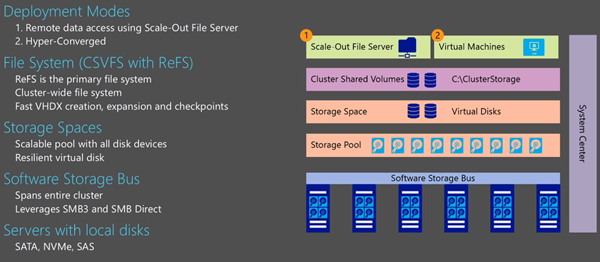
This is a conceptual, not an architectural, diagram.

A software storage bus replaces the SAS shared infrastructure using software over an Ethernet channel. This channel spans the entire S2D cluster using SMB 3.0 and SMB Direct – RDMA offers low latency and low CPU impact.

On top of this bus that spans the cluster, you can create a Storage Spaces pool, from which you create resilient virtual disks. The virtual disk doesn’t know that it’s running on DAS instead of shared SAS JBOD thanks to the abstraction of the bus.

File systems are put on top of the virtual disk, and this is where we get the active/active CSVs. The file system of choice for S2D is ReFS. This is the first time that ReFS is the primary file system choice.

Depending on your design, you either run the SOFS role on the S2D cluster (converged) or you run Hyper-V virtual machines on the S2D cluster (hyper-converged).
image

System Center is an optional management layer.

Data Placement

Data is stored in the form of extents. Each extent is 1 GB in size so a 100 GB virtual disk is made up of 100 extents. Below is an S2D cluster of 5 nodes. Note that extents are stored evenly across the S2D cluster. We get resiliency by spreading data across each node’s DAS disks. With 3-way mirroring, each extent is stored on 3 nodes. If one node goes down, we still have 2 copies, from which data can be restored onto a different 3rd node.

Note: 2-way mirroring would keep extents on 2 nodes instead of 3.

Extent placement is rebalanced automatically:

  • When a node fails
  • The S2D cluster is expanded

How we get scale-out and resiliency:

  • Scale-Out: Spreading extents across nodes for increased capacity.
  • Resiliency: Storing duplicate extents across different nodes for fault tolerance.

This is why we need good networking for S2D: RDMA. Forget your 1 Gbps networks for S2D.

image

Scalability

  • Scaling to large pools: Currently we can have 80 disks in a pool. in TPv2 we can go to 240 disks but this could be much higher.
  • The interconnect is SMB 3.0 over RDMA networking for low latency and CPU utilization
  • Simple expansion: you just add a node, expand the pool, and the extents are rebalanced for capacity … extents move from the most filled nodes to the most available nodes. This is a transparent background task that is lower priority than normal IOs.

You can also remove a system: rebalance it, and shrink extents down to fewer nodes.

Scale for TPv2:

  • Minimum of 4 servers
  • Maximum of 12 servers
  • Maximum of 240 disks in a single pool

Availability

S2D is fault tolerance to disk enclosure failure and server failure. It is resilient to 2 servers failing and cluster partitioning. The result should be uninterrupted data access.

Each S2D server is treated as the fault domain by default. There is fault domain data placement, repair and rebalancing – means that there is no data loss by losing a server. Data is always placed and rebalanced to recognize the fault domains, i.e. extents are never stored in just a single fault domain.

If there is a disk failure, there is automatic repair to the remaining disks. The data is automatically rebalanced when the disk is replaced – not a feature of shared JBOD SOFS.

If there is a temporary server outage then there is a less disruptive automatic data resync when it comes back online in the S2D cluster.

When there is a permanent server failure, the repair is controlled by the admin – the less disruptive temporary outage is more likely so you don’t want rebalancing happening then. In the event of a real permanent server loss, you can perform a repair manually. Ideally though, the original machine will come back online after a h/w or s/w repair and it can be resynced automatically.

ReFS – Data Integrity

Note that S2D uses ReFS (pronounced as Ree-F-S)  as the file system of choice because of scale, integrity and resiliency:

  • Metadata checksums protect all file system metadata
  • User data checksums protect file data
  • Checksum verification occurs on every read of checksum-protected data and during periodic background scrubbing
  • Healing of detected corruption occurs as soon as it is detected. Healthy version is retrieved from a duplicate extent in Storage Spaces, if available; ReFS uses the healthy version to get Storage Spaces to repair the corruption.

No need for chkdsk. There is no disruptive offline scanning in ReFS:

  • The above “repair on failed checksum during read” process.
  • Online repair: kind of like CHKDSK but online
  • Backups of critical metadata are kept automatically on the same volume. If the above repair process fails then these backups are used. So you get the protection of extent duplication or parity from Storage Spaces and you get critical metadata backups on the volume.

ReFS – Speed and Efficiency

Efficient VM checkpoints and backup:

  • VHD/X checkpoints (used in file-based backup) are cleaned up without physical data copies. The merge is a metadata operation. This reduces disk IO and increases speed. (this is clever stuff that should vastly improve the disk performance of backups).
  • Reduces the impact of checkpoint-cleanup on foreground workloads. Note that this will have a positive impact on other things too, such as Hyper-V Replica.

Accelerated Fixed VHD/X Creation:

  • Fixed files zero out with just a metadata operation. This is similar to how ODX works on some SANs
  • Much faster fixed file creation
  • Quicker deployment of new VMs/disks

Yay! I wonder how many hours of my life I could take back with this feature?

Dynamic VHDX Expansion

  • The impact of the incremental extension/zeroing out of dynamic VHD/X expansion is eliminated too with a similar metadata operation.
  • Reduces the impact too on foreground workloads

Demo 1:

2 identical VMs, one on NTFS and one on ReFS. Both have 8 GB checkpoints. Deletes the checkpoint from the ReFS VM – The merge takes about 1-2 seconds with barely any metrics increase in PerfMon (incredible improvement). Does the same on the NTFS VM and … PerfMon shows way more activity on the disk and the process will take about 3 minutes.

Demo 2:

Next he creates 15 GB fixed VHDX files on two shares: one on NTFS and one on ReFS. ReFS file is created in less than a second while the previous NTFS merge demo is still going on. The NTFS file will take …. quite a while.

Demo 3:

Disk Manager open on one S2D node: 20 SATA disks + 4 Samsung NVMe disks. The S2D cluster has 5 nodes. There is a total of 20 NVMe devices in the single pool – a nice tidy aggregation of PCIe capacity. The 5 node is new so no rebalancing has been done.

Lots of VMs running from a different tier of compute. Each VM is running DiskSpd to stress the storage. But distributed Storage QoS is limiting the VMs to 100 IOPs each.

Optimize-StoragePool –FriendlyName SSDi is run to bring the 5th node into the cluster (called SSDi) online by rebalancing. Extents are remapped to the 5th node. The system goes full bore to maximize IOPS – but note that “user” operations take precedence and the rebalancing IOPS are lower priority.

Storage Management in the Private Cloud

Management is provided by SCOM and SCVMM. This content is focused on S2D, but the management tools also work with other storage options:

  • SOFS with shared JBOD
  • SOFS with SAN
  • SAN

Roles:

  • VMM: bare-metal provisioning, configuration, and LUN/share provisioning
  • SCOM: Monitoring and alerting
  • Azure Site Recovery (ASR) and Storage Replica: Workload failover

Note: You can also use Hyper- Replica with/without ASR.

image

Demo:

He starts the process of bare-metal provisioning a SOFS cluster from VMM – consistent with the Hyper-V host deployment process. This wizard offers support for DAS or shared JBOD/SAN; this affects S2D deployment and prevents unwanted deployment of MPIO. You can configure existing servers or deploy a physical computer profile to do a bare-metal deployment via BMCs in the targeted physical servers. After this is complete, you can create/manage pools in VMM.

File server nodes can be added from existing machines or bare-metal deployment. The disks of the new server can be added to the clustered Storage Spaces pool. Pools can be tiered (classified). Once a pool is created, you can create a file share – this provisions the virtual disk, configures CSV, and sets up the file system for you – lots of automation under the covers. The wizard in VMM 2016 includes resiliency and tiering.

Monitoring

Right now, SCOM must do all the work – gathering a data from a wide variety of locations and determining health rollups. There’s a lot of management pack work there that is very hardware dependent and limits extensibility.

Microsoft reimagined monitoring by pushing the logic back into the storage system. The storage system determines health of the storage system. Three objects are reported to monitoring (PowerShell, SCOM or 3rd party, consumable through SMAPI):

  • The storage system: including node or disk fails
  • Volumes
  • File shares

Alerts will be remediated automatically where possible. The system automatically detects the change of health state from error to healthy. Updates to external monitoring takes seconds. Alerts from the system include:

  • Urgency
  • The recommended remediation action

Demo:

One of the cluster nodes is shut down. SCOM reports that a node is missing – there isn’t additional noise about enclosures, disks, etc. The subsystem abstracts that by reporting the higher error – that the server is down. The severity is warning because the pool is still online via the rest of the S2D cluster. The priority is high because this server must be brought back online. The server is restarted, and the alert remediates automatically.

Hardware Platforms

Storage Spaces/JBODs has proven that you cannot use just any hardware. In my experience, DataON stuff (JBOD, CiB, HGST SSD and Seagate HDD) is reliable. On the other hand, SSDs by SanDisk are shite, and I’ve had many reports of issues with Intel and Quanta Storage Spaces systems.

There will be prescriptive configurations though partnerships, with defined platforms, components, and configuration. This is a work in progress. You can experiment with Generation 2 VMs.

S2D Development Partners

I really hope that we don’t see OEMs creating “bundles” like they did for pre-W2008 clustering that cost more than the sum of the otherwise-unsupported individual components. Heck, who am I kidding – of course they will do that!!! That would be the kiss of death for S2D.

image

FAQ

image

The Importance of RDMA

Demo Video:

They have two systems connected to a 4 node S2D cluster, with a sum total of 1.2 million 4K IOPS with below 1 millisecond latency, thanks to (affordable) SATA SSDs and Mellanox ConnectX-3 RDMA networking (2 x 40 Gbps ports per client). They remove RDMA from each client system. IOPS is halved and latency increases to around 2 milliseconds. RDMA is what enables low latency and low CPU access to the potential of the SSD capacity of the storage tier.

Hint: the savings in physical storage by using S2D probably paid for the networking and more.

Questions from the Audience

  • DPM does not yet support backing up VMs that are stored on ReFS.
  • You do not do SMB 3.0 loopback for hyper-convergence. SMB 3.0 is not used … Hyper-V just stores the VMs on the local CSVs of the S2D cluster.
  • There is still SMB redirecting in the converged scenario, A CSV is owned by a node, with CSV ownership balancing. When host connects to a share, it is redirected to the owner of the CSV, therefore traffic should be balanced to the separate storage tier.
  • In hyper-convergence, the VM might be on node A and the CSV owner might be on another node, with extents all over the place. This is why RDMA is required to connect the S2D nodes.
  • Which disk with the required extents do they read from? They read from the disk with the shorted queue length.
  • Yes, SSD tiering is possible, including write-back cache, but it sounds like more information is yet to be released.
  • They intend to support all-flash systems/virtual disks

My Microsoft Ignite 2015 Session Content

Microsoft recorded and shared a video of my session, The Hidden Treasures of Windows Server 2012 R2 Hyper-V, along with the slides.

My second session, End to-End Azure Site Recovery Solutions for Small-Medium Enterprises in one of the community theatres, was not recorded so I have placed the slides up on slideshare.

Ignite 2015–Exploring Storage Replica in Windows Server 2016

Speaker: Net Pyle.

What is a Disaster?

Answer: McDonalds running out of food at Ignite. But I digress … you lose your entire server room or data centre.

Hurricane Sandy wiped out Manhattan. Lots of big hosting facilities went offline. Some stayed partially online. And a handful stayed online.

Storage Replica Overview

Synchronous replication between cities. Asynchronous replication between countries. Not just about disaster recovery but also disaster avoidance.

It is volume based. Uses SMB 3.1.1. Works with any Windows data volume. Any fixed disk storage: iSCSI, Spaces, local disk or any storage fabric (iSCSI, FCoE, SAS, etc). You manage it using FCM (does not require a cluster), PowerShell, WMI, and in the future: Azure Site Recovery (ASR).

This is a feature of WS2016 and there is no additional licensing cost.

Demo

A demo that was done before, using a 2 node cluster, file changes in a VM in site A, replicates, and change shows up after failover.

Scenarios in the new Technical Preview

  • Stretch Cluster
  • Server to Server
  • Cluster to Cluster, e.g. S2D to S2D
  • Server to self

Stretch Cluster

  • Single cluster
  • Automatic failover
  • Synchronous

Cluster to Cluster

  • Two separate cluster
  • Manual failover
  • Sync or async replication

Server to Server

  • Two separate servers, even with local storage
  • Manual failover
  • Sync or asynch replication

Server to Self

Replicate one volume to another on the same server. Then move these disks to another server and use them as a seed for replication.

Blocks, not Files

Block based replication. It is not DFS-R. Replication is done way down low. It is unaware of the concept of files so doesn’t know that they are used. It only cares about write IO. Works with CSVFS, NTFS and ReFS.

2 years of work by 10 people to create a disk filter driver that sits between the Volume Manager and the Partition Manager.

Synch Workflow

A log is kept of each write on primary server. The log is written through to the disk  The same log  is kept on the secondary site. The write is sent to the log in parallel on both sites. Only when the secondary site has written to the log in both sites is the write acknowledged

Asynch Workflow

The write goes to the log on site A and acknowledged. Continuous replication sends the write to the log in the secondary site. Not interval based.

SMB 3.1.1.

RDMA/SMB Direct can be used long range with Mellanox InfiBand Metro-X and Chelsio iWarp can do long distance. MSFT have tested 10KM, 25 KM, and 40KM networks to test this. Round trip latencies are hundreds of microseconds for 40 KM one-way (very low latency). SMB 3.1.1 has optimized built-in encryption. They are still working on this and you should get to the point where you want encryption on all the time.

Questions

  • How Many Nodes? 1 cluster with 64 nodes or 2 clusters with 64 nodes each.
  • Is the log based on Jet? No; The log is based on CLFS

Requirements

  • Windows Server Datacenter edition only – yes I know.
  • AD is required … no schema updates, etc. They need access to Kerberos.
  • Disks must be GPT. MBR is no supported.
  • Same disk geometry (between logs, between data) and partition fo rdata.
  • No removable drives.
  • Free space for logs on a Windows NTFS/ReFS volume (logs are fixed size and manually resized)
  • No %Systemroot%, page filem hibernation file or DMP file replication.

Firewall: SMB and WS-MAN

Synch Replication Recommendations

  • <5 MS round trip latency. Typically 30-50 KM in the real world.
  • > 1 Gbps bandwidth end-end between the servers is a starting point. Depends on a lot.
  • Log volume: Flash (SSD, NVME, etc). Larger logs allow faster recovery from larger outages and less rollover, but cost space.

Asynchronous Replication

Latency not an issue. Log volume recommendations are the same as above.

Can we make this Easy?

Test-SRTopology cmdlet. Checks requirements and recommendations for bandwidth, log sizes, IPS, etc. Runs for specified duration to analyse a potential source server for sizing replication. Run it before configuration replication against a proposed source volume and proposed destination.

Philosophy

Async crash consistency versus application consistency. Guarantee mountable volume. App must guarantee a usable file

Can replicate VSS snapshots.

Management Rules in SR V1

You cannot use the replica volume. In this release they only do 1:1 replication, e.g. 1 node to 1 node, 1 cluster to 1 cluster, and 1 half cluster to another half cluster. You cannot do legs of replication.

You can do Hyper-V Replica from A to B and SR from B to C.

Resizing replicated volumes interrupts replication. This might change – feedback.

Management Notes

Latest drivers. Most problems are related to drivers, not SR. Filter drivers can be dodgy too.

Understand your performance requirements. Understand storage latency impact on your services. Understand network capacity and latency. PerfMon and DiskSpd are your friends. Test workloads before and after SR.

Where can I run SR?

In a VM. Requires  WS2016 DC edition. Work on any hypervisor. It works in Azure, but no support statement yet.

Hyper-V Replica

HVR understands your Hyper-V workload. It works with HTTPS and certificates. Also in Std edition.

SR offers synchronous replication. Can create stretched guest clusters. Can work in VMs that are not in Hyper-V.

SQL Availability Groups

Lots of reasons to use SQL AGs. SR doesn’t require SQL Ent. Can replicate VMs at host volume level. SR might be easier than SQL AGs. You must use write ordering/consistency if you use any external replication of SQL VMs – includes HVR/ASR.

Questions

  • Is there a test failover: No
  • Is 5MS a hard rule for sync replication. Not in the code. But over 5 MS will be too slow and degrade performance.
  • Overhead? Initial sync can be heavy due to check-summing. There is a built-in throttle to prevent using too much RAM. You cannot control that throttle in TP2 but you will later.

What SR is Not

  • It is not shared-nothing clustering. That is Storage Spaces Direct (S2D).
  • However, you can use it to create a shared-nothing 2 node cluster.
  • It is not a backup – it will replicate deletions of data very very well.
  • It is not DFS-R, multi-endpoint, not low bandwidth (built to hammer networks),
  • Not a great branch office solution

It is a DR solution with lots of bandwidth between them.

Stretch Clusters

  • Synchronous only
  • Asymmetric storage,e.g. JBOD in one site and SAN in another site.
  • Manage with FCM
  • Increase cluster DR capabilities.
  • Main use cases are Hyper-V and general use file server.

Not for stretch-cluster SOFS – you’d do cluster-to-cluster replication for that.

Cluster-Cluster or Server-Server

  • Synch or asynch
  • Supports S2D

PowerShell

  • New-SrPartnership
  • Set-SRPartnership
  • Test-SrTopology

DiskSpd Demo on Synch Replication

Runs DiskSpd on volume on source machine.

  • Before replication: 63,000 IOPS on source volume
  • After replication: In TPv2 it takes around 15% hit. In latest builds, it’s under 10%.

In this demo, the 2 machines were 25 KM apart with an iWarp link. Replaced this with fibre and did 60,000 IOPS.

Azure Site Recovery

Requires SCVMM. You get end-end orchestration. Groups VMs to replicate together. Supports for Azure Automation runbooks. Support for planned/unplanned failover. Preview in July/August.

Questions:

  • Tiered storage spaces: It supports tiering, but the geometry must be identical in both sides.
  • Does IO size affect performance? Yes.

The Replication Log

Hidden volume.

Known Issues in TP2

  • PowerShell remoting for server-server does not work
  • Performance is not there yet
  • There are bugs

A guide was published on Monday on TechNet.

Questions to srfeed <at> microsoft.com

Ignite 2015–Stretching Failover Clusters and Using Storage Replica in Windows Server 2016

Speakers: Elden Christensen & Ned Pyle, Microsoft

A pretty full room to talk fundamentals.

Stretching clusters has been possible since Windows 2000, making use of partners. WS2016 makes it possible to do this without those partners, and it’s more than just HA, but also a DR solution. There is built-in volume replication so you don’t need to use SAN or 3rd-party replication technologies, and you can use different storage systems between sites.

Assuming: You know about clusters already – not enough time to cover this.

Goal: To use clusters for DR, not just HA.

RTO & RPO

  • RTO: Accepted amount of time that services are offline
  • RPO: Accepted amount of data loss, measured in time.
  • Automated failover: manual invocation, but automated process
  • Automatic failover: a heartbeat failure automatically triggers a failure
  • Stretch clusters can achieve low RPO and RTO
  • Can offer disaster avoidance (new term) ahead of a predicted disaster. Use clustering and Hyper-V features to move workloads.

Terminology

  • Stretch cluster. What used to be aclled a multi-site cluster, metro cluster or geo cluster.

Stretch Cluster Network Considerations

Clusters are very aggressive out of the box: once per second heartbeat and 5 missed heartbeats = failover. PowerShell = (Get-Cluster).SameSubnetThreshold = 10 and (Get-Cluster).CrossSubnetThreshold = 20

Different data centers = different subnets. They are using Network Name Resources  for things like file shares which are registered in DNS depending on which site the resource is active in. The NNR has IP address A and IP Address B. Note that DNS registrations need to be replicated and the TTL has to expire. If you failover something like a file share then there will be some time of RTO depending on DNS stuff.

If you are stretching Hyper-V clusters then you can use HNV to abstract the IPs of the VMs after failover.

Another strategy is that you prefer local failover. HA scenario is to failover locally. DR scenario is to failover remotely.

You can stretch VLANs across sites – you network admins will stop sending you XMas cards.

There are network abstraction devices from the likes of Cisco, which offer the same kind of IP abstraction that HNV offers.

(Get-Cluster).SecurityLevel =2 will encrypt cluster traffic on untrusted networks.

Quorum Considerations

When nodes cannot talk to each other then they need a way to reconcile who stays up and who “shuts down” (cluster activities). Votes are assigned to each node and a witness. When a site fails then a large block of votes disappears simultaneously. Plan for this to ensure that quorum is still possible.

In a stretch cluster you ideally want a witness in site C via independent network connection from Site A – Site B comms. The witness is available even if one site goes offline or site A-B link goes down. This witness is a file share witness. Objections: “we don’t have a 3rd site”.

In WS2016, you can use a cloud witness in Azure. It’s a blob over HTTP in Azure.

Demo: Created a storage account in Azure. Got the key. A container contains a sequence number, just like a file share witness. Configures a cluster quorum as usual. Chooses Select a Witness, and slect Configure a Cloud Witness. Enters the storage account name and pastes in the key. Now the cluster starts using Azure as the 3rd site witness. Very affordable solution using a teeny bit of Azure storage. The cluster manages the permissions of the blob file. The blob stores only a sequence number – there is no sensitive private information. For an SME: a single Azure credit ($100) might last a VERY long time. In testing, they haven’t been able to get a charge of even $0.01 per cluster!!!!

Controlling Failover

Clustering in WS2012 R2 can survive a 50% loss of votes at onces. One site is automatically elected to win. It’s random by default but you can configure it. You can configure manual failover between sites. You do this by manually toggling the votes in the DR site – remove the votes from DR site nodes. You can set preferred owners for resources too.

Storage Considerations

Elden hands over to Ned. Ned will cover Storage Replica. I have to leave at this point … but Ned is covering this topic in full length later on today.

Ignite 2015 – Spaces-Based, Software-Defined Storage–Design and Configuration Best Practices

Speakers: Joshua Adams and Jason Gerend, Microsoft.

Designing a Storage Spaces Solution

  1. Size your disks for capacity and performance
  2. size your storage enclosures
  3. Choose how to handlw disk failures
  4. Pick the number of cluster nodes
  5. Select a hardware solution
  6. Design your storage pools
  7. Design your virtual disks

Size your disks – for capacity (HDDs)

  1. Identify your workloads and resiliency type: Parity for backups and mirror for everything else.
  2. Estimate how much raw capacity you need. Currently capcity x% data grown X data copies (if your using mirrors). Add 12% initially for automatic virtual disk repairs and meta data overhead. Example: 135 TB x 1. x 3 data copies + 12 % = 499 TB raw capacity
  3. Size your HDDs: Pick big 7200 RPM NL SAS HDDs. Fast HDD not required is using SSD tier.

Software Defined Storage Calculator allows you to size and design a deployment and it generates the PowerShell. Works with WS2012 R2 and WS2016, disaggregated and hyperconverged deployments.

Size your disks – for performance (SSDs)

  1. How many SSDs to use. Sweet spot is 1 SSD for every 2-4 HDDs. Typically 4-5 SSDs per enclosure per pool. More SSDs = more absolute performance
  2. Determine the SD size. 800 GB SSDs are typical. Larger SSD capacity = can handle larger amounts of active data. Anticipate around 10% of SSD capacity for automatically repairing after an SSD failure.

Example 36 x 800 GB SSDs.

Size you Enclosures

  1. Pick the enclosure size (12, 24, 60, etc  disks)
  2. Pick the number of enclosures. If you have 3 or 4 then you have enclosure awareness/fault tolerance, depending on type of mirroring.
  3. Each enclosure should have an identical number of disks.

Example, 3 x 60 bay JBODs each with 48 HDDs and 12 SSDs

The column count is fixed between 2 tiers. The smaller tier (SSD) limits the column count. 3-4 columns is a sweet spot.

Expanding pools has an overhead. Not trivial but it works. Recommend that you fill JBODs.

Choose how to Handle Disk Failures

  1. Simultaneous disk failures to tolerate. Use 2 data copies for small deployments and disks, and/or less important data. use 3 data copies for larger deployments and disks, and for more important data.
  2. Plan to automatically repair disks. Instead of hot spares, set aside pool capacity to automatically replace failed disks. Also effects column count … more later.

Example: 3-way mirrors.

Pick the number of Cluster Nodes

Start with 1 node per enclosure and scale up/down depending on the amount of compute required. This isn’t about performance; it’s about how much compute you can afford to lose and still retain HA.

Example: 3 x 3 = 3 SOFS nodes + 3 JBODs.

Select a hardware vendor

  1. DataON
  2. Dell
  3. HP
  4. RAID Inc
  5. Microsoft/Dell CPS

Design your Storage Pools

  1. Management domains: put your raw disks in the pool and manage them as a group. Some disk settings are applied at the pool level.
  2. More pools = more to manage. Pools = fault domains. More pools = less risk – increased resiliency and resiliency overhead..

Start with 84 disks per pool.

Divide disks evenly between pools.

Design your Virtual Disks

  • Where storage tiers, write-back cache and enclosure awareness are set.
  • More VDs = more uniform load balancing, but more to manage.
  • This is where column count come in. More columns = more throughput, but more latency. 3-4 columns is best.
  • Load balancing is dependent on identical virtual disks.
  • To automatically repair after a disk failure, need at least one more disk per tier than columns for the smallest tier, which is usually the SSD tier.
  1. Set aside 10% of SSD and HDD capacity for repairs.
  2. Start with 2 virtual disks per node.
  3. Add more to keep virtual disk size to 10 TB or less. Divide SSD and HDD capacity evenly between virtual disks. Use 3-4 columns if possible.

Best Practices for WS2012 R2

  • Scale by adding fully populated clusters. Get used to the concept of storage/compute/networking stamps.
  • Monitor your existing workloads for performance. The more you know about the traits of your unique workloads, the better future deployments will be.
  • Do a PoC deployment. Use DiskSpd and fault injection to stress the solution. Monitor the storage tiers performance to determine how much SSD capacity you need to fit a given scale of your workloads into SSD tiers.

WORK WITH A TRUSTED SOLUTION VENDOR. Not all hardware is good, even if it is on the HCL. Some are better than others, and some suck. In my opinion Intel and Quanta suck. DataON is excellent. Dell appears to have gone through hell during CPS development to be OK. And some disks, e.g. SanDISK, are  the spawn of Satan, in my experience – Note that Dell use SanDISK and Toshiba so demand Toshiba only SSDs from Dell. HGST SSDs are excellent.

Deployment Best Practices

  • Disable TRIM on SSDs. Some drives degrade performance with TRIM enabled.
  • Disable all disk based caches – if enabled if degrades performance when write-through is used (Hyper-V).
  • Use LB (least blocks) for MPIO policy. For max performance, set individual SSDs to Round Robin. This must be done on each SOFS node.
  • Optimize Storage Spaces repair settings on SOFS. Use Fast Rebuild. Change it from Auto to Always on the pool. This means that 5 minutes after a write failure, a rebuild will automatically start. Pulling a disk does not trigger an automatic rebuild – an expensive process.
  • Install the latest updates. Example: repair process got huge improvement in November 2014 update.

Deployment & Management Best Practices

  • Deploy using VMM or PowerShell. FCM is OK for small deployments.
  • VMM is great for some stuff, but in 2012 R2 it doesn’t do tiering etc. It can create the cluster well and manage shares, but for disk creation, use PowerShell.
  • Monitor it using SCOM with the new Storage Spaces management pack.
  • Also use Test-StorageHealth.PS1 to do some checks occasionally. It needs tweaking to size it for your configuration.

Design Closing Thoughts

  • Storage Spaces solutions offer: 2-4 cluster nodes and 1-4 JBODs. Store 100 to as many as 2000 VMs.
  • Storage Pool Design; HDDs  provide most of the capacity. SSDs offer performance. Up to 84 disks per pool.
  • Virtual Disk design: Set aside 10% of SSD and HDD capacity for repairs. Start with 2 VDs per node. Max 0 TB/virtual disk. 3-4 volums for balanced performance.

Coming in May

  • Storage Spaces Design Considerations Guide (basis of this presentation)
  • Storage Spaces Design Calculator (spreadsheet used in this presentation)