Windows Assessment and Deployment Kit for Windows 8 Release Preview

With Windows 7, Microsoft release a bunch of individual tools and toolkits, each as individual downloads, to aid in our assessment, deployment, and application compatibility testing/reconciliation.  With Windows 8, Microsoft are continuing with the free support tools, but it appears that they will be released in a single kit called the Windows Assessment and Deployment Kit (Windows ADK).

The tools in the Windows ADK include:

Application Compatibility Toolkit (ACT): The Application Compatibility Toolkit (ACT) helps IT Professionals understand potential application compatibility issues by identifying which applications are or are not compatible with the new versions of the Windows operating system. ACT helps to lower costs for application compatibility evaluation by providing an accurate inventory of the applications in your organization. ACT helps you to deploy Windows more quickly by helping to prioritize, test, and detect compatibility issues with your apps. By using ACT, you can become involved in the ACT Community and share your risk assessment with other ACT users. You can also test your web applications and web sites for compatibility with new releases of Internet Explorer. For more information, see Application Compatibility Toolkit.

Deployment Tools: Deployment tools enable you to customize, manage, and deploy Windows images. Deployment tools can be used to automate Windows deployments, removing the need for user interaction during Windows setup. Tools included with this feature are Deployment Imaging Servicing and Management (DISM) command line tool, DISM PowerShell cmdlets, DISM API, Windows System Image Manager (Windows SIM), and OSCDIMG. For more information, see Deployment Tools.

User State Migration Tool (USMT): USMT is a scriptable command line tool that IT Professionals can use to migrate user data from a previous Windows installation to a new Windows installation. By using USMT, you can create a customized migration framework that copies the user data you select and excludes any data that does not need to be migrated. Tools included with the feature are ScanState, Loadstate, and USMTUtils command line tools. For more information, see User State Migration Tool.

Volume Activation Management Tool (VAMT): The Volume Activation Management Tool (VAMT) enables IT professionals to automate and centrally manage the activation of Windows, Windows Server, Windows ThinPC, Windows POSReady 7, select add-on product keys, and Office for computers in their organization. VAMT can manage volume activation using retail keys (or single activation keys), multiple activation keys (MAKs), or Windows Key Management Service (KMS) keys. For more information, see Volume Activation Management Tool.

Windows Performance Toolkit (WPT): Windows Performance Toolkit includes tools to record system events and analyze performance data in a graphical user interface. Tools available in this toolkit include Windows Performance Recorder, Windows Performance Analyzer, and Xperf. For more information, see Windows Performance Toolkit.

Windows Assessment Toolkit: Tools to discover and run assessments on a single computer. Assessments are tasks that simulate user activity and examine the state of the computer. Assessments produce metrics for various aspects of the system, and provide recommendations for making improvements. For more information, see Windows Assessment Toolkit.
Windows Assessment Services: Tools to remotely manage settings, computers, images, and assessments in a lab environment where Windows Assessment Services is installed. This application can run on any computer with access to the server that is running Windows Assessment Services. For more information, see Windows Assessment Services.

Windows Preinstallation Environment (Windows PE): Minimal operating system designed to prepare a computer for installation and servicing of Windows. For more information, see Windows PE Technical Reference.

If OS deployment is your thing or in your future then this kit and you are going to be close friends.

Windows Server Backup Supports WS2012 Hyper-V Clusters

On Sunday evening I tweeted about something I’ve been playing with for the last week …

image

… and I was called a tease Smile  Caught, red handed!

Windows Server Backup (WSB) in Windows Server 2012, out of the box with no registry edits, can backup:

  • Running virtual machines on a standalone host – a slight improvement over the past where a registry edit was required to register the VSS Hyper-V Writer
  • Running virtual machines on a cluster shared volume (CSV) – this is absolutely new

Note that WSB does not support VMs that are stored on SMB 3.0 file shares.  You’ll need something else for that.

I’ve done a lot of testing over the last week, trying out different scenarios in the cluster, and restoring “lost” VMs.  Everything worked.  You can backup to a volume, a drive, or a file share.  This is a very nice solution for a small company that wants a budget virtualisation solution. 

As for my step-by-steps … I’m working on it but you’ll have to wait for that … and that is another tease Smile

How To Move Highly Available VMs to a WS2012 Hyper-V Cluster

I’ve been asked over and over and over how to upgrade from a Windows Server 2008 R2 Hyper-V cluster to a Windows Server 2012 Hyper-V cluster.  You cannot do an in-place upgrade of a cluster.  What I’ve said in the past, and it still holds true, is that you can:

  1. Buy new host hardware, if your old hardware is out of support, build a new cluster, and migrate VMs across (note that W2008 R2 does not support Shared-Nothing Live Migration), maybe using export/import or VMM.
  2. Drain a host in your W2008R2 cluster of VMs, rebuild it with WS2012, and start a new cluster.  Again, you have to migrate VMs over.

The clustering folks have another way of completing the migration in a structured way.  I have not talked about it yet because I didn’t see MSFT talk about it publicly, but that changes as of this morning.  The Clustering blog has details on how you can use the Cluster Migration Wizard to migrate VMs from one cluster to another

There is still some downtime to this migration.  But that is limited by migrating the LUNs instead of the VHDs using unmask/mask – in other words, there is no time consuming data copy.

Features of the Cluster Migration Wizard include:

  • A pre-migration report
  • The ability to pre-stage the migration and cut-over during a maintenance window to minimize risk/impact of downtime.  The disk and VM configurations are imported in an off state on the new cluster
  • A post-migration report
  • Power down the VMs on the old cluster
  • You de-zone the CSV from the old cluster – to prevent data corruption by the LUN/VM storage being accessed by 2 clusters at once
  • Then you zone the CSV for the new cluster
  • You power up the VMs on the new cluster

Read the post by the clustering group (lots more detail and screenshots), and then check out a step-by-step guide.

Things might change when we migrate from Windows Server 2012 Hyper-V to Windows Server vNext Hyper-V, thanks to Shared-Nothing Live Migration Smile

EDIT#1:

Fellow Virtual Machine MVP, Didier Van Hoye, beat me to the punch by 1 minute on this post Smile  He also has a series of posts on the topic of cluster migration.

How To Scale Beyond A Hyper-V Cluster-In-A-Box

Earlier this week I posted some notes from a TechEd North America 2012 session that discussed the Cluster-In-A-Box solution.  Basically, this product is a single box unit, probably with two server blades, all the cluster networking, and JBOD storage attached by SAS Expanders, all in a single chassis.  For a small implementation, you can install Hyper-V on the blades in the box, and use the shared JBOD storage to create a small, economic cluster.

I’ve been thinking about the process for expanding our scaling beyond this box.  At the moment, without playing with it because it doesn’t exist in the wild yet, I can envision three scenarios.

Scale Up

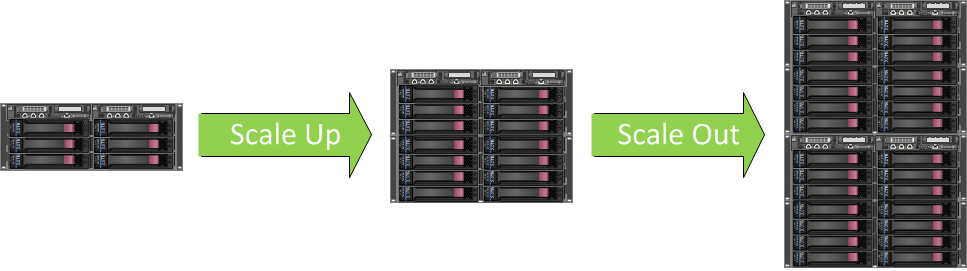
On the left I have put together a cluster-in-a-box.  It has 2 server blades and a bunch of disk.  Eventually the company grows.  If the blades can handle it, I can add more CPU and RAM.  It is likely that the box solution will also allow me to add one or more disk trays.  This would allow me to scale up the installation.

image

Scale Out

I’ve reset back to the original installation, and the company wants to grow once again.  However, circumstances have changed.  Maybe one of the following is true:

  • I’ve reached my CPU or RAM limit in the blades
  • My box won’t support disk trays
  • I’m concerned with putting two many eggs in one basket, and want to have more hosts

In that case, I can scale out by buying another cluster-in-a-box, with the obvious price of having another cluster and storage subsystem to manage.

image

Scale Up & Out

I’ve reset once again.  Now the company wants to grow.  Step #1 because my box allows it, is to scale up.  I add more disk and CPU and grow the VM density of my 2 node cluster.  But eventually I start approaching a certain trigger point where I need to buy once again.  What I can do now is add a second cluster in a box, probably starting with a basic kit, and grow it with more disk and CPU as the company grows.

image

Migrate To Traditional Cluster & Scale-Out-File-Server (SOFS)

Let’s consider another scenario.  The company starts with a cluster in a box and scales it up.  We’re approaching the point where we need to scale out.  We have a choice:

  • Scale out with another cluster in a box?
  • Migrate to a traditional cluster with dedicated storage?

My big concern might be flexibility and simplicity as I scale the size of the infrastructure.  Having lots of clusters is with isolated storage might be good … but I think that’s a minority of situations.  Maybe we should migrate to something more traditional … but not iSCSI because we already own a cool storage platform!

In this case, I’m going to leverage a few things we can do in Windows Server 2012:

  • Shared Nothing Live Migration will allow me to move my virtual machines from the cluster in a box to a Hyper-V cluster made up of traditional rack/blade servers.
  • SMB 3.0 (with Multichannel and Direct) gives me great storage performance so I can re-use the cluster in a box as a storage platform.
  • I can convert the cluster in a box into a Scale-Out File Server (SOFS). 

Obviously I have not tested this but here’s how I think it could go:

  1. Enable SOFS on the cluster in a box with a single initial share on each CSV
  2. Prepare the Hyper-V hosts and cluster them without storage
  3. Grant admins and the Hyper-V hosts full permission to the SOFS shares
  4. Use Shared Nothing Live Migration to move the VMs to the new Hyper-V cluster, placing VMs in the same CSV as before via the share … this will require some free disk space.

image

With this solution you can grow the environment.  The cluster in a box becomes a dedicated storage platform, and you can add disk to it.  Your single Hyper-V cluster can scale well beyond the 2 node limit of the cluster in a box.  And you can do that without any service downtime … well, that’s what I think at the moment Smile  We’ll find out more in the future, I guess.

Windows Server 2012 NIC Teaming and Multichannel

Notes from TechEd NA 2012 WSV314:

image

Terminology

  • It is a Team, not NIC bonding, etc.
  • A team is made of Team Members
  • Team Interfaces are the virtual NICs that can connect to a team and have IP stacks, etc.  You can call them tNICs to differentiate them from vNICs in the Hyper-V world.

image

Team Connection Modes

Most people don’t know the teaming mode they select when using OEM products.  MSFT are clear about what teaming does under the cover.  Connection mode = how do you connect to the switch?

  • Switch Independent can be used where the switch doesn’t need to know anything about the team.
  • Switch dependent teaming is when the switch does need to know something about the team. The switch decides where to send the inbound traffic.

There are 2 switch dependent modes:

  • LACP (Link Aggregation Control Protocol) is where the is where the host and switch agree on who the team members are. IEEE 802.1ax
  • Static Teaming is where you configure it on the switch.

image

Load Distribution Modes

You also need to know how you will spread traffic across the team members in the team.

1) Address Hash comes in 3 flavours:

  • 4-tuple (the default): Uses RSS on the TCP/UDP ports. 
  • 2-tuple: If the ports aren’t available (encrypted traffic such as IPsec) then it’ll go to 2-tuple where it uses the IP address.
  • MAC address hash: If not IP traffic, then MAC addresses are hashed.

2) We also have Hyper-V Port, where it hashes the port number on the Hyper-V switch that the traffic is coming from.  Normally this equates to per-VM traffic.  No distribution of traffic.  It maps a VM to a single NIC.  If a VM needs more pipe than a single NIC can handle then this won’t be able to do it.  Shouldn’t be a problem because we are consolidating after all.

Maybe create a team in the VM?  Make sure the vNICs are on different Hyper-V Switches. 

SR-IOV

Remember that SR-IOV bypasses the host stack and therefore can’t be teamed at the host level.  The VM bypasses it.  You can team two SR-IOV enabled vNICs in the guest OS for LBFO.

Switch Independent – Address Hash

Outbound traffic in Address Hashing will spread across NICs. All inbound traffic is targeted at a single inbound MAC address for routing purposes, and therefore only uses 1 NIC.  Best used when:

  • Switch diversity is a concern
  • Active/Standby mode
  • Heavy outbound but light inbound workloads

Switch Independent – Hyper-V Port

All traffic from each VM is sent out on that VM’s physical NIC or team member.  Inbound traffic also comes in on the same team member.  So we can maximise NIC bandwidth.  It also allows for maximum use of VMQs for better virtual networking performance.

Best for:

  • Number of VMs well exceeds number of team members
  • You’re OK with VM being restricted to bandwidth of a single team member

Switch Dependent Address Hash

Sends on all active members by using one of the hashing methods.  Receives on all ports – the switch distributes inbound traffic.  No association between inbound and outbound team members.  Best used for:

  • Native teaming for maximum performance and switch diversity is not required.
  • Teaming under the Hyper-V switch when a VM needs to exceed the bandwidth limits of a single team member  Not as efficient with VMQ because we can’t predict the traffic.

Best performance for both inbound and outbound.

Switch Dependent – Hyper-V Port

Sends on all active members using the hashed port – 1 team member per VM.  Inbound traffic is distributed by the switch  on all ports so there is no correlation to inbound and outbound.  Best used when:

  • When number of VMs on the switch well exceeds the number of team members AND
  • You have a policy that says you must use switch dependent teaming.

When using Hyper-V you will normally want to use Switch Independent & Hyper-V Port mode. 

When using native physical servers you’ll likely want to use Switch Independent & Address Hash.  Unless you have a policy that can’t tolerate a switch failure.

Team Interfaces

There are different ways of interfacing with the team:

  • Default mode: all traffic from all VLANs is passed through the team
  • VLAN mode: Any traffic that matches a VLAN ID/tag is passed through.  Everything else is dropped.

Inbound traffic passes through to one team interface at once.

image

The only supported configuration for Hyper-V is shown above: Default mode passing through all traffic t the Hyper-V Switch.  Do all the VLAN tagging and filtering on the Hyper-V Switch.  You cannot mix other interfaces with this team – the team must be dedicated to the Hyper-V Switch.  REPEAT: This is the only supported configuration for Hyper-V.

A new team has one team interface by default. 

Any team interfaces created after the initial team creation must be VLAN mode team interfaces (bound to a VLAN ID).  You can delete these team interfaces.

Get-NetAdapter: Get the properties of a team interface

Rename-NetAdapter: rename a team interface

Team Members

  • Any physical ETHERNET adapter with a Windows Logo (for stability reasons and promiscuous mode for VLAN trunking) can be a team member.
  • Teaming of InfiniBand, Wifi, WWAN not supported.
  • Teams made up of teams not supported.

You can have team members in active or standby mode.

Virtual Teams

Supported if:

  • No more than 2 team members in the guest OS team

Notes:

  • Intended for SR-IOV NICs but will work without it.
  • Both vNICs in the team should be connected to different virtual switches on different physical NICs

If you try to team a vNIC that is not on an External switch, it will show up fine and OK until you try to team it.  Teaming will shut down the vNIC at that point. 

You also have to allow teaming in a vNIC in Advanced Properties – Allow NIC teaming.  Do this for each of the VM’s vNICs.  Without this, failover will not succeed. 

PowerShell CMDLETs for Teaming

The UI is actually using POSH under the hood.  You can use the NIC Teaming UI to remotely manage/configure a server using RSAT for Windows 8.  WARNING: Your remote access will need to run over a NIC that you aren’t altering because you would lose connectivity.

image

Supported Networking Features

NIC teaming works with almost everything:

image

TCP Chimney Offload, RDMA and SR-IOV bypass the stack so obviously they cannot be teamed in the host.

Limits

  • 32 NICs in a team
  • 32 teams
  • 32 team interfaces in a team

That’s a lot of quad port NICs.  Good luck with that! Winking smile 

SMB Multichannel

An alternative to a team in an SMB 3.0 scenario.  Can use multiple NICs with same connectivity, and use multiple cores via NIC RSS to have simultaneous streams over a single NIC (RSS) or many NICs (teamed, not teamed, and also with RSS if available).  Basically, leverage more bandwidth to get faster SMB 3.0 throughput.

Without it, a 10 GbE NIC would only be partly used by SMB – single CPU core trying to transmit.  RSS makes it multi-threaded/core, and therefore many connections by the data transfer.

Remember – you cannot team RDMA.  So another case to use Multichannel and get an LBFO effect is to use SMB Multichannel …. or I should say “use” … SMB 3.0 turns it on automatically if multiple paths are available between client and server.

SMB 3.0 is NUMA aware.

Multichannel will only use NICs of same speed/type.  Won’t see traffic spread over a 10 GbE and a 1 GbE NIC, for example, or over RDMA-enabled and non-RDMA NICs. 

In tests, the throughput on RSS enabled 10 GbE NICs (1, 2, 3, and 4 NICs), seemed to grow in a predictable near-linear rate.

SMB 3.0 uses a shortest queue first algorithm for load balancing – basic but efficient.

SMB Multichannel and Teaming

Teaming allows for faster failover.  MSFT recommending teaming where applicable.  Address-hash port mode with Multichannel can be a nice solution.  Multichannel will detect a team and create multiple connections over the team.

RDMA

If RDMA is possible on both client and server then SMB 3.0 switches over to SMB Direct.  Net monitoring will see negotiation, and then … “silence” for the data transmission.  Multichannel is supported across single or multiple NICs – no NIC teaming, remember!

Won’t Work With Multichannel

  • Single non-RSS capable NIC
  • Different type/speed NICs, e.g. 10 GbE RDMA favoured over 10 GbE non-RDMA NIC
  • Wireless can be failed from but won’t be used in multi-channel

Supported Configurations

Note that Multichannel over a team of NICs is favoured over multichannel over the same NICs that are not in a team.  Added benefits of teaming (types, and fast failover detection).  This applies, whether the NICs are RSS capable or not.  And the team also benefits non-SMB 3.0 traffic.

image

Troubleshooting SMB Multichannel

image

Plenty to think about there, folks!  Where it applies in Hyper-V?

  • NIC teaming obviously applies.
  • Multichannel applies in the cluster: redirected IO over the cluster communications network
  • Storing VMs on SMB 3.0 file shares

Windows Server 2012 High-Performance, Highly-Available Storage Using SMB

Notes from TechEd NA 2012 session WSV303:

image

One of the traits of the Scale-Out File Server is Transparent Failover for server-server apps such as SQL Server or Hyper-V.  During a host power/crash/network failure, the IO is paused briefly and flipped over to an alternative node in the SOFS.

image

Transparent Failover

The Witness Service and state persistence enable Transparent Failover in SMB 3.0 SOFS.  The Witness plays a role in unplanned failover.  Instead of a TCP timeout (40 seconds and causing application issues), speeds up the process.  It tells the client that the server that they were connected to has failed and should switch to a different server in the SOFS.

image

NTFS Online Scan and Repair

  • CHKDSK can take hours/days on large volumes.
  • Scan done online
  • Repair is only done when the volume is offline
  • Zero downtime with CSV with transparent repair

Clustered Hardware RAID

Designed for when using JBOD, probably with Storage Spaces.

image

Resilient File System (ReFS)

A new file system as an alternative to NTFS (which is very old now).  CHKDSK is not needed at all.  This will become the standard file system for Windows over the course of the next few releases.

image

Comparing the Performance of SMB 3.0

Wow! SMB 3.0 over 1 Gbps network connection achieved 98% of DAS performance using SQL in transactional processing.

image

If there are multiple 1 Gbps NICs then you can use SMB Multichannel which gives aggregated bandwidth and LBFO.  And go extreme with SMB Direct (RDMA) to save CPU.

VSS and SMB 3.0 File Shares

You need a way to support remote VSS snapshots for SMB 3.0 file shares if supporting Hyper-V.  We can do app consistent snapshots of VMs stored on a WS2012 file server.  Backup just works as normal – backing up VMs on the host.

image

  1. Backup talks to backup agent on host. 
  2. Hyper-V VSS Writer reaches into all the VMs and ensures everything is consistent. 
  3. VSS engine is then asked to do the snapshot.  In this case, the request is relayed to the file server where the VSS snapshot is done. 
  4. The path to the snapshot is returned to the Hyper-V host and that path is handed back to the backup server. 
  5. The backup server can then choose to either grab the snapshot from the share or from the Hyper-V host.

Data Deduplication

Dedup is built into Windows Server 2012.  It is turned on per-volume.  You can exclude folders/file types.  By default files not modified in 5 days are deduped – SO IT DOES NOT APPLY TO RUNNING VMs.  It identifies redundant data, compresses the chunks, and stores them.  Files are deduped automatically and reconstituted on the fly.

image

REPEAT: Deduplication is not intended for running virtual machines.

Unified Storage

The iSCSI target is now built into WS2012 and can provide block storage for Hyper-V before WS2012. ?!?!?!  I’m confused.  Can be used to boot Hyper-V hosts – probably requiring iSCSI NICs with boot functionality.

image

Building a Highly Available Failover Cluster Solution With WS2012 From The Ground Up

Some notes taken from TechEd NA 2012 WSV324:

image

I won’t blog too much from this session.  I’ve more than covered a lot of it in the recent months.

Cluster Validation Improvements

  • Faster storage validation
  • Includes Hyper-V cluster validation tests
  • Granular control to validate a specific LUN
  • Verification of CSV requirements
  • Replicated hardware aware for multi-site clusters

CSV Improvements

  • No external authentication dependencies for improved performance and resiliency
  • Multi-subnet support (multi-site clusters)

Asymmetric Cluster

image

BitLocker on CSV

This will get the BitLocker status of the CSV:

manage-bde –status C:ClusterStorageVolume1

This will enable BitLocker on a CSV:

manage-bde –on C:ClusterStorageVolume1 –RecoverPassword

You get a warning if you try to run this with the CSV online.  You need the volume to be offline (Turn On Maintenance Mode under More Actions when you right-click the CSV) … so plan this in advance.  Otherwise be ready to do lots of Storage Live Migration or have VM downtime. 

NOTE! A recovery password is created for you.  Make sure you record this safely in a place independent from the cluster that is secure and reliable.

Get the status again to check the progress.

It’s critically important that you add the security descriptor for the cluster so that the cluster can use the now encrypted CSV.  Get that by:

get-cluster

Say that returns the name HV-Cluster1.

Now run the following, and note the $ at the end of the security descriptor (indicating computer account for the cluster):

manage-bde C:ClusterStorageVolume1 –protectors –add –sid HV-Cluster1$

That can be done while the CSV is encrypting.  Once encrypted, you can take it out of maintenance mode.

AD Integration

  • You now can intelligently place Cluster Name Objects (CNO) and Virtual Computer Objects (VCO) in desired OUs. 
  • AD-less Cluster Bootstrapping allows you to run/start a cluster with no physical domain controllers.  This gets a justifiable applause Smile It’s great news for branch offices and SMEs.
  • Repair action to automatically recreate VCOs
  • Improved logging and diagnostics
  • RODC support fro DMZ and branch office deployments

Node Vote Weight

  • In a stretch or mult-site cluster, you can configure which nodes have votes in determining quorum.
  • Configurable with 1 or 0 votes.  All nodes have a vote by default.  Does not apply in Disk Only quorum model.
  • In the multi-site cluster model, this allows the primary site to have the majority of votes.

Dynamic Quorum

  • It is now the default quorum choice in WS2012 Failover Clustering
  • Works in all quorum models except Disk Only Quorum.
  • Quorum changes dynamically based on nodes in active membership
  • Numbers of votes required for quorum changes as nodes go inactive
  • Allows the cluster to stay operations with >50% node count failure

Thoughts:

  • I guess it is probably useful for extremely condensed cluster dynamic power optimisation (VMM 2012)
  • Also should enable cluster to reconfigure itself when there are node failures

Configuration:

EnableDynamicQuorum edit a cluster common property to enable dynamic quorum

DynamicWeight Node private property to view a node’s current vote weight

Cluster Scheduled Tasks

3 types:

  • Cluster wide: On all nodes
  • Any node: On a random node
  • Resource specific: On the node that owns the resource

PowerShell:

  • Register-ClusteredScheduleTask
  • Unregister-ClusteredShceduledTask
  • Set-ClusteredScheduledTask
  • Get-ClusteredScheduledTask

Windows Server 2012 Cluster-In-A-Box, RDMA, And More

Notes taken from TechEd NA 2012 session WSV310:

image

Volume Platform for Availability

Huge amount of requests/feedback from customers.  MSFT spent a year focusing on customer research (US, Germany, and Japan) with many customers of different sizes.  Came up with Continuous Availability with zero data loss transparent failover to succeed High Availability.

Targeted Scenarios

  • Business in a box Hyper-V appliance
  • Branch in a box Hyper-V appliance
  • Cloud/Datacenter high performance storage server

What’s Inside A Cluster In A Box?

It will be somewhat flexible.  MSFT giving guidance on the essential components so expect variations.  MSFT noticed people getting cluster networking wrong so this is hardwired in the box.  Expansion for additional JBOD trays will be included.  Office level power and acoustics will expand this solution into the SME/retail/etc.

image

Lots of partners can be announced and some cannot yet:

  • HP
  • Fujitsu
  • Intel
  • LSI
  • Xio
  • And more

More announcements to come in this “wave”.

Demo Equipment

They show some sample equipment from two Original Device Manufacturers (they design and sell into OEMs for rebranding).  One with SSD and Infiniband is shown.  A more modest one is shown too:

image

That bottom unit is a 3U cluster in a box with 2 servers and 24 SFF SAS drives.  It appears to have additional PCI expansion slots in a compute blade.  We see it in a demo later and it appears to have JBOD (mirrored Storage Spaces) and 3 cluster networks.

RDMA aka SMB Direct

Been around for quite a while but mostly restricted to the HPC space.  WS2012 will bring it into wider usage in data centres.  I wouldn’t expect to see RDMA outside of the data centre too much in the coming year or two.

RDMA enabled NICs also known as R-NICs.  RDMA offloads SMB CPU processing in large bandwidth transfers to dedicated functions in the NIC.  That minimises CPU utilisation for huge transfers.  Reduces the “cost per byte” of data transfer through the networking stack in a server by bypassing most layers of software and communicating directly with the hardware.  Requires R-NICs:

  • iWARP: TCP/IP based.  Works with any 10 GbE switch.  RDMA traffic routable.  Currently (WS2012 RC) limited to 10 Gbps per NIC port.
  • RoCE (RDMA over Converged Ethernet): Works with high-end 10/40 GbE switches.  Offers up to 40 Gbps per NIC port (WS2012 RC).  RDMA not routable via existing IP infrastructure.  Requires DCB switch with Priority Flow Control (PFC).
  • InfiniBand: Offers up to 54 Gbps per NIC port (WS2012 RC). Switches typically less expensive per port than 10 GbE.  Switches offer 10/40 GbE uplinks. Not Ethernet based.  Not routable currently.  Requires InfiniBand switches.  Requires a subnet manager on the switch or on the host.

RDMA can also be combined with SMB Multichannel for LBFO.

image

Applications (Hyper-V or SQL Server) do not need to change to use RDMA and make the decision to use SMB Direct at run time.

Partners & RDMA NICs

  • Mellanox ConectX-3 Dual Port Adapter with VPI InfiniBand
  • Intel 10 GbE iWARP Adapter For Server Clusters NE020
  • Chelsio T3 line of 10 GbE Adapters (iWARP), have 2 and 4 port solutions

We then see a live demo of 10 Gigabytes (not Gigabits) per second over Mellanox InfiniBand.  They pull 1 of the 2 cables and throughput drops to 6,000 Gigabytes per second.  Pop the cable back in and flow returns to normal.  CPU utilisation stays below 5%.

Configurations and Building Blocks

  • Start with single Cluster in a Box, and scale up with more JBODs and maybe add RDMA to add throughput and reduce CPU utilisation.
  • Scale horizontally by adding more storage clusters.  Live Migrate workloads, spread workloads between clusters (e.g. fault tolerant VMs are physically isolated for top-bottom fault tolerance).
  • DR is possible via Hyper-V Replica because it is storage independent.
  • Cluster-in-a-box could also be the Hyper-V cluster.

This is a flexible solution.  Manufacturers will offer new refined and varied options.  You might find a simple low cost SME solution and a more expensive high end solution for data centres.

Hyper-V Appliance

This is a cluster in a box that is both Scale-Out-File Server and Hyper-V cluster.  The previous 2 node Quanta solution is set up this way.  It’s a value solution using Storage Spaces on the 24 SFF SAS drives.  The space are mirrored for fault tolerance.  This is DAS for the 2 servers in the chassis.

What Does All This Mean?

SAN is no longer your only choice, whether you are SME or in the data centre space.  SMB Direct (RDMA) enables massive throughput.  Cluster-in-a-Box enables Hyper-V appliances and Scale-Out File Servers in ready made kits, that are continuously available and scalable (up and out).

Cluster Shared Volumes Reborn in WS2012: Deep Dive

Noes from TechEd North America 2012 session WSV430:

image

New in Windows Server 2012

  • File services is supported on CSV for application workloads.  Can leverage SMB 3.0 and be used for transparent failover Scale-Out File Server (SOFS)
  • Improved backup/restore
  • Improved performance with block level I/O redirection
  • Direct I/O during backup
  • CSV can be built on top of Storage Spaces

New Architecture

  • Antivirus and backup filter drivers are now compatible with CSV.  Many are already compatible.
  • There is a new distributed application consistent backup infrastructure.
  • ODX and spot fixing are supported
  • BitLocker is supported on CSV
  • AD not longer a dependency (!?) for improved performance and resiliency.

Metadata Operations

Lightweight and rapid.  Relatively infrequent with VM workloads.  Require redirected I/O.  Includes:

  • VM creation/deletion
  • VM power on/off
  • VM mobility (live migration or storage live migration)
  • Snapshot creation
  • Extending a dynamic VHD
  • Renaming a VHD

Parallel metadata operations are non disruptive.

Flow of I/O

  • For non-metadata IO: Data sent to the CSV Proxy File System.  It then routes to the disk via CSV VolumeMgr via direct IO.
  • For metadata redirected IO (see above): We get SMB redirected IO on non-orchestrator (not the CSV coordinator/owner for the CSV in question) nodes.  Data is routed via SMB redirected IO by the CSV Proxy File System to the orchestrator via the cluster communications network so the orchestrator can handle the activity.

image

Interesting Note

You can actually rename C:ClusterStorageVolume1 to something like C:ClusterStorageCSV1.  That’s supported by CSV.  I wonder if things like System Center support this?

Mount Points

  • Used custom reparse points in W2008 R2.  That meant backup needed to understand these.
  • Switched to standard Mount Points in WS2012.

Improved interoperability with:

  • Performance coutners
  • OpsMgr (never had free space monitoring before)
  • Free space monitoring (speak of the devil!)
  • Backup software can understand mount points.

CSV Proxy File System

Appears as CSVFS instead of NTFS in disk management.  NTFS under the hood.  Enabled applications and admins to be CSV aware.

Setup

No opt-in any more.  CSV enabled by default.  Appears in normal storage node in FCM.  Just right click on available storage to convert to CSV.

Resiliency

CSV enables fault tolerance file handles.  Storage path fault tolerance, e.g. HBA failure.  When a VM opens a VHD, it gets a virtual file handle that is provided by CSVFS (metadata operation).  The real file handle is opened under the covers by CSV.  If the HBA that the host is using to connect the VM to VHD fails, then the real file handle needs to be recreated.  This new handle is mapped to the existing virtual file handle, and therefore the application (the VM) is unaware of the outage.  We get transparent storage path fault tolerance.  The fault tolerant SAN connectivity (remember that direct connection via HBA has failed and should have failed the VM’s VHD connection) is re-routed by Redirected IO via the Orchestrator (CSV coordinator) which “proxies” the storage IO to the SAN.

image

If the Coordinator node fails, IO is queued briefly and the orchestration role fails over to another node.  No downtime in this brief window.

If the private cluster network fails, the next available network is used … remember you should have at least 2 private networks in a CSV cluster … the second private network would be used in this case.

Spot-Fix

  • Scanning is separated from disk repair.  Scanning is done online.
  • Spot-fixing requires offline only to repair.  It is based on the number of errors to fix rather than the size of the volume … could be 3 seconds.
  • This offline does not cause the CSV to go “offline” for applications (VMs) using that CSV being repaired.  CSV proxy file system virtual file handles appear to be maintained.

This should allow for much bigger CSVs without chkdsk concerns.

CSV Block Cache

This is a distributed write-through cache.  Un-buffered IO is targeted.  This is excluded by the Windows Cache Manager (buffered IO only).  The CSV block cache is consistent across the cluster.

This has a very high value for pooled VDI VM scenario.  Read-only (differencing) parent VHD or read-write differencing VHDs.

You configure the memory for the block cache on a cluster level.  512 MB per host appears to be the sweet spot.  Then you enable CSV block cache on a per CSV basis … focus on the read-performance-important CSVs.

Less Redirected IO

  • New algorithm for detecting type of redirected IO required
  • Uses OpsLocks as a distributed locking mechanism to determine if IO can go via direct path

Comparing speeds:

  • Direct IO: Block level IO performance parity
  • Redirected IO: Remote file system (SMB 3.0)  performance parity … can leverage multichannel and RDMA

Block Level Redirection

This is new in WS2012 and provides a much faster redirected IO during storage path failure and redirection.  It is still using SMB.  Block level redirection goes directly to the storage subsystem and provides 2x disk performance.  It bypasses the CSV subsystem on the coordinator node – SMB redirected IO (metadata) must go through this.

image

You can speed up redirected IO using SMB 3.0 features such as Multichannel (many NICs and RSS on single NICs) and RDMA.  With all the things turned on, you should get 98% of the performance of direct IO via SMB 3.0 redirected IO – I guess he’s talking about Block Level Redirected IO.

VM Density per CSV

  • Orchestration is done on a cluster node (parallelized) which is more scalable than file system orchestration.
  • Therefore there are no limits placed on this by CSV, unlike in VMFS.
  • How many IOPS can your storage handle, versus how many IOPS do your VMs need?
  • Direct IO during backup also simplifies CSV design.

If your array can handle it, you could (and probably won’t) have 4,000 VMs on a 64 node cluster with a single CSV.

CSV Backup and Restore Enhancements

  • Distributed snapshots: VSS based application consistency.  Created across the cluster.  Backup applications query the CSV to do an application consistent backup.
  • Parallel backups can be done across a cluster: Can have one or more concurrent backups on a CSV.  Can have one or more concurrent CSV backups on a single node.
  • CSV ownership does not change.  There is no longer a need for redirected IO during backup.
  • Direct IO mode for software snapshots of the CSV – when there is no hardware VSS provider.
  • Backup no longer needs to be CSV aware.

Summary: We get a single application consistent backup snapshot of multiple VMs across many hosts using a single VSS snapshot of the CSV.  The VSS provider is called on the “backup node” … any node in the cluster.  This is where the snapshot is created.  Will result in less data being transmitted, fewer snapshots, quicker backups.

How a CSV Backup Work in WS2012

  1. Backup application talks to the VSS Service on the backup node
  2. The Hyper-V writer identifies the local VMs on the backup node
  3. Backup node CSV writer contacts the Hyper-V writer on the other hosts in cluster to gather metadata of files being used by VMs on that CSV
  4. CSV Provider on backup node contacts Hyper-V Writer to get quiesce the VMs
  5. Hyper-V Writer on the backup node also quiesces its own VMs
  6. VSS snapshot of the entire CSV is created
  7. The backup tool can then backup the CSV via the VSS snapshot

image

Post-TechEd North America 2012 Additions To My WS2012 Hyper-V Features List

A number of new Windows Server 2012 Hyper-V and related features were made public last week at TechEd NA 2012.  I have updated my list to include those features.