Creating A Virtual WS2012R2 SOFS with Shared VHDX & Storage Spaces

In this post, I’ll show you how I created a Windows Server 2012 R2 SMB 3.0 Scale-Out File Server that uses Shared VHDX to create a simulated JBOD for clustered Storage Spaces.  This is completely unsupported for production, but is nice for the lab to demo, teach and learn.

Shared VHDX allows us to build a guest cluster without complicating storage (SAN, SMB 3.0, iSCSI, etc).  Yesterday I blogged about how I was creating a demo Scale-Out File Server using a VMM 2012 R2 Service Template.  That template used an iSCSI target VM.  Why did I do it that way?  Shared VHDX requires that:

  • Your hosts are clustered – net necessarily in the same cluster
  • The shared VHDX file is placed on SMB 3.0 or CSV – note that an SMB 3.0 file share can be used by multiple host clusters

In my lab, my virtual SOFS is placed onto a single storage box that is running Hyper-V.  At TechEd, Jose Barreto mentioned a solution for labs that is unsupported but works.  Using this I can use my single non-clustered host to run VMs that access a shared VHDX.  I can then cluster those VMs to create a guest cluster, e.g. a virtual SOFS.

The steps:

  1. Run (PowerShell) Install-WindowsFeature Failover-Clustering on the host.  There is no need to create a cluster from this host.
  2. Identify the volume that will store the shared VHDX files, e.g. D: drive.
  3. Run FLTMC.EXE attach svhdxflt D: where D: is the drive letter that you just identified.

Now you’re ready to create a shared VHDX.  My VMs are in D:Virtual Machines.  I’m creating a guest cluster called Demo-FSC1.  The shared VHDX files will be stored in D:Shared VHDXDemo-SOFS1.  I created Demo-FSC1 Witness Disk.VHDX (1 GB in size) and Demo-FSC1 Disk1.VHDX (100 GB in size) and stored it in that folder (D:Shared VHDXDemo-SOFS1).

Now for the VMs:

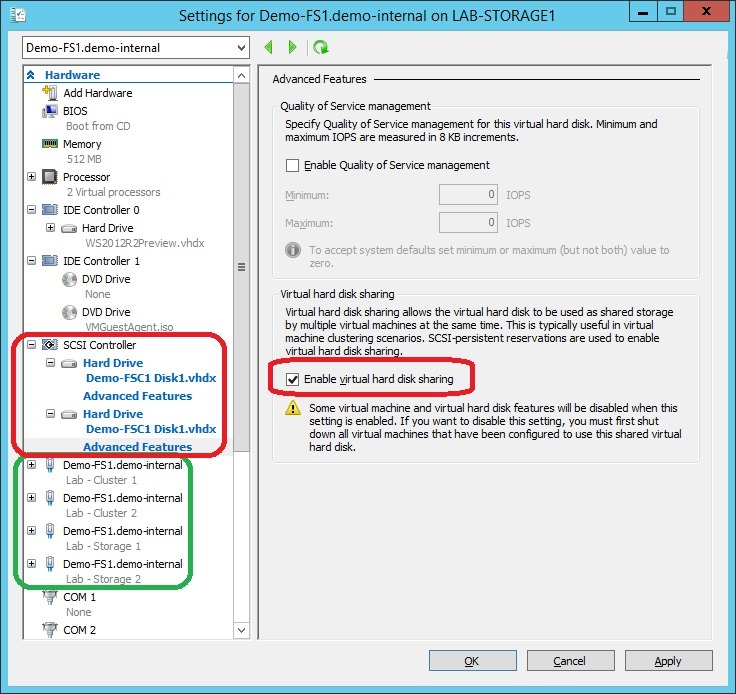
  1. I created 2 VMs for my virtual SOFS, Demo-FS1 and Demo-FS2, giving them all enough network connections for my design (see below screenshot, highlighted in green [requires guest OS QoS]).
  2. I added the shared VHDX files to the first SCSI controller on both virtual machines.  Don’t overthink this – there is no replication so please don’t ask.  I couldn’t possibly make this clearer.  Each individual VHDX (a total of 2) is connected to each of the 2 VMs (see below).
  3. I make sure to open up the advanced settings of the shared VHDX on both VMs and check the box Enable Virtual Hard Disk Sharing.
  4. I went on to create and add Demo-FSC1 Disk2.VHDX and Demo-FSC1 Disk3.VHDX, both 100 GB in size.

EnableSharedVHDX

At this point, I do all the usual storage, networking and clustering stuff in the guest OS of the 2 VMs.  In the cluster, I made sure both storage networks had client access enabled (with an IP address).  When creating the guest cluster, I did not add storage.  Instead, I did something else that is unsupported.

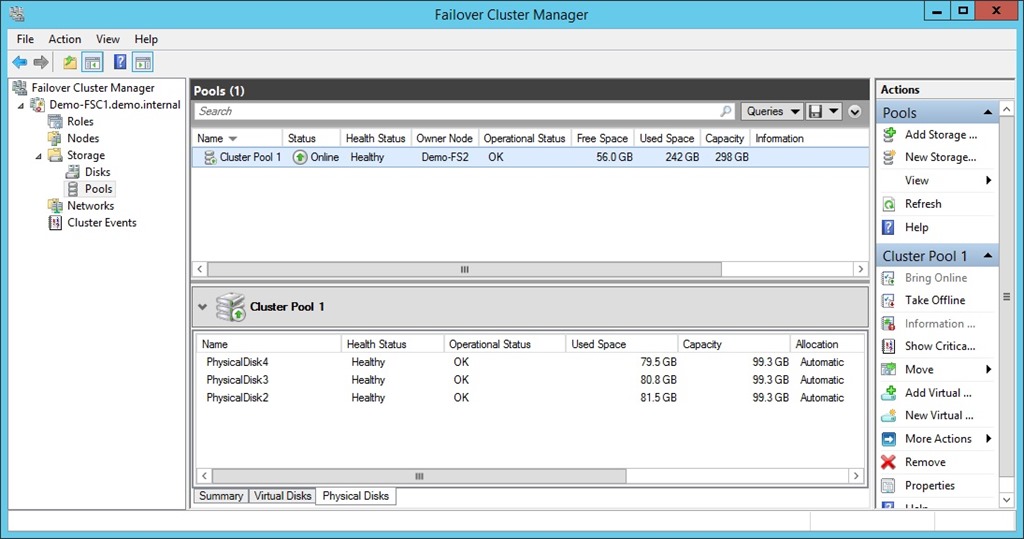
I took the 3 shared VHDX data disks, and created a new storage space.

StoragePool

From this, I created 2 virtual disks, one with NTFS and one with ReFS, and converted bot volumes into CSV.  Now I have what I need to finish off the creation of the SOFS role on the file server cluster.

Finsihed Storage

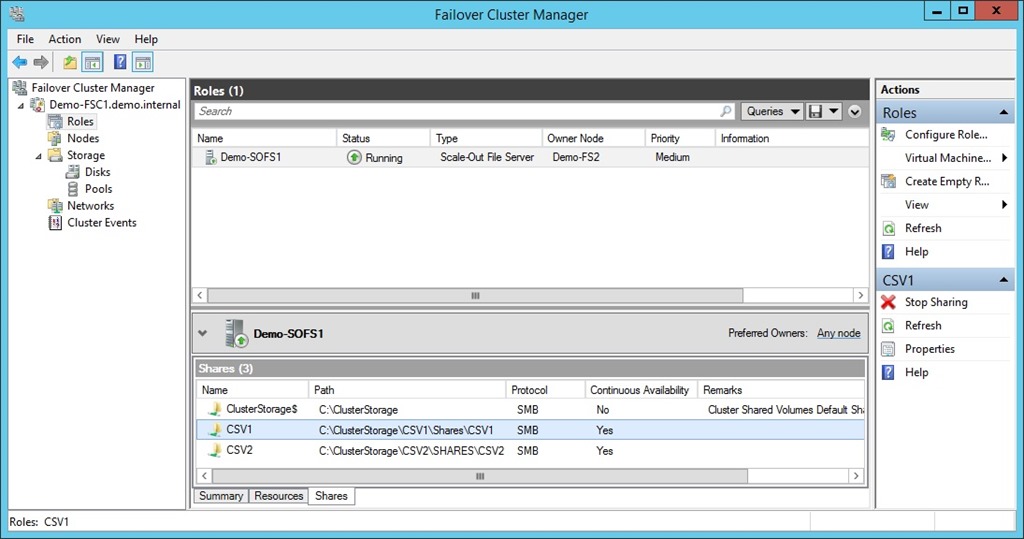
Now I add the SOFS role (File Server for Application Data) to the cluster, wait a while for the CAP to come online (remember to delegate permissions to the cluster’s OU to the cluster object so the cluster can create the SOFS computer object), and then create the file shares.

SOFS with Shares

What I haven’t done or shown:

  • QOS for the storage NICs.
  • SMB Constraints

Now I have my storage.  It’s time to prep VMM 2012 R2 to do some bare metal host deployment and get a Hyper-V cluster up and running.

Building A WS2012R2 Preview Test/Demo/Learning Lab

I’m in the midst of deploying a new lab for learning, demo-ing, and delivering training on Windows Server 2012 R2 and System Center 2012 R2 (WSSC 2012 R2).  I’ve flattened the WS2012 lab and am starting from scratch … by using the MSFT vision.  The first thing up was a management host running Hyper-V.  Second: a DC.  Third: VMM 2012 R2.

My plan is to use VMM to build everything else.  My "management" host is actually a storage box.  It runs my System Center VMs, but it’s also where I run my virtual storage machines, including iSCSI target, and SMB 3.0 Scale-Out File Server VMs.  I want my storage to be up before my demo hosts/cluster, and I also want to be able to re-deploy my storage quickly.

Hmm, that sounds like I need a Service Template.  So I created a generalized VHDX for WS2012 R2, created a bunch of VM templates with the roles/features I need, and created a 2-tier service template:

  1. A VM running the iSCSI Target: My shared storage for the SOFS – no I can’t use Shared VHDX because that must live on shared storage … and the iSCSI Target/SOFS will be my lab’s shared storage … in this iteration anyway.
  2. 2 VMs with clustering and file services: My SOFS nodes.

The demo SOFS is deploying right now as I type:

DeployingVirtualSOFS

Once the storage is running, I will turn my attention to Hyper-V.  The plan is to build up server profiles, logical switch, etc, and do bare metal host deployment.  It should be fun Smile #Nerd

Enabling Remote Desktop Connection To WS2012R2 Virtual Machines

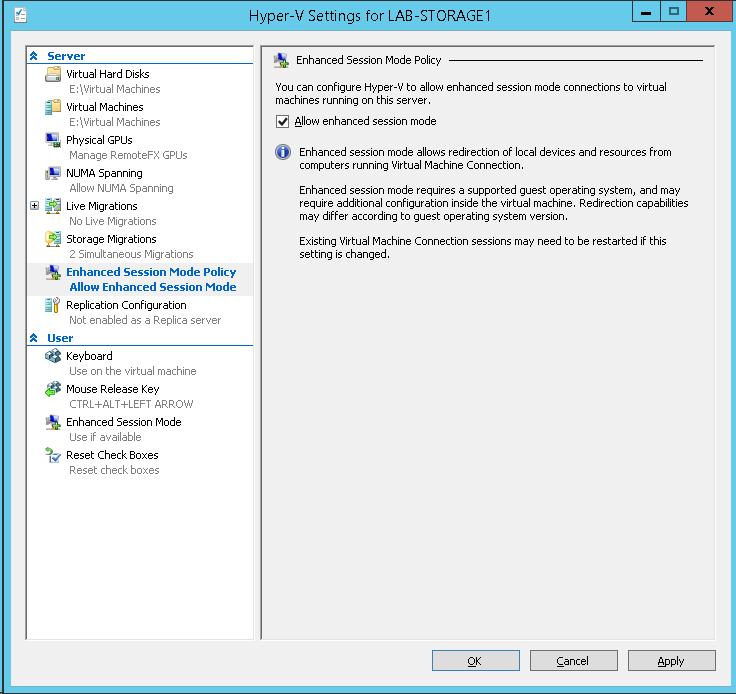
By default on Windows Server 2012 R2, the new way of connecting to virtual machines (Enhanced Session Mode) is disabled.  This is a per-host setting.  To enable the new Remote Desktop mode:

  1. Open Hyper-V Manager
  2. Click Hyper-V Settings
  3. Browse to Enhanced Session Mode Policy
  4. Check Allow Enhanced Session Mode

image

What Is The Default Password For WS2012 R2 Preview VHD?

I just deployed a downloaded pre-installed VHD with Windows Server 2012 R2 Preview with the intention of using it for WDS in the lab – and deploy the rest of the WSSC 2012 R2 Preview lab.  I tried to log in and … what is the password?

It’s not:

  • <Blank>
  • Password
  • Password00
  • P@ssword
  • P@ssword1
  • Or any other variation

I checked the extracted folder and all I found was that by extracting the EXE I’d agreed to donate body parts to MSFT executives, etc.  Web searches were fruitless.  I reached out to the Twitterverse and was told by Ed Baker (who spent a morning searching) that the password is actually:

R2Preview!

The password includes the exclamation mark.  Make sure you change it afterwards Smile

Technorati Tags:

Remote Server Administration Tools (RSAT) for Windows 8.1 Preview

Want to manage your WS2012 R2 Preview servers from the comfort of your PC?  The end solution is, of course, System Center 2012 R2 Smile  But to get you there you need RSAT.  A preview release is available now. 

As always the new version of RSAT will only support the newest desktop OS … and that is Windows 8.1 Preview (allegedly out on Wednesday 26th June).  64-bit and 32-bit versions of RSAT are available.

Remote Server Administration Tools for Windows 8.1 Preview includes Server Manager, Microsoft Management Console (MMC) snap-ins, consoles, Windows PowerShell cmdlets and providers, and command-line tools for managing roles and features that run on Windows Server 2012 and Windows Server 2012 R2 Preview. In limited cases, the tools can be used to manage roles and features that are running on Windows Server 2008 R2 or Windows Server 2008. Some of the tools work for managing roles and features on Windows Server 2003.
The following tools can be used to manage roles and features that are running on Windows Server 2012 R2 Preview, but are not supported for managing roles and features on Windows Server 2012.

  • IP Address Management console
  • Hyper-V tools: Although you are not blocked from using Hyper-V cmdlets for Windows PowerShell in this release of Remote Server Administration Tools to manage Hyper-V running on Windows Server 2012, this scenario is not officially supported. Managing Hyper-V on Windows Server 2012 by using GUI-based tools in this download is supported.

You also need to remember that you can only run one version of RSAT on a PC:

Only one copy at a time of Remote Server Administration Tools can be installed on a computer.

The new version of Hyper-V Manager does work with Hyper-V on WS2012 – it’s still WMI v2.

Windows Server 2012 R2 Hyper-V – Hyper-V Replica

Hyper-V Replica was added in WS2012 Hyper-V to give us built-in, no special licensing required, asynchronous, per-VM/virtual hard disk, replication from one host/cluster to another, with compression and historical copy retention.

Note: That boils down about 1700 words of explanation into 1 sentence Smile I should have just left it at that in TechEd Speaker Idol!

There were always a few questions when I explained HVR to people:

  • Can I change the replication interval from every 5 minutes?
  • Can I replicate from Site A to Site B, and then on to Site C?

The answers were no.  That changes in WS2012 R2 Hyper-V.

Finer Grained Control of Replication

The default interval for replication of the Hyper-V Replica logs (the change log of each replicated virtual ahrd disk) is every 5 minutes.  You can change this to every 30 seconds, assuming you have the bandwidth/latency to push through the changes in this short window.  You can also increase it to every 15 minutes if you need more time to push through spikes in activity over latent/lower bandwidth links.

Before you ask: the options are restricted to 30 seconds, 5 minutes, and 15 minutes.

Extended Replication

You now can, if you want to, do the following:

  • Replicate VM1 from Site A to Site B
  • Then replicate the offline replica of VM1 from Site B to Site C

You cannot replicate as follows:

  • Replicate VM1 from Site A to Site B
  • Replicate VM1 from Site A to Site C

This is purely an A->B-> scenario.

Combining Extended Replication With Finer Grained Control

Here’s an example that might be useful:

  • A company replicates from their computer room in Office A to another computer room across a campus network in Office B.  This is all contained in Site 1.  There is a nice campus network so replication is performed every 30 seconds.  The RPO of a local BCP invocation (a fire damages Office A) is maybe 30 seconds.
  • The company replicates from Office B in Site 1 to Site 2 over a WAN link.  This is a slower link so replication is performed every 15 minutes.  The RPO of a long-distance BCP invocation (a disaster hits the city where Site 1 is located) is maybe under 16 minutes.

One variation on this scenario is that Site 2 is a hosting company that is selling a virtual DR site service (DR-as-a-Service aka DRaaS).

BTW, it would be pretty pointless to replicate from Site B to Site C more frequently (every 30 seconds) than from Site A to Site B (every 15 minutes).  That’s because there will only be changes to replicate to Site C every 15 minutes.

What’s The Big “Story” With WSSC 2012 R2?

Last time around, Windows Server 2012 R2, the big story was enabling the cloud using Windows Server 2012.  We techies boiled that down to … Hyper-V.  It was a big Hyper-V release, that happened to have lots of new networking and storage stuff, and loads of other things in AD, remote access, etc, but we focused on Hyper-V. 

System Center 2012 SP1’s story was simple: try to catch up with Windows Server 2012 and Windows 8.  They didn’t quite get all the way there.  The OSs were supported, but numerous features were missing.  The schedules of the then 2 product groups were misaligned, System Center was just done releasing the 2012 products and then out comes a new version of Windows.  Doh!

Then less than a year later, the preview of Windows Server & System Center tells us something important.  This is a unified development and release.  From a business perspective, that might actually be the big story of WSSC 2012 R2.  I don’t remember seeing this level of timing from Microsoft before. 

The story that MSFT is marketing this time around is based, again, on the Cloud OS and this time it is Hybrid Networking.  This uses Hyper-V Network Virtualization and System Center to create 1 consistent and integrated platform from private cloud, hosted (public or private) cloud, and Windows Azure IaaS.  However, we nerds are looking at WSSC 2012 R2 as …

… a storage release.  Yup, this is the turning point.  All the bits in Storage Spaces that people wanted to see to consider Windows Server SMB 3.0 as a block storage alternative are there.  You should expect to hear lots and lots about Storage Spaces, virtual disks, SMB 3.0 (Direct and Multichannel), tiered storage, Write-Back Cache, System Center integration & management, etc.

Yes, of course, I am excited by the cool Hyper-V stuff in this release.  I’m also looking forward to deploying it on SMB 3.0 Smile  And don’t forget DAL.

Windows Server and System Center 2012 R2 Previews Are Available

It’s all over social media this morning; You can download WSSC 2012 R2 (That’s WS2012 R2 and SC/SysCtr 2012 R2) from TechNet and MSDN right now.  The previews for the following are available now:

  • Hyper-V Server 2012 R2
  • Windows Server 2012 R2 Essentials
  • Windows server 2012 R2 Datacenter
  • System Center 2012 R2 Virtual Machine Manager (x86 and x64)
  • System Center 2012 R2 Service Manager (x86 and x64)
  • System Center 2012 R2 Data Protection Manager (x86 and x64)
  • System Center 2012 R2 App Controller (x86 and x64)
  • System Center 2012 R2 Configuration Manager (x86 and x64)
  • System Center 2012 R2 Orchestrator (x86 and x64)
  • System Center 2012 R2 Operations Manager (x86 and x64)
  • Windows Server 2012 R2 Virtual Machine
  • Windows Server 2012 R2 Virtual Machine Core

SQL Server 2014 CTP1 is also up there for you to test.

image

Remember that these are preview releases – that’s like a beta (the product is not finished and has no support unless you are in a MSFT supervised TAP program) but without the feedback mechanism of a beta.  Do not use these preview releases in production!

I have the bits downloading now.  I’m on a customer site today so I don’t know if I’ll be deploying the bits or not until tomorrow.

Windows Server 2012 R2 Hyper-V – Guest Clustering With Shared VHDX

Windows Server 2012 Hyper-V allows you to create guest clusters of up to 64 nodes.  They need some kind of shared storage and that came in the form of:

  • SMB 3.0 file shares
  • iSCSI
  • Fibre Channel

There are a few problems with this:

  • It complicates host architecture. Take a look at my converged network/fabric designs for iSCSI.  Virtual Fibre Channel is amazing but there’s plenty of work: virtual SANs, lots of WWNs to zone, and SAN vendor MPIO to install in the guest OS.
  • It creates a tether between the VMs and the physical infrastructure that limits agility and flexibility
  • In the cloud, it makes self-service a near (if not total) impossibility
  • In a public cloud, the hoster is going to be unwilling to pierce the barrier between infrastructure and untrusted tenant

So in Windows Server 2012 R2 we get a new feature: Shared VHDX.  You attach a VHDX to a SCSI controller of your VMs, edit the Advanced settings of the VHDX, and enable sharing.  This creates a persistent reservation passthrough to the VHDX, and the VMs now see this VHDX as a shared SAS disk.  You can now build guest clusters with this shared VHDX as the cluster storage.

image

There are some requirements:

  • Obviously you have to be clustering the VMs to use the storage.
  • The hosts must be clustered.  This is to get a special filter driver (svhdxflt.sys).
  • The VHDX must be on shared storage, either CSV or SMB 3.0.

Yes, this eliminates running a guest cluster with Shared VHDX on Windows 8.1 Client Hyper-V.  But you can do it on a single WS2012 R2 machine by creating a single node host cluster.  Note that this is a completely unsupported scenario and should be for demo/evaluation labs only

Another couple of gotchas:

  • You cannot do host-level backups of the guest cluster.  This is the same as it always was.  You will have to install backup agents in the guest cluster nodes and back them up as if they were physical machines.
  • You cannot perform a hot-resize of the shared VHDX.  But you can hot-add more shared VHDX files to the clustered VMs.
  • You cannot Storage Live Migrate the shared VHDX file.  You can move the other VM files and perform normal Live Migration.

Even with the gotchas, that I expect MSFT will sort out quickly, this is a superb feature.  I would have loved Shared VHDX when I worked in the hosting business because it makes self-service and application HA a realistic possibility.  And I will absolutely eat it up in my labs Smile

EDIT1:

I had a question from Steve Evans (MVP, ASP.NET/IIS) about using Shared VHDX: Is Shared VHDX limited to a single cluster?  On the physical storage side, direct-attached CSV is limited to a single cluster.  However, SMB 3.0 file shares are on different physical infrastructure and can be permissioned for more than one host/cluster.  Therefore, in theory, a guest cluster could reside on more than one host cluster, with the Shared VHDX stored on a single SMB 3.0 file share (probably SOFS with all this HA flying about).  Would this be supported?  I checked with Jose Barreto: it’s a valid use case and should be supported.  So now you have a solution to quadruple HA your application:

  1. Use highly available virtual machines
  2. Use more than one host cluster to host those HA VMs
  3. Create guest clusters from the HA VMs
  4. Store the shared VHDX on SOFS/SMB 3.0 file shares

Comparing Microsoft Cloud with VMware Cloud

In this post, I am blogging the comparison done by Matt McSpirit at TechEd NA 2013 (video & slides here) of the Microsoft Cloud OS (WS2012 R2 Hyper-V + System Center 2012 R2) versus the VMware vCloud Suite (vSphere 5.1 + a host of vProducts).  This is a follow up to my post where I compared Windows Server 2012 R2 (WS2012 R2) Hyper-V with vSphere 5.1.

The Technologies Involved

A key piece in the Microsoft versus VMware debate is to understand the products so you can compare like with like:

image

In green is Hyper-V, a free Hypervisor.  If you disagree and say that you must pay for Hyper-V then please send me your employer’s name and address so I can call the Business Software Alliance to make an easy $10,000 reward on your illegal licensing of Windows Server on vSphere.

In red is System Center 2012 R2, purchased as a suite (Server Management Licenses).  Note that Open licensing customers can buy a bundle including Windows Server and System Center at a small discount called CIS, and customers with more than 25 hosts can buy a similar bundle with a greater discount called ECI.  This licenses the all VMs on a host for Windows Server and System Center (any virtualization), and you can optionally use this licensing for the host itself (hence the free Hyper-V).

In pink, is the vCloud suite from VMware, comprising a bunch of loosely couple vProducts and vSphere 5.1.  There once was a video of a VMware architect who said that VMware were years behind System Center.  I can’t find that video anywhere now – it looked like it was recorded secretly from a phone.  I also once attended a VMware presentation on the products on this suite.  The two presenters confused even themselves, and lost the audience in 10 minutes.

To do a like with like comparison, you must compare either:

  • Hyper-V Server 2012 R2 versus vSphere 5.1 free + guest OS licensing
  • ECI/CIS versus vCloud Suite Enterprise + guest OS licensing

Note that System Center offers heterogeneous hypervisor management including Hyper-V, vSphere, and XenServer.

Granular App & Service Deployment

image

System Center is a deeply integrated suite tools you can see some of this from the above:

  • Request Private Cloud Resources w/ CMDB: Service Manager provides the change management database, Service Manager provides a service catalog, Orchestrator pulls all the automated strings, and VMM deploys the service.
  • Role-Based Self Service: All throughout System Center.
  • Standardized Templates: VMM gives us VM templates and service templates.  VM templates are made up of reusable virtual hard disks (1 VHD/X can be used for LOTS of templates), hardware profiles and OS profiles.  That reduces library space utilisation and offline VHD/X maintenance.
  • We can add roles/features to a VM template on the fly during a VMM service template deployment.  So we don’t need a VHD/X for a web server, a VHD/X for a file server, etc.
  • VMM also can deploy server applications (such as SQL Server) using Server App-V.  That reusable library asset can be attached to a VM tier in a service template.
  • Businesses rarely deploy a single VM.  At the very least, there’s a web server and a database server, plus customization.  All this can be modelled in a VMM service template, with roles/features, load balancing, cloud pre-requisites, Server App-V, SQL/IIS packages, and shared with users for self-service (via App Controller, Service Manager, or Windows Azure Pack)
  • And System Center can manage the big 3: Hyper-V, vSphere, and XenServer.

In comparison, vCloud suite looks pretty limited, expensive, and non-integrated.

Service Quality Management

image

Nagios and similar ping based monitoring is for the past.  System Center, particularly Operations Manager, provides the granular monitoring of the infrastructure (from the network up) that the admin cares about and service (SLAs) with the end user perspective that the business cares about.

VMware’s focus is on the hypervisor – that’s indicated by the need to buy additional software to monitor physical infrastructure … there’s more to a cloud than a host! 

The focus of monitoring is pretty focused, whereas System Center scales well beyond just the Microsoft world, including network, servers, storage, and third party applications.  You can even monitor the all-important coffee pot Smile  Wait for the vBaby to try make a joke about that point – it is sad that this is the tactic that VMware employees now have to resort to.

System Center does some rather special things in monitoring.  End user perspective monitoring for SLA and service availability can be done from any OpsMgr agent.  It can be stretched into Windows Azure via Global Service Monitoring (GSM) to see how available your local application is to the globe.  And you can extend your monitoring into the same Azure data centers via System Center Advisor to get the latest in best practice analysis.  All of these monitors and reports are surfaced through the OpsMgr console.  Reports can be scheduled to be spit out in a large number of formats for the business.

Devs and testers also have integration into their local cloud via System Center; they can push out a new environment from the tool (Visual Studio) that they live in.   No need to pay for more add-ons for this to work.

Backup

I am deliberately skipping DPM.  In my opinion, most anyone big enough to use System Center will rarely use System Center Data Protection Manager.  They are probably choosing the same backup tools that also support vSphere.

Heterogeneous Management

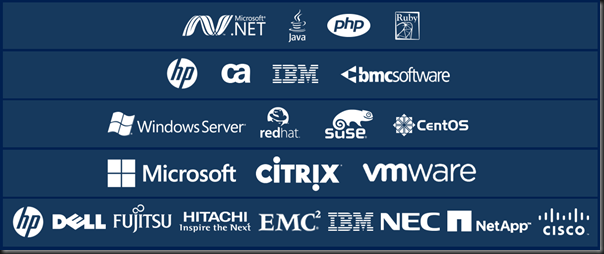
This is just a very small sample of the 3rd parties that support System Center.  You’ll notice VMware is in there Smile  Actually, the Veeam management pack for monitoring vSphere is superb.  I’ll admit it’s by far superior to the dreadful Hyper-V management pack.  Hardware vendors such as Dell and HP make huge efforts to support System Center, e.g. bare metal Hyper-V host deployment is a breeze with HP or Dell.  And the monitoring … oh the information is amazing.
image

image

VMM will quite happily manage vSphere 5.1, including VM templates, service templates, using it as the compute in your cloud, vMotion, etc.  And it’ll do the XenServer dance too.  Orchestrator has a Microsoft-written integration pack for vSphere to give you runbook automation. 

Operations Manager does support monitoring of 3rd party products.  Realistically, those management packs come from 3rd parties.  Some are 100% free, e.g. HP and Dell.  Some are free to a point, e.g. Veeam.  And some require a purchase.

Hybrid Networking

With the Microsoft stack we can easily extend the Microsoft private cloud into service providers and Windows Azure using System Center and Hyper-V Network Virtualization.  Service Provider Foundation provides an interface into the hoster’s VMM infrastructure that the customers’ App Controller installs can plug into.  Hyper-V networking and the cloud pieces of System Center were designed for this purpose as a single unit. 

image

Not so simple with the VMware stack where there are a lot more acquired vProducts involved.

image

Summary

VMware made a pretty good virtualization stack.  But their managment stack reminds me of frameworks that I worked with in the 1990s … lots of acquired products with a v- slapped in front of them and thrown into a license bundle.  That’s not integration … it’s a collection of confusing and loosely coupled point solutions.  VMware’s focus continues to be on what they have historically done: the virtualisation layer.

System Center was designed for purpose.  System Center 2012 R2 was designed to work at the same time as and with Windows Server 2012 R2, with hybrid cloud computing being the focus.  Hybrid meaning that the solution spans private and public, and with cloud, there is a focus on what the business really cares about: service (self-service, automation, rapid delivery, easier administration, reporting, and SLA).

Hmm, and I didn’t even bring up Datacenter Abstraction Layer (DAL) where VMM 2012 R2 will build bare-metal SOFS storage, provision SANs via SMI-S (including fiber channel zoning), or manage top-of-rack switches.  You can only do so much stomping, I guess.

The choice is yours: service versus virtualization.