How To Avoid Common Networking Issues In Hyper-V

This subject seems to rear it’s ugly head with every new version of Hyper-V.  We get new people trying the product for the first time who don’t know the best practices.  And we get people who forget the best practices from last time around.

Here is my advice:

Use Logo Tested NICs

Only NICs that are on the HCL for your version of Windows Server (or Windows client OS if using Client Hyper-V) should be used.  Make sure that your hardware manufacturer supports your version of Hyper-V (i.e. Windows Server) for all components that you are using from them.  This is a starting point because …

If At All Possible, Do Not Use Broadcom NICs

Sure, that might preclude you from using certain stuck-in-2009 server manufacturers.  And maybe that’s not a bad thing 😀

Broadcom seems to be a name that comes up over and over, version after version, when there are problems.  My lab is all Chelsio, but that moves you into the territory of 10 GbE iWARP, which is more expensive than what comes onboard a host.  But it allows me to get great SMB 3.0 performance for storage and Live Migration over converged networks.  Intel seems to produce decent NICs, firmwares, and drivers, which leads me to …

Update Your Firmware

Assumption … ARGH!  Do not assume that your firmwares are up to date.  I don’t care how new your server is.  This goes for every part of the server.  Update the firmware.  Faulty older firmware is a common cause of issues.

Update Your Drivers

Use the latest drivers from the manufacturer.  The drivers you got with the server might be old.  The drivers in Windows Server might be old too.  For example, the automatically detected Chelsio drivers in WS2012 R2 give poor performance.  The fix is to download the drivers from Chelsio.  If you bought a HP NIC then get the latest drivers from HP.  If you bought a NIC from Dell then get the drivers from Dell.

Install The Recommended Updates For Windows Server

Windows Update is not enough. Let me repeat that: WINDOWS UPDATE IS NOT ENOUGH. If you think it is, then please stop reading, print off a resignation letter, and go home now. Download and install the recommended updates for Windows Server. This link will lead you to 3 sets of updates for WS2012 R2.

Understand And Use Microsoft NIC Teaming

Third-party NIC teaming has never been supported by Microsoft for anything.  Why?  Because third-party NIC teaming pulls out the guts of Windows NIC teaming, pushes itself in, squeezes the networking stack back in, finds a few of those “spare screws” and throws them aside.

Take the time to learn Microsoft NIC teaming (there’s more to any teaming than the default options) and use it instead of the third-party unsupported crapware.

EDIT (28/07/2014):

One more to add ..

Don’t Use Blade Servers

You have no choice but to use what the manufacturer gives you. For many of you, that will be Emulex NICs … and using those are like going fire-walking after taking a bath in petrol (benzine for Europeans, and gas for Americans).

Disable VMQ on Virtual Switch NICs

This is a workaround, and not a solution. We want and may even need VMQ for networking performance and scalability. However, we have seen NICs (Emulex and Broadcom) where having VMQ enabled has caused issues. This should be fixed by the manufacturer using firmware/driver updates … but some manufacturers don’t give a damn about their customers. Emulex – care to prove me wrong?

Windows Azure Pack (WAP)

Formerly known as Windows Azure Services for Windows Server (a mouthful and not very meaningful), the Windows Azure Pack has been released with Windows Server and System Center 2013 R2.  The goal of WAP is to bring the portal of Windows Azure, Microsoft’s public cloud, to the clouds of service providers and even on-premise private clouds.  With WAP you can deploy the difficult to obtain trait of a cloud: self-service.

image

There appears to be a lot of information on WAP out there now.

Microsoft Releases Remote Desktop For Apple iOS

You don’t need pricey third party RDP apps anymore.  Microsoft has finally released a Remote Desktop app for iPhone and iPad.  The features are:

  • Access to remote resources through the Remote Desktop Gateway
  • Rich multi-touch experience with remote desktop protocol (RDP) and RemoteFX supporting Windows gestures
  • Secure connection to your data and applications with breakthrough Network Layer Authentication (NLA) technology
  • Simple management of all remote connections from the connection center
  • High quality video and sound streaming with improved compression and bandwidth usage
  • Easy connection to external monitors or projectors for presentations

The price is good: free.  And all the gesture stuff works – now I don’t feel stupid for swiping from the right on an iPad 🙂

IMAG0097 An abomination: Windows 8.1 “running” on an Apple iPad

Source: Wes Miller (@getwired).

EDIT:

Microsoft also released the Microsoft Remote Desktop app for Android and updated it for Mac OS X.

Remote Server Administration Toolkit For Windows 8.1

Microsoft has released the RSAT for Windows 8.1.  This is the toolkit you will install on administrators’ Windows 8.1 PC to manage Windows Server 2012 R2 (WS2012 R2) and older.

Remote Server Administration Tools for Windows 8.1 Preview includes Server Manager, Microsoft Management Console (MMC) snap-ins, consoles, Windows PowerShell cmdlets and providers, and command-line tools for managing roles and features that run on Windows Server 2012 and Windows Server 2012 R2 Preview. In limited cases, the tools can be used to manage roles and features that are running on Windows Server 2008 R2 or Windows Server 2008. Some of the tools work for managing roles and features on Windows Server 2003.

EDIT: The link for this package from the below support matrix still points to the RSAT Preview.  I guess it will get updated soon. The link was updated (reused) to the GA bits.

There are a few important support notes:

  • The IP Address Management (IPAM) console should not be used (not supported) to manage WS2012.
  • The WS2012 R2 and Windows 8.1 PowerShell cmdlets should not be used to manage WS2012.  It is not blocked, but it is not supported.  It is supported to manage WS2012 Hyper-V using the Hyper-V GUI tools (FCM and Hyper-V Manager) from RSAT for Windows 8.1.
  • To manage WS2012 iSCSI target using PowerShell on Windows 8.1 then you must import the WS2012 (RSAT for Windows 8) PowerShell module.

Yes, I agree; This is very messy.

A support matrix for RSAT for Windows 8 and RSAT for Windows 8.1 has also been posted.

You’ll not that some tools are not in RSAT for Windows 8.1, and some are specifically listed as deprecated:

  • SMTP Server Tools: Not included.
  • Storage Explorer Tools: Not included.
  • Storage Manager for Storage Area Network (SAN) Tools: No included.
  • Windows System Resource Manager Tools: Deprecated and not in WS2012 R2.

Windows 8.1, Windows Server & System Center 2012 R2 Go GA

Go to Windows.com (only with IE because this does not work in Firefox in my test) and you’ll get a link to allow your Windows 8 PC to upgrade to Windows 8.1.  As of 12:38 (38 minutes after GA), the upgrade link was dead for me (HTTP 403 – Forbidden: Access is Denied).

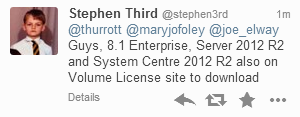
I’ve also been told by Stephen Third that Windows 8.1 Enterprise, Windows Server 2012 R2, and System Center 2012 R2 have appeared on the Microsoft Volume Licensing Service Center.

image

Note!

These are GA releases.  That’s different to an RTM release because the GA media should contain the slipstreamed fixes that Microsoft have been working on since RTM.  So make sure that you use GA media for your future deployments … you shouldn’t be using the previously available MSDN/TechNet media for production usage anyway!

EDIT:

The Microsoft Partner Network benefits have also been updated.  I see WS2012 R2, Windows 8.1 Enterprise, and System Center 2012 R2 in there.

Have fun!

New WS2012 R2 Hyper-V Posters Are Available

Microsoft has published, not one but, a series of new posters for Windows Server 2012 R2 Hyper-V.  Topics cover:

  • Generation 2 Virtual Machines GA
  • Hyper-V and Failover Clustering GA
  • Hyper-V Storage GA
  • Hyper-V Virtual Hard Disk Sharing GA
  • Live Migration GA
  • Session Modes GA
  • Upgrading Your Private Cloud GA

image

Configuring SMB Delegation Just Got Much Easier

To me, there’s no doubt that using SMB 3.0 storage makes a Hyper-V-powered data centre much more flexible.  Getting away from the constraints of traditional block storage data protocols and using “simple” file shares and permissions means that workloads are even more mobile, able to Live Migrate between non-clustered hosts, just the same as with a cluster, and able to use Cross-Version Live Migration to move from WS2012 hosts/clusters to WS2012 R2 hosts/clusters.

One of the pain points in WS2012 of SMB 3.0 storage is the need to configure Kerberos Constrained Delegation for Live Migration between hosts that are not in the same cluster (including non-clustered hosts).  It’s … messy and the process requires that you do one of the following to each host afterwards:

  • Reboot the host – Live Migrate VMs to avoid service downtime.
  • Restart the Virtual Machine Management Service (VMMS) – no downtime to VMs.

Just more stuff to do!

WS2012 R2 adds three cmdlets to the AD PowerShell module (which you can install on your PC via RSAT).  Your AD forest must also be at the “Windows Server 2012” (not necessarily R2) functional level.  The three cmdlets that use the new resource-based delegation functionality are:

  • Get-SmbDelegation –SmbServer X
  • Enable-SmbDelegation –SmbServer X –SmbClient Y
  • Disable-SmbDelegation –SmbServer X [–SmbClient Y] [-Force]

I’ve just tested the cmdlets and no reboots were required.  My test scenario: Hyper-V Replica secondary site hosts require delegation to be configured to store replica VMs on SMB 3.0 shares.  I configured delegation using Enable-SMBDelegation, did not reboot, and the problem was solved.

Event: E2E Virtualisation Conference Rome, November 1-3

Run by Alex Juschin (MVP RDS), this is where virtualisation experts from around Europe gather to share and learn. There’s a heavy Citrix emphasis, but there’s been lots of Hyper-V over the past few events, and this one has a hint of VMware about it 😉 The last one (Copenhagen, 2012) featured several MVPs talking Hyper-V, System Center, and cloud. 

I’ve lost count how many MVPs, CTPs, and vExperts are going to be at this event.  Alex has a bigger community presence than TechEd, in my opinion.  What I love at this event is the expertise from not just the speakers, but many of the attendees.  There are people who attend this event that I’d love to listen presenting.  Formerly known as PubForum, E2EVC stresses the social networking element where you really get to learn new solutions.

The language of E2EVC is English, but you’ll hear lots of languages before, between, and after sessions.

  • 1-3 November, 2013
  • H10 roma città, Via Pietro Blaserna, 101 (Quartiere Marconi), 00146 – Roma – Rome, Italy

You can learn more and register here.

Event–TechDays San Francisco

MVPs in the San Francisco Bay Area are sponsoring two virtualization events for the IT Pro community.

The first event is this Friday October 11 from 9am-4pm and is an introduction to all of the new features in Hyper-V features found in Server 2012.  (Combination of lecture and live demos given by MVPs who have been working on a larger Hyper-V deployment.)  Feel free to stop by or refer IT Professional who would like a crash course on the features in Hyper-V.

The second event will be in November the Thursday and Friday 14-15 November.  This event will be a deep dive two day event to discuss the technical details of Hyper-V.   Our goal is to make IT Pros an expert in Hyper-V in two days.

I will be attending and speaking at the second event.  I’m looking forward to the event, if not the actual travel and jetlag – earlier that week I’m speaking in Berlin, Germany, just 9 time zones ahead Confused smile  The line up of speakers that is being arranged is quite impressive.  And I’ve only ever presented on the east coast of the USA.

It’s just a pity that schedules didn’t line up better and allowed me to attend a 49ers game, but I am going to their @ Jaguars game in London in a few weeks.  But hey. maybe next time in the new stadium Smile

Configuring Jumbo Frames in WS2012 R2 Hyper-V VMs

I’ve had a few questions from people about enabling jumbo frames in Hyper-V VMs.  They wonder if they need to configure the virtual switch to allow jumbo frames.  I’ve been running WS2012 R2 Hyper-V since the preview, and RTM has just been deployed.  So I can’t test for W2008 R2 or WS2012, but I can tell you that configuring Jumbo Frames for VMs on WS2012 R2 requires no virtual switch configuration.

Here are the steps:

1) Physical NICs

You should configure the NICs that are used by the virtual switch to communicate on the LAN.  Edit the properties of the NIC, click Configure, and then find the setting for your NIC model.  It might be called Packet Size, Jumbo Frames, or something else.  Set the value to the maximum supported by your NIC.

image

Those of you who use Chelsio NICs and are observant will notice that I have not upgraded the NIC driver on this host yet.  Bold me!  I won’t get anywhere near the potential bandwidth until I do.

2) Physical Network Appliance(es)

Configure jumbo frames according to your manufacturer’s instructions.  Jumbo Frames needs to be configured end-to-end on the network.  Note that the smallest setting restricts end-to-end packet size.

3) Virtual Switch

Do nothing to the virtual switch.  I want to be clear on that Smile

4) Guest OS NIC

Log into the VM and configure the jumbo frames in the guest OS of the VM.  It’s the same process as above, but the name of the setting is known as Jumbo Packet and the maximum value is known to be 9014.

image

5) Verify

You should use the pick command to verify that a jumbo packet can be transmitted without fragmentation:

ping -f –l <size of packet> <destination>

The –f flag will prevent fragmentation and the –l flag specifies the packet size.  In my case, I ran tests from the host to the VMs, between the VMs, and from the VMs, to the host.

Here’s a gotcha.  You’re going to probably have values like 9000 and 9014.  You, like I did, will think “I’ll run tests with packet sizes of 9000”.  Don’t; it will fail.  When 9000 should have worked, the maximum packet I could sent was 8972.  My guess without doing any research is that wrappers or encapsulation is happening and 8972 is the max that works with ping in my lab.

Anyway, that’s how to get Jumbo Frames configured with Hyper-V VMs.

Before you ask: no I won’t be covering W2008 R2 – that’s a legacy product now.  And I don’t have time to downgrade to WS2012.