Configuring SMB Delegation Just Got Much Easier

To me, there’s no doubt that using SMB 3.0 storage makes a Hyper-V-powered data centre much more flexible.  Getting away from the constraints of traditional block storage data protocols and using “simple” file shares and permissions means that workloads are even more mobile, able to Live Migrate between non-clustered hosts, just the same as with a cluster, and able to use Cross-Version Live Migration to move from WS2012 hosts/clusters to WS2012 R2 hosts/clusters.

One of the pain points in WS2012 of SMB 3.0 storage is the need to configure Kerberos Constrained Delegation for Live Migration between hosts that are not in the same cluster (including non-clustered hosts).  It’s … messy and the process requires that you do one of the following to each host afterwards:

  • Reboot the host – Live Migrate VMs to avoid service downtime.
  • Restart the Virtual Machine Management Service (VMMS) – no downtime to VMs.

Just more stuff to do!

WS2012 R2 adds three cmdlets to the AD PowerShell module (which you can install on your PC via RSAT).  Your AD forest must also be at the “Windows Server 2012” (not necessarily R2) functional level.  The three cmdlets that use the new resource-based delegation functionality are:

  • Get-SmbDelegation –SmbServer X
  • Enable-SmbDelegation –SmbServer X –SmbClient Y
  • Disable-SmbDelegation –SmbServer X [–SmbClient Y] [-Force]

I’ve just tested the cmdlets and no reboots were required.  My test scenario: Hyper-V Replica secondary site hosts require delegation to be configured to store replica VMs on SMB 3.0 shares.  I configured delegation using Enable-SMBDelegation, did not reboot, and the problem was solved.

The Effects Of WS2012 R2 Storage Spaces Write-Back Cache On A Hyper-V VM

I previously wrote about a new feature in Windows Server 2012 R2 Storage Spaces called Write-Back Cache (WBC) and how it improved write performance from a Hyper-V host.  What I didn’t show you was how WBC improved performance from where it counts; how does WBC improve the write-performance of services running inside of a virtual machine?

So, I set up a virtual machine.  It has 3 virtual hard disks:

  • Disk.vhdx: The guest OS (WS2012 R2 Preview), and this is stored on SOFS2.  This is a virtual Scale-Out File Server (SOFS) and is isolated from my tests.  This is the C: drive in the VM.
  • Disk1.vhdx: This is on SCSI 0 0 and is placed on \SOFS1CSV1.  The share is stored on a tiered storage space (50 GB SSD + 150 GB HDD) with 1 column and a write cache of 5 GB.  This is the D drive in the VM.
  • Disk2.vhdx: This is on SCSI 0 1 and is placed on \SOFS1CSV2.  The share is stored on a non-tiered storage space (200 GB HDD) with 4 columns.  There is no write cache.  This is the E: drive in the VM.

I set up SQLIO in the VM, with a test file in each D: (Disk1.vhdx – WBC on the underlying volume) and E: (Disk2.vhdx – no WBC on the underlying volume).  Once again, I ran SQLIO against each test file, one at a time, with random 64 KB writes for 30 seconds – I copied/pasted the scripts from the previous test.  The results were impressive:

image

Interestingly, these are better numbers than from the host itself!  The extra layer of virtualization is adding performance in my lab!

Once again, Write-Back Cache has rocked, making the write performance 6.27 times faster.  A few points on this:

  • The VM’s performance with the VHDX on the WBC-enabled volume was slightly better than the host’s raw performance with the same physical disk.
  • The VM’s performance with the VHDX on the WBC-disabled volume was nearly twice as good as the host’s raw performance with the same physical disk.  That’s why we see a WBC improvement of 6-times instead of 11-times. This is a write-job so it wasn’t CSV Cache.  I suspect sector size (physical versus logical might be what’s caused this.

I decided to tweak the scripts to get simultaneous testing of both VHDX files/shares/Storage Spaces virtual disks, and fired up performance monitor to view/compare the IOPS of each VHDX file.  The red bar is the optimised D: drive with higher write operations/second, and the green is the lower E: drive.

image

They say a picture paints a thousand words.  Let’s paint 2000 words; here’s the same test but over the length of a 60 second run.  Once again, read is the optimised D: drive and green is the E: drive.

image

Look what just 5 GB of SSD (yes, expensive enterprise class SSD) can do for your write performance!  That’s going to greatly benefit services when they have brief spikes in write activity – I don’t need countless spinning HDDs to build up IOS for those once an hour/day spikes, gobbling up capacity and power.  A few space/power efficient SSDs with Storage Spaces Write-Back Cache will do a much more efficient job.

The Effects Of WS2012 R2 Storage Spaces Write-Back Cache

In this post I want to show you the amazing effect that Write-Back Cache can have on the write performance of Windows Server 2012 R2 Storage Spaces.  But before I do, let’s fill in some gaps.

Background on Storage Spaces Write-Back Cache

Hyper-V, and many other applications/services/etc, does something called write-through.  In other words, it bypasses write caches of your physical storage.  This is to avoid corruption.  Keep this in mind while I move on.

In WS2012 R2, Storage Spaces introduces tiered storage.  This allows us to mix one tier of HDD (giving us bulk capacity) with one tier of SSD (giving us performance).  Normally a heap map process runs at 1am (task scheduler, and therefore customisable) and moves around 1 MB slices of files to the hot SSD tier or to the cold HDD tier, based on demand.  You can also pin entire files (maybe a VDI golden image) to the hot tier.

In addition, WS2012 R2 gives us something called Write-Back Cache (WBC).  Think about this … SSD gives us really fast write speeds.  Write caches are there to improve write performance.  Some applications are using write-through to avoid storage caches because they need the acknowledgement mean that the write really went to disk.

What if abnormal increases in write behaviour led to the virtual disk (a LUN in Storage Spaces) using it’s allocated SSD tier to absorb that spike, and then demote the data to the HDD tier later on if the slices are measured as cold.

That’s exactly what WBC, a feature of Storage Spaces with tiered storage, does.  A Storage Spaces tiered virtual disk will use the SSD tier to accommodate extra write activity.  The SSD tier increases the available write capacity until the spike decreases and things go back to normal.  We get the effect of a write cache, but write-through still happens because the write really is committed to disk rather than sitting in the RAM of a controller.

Putting Storage Spaces Write-Back Cache To The Test

What does this look like?  I set up a Scale-Out File Server that uses a DataOn DNS-1640D JBOD.  The 2 SOFS cluster nodes are each attached to the JBOD via dual port LSI 6 Gbps SAS adapters.  In the JBOD there is a tier of 2 * STEC SSDs (4-8 SSDs is a recommended starting point for a production SSD tier) and a tier of 8 * Seagate 10K HDDs.  I created 2 * 2-way mirrored virtual disks in the clustered Storage Space:

  • CSV1: 50 GB SSD tier + 150 GB HDD tier with 5 GB write cache size (WBC enabled)
  • CSV2: 200 GB HDD tier with no write cache (no WBC)

Note: I have 2 SSDs (sub-optimal starting point but it’s a lab and SSDs are expensive) so CSV1 has 1 column.  CSV2 has 4 columns.

Each virtual disk was converted into a CSV, CSV1 and CSV2.  A share was created on each CSV and shared as \Demo-SOFS1CSV1 and \Demo-SOFS1CSV2.  Yeah, I like naming consistency Smile

Then I logged into a Hyper-V host where I have installed SQLIO.  I configured a couple of params.txt files, one to use the WBC-enabled share and the other to use the WBC-disabled share:

  • Param1.TXT: \demo-sofs1CSV1testfile.dat 32 0x0 1024
  • Param2.TXT \demo-sofs1CSV2testfile.dat 32 0x0 1024

I pre-expanded the test files that would be created in each share by running:

  • "C:Program Files (x86)SQLIOsqlio.exe" -kW -s5 -fsequential -o4 –b64 -F"C:Program Files (x86)SQLIOparam1.txt"
  • "C:Program Files (x86)SQLIOsqlio.exe" -kW -s5 -fsequential -o4 -b64 -F"C:Program Files (x86)SQLIOparam2.txt"

And then I ran a script that ran SQLIO with the following flags to write random 64 KB blocks (similar to VHDX) for 30 seconds:

  • "C:Program Files (x86)SQLIOsqlio.exe" -BS -kW -frandom -t1 -o1 -s30 -b64 -F"C:Program Files (x86)SQLIOparam1.txt"
  • "C:Program Files (x86)SQLIOsqlio.exe" -BS -kW -frandom -t1 -o1 -s30 -b64 -F"C:Program Files (x86)SQLIOparam2.txt"

That gave me my results:

image

To summarise the results:

The WBC-enabled share ran at:

  • 2258.60 IOs/second
  • 141.16 Megabytes/second

The WBC-disabled share ran at:

  • 197.46 IOs/second
  • 12.34 Megabytes/second

Storage Spaces Write-Back Cache enabled the share on CSV1 to run 11.44 times faster than the non-enhanced share!!!  Everyone’s mileage will vary depending on number of SSDs versus HDDs, assigned cache size per virtual disk, speed of SSD and HDD, number of columns per virtual hard disk, and your network.  But one thing is for sure, with just a few SSDs, I can efficiently cater for brief spikes in write operations by the services that I am storing on my Storage Pool.

Credit: I got help on SQLIO from this blog post on MS SQL Tips by Andy Novick (MVP, SQL Server).

Using WS2012 R2 Hyper-V Storage QoS

Windows Server 2012 R2 Hyper-V brings us a new storage feature called Storage QoS.  You can optionally turn on quality of service management on selected virtual hard disks.  You then have two settings, both of which default to 0 (unmanaged):

  • Minimum: Unlike with networking QoS, this is the one you are least likely to use in WS2012 R2.  This is not a minimum guarantee, like you find with networking.  Instead, this setting is used more as an alerting system, in case a selected virtual hard disk cannot get enough IOPS.  You enter the number of IOPS required.
  • Maximum: Here you can specify the maximum number of IOPS that a virtual hard disk can use from the physical storage.  This is the setting you are most likely to use in Storage QoS in WS2012 R2, because it allows you to limit overly aggressive VM activity on your physical storage.

This is a feature of the host, so the guest OS is irrelevant.  The setting is there for VHD (which you should have stopped deploying) and VHDX (which you should be deploying).

What Storage QoS Looks Like

I’ve set up a test lab to demonstrate this.  A VM has 2 additional 10 GB fixed (for fair comparison) virtual hard disks in the same folder on the host.  I have formatted the drives as P and Q in the guest OS, and created empty files in each volume called testfile.dat.  I then downloaded and installed SQLIO into the guest OS of the VM.  This tool will let me stress/benchmark storage.  I started PerfMon on the host, and added the Read Operations/Sec metric from Hyper-V Virtual Storage Device for the 2 virtual hard disks in question.

image

I opened two command prompt windows and ran:

  • sqlio.exe -s1000 -t10 -o16 -b8 -frandom p:testfile.dat
  • sqlio.exe -s1000 -t10 -o16 -b8 -frandom q:testfile.dat

That gives me 1000 seconds of read activity from the P drive (first data virtual hard disk) and the Q drive (the second data virtual hard disk).  Immediately I saw that both virtual hard disk files had over 300 IOPS of read activity.

clip_image002

I then configured the second virtual hard disk (containing Q:) to be restricted to 50 IOPS.

clip_image004

There was a response in PerfMon before the settings screen could refresh after me clicking OK.  The read activity on the virtual hard disk dropped to around 50 (highlighted in black), usually under and sometimes creeping just over 50 (never for long before it was clawed back down by QoS).

clip_image006

The non-restricted virtual hard disk immediately benefited immediately from the available bandwidth, seeing it’s read IOPS increase (highlighted in black) remains on the ceiling but the metrics rise, now getting up to over 560 IOPS.

clip_image008

Usage of Storage QoS

I think this is going to be a weird woolly area.  The only best practice I know of is that you should know what you are doing first.  Few people understand (A) what IOPS is, and (B) how many IOPS their applications need.  This is why Microsoft added the Hyper-V metrics for measuring read and write operations per second of a virtual hard disk (see above).  This gives you the ability to gather information (I don’t know if a System Center Operations Manager management pack has been updated) and determine regular usage patterns.

Once you know what usage is expected then you could set limits to constrain that virtual hard disk from misbehaving.

I personally think that Storage QoS will be a reactionary measure for out-of-control virtual machines in traditional virtualization deployments and most private clouds.  However, those who are adopting the hands-off, self-service model of a true cloud (such as public cloud) may decide to limit every virtual hard disk by default.  Who knows!

Anyway, the feature is there, and be sure that you know what you’re doing if you decide to use it.

Putting The Scale Into The Scale-Out File Server

Why did Microsoft call the “highly file server for application data” the Scale-Out File Server (SOFS)?  The reason might not be obvious unless you have lots of equipment to play with … or you cheat by using WS2012 R2 Hyper-V Shared VHDX as I did on Tuesday afternoon Smile

The SOFS can scale out in 3 dimensions.

0: The Basic SOFS

Here we have a basic example of a SOFS that you should have seen blogged about over and over.  There are two cluster nodes.  Each node is connected to shared storage.  This can be any form of supported storage in WS2012/R2 Failover Clustering.

image

1: Scale Out The Storage

The likely bottleneck in the above example is the disk space.  We can scale that out by attaching the cluster nodes to additional storage.  Maybe we have more SANs to abstract behind SMB 3.0?  Maybe we want to add more JBODs to our storage pool, thus increasing capacity and allowing mirrored virtual disks to have JBOD fault tolerance.

image

I can provision more disks in the storage, add them to the cluster, and convert them into CSVs for storing the active/active SOFS file shares.

2: Scale Out The Servers

You’re really going to have to have a large environment to do this.  Think of the clustered nodes as SAN controllers.  How often do you see more than 2 controllers in a single SAN?  Yup, not very often (we’re excluding HP P4000 and similar cos it’s weird).

Adding servers gives us more network capacity for client (Hyper-V, SQL Server, IIS, etc) access to the SOFS, and more RAM capacity for caching.  WS2012 allows us to use 20% of RAM as CSV Cache and WS2012 R2 allows us to use a whopping 80%!

image

3: Scale Out Using Storage Bricks

GO back to the previous example.  There you saw a single Failover Cluster with 4 nodes, running the active/active SOFS cluster role.  That’s 2-4 nodes + storage.  Let’s call that a block, named Block A.  We can add more of these blocks … into the same cluster.  Think about that for a moment.

EDIT: When I wrote this article I referred to each unit of storage + servers as a block.  I checked with Claus Joergensen of Microsoft and the terms being used in Microsoft are storage bricks or storage scale units.  So wherever you see “block” swap in storage brick or storage scale unit.

image

I’ve built it and it’s simple.  Some of you will overthink this … as you are prone to do with SOFS.

What the SOFS does is abstract the fact that we have 2 blocks.  The client servers really don’t know; we just configure them to access a single namespace called \Demo-SOFS1 which is the CAP of the SOFS role.

The CSVs that live in Block A only live in Block A, and the CSVs that live in Block B only live in Block B.  The disks in the storage of Block A are only visible to the servers in Block A, and the same goes for Block B.  The SOFS just sorts out who is running what CSV and therefore knows where share responsibility is.  There is a single SOFS role in the entire cluster, therefore we have the single CAP and UNC namespace.  We create the shares in Block A in the same place as we create them for Block B .. in that same single SOFS role.

A Real World Example

I don’t have enough machinery to demo/test this so I fired up a bunch of VMs on WS2012 R2 Hyper-V to give it a go:

  • Test-SOFS1: Node 1 of Block A
  • Test-SOFS2: Node 2 of Block A
  • Test-SOFS3: Node 1 of Block B
  • Test-SOFS4: Node 2 of Block B

All 4 VMs are in a single guest cluster.  There are 3 shared VHDX files:

  • BlockA-Disk1: The disk that will store CSV1 for Block A, attached to Test-SOFS1 + Test-SOFS2
  • BlockB-Disk1: The disk that will store CSV1 for Block B, attached to Test-SOFS3 + Test-SOFS4
  • Witness Disk: The single witness disk for the guest cluster, attached to all VMs in the guest cluster

Here are the 4 nodes in the single cluster that make up my logical Blocks A (1 + 2) and B (3 + 4).  There is no “block definition” in the cluster; it’s purely an architectural concept.  I don’t even know if MSFT has a name for it.

image

Here are the single witness disk and CSVs of each block:

image

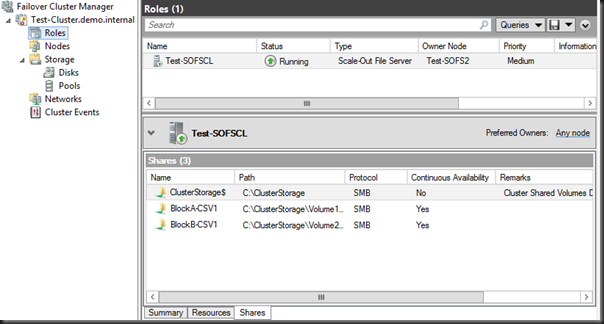
Here is the single active/active SOFS role that spans both blocks A and B.  You can also see the shares that reside in the SOFS, one on the CSV in Block A and the other in the CSV in Block B.
image

And finally, here is the end result; the shares from both logical blocks in the cluster, residing in the single UNC namespace:

image

It’s quite a cool solution.

Storage Spaces & Scale-Out File Server Are Two Different Things

In the past few months it’s become clear to me that people are confusing Storage Spaces and Scale-Out File Server (SOFS).  They seem to incorrectly think that one requires the other or that the terms are interchangeable.  I want to make this clear:

Storage Spaces and Scale-Out File Server are completely different features and do not require each other.


Storage Spaces

The concept of Storage Spaces is simple: you take a JBOD (a bunch of disks with no RAID) and unify them into a single block of management called a Storage Pool.  From this pool you create Virtual Disks.  Each Virtual Disk can be simple (no fault tolerance), mirrored (2-way or 3-way), or parity (like RAID 5 in concept).  The type of Virtual Disk fault tolerance dictates how the slabs (chunks) of each Virtual Disk are spread across the physical disks included in the pool.  This is similar to how LUNs are created and protected in a SAN.  And yes, a Virtual Disk can be spread across 2, 3+ JBODs.

Note: In WS2012 you only get JBOD tray fault tolerance via 3 JBOD trays.

Storage Spaces can be used as the shared storage of a cluster (note that I did not limit this to a SOFS cluster).  For example, 2 or more (check JBOD vendor) servers are connected to a JBOD tray via SAS cables (2 per server with MPIO) instead of connecting the servers to a SAN.  Storage Spaces is managed via the Failover Cluster Manager console.  Now you have the shared storage requirement of a cluster, such as a Hyper-V cluster or a cluster running the SOFS role.

Yes, the servers in the cluster can be your Hyper-V hosts in a small environment.  No, there is no SMB 3.0 or file shares in that configuration.  Stop over thinking things – all you need to do is provide shared storage and convert it into CSV that is used as normal by Hyper-V.  It is really that simple. 

Yes, JBOD + Storage Spaces can be used in a SOFS as the shared storage.  In that case, the virtual disks are active on each cluster node, and converted into CSVs.  Shares are created on the CSVs, and application servers access the shares via SMB 3.0.

Scale-Out File Server (SOFS)

The SOFS is actually an active/active role that runs on a cluster.  The cluster has shared storage between the cluster nodes.  Disks are provisioned on the shared storage, made available to each cluster node, added to the cluster, and converted into CSVs.  Shares are then created on the CSV and are made active/active on each cluster node via the active/active SOFS cluster role. 

SOFS is for application servers only.  For example Hyper-V can store the VM files (config, VHD/X, etc) on the SMB 3.0 file shares.  SOFS is not for end user shares; instead use virtual file servers that are stored on the SOFS.

Nowhere in this description of a SOFS have I mentioned Storage Spaces.  The storage requirement of a SOFS is cluster supported storage.  That includes:

  • SAS SAN
  • iSCSI SAN
  • Fibre Channel SAN
  • FCoE SAN
  • PCI RAID (like the Dell VRTX)
  • … and SAS attached shared JBOD + Storage Spaces

Note that I only mentioned Storage Spaces with the JBOD option.  Each of the other storage options for a cluster uses hardware RAID and therefore Storage Spaces is unsupported.

Summary

Storage Spaces works with a JBOD to provide a hardware RAID alternative.  Storage Spaces on a shared JBOD can be used as cluster storage.  This could be a small Hyper-V cluster or it could be a cluster running the active/active SOFS role.

A SOFS is an alternative way of presenting active/active storage to application servers. It requires cluster supported storage, which can be a shared JBOD + Storage Spaces.

Configuring Quorum on Storage Spaces For A 2 Node WS2012 (and WS2012 R2) Cluster

In this post I’m going to talk about building a 2 node Windows Server 2012/R2 failover cluster and what type of witness configuration to choose to achieve cluster quorum when the cluster’s storage is a JBOD with Storage Spaces.

I’ve been messing about in the lab with a WS2012 R2 cluster, in particular, a Scale-Out File Server (SOFS) running on a failover cluster with Storage Spaces on a JBOD.  What I’m discussing applies equally to:

  • A Hyper-V cluster that uses a SAS attached JBOD with Storage Spaces as the cluster storage
  • A SOFS based on a JBOD with Storage Spaces

Consider the build process of this 2 node cluster:

  • You attach a JBOD with raw disks to each cluster member
  • You build the cluster
  • You prepare Storage Spaces in the cluster and create your virtual disks

Hmm, no witness was created to break the vote and get an uneven result.  In fact, what happens is that the cluster will rig the vote to ensure that there is an uneven result.  If you’ve got 2 just nodes in the cluster with no witness then one has a quorum vote and the other doesn’t.  Imagine Node1 has a vote and Node2 does not have a vote.  Now Node1 goes offline for whatever reason.  Node2 does not have a vote and cannot achieve quorum; you don’t have a cluster until Node1 comes back online.

There are 2 simple solutions to this:

1) Create A File Share Witness

Create a file share on another highly available file server – uh … that’ll be an issue for small/medium business because all the virtual machines (including the file server) were going to be stored on the JBOD/Storage Spaces.  You can configure the file share as a witness for the cluster.

2) (More realistically) Create a Storage Spaces Virtual Disk As A Witness Disk

Create a small virtual disk (2-way or 3-way mirror for JBOD fault tolerance) and use that disk for quorum as the witness disk.  A 1 GB disk will do; the smallest my Storage Spaces implementation would do was 5 GB but that’s such a small amount anyway.  This solution is pretty what you’d do in a single site cluster with traditional block storage.

We could go crazy talking about quorum options in cluster engineering.  I’ve given you 2 simple options, with the virtual disk as a witness being the simplest.  Now each node has a vote for quorum with a witness to break the vote, and the cluster can survive either node failing.

ODX–Not All SANs Are Created Equally

I recently got to play with a very expensive fiber channel SAN for the first time in a while (I normally only see iSCSI or SAS in the real world).  This was a chance to play with WS2012 Hyper-V on this SAN, and this SAN supported Offloaded Data Transfer (ODX).

Put simply, ODX is a SAN feature that allows Windows to offload certain file operations to the SAN, such as:

  • Server to server file transfer/copy
  • Creating a VHD file

That latter was of interest to me, because this should accelerate the creation of a fixed VHD/X file, making (self-service) clouds more responsive.

The hosts were fully patched, both hotfixes and update rollups.  Yes, that includes the ODX hotfix that is bundled into the May clustering bundle.  We created a 60 GB fixed size VHDX file … and it took as long as it would without ODX.  I was afraid of this.  The manufacturer of this particular SAN has … a certain reputation for being stuck in the time dilation of an IT black hole since 2009.

If you’re planning on making use of ODX then you need to understand that this isn’t like making a jump from 1 Gbps to 10 Gbps where there’s a predictable 10x improvement.  Far from it; the performance of ODX on one vendors top end SAN can be very different to that of another manufacturer.  Two of my fellow Hyper-V MVPs have done a good bit of work looking into this stuff.

Hans Vredevoort (@hvredevoort) tested the HP 3PAR P10000 V400 with HP 3PAR OS v3.1.2.  With ODX enabled (it is by default on the SAN and WS2012) when creating a pretty regular 50 GB VHDX Hans saw the time go from an unenhanced 6.5 minutes to 2.5 minutes.  On the other hand, a 1 TB VHDX would take 33 minutes with ODX enabled.

Didier Van Hoye (@workinghardinit) decided to experiment with his Dell Compellent.  Didier created 10 * 50 GB VHDX files and 10 * 475 GB fixed VHDX files in 42 seconds.  That was 5.12 TB of files created nearly 2 minutes faster than the 3PAR could create a single 50 GB VHDX file.  Didier has understandably gone on a video recording craze showing off how this stuff works.  Here is his latest.  Clearly, the Compellent rocks where others waltz.

These comparisons reaffirm what you should probably know: don’t trust the whitepapers, brochures, or sales-speak from a manufacturer.  Evidently not all features are created equally.

Setting SMB 3.0 Bandwidth Limits In WS2012 R2

Windows Server 2012 R2 features SMB 3.0, not just for storage, but also for Live Migration.  In a converged network/fabric scenario we need to be able to distinguish between the different kinds of SMB 3.0 traffic to ensure that, for example, Live Migration does not choke off storage on a host.

This is possible thanks to a new feature called SMB Bandwidth Limit.  You can add this feature in Server Manager.

image

You can also add this feature via PowerShell:

Install-WindowsFeature FS-SMBBW

From there, we can use Set-SMBBandwidthLimit to set a Bytes Per Second limitation on three different kinds of SMB traffic:

  • Default
  • VirtualMachine
  • LiveMigration

For example, I could run the following to limit the bandwidth of Live Migration.  The minimum speed limit is used in this example, which is roughly 0.8 Gbps:

Set-SMBBandwidthLimit -Category LiveMigration -BytesPerSecond 1048576

Get-SMBBandwidthLimit will return the results and Remove-SMBBandwidthLimit will remove the limiter. 

The updated PowerShell help in the preview release of WS2012 R2 has not got much information on these cmdlets yet.

A Bunch Of WS2012 R2 Storage Posts By Microsoft That You Need To Read

I’m viewing WS2012 R2 as a storage release by Microsoft (WS2012 was a Hyper-V/cloud release).  There’s a lot happening in the storage side of WS2012 R2, and Microsoft has published a bunch of posts to keep you informed.