Counting SALs in a Multi-Tenant Hosting Environment

Right now, 99% of people are going “Don’t you mean CALs?”.  Nope.  In the hosting world licensing via SPLA is very different – it makes every other kind of licensing from every vendor look easy.  I reckon SPLA is managed in MSFT by these guys.  SALs are a way of licensing some products in hosting on a per user basis.  Some products have a choice of per-proc or per-user, and some, like RDS, only support the per-user SAL.

I worked in hosting in the past for several years but never had to count SALs … they weren’t popular because:

  • They’re near impossible to count in a multi-tenant environment: firewalled, no-trust, maybe no domains, and a significant chance that the hoster has no access to the VMs.
  • You can’t rely on the customer to count the users correctly … hell, they’ll probably ask why the should be counting anything or claim that they don’t know what a user account is.

I was asked if I had a solution to this earlier this week.  I didn’t at the time, but a conversation on Windows Weekly got me thinking.

Step 2: Use Hyper-V

Of course!  There is a reason as you will see.

Step 2: Contractually Require VM Access

Anyone signing up a contract using SALs must allow the hoster local admin rights in the VMs.  That’s probably there by default, but the tenant might delete those rights.  Maybe you have an Orchestrator task to verify rights.  If that fails, it sends emails to the tenant and puts the VMs into a saved state after X days.  Naughty!

Step 3: Audit via Scheduled PowerShell Script

Each VM will have a scheduled task to scan for user accounts, usage, and numbers.  Maybe this is a script that is scheduled via the VM template.  That’s a bit static and very messy to change – Forget ConfigMgr in this environment.  Maybe you use your local admin rights via Orchestrator to do this scan?

I wonder if you can kick off runbooks with dynamically queried VM names (pulled by querying a customer’s currently deployed VMs?

Step 4: Get the Results

Honestly, I don’t know Orchestrator beyond the marketing – so maybe it can pull out results from the VM.  Maybe not.  If not, or if you do use an internally scheduled script, you could write the results to pre-defined keys in the VMs registry.  You could then query those results via KVP via the integration components.

Anyway … that’s one way.  I’m sure there’s lots others?

Technorati Tags: ,,

VMM 2012 R2 Release Notes

Microsoft has published the release notes for System Center 2012 R2 – Virtual Machine Manager (VMM).  There are some important notes there, but I thought I’d highlight a few that stick out:

  • For file server clusters that were not created by VMM, deploying the VMM agent to file server nodes will enable Multipath I/O (MPIO) and claim devices. This operation will cause the server to restart. Deploying the VMM agent to all nodes in a Scale-out File Server cluster will cause all nodes to restart.
  • Generation 2 virtual machines are not supported
  • If System Center 2012 R2 VMM is installed on Windows Server 2012, you cannot manage Spaces storage devices that are attached to a Scale-out File server. Spaces storage requires an updated SMAPI that is included with Windows Server 2012 R2 release version.
  • The Physical-to-Virtual (P2V) feature will be removed from the System Center 2012 R2 release.
  • Windows Server supports storage tiering with Storage Spaces. However, VMM does not manage tiering policy.
  • Windows Server supports specifying write-back cache amount with Storage Spaces. However, VMM does not manage this.
  • Performing a Hyper-V Replica failover followed by a cluster migration causes the VMRefresher service to update the wrong virtual manager, putting the virtual machines into an inconsistent state.
  • VMM does not provide centralized management of World Wide Name (WWM) pools.
  • Failing over and migrating a replicated virtual machine on a cluster node might result in an unstable configuration

And there’s more.  Some have workarounds (see the original article).  Some do not, e.g. removal of P2V from VMM 2012 R2 or lack of support for G2 VMs.  In those cases:

  • Use 3rd party tools or DISK2VHD (no DISK2VHDX tool) for P2V
  • Continue to use G1 VMs if using VMM.  Remember that there is no conversion between G1 and G2

Oracle Software Will Be Supported On Hyper-V & Azure

Up to now, the line on Oracle software was that it was only supported by Oracle on Oracle virtualisation.  Prepare to be stunned … Microsoft Corp. and Oracle Corp. today announced a partnership.

Customers will be able to deploy Oracle software — including Java, Oracle Database and Oracle WebLogic Server — on Windows Server Hyper-V or in Windows Azure and receive full support from Oracle. Terms of the deal were not disclosed.

Damn.  BTW, where’s Oracle’s partnership with VMware for the same support?  Oh yeah, VMware will “support” your Orcale software on their virtualization.  Before the vFanboys start barfing, sure, Larry Ellison will be at VMWorld to announce a partnership there too …

Bzzz Bzzz Bzzz

Back to the serious stuff, I’m gobsmacked by this.  It makes sense for both parties.  Sure MSFT wants to push MSFT BI solutions, but there’s a hardcore set of customers who have deeply embedded Oracle software.  You don’t cut off your nose to spite your face; instead you get over the past and figure out a way where one hand can wash the other.  Microsoft wants Oracle customers running on Microsoft’s Cloud OS.  Oracle sees the writing on the wall about hybrid cloud computing and doesn’t want to be left behind.  Is this an everyone-is-a-winner deal for customer/Microsoft/Oracle?

Comparing Microsoft Cloud with VMware Cloud

In this post, I am blogging the comparison done by Matt McSpirit at TechEd NA 2013 (video & slides here) of the Microsoft Cloud OS (WS2012 R2 Hyper-V + System Center 2012 R2) versus the VMware vCloud Suite (vSphere 5.1 + a host of vProducts).  This is a follow up to my post where I compared Windows Server 2012 R2 (WS2012 R2) Hyper-V with vSphere 5.1.

The Technologies Involved

A key piece in the Microsoft versus VMware debate is to understand the products so you can compare like with like:

image

In green is Hyper-V, a free Hypervisor.  If you disagree and say that you must pay for Hyper-V then please send me your employer’s name and address so I can call the Business Software Alliance to make an easy $10,000 reward on your illegal licensing of Windows Server on vSphere.

In red is System Center 2012 R2, purchased as a suite (Server Management Licenses).  Note that Open licensing customers can buy a bundle including Windows Server and System Center at a small discount called CIS, and customers with more than 25 hosts can buy a similar bundle with a greater discount called ECI.  This licenses the all VMs on a host for Windows Server and System Center (any virtualization), and you can optionally use this licensing for the host itself (hence the free Hyper-V).

In pink, is the vCloud suite from VMware, comprising a bunch of loosely couple vProducts and vSphere 5.1.  There once was a video of a VMware architect who said that VMware were years behind System Center.  I can’t find that video anywhere now – it looked like it was recorded secretly from a phone.  I also once attended a VMware presentation on the products on this suite.  The two presenters confused even themselves, and lost the audience in 10 minutes.

To do a like with like comparison, you must compare either:

  • Hyper-V Server 2012 R2 versus vSphere 5.1 free + guest OS licensing
  • ECI/CIS versus vCloud Suite Enterprise + guest OS licensing

Note that System Center offers heterogeneous hypervisor management including Hyper-V, vSphere, and XenServer.

Granular App & Service Deployment

image

System Center is a deeply integrated suite tools you can see some of this from the above:

  • Request Private Cloud Resources w/ CMDB: Service Manager provides the change management database, Service Manager provides a service catalog, Orchestrator pulls all the automated strings, and VMM deploys the service.
  • Role-Based Self Service: All throughout System Center.
  • Standardized Templates: VMM gives us VM templates and service templates.  VM templates are made up of reusable virtual hard disks (1 VHD/X can be used for LOTS of templates), hardware profiles and OS profiles.  That reduces library space utilisation and offline VHD/X maintenance.
  • We can add roles/features to a VM template on the fly during a VMM service template deployment.  So we don’t need a VHD/X for a web server, a VHD/X for a file server, etc.
  • VMM also can deploy server applications (such as SQL Server) using Server App-V.  That reusable library asset can be attached to a VM tier in a service template.
  • Businesses rarely deploy a single VM.  At the very least, there’s a web server and a database server, plus customization.  All this can be modelled in a VMM service template, with roles/features, load balancing, cloud pre-requisites, Server App-V, SQL/IIS packages, and shared with users for self-service (via App Controller, Service Manager, or Windows Azure Pack)
  • And System Center can manage the big 3: Hyper-V, vSphere, and XenServer.

In comparison, vCloud suite looks pretty limited, expensive, and non-integrated.

Service Quality Management

image

Nagios and similar ping based monitoring is for the past.  System Center, particularly Operations Manager, provides the granular monitoring of the infrastructure (from the network up) that the admin cares about and service (SLAs) with the end user perspective that the business cares about.

VMware’s focus is on the hypervisor – that’s indicated by the need to buy additional software to monitor physical infrastructure … there’s more to a cloud than a host! 

The focus of monitoring is pretty focused, whereas System Center scales well beyond just the Microsoft world, including network, servers, storage, and third party applications.  You can even monitor the all-important coffee pot Smile  Wait for the vBaby to try make a joke about that point – it is sad that this is the tactic that VMware employees now have to resort to.

System Center does some rather special things in monitoring.  End user perspective monitoring for SLA and service availability can be done from any OpsMgr agent.  It can be stretched into Windows Azure via Global Service Monitoring (GSM) to see how available your local application is to the globe.  And you can extend your monitoring into the same Azure data centers via System Center Advisor to get the latest in best practice analysis.  All of these monitors and reports are surfaced through the OpsMgr console.  Reports can be scheduled to be spit out in a large number of formats for the business.

Devs and testers also have integration into their local cloud via System Center; they can push out a new environment from the tool (Visual Studio) that they live in.   No need to pay for more add-ons for this to work.

Backup

I am deliberately skipping DPM.  In my opinion, most anyone big enough to use System Center will rarely use System Center Data Protection Manager.  They are probably choosing the same backup tools that also support vSphere.

Heterogeneous Management

This is just a very small sample of the 3rd parties that support System Center.  You’ll notice VMware is in there Smile  Actually, the Veeam management pack for monitoring vSphere is superb.  I’ll admit it’s by far superior to the dreadful Hyper-V management pack.  Hardware vendors such as Dell and HP make huge efforts to support System Center, e.g. bare metal Hyper-V host deployment is a breeze with HP or Dell.  And the monitoring … oh the information is amazing.

image

image

VMM will quite happily manage vSphere 5.1, including VM templates, service templates, using it as the compute in your cloud, vMotion, etc.  And it’ll do the XenServer dance too.  Orchestrator has a Microsoft-written integration pack for vSphere to give you runbook automation. 

Operations Manager does support monitoring of 3rd party products.  Realistically, those management packs come from 3rd parties.  Some are 100% free, e.g. HP and Dell.  Some are free to a point, e.g. Veeam.  And some require a purchase.

Hybrid Networking

With the Microsoft stack we can easily extend the Microsoft private cloud into service providers and Windows Azure using System Center and Hyper-V Network Virtualization.  Service Provider Foundation provides an interface into the hoster’s VMM infrastructure that the customers’ App Controller installs can plug into.  Hyper-V networking and the cloud pieces of System Center were designed for this purpose as a single unit. 

image

Not so simple with the VMware stack where there are a lot more acquired vProducts involved.

image

Summary

VMware made a pretty good virtualization stack.  But their managment stack reminds me of frameworks that I worked with in the 1990s … lots of acquired products with a v- slapped in front of them and thrown into a license bundle.  That’s not integration … it’s a collection of confusing and loosely coupled point solutions.  VMware’s focus continues to be on what they have historically done: the virtualisation layer.

System Center was designed for purpose.  System Center 2012 R2 was designed to work at the same time as and with Windows Server 2012 R2, with hybrid cloud computing being the focus.  Hybrid meaning that the solution spans private and public, and with cloud, there is a focus on what the business really cares about: service (self-service, automation, rapid delivery, easier administration, reporting, and SLA).

Hmm, and I didn’t even bring up Datacenter Abstraction Layer (DAL) where VMM 2012 R2 will build bare-metal SOFS storage, provision SANs via SMI-S (including fiber channel zoning), or manage top-of-rack switches.  You can only do so much stomping, I guess.

The choice is yours: service versus virtualization. 

The First 2012 R2 Doc – Test Lab Guide For System Center 2012 R2 & WS2012 R2 Hyper-V Network Virtualization

*sniff sniff*  It’s that time in the schedule when documentation starts to appear right before a scheduled Microsoft release, this time it’s the preview of Windows Server 2012 R2 and System Center 2012 R2 (WSSC 2012 R2).

Microsoft has released a step-by-step guide for building a test lab to help you learn & evaluate Hyper-V Network Virtualization (HNV aka software defined networking aka SDN), using:

  • Windows Server 2012 R2
  • Windows Server 2012 Hyper-V
  • System Center 2012 R2 – Virtual Machine Manager

This document contains instructions for setting up the Windows Server® 2012 R2 Hyper-V Network Virtualization with System Center 2012 R2 VMM test lab by deploying four physical server computers running Windows Server 2012 R2 and ten virtual machines running Windows Server 2012 R2. The resulting configuration simulates two customer private intranets, one simulated hoster datacenter environment, and the Internet.

image

The lab requires 4 physical servers:

  • WNVHOST1: Running Windows Server 2012 R2 Hyper-V, DC, and DNS
  • WNVHOST2: WS2012 R2 Hyper-V host, SQL server, IPAM server, and System Center 2012 R2 Virtual Machine Manager.  Some tenant VMs (simulated on-premise) are also running here.
  • WNVHOST3: Another WS2012 R2 host, but this is going to run the VM running the new WS2012 R2 HNV Gateway role, integrating the on-premise networks with the hosted VM Networks.
  • WNVHOST4: Another host running a bunch of “hosted” tenant VMs in isolated VM Networks.

The doc goes step-by-step through building the lab.  Bet you can’t wait to get your hands on WSSC 2012 R2 now Smile

PowerPoint – E2EVC Copenhagen Microsoft Virtualisation Keynote

I recently did a presentation called “What’s New In Microsoft Virtualization” at the E2EVC event in Copenhagen, Denmark.  It was a 45 minute slot and there was so much to cover.  So I had to be picky about what I presented on.  This is the deck that I used:


Hyper-V Server 2012 R2 is Announced

EDIT: Download Hyper-V Server 2012 R2 from here.

I was talking to Jeff Woolsey (Windows Server Principal Program Manager Lead) tonight and he told me that today at TechEd North America he announced that there will be a Hyper-V Server 2012 R2.  This is the free version of Hyper-V, with all of the features (minus the GUI) and all of the scalability that you get with Hyper-V in Windows Server 2012 R2.  Yes, that includes Failover Clustering (HA), unlimited Live Migration (with compression/SMB), shared VHDX, extensibility, Hyper-V Network Virtualiztion, Hyper-V Replica, etc.

It should be no surprise, but Hyper-V Server has been released with every version of Windows Server.  It’s the ESXi Free (and more) killer.  Once RTM, it’ll be a free download, as always.

Licensing-wise, Hyper-V Server has a niche market.  That’s because you never license VMs for Windows Server, even with VMware or XenServer; you license hosts with Standard (smaller installs) or Datacenter (makes sense financially with around 7 or more VMs per host, depending on Standard versus Datacenter license cost for your specific case).  So if you’re purchasing Windows Server per host for the VMs that will run on the host, then you might as well install Windows Server on the host to enable Hyper-V.  Where Hyper-V Server does have a place is:

  • VDI: where you’re not licensing the host for Windows Server VMs.  It might be pointless buying Datacenter edition (unless you’re a hosting company doing shared hosted VDI) when those licensing benefits are going to waste and not cancelling out the cost of the host OS.  the free Hyper-V Server has all the same functionality.
  • Linux VMs: Same argument as with VDI, and richer than ever with file system consistent backup and full Dynamic Memory support.
  • You don’t have licensing for Windows Server, you want to build a host once, and play with downloaded time-bombed demo stuff.
  • You licensed your VMs for an older version of Windows with no intention of upgrading, but you’d like to use the newest version of Hyper-V.
  • You want to ensure that no one can enable non-Hyper-V related roles/features on the Management OS.

There’s so much in Hyper-V Server.  But that’s always been the norm, because Hyper-V IS FREE.

TechEdNA – Upgrading your Private Cloud From 2012 to 2012 R2

I am live blogging so hit refresh to see more.

Speakers: Ben Armstrong, Jose Barreto, Rob Hindman

Primary focus of the session is upgrading from from (Windows Server 2012) WS2012 Hyper-V to (Windows Server) WS2012 R2 Hyper-V.  There are scale requirements.

Advice: deploy new designs with upgrades in mind – faster release cadence from Microsoft.

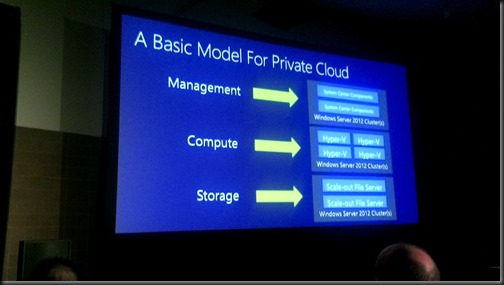
Fabric

  • System Management: System Center on Hyper-V
  • Compute: Hyper-V
  • Storage: Scale-Out File Server on block storage or Storage Spaces
picture051

Upgrade System Center First

It will manage the existing cloud/hosts and enable upgrades.

Question: will users notice if a given SysCtr component is offline for a brief period of time.

http://technet.microsoft.com/en-us/library/jj628203.aspx …. should be updated with WS2012 R2 upgrades.  Remember to turn on OpsMgr maintenance mode during upgrades!!!

Upgrading SCVMM

  • Ensure that SCVMM is configured with a seperate (preferably external) database server
  • Uninstall SCVMM 2012 SP1 – leave library/libraries and SCVMM database in place
  • Install SCVMM 2012 R2, and connect to existing database.

Your outage time is minutes.  Deploy SCVMM in a VM.  And deploy SCMM as a HA cluster (pretty sensible in a true cloud where SCVMM is critical to self-service, etc).

Up comes Jose Barreto …

You could do Compute upgrade next but ….

Upgrading Storage

Tools:

  • Storage migration
  • Copy Cluster Roles Wizard
  • Upgrade in place
  • PowerShell scripting

Options for storage upgrade

Extra hardware.  No down time: (easiest) migrate storage.  (2nd fave) Limited downtime: copy cluster role.

Limited extra hardware: No downtime: (4th fave) Migrate pools.  (3rd fave) Limited downtime: upgrade in place.

Option 1 – Migrate Storage

  • Setup new 2012 R2 storage cluster
  • Configure access to new cluster
  • Storage migrate every VM (Live Storage Migration to new storage platform)

Easy and zero downtime.  Easy to automate.  Network intensive.  Needs new storage platform.

picture052

Option 2 – Copy Cluster Roles

Some downtime, but very quick.

  • Setup new 2012 R2 storage cluster.  Connect new cluster to existing storage.
  • Copy cluster roles.
  • Downtime begins: Offline roles on old cluster.  Online roles on new cluster
  • Down time end.

Limited downtime.  No data moved on the network.  Limited additional h/w.  Good for impatient admins. 

3 – Upgrade in place

1 – Prepare

  • HA degraded
  • Evict a node from clsutger
  • Upgrade/clean install evicted node
  • Create new cluster with evicted node

2 – Migrate …. do the previous Cluster Role Copy process.

3 – Rebuild the last remaining node in old cluster and join the domain.

You lose HA for a time.  You could buy 1 extra server if that’s an issue and recycle 1 old server when the process completes. 

4 – Move Pools

No downtime.  Moves data over the network.  Limited additional hardware.

1 – Split cluster

  • Evict node(s) on old cluster – if you have 4 nodes then you can evict 2 nodes and keep HA.
  • Upgrade evicted nodes to new version
  • Forma  site-by-side cluster with shared access to the storage

2 – Migrate storage

  • Evacuate a pool of VMs using storage live migration
  • Evict pool from old cluster
  • Add pool to new cluster
  • Use storage live migration to move VMs to pool on new storage cluster
  • Repeat until complete

You need extra storage capacity to do this … you are moving VM files from pre-evicted pool to other pools in the older cluster, before moving them back to the pool in the new cluster.

Also have 1 pool (minimum) per node member in the storage cluster.

3 – Finalize

  • Destroy the old cluster
  • Rebuild idle nodes and join to new cluster

Why have 3 or 4 nodes …. you provide some cushion for upgrade/migration scenarios.

Note: you can use VMM for any LMs or storage LMs.

Back to Ben for the compute upgrade.

Cross-Version Live Migration

Provides simple zero-downtime way to move a VM across to a new platform.

You can use one of many methods to get a new WS2012 R2 cluster … evict/rebuild, brand new, etc.  Then you can do a Cross-Version Live Migration.

In the demo, Ben fires up the VMM 2012 R2 console (he can also do this using the built-in Server admin tools, e.g. Hyper-V Manager).  VMM is managing the WS2012 hosts and the WS2012 R2 hosts.  He can do a LM of the VM from the old hosts to the new hosts.  Here’s the benefit of upgrading System Center first.  It can manage the new platform and leverage the new WS2012 R2 features.

Another thing with SysCtr …. leverage your templates and logical networks to standardise hosts.  New hosts will be identical config to the old hosts, e.g. the VM Network will have the same name so the VM won’t go “offline” when it has moved to the new hosts.

You can stage the upgrades

WS2012 R2 hosts and use WS2012 R2 storage.  WS2012 hosts can use WS2012 R2 storage.

Upgrade the Guest OS Integration Components

The world won’t end if you don’t …. some new features won’t work if they rely on the new ICs.  Start planning the upgrade around your next maintenance window or planned upgrade.  You can deploy the ICs without rebooting immediately – but the new version won’t work until you do reboot.

d:supportamd64setup.exe /quiet /norestart …. Aidan – add that as an app in ConfigMgr if you have a private cloud, and send the sucker out to a collection of Hyper-V VMs, with a predefined maintenance window.

Cluster Rebuild Options

If you have scale, you can do  2 nodes at a time to maintain HA.

If you are small then do 1 node at a time, but lose HA.

Buy some new hardware to act as the “seed” for a new cluster, and evict/rebuild the older cluster.  You maintain HA, but at a relatively small cost.  You can recycle the last 2 nodes in the old cluster.

For a small shop, take advantage of save state compatibility through:

  • In place upgrade
  • Virtual machine import

Funnily enough, a HUGE shop might also use that last option.  They could also:

  • Save state the VMs
  • Reconnect the storage to new hosts
  • Import/register the VMs

Cluster Validation

Will require downtime unless you are using Windows Server File Storage.  Note that a cluster is not supported until you have a passed cluster validation report.  Block storage will bring down the disks when validated.

Windows Server 2008 R2 to 2012 R2

Here comes Rob Hindman … who has the best job in the world, apparently, cos he works with Ben and Jose Smile

Copy Cluster Roles Wizard

This will move the cluster roles from 2008 R2 to 2012 or 2012 R2.  Basically, it allows you to move cluster resources to a cluster from another cluster that is 2 levels back, e.g. 2008 R2 to 2012 R2.

  • You can test the copy without impacting production/customers
  • The process is reversible if you encounter issues
  • Assumes that your storage will be reused
  • Does not copy data … it remaps disks

You form a new cluster and connect it to the old storage.  You run the wizard against the old cluster.  You copy the roles.  Then you bring online the roles in the new cluster after off-lining them on the old cluster.  Then you can remove the old cluster.

Supports lots including:

  • Hyper-V VMs/VM configuration
  • SOFS
  • CSV
  • Storage pools/spaces

Does not do CAU or Task Scheduler Tasks.

PLEASE READ THE REPORT that the wizard creates.  There might be fix-up steps, e.g. network settings.

Demo:

Does a W2008 R2 – WS2012 R2 migration.  You have to migrate 1 LUN (CSV) at a time.  Make sure that your destination cluster can handle the VM workload that is on the CSV that you are migrating.  If it detects a VM workload, it’ll prompt you to select a destination virtual switch.  The copy is done … no downtime, yet.  Read the report, as advised.

The VM appears on the new cluster, but it’s showing as off.  So is the CSV.  On the original cluster, you take the resource offline – shutdown the VM.  Take the CSV disk offline.  Some customers prefer to unmask the CSV at this point from the old cluster.  Bring the CSV online in the new cluster.  Then power up the VMs on the new cluster.  Done!

Other than a MS IT VPN blip, the demo worked perfectly.

Summary

You can do the upgrade with no downtime if you have lots of resources.  More likely you’ll do with with few/no new resources with minimal downtime.

Q&A

Clarification: you are not abandoning CSV.  You are putting an active/active file server cluster (SOFS) and SMB 3.0 between the Hyper-V hosts and the CSVs.  This layer adds sooooo much and makes you very flexible.

Smaller deployments, such as 2 nodes, then you continue to direct attach your CSVs to your hosts, e.g. CiB Hyper-V deployment.

TechEd NA 2013: Building Cloud Services with Windows Server 2012 R2, Microsoft System Center 2012 R2 and the Windows Azure Pack

Spakers: Bradley Bartz, Nagender Vedula, and an army of others.

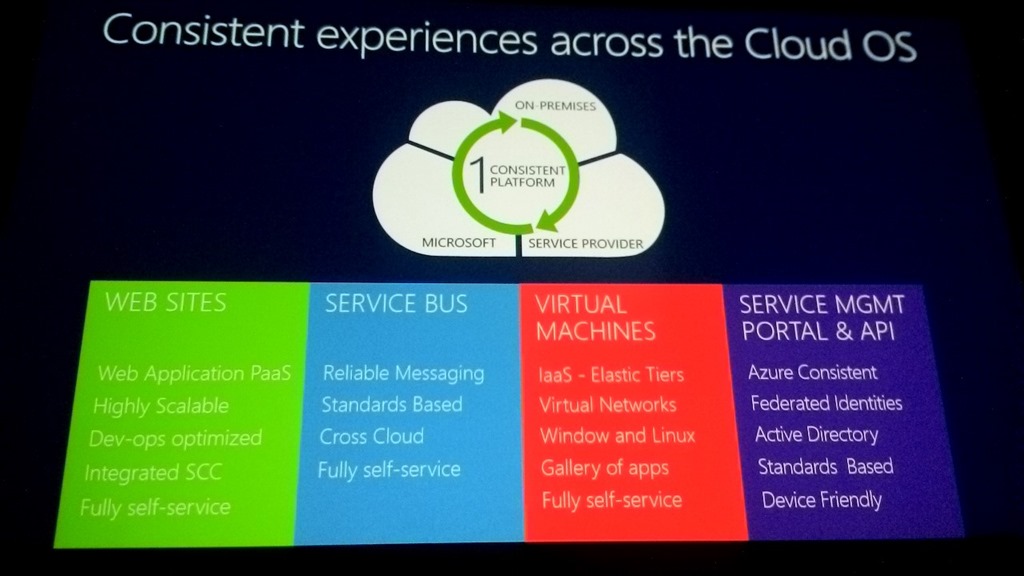
1 consistent cloud experience

picture039

Service Bus coming to WS2012 R2.  There are 2 UIs:

  • Admin
  • Consumer portal

Cloud OS Consistent Experiences.

Heres Azure versus on-premise:

Continuity of experience and services being deployed.  Note that Windows Azure Pack portal is customizable.

picture042

The right hand side is powered by:

  • Windows Server
  • Hyper-V
  • System Center – VMM and Operations Manager
  • Service Provider Foundation
  • Windows Azure Pack

Service Consumers

People centric computing – self-service administration, acquire capacity on demand, empowered operations, predictable costs, get up and running quickly.

Difference between Azure and on-premise.  On-premise has limits of scalability.  So we set quote a limits to control how much resources the consumer can take.

Service Consumers:

  • Build highly scalable web apps
  • Iterate with integrated source control
  • Manage app with real-time telemetry
  • Use the languages and open source apps of your choice (supported by Azure pack)

Service Providers

Extreme focus on cost. Maximize per-customer profitability, hardware efficiency, automate everything, differentiate on SLAs.  All makes sense for the hoster.  What about the enterprise private cloud?  Same goals apply – IT needs to be efficient and effective.  Doubly so when doing cross-charging … and to be honest, IT doesn’t want to become more expensive than outsourced services!

Service Bus

  • Messaging service for loud apps
  • Guaranteed message delivery
  • Publish-subscribe messaging patterns
  • Standard protocols (REST, AMQP, WS*)
  • Interoperability (.NET, JAVA/JMS, C/C++)
  • Now integrated with management portal

An elastic message queuing system.  A dev building a modern app in Azure will feel right at home on your WSSC 2012 R2 cloud.

Virtual Machines

  • Consistent with IaaS Azure
  • Roles: portable, elastic, gallery, Windows & Linux support
  • Virtual networks: site-site connectivity, tenant supplied IP address

Additional services in Windows Azure Pack

  • Identity: AD integration, ADFS federation, co-administrator – huge for on-premise
  • Database services: SQL Server and MySQL
  • Value add services from gallery – you can curate a set of add-ons that your customers can use.
  • Other shared services from provider
  • Programmatic access to cloud services – Windows Azure consistent REST APIs

There is a model on acquiring capacity. There is a concept of offers and plans, and that dictates what’s being deployed.  A subscriber will get billed.  Concept of teams is supported with co-administration.  Teams can be large, and membership can change frequently.  With ADFS, you can use an AD group as the co-administrators of the subscription.

Demo

Azure supports ADFS – so he logs into Azure portal using his MSFT corporate ID.  He deploys a new website, goes to a store in Azure, and installs a source code control app: Git.  Now there’s a dedicate Git repository for that website.  It’s the usual non-modified Git.  He adds a connection to the repository locally.  Then he pushes his source code up to the repository from his PC.  That’s done in around a minute.  The website launches – and there’s the site that he pushed up.

This is more than just an FTP upload.  It’s cloud so it scales.  Can scale out the number of website instances.  By default they run on a shared tier, basically the same web server/pool.  Can change that through the GUI.  Can scale the site easily with a slider, with content and load balancing.

Now logs into the Katal portal.  Can sign in with AD user account, Email account (ASP membership of email and password), and ADFS.  The same login appears as on the Azure portal as on Azure.  Same end user experience (can be skinned).  Creates a web site.  Sets up Git source code control, as on Azure.  Basically repeats the same steps as on Azure – the customer is getting the same experience. 

In Katal, scalability can be limited by the admins, won’t have the same infinite resources as Azure.

Now he logs out, and Mark Umeno logs in as a co-admin.  He can see the resources that were just deployed by Bradley.  He can also see some other stuff that he owns. 

I get bored here … there’s no cloud building going on.  It’s turned into a user experience demo which does not match the title of the session.

TechEd 2013: How To Design & Configure Networking In VMM (Part 2)

Speaker: Greg Cusanza, Senior PM, MSFT (VMM) and Charlie Wen, PM (Windows).

This is a follow up to part 1.

Objective of this session: bring WS2012 R2, System Center 2012 R2 and Windows Azure together using hybrid networking.

Hybrid Network

Tenant thinks they have their own network, but it’s an abstracted network on hosting environment.  Can link to Internet and extend clients’ on-premise network into hosting network.  There is routing between the client network and the tenant network.

picture027

Can route between client site A, through client site B, to tenant network if Site A to tenant network link is down.

There is in-box capability for the gateway in WS2012 R2.

Hybrid Networking in WS2012 and SysCtr 2012 SP1

  • WS 2012 R2 adds HNV, RRAS, and IPAM
  • SC2012 SP1 – VM networks with single VPN.
  • 3rd party gateways: F5 (software solution out now), Huawei, IronNetworks
  • Introduced Windows Azure Services for Windows Server (Katal, vNext to be Windows Azure Pack).  Not a hybrid solution.

F5 solution is Windows Server based at the moment.  They are working on a hardware solution.

Benefits of Hybrid Networking

  • For hoster, internal IT, or enterprise customer. 
  • Must be cost effective
  • Capex cost per tenant must be low.  Multi-tenancy.
  • Gateways must be highly available – using clustering in WS2012 R2 gateway
  • Must support self-service
  • Enterprises: must be able to extend on-premise network.  Establish contract for average throughput for each connection.  Easily provision and configure site-site connection on the hoster side

picture029

Network Fabrication Configuration

  • Enabling network virtualization: WS2012 R2 no longer requires NV filter enablement
  • Configuring provider address space: must have static IP pool.  Must enable network virtualisation on logical network for provider addresses.
  • If mixing 2012 and 2012 R2 hosts, must have KB2779768 on 2012 hosts

Demo

Checked the Allow New VM Networks Created On This Logical …. in the settings of the tenant Logical Network – different tenant network than before – no VLAN stuff.

Enabling Hybrid Connectivity

  • you need a gateway
  • 3rd party gateways do exist
  • WS2012 R2 gateway will do for many customers.  3rd party solutions will probably offer extra features.

Charlie Wen (Mr. QoS in WS2012) comes on stage to talk about the WS gateway.

WS2012 Hybrid Connectivity

Limitations:

  • 1 VM per tenant
  • Static routing required on each tenant site
  • Manual provisioning
  • Internet connectivity back to remote site – no NAT for direct connectivity to VM networks.

picture030

WS2012 R2

  • Multi-tenant solution that requires far fewer VMs as gateways
  • Clustering for HA – this is an SLA business
  • BGP routing for dyanmic routing
  • Multitenant NAT for direct Internet connectivity

picture031

Demo

Shows NAT in action on the gateway.  Client connects to VM in VM network using IE and public IP address.  Does it twice and does 2 downloads (long and still running).  Uses Get-NetCompartment to view tenant networks.  Moves the gateway role from one WS2012 r2 cluster member to another and it’s done in the blink of an eye.  The downloads do not get interrupted because the proactive failover of the gateway resource happens so quickly.  Good for maintenance.

Private Cloud with WS2012 R2

  • You could use HNV for lab, test networks, dev networks
  • Most services still on the physical network, e.g. AD, DNS, etc. 
  • That means the labs are isolated.  You can give connectivity with a forwarding gateway.
  • You can extend into a 3rd party site by connecting the forwarding gateway to the edge router.

Multi-tenant networking stack

picture034

Multi-tenant Site-to-Site

On boarding: create new tenant with a compartment in the gateway  Incoming packets go into a default compartment.  Packet is inspected, and sent to the correct tenant compartment, and onwards to the VM network.

Outbound packet, from the VM network, to the tenant compartment.  There is a routing table there and then it goes out to the right client on-premise site over the VPN.

Multi-tenant NAT

Each tenant compartment needs a unique IP.

Outbound packet into tenant compartment from VM network, then NATed before going out to the net.

For inbound packet, it comes into the gateway.  A NAT mapping sends it to the correct client compartment, and onwards to the VM network.

BGP Dynamic Route learning and Best Path Selection

BGP will select the best route.  Say the Site 1 – hoster link goes down.  BGP will auto re-route to hoster via site 2.

picture036

Guest Clustering for HA

  • A 1:1 redundant (active/passive) cluster is created from the VMM service template when deploying the WS2012 R2 gateway
  • Failure is detected immediately
  • Site-site tunnels are reconnected on the new active node
  • So quick that end-end TCP connections do not time out

Back to Greg and SCVMM …

Provisioning from VMM

  1. Build a host/cluster – this host/cluster is dedicated for the gateway VMs.  DEDICATED.  They are edge network, “untrusted” hosts.  VMM agent uses certificates.
  2. Deploy gateway VMs from the service template
  3. Add gateway to VMM
  4. Finalize the gateway configuration

Post-preview functionality configured from SCVMM, ie not in the preview and will be in RTM:

  • HA
  • Forwarding gateway for private cloud

Demo

Has the service template and deploys it to the untrusted host.

picture037

Has one already baked, and shows the service in his cloud view.  The host was marked as a HNV host: get-scvmmhost <hostname> … IsDedicatedToWnvGateway is set to true.  Set-SCVMMHost –IsDedicatedToWnvGateway $true <hostname>.

Adds a Network Service in Fabric-Networking.  Selects RunAs account.  Sets a network service connection string.  Reviews the certificates.  Tests the provider before existing the wizard.  And then selects a host group – e.g. dedicate the gateway to a rack of servers.  Configures the front end and back end NICs: selects NICs and network sites for each of the two.  Done.  The g/w is added … but it takes a minute or so to set up the compartments …. watch out for that!

Goes into VM Newtorks.  Creates a new VM Network in the tenant logical network.  Enables HNV.  Sets the VM subnet.  Connects the VPN tunnel, with BGP.  Enables NAT.  Selects an IP Pool for the NAT connection.  Can add inbound access rules for specific ports, e.g. send inbound TCP 80 to 10.0.0.2 port 80.  That configures the compartment in the g/w.  Adds an IP pool to the HNV gateway. 

Done!  Now you can add VMs to the VM Network and they can talk through the gateway, e.g. talk to an external network.

No configuration done in the gateway VMs or on the HNV hosts.

Enabling Tenant Self-Service

Using Windows Azure Services for Windows Server:

  • Tenants creat their own networks
  • Consistent experience with Windows Azure
  • Configuration of topology and BGP
  • Reporting and chargeback

SPF provides REST API to enable hosters and private cloud providers to build their own portal if they want.

The client configures a VM network and VPN tunnel on the hoster portal.  That configures VMM and the gateway for the tenant.  The tenant must then configure their own VPN endpoint to complete the tunnel.

Demo of tenant self-service

Logs into the portal as a tenant.  Creates a new virtual network.  Selects IPv4.  Specifies DNS, and chooses to enable NAT and VPN.  Enter his tenant VPN endpoint info and enables BGP.  Adds an address space for the VM network.  Names the site-site VPN, enters the pre-shared key, and the address space for BGP to do initial routing for dynamic discovery.

Note: it is IBGP.  Add the BGP peers and ASN info.  Check the wizard and done.

Outbound NAT is enabled.  Inbound requires configuration.  Hosters can supply VPN configuration scripts that the tenant can download from the portal. 

Creates a new NAT rule for a web server.  Nice bit: can choose an already selected VM rather than entering an IP address.

And that’s that!