My AidanFinn.Com Blog Has Moved To Microsoft Azure

Tonight I completed the migration of this WordPress blog to Windows Azure.

PoweredByAzure


I was having performance and health issues with the VM that I was renting from a local hosting company. The admin portal was proving to be a nightmare. I had upgrade the VM but the VM wasn’t upgraded. The hard disk was filling frequently and killing MySQL, and therefore killing the WordPress blog.

Why was I on a VM? Because I needed more processor & bandwidth capacity.

A failure last week led me to look at my options. I’ve grown comfortable with Microsoft Azure so this was the place that I decided to move to. My free €75 credit per month thanks to my MSDN account doesn’t hurt either!

I looked at the website hosting options but they provide too little disk space. The VMs, even the smaller ones, give you loads of disk space. I decided to fire up a cloud service, blob, virtual network and a small VM instance just for my new web server VM. I installed IIS, added the sites, installed PHP, WordPress, MySQL, and a few other bits and bobs and started the laborious process of migrating from the old VM.

I could have cheated but I decided to do a fresh install. It was more time consuming, especially when I had to split the WordPress export file into 40 smaller export files (the import of 2MB files was timing out). I added and configured all the plugins. And then the final steps:

  • After some tests I configured the website to bind to aidanfinn.com and http://www.aidanfinn.com.
  • I changed the DNS A records for those two URLs to switch to the public IP of the Azure cloud service.

My next steps will be:

  • Configure MySQL automated export
  • Deploy Windows Azure Online Backup to backup the IIS Inetpub folder and the MySQL export

And maybe I’ll configure the endpoint monitoring option in the Azure portal Smile

Mapping The Microsoft Hybrid Cloud – Work In Progress

I am attempting to map out the infrastructure elements (not the app/dev elements) of the Microsoft hybrid cloud. This is a work in progress. If you spot any missing pieces then please comment and I will update.

You’ve heard terms like Cloud OS and hybrid cloud. What do they mean? I will attempt to map out the Microsoft hybrid cloud’s infrastructure-as-a-service (IaaS) ans software-as-a-service (SaaS) elements in this post.

The Hybrid Cloud

A private cloud is a single-tenant (but many users) service that is typically run on-premise. Note that there is a concept of a hosted private cloud; this is where a hosting company runs your single tenant infrastructure. An example of a private cloud is Hyper-V with elements of System Center (VMM, App Controller, Windows Azure Pack, etc) running in your data centre.

A public cloud is a hosted multi-tenant service that you do not own, but you consume services from. The perfect examples of this are Amazon Web Services (AWS) and Microsoft Windows Azure. The hosting company runs and hides the infrastructure from you. You subscribe to services from this shared infrastructure and have no visibility of other tenants. Those offerings are IaaS. There is platform-as-a-service (PaaS) which Windows Azure also offers for developers to run their applications without worrying about VM guest operating systems. And there is software-as-a-service (SaaS) such as Office 365 and Windows Intune where you use some software that the hosting company runs and sells to you from the cloud.

A hybrid cloud is where you mix elements of private cloud with public cloud. Microsoft is in a very unique position because they operate/sell IaaS, PaaS, and SaaS in public and private cloud. This allows you to integrate the best elements (for you) of on-premise with the public cloud offerings of Microsoft to create a hybrid offering.

The Map
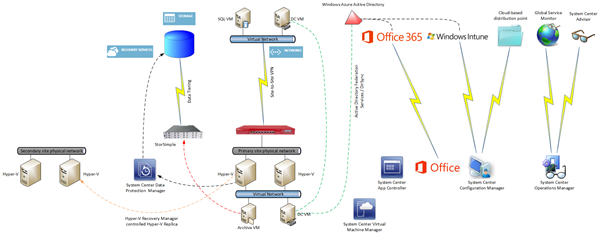
image View the image to see full size

Windows Azure Site-Site VPN

You can deploy virtual machines in Windows Azure. They are very similar to Hyper-V VMs, because at this point, Windows Azure is running WS2012 Hyper-V (not WS2012 R2, as you can tell by digging around). You can deploy Software-Defined-Networking (SDN) within Windows Azure in the form of Virtual Networks; you define a network and then you define automatically routed subnets. You can configure a remote gateway to enable site-to-site VPN connectivity between your on-premise infrastructure and the network within Windows Azure. That creates intriguing possibilities where you run some services within Windows Azure to take advantage of elasticity and instant resource availability, and take advantage of on-premise where you can customise and specialise to your heart’s content.

An MPLS alternative has gone into beta with AT&T in the USA. Basically the Windows Azure network becomes another branch office on your WAN. That would be a much nicer and more fault tolerant option than single site-to-site VPN.

Note:

You will use SCVMM to manage your on-premise cloud(s) and use System Center App Controller to enable easy deployment of VMs/services in your hybrid cloud.

Active Directory

One of the biggest historical pains in IT for users is having multiple usernames and passwords. You can have single-sign-on (SSO) across your on-premise and Microsoft public cloud services by synchronising Active Directory with Windows Azure Active Directory (WAAD). WAAD is used in a couple of ways:

  • PaaS: Developers can use synchronised IDs for their custom applications.
  • SaaS: Office 365 (Midsize [M] plan and up) and Windows Intune can use the same user names for Exchange Online, SharePoint Online, Lync Online, etc, as are entered when users sign into their PC every day.

There are two ways to synchronise AD with WAAD:

  • DirSync: Is a simple-to-install and manage solution for smaller businesses.
  • ADFS: Active Directory Federation Services is used for larger installs. It requires HA because ADFS becomes a point of dependency to sign into services.

Another interesting option is to deploy VMs into Windows Azure, promote one or more to be domain controllers, and treat that as another site in your Active Directory forest. Your on-premise DCs will replicate with the DCs running in Windows Azure. This is used to enable traditional user & computer join/login to your AD forest.

Note: You must follow specific guidelines for creating DCs in Windows Azure. For example, all domain databases must be placed on an additional data drive that you attach to the VM. This is required to avoid corruption.

Office 365

I’ve already mentioned how users can sign into Office 365 (M plan and higher) using the same username and password as they use on their PC. You can also run hybrid Office services. For example, an Exchange organisation can span on-premise Exchange servers and the cloud.

Windows Intune & System Center Configuration Manager

System Center Configuration Manager (SCCM) is Microsoft’s corporate device deployment & management solution. I believe it is best used when limited to direct management of domain-joined Windows computers. Note that SCCM does allow you to deploy a distribution point (a content library that users/computers install from) in the cloud (hosted by Windows Azure).

You can also get Windows Intune, Microsoft’s cloud-based device management solution. Being cloud based makes it easy to deploy, and better for managing remote or widely distributed devices. Intune is less AD-centric, and that also makes it a great product for dealing with bring-your-own-device (BYOD). And Intune is also designed from the ground up to manage non-Windows OSs such as Android, iOS, and Windows Phone.

You can integrate Windows Intune into SCCM so admins have a single console to manage. I see Intune as the mechanism for dealing with widely distributed devices, roaming devices, mobile devices, and BYOD. SCCM is the solution for dealing with domain-joined corporate computers.

System Center Operations Manager

SCOM is Microsoft’s service-focused monitoring solution. You can get lots of Microsoft developed (free) management packs for monitoring on-premise stuff such as Windows Server, AD, SQL Server, and much more. There are also free third-party management packs (HP, Dell, Citrix, and more), and paid-for products from the likes of Veeam (which happens to have a limited free package for vSphere monitoring).

SCOM can also be used with the cloud in a few ways:

  • Global Service Monitor: GSM allows you to monitor the availability and quality of web services from Microsoft’s data centres around the world. This accounts for the fact that the Internet is complex and localised failures can affect international service availability in unpredictable ways. You configure GSM to monitor site(s) and the results appear in SCOM.
  • System Center Advisor: Think of this as a best practices analyzer from the cloud. SCOM can monitor the results of Advisor scans.
  • Windows Azure: You can monitor the services that you deploy in Azure in two ways. You can monitor the Azure service itself for failures. You can also install SCOM agents into the guest OS of your VMs to monitor the OS and services from within the VMs.

StorSimple

Many businesses struggle with retaining archive data. Microsoft acquired StorSimple to deal with that issue. This is a on-premise installed 1 GbE iSCSI storage appliance that offers local SSD and HDD tiers with a third colder tier residing within the storage services of Windows Azure.

The appliance is not suitable for all workloads. A key requirement is that your data must have a concept of a “working set”. In other words, there is hot data that you use frequently, and cold data that your do not look at very often. VM VHD/VHDX files are not examples of this. Think of a corporate file server, an CAD library, etc. Those are good examples.

StorSimple also has a built-in backup system that uses snapshot mechanisms to backup your hot/cold data.

Windows Azure Online Backup

There are many ways to use the storage mechanisms in Azure. Another one is to use Online Backup to automate the off-site storage of your backup data. A basic system for a single server would be to let Windows Server Backup send its data directly to the cloud. Larger customers might use something like System Center Data Protection Manager or Commvault Sympana to send their backup data to Windows Azure.

The data is encrypted using your private key. Microsoft never sees this key, and therefore you must keep the key safe; they cannot rescue you if you lose it.

I’ve been told that there is a beta in the USA to assist with getting that first big backup into the data center using secure out of band couriers. This will be a much more complex service to export due to the nature of international cross-border complexities.

Hyper-V Recovery Manager

HRM is not a solution that I am convinced about, due to pricing and the fact that it lives in Azure. I prefer micro-payment and placement in the secondary site.

However, HRM is an orchestration solution that lives in Windows Azure for coordinating Hyper-V Replica between two VMM-managed Hyper-V sites. Asynchronous replication data flows directly between the two sites, never to Azure. HRM purely manages replication and failover.

SQL Server 2014

SQL  Server AlwaysOn availability groups can span on-premise and in-Azure VMs, enabling hybrid cloud HA of your relational data services.

Using WatchGuard XTM To Create A Hybrid Cloud With Windows Azure

My job is weird. I basically get told to learn something and spend time promoting it, teaching it, assisting with it to a Microsoft partner audience in Ireland. Lately we’ve taken on some hardware products and I’ve also been given a target to promote Windows Azure. So I’ve been spending time in the lab at work and in Windows Azure.

The latest “mini project” that I set for myself was to create a hybrid cloud, merging my on-premise Hyper-V farm (with SMB 3.0 storage on DataOn Storage JBOD) with VMs running in Windows Azure. Traffic between the two “sites” would be via a secure site-site VPN tunnel. This is Microsoft’s strategy: hybrid cloud.

The On-Premise VPN Concentrator

The first step in that was to get a new firewall appliance operational. Although you can use an on-premise Windows Server to create a site-site VPN connection, I don’t like that option. I’d rather use an edge appliance so my routing can be simplified.

Note: I’m documenting my experience instead of the specific instructions. You’ll read why later.

My employers recently started distributing the XTM range of universal threat management (UTM) firewall appliances from WatchGuard to the Irish reseller market. I have an old 2 series appliance in my lab, equipping me with firewall, AV, URL management, wireless and VPN connectivity. While the hardware might be old, it’s running the latest software and management interface and gives me all the same functionality as the latest and largest 8 series appliances from WatchGuard (just with smaller scalability).

WatchGuard 2 series XTM

I placed the WatchGuard behind the Netgear ADSL router, and have enabled ports passthrough from the router to the firewall:

  • L2TP port: UDP 1701
  • IPsec port: UDP 500
  • IKEv2 port: UDP 4500

My internal network is physical, operating on 172.16.1.0/24, with the XTM being the default gateway on 172.16.1.1.

Enabling Site-Site VPN in Windows Azure Virtual Networking

The next thing I did was sign into Windows Azure and create a virtual network. It’s not quite obvious, but what you are doing in the Azure portal is creating software-defined networks using Hyper-V Network Virtualization. I created a virtual network called 10.0.0.0/16 and then created 3 virtual subnets:

  • 10.0.0.0/24
  • 10.0.1.0/24
  • 10.0.2.0/24

Any virtual machines I created would reside in those subnets and be assigned IPs from those pools (they appear like DHCP addresses in the guest OS). Note that Azure uses a few of the IPs in each virtual subnet and that the subnets will route automatically to each other within the virtual network.

An additional gateway subnet was created on 10.0.255.0/24.

image

My virtual network and subnets in Windows Azure

Here’s the fun bit; you can assign IP address(es) for your desired DNS server(s) in the virtual network settings. I assigned 172.16.1.40, my on-premise DC/DNS VM, as the DNS server for this in-Azure virtual network. My plan: I would only run DCs on premise, and everything in Azure will authenticated against my on-premise DCs via the VPN. Honestly, in the real world I think I would run some VMs as DCs in the same domain/forest within Azure for network fault tolerance. Old fashioned AD replication would be used, treating Azure’s virtual network as another AD site.

During the virtual network wizard, I also enabled site-site connectivity and afterwards I created a gateway. That creates the listener in Azure, on a public IP address, that allows a site-site VPN connection. A really long secret key is created.  I documented all the required information and then returned to the lab.

Starting & Testing The Site-Site VPN

I logged into the console for the WatchGuard XTM and created a site-site VPN connection. The connection was initiated, and then there was suspense. In the Azure portal I could see an “attempting connection” status. That sat there for what felt like an eternity. And then … bingo! It connected.

image

The connected site-site VPN, details obscured

I fired up a VM in Windows Azure on my 10.0.0.0/24 network. It was assigned the first address, 10.0.0.4 with the DNS setting pointing to my DC which is on-premise as 172.16.1.40. With the Windows Firewall configured for ICMPv4 echo requests, I was able to ping in both directions.

The end result? The virtual network in Windows Azure is effectively a remote data center in my “corporate network”. My on-premise 172.16.1.0/24 can route to the 10.0.0.0/16 network/subnets in Windows Azure and back again. I can deploy VMs to the most suitable networks: on-premise or in the public cloud. If I fire up System Center VMM and App Controller, I can delegate users and give them a single portal for deploying VMs on either part of the hybrid cloud.

Some Useful Info

I had two sources of information to implement this solution.

The first was the excellent blog post by Ryan Boud called Creating a VPN between a WatchGuard XTM 510 and Windows Azure Virtual Networks. The terminology for setting up the site-site VPN is confusing: What’s a local subnet? What’s a remote subnet? It’s all relative! Ryan has excellent clear screenshots that inform you what to type where in the Windows Azure portal to create your virtual network and get the gateway operational. He also goes step-by-step through the WatchGuard XTM configuration.

The second is a set of instructions by WatchGuard. Their documentation only covers the XTM side of things but it does give you a nice method for recording the required information from the Azure portal.

Microsoft has also  shared links to instructions for creating site-site VPN connections using devices from lots of manufacturers, such as Cisco, Juniper, F5, Citrix, Fortinet and Openswan.

FYI, my lab is operating on an ADSL line. It has a single IP address. I am still able to do remote device VPN into my lab. In fact, I am able to VPN into the lab from home and communicate with the Windows Azure VMs by routing through the site-site VPN connection. The Windows Azure network is really acting like a remote data center for my lab.

Summary

I thought setting the site-site VPN up between my “private cloud” and Microsoft’s public cloud was going to be a nightmare. Instead, it was easy. In fact, following Ryan’s and WatchGuard’s instructions enabled me to get it working on my first attempt. The results: magic.

Hyper-V Recovery Manager Is Generally Available – The Pros & The Cons

Microsoft announced the general availability of Hyper-V Recovery Manager (HRM) overnight. HRM is an Azure-based subscription service that allows you manage and orchestrate your Hyper-V Replica disaster recovery between sites.

As you can see in the below diagram, HRM resides in Azure. You have an SCVMM-managed cloud in the primary site.  You have another SCVMM-managed cloud in a secondary site; yes, there is a second SCVMM installation – this probably keeps things simple to be honest. Agents are downloaded from HRM to each SCVMM install to allow both SCVMM installations to integrate with HRM in the cloud. Then you manage everything through a portal. Replication remains direct from the primary site to the secondary site; replication traffic never passes through Azure. Azure/HRM are only used to manage and orchestrate the process.

There is a big focus on failover orchestration in HRM, including the ability to tier and build dependencies, just as real-world applications require.

I’ve not played with the service yet. I’ve sat through multiple demos and read quite a bit. There are nice features but there is one architectural problem that concerns me, and an economic issue that Microsoft can and must fix or else this product will go the way of Google Reader.

Pros

  • Simple: It’s a simple product. There is little to set up (agents) and the orchestration process has a pretty nice GUI. Simple is good in these days of increasing infrastructure & service complexity.
  • Orchestration: You can configure nice and complex orchestration. The nature of this interface appears to lend itself to being quite scalable.
  • Failover: The different kinds of failover, including test, can be performed.

Cons

  • Price: HRM is stupid expensive. I’ve talked to a good few people who knew about the pricing and they all agreed that they wouldn’t pay €11.92/month per virtual machine for an replication orchestration tool. That’s €143.04 per year per VM – just for orchestration!!! Remember that the replication mechanism (Hyper-V Replica) is built-in for free into Hyper-V (a free hypervisor).
  • Reliance on System Center: Microsoft touts the possibility of hosting companies using HRM in multi-tenant DR services. Let’s be clear here; the majority of customers that will want a service like this will be small-to-medium enterprises (SMEs). Larger enterprises will either already have their own service or have already shifted everything into public cloud or co-location hosting (where DR should already exist). Those SMEs mostly have been priced out of the System Center market. That means that service providers would be silly to think that they can rely on HRM to orchestrate DR for the majority of their customers – the many small ones that need the most automation because of the high engineering time versus profit ratio.
  • Location! Location! Location!: I need more than a bullet point for this most critical of problems. See below.

I would never rely on a DR failover/orchestration system that resides in a location that is outside of my DR site. I can’t trust that I will have access to that tool. Those of us who were working during 9/11 remember what the Internet was like – yes, even 3000 miles away in western Europe; The Internet ground to a halt. Imagine a disaster on the scale of 9/11 that drew the same level of immediate media and social interest. Now imagine trying to invoke your business continuity plan (BCP) and logging into the HRM portal. If the Net was stuffed like it was on 9/11 then you would not be able to access the portal and would not be able to start your carefully crafted and tested failover plan. And don’t limit this to just 9/11; consider other scenarios where you just don’t have remote access because ISPs have issues or even the Microsoft data centre has issues.

In my opinion, and I’m not alone here, the failover management tool must reside in the DR site as an on-premise appliance where it can be accessed locally during a disaster. Do not depend on any remote connections during a disaster. Oh; and at least halve the price of HRM.

Event – Last Chance To Register For “Transform The Data Centre” In London

Don’t be a fool – make sure you go to the Transform The Data Centre event in London next Tuesday (September 10th) where a bunch of MVPs will be talking about Window Server 2012 R2 and System Center 2012 R2.

image

The agenda:

  • 08:45 Savision: Keynote
  • 09:45 David Allen, MVP: Licensing and what is supported when virtualized with Windows 2012 and System Center?
  • 10:15: Me: An hour stuffed to the gills with Hyper-V and related tech info and demos
  • 11:15 Break: There’s no time for breaks goddamit!  That 15 minutes is mine!!!!
  • 11:30 Damian Flynn, MVP: How to manage your Virtual Environments effectively with System Center Virtual Machine Manager
  • 12:45: Lunch: Only wussies break for lunch.  Must talk with Damian about us taking over the stage Open-mouthed smile
  • 1:45 Gordon McKenna, MVP: Managing any size data centers is by no means an easy task
  • 14:45 Break: More breaks than a KitKat factory
  • 15:00 Simon Skinner, MVP (and the organiser in chief): Let’s not forget the applications!
  • 16:10 Gordon McKenna and David Allen, MVPs: Where next? The future is already here today!
  • 17:10 Q&A … Myself and Damian will probably have to leave for our flights so ask us any questions during breaks/lunches

This event is part of a series of session that are going on next week.  Microsoft UK DPE Andrew Fryer has details of all the days on his blog.

Windows Azure Powered By Hyper-V

I was just reading MMS 2013 Labs: Powered by Microsoft/HP Private Cloud by Jeff Woolsey (senior Hyper-V program manager in MSFT) and I saw this hidden away at the end:

Finally, I’ve been talking about Windows Server and System Center as part of our Microsoft Private Cloud Solution. I’d also like to point out that Windows Server 2012 Hyper-V is the same rock-solid, high performing and scalable hypervisor we use to power Windows Azure too.

Read that again.

That’s right. Windows Azure is powered by Windows Server 2012 Hyper-V.

Yes, Hyper-V is the virtualization layer in Windows Azure.  Imagine all those servers, powering Windows and Linux VMs, in a huge and mission critical environment.  To the jokers out there:

  • Does VMware power a cloud of that size?
  • Does Amazon’s custom Xen have that level of uptime (Virginia anyone?  Would Netflix care to respond?)

Yeah, try your “Hyper-V isn’t scalable”, “Hyper-V isn’t enterprise ready”, or “Hyper-V isn’t stable” arguments now!

How ‘bout them Cloud OS apples?

Microsoft Infrastructure-as-a-Service Product Line Architecture Guidance

Microsoft has released guidance on how to design and manage IaaS clouds using Windows Server 2012 Hyper-V, storage, networking, and System Center 2012 SP1.

Infrastructure-as-a-Service Product Line Architecture Fabric Architecture Guide

This document provides customers with the necessary guidance to develop solutions for a Microsoft private cloud infrastructure in accordance with the IaaS PLA patterns that are identified for use with the Windows Server 2012 operating system. This document provides specific guidance for developing fabric architectures (compute, network, storage, and virtualization layers) of an overall private cloud solution.

image

Infrastructure-as-a-Service Product Line Architecture Fabric Management Architecture Guide

This document provides customers with the necessary guidance to develop solutions for a Microsoft private cloud infrastructure in accordance with the IaaS PLA patterns that are identified for use with the Windows Server 2012 and System Center 2012 Service Pack 1 (SP1). This document provides specific guidance for developing a management architecture for an overall private cloud solution.

image

Online Backup to Windows Azure Using System Center 2012 SP1 – Data Protection Manager

I blogged about Windows Azure Online Backup in March of this year.  What was announced then was a way to get an offsite backup of files and folders (only) into Windows Azure directly from Windows Server 2012 (including the Essentials edition).

The online backup market is pretty crowded and competitive.  You need to offer something that is different, and preferably, integrated with the customer already has for onsite backups so that the customer does not have to manage 2 backup systems.

Being a cloud service, Windows Azure Online Backup (WAOB) is something that can be tweaked and extended relatively rapidly.  And Microsoft has extended it.  WAOB will support protecting backup data from SysCtr 2012 SP1 DPM to the cloud.

With the System Center 2012 SP1 release, the Data Protection Manager (DPM) component enables cloud-based backup of datacenter server data to Windows Azure storage.  System Center 2012 SP1 administrators use the downloadable Windows Azure Online Backup agent to leverage their existing protection, recovery and monitoring workflows to seamlessly integrate cloud-based backups alongside their disk/tape based backups. DPM’s short term, local backup continues to offer quicker disk–based point recoveries when business demands it, while the Windows Azure backup provides the peace of mind & reduction in TCO that comes with offsite backups. In addition to files and folders, DPM also enables Virtual Machine backups to be stored in the cloud.

What this means is that you can:

  • Continue to reap the rewards of your investment in DPM for on-premises backups to disk and/or tape
  • Extend this functionality to back up to the cloud from the storage pools in DPM

image

With WAOB you will be able to:

… transparently recover files, folders and VMs from the cloud

There will be block level incremental backups to reduce the length of backup jobs and reduce the amount of data transfer.  Data is compressed and encrypted before it leaves your network.  And critically important for you to note:

The encryption passphrase is in your control only.  Once the data is encrypted, it stays that way in storage in Microsoft.  They have no way to decrypt your data without your passphrase.  So choose a good one, and document/store is somewhere safe, e.g. with a lawyer or in a deposit box.

There is throttling for bandwidth control.  You can verify data integrity in the cloud without restoring it (but test restores are a good thing).  You can also configure retention policies – you balance regulatory requirements, business needs, and online storage costs.

To go with this, the Windows Azure Online Backup portal has been launched (last week).  You can sign up for a free preview with 300 GB of storage space.

It’s still beta so we don’t know:

  • Pricing
  • RTM date
  • How it will be sold, e.g. via partner channel which is critically important (see Office 365).

Got My Paperback Copies of Microsoft Private Cloud Computing

After a 2 week snafu by the local An Post office in my town and me being abroad, I finally gotten my copies of Microsoft Private Cloud Computing this morning.

photo

This is the point when you can finally say “it’s finished”.  Now on to other things …

Office 365 Open Program

Microsoft Partners have not been quiet about some of their displeasure with Office 365.  O365 committed a cardinal sin in business; in the eyes of some partners, Microsoft stole the business relationship with the customer from the partner by direct invoicing the customer.  In some parts of New Jersey, that’d get you swimming with the fishes, capiche?

I work with Microsoft partners.  I have had more than a few tell me that they wouldn’t bring Microsoft in on a meeting because of the Office 365 and cloud first strategy that would be pitched, attempting to “steal” that relationship.  To be honest, I felt their pain.  He who owns the invoice, owns the customer’s business.  And therefore, many partners continued to steer the customer away from Microsoft’s public cloud services.  Remember, in this world, the MSFT partner is the IT department, they are the trusted advisor, they are the ones presenting the viable solutions and discrediting the “bad ones”.  You have to bring the partner on board to have a hope of getting Office 365 to be the norm in this space.

Throw in the disquiet about the disappearance of SBS (with on premises Exchange/SharePoint) as a product, left with Windows Server 2012 Essentials (designed to work with Office 365), and the MSFT partner working in the SME space was left like they were not loved.

And what do you get?  Angry partners who saw Microsoft as competing with them.  That was never going to win for Microsoft.

Microsoft had to change.

And today they announced Office 365 Open Program.

Key points of this new partner friendly program are:

  • Microsoft partners can invoice their customers for Office 365, bundling in additional value added services
  • Partners can earn up to 23% margin in the first year, way above the 11% that currently is available

I use Office 365 for my own stuff.  I like it.  It has been trouble free for me.  It was a pity that the only obstacle to the product was legal crappola (see The Curse of Zune).  I’ll be very interested to see when this new program will launch, and what the actual details of it will be.

I want to hear from MSFT partners that are selling Office 365.  What do you think?


Technorati Tags: ,
