Beware of Windows Server and System Center Update Rollups

Tomorrow is the first Patch Tuesday of the quarter, and going on history, this is when we tend to see Update Rollups for Windows Server and/or System Center be released via Windows Update.  While this type of release confuses people (normally QFEs/hotfixes must be manually downloaded and security fixes/service packs come via Windows Update – yes I know update rollup is a Windows Update category) this is not what I want to discuss.

I don’t know for certain that there will be any update rollups this month. But if I was a betting man, if there will be any, then I’d put money down on there being issues with any hypothetical update rollup.  History has taught us that update rollups are dangerous.  Cause in point, July:

  • Window Server 2012: One of the most common clustered Hyper-V host networking configurations was broken by a contained fix: Live Migration caused a bugcheck.  You can imagine how painful that was to fix.
  • System Center Data Protection Manager 2012 SP1: Agents could not be updated.
  • System Center Data Protection Operations Manager 2012 SP1: An incompatibility with KB2775511 (Windows 7 and W2008 R2) caused agents to fail their heartbeat and grey out.
  • Exchange: Ask any Exchange MVP what the history of URs has been like for that product.

My advice: let the uninformed out there test any update rollup for you.  Do not automatically approve update rollups.  Do not push them out.  Go reconfigure your auto-approval rules now.  Watch the TechNet forums, Twitter feeds, and the usual blogs.  And then after a month, you can deploy the release if it’s clean … or wait for V2 or V3 of the update with the required fix.

If you’re using System Center Configuration Manager, then configure your auto-approval rules to delay deployment for 30-45 days.  That gives you automation and caution.

EDIT:

An update rollup actually was released for Windows 8, Windows Server 2012, and Windows RT.  Another one was released for Windows Server 2012 Essentials.  My advice stands: let some other mug test it for you, wait, and watch.  Give it a month, and then deploy if all is well.

Configuring Jumbo Frames in WS2012 R2 Hyper-V VMs

I’ve had a few questions from people about enabling jumbo frames in Hyper-V VMs.  They wonder if they need to configure the virtual switch to allow jumbo frames.  I’ve been running WS2012 R2 Hyper-V since the preview, and RTM has just been deployed.  So I can’t test for W2008 R2 or WS2012, but I can tell you that configuring Jumbo Frames for VMs on WS2012 R2 requires no virtual switch configuration.

Here are the steps:

1) Physical NICs

You should configure the NICs that are used by the virtual switch to communicate on the LAN.  Edit the properties of the NIC, click Configure, and then find the setting for your NIC model.  It might be called Packet Size, Jumbo Frames, or something else.  Set the value to the maximum supported by your NIC.

image

Those of you who use Chelsio NICs and are observant will notice that I have not upgraded the NIC driver on this host yet.  Bold me!  I won’t get anywhere near the potential bandwidth until I do.

2) Physical Network Appliance(es)

Configure jumbo frames according to your manufacturer’s instructions.  Jumbo Frames needs to be configured end-to-end on the network.  Note that the smallest setting restricts end-to-end packet size.

3) Virtual Switch

Do nothing to the virtual switch.  I want to be clear on that Smile

4) Guest OS NIC

Log into the VM and configure the jumbo frames in the guest OS of the VM.  It’s the same process as above, but the name of the setting is known as Jumbo Packet and the maximum value is known to be 9014.

image

5) Verify

You should use the pick command to verify that a jumbo packet can be transmitted without fragmentation:

ping -f –l <size of packet> <destination>

The –f flag will prevent fragmentation and the –l flag specifies the packet size.  In my case, I ran tests from the host to the VMs, between the VMs, and from the VMs, to the host.

Here’s a gotcha.  You’re going to probably have values like 9000 and 9014.  You, like I did, will think “I’ll run tests with packet sizes of 9000”.  Don’t; it will fail.  When 9000 should have worked, the maximum packet I could sent was 8972.  My guess without doing any research is that wrappers or encapsulation is happening and 8972 is the max that works with ping in my lab.

Anyway, that’s how to get Jumbo Frames configured with Hyper-V VMs.

Before you ask: no I won’t be covering W2008 R2 – that’s a legacy product now.  And I don’t have time to downgrade to WS2012.

Using Microsoft Deployment Toolkit To Deploy Servers

I’ve started using MDT 2013 Preview to deploy the physical servers and template VMs in the lab at work.  I’ve never really used this free imaging + task sequence solution for anything other than desktop OSs so this was a first for me.

Note: In a larger environment, you should use System Center 2012 R2 to deploy your servers.  For example VMM 2012 R2 now deploys hosts and Scale-Out File Server clusters (including the nodes). 

Using MDT means I can push out customised deployments very quickly.  I have a single WS2012 R2 Datacenter image that I will update with patches from time to time.  I have imported drivers, e.g. Chelsio and LSI, into MDT  to plug and play during deployment.  And I have multiple task sequences for different types of machine.  Each task sequence is configured to add roles/features:

  • Plain one for a preparing a template VM
  • Domain controller with DNS and DHCP
  • File server with failover clustering, dedup, VSS support, DCB, MPIO, etc, for use as a SOFS node – I actually have one for physical and one for virtual
  • A Hyper-V host with Hyper-V, failover clustering, DCB, MPIO, etc

I use WDS for the boot image, so I can run MDT bare metal deployments over the network, initiated by PXE boots.

Over time I’ll probably add some scripts to the MDT deployment share that will enable further customisations during the task sequences, such as configuring NIC teams, setting Jumbo Frames, etc.

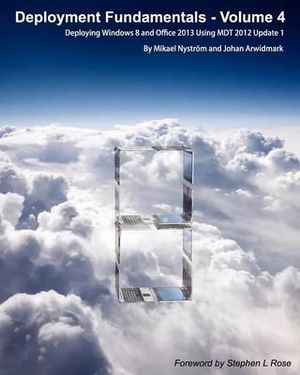
If you want to learn more about MDT then I have to recommend Deployment Fundamentals, Vol. 4: Deploying Windows 8 and Office 2013 Using MDT 2012 Update 1 by Johan Arwidmark and Mikael Nystrom.  They’re the best at this stuff.  I bought it to update my own knowledge and to pick up some more on advanced concepts:

You can get this book on:

Take the time and have a look at what MDT can do for you.  If you have a lab it can be a time saver.  If you’re a consultant, it can be installed in a VM on Windows 8 or 8.1 Client Hyper-V and used on multiple client sites to rapidly provision servers (make sure you use the customer’s volume license product key).  MDT is free and powerful, and that makes it something worthwhile.