Troublesome KB2799728 (CSV Paused State/Offline Patch) Replaced By KB2813630

I previously blogged that memory leak issues were being reported with KB2799728.  That hotfix repaired an issue where CSVs were going into a paused or offline state during backup due to a free space calculation error by ntfs.sys during a VSS backup.

Microsoft has since released a superseding update, KB2813630, which you can download here

image

Finding Hotfixes For WS2012 Hyper-V And Failover Clustering

You can find lists of published patches for Windows Server 2012 Hyper-V & Failover Clustering on the TechNet Wiki:

Credit for the links: Hyper-V.nu

Anyone who is serious about maintaining operational Hyper-V installations should subscribe to the RSS feeds of these two pages and apply the updates.  Tools such as System Center Configuration Manager (larger deployments) and Cluster Aware Updating should make this easier. 

Consultants, in my opinion, should be maintaining a customised installer of Windows Server 2012 by applying this updates to the install.wim file.  This would mean you update the installer every time a new update is released (and verified to be OK – monitor the news feeds).  Every new install of WS2012 would be done from this updated installer and be up to date by default.

I did find a script that claims to do it for WIM and VHD files.  I’ve not tried it, and I’ve no idea if it will work with VHDX.  That would also be a nice solution, especially for boot from VHD, assuming that it works.

Creating A WS2012 Hyper-V CSV Using VMM 2012 SP1 Via SMI-S

In this post I’ll show you how to very easily create a Cluster Shared Volume on a Windows Server 2012 Hyper-V cluster using SMI-S in System Center 2012 Virtual Machine Manager Service Pack 1.

My storage is a WS2012 iSCSI target and I’m using the VMM SMI-S provider for the iSCSI target.

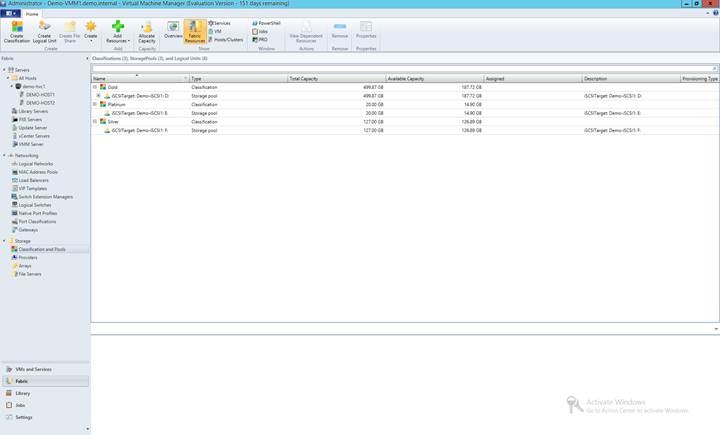
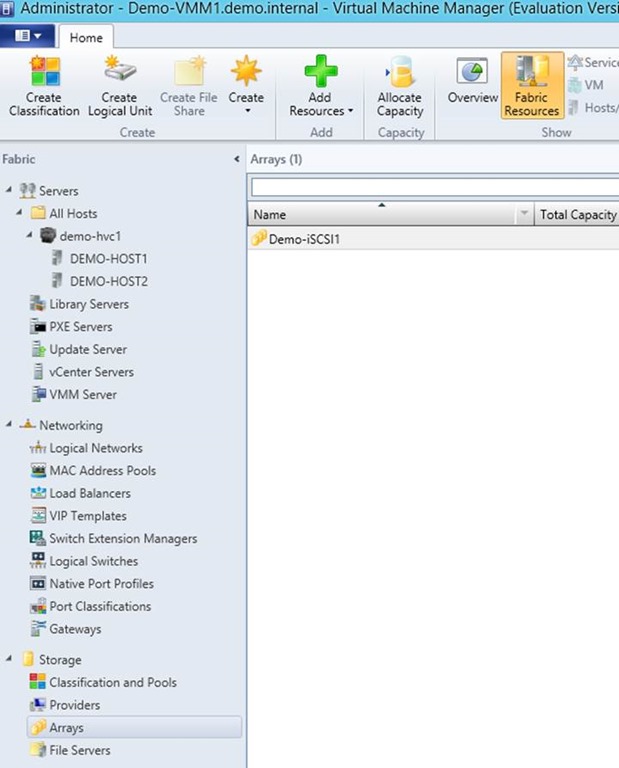
First step is to ensure that the array (the iSCSI target) is configured and it’s physical LUNs are managed and classified.  Classification allows you to label the LUNS, e.g. silver for SATA, gold for SAS, platinum for SSD, or maybe RAID10, RAID5, or whatever suits your needs.  I like bronze, silver, gold, etc, because users get it.
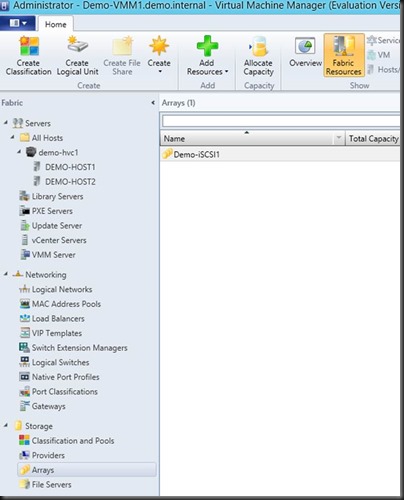
clip_image002

I’ll check each managed LUN on the iSCSI target and classify the LUNs accordingly.  You can create your classifications here or reuse existing ones.
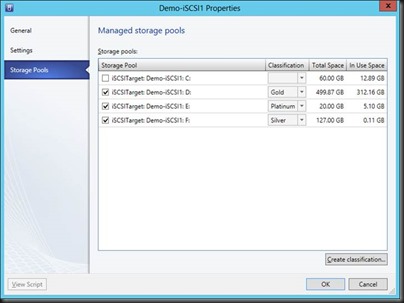
clip_image004

The final result will appear under Classifications and Pools (Fabric).
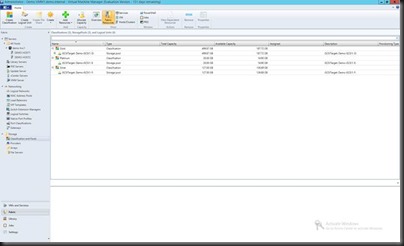
clip_image006

Now, to create a CSV.  We are not going to use the SAN admin tool, Hyper-V Manager, Disk Manager, or Failover Cluster Manager.  Edit the properties of a Hyper-V cluster.  Go to Shared Volumes and click Add.
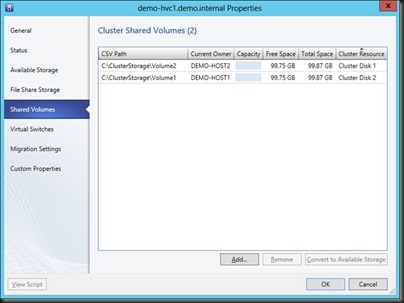
clip_image008

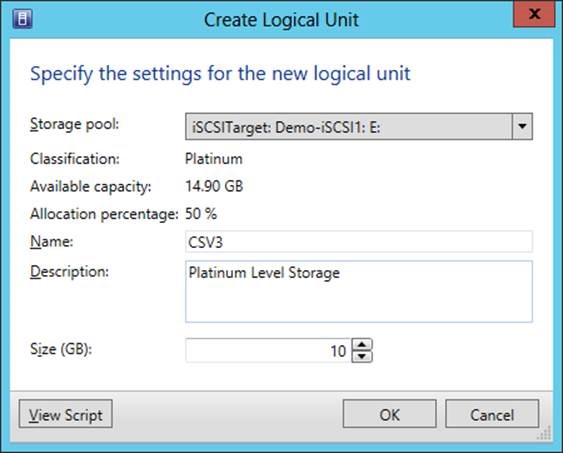
Clicking Add steps you through creating a new LUN in a storage pool (a physical disk on the iSCSI target).  This would be like creating a virtual disk in a disk group on your SAN.  Note how if I change the Storage Pool, the classification is shown, as is free space and allocated space.  I can select how big my new CSV will be. 

clip_image010

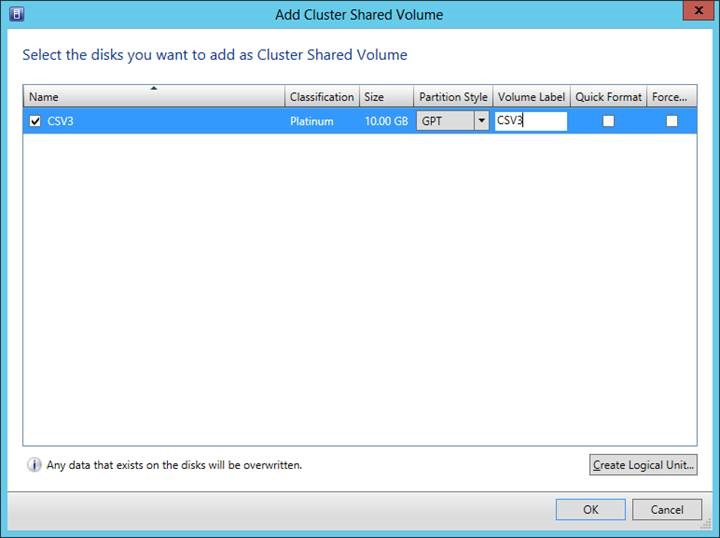
Now to prep the disk volume.  I’ll pick a partition style (MBR or GPT), a volume label, and select how it’ll be formatted.
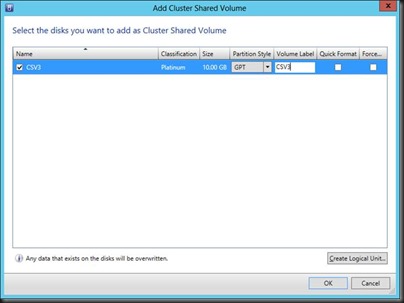
clip_image012

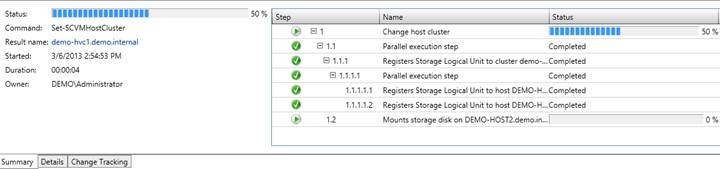
Click OK and go check out what happens in Jobs in VMM.
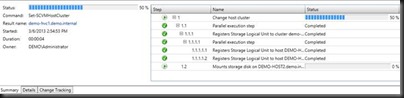
clip_image014

After a few moments a new LUN is created, it is mounted by the cluster, formatted/labelled, and converted into a CSV.  Easy peasy.

And before you ask, yes, you can unmount the volume from the properties of the cluster, you can create/mount/manage non-CSV volumes, and you can delete the LUNs from the SAN.

In fact, I have come  to the conclusion that if you have storage that supports SMI-S, using VMM for (not only bare-metal host/network provisioning) storage creation/allocation/management might be the preferred method.

Adding Cluster To VMM Results in 13805 Error

This relates to when you attempt to add a Hyper-V cluster to VMM and it fails with this message:

Unable to contact cluster service on <name of cluster>

There is a whole bunch of stuff you can try:

  • Verify that the cluster object exists in a local replica of AD
  • A bunch of WMI crap

Instead, why not start simple at a place where AD admins always check first: DNS – verify that the A record in DNS for the cluster is correct.  In my lab I’ve been building my cluster by hand (PowerShell where I control the cluster IP) and by VMM (where I get assigned some IP from the IP pool for the network site).

I was not cleaning up the A record after rebuilds.  My last cluster build was done from a script and used a different IP that I was assigning.  I didn’t notice that the A record was not updated; I guess it was a permissions thing.

I attempted to add the cluster to VMM and I got the above error.  After some thought, I decided to check name resolution and that’s when I saw the issue.  I corrected the A record, flushed the DNS cache on the DNS server and the VMM server, reattempted the cluster add, and it worked OK.

Unveil Of Cisco Nexus 1000V Distributed Switch For Windows Server 2012 Hyper-V

I just got some great news from fellow MVP (System Center) and co-author, Damian Flynn:

Brace yourself, the fun is about to truly begin. On Wednesday March 6th at 9am PST, Cisco will unveil its greatly anticipated Distributed Switch solution for Windows Server 2012 and Hyper-V; the Nexus 1000V.

clip_image002

What is the Nexus 1000V?

Cisco Nexus® 1000V Series Switches provide a comprehensive and extensible architectural platform for virtual machine (VM) and cloud networking. The switches are designed to accelerate server virtualization and multitenant cloud deployments in a secure and operationally transparent manner. Integrated into the Windows Server 2012 Extensible Switch, and fully compatible with System Center Virtual Machine Manager 2012 SP1,

Please blog, tweet, and pass on the message, to learn about the Nexus 1000v, and how to join the beta program; grabbing the all-important Beta Code!

For more information, and registration details please follow and share this link.