KB2770440 – Poor Performance With RemoteFX Enabled On AMD Powered WS2012 Hyper-V Hosts

Microsoft has released a new hotfix to deal with an issue where you have poor performance when you enable RemoteFX in Hyper-V on a Windows Server 2012-based computer that uses AMD processors.

Symptoms

Consider the following scenario:

  • You have a Windows Server 2012-based computer that uses AMD processors.
  • You install a Hyper-V role on the computer.
  • You install the Remote Desktop Virtualization Host (RD Virtualization Host) role service on the computer.
  • You create one or more virtual machines on the computer.
  • You use the Microsoft RemoteFX feature to improve user experience in virtual machines.

In this scenario, graphics performance in the virtual machines is poor.


Cause

This issue occurs because Hypervisor incorrectly configures the Page Address Table (PAT) cache type for root partitions on AMD systems.

A supported hotfix is available from Microsoft.

Building A Hyper-V Cluster For Under $2,000–Free eBook By Altaro

The folks have Altaro have published a free eBook to show you how you build a Hyper-V cluster for less than $2,000.

– How to assemble a simple hardware setup which will allow you to run a two-node Hyper-V failover cluster at a total cost of less than $2,000

– Selecting the recommended hardware, assembling all parts and making the necessary modifications

– Installing your OS and setting up the drivers (download links included) and firing up your new Hyper-V test lab!

Check it out!

Technorati Tags: ,

Exploring Windows Server 2012 Hyper-V Worker Process Security

In this article I want to talk a little about the security of the Hyper-V worker process in WS2012. This might give you a little more knowledge behind a potential problem that I blogged about before about KB2779204.

What is the Worker Process?

The virtual machine worker process reside in user mode (as opposed to kernel mode) in the management OS (also referred to incorrectly as the host OS, running in the root partition you can see in this diagram). There is one VMWP.EXE for every running virtual machine. It’s a small process but it plays an important role, helping Hyper-V to manage the VM.  It is responsible for coordinating all actions performed on a given virtual machine (start, stop, save, snapshot, Live Migration, etc) and is also where any device emulation happens (accessing the legacy network adapter, for instance).

The Security Changes

Let’s define something first. A VM breakout attack is where a hacker gets into the app/OS of a VM and then tries to break out from that security boundary to get onto the host and/or other VMs. This has not happened to Hyper-V but it has happened to certain other hypervisors but Microsoft wants to take no chances.

In Windows Server 2012, each worker process runs under a dedicated user account. There’s a very good preventative security reason for this. . By running the VMWP.EXE under a single restricted user account that has no rights over another other VM or to anything in the management OS (or host). A potential breakout to the VMWP.EXE would be limited to affecting just the compromised virtual machine’s files. It has no rights over anything else and therefore it can do no more damage.

In the following screenshot I’ve used SysInternals (free Microsoft tools) Process Explorer to view the properties of an instance of VMWP.EXE. Note the user account is called NT VIRTUAL MACHINE<some random thing>. You’ll also note Data Execution Prevention (DEP – a BIOS requirement for Hyper-V) is enabled and Address Space Load Randomization is set to High Entropy (to randomize memory against buffer overrun attacks).

clip_image001

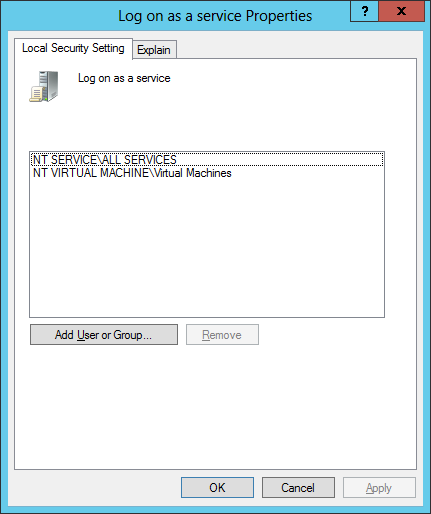
The user account is created for you. There is no user or password management for you. This user is automatically made a member of a special system and hidden group called NT VIRTUAL MACHINEVirtual Machines. In local group policy (GPEDIT.MSC) on the Hyper-V host, you can see that this group has been granted a special right. Computer Configuration > Windows Settings > Security Settings > Local Policies > User Rights Assignment > Log On As A Service is configured as follows:

clip_image002

This permission allows the dedicated user account for each VMWP.EXE to log onto the management OS. This means the VMWP.EXE can start, and the virtual machine can run on this host.

The Gotcha!

Some security officers might want to customize this GPO at the local/domain level to be very restrictive. Maybe they only allow certain groups of managed service accounts to log on as a service. That could cause a problem. Imagine they do implement this restrictive GPO. That would result in each host’s NT VIRTUAL MACHINEVirtual Machines group being evicted from this right. And this could lead to the aforementioned issues in KB2779204.

“Starting or Live Migrating Hyper-V virtual machines may fail with error 0x80070569 on Windows Server 2012-based computers”

By design, as the KB article notes, Hyper-V should detect a GPO refresh every time it happens. This is normally every 90 minutes (with a random offset of 0 – 30 minutes) or whenever you purposely run GPUPDATE.EXE. When the refresh is detected then Hyper-V will repopulate the Log On As A Service right with the Virtual Machines group. That seems to work just fine for most people. But on occasion, there can be a problem, as the KB article states.

Sometimes that problem is a once-off glitch. If so, you can fix the issue by running GPUPDATE.EXE in the management OS of the affected host. Your VMs should start up OK to live migrate to this host with no issues now.

Sometimes the problem happens frequently. If that’s the case, then create an OU for the hosts with a custom GPO. I have said it before, and I’ll say it again: This should be normal practice. Your management OS’s are not like normal servers. Have a custom GPO for your hosts assigned to this Hyper-V hosts OU. It will be configured with special settings just for your hosts (restricted admin rights, AV scanning policies, etc) … including giving NT Virtual MachineVirtual Machines the Log On As A Service right. One GPO refresh later and you’re sorted.

Thanks to Ben Armstrong (Hyper-V Senior Program Manager Lead at Microsoft aka @VirtualPCGuy) for fact-checking this article for me. Admission: I did edit afterwards so mistakes are mine!

KB2786376 – EventID 412 and EventID 257 Logged After install Of W2008 R2 In A WS2012 Hyper-V VM With VHDX

I was sure I had blogged this article; I know I read it and noted it, but I can’t find it in my blog.  I’m getting old!

Anyway, this one deals with a scenario where Application log entries EventID 412 and EventID 257 are logged following install of Windows Server 2008 R2 as guest OS on a VHDx Hard Disk.

Symptoms

Consider the following scenario:

Using Windows Server 2012 Hyper-V Manager, you create a Virtual Machine with a VHDx hard disk using the New Virtual Machine wizard.

You install Windows Server 2008 R2 as guest OS on the newly created Virtual Machine. Following the install, EventID 412 and EventID 257 are logged in the Application Event Log of the guest OS.

Cause

Like physical disks, virtual disks have the same concepts of physical and logical sector sizes.

Certain applications and components, especially database and catalog, are aware of the physical sector size of the disk that they reside on. When these are moved to or installed on a physical disk that doesn’t have the same sector size as the one that they were initialized on, they will choose to do the appropriate action which may include logging an event to communicate the impact. Windows Server 2008 R2 has internal database and catalog components that will generate an error installing on an Advanced Format drive because Windows Server 2008 R2 RTM install media was prepared using a system that had a physical sector size of 512 bytes.

The VHDx hard disk created by the New Virtual Machine Wizard on Windows Server 2012 will be Advanced Format and will have a 4 KB physical sector size and a 512 byte logical sector size.

Resolution

In order for Windows Server 2008 R2 to be supported as a guest OS installed on a physical or VHDx based Advanced Format drive, the install media must contain the hotfix from KB982018 or the install media must contain SP1 or later. For more information regarding the compatibility of Windows Server 2008 R2 with Advanced Format Disks see the following KB982018.

If Windows Server 2008 R2 install media with the hotfix from KB982018 or with SP1 is not available, use the New Virtual Hard Disk Wizard to create a VHD and manually attach it to the virtual machine. It is also possible to use the use the New-VHD Hyper-V Cmdlet in Windows PowerShell to create a VHDx with a virtual hard disk with a physical sector size of 512 bytes as shown in the following example:

new-vhd -path D:VHDvhdx512.vhdx -sizeBytes 100GB -PhysicalsectorSize 512 -dynamic

If a VHDx was created with a physical sector size of 512, it would not be considered Advanced Format and installing Windows Server 2008 R2 without the hotfix from KB982018 or SP1 would be supported. When creating a VHDx with a physical sector size of 512 bytes that is greater than 2TB, the same NTFS file system limitations that apply to a similar physical hard disk would apply to the VHDx virtual hard disk.

In other words, if you get this alert then deploy either SP1 for W2008 R2 or install the update (here’s the reason why).  If you cannot do either of those, then install the OS and app into a custom VHDX as with the above cmdlet (that example creates a 100 GB Dynamic VHDX).

KB2770917 – WS2012 Hyper-V Backup Fails On NetApp

The November 2012 cumulative rollup for Windows 8 and Windows Server 2012 contains a fix for a when you get the following error when backing up Windows Server 2012 Hyper-V VMs that are stored on NetApp storage:

The number of volumes reverted does not match the number of volumes in the snapshot set for virtual machine.

This cumulative update provided a new version of the Integration Components on the host to fix the issue.  You have (or had if you have already done it) to deploy this new version of the ICs to your guest OSs.  Didier Van Hoye previously (and correctly) blogged that this was only necessary for guest OSs that are Windows Server 2008 & Windows Vista or later.

To get the fix: patch your host (Windows Update – KB2770917) and update the ICs in the guest OSs.

Note: I record this as KB2770917.  That’s the number of the cumulative update that was delivered via Windows Update.  That update includes a number of articles that are not publicly documented.  We just got briefed on this issue so that’s why I’m posting this article 5 months after the update release.

Comparing Methods To Implement Converged Fabrics For Windows Server 2012 Hyper-V

I’ve done a lot of posts over the last year on converged fabrics in Windows Server 2012 Hyper-V, not to mention nearly 100 pages on the topic in the new Hyper-V book.  Pretty much all of them center on using PowerShell to create your converged fabric in the management OS of the host itself.  But doing this is just 1 of the 3 ways (that I know of) for creating a converged fabric.  This topic has come up several times in conversation and blog comment over the past month so I thought I’d explore it a bit.

Using Hyper-V PowerShell in the Management OS

The benefit to implementing converged fabrics in the management OS is that with a pretty simple script, you can implement 1 design across an entire data centre no matter what hardware vendor you choose, or if you have rack servers here and blade servers there.  It’s the same every time, depending on physical NIC designs.  It’s also using technology that’s built into the virtualisation solution.  There is no dependency on additional expensive hardware.  And it’s software defined.  We like software-defined-anything right now because it is flexible.  In theory (and in practice as you’ll soon see) we can change it from a central point when the need arises.  That’s not the case with hardware defined solutions.

There is a concern for some about dependability.  All this MSFT networking is very new.  Can you build mission critical systems on it?  Some want to take the time to learn it a bit more before deploying it.

Hardware Network Appliances

An older option that’s been used for quite a while is to use hardware networking appliances to create converged fabrics, such as FlexFabric by HP (and others).  In the case of FlexFabric, with a pair of EUR 18K Virtual Connects you can carve up your 2 * 10 GbE blade server NICs into multiple 1 GbE NICs.  The benefit here is that you do the carving once per blade chassis with up to 8 or 16 blades per chassis.  It’s also a hardware appliance.  That means there is no CPU cost to implementing QoS in the management OS (as minor as that might be).  But importantly, there is a support policy from the hardware vendor – assuming that you (a) pay for the support and (b) the hardware is not more than 3 years old.

On the downside, hardware based solutions are very expensive.  That’s an issue when you’re looking at cloud computing and cross-charging, especially for public clouds where every capital expense makes your customer charges less competitive.  You’re also tied to that hardware vendor (thus impacting your future bid pricing) and possibly even that model of server.  And blades are not the most cost effective way to rack out a data center – walk into any substantial modern cloud and I bet you’ll see a hell of a lot more rack 1U and 2U servers than anything else!  The solution is hardware defined.  That makes it inflexible.  You set it per rack using the tools provided by the h/w manufacturer.  That’s not necessarily the most cloud integrated solution around.  I’d rather have control of the stack form top-to-bottom.

I’ve never used this approach so I don’t know where the NIC teaming is done or if you have to use the not-Microsoft-supported 3rd party software.  In the end, the networking will probably appear like it did in W2008 R2 Hyper-V.

VMM 2012 SP1 Logical Switch

There is a third option … which is related to a blog comment I got recently.  You can deploy a software defined converged fabric from System Center 2012 Virtual Machine Manager SP1 (VMM 2012 SP1).  Instead of deploying the WS2012 Hyper-V converged fabric from within the management OS, you create and deploy a logical switch from VMM.  You can do this in two ways:

  • As a part of bare metal host build
  • Or deploy it to an existing host … and overwrite the existing networking config on that host

Using VMM gives you all the benefits of software defined converged fabrics as in the aforementioned PowerShell option.  However, there’s a lot of stuff to create first in VMM.  But once that’s done, you can deploy that logical switch and the converged fabric design to any host (bare metal or existing) with some mouse clicks from the VMM console.  That gives you top-to-bottom control of the stack from a central point.

Two things to remember here:

  • Not everyone should be a VMM administrator.  That’s why delegation exists.
  • Yes, you can erase the existing networking config on a running host by deploying a logical switch to it.

Choose One or the Other Software Defined Approach

VMM 2012 SP1 does not recognise existing Hyper-V PowerShell deployed converged fabric designs because they aren’t implemented with the VMM logical switch.  This does not mean the host cannot be managed.  You can still create logical networks and IP address pools.  You just lose the central configuration that the logical switch can offer … and you cannot do Network Virtualization in the real world (which requires VMM networking).  My advice: if you are doing Hyper-V software defined converged fabrics then choose 1 method only:

  • Use PowerShell in the management OS if you want simplicity XOR
  • Use the VMM logical switch to push out the configuration, especially if you want central configuration, Network Virtualization, or to use VMM-managed virtual switch extensions

There will be downtime to switch from the PowerShell method to the VMM one.

What’s the Right Solution?

In the end, you should pick the right choice for you or your customer, be it hardware or software defined.  There is no universal right answer.  Shh, there is … do software defined converged fabrics! Winking smile

MVP Book: Microsoft System Center Virtual Machine Manager 2012 Cookbook

It’s been a big month for fellow VM MVP, Edvaldo Alessandro Cardoso.  First he started a cool new job, and now he’s got a new book called Microsoft System Center Virtual Machine Manager 2012 Cookbook on the shelves. 

Microsoft System Center Virtual Machine Manager 2012 Cookbook

– Create, deploy, and manage Datacentres, Private and Hybrid Clouds with hybrid hypervisors by using VMM 2012 SP1, App Controller, and Operations Manager.

– Integrate and manage fabric (compute, storages, gateways, networking) services and resources. Deploy Clusters from bare metal servers.

– Learn how to use VMM 2012 SP1 features such as Windows 2012 and SQL 2012 support, Network Virtualization, Live Migration, Linux VMs, Resource Throttling, and Availability.

You can buy this book now from:

Congratulations on the new job and the book Alessandro!

Technorati Tags: ,,,

Windows Server 2012 Hyper-V Installation And Configuration Guide Is Out On Amazon

I wanted to post a Tweet saying it was T-3 until the new book was out.  I decided to double-check the availability date on Amazon.com (USA) when …

image

It’s out NOW!

I can’t wait to get a paper copy.  The norm is that folks in the USA who order now will have it before we authors do.  I just got it on Kindle and it looks good if I do say so myself Smile

So that’s that!  The Kindle version appears to be out on all Amazon stores.  The paperback is out in the USA, and appears to be coming to Amazon Europe on April 5th:

The book is also (coming) out through the usual tech book channels, so check them out if Amazon doesn’t cover your area.

Congrats to the author team, Hans, and the editors for all the hard work, and a special thanks to Mariann for believing in this project.

Authors:

  • Patrick Lownds, UK, Virtual Machine (Hyper-V) MVP
  • Michel Luescher, Switzerland, Microsoft Consulting Services
  • Damian Flynn, Ireland, Cloud and Datacenter Management (System Center) MVP
  • Me, Aidan Finn, Ireland, Virtual Machine (Hyper-V) MVP

Technical Editor: Hans Vredevoort, Netherlands, Virtual Machine (Hyper-V) MVP


Questions? The Windows Server 2012 Hyper-V Book Release FAQ

9781118486498 cover.indd

KB2830510 – Creating a Windows Server 2012 Failover Cluster Fails with Error 0xc000005e

Microsoft has posted a KB article for when a cluster creation fails with an “Unknown error (0xc000005e)” due to a networking issue.

Symptoms

When attempting to run the Create Cluster Wizard to create a Failover Cluster with Windows Server 2012, the operation may fail. Additionally, you may receive the  following error:

An error occurred while creating the cluster.
An error occurred creating cluster ‘MyCluster’.
Unknown error (0xc000005e)

Note: An error 0xc000005e means STATUS_NO_LOGON_SERVER

Upon investigating the CreateCluster.mht that is located under C:WindowsClusterReports directory, you may notice the operation failure happens during the following:

– Verifying computer object ‘MyCluster’ in the domain.
– Unable to successfully cleanup.

Cause

This problem can occur if TCP or UDP Port 464 is blocked.

Resolution

To resolve this problem, ensure that port 464 for both TCP and UDP is open on all firewall network devices between the nodes in the cluster and the domain controller.

The error STATUS_NO_LOGON_SERVER is caused because the nodes in the cluster were unable to communicate with a domain controller to set the password when attempting to configure the computer objects in Active Directory. Port 464 is enabled by default in Windows Firewall on Windows Server 2012. 

Beware When Using Descriptive Names For VMM

Over the years I’ve seen lots of computer naming standards.  Some have used Simpsons or Tolkein character names, football player surnames, etc.  That has mainly because of laziness, but sometimes it’s to do with security-by-obscurity because “hackers then can’t figure the network out” Smile  Ooooooo-k then!  No need for defensive comments on that topic Smile

On the other extreme I’ve seen the likes of Dub-Lab-DC-1.  It couldn’t get much more descriptive without including the spec of the server.  You’ll need to be careful if creating a VMM server in this kind of network.  There’s a small, but important, note in TechNet article that describes the system requirements of System Center 2012 Virtual Machine Manager (VMM) with/without Service Pack 1 (SP1).

In addition to the normal rule of the computer name not exceeding 15 characters:

The computer name cannot contain the character string of –SCVMM-, but you can use the character string of SCVMM in the computer name. For example, the computer name can be SEASCVMMLAB, but the computer name cannot be SEA-SCVMM-LAB.

In other words:

  • Dub-Lab-SCVMM-1 is BAD.
  • Dub-Lab-SCVMM1 is good.  A single hyphen can be the difference between a successful day and a world of hurt.

Interestingly, neither Bing nor Google return any results for -SCVMM- for me.