It’s easy to blame Azure when something goes wrong. But sometimes, Azure isn’t at fault. Sometimes, the problem is old-school. The trick in solving the problem is knowing how to diagnose and fix it.
Background
I helped an Irish Microsoft partner with some Azure VM-based work about a month ago. The partner needed some Azure experience and extra capacity. It was a small job – I’m happy doing everything from an hour for a small-medium business partner to a full-blown Cloud Adoption Framework for a large enterprise (both are on the Cloud Mechanix books).
The partner pinged me last Friday to say that he couldn’t log into the new VM anymore. I had some free time on Friday afternoon, so I had a quick look.
Diagnostics Progress in Azure
I verified the problem:
The partner could not RDP directly.
The partner could not RDP via Bastion.
An Azure deployment for a smaller business is a different beast. You do not get the privilege of firewalls, Flow Logs, etc. Those resources provide logs that allow me to trace packets from A to B inside the Azure network. I had to visualise and test. You also find the use of Public IP addresses with NSG inbound rules controlling RDP. I have suggested the switch to Bastion, which the partner is considering.
My first port of call was to double-check NSGs. The NIC has an NSG. I made sure that the subnet did not have an NSG as well – I’ve seen people create a rule in a NIC NSG and not in a subnet NSG. The subnet NSG is processed first for inbound traffic, so it could deny traffic that the NSG NIC allows. This was not the case here – no subnet NSG.
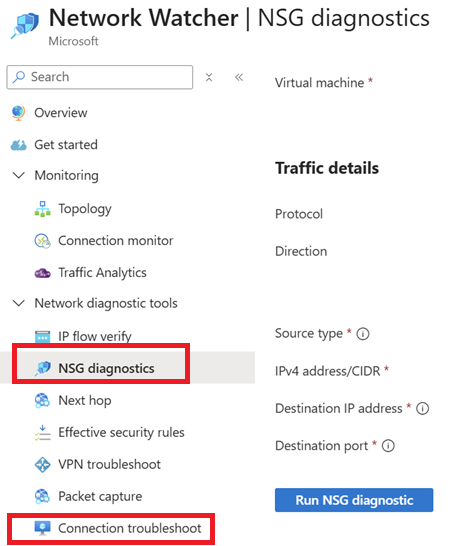
The inbound rules on the NIC NSG allowed RDP from the partner and the customer. I started with a Connection Troubleshoot using the IP address for the developer SKU of Bastion (168.63.129.16). That appeared OK.
I then double-checked with NSG Diagnostics – Bastion is a supported source. That failed – looking back on it, this should have triggered a different resolution path.
I got the partner to run a password reset in the guest OS using Help > Reset Password. Note that this process also does some RDP reset work inside the guest OS. The process succeeded but did not fix the issue.
I’ve seen RDP issues with VMs where the problem is within the platform. Azure provides us with a poorly-named feature called Redeploy. The name implies that in a deployment/developer-centric environment, a new VM will be deployed. In fact, the action re-hosts the VM, doing something similar to a quick migration from the Hyper-V world:
Shutdown the VM
Move the VM to another host
Reinitiate Azure management of the VM – this is the key piece
Restart the VM
Downtime is required. I’ve used this feature a handful of times over the years to solve similar issues: Everything seems fine networking-wise with the VM but you cannot log in. Running the action resets Azure’s RDP connection to the VM. The partner ran this action over the weekend but the issue was not fixed.
Diagnostics Process in The VM
Monday came along and the partner updated me with the bad news. Now I suspected something was wrong inside the guest OS. How was I going to fix the guest OS if I couldn’t log in.
There are two secure back doors into a guest OS in Azure. If you need an interactive prompt then you have serial console access.
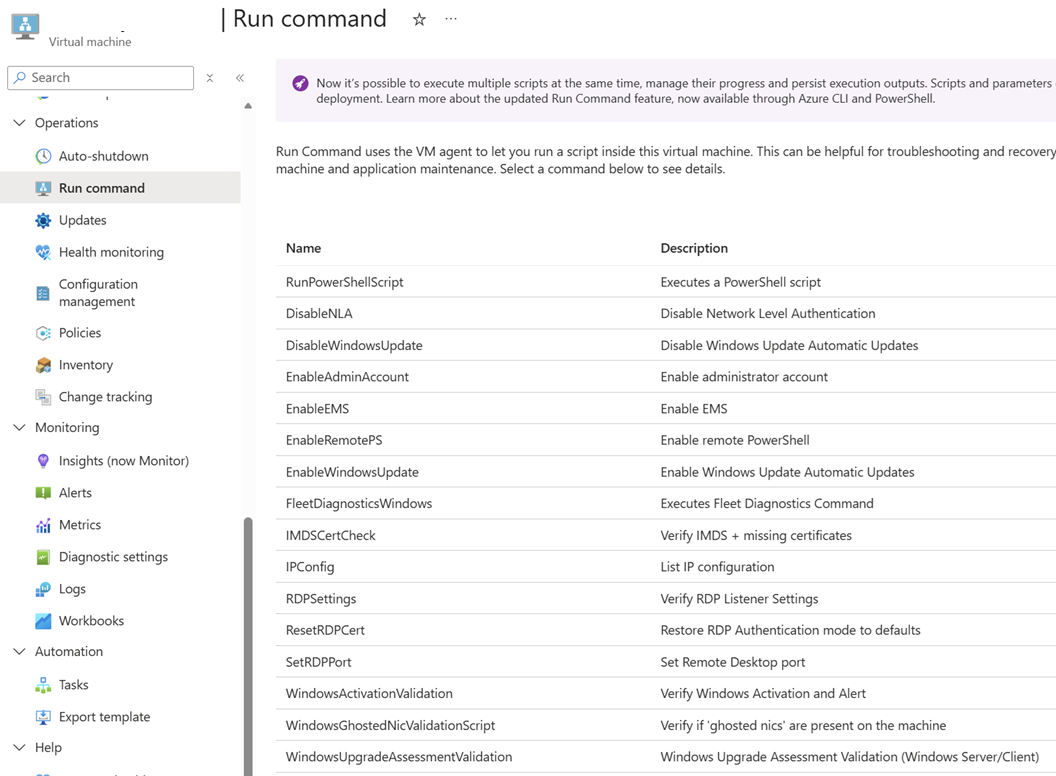
I wanted to run a couple of PowerShell commands, one at a time. So I opted for Run Command, which allows you to run scripts or single commands in the guest OS via a VM extension (an secure channel, based on your Azure rights).
The first command I ran was ResetRDPCert. The partner mentioned something about RDP certs and I was worried that some PKI damage was done. That command didn’t fix the issue.
RDP was working. No NSG rules were blocking the traffic. Networking was fine. BUt I could not RDP into the VM. The connections were IP-based and I was using a local administrator account so DNS (“it’s always …”) was not the culprit (this time!). There as no custom routing or firewall (small business scenario) so they were not the cause. I knew it was the guest OS, so that left …
The partner messaged me to let me know that he could not log in. I knew Windows Firewall was at fault, so I reckoned that the firewall was back online. There is a Windows domain, so a GPO might have re-enabled the firewall; that’s a good thing, not a bad thing. The long-term fix was to accept that a guest OS firewall should be on and add rules to allow the UDP & TCP 3389 traffic.
I added 2 custom rules with pretty obvious names in Windows Firewall. I wanted to be sure that the firewall would not break things after a GPO refresh so I ran gpupdate /force a few times (veteran domain admins know that run 1 is based on cache, 2 runs the latest version from a DC, and 3 deals with edge cases where 2 downloads but doesn’t deploy). I checked the firewall … and it was still not running!?!?! Group Policy was not managing the firewall.
What the heck was updating the firewall? What has changed in the last few weeks?
Windows admins are used to another thing (other than DNS) breaking our networks: security software. I quickly checked the system tray and saw a product name that screamed security. I messaged the partner on Teams and got a quick response “yes, it’s a security product and it recently got an update”. A quick check online and I found that this product does activate Windows Firewall. Ah – finally we found the root cause, not just the effect.
Lesson
Azure gives us tools. Copilot can be super cool at debugging confusing errors. But what do you do when 1 + 1 = 4096? There is nothing like a techie that learned how the fundamentals work, including the old fundamentals, has been burned in the past, and has learned how to troubelshoot, even when the assumed basics (monitoring and guest OS access) are not there.
In this post, I will explain how I have interpreted the Cloud Adoption Framework for Microsoft Azure and how I apply it with my company, Cloud Mechanix.
Taking Theory Into Practice
In my last post, I explained two things:
The value of the Cloud Adoption Framework (CAF)
It is never too late to apply the CAF
I strongly believe in the value of the CAF, mostly because:
I’ve seen what happens when an organisation rushes into an IT-driven cloud migration project.
The CAF provides a process to avoid the issues caused by that rush.
The CAF does have an issue – it is not opinionated. The CAF has lots of discussion, but can be light on direction. That’s why I have slightly tweaked the CAF to:
Take into account what I believe an organisation should do.
Include the deliverables of each phase.
Indicate the dependencies and flow between the phases.
Highlight where there will be continuous improvement after the adoption project is complete.
The Cloud Mechanix CAF
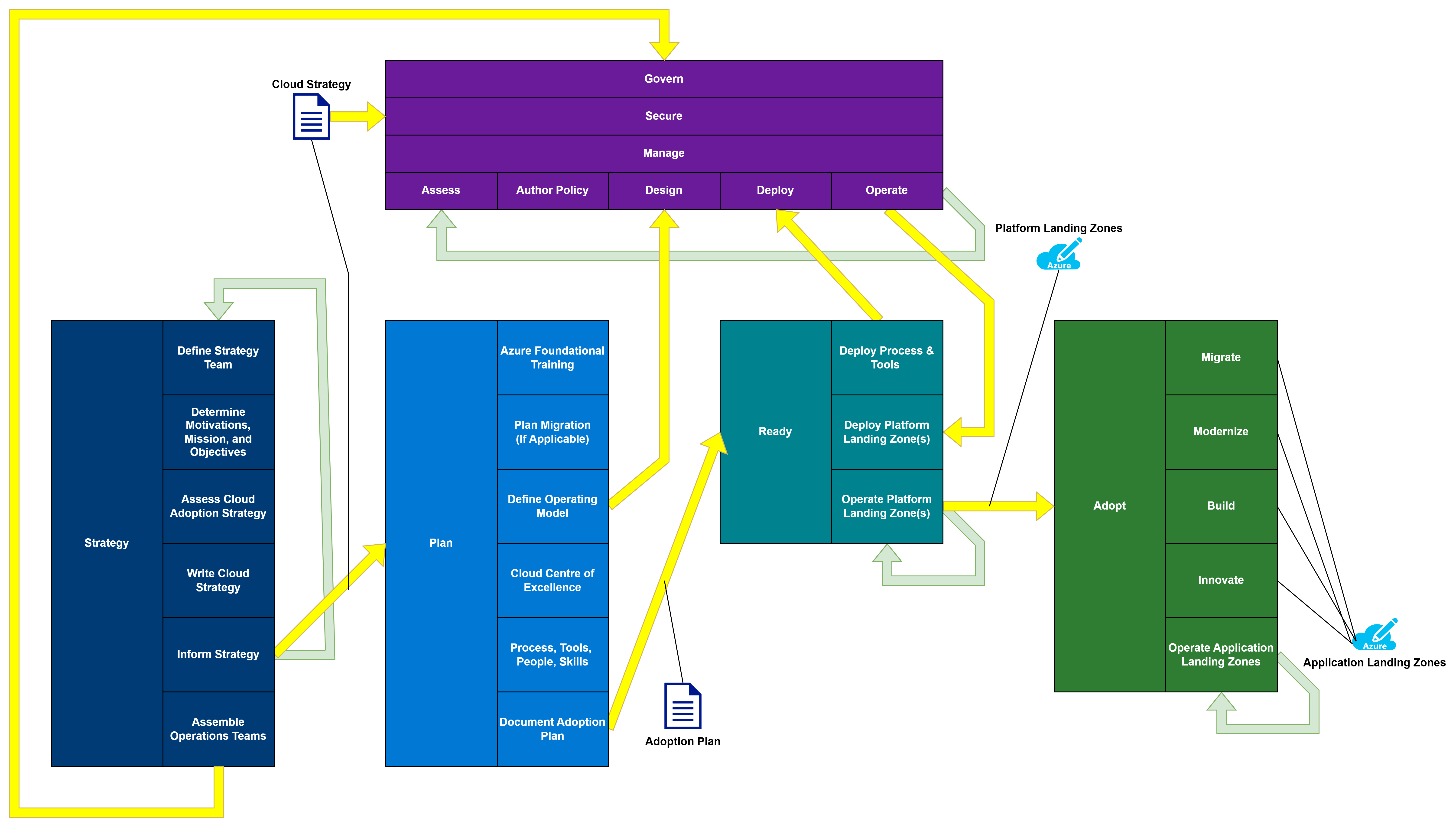
Here is a diagram of the Cloud Mechanix version of the Azure Cloud Adoption Framework:
There are two methodologies:
Foundational
Operational
Foundational Methodology
There are four phases in the Foundational Methodology:
Strategy
Plan
Ready
Adopt
Strategy
The Strategy phase is the key to making the necessary changes in the organisation. When an IT (infrastructure) manager starts a migration project:
They have little to no knowledge of the organisation-wide needs of IT services.
No influence outside their department – particularly with other departments/divisions/teams – to make changes.
Possibly have little interest in any process/organisational/tool changes to how IT services are delivered.
The process will run sequentially as follows:
Task
Description
Deliverable
Define Strategy Team
Select the members who will participate in this phase. They should know the organisational needs/strategy. They must have authority to speak for the organisation.
A team that will review and publish the Cloud Strategy.
Determine Motivations, Mission, and Objectives
Identify and rank the organisation’s reasons to adopt the cloud. Create a mission statement to summarise the project. Define objectives to accomplish the mission statement/motivations and assign “definitions of success”.
Ranked motivations. A mission statement. Objectives with KPIs.
Assess Cloud Adoption Strategy
Review the existing cloud adoption strategy, if one exists.
A review of the cloud strategy, contrasting it with the identified motivations, mission statement, and objectives.
Write Cloud Strategy
A cloud strategy document will be created using the gathered information. This will record the information and provide a high-level plan, with timelines for the rest of the cloud adoption project.
A non-technical document that can be read and understood by members of the organisation.
Inform Strategy
The Cloud Strategy will be published. A clear communication from the Strategy Team will inform all staff of the mission statement and objectives, authorising the necessary changes.
A clear communication that will be understood by all staff.
Note that the steps to produce and publish this strategy will be repeated on a regular basis to keep the cloud strategy up-to-date.
Assemble Operations Teams
The leadership of the Operational Framework tracks will be selected and authorised to perform their project duties.
The team leaders will initiate their tracks, based on instructions from the Cloud Strategy.
The Cloud Strategy is the primary parameter for the tracks in the Operational Framework and the Plan phase of the Foundational Framework.
Plan
The Plan phase is primarily focused on designing the organisational changes to how holistic IT services (not just IT infrastructure) are delivered.
Task
Description
Deliverable
Azure Foundational Training
The entry level of Azure training should be delivered to any staff participating in the Plan/Ready phases of the project.
The AZ-900 equivalent of knowledge should be learned by the staff members.
Plan Migration
An assessment of workloads should begin for any workloads that are candidates for migration to the cloud. This is optional, depending on the Cloud Strategy.
A detailed migration plan for each workload.
Define Operating Model
Define the new way that IT services (not just infrastructure) will be delivered.
An authorised plan for how IT services will be delivered in Azure. The operating model will be a parameter for the Design task in the Govern/Secure/Manage tracks in the Foundational Methodology.
Cloud Centre of Excellence
A “special forces” team will be created to be the early adopters of Azure. They will be the first learners/users and will empower/teach other users over time.
A list of cross-functional IT staff with the necessary roles to deliver the operational model.
Process, Tools, People, and Skills
The processes for delivering the new operational model will be defined. The tools that will be used for the operational model will be tested, selected, and acquired. People will be identified for roles and reorganised (actually or virtually) as required. Skills gaps will be identified and resolved through training/acquisition.
The necessary changes to deliver the operational model will be planned and documented. Skills will be put in place to deliver the operational model.
Document Adoption Plan
A plan will be created to: 1. Deploy the new tools 2. Build platform landing zones 3. Prepare for Adopt
An adoption plan is created and published to the agreed scope.
The Adoption Plan will be the primary parameter for the Ready phase.
Ready
The purpose of Ready is to:
Get the tooling in place.
Prepare the platform landing zones to enable application landing zones.
There is a co-dependency between Ready and the Operational Methodology. The Operational Methodology will:
Require the tooling to deploy the governance, security and management features, especially if an infrastructure-as-code approach will be used.
Provide the governance, security, and management systems that will be required for the platform landing zones.
This means that there is a required ordering:
Governance, Secure, and Manage must design their features.
Ready must prepare the tooling.
Governance, Secure, and Manage will deploy their features.
Ready can continue.
Task
Description
Deliverable
Deploy Process & Tools
The tools and processes for the operating model will be deployed and made ready.
This is required to enable Govern, Secure, and Manage to deploy their features.
Deploy Platform Landing Zones
Landing zones for features such as hubs, domain controllers, DNS, shared Web Application Firewalls, and so on, will be deployed.
The infrastructure features that are required by application landing zones will be prepared.
Continuous improvement for performance, reliability, cost, management, and functionality.
The platform landing zones are a technical delivery parameter for the Adopt phase.
Adopt
The nature of Adopt will be shaped by the cloud strategy. For example, an organisation might choose to do a simple migration because of a technical motivation. Another organisation might decide to build new applications in The Cloud, while keeping old ones in on-premises hosting. Another might choose to focus entirely on market disruption by innovating new services. No one strategy is right, and a blend may be used. All of this is dictated by the mission statement and objectives that are defined during Strategy.
Task
Description
Deliverable
Migrate
A structured process will migrate the applications based on the migration plan generated during Plan.
An application landing zone for each migrated application.
Modernise
Applications are rearchitected/rebuilt based on the migration plan generated during Plan.
An application landing zone for each migrated application.
Build
New applications are built in Azure.
An application landing zone is created for each workload.
Innovate
New services to disrupt the market are researched, developed, and put into production.
An innovation process will eventually generate an application landing zone for each new service.
Operate Application Landing Zones
Each application landing zone is operated in accordance with the Well-Architected Framework.
Continuous improvement for performance, reliability, cost, management, and functionality.
Operational Methodology
The Operational Methodology must not be overlooked; this is because the three tracks, running in parallel with the Foundational Methodology, will perform necessary functions to design and continuously operate/improve systems to protect the organisation.
The three tracks, each with identical tasks, are:
Govern: Build, maintain, and improve governance systems.
Secure: Build, maintain, and improve security systems.
Manage: Build, maintain, and improve systems guidelines and management systems.
Manage: Reliability, operational excellence, and performance efficiency
Each track has a separate team with:
A leader
Stakeholders
Architect
Implementors
Each is a separate track, but there is much crossover. For example, Azure Policy is perceived as a governance solution. However, Azure Policy might be used:
By Govern to apply compliance requirements.
By Secure to harden the Azure resources.
By Manage to automate desired systems configurations.
The inheritance model for Azure Policy is Management Groups, so all three tracks will need to collaborate to design a governance architecture. For this reason, the architect should reside in each team. The implementors may also be common.
Task
Description
Deliverable
Assess
Perform an assessment of the current/future requirements, risks, and requirements.
A risk assessment with a statement of measurable objectives.
Author Policy
A new policy is written, or an existing policy is updated to enforce the objectives from the assessment.
A policy document is written and published.
Design
A solution to implement the policy is designed. The goal is to automate as much of the policy as possible. Remaining exceptions should be clearly documented and communicated with guidelines.
High-level and low-level design documentation for the technical implementation. Clearly written and communicated guidelines for other requirements.
Deploy
This depends on Deploy Process & Tools from Ready. Deploy the technical solution.
The technical Azure (platform landing zones) and any third-party resources are deployed to implement governance, security, and management based on the published policies.
Operate
The systems are run and maintained.
Continuous improvement for performance, reliability, cost, management, and functionality. The Deploy Platform Landing Zone(s) in Ready can proceed.
Note that Govern, Secure and Manage should never finish. They should deliver a minimal viable product (MVP) to quickly enable Ready with a baseline of governance, security, and management best practices, as defined by the organisation. A regular review process will assess the policy versus new risks/requirements/experience. This will start a new cycle of continuous improvement.
This approach should be the method used for continuous risk assessment in IT Security or compliance. If this is true, then the new Azure process can be blended with those processes.
Final Thoughts
The partners of a 3-or 4-letter consulting franchise do not have to get rich from your cloud journey. The Cloud Adoption Framework does not have to be a process that generates tens of thousands of pages of reports that will never be read. The focus of this approach is to:
Enable cloud adoption.
Use a rapid light-touch approach that avoids change friction.
For example, a Cloud Strategy workshop can be completed in 1.5 days. A high-level design for a minimum viable security policy can be discussed in under 1 day. The Cloud Strategy will, and should, evolve. The IT Security policy will evolve with regular (risk) assessments.
I’m going to explain why the Cloud Adoption Framework can offer answers to Azure – even for organisations that have been in The Cloud for years.
Let Me Tell You Some Stories
As someone who started his professional career in IT back before Google was a thing, I have a few stories to tell.
The central IT department in a decentralised organisation spends months deploying an Azure infrastructure. Years later, they are puzzled as to why none of the other departments will use the cloud platform.
Another organisation spends a lot of money building a secure/flexible platform in Azure. 24 months later, the developers are still refusing to use this platform. They even seek out other ways to use Azure.
A very large organisation starts their cloud journey. A consultant asks them, “Have you done any preparation for the organisation?” The response is “We did that last week. Just get on with deploying stuff!”
These stories are based on truth. They are common stories – I know that anecdotally. Let’s figure out:
What went wrong?
How do we prevent it?
What can you do if the above stories are similar to what you are experiencing?
Cloud Migration
Before big data, then IoT, and then AI, stole Microsoft’s focus, the corporation used to repeat this line:
Cloud is not where you work. Cloud is how you work.
Looking back on it, that oft-repeated marketing phrase genuinely had meaning, and it succinctly defines the problem.
Just about every (I’m being cautious, because I think it is every) cloud journey project that I was sent to work on as a consultant started this way:
An IT manager ran the project.
The reasoning was “get off of X, get out of Y” or some other technical reason that made sense to the IT manager.
The project was contracted as (1) build the platform, (2) migrate the applications, and (3) do a handover to the IT department.
This is what I call a “cloud migration”. Why is that? The IT department is leaving a hosting facility, a computer room, old hardware, VMware/Nutanix/etc. They are lifting & shifting the VMs to Azure. Some new tooling will be used, but no processes will change.
The IT department will then tell the devs, “We are in the cloud! Come use the company-approved cloud.” The devs get some level of access and here’s their first experience when the business assigns a new project:
They design the application without interaction with IT/IT Security, as usual.
They attempt to deploy the application in Azure, but they have no rights.
After a helpdesk ticket, some resource groups will be set up with assigned rights.
The developers start to work, seek out some assistance, and are told that the design is unsuitable for compliance/security reasons. They must start over again.
The new design requires some networking features. The developer has no rights to Azure networks, so this requires several helpdesk tickets to eventually resolve.
Weeks later, the application is nowhere near ready. The business is impatient. The developer is frustrated.
This is not the story of one organisation. This has happened and is happening worldwide. The reason for this is that the IT department moved the applications to a new location. Nothing else changed.
Cloud Adoption
The cloud adoption journey is one of change. Typically sponsored by the business, A strategy is defined and clearly communicated:
We are changing how we deliver IT services for the business
Old organisational structures will be broken down to create a cooperative process. This will involve new tools and training before we put everything into action.
A new method of working will empower on-demand self-service.
Guardrails will be put in place to protect the organisation, its customers/suppliers/partners, and ensure operational excellence.
As you can see, there is a lot more going on here than “let’s use Veaam or Azure Migrate to shove some VMs into The Cloud.”
Some questions should arise now:
Is there a canned process for doing this?
How long is all this going to take?
Is some 3-letter or 4-letter global consulting company going to be handing out ivory back scratchers as annual bonuses to their consultants at the end of this?
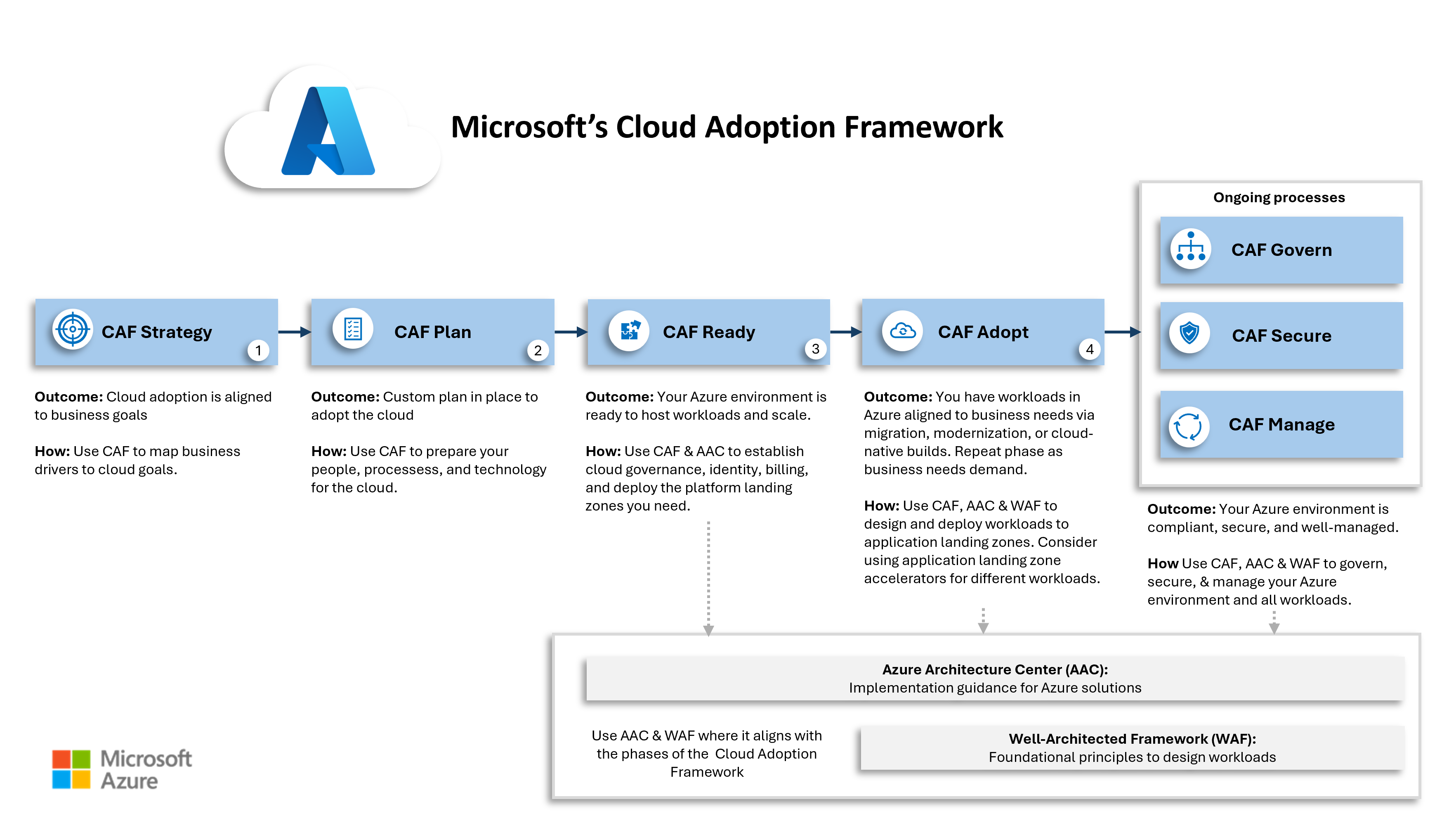
The Microsoft Azure Cloud Adoption Framework
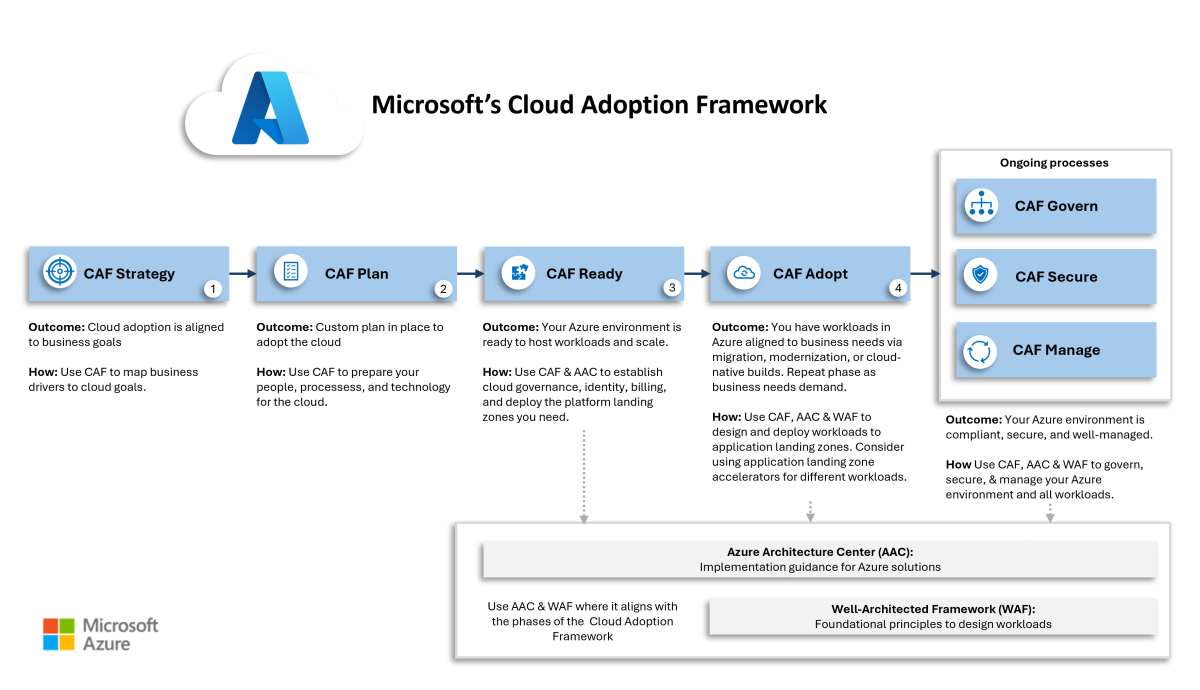
The Microsoft Cloud Adoption Framework – let’s save my fingers and call it “the CAF” – was created and continues to be curated by Microsoft. The legend goes that Microsoft observed these issues and worked with Microsoft partners to create the CAF. The CAF contains a lot of information:
How to build things in Azure
How to operate Azure
But most importantly, how to do the cloud adoption journey:
The CAF has evolved gradually since the first release, but the substance remains the same:
There are two methodologies:
Core methodology: The core phases for a successful cloud adoption.
Operational methodology: Building and continuously improving the guardrails.
In summary, the core methodology has 4 phases:
Strategy: Understand why the organisation’s leadership wants to start the cloud adoption journey. Translate those motivations into measurable objectives and a mission statement. Write and clearly communicate a cloud strategy for the entire organisation.
Plan: Any migration assessments (see objectives) will be started now because they will take time. However, the main work is defining the new IT operations model, preparing the organisational changes, identifying the required tools, and filling skills gaps through training/acquisition.
Ready: The technical work begins! The tooling is readied. The first platform landing zones (shared infrastructure such as hubs) are built. The goal is to be ready for the first application landing zones.
Adopt: The organisation finally gets the new/old applications in the cloud through migration, new builds, and innovation (this last one is quite important to business leaders).
The operational methodology will have three parallel tracks, starting after the cloud strategy is communicated, and aiming to have their minimal viable products available before Ready starts:
Govern: Protections for the business are created, covering cost management/optimisation, compliance, and so on. This will be impacted, for technology reasons by Security and Manage.
Secure: This is where modern IT security processes should be in action. A cloud security policy is created, dictating the technical security build, putting in the processes, and regularly doing risk assessments to improve the holistic posture.
Manage: The more practical elements of running Azure are dealt with, including (but not limited to): disaster recovery, backup, patching, monitoring, alerting, and so on.
Each track will have a team with stakeholders (compliance officers, IT security, and so on) and technical staff that can architect and deploy the features. There will be a lot of crossover. For example, Azure Policy (seen as a governance product) can automate:
Governance features
Security audits/enforcements
Operational excellence.
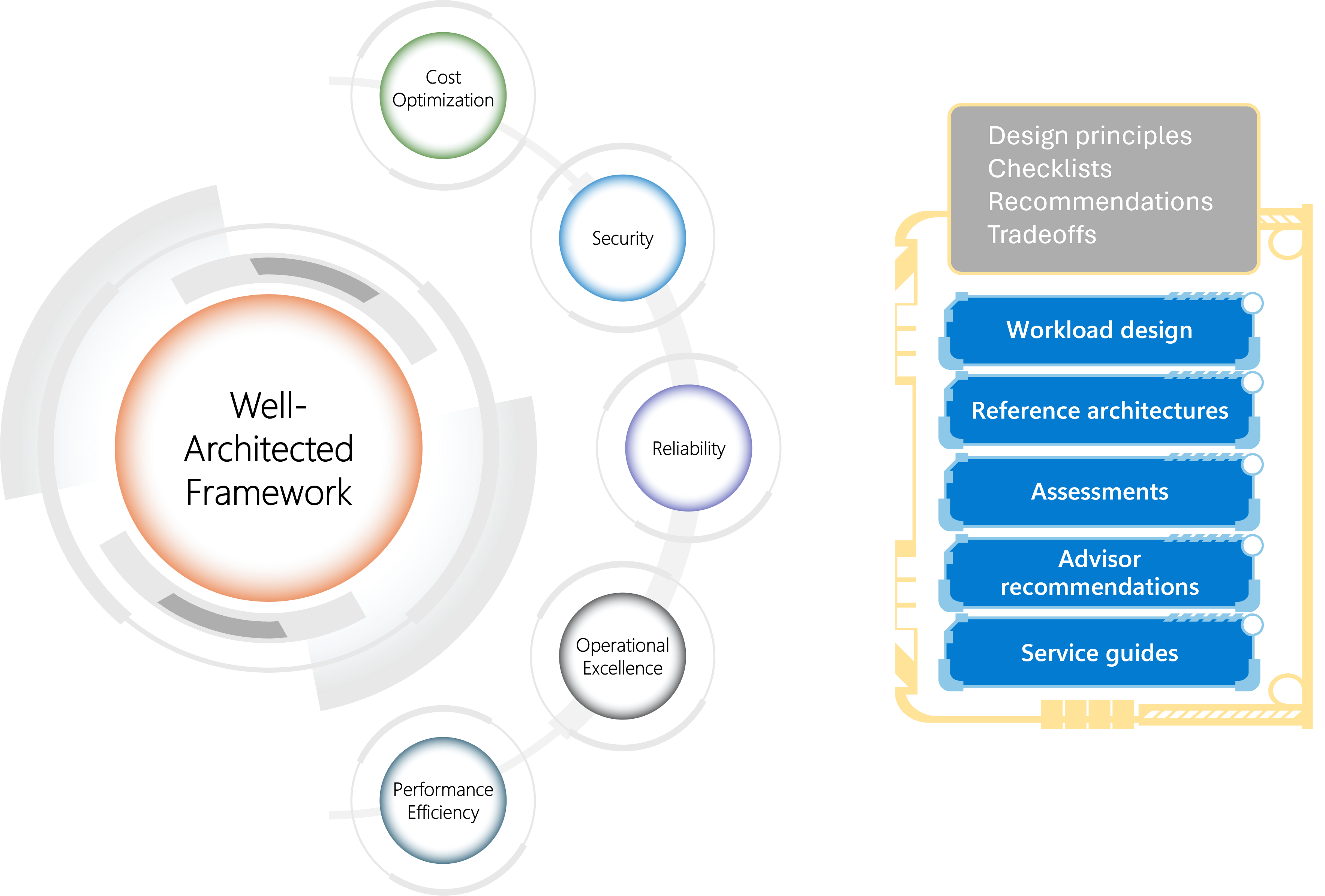
Aidan, what about the Well-Architected Framework (WAF)? Good question, if I do say so myself. The WAF contains several pillars that guide you to good design and good management. If you look at the pillars, it is easy to see that each can be owned by either Govern, Secure, or Manage.
Not Just For New Azure Customers
The CAF is not just for customers who are starting their Cloud adoption journey. As I’ve made clear, many organisations have embarked on a migration to Azure without making organisational/process/tools changes. They can’t ignore the resulting problems forever. It makes sense that those organisations take the time to figure out what changes to make. The CAF shows them the methodologies to make that happen.
Those same phases, tracks and steps can be applied to correct the course and make the necessary changes. I have started working with some clients on this very process.
Cloud Mechanix
I am a big fan of the Cloud Adoption Framework (CAF) but it is not perfect. The CAF has a process, but a lot of the content is “you could do this, you could do that” without practical opinion. With Cloud Mechanix, I deliver a streamlined and opinionated version of the CAF, focused on results. This delivery can be for new cloud adoption journeys and for those who are struggling to get their business to adopt an existing Azure environment. You can learn more about Cloud Mechanix here.
Based on the single page of lightweight content, this appears to be a router, powered by physical hardware, that enables high-bandwidth routing. I’m being careful with my words here. I avoided saying “high speed” because speed can mean one of two things:
Latency
Bandwidth
Using hardware rather than software for a router will minimise latency, but I cannot imagine the difference will be much. 99% of customers won’t care about that difference. The main cause of latency in The Cloud is the distance between a client and a server – always remember that (without Placement Proximity Groups) a client and server in the same region could be in different physical buildings, which may even be kilometres or miles apart. For example, North Europe (Dublin) is in Grangecastle in West Dublin (search for Cuisine De France). Microsoft is planning to expand the region with new data centres in Newhall, near Naas, about 20 minutes (at midnight) down the road from Grangecastle. Switching from software to hardware to route between the client and server won’t make much difference there.
The other thing that I’ve noted in the skimpy doc is that this “router” doesn’t replace the firewall in a hub. If you use the firewall in the hub to isolate landing zones/spokes, then the firewall is the router:
Next hop to leave the spoke
Next hop to enter the Azure networks from remote locations
So that means we must have a software router. There is no role for the Virtual Network Routing Appliance in a regular secured Azure network. So what the heck are Microsoft up to?
Odd Azure Announcements
Weird feature announcements, such as the Virtual Network Routing Appliance, are not unusual in Azure. I have a slightly informed suspicion as to who the target customer is. This announcement fits a pattern: Azure often releases features primarily meant to solve Microsoft’s own internal challenges.
Who are Azure’s customers? There are the likes of your employer/organisation. And then there is Microsoft – probably Azure’s single biggest customer. Think about it; Storage is used by Office 365. The Standard Load Balancer is used by just about every PaaS resource there is (if not all of them). Many of the things that Azure creates are used by other Azure features and other Microsoft cloud services.
Azure Networking is a perfect example of that. They build not only for us, but to provide connectivity for Microsoft’s services, which are built on Azure.
I teach attendees of my network conference sessions and training courses that everything is a VM, even so-called “serverless” computing. There are rare exceptions, such as the Virtual Network Routing Appliance, the Xbox appliance, or the hosts in Azure VMware Services. Somewhere in Azure, a VM is hosting a service. That VM is part of a pool. That VM is on a network. That network in an Azure Virtual Network. That network requires routing.
Now let’s get back to the Virtual Network Routing Appliance. Why does it exist? What has been the biggest talking point in IT for the past few years? What has Microsoft focused their attention on, to the detriment of customers and business, in my opinion? Yes, AI.
We know that AI is all about bigger, faster, better. Every new iteration of ChatGPT/Copilot requires more. The demand to get these “HPC” clusters talking faster must be incredible for Azure Networking – thousands of GPU-enabled machines across many networks, all working in unison.
I think that the Virtual Network Routing Appliance was created for AI in Microsoft. Imagine the scale of an AI HPC cluster. There must be a need to create routes between many VNets, and they have sacrificed the isolation of a hub firewall, opting to lean on NSGs or (more likely) AVNM Security Admin Rules.
I believe that AVNM was originally created for Azure’s configuration of Virtual Networks that are used by PaaS services. The original release and associated marketing made no sense to us Azure customers. But over time, the product shaped into something that I now think is a “must have”. I don’t know that that’s what the future has for the Virtual Network Routing Appliance, but I’m pretty sure that my guess is right: this is designed for Microsoft’s unique needs, and few of us will find it useful.
Takeaway
I’m sorry for the buzzkill. The Virtual Network Routing Appliance sounds interesting, but that’s all. We might need to know about it for an exam. But I really do not expect it to be a factor in network designs for many outside of Microsoft.
In this post, I will explain how you can enable Virtual Network (VNet) Flow Logs at scale using a built-in Azure Policy.
Background
Flow logging plays an essential role in Azure networking by recording every flow (and more):
Troubleshooting: Verify that packets get somewhere or pass through an appliance. Check if traffic is allowed by an NSG. And more!
Security: Search for threats by pushing the data into a SIEM, like Microsoft Sentinel, and provide a history of connectivity to investigate a penetration.
Auditing: Have a history of what happened on the network.
There is a potential performance and cross-charging use that I’ve not dug into yet, by using the throughput data that is recorded.
Many of you might have used NSG Flow Logs. Those are deprecated now with an end-of-life date of September 30, 2027. The replacement is VNet Flow Logs, which records more data and requires less configuration – once per VNet instead of once per NSG.
But there is a catch! Modern, zero-trust, Cloud Adoption Framework-compliant designs use many VNets. Each application/workload gets a landing zone, and a landing zone will include a dedicated VNet for every networked workload, probably deployed as a spoke in a hub-and-spoke architecture. A modest organisation might have 50+ VNets with little free admin hours to do configurations. A large, agile organisation might have an ever-increasing huge collection of VNets and struggle with consistency.
Enter Azure Policy
Some security officers and IT staff resist one of the key traits of a cloud: self-service. They see it as insecure and try to lock it down. All that happens, eventually, is that the business gets ticked off that they didn’t get the cloud, and they take their vengeance out on the security officers and/or IT staff that failed to deliver the agile compute and data platform that the business expected – I’ve seen that happen a few times!
Instead, organisations should use the tools that provide a balance between security/control and self-service. One perfect example of this is Azure Policy, which provides curated guardrails against insecure or non-compliant deployments or configurations. For example, you can ban the association of Public IP Addresses with NICs, which the compute marketing team has foisted on everyone via the default options in a virtual machine deployment.
Using Azure Policy With VNet Flow Logs
Our problem:
We will have some/many VNets that we need to deploy Flow Logging to. We might know some of the VNets, but there are many to configure. We need a consistent deployment. We may also have many VNets being created by other parties, either internal or external to our organisation.
This sounds like a perfect scenario for Azure Policy. And we happen to have a built-in policy to deploy VNet Flow Logging called Configure virtual networks to enforce workspace, storage account and retention interval for Flow logs and Traffic Analytics.
The policy takes 5 mandatory parameters:
Virtual Networks Region: A single Azure region that contains the Virtual Networks that will be targeted by this policy.
Storage Account: The storage account that will temporarily store the Flow Logs in blob format. It must be in the same region as the VNets.
Network Watcher: Network Watcher must be configured in the same region as the VNets.
Workspace Resource ID: A Log Analytics Workspace will store the Traffic Analytics data that can be accessed using KQL for queries, visualisations, exported to Microsoft Sentinel, and more.
Workspace Region: The workspace can be in any region. The Workspace can be used for other tasks and with other assignment instances of this policy.
What if you have VNets across three regions? Simple:
Deploy 1 central Workspace.
Deploy 3 Storage Accounts, 1 per region.
Assign the policy 3 times, once per region, for each region.
You will collect VNet Flow Logs from all VNets. The data will be temporarily stored in region-specific Storage Accounts. Eventually, all the data will reside in a single Log Analytics Workspace, providing you with a single view of all VNet flows.
Customisation
It took a little troubleshooting to get this working. The first element was to configure remediation identity during the assignment. Using the GUID of the identity, I was able to grant permanent reader rights to a Management Group that contained all the subscriptions with VNets.
Troubleshooting was conducted using the Activity Log in various subscriptions, and the JSON logs were dumped into regular Copilot to facilitate quick interpretation. ChatGPT or another would probably do as good a job.
The next issue was the Traffic Analytics collection interval. In a manual/coded deployment, one can set it to every 10 or 60 minutes. I prefer the 10-minute option for quicker access (it’s still up to 25 minutes of latency). The parameter for this setting is optional. When I enabled that parameter in the assignment, the save went into a permanent (commonly reported) verifying action without saving the change. My solution was to create a copy of the policy and to change the default option of the parameter from 60 to 10. Job done!
In The Real World
Azure Policy has one failing – it has a huge and unpredictable run interval. There is a serious lag between something being deployed and a mandated deployIfNotExists task running. But this is one of the scenarios where, in the real world, we want it to eventually be correct. Nothing will break if VNet Flow Logs are not enabled for a few hours. And the savings of not having to do this enablement manually are worth the wait.
If You Liked This?
Did you like this topic? Would you like to learn more about designing secure Azure networks, built with zero-trust? If so, then join me on October 20-21 2025 (scheduled for Eastern time zones) for my Cloud Mechanix course, Designing Secure Azure Networks.
I found out yesterday that I was awarded my 18th annual Most Valuable Professional (MVP) award by Microsoft, continuing with the Azure Networking expertise.
It’s been an interesting year since last July, when I received my 17th award. My amount of billable work (the KPI for any consultant) with my then-employer was zero for a long time. I started thinking that the end would eventually come, so I started no plan-B: my own company.
I started my company, Cloud Mechanix, 7 years ago as a side-gig to my previous job. I used personal time to write custom-Azure training and to deliver it at in-person classes. That first year was incredible – I still remember squeezing 22 people into a meeting room in a London hotel that I’d hoped to get 10 people into! Things went well and the feedback was awesome. I’d started to write new content … and then the world changed. I changed my day-job. The COVID19 pandemic happened. And my wife and I welcomed twin girls into the world. There was no time for a side-gig!
I did a little bit with Cloud Mechanix during the lockdown but I didn’t have the time to put a sustained effort in. Then last year, the world started changing again. The twins were 4, in their second year of pre-school, and quite happy to entertain themselves. The pandemic was a distant memory but our way of working had change quite a bit. And my day-job went from too much work to no work. I’ve been around long enough to develop a sense of redundancy smell. My spidey-sense tingles long before anyone else discusses the topic. I talked with my wife and we decided that I had more time to invest in my company, Cloud Mechanix, and my MVP activities.
I started to write new content, focusing first on what I’m best known for these days (Azure Networking) and on another in-demand course (Azure for small-medium businesses). I did the Azure Firewall Deep Dive course online for anyone to sign up and privately. I’ve done the Azure Operations for Small/Medium Businesses class in-person 3 times so far this year for a Microsoft distributor (the attendees were employees of Microsoft partners).
Meanwhile I’ve applied for and spoken at a number of Microsoft community/conference events. I’ve been invited to talk on a number of podcasts – which are always enjoyable … poor Ned and Kyler probably didn’t know what they were in for when I talked non-stop about Azure networking for 39 minutes without stopping to breath. And I wrote a series of blog posts on Azure network design/security to explain why trying to implement on-premises designs make no sense and the resulting complexity breaks the desired goal of better security – simplicity actually offers more security!
The expected happened in June. I was made redundant. I wasn’t sad – I knew that it was coming and I had a plan. The agreed terms meant that I was free from June 28th with no restrictions. I had decided that I would not go job hunting. I have a job; I’m the Manading Director, trainer, and consultant with Cloud Mechanix. Yes, I am going out with my own company and it has expanded into consulting on Azure, including (but not limited to):
Cloud strategy
Reviews
Security
Migration
System design & build
Cloud Adoption by Mentorship
Small/Medium business
Assisting Microsoft partners
Things have started well. I have a decent sales pipe. I have completed two small gigs. And I have developed new training content: Designing Secure Azure Networks.
Back to the award! I’m at the Costa Blanca in Spain with my family for 4 weeks. Cloud Mechanix HQ has temporarily relocated from Ireland for 2 weeks and then I’m on vacation for 2 weeks. I’m spending my time doing some pre-sales stuff (things are going well) and writing some stuff that I will be sharing soon 🙂 I was working yesterday afternoon and thinking about going to the pool with the kids, and got to thinking “what day/date is it?” – how one knows that they are relaxed! I asked my wife and she said that it was July 10th! Wait – isn’t that what the MVPs call “F5 day”, the day that we find out if we are renewed or not? I checked Teams and confirmed that it was indeed F5 day. Usually we get the emails at 4PM Irish time, making it 5PM Spanish time. I’d decided I was going to the pool. My phone was in a bag on a bench and I kept an eye on the time. Then from 5PM, I checked my email every few minutes until … there it was:
Year number 18 had begun! To be honest, this was the first time in years that I wasn’t that worried. I had written quite a bit of blog content. I’d done a number of online and in-person things. I also had (I hope) great interactions with the Azure product group. I felt like that the contributions were there … and they are still coming.
I’ve been doing quite a bit this week. It’s the start of something bigger but I hope that the first part will be ready in the coming days – it depends on that pre-sales pipeline and testing results … ooooh it’s technical!
I have two confirmed future events with TechMentor in the USA where I’m doing a panel, breakout sessions, and a post-con all-day class at:
Microsoft HQ 2025 in Redmond, Washington, on August 11-15.
Orlando, Florida, on November 16-21.
I have applied for a number of other events in Europe too. If you’re interested then:
In this post, I will show how to use Azure Virtual Network Manager (AVNM) to enforce peering and routing policies in a zero-trust hub-and-spoke Azure network. The goal will be to deliver ongoing consistency of the connectivity and security model, reduce operational friction, and ensure standardisation over time.
Quick Overview
AVNM is a tool that has been evolving and continues to evolve from something that I considered overpriced and under-featured, to something that I would want to deploy first in my networking architecture with its recently updated pricing. In summary, AVNM offers:
Network/subnet discovery and grouping
IP Address Management (IPAM)
Connectivity automation
Routing automation
There is (and will be) more to AVNM, but I want to focus on the above features because together they simplify the task of building out Azure platform and application landing zones.
The Environment
One can manage virtual networks using static groups but that ignores the fact that The Cloud is a dynamic and agile place. Developers, operators, and (other) service providers will be deploying virtual networks. Our goal will be to discover and manage those networks. An organisation might be simple, and there will be a one-size-fits-all policy. However, we might need to engineer for complexity. We can reduce that complexity by organising:
Adopt the Cloud Adoption Framework and Zero Trust recommendations of 1 subscription/virtual network per workload.
Organising subscriptions (workloads) using Management Groups.
Designing a Management Group hierarchy based on policy/RBAC inheritance instead of basing it on an organisation chart.
Using tags to denote roles for virtual networks.
I have built a demo lab where I am creating a hub & spoke in the form of a virtual data centre (an old term used by Microsoft). This concept will use a hub to connect and segment workloads in an Azure region. Based on Route Table limitations, the hub will support up to 400 networked workloads placed in spoke virtual networks. The spokes will be peered to the hub.
A Management Group has been created for dub01. All subscriptions for the hub and workloads in the dub01 environment will be placed into the dub01 Management Group.
Each workload will be classified based on security, compliance, and any other requirements that the organisation may have. Three policies have been predefined and named gold, silver, and bronze. Each of these classifications has a Management Group inside dub01, called dub01gold, dub01silver, and dub01bronze. Workloads are placed into the appropriate Management Group based on their classification and are subject to Azure Policy initiatives that are assigned to dub01 (regional policies) and to the classification Management Groups.
You can see two subscriptions above. The platform landing zone, p-dub01, is going to be the hub for the network architecture. It has therefore been classified as gold. The workload (application landing zone) called p-demo01 has been classified as silver and is placed in the appropriate Management Group. Both gold and silver workloads should be networked and use private networking only where possible, meaning that p-demo01 will have a spoke virtual network for its resources. Spoke virtual networks in dub01 will be connected to the hub virtual network in p-dub01.
Keep in mind that no virtual networks exist at this time.
AVNM Resource
AVNM is based on an Azure resource and subresources for the features/configurations. The AVNM resource is deployed with a management scope; this means that a single AVNM resource can be created to manage a certain scope of virtual networks. One can centrally manage all virtual networks. Or one can create many AVNM resources to delegate management (and the cost) of managing various sets of virtual networks.
I’m going to keep this simple and use one AVNM resource as most organisations that aren’t huge will do. I will place the AVNM resource in a subscription at the top of my Management Group hierarchy so that it can offer centralised management of many hub-and-spoke deployments, even if we only plan to have 1 now; plans change! This also allows me to have specialised RBAC for managing AVNM.
Note that AVNM can manage virtual networks across many regions so my AVNM resource will, for demonstration purposes, be in West Europe while my hub and spoke will be in North Europe. I have enabled the Connectivity, Security Admin, and User-Defined Routing features.
AVNM has one or more management scopes. This is a central AVNM for all networks, so I’m setting the Tenant Root Group as the top of the scope. In a lab, you might use a single subscription or a dedicated Management Group.
Defining Network Groups
We use Network Groups to assign a single configuration to many virtual networks at once. There are two kinds of members:
Static: You add/remove members to or from the group
Dynamic: You use a friendly wizard to define an Azure Policy to automatically find virtual networks and add/remove them for you. Keep in mind that Azure Policy might take a while to discover virtual networks because of how irregularly it runs. However, once added, the configuration deployment is immediately triggered by AVNM.
There are two kinds of members in a group:
Virtual networks: The virtual network and contained subnets are subject to the policy. Virtual networks may be static or dynamic members.
Subnets: Only the subnet is targeted by the configuration. Subnets are only static members.
Keep in mind that something like peering only targets a virtual network and User-Defined Routes target subnets.
I want to create a group to target all virtual networks in the dub01 scope. This group will be the basis for configuring any virtual network (except the hub) to be a secured spoke virtual network.
I created a Network Group called dub01spokes with a member type of Virtual Networks.
I then opened the Network Group and configured dynamic membership using this Azure Policy editor:
Any discovered virtual network that is not in the p-dub01 subscription and is in North Europe will be automatically added to this group.
The resulting policy is visible in Azure Policy with a category of Azure Virtual Network Manager.
IP Address Management
I’ve been using an approach of assigning a /16 to all virtual networks in a hub & spoke for years. This approach blocks the prefix in the organisation and guarantees IP capacity for all workloads in the future. It also simplifies routing and firewall rules. For example, a single route will be needed in other hubs if we need to interconnect multiple hub-and-spoke deployments.
I can reserve this capacity in AVNM IP Address Management. You can see that I have reserved 10.1.0.0/16 for dub01:
Every virtual network in dub01 will be created from this pool.
Creating The Hub Virtual Network
I’m going to save some time/money here by creating a skeleton hub. I won’t deploy a route NVA/Virtual Network Gateway so I won’t be able to share it later. I also won’t deploy a firewall, but the private address of the firewall will be 10.1.0.4.
I’m going to deploy a virtual network to use as the hub. I can use Bicep, Terraform, PowerShell, AZ CLI, or the Azure Portal. The important thing is that I refer to the IP address pool (above) when assigning an address prefix to the new virtual network. A check box called Allocate Using IP Address Pools opens a blade in the Azure Portal. Here you can select the Address Pool to take a prefix from for the new virtual network. All I have to do is select the pool and then use a subnet mask to decide how many addresses to take from the pool (/22 for my hub).
Note that the only time that I’ve had to ask a human for an address was when I created the pool. I can create virtual networks with non-conflicting addresses without any friction.
Create Connectivity Configuration
A Connectivity Configuration is a method of connecting virtual networks. We can implement:
Hub-spoke peering: A traditional peering between a hub and a spoke, where the spoke can use the Virtual Network Gateway/Azure Route Server in the hub.
Mesh: A mesh using a Connected Group (full mesh peering between all virtual networks). This is used to minimise latency between workloads with the understanding that a hub firewall will not have the opportunity to do deep inspection (performance over security).
Hub & spoke with mesh: The targeted VNets are meshed together for interconnectivity. They will route through the hub to communicate with the outside world.
I will create a Connectivity Configuration for a traditional hub-and-spoke network. This means that:
I don’t need to add code for VNet peering to my future templates.
No matter who deploys a VNet in the scope of dub01, they will get peered with the hub. My design will be implemented, regardless of their knowledge or their willingness to comply with the organisation’s policies.
I created a new Connectivity Configuration called dub01spokepeering.
In Topology I set the type to hub-and-spoke. I select my hub virtual network from the p-dub01 subscription as the hub Virtual Network. I then select my group of networks that I want to peer with the hub by selecting the dub01spokes group. I can configure the peering connections; here I should select Hub As Gateway – I don’t have a Virtual Network Gateway or an Azure Route Server in the hub, so the box is greyed out.
I am not enabling inter-spoke connectivity using the above configuration – AVNM has a few tricks, and this is one of them, where it uses Connected Groups to create a mesh of peering in the fabric. Instead, I will be using routing (later) via a hub firewall for secure transitive connectivity, so I leave Enable Connectivity Within Network Group blank.
Did you notice the checkbox to delete any pre-existing peering configurations? If it isn’t peered to the hub then I’m removing it so nobody uses their rights to bypass by networking design.
I completed the wizard and executed the deployment against the North Europe region. I know that there is nothing to configure, but this “cleans up” the GUI.
Create Routing Configuration
Folks who have heard me discuss network security in Azure should have learned that the most important part of running a firewall in Azure is routing. We will configure routing in the spokes using AVNM. The hub firewall subnet(s) will have full knowledge of all other networks by design:
Spokes: Using system routes generated by peering.
Remote networks: Using BGP routes. The VPN Local Network Gateway creates BGP routes in the Azure Virtual Networks for “static routes” when BGP is not used in VPN tunnels. Azure Route Server will peer with NVA routers (SD-WAN, for example) to propagate remote site prefixes using BGP into the Azure Virtual Networks.
The spokes routing design is simple:
A Route Table will be created for each subnet in the spoke Virtual Networks. This design for these free resources will allow customised routing for specific scenarios, such as VNet-integrated PaaS resources that require dedicated routes.
A single User-Defined Route (UDR) forces traffic leaving a spoke Virtual Network to pass through the hub firewall, where firewall rules will deny all traffic by default.
Traffic inside the Virtual Network will flow by default (directly from source to destination) and be subject to NSG rules, depending on support by the source and destination resource types.
The spoke subnets will be configured not to accept BGP routes from the hub; this is to prevent the spoke from bypassing the hub firewall when routing to remote sites via the Virtual Network Gateway/NVA.
I created a Routing Configuration called dub01spokerouting. In this Routing Configuration I created a Rule Collection called dub01spokeroutingrules.
A User-Defined Route, known as a Routing Rule, was created called everywhere:
The new UDR will override (deactivate) the System route to 0.0.0.0/0 via Internet and set the hub firewall as the new default next hop for traffic leaving the Virtual Network.
Here you can see the Routing Collection containing the Routing Rule:
Note that Enable BGP Route Propagation is left unchecked and that I have selected dub01spokes as my target.
And here you can see the new Routing Configuration:
Completed Configurations
I now have two configurations completed and configured:
The Connectivity Configuration will automatically peer in-scope Virtual Networks with the hub in p-dub01.
The Routing Configuration will automatically configure routing for in-scope Virtual Network subnets to use the p-dub01 firewall as the next hop.
Guess what? We have just created a Zero Trust network! All that’s left is to set up spokes with their NSGs and a WAF/WAFs for HTTPS workloads.
Deploy Spoke Virtual Networks
We will create spoke Virtual Networks from the IPAM block just like we did with the hub. Here’s where the magic is going to happen.
The evaluation-style Azure Policy assignments that are created by AVNM will run approximately every 30 minutes. That means a new Virtual Network won’t be discovered straight after creation – but they will be discovered not long after. A signal will be sent to AVNM to update group memberships based on added or removed Virtual Networks, depending on the scope of each group’s Azure Policy. Configurations will be deployed or removed immediately after a Virtual Network is added or removed from the group.
To demonstrate this, I created a new spoke Virtual Network in p-demo01. I created a new Virtual Network called p-demo01-net-vnet in the resource group p-demo01-net:
You can see that I used the IPAM address block to get a unique address space from the dub01 /16 prefix. I added a subnet called CommonSubnet with a /28 prefix. What you don’t see is that I configured the following for the subnet in the subnet wizard:
Private networking, to proactively disable implied public IP addresses for SNAT.
As you can see, the Virtual Network has not been configured by AVNM yet:
We will have to wait for Azure Policy to execute – or we can force a scan to run against the resource group of the new spoke Virtual Network:
Az CLI: az policy state trigger-scan –resource-group <resource group name>
PowerShell: Start-AzPolicyComplianceScan -ResourceGroupName <resource group name>
You could add a command like above into your deployment code if you wished to trigger automatic configuration.
This force process is not exactly quick either! 6 minutes after I forced a policy evaluation, I saw that AVNM was informed about a new Virtual Network:
I returned to AVNM and checked out the Network Groups. The dub01spokes group has a new member:
You can see that a Connectivity Configuration was deployed. Note that the summary doesn’t have any information on Routing Configurations – that’s an oversight by the AVNM team, I guess.
The Virtual Network does have a peering connection to the hub:
The routing has been deployed to the subnet:
A UDR has been created in the Route Table:
Over time, more Virtual Networks are added and I can see from the hub that they are automatically configured by AVNM:
Summary
I have done presentations on AVNM and demonstrated the above configurations in 40 minutes at community events. You could deploy the configurations in under 15 minutes. You can also create them using code! With this setup we can take control of our entire Azure networking deployment – and I didn’t even show you the Admin Rules feature for essential “NSG” rules (they aren’t NSG rules but use the same underlying engine to execute before NSG rules).
Want To Learn More?
Check out my company, Cloud Mechanix, where I share this kind of knowledge through:
Consulting services for customers and Microsoft partners using a build-with approach.
Custom-written and ad-hoc Azure training.
Together, I can educate your team and bring great Azure solutions to your organisation.
I’m thrilled to announce the relaunch and transformation of Cloud Mechanix into a full-service Azure consulting company.
For the past 7 years, Cloud Mechanix has delivered custom-built Azure training—both online and onsite—for customers across Europe and North America. Our training was grounded in hands-on experience: designed by engineers, for engineers, based on real-world deployments and problem-solving. The feedback? Consistently excellent.
Now, we’re taking the next step.
Cloud Mechanix is expanding from training into consulting, bringing that same deep technical knowledge and practical insight to solution and service delivery.
Whether you’re: * Defining your cloud strategy * Navigating Azure migrations * Strengthening security and resilience * Designing or implementing complex Azure architectures —we’re here to help.
🔧 Our build-with consulting approach integrates training into delivery. We work with your team to co-create the solution—so your staff gains real expertise, not just another handover document.
🤝 We also partner with other service providers. If you’re a consulting firm looking to boost your Azure capabilities, Cloud Mechanix can support your team, under your brand, to deliver high-quality outcomes.
I had the pleasure of chatting with Ned Bellavance and Kyler Middleton on Day Two DevOps one evening recently to discuss the basics of Azure networking, using my line “Azure Virtual Networks Do Not Exist”. I think I talked nearly non-stop for nearly 40 minutes 🙂 Tune in and you’ll hear my explanation of why many people get so much wrong in Azure networking/security.
There is no doubt that we are living in interesting times. It feels a little “Resevoir Dogs” in Europe these days: “There are threats to the east, threats to the west, and we’re stuck in the middle EU”. Those threats from the west have degraded trans-Atlantic trust more than any time in history. European organisations are starting to question the use of American-owned clouds from Microsoft, Amazon, Google, and others. Could this lead to them treating those clouds like some are demanding NATO members to cancel F-35 fighter jet orders?
I am not a political commentator. I have personal opinions, and I don’t intend to force them on you. This post is going to discuss how things are – we can agree to disagree on the why’s, the who’s etc.
The Threats
I don’t really know the awareness levels of this topic across the world, so I’m going to cover it very briefly.
Russia
Eastern European companies have a huge fear of Russia. I wasn’t all that familiar with the level of preparation/fear until recently. Countries like the Baltic states and Finland have been ready for many years – Finland since Russia invaded during WW2 and the Baltic states since they got their independence from the USSR.
If past patterns repeat (and history tells us that they will), Russia will re-arm once peace is negotiated in Ukraine. Russia will then look elsewhere – The Baltic states, or Georgia again, or who knows.
The USA
The USA has shattered all kinds of trust since January of this year:
Making demands to take Greenland, a territory of Denmark.
Threatening a trade war with the EU.
Rejecting various treaties that were signed by the USA, including some that were negotiated by Donald Trump (the trade agreement with Canada, for example).
Cancelling supplies of military hardware to Ukraine.
Cosying up to Russia and adopting the talking points of the Russian government.
Several NATO members have contracts in-place to purchase the F-35 fighter jet from the USA. Many in those countries are calling for those contracts to be torn up because they cannot trust that the USA will continue to supply parts for the maintenance-heavy F-35.
A change of government in the USA will not return trust – a new president might enter 4 years after the change and tear up treaties all over again. There is no respect for existing treaties anymore.
IT Relevance
In the IT world, we have two fears regarding the USA:
The USA could tear up treaties regarding data privacy – we could see the USA demanding access to private EU data that is hosted by American-owned cloud services.
An escalation of political or even military events might lead to the USA ordering that US-owned cloud services terminate access for European customers. We have to remember that many decisions are now emotional, not logical.
What Is Happening Now?
There has been a little bit of chatter about not using the USA-owned hyper-scalers. I wondered about this and I ran a poll on LinkedIn. I know that this kind of poll is far from scientific: my audience is skewed and the pool of respondents was small.
I posted the poll after the disastrous press conference with Ukraine’s President Zelenskyy and Donald Trump. I asked Europeans to answer if their organisations were considering not using USA-owned cloud services.
Honestly, I though that few would vote Yes. I was surprised to see that 60% of respondents said that the were considering only using non-USA cloud services.
The global backlash against the second Donald Trump administration keeps on growing. Canadians have boycotted US-made products, anti-Elon Musk posters have appeared across London amid widesprad Tesla protests and European officials have drastically increased military spending as US support for Ukraine falters. Dominant US teach services may be the next focus.
The article goes on to explain that some organisations are:
Pulling back from the likes of Azure/etc and choosing on-premises platforms or European-owned “cloud” operators.
Cancelling plans to move to hyperscale clouds.
Don’t get me wrong – this is not an avalanche. This is a few organisations today. But will that change? Will it become a flood?
What Are The Options?
If you believe that USA-owned clouds are not a viable future then I would argue that USA-owned IP also is not viable. For example, Windows and VMware would not be viable because a US government could order the termination of support (tech support, updates including security fixes, upgrades, etc) for specific countries or regions.
I hate to admit it: the city of Munich might have been ahead of their time. Munich decided to star the journey to dump Microsoft software and shift to opensource back in 2004. I, like many others, laughed at that concept. And history proved that we were probably right – the journey would be expensive and very difficult thanks to a legacy of Windows-based applications and a huge dependency on a diverse ecosystem of Windows-based applications. The journey was a rollercoaster and one can argue that it was a failure. But maybe, just maybe they were right but:
For the wrong reasons
They were 20 years too early
I would argue that the EU needs to establish a native IT ecosystem that is independent of the USA. That means:
Funding a Manhattan Project style project to R&D relevant technologies and services in cooperation with suitable tech expert corporations from the EU. This will result in the construction of cloud-scale data centers with minimally viable software-defined services to enable migration from existing cloud services.
Will this happen? I don’t know. I have little faith in politicians of any background. They are usually self-interested and slow to enact painful change.
I think change is required, and I believe that change will be expensive and disruptive. I hate that it’s necessary. I’ve built a career on the Microsoft stack. I truly believe that Microsoft means the best – note that Satya Nadella is one of the few tech giant CEOs not to be visibly supporting the current administration in the USA. Microsoft is stuck between a rock and a hard place. They cannot be seen to be critical of Donald Trump because they would find their government contracts being cancelled – despite all of the damage that would cost to the USA. And they cannot openly support the administration because of the inevitable reactions from their diverse staff and their global customers. But here we are. Let’s see how things progress.