KB2908243 – WS2012 Computer With NIC Teaming Loses Network Connectivity

Microsoft released KB2908243 to deal with a situation where a Windows Server 2012-based computer on which you configured NIC Teaming has no network connectivity.

Consider the following scenario:

  • You have a computer that is running Windows Server 2012.
  • You configure NIC Teaming, also known as load balancing and failover (LBFO), on the computer.
  • You restart the computer.

In this scenario, you may find that the computer has no network connectivity. However, when you restart the computer, network connectivity is restored.

A supported hotfix is available from Microsoft Support.

KB2919393 – Update Rollup For WS2012

Microsoft has released a February update rollup for Windows Server 2012, as well as Windows 8 and Windows RT (8). There’s one included update that Hyper-V or clustering folks should be aware of:

KB2920469 deals with a situation where you cannot change the schedule for CAU self-updating mode in Windows Server 2012 or Windows Server 2012 R2 by using CAU GUI.

Assume that you have a cluster that runs Windows Server 2012 or Windows Server 2012 R2. When you try to change the Cluster-Aware Updating (CAU) schedule by using the GUI, the time for the automatic update schedule is not changed, and the old time remains.

As usual with update rollups, don’t be an IT haemophiliac; delay approval of this update for a month and let the rest of the world be Microsoft’s test lab. If you don’t see any update to this update in one month, then approve and deploy it if you’re happy.

Dell & Microsoft Announce Support For WS2012 R2 Storage Spaces

Dell, in cooperation with Microsoft, announced the release of their supported hardware for Windows Server 2012 R2 Storage Spaces and Scale-Out File Server.

image

Microsoft said:

Dell’s announcement is an exciting development which will help more customers take advantage of the performance and availability of virtualized storage with Windows Server.

Dell went on:

Microsoft’s Storage Spaces, a technology in Windows Server 2012 R2, combined with Dell’s PowerEdge servers and PowerVault storage expansion solutions, can help organizations like hosters and cloud-providers that don’t have the feature-set needs for a separate storage array to deliver advanced, enterprise-class storage capabilities, such as continuous availability and scalability, on affordable industry-standard servers and storage.

The HCL has not been updated yet, but it appears that. Dell has two appliances that they are pushing:

  • MD1200
  • MD1220: a 24 drive tray, similar to the DataOn DNS-1640

Dell has also published Deploying Windows Server 2012 R2 Storage Spaces on Dell PowerVault.

image 2 x clustered servers with 2 x MD12xx JBODs

So, one of the big storage companies has blinked. Who is next?

BTW, when I checked out the Irish pricing, the Dell MD1220 was twice the price of the DataOn DNS-1640. After bid price, that’ll be an even match, so it’ll come down to disks for the pricing comparison.

KB2846340 – Duplicate Friendly Names Of NICs Displayed In Windows

This KB applies to Windows Vista and Windows Server 2008 up to Windows 8 and Windows Server 2012. There’s no mention of Hyper-V, but considering that hosts have lots of NICs, it seemed relevant to me. The scenario is when duplicate friendly names of network adapters are displayed in Windows.

Symptoms

Consider the following scenario:

  • You have one or more network adapters installed on a computer that is running one of the following operating systems:
    • Windows Vista
    • Windows Server 2008
    • Windows 7
    • Windows Server 2008 R2
    • Windows 8
    • Windows Server 2012
  • The display names of the network adapters are changed. For example, the device driver is updated.
  • You add new network adapters to the computer. The new network adapters are of the same make and model as the original network adapters.

In this scenario, duplicate friendly names of the original network adapters are displayed in Device Manager.
For example, you have two network adapters installed on a computer. Before you update the driver, Device Manager shows the following:

  • <Network adapter name>
  • <Network adapter name> #2

After the driver is updated, the names of the network adapters are changed to the following in Device Manager:

  • <Network adapter new name>
  • <Network adapter new name> #2

After you add new network adapters that are of the same make and model, Device Manager shows the following:

  • <Network adapter new name>
  • <Network adapter new name> #2
  • <Network adapter new name> #3
  • <Network adapter new name> #4
  • <Network adapter new name> #5
  • <Network adapter new name> #6
  • <Network adapter new name>
  • <Network adapter new name> #2

In this scenario, Device Manager displays duplicate friendly names of the original network adapters.

A hotfix is available to resolve this issue.

How Microsoft Windows Build Team Replaced SANs with JBOD + Windows Server 2012 R2

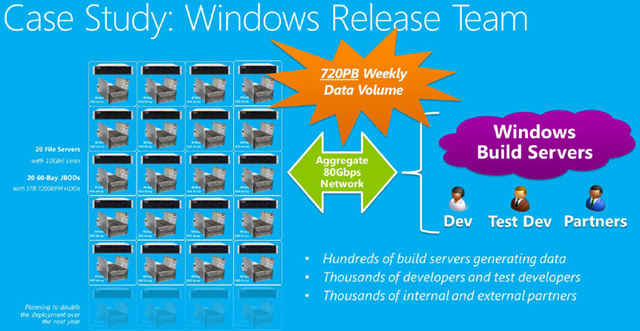
I’ve heard several times in various presentations about a whitepaper by Microsoft that discusses how the Windows build team in Microsoft HQ replaced traditional SAN storage (from a certain big name storage company) with Scale-Out File Server architecture based on:

  • Windows Server 2012 R2
  • JBOD
  • Storage Spaces

I searched for this whitepaper time and time again and never found it. Then today I was searching for a different storage paper (which I have yet to find) but I did stumble on the whitepaper with the build team details.

The paper reveals that:

  • The Windows Build Team were using traditional SAN storage
  • They needs 2 petabytes of storage to do 40,000 Windows installations per day
  • 2 PB was enough space for just 5 days of data !!!!
  • A disk failure could affect dozens of teams in Microsoft

They switched to WS2012 R2 with SOFS architectures:

  • 20 x WS2012 R2 clustered file servers provide the SOFS HA architecture with easy manageability.
  • 20 x  JBODs (60 x 3.5″ disk slots) were selected. Do the maths; that’s 20 x 60 x 4 TB = 4800 TB or > 4.6  petabytes!!! Yes, the graphic says they are 3 TB drives but the text in the paper says the disks are 4 TB.
  • There is an aggregate of 80 Gbps of networking to the servers. This is accomplished with 10 Gbps networking – I would guess it is iWARP.

The result of the switch was:

  • Doubling of the storage throughput via SMB 3.0 networking
  • Tripling of the raw storage capacity
  • Lower overall cost – reduced the cost/TB by 33%
  • In conjunction with Windows Server dedupe, they achieved 5x increase in capacity wutg 45-75% de-duplication rate.
  • This lead to data retention going from 5 days to nearly a month.
  • 8 full racks of gear were culled. They reduced the server count by 6x.
  • Each week 720 petabytes of data flows across this network to/from the storage.

image

Check out the whitepaper to learn more about how Windows Server 2012 R2 storage made all this possible. And then read my content on SMB 3.0 and SOFS here (use the above search control) and on The Petri IT Knowledgebase.

CSV Cache Is Not Used With Heapmap-Tracked Tiered Storage Spaces

I had an email from Bart Van Der Beek earlier this week questioning an aspect of my kit list for a Hyper-V cluster that is using a SOFS with Storage Spaces for the shared cluster storage. I had added RAM to the SOFS nodes to use for CSV Cache. Bart had talked to some MSFT people who told him that CSV Cache would not be used with tiered storage spaces. He asked if I knew about this. I did not.

So I had the chance to ask Elden Christensen (Failover Clustering PM, TechEd speaker, and author of many of the clustering blog posts, and all around clustering guru) about it tonight. Elden explained that:

  • No, CSV cache is not used with tiered storage spaces where the heapmap is used. This is when the usage of 1 MB blocks is tracked and those blocks are automatically promoted to the hot tier, demoted to the cold tier, or left where they are on a scheduled basis.
  • CSV Cache is used when the heapmap is not used and you manually pin entire files to a tier. This would normally only be used in VDI. However, enabling dedupe on that volume will offer better performance than CSV Cache.

So, if you are creating tiered storage spaces in your SOFS, there is no benefit in adding lots of RAM to the SOFS nodes.

Thanks for the heads up, Bart.

KB2914974–Cluster Validation Wizard Might Not Discover All LUNs On WS2012 Or WS2012 R2 Failover Cluster

The Failover Cluster Validation Wizard can perform a number of storage tests to determine the suitability and supportability of the shared storage of a potential new cluster. This is important for a Hyper-V cluster that will use directly attached shared storage such as a SAN (not SMB 3.0).

Microsoft has published a KB article for when these storage tests on a multi-site (stretch, cross-campus, or metro) failover cluster may not discover all shared LUNs on Windows Server 2012 or Windows Server 2012 R2.

Symptoms

Consider the following scenario:

  • You have a Windows Server 2012 or Windows Server 2012 R2 multi-site failover cluster.
  • A multi-site storage area network (SAN) is configured to have site-to-site mirroring.
  • You use the Validate a Configuration Wizard to run a set of validation tests on the failover cluster.

In this scenario, storage tests may not detect all logical unit numbers (LUNs) as shared LUNs.

Cause

Storage validation test selects only shared LUNs. A LUN is determined to be shared if its disk signatures, device identification number (page 0×83), and storage array serial number are the same on all cluster nodes. When you have site-to-site mirroring configured, a LUN in one site (site A) has a mirrored LUN in another site (site B). These LUNs have the same disk signatures and device identification number (page 0×83), but the storage array serial number are different. Therefore, they are not recognized as shared LUNs.

Resolution

To resolve the issue, run all the cluster validation tests before you configure the site-to-site LUN mirroring.

Note If the validation test is needed afterward for support situations, LUNs that are not selected for storage validation tests are supported by Microsoft and the storage vendor as valid Shared LUNs.

KB2916993 – Stop Error 0x9E In WS2012 Or Windows 8

This KB article looks like it affects Windows Server 2012 clusters so I’m including it in today’s posts. The fix is for when a stop error 0x9E in Windows Server 2012 or Windows 8.

Symptoms

When you have a cluster node that is running Windows Server 2012, you may encounter a 0x9E Stop error.

Cause

This issue occurs because of lock contention between the memory manager and the Cluster service or a resource monitor when a large file is mapped into system cache.

A hotfix is available to resolve this issue.

Microsoft Publishes January 2014 Update Rollup For Windows 8, Windows RT, & WS2012

Time for you to do … exactly nothing for a month, because Microsoft has pushed out another UR for Windows 8, Windows RT, and Windows Server 2012. So make sure this sucker is unapproved and sits like that for a month until some other sucker has tested it for you. If there is a problem (and based on the last 12 months, there probably is one or more) then let that other person find the issue, report it, and Microsoft re-issue a fixed update rollup.

After digging into the contents of the update, we can see that there are networking fixes and a cluster fix. The latter is KB2876391, "0x0000009E" Stop error on cluster nodes in a Windows Server-based multi-node failover cluster environment.

Symptoms

Assume that you have a Windows Server 2008 R2 Service Pack 1 (SP1) or Windows Server 2012-based multi-node failover cluster that uses the Microsoft Device Specific Module (MSDSM) and Microsoft Multipath I/O (MPIO). The following events occur at almost the same time:

  • A new instance of an existing device arrives. Specifically, a new path to an MPIO disk is generated.
  • MSDSM finishes an I/O request. The request was the last outstanding I/O request.

In this scenario, some cluster nodes crash. Additionally, you receive a Stop error message that resembles the following:

STOP: 0x0000009E (parameter1, parameter2, parameter3, parameter4)

Notes

  • This Stop error describes an USER_MODE_HEALTH_MONITOR issue.
  • The parameters in this Stop error message vary, depending on the configuration of the computer.
  • Not all "Stop 0x0000009E" errors are caused by this issue.

Cause

This issue occurs because a remove lock on a logical unit number (LUN) is obtained two times, but only released one time. Therefore, the Plug and Play (PnP) manager cannot remove the device, and then the node crashes.


The hotfix is included in the UR. Despite what the Premier Sustained Engineering author wrote, this is not just for “Windows Server 2008 R2 SP1-based multi-node failover cluster environment” but it is also for WS2012.

Memory Page Combining

My reading of the Windows Server 2012 R2 (WS2012 R2) Performance and Tuning Guide continues and I’ve just read about a feature that I didn’t know about. Memory combining is a feature that was added in Windows 8 and Window Server 2012 (WS2012) to reduce memory consumption. There isn’t too much text on it, but I think memory combining stores a single instance of pages if:

  • The memory is pageable
  • The memory is private

Enabling page combining may reduce memory usage on servers which have a lot of private, pageable pages with identical contents. For example, servers running multiple instances of the same memory-intensive app, or a single app that works with highly repetitive data, might be good candidates to try page combining.

Bill Karagounis talked briefly about memory combining in the old Sinofsky Building Windows 8 blog (where it was easy to be lost in the frequent 10,000 word posts):

Memory combining is a technique in which Windows efficiently assesses the content of system RAM during normal activity and locates duplicate content across all system memory. Windows will then free up duplicates and keep a single copy. If the application tries to write to the memory in future, Windows will give it a private copy. All of this happens under the covers in the memory manager, with no impact on applications. This approach can liberate 10s to 100s of MBs of memory (depending on how many applications are running concurrently).

The feature therefore does not improve things for every server:

Here are some examples of server roles where page combining is unlikely to give much benefit:

  • File servers (most of the memory is consumed by file pages which are not private and therefore not combinable)
  • Microsoft SQL Servers that are configured to use AWE or large pages (most of the memory is private but non-pageable)

You can enable (memory) page combining using Enable-MMAgent and query the status using Get-MMAgent.

You’ll find that memory combining is enabled by default on Windows 8 and Windows 8.1.  That makes these OSs even more efficient for VDI workloads. It is disabled by default on servers – analyse your services to see if it will be appropriate.

There is a processor penalty for using memory combining. The feature is also not suitable for all workloads (see above).  So be careful with it.