Azure IaaS Design & Performance Considerations–Best Practices & Learnings From The Field

Speaker: Daniel Neumann, TSP – Azure Infrastructure, Microsoft (ex-MVP).

Selecting the Best VM Size

Performance of each Azure VM vCPU/core is rated using ACU, based on 100 for the Standard A-Series. E.g. D_v2 offers 210-250 per vCPU. H offers 290-300. Note that the D_v3 has lower speeds than D_v2 because it uses hyprethreading on the host – MS matched this by reducing costs accordingly. Probably not a big deal – DB workloads which are common on the D-family care more about thread count than GHz.

Network Performance

Documentation has been improved to show actual Gbps instead of low/medium/high. Higher-end machines can be created with Accelerated Networking (SR-IOV) which can offer very high speeds. Announced this week: the M128s the VM can hit 30 Gbps.

RSS

Is not always enabled by default for Windows VMs. It is on larger VMs, and it is for all Linux machines. Can greatly improve inbound data transfer performance for multi-core VMs.

Storage Throughput

Listed in the VM sizes. This varies between series, and increases as you go up through the sizes. Watch out when using Premium Storage – lower end machines might not be able to offer the potential of larger disks or storage pools of disks, so you might need a larger VM size to achieve the performance potential of the disks/pool.

Daniel uses a tool called PerfInsights from MS Downloads to demo storage throughput.

Why Use Managed Disks

Storage accounts are limited to 50,0000 IOPS since 20/9/2017. That limits the number of disks that you can have in a single storage account. If you put too many disks in a single storage account, you cannot get the performance potential of each disk.

Lots of reasons to use managed disks. In short:

  • No more storage accounts
  • Lots more management features
  • FYI: no support yet for Azure-to-Azure Site Recovery (replication to other regions)

If you use un-managed disks with availability sets, it can happen that all 3 copies of storage accounts are in the same fault domain. With managed disks, availability set alignment is mirrored by disk placement.

Storage Spaces

Do not use disk mirroring. Use simple virtual disks/LUNs.

Ensure that the column count = the number of disks for performance.

Daniel says to format the volume with 64KB allocation unit size. True, for almost everything except SQL Server. For normal transactional databases, stick with 64KB allocation unit size. For SQL Server data warehouess, go with 256KB allocation unit size – from the SQL Tiger team this week.

Networking

Daniel doesn’t appear to be a fan of micro-segmentation of a subnet using an NVA. Maybe the preview DPDK feature for NVA performance might change that.

He shows the NSG Security Group View in Network Watcher. It allows you to understand how L4 firewall rules are being applied by NSGs. In a VM you also have: effective routes and effective security rules.

Encryption Best Practices

Azure Disk Encryption requires that your key vault and VMs reside in the same Azure region and subscription.

Use the latest version of Azure PowerShell to configure Azure Disk Encryption.

You need an Azure AD Service Principal – the VM cannot talk directly to the key vault, so it goes via the service principal. Best practice is to have 1 service principal for each key vault.

Storage Service Encryption (managed disks) is easier. There is no BYOK at the moment so there’s no key vault function. The keys are managed by Azure and not visible to the customer.

The Test Tools Used In This Session

29-09-2017 09-33 Office Lens (1)

Comparing Performance with Encryption

There’s lots of charts in this section so best to watch the video on Channel 9/Ignite?YouTube.

In short, ADE encryption causes some throughput performance hits, depending on disk tier, size, and block size of data – CPU 3% utilization, no IOPS performance hit. SSE has no performance impact.

Azure Backup Best Practices

You need a recovery services vault in the same region/subscription as the VM you want to backup.

VMs using ADE encryption must have a Key Encryption Key (KEK).

Best case performance of Azure Backup backups:

  • Initial backup: 20 Mbps.
  • Incremental backup: 80 Mbps.

Best practices:

  • Do not schedule more than 40 VMs to backup at the same time.
  • Make sure you have Python 2.7 in Linux VMs that you are backing up.

Protect Your Data With Microsoft Azure Backup

Speakers:

  • Vijay Tandra Sistla, Principal PM Manager
  • Aruna Somendra, Senior Program Manager

Aruna is first to speak. It’s a demo-packed session. There was another session on AB during the week – that’s probably worth watching as well.

All the attendees are from diverse backgrounds, and we have one common denominator: data. We need to protect that data.

Impact of Data Loss

  • The impact can be direct, e.g. WannaCry hammering the UK’s NHS and patients.
  • It can impact a brand
  • It can impact your career

Azure Backup was built to:

  • Make backups simple
  • Keep data safe
  • Reduce costs

Single Solution

Azure Backup covers on-premises and Azure. It is one solution, with 1 pricing system no matter what you protect: instance size + storage consumed.

Protecting Azure Resources

A demo will show this in action, plus new features coming this year. They’ve built a website with some content on Azure Web Apps – images in Azure FIles and data in SQL in an IaaS VM. Vijay refreshes the site and the icons are ransomwared.

Azure Backup can support:

  • Azure IaaS VMs – the entire VM, disks, or file level recovery
  • Azure Files via Storage account snapshots (NEW)
  • SQL in an Azure IaaS VM (NEW)

Discovery of databases is easy. An agent in the guest OS is queried, and all SQL VMs are discovered. Then all databases are shown, and you back them up based on full / incremental / transaction log backups, using typical AB retention.

For Azure File Share, pick the storage account, select the file share, and then choose the backup/retention policy. It keeps up to 120 days in the preview, but longer term retention will be possible at GA.

When you create a new VM, the Enable Backup option is in the Settings blade. So you can enable backup during VM creation instead of trying to remember to do it later – no longer an afterthought.

Conventional Backup Approaches

What happens behind the scenes in AB. Instead of using on-prem SQL, file servers, you’re starting to use Azure Files and SQL in VMs. Instead of hacking backups into Azure storage (doesn’t scale, and messy) you enable Azure Backup which offers centralized management, In Azure, it is infrastructure-free. SQL is backed up using a backup extension, VM’s are backed up using a backup extension.

28-09-2017 14-34 Office Lens

Azure File Sync is supported too:

In preview, there is short-term retention using snpashots in the source storage account. After GA they will increase retention and enable backups to be storage in the RSV.

28-09-2017 14-38 Office Lens

Linux

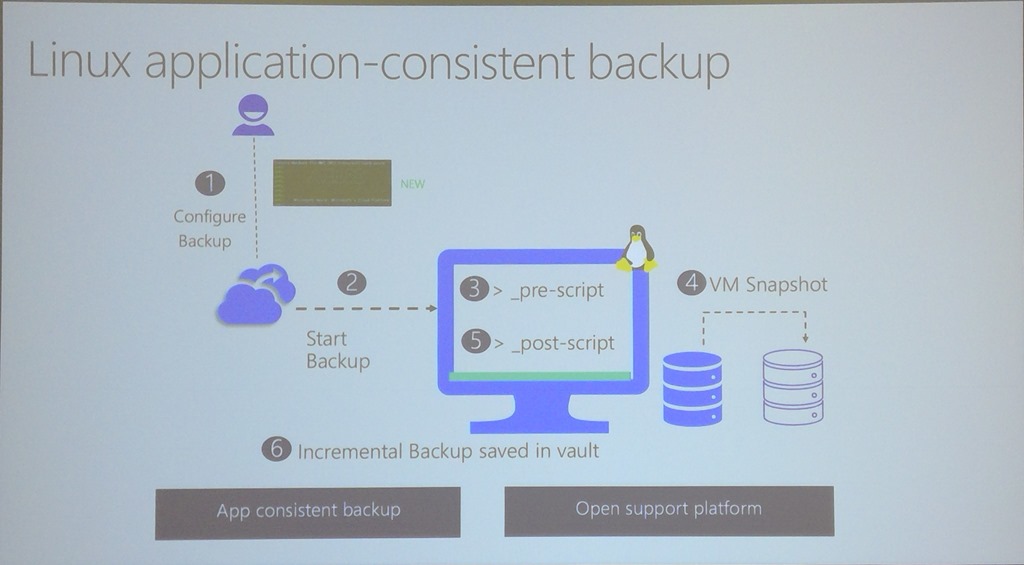
When you backup a Linux VM, you can run a pre-script, do the backup, and then run a post-script. This can enable application-consistent backups in Linux VMs in Azure. Aruna logs into a Linux VM via SSH. There are Linux CLI commands in the guest OS, e.g. az backup. There is a JSON file that describes the pre-and post scripts. There’s some scripts by a company by a company called capside for MySQL. The pre-script creates database dumps and stops the databases.

28-09-2017 14-49 Office Lens

az backup recoverypoint list and some flags can be used to list the recovery points for the currently logged in VM. The results show if they are app or file consistent.

az backup restore files and some parameters can be used to mount the recovery point – you then copy files from the recovery point, and unmount the recovery point when done.

28-09-2017 14-45 Office Lens

Restore as a Service

28-09-2017 14-50 Office Lens

On-Premises

2/3 of customers keeping on-premises data.

Two solutions in AB for hybrid backup:

  • Microsoft Azure Backup Server (MABS) / DPM: Backup Hyper-V, VMware, SQL, SharePoint, Exchange, File Server & System State to local storage (short-term retention)  and to the cloud (long term retention)
  • MARS Agent: Files & Folders, and System State backed up directly to the cloud.

System State

Protects Active Directory, IIS metadata, file server metadata. registry, COM+ Cert Services, Cluster services info, AD, IIS metabase.

Went live in MARS agent last month.

In a demo, Vijay deletes users from AD. He restores system state files using MARS. Then you reboot the DC in AD restore mode. And then use the wbadmin tool to restore the system state. wbadmin start systemstaterecovery. You reboot again, and the users are restored.

Vijay shows MARS deployment, and shows the Project Honolulu implementation.

Next he talks about the ability to do an offline backup instead of an online full backup. This leverages the Azure storage import service, which can leverage the new Azure Data Box – a tamper proof storage solution of up to 100 TB.

Security

Using cloud isolates backup data from the production data. AB includes free multi-approval process to protect destructive operations to hybrid backups. All backup data is encrypted. RBAC offers governance and control over Azure Backup.

There are email alerts (if enabled) for destructive operations.

If data is deleted, it is retained for 14 days so you can still restore your data, just in case.

Hybrid Backup Encryption

Data is encrypted before it leaves the customer site.

Customers want:

  • To be able to change keys
  • Keep the key secret from MS

A passphrase is used to create they key. This is a key encryption key process. And MS never has your KEK.

Azure VM Disk Encryption

You still need to be able to backup your VMs. If a disk is encrypted using a KEK/BEK combination in the Key Vault, then Azure Backup includes the keys in the backup so you can restore from any point in time in your retention policy.

Isolation and Access Control

Two levels of authorization:

  • You can control access/roles to individual vaults for users.
  • There are permissions or roles within a vault that you can assign to users.

Monitoring & Reporting

Typical questions:

  • How much storage am I using?
  • Are my backups healthy?
  • Can I see the trends in my system?

Vijay does a tour of information in the RSV. Next he shows the new integration with OMS Log Analytics. This shows information from many RSVs in a single tenant. You can create alerts from events in Log Analytics – emails, webhooks, runbooks, or trigger an ITSM action. The OMS data model, for queries, is shared on docs.microsoft.com.

For longer term reporting, you can export your tenant’s data to an AB Content Pack in PowerBI – note that this is 1 tenant per content pack import, so a CSP reseller will need 100 imports of the content pack for 100 customers. Vijay shows a custom graphical report showing the trends of data sources over 3 months – it shows growth for all sources, except one which has gone down.

Power BI is free up to 1 GB of data, and then it’s a per-user monthly fee after that.

Roadmap

  • Backup of SQL in IaaS – preview
  • Backup of Azure file – preview
  • Azure CLI
  • Backup of encrypted VMs without KEK
  • Backup of VMs with storage ACLs
  • Backup of large disk VMs
  • Upgrade of classic Backup Vault to ARM RSV
  • Resource move across RG and subscription
  • Removal of vault limits
  • System State Backup

From IT Pros to IT Heros–With Azure DevTest Labs

Claude Remillard, Group Program Manager

How IT pros can make devs very happy!

Reason to Exist

50% or more of infrastructure is used for non-production environment. In an old job of mine, we have dev, test, and production versions of every system. That’s a lot of money! The required life of dev & test is up and down. The cloud offers on-demand capacity.

DevTest Labs

Solution for fast, easy, and agile dev-test environments in Azure:

  • Fast provisioning
  • Automation & self-service
  • Cost control and governance

Think of it as a controlled subset of Azure where the devs can roam free.

Test Environments

Typical pipeline:

  1. Check-in
  2. Build
  3. Test
  4. Release

You can pre-configure a lot of things to get a VM. Standardize images. Use an image factory.

Training / Education

A number of training companies are using DevTest environments. They can set a limit in the lab, and then let people do what they need to do in that lab.

Trials / Demos / Hackathons

Invite people in to try something out, experiment with designs/patterns, and do this in a short-lived and controlled environment.

Demo

DevTest Labs is just another Azure service. You create the lab, configure it, and assign users to it.

In Overview, you can see VMs you own, and VMs that you can claim. In virtual machines, you can see an environment alongside VMs; this is a collection of related resources. Claimable VMs are pre-created and shutdown. An IT pro could take a s/w build, deploy it overnight, and let devs/tests claim the machines the following morning.

When he goes into a VM, it has a tiny subset of the usual VM features. It has other things, like Auto-Start and Auto-Shutdown to reduce costs. You can create a custom image from a VM, which includes optionally running Sysprep. That image is then available to everyone in the lab to create VMs from. Images can be shared between labs.

Everything in the lab can be automated with APIs, PowerShell (and, thus, Automation).

He goes to create a VM. The new VM is build from a “base”. Bases can be custom/gallery images, ARM templates, or formulas. It sounds like the ARM template could be in a source control system and you could have multiple labs subscribe to those templates, or other artefacts.

If you select a VM base, there’s just one blade to create it. Name the machine, put in a guest OS username/password (can be saved as a reusable secret), choose disk type/size, select a VM series/size (restricted by admin), add other artefacts (additional s/w you can add to the VM at the time of creation, e.g. Chrome using Choclatey package manager, join an AD domain, etc), optionally do some advanced settings (network options, IP config, auto-delete the VM, number of instance, make the VM claimable), and click Create.

You can export a lab as a file, and use that file to spin up new labs.

Back in the lab, he goes to Configuration & Policies. Cost Tracking shows trends and resource specific costs. This is based on RRP costs – special deals with MS are not available to the DevTest Lab APIs. The goal here isn’t to do accounting– it’s to see spend trends and spikes.

Users: Devs should be “Lab Users”. You can share a lab with external users, e.g. consultants.

Policy Settings allows you to control:

  • Allowed virtual machines: You select which series/size can be deployed.
  • Virtual machines per user: You can limit the number of machines. You can limit the number of machines using Premium Disks. Enforced per user.
  • Virtual machines per lab: You can limit VMs and Premium VM disks per lab

Schedules:

  • Auto-Start
  • Auto-Stop

You can send emails and webhooks before auto-shutdown.

External Resources:

  • Repositories: Places where you pull artefacts from. Supports VSTS, GitHub and Git. The asure-devtestlab GitHub has lots of sample artefacts, scripts, and templates. This is the best way to share things between labs.
  • Virtual Networks: What networks will be available – should be pre-created by IT pros. You set up a default virtual network for new VMs, optionally with S2S VPN/ExpressRoute. You can control whether a VM can have a public IP or not.

Virtual Machine Bases:

  • Marketplace Images: What is available from the Marketplace: nothing / all / subset.
  • Custom images:
  • Formulas:

At this point I asked if Azure DevTest Labs is available in CSP. The speaker had never heard of the primary method for selling Azure by MS Partners. That’s pretty awful, IMO.

Image Factories

A way to build images that can be reused. It’s a bit more though – it’s a configuration that builds VMs with configurations automatically on a regular basis. This makes it possible to produce the latest VM images with bits baked in to your devs and testers.

That’s everything.

Application-Aware Disaster Recovery For VMware, Hyper-V, and Azure IaaS VMs with Azure Site Recovery

Speaker: Abhishek Hemrajani, Principal Lead Program Manger, Azure Site Recovery, Microsoft

There’s a session title!

The Impact of an Outage

The aviation industry has suffered massive outages over the last couple of years costing millions to billions. Big sites like GitHub have gone down. Only 18% of DR investors feel prepared (Forrester July 2017 The State of Business Technology Resiliency. Much of this is due to immature core planning and very limited testing.

Causes of Significant Disasters

  • Forrester says 56% of declared disasters are caused by h/w or s/w.
  • 38% are because of power failures.
  • Only 31% are caused by natural disasters.
  • 19% are because of cyber attacks.

Sourced from the above Forrester research.

Challenges to Business Continuity

  • Cost
  • Complexity
  • Compliance

How Can Azure Help?

The hyper-scale of Azure can help.

  • Reduced cost – OpEx utility computing and benefits of hyper-scale cloud.
  • Reduced complexity: Service-based solution that has weight of MS development behind it to simplify it.
  • Increased compliance: More certifications than anyone.

DR for Azure VMs

Something that AWS doesn’t have. Some mistakenly think that you don’t need DR in Azure. A region can go offline. People can still make mistakes. MS does not replicate your VMs unless you enable/pay for ASR for selected VMs. Is highly certified for compliance including PCI, EU Data Protection, ISO 27001, and many, many more.

  • Ensure compliance: No-impact DR testing. Test every quarter or, at least, every 6 months.
  • Meet RPO and RTO goals: Backup cannot do this.
  • Centralized monitoring and alerting

Cost effective:

  • “Infrastructure-less” DR sites.
  • Pay for what you consume.

Simple:

  • One-click replication
  • One-click application recovery (multiple VMs)

Demo: Typical SharePoint Application in Azure

3 tiers in availability sets:

  • SQL cluster – replicated to a SQL VM in a target region or DR site (async)
  • App – replicated by ASR – nothing running in DR site
  • Web – replicated by ASR – nothing running in DR site
  • Availability sets – built for you by ASR
  • Load balancers – built for you by ASR
  • Public IP & DNS – abstract DNS using Traffic Manager

One-Click Replication is new and announced this week. Disaster Recovery (Preview) is an option in the VM settings. All the pre-requisites of the VM are presented in a GUI. You click Enable Replication and all the bits are build and the VM is replicated. You can pick any region in a “geo-cluster”, rather than being restricted to the paired region.

For more than one VM, you might enable replication in the recovery services vault (RSV) and multi-select the VMs for configuration. The replication policy includes recovery point retention and app-consistent snapshots.

New: Multi-VM consistent groups. In preview now, up to 8 VMs. 16 at GA. VMs in a group do their application consistent snapshots at the same time. No other public cloud offers this.

Recovery Plans

Orchestrate failover. VMs can be grouped, and groups are failed over in order. You can also demand manual tasks to be done, and execute Azure Automation runbooks to do other things like creating load balancer NAT rules, re-configuring DNS abstraction in Traffic Manager, etc. You run the recovery plan to failover …. and to do test failovers.

DR for Hyper-V

You install the Microsoft Azure Recovery Services (MARS) agent on each host. That connects you to the Azure RSV and you can replicate any VM to that host. No on-prem infrastructure required. No connection broker required.

DR for VMware

You must deploy the ASR management appliance in the data centre. MS learned that the setup experience for this is complex. They had a lot of pre-reqs and configurations to install this in a Windows VM. MS will deliver this appliance as an OVF template from now on – familiar format for VMware admins, and the appliance is configured from the Azure Portal. Replicate Linux and Windows VMs to Azure, as with Hyper-V from then on.

Demo: OVF-Based ASR Management Appliance for VMware

A web portal is used to onboard the downloaded appliance:

  1. Verify the connection to Azure.
  2. Select a NIC for outbound replication.
  3. Choose a recovery services vault from your subscription.
  4. Install any required third-party software, e.g. PowerCLI or MySQL.
  5. Validate the configuration.
  6. Configure vCenter/ESXi credentials – this is never sent to Azure, it stays local. The name of the credential that you choose might appear in the Azure portal.
  7. Then you enter credentials for your Windows/Linux guest OS. This is required to install a mobility service in each VMware VM. This is because VMware doesn’t use VHD/X, it uses VMDK. Again, not sent to MS, but the name of the credential will appear in the Azure Portal when enabling VM replication so you can select the right credentials.
  8. Finalize configuration.

This will start rolling out next month in all regions.

Comprehensive DR for VMware

Hyper-V can support all Linux distros supported by Azure. On VMware they’re close to all. They’ve added Windows Server 2016, Ubuntu 14.04 and 16.04 , Debian 7/8, managed disks, 4 TB disk support.

Achieve Near-Zero Application Data Loss

Tips:

  • Periodic DR testing of recovery plans – leverage Azure Automation.
  • Invoke BCP before disasters if you know it’s coming, e.g. hurricane.
  • Take the app offline before the event if it’s a planned failover – minimize risks.
  • Failover to Azure.
  • Resume the app and validate.

Achieve 5x Improvement in Downtime

Minimize downtime: https://aka.ms/asr_RTO

He shows a slide. One VM took 11 minutes to failover. Others took around/less than 2 minutes using the above guidance.

Demo: Broad OS Coverage, Azure Features, UEFI Support

He shows Ubunu, CentOS, Windows Server, and Debian replicating from VMware to Azure. You can failover from VMware to Azure with UEFI VMs now – but you CANNOT failback. The process converts the VM to BIOS in Azure (Generation 1 VMs). OK if there’s no intention to failback, e.g. migration to Azure.

Customer Success Story – Accenture

They deployed ASR. Increased availability. 53% reduction in infrastructure cost. 3x improvement in RPO. Savings in work and personal time. Simpler solution and they developed new cloud skills.

They get a lot of alerts at the weekend when there’s any network glitches. Could be 500 email alerts.

Demo: New Dashboard & Comprehensive Monitoring

Brand new RSV experience for ASR. Lots more graphical info:

  • Replication health
  • Failover test success
  • Configuration issues
  • Recovery plans
  • Error summary
  • Graphical view of the infrastructure: Azure, VMware, Hyper-V. This shows the various pieces of the solution, and a line goes red when a connection has a failure.
  • Jobs summary

All of this is on one screen.

He clicks on an error and sees the hosts that are affected. He clicks on “Needs Attention” in one of the errors. A blade opens with much more information.

We can see replication charts for a VM and disk – useful to see if VM change is too much for the bandwidth or the target storage (standard VS premium). The disk level view might help you ID churn-heavy storage like a page file that can be excluded from replication.

A message digest will be sent out at the end of the day. This data can be fed into OMS.

Some guest speakers come up from Rackspace and CDW. I won’t be blogging this.

Questions

  • When are things out: News on the ASR blog in October
  • The Hyper-V Planner is out this week, and new cost planners for Hyper-V and VMware are out this week.
  • Failback of managed disks is there for VMware and will be out by end of year for Hyper-V.

Running Tier 1 Worklaods on SQL Server on Microsoft Azure Virtual Machines

Speaker: Ajay Jagannathan, Principal PM Manager, Microsoft Data Platform Group. He leads the @mssqltiger team.

I think that this is the first every SQL Server that I’ve attended in person at a TechEd/Ignite. I was going to a PaaS session instead, but I’ve got so many customers running SQL Server on Azure VMs, that I thought that this was important for me to see. I also thought it might be useful for a lot of readers.

Microsoft Data Platform

Starting with SQL 2016, the goal was to make the platform consistent on-premises, with Azure VMs, or in Azure SQL. With Azure, scaling is possible using VM features such as scale sets. You can offload database loads, so analytics can be on a different tier:

  • On-premises: SQL Server and SQL Server (DW) Reference architecture
  • IaaS: SQL Server in Azure VM with SQL Server (DW) in Azure VM.
  • PaaS: Azure SQL database with Azure SQL data warehouse

Common T-SQL surface area. Simple cloud migration. Single vendor for support. Develop once and deploy anywhere.

Azure VM

  • Azure load balancer routes traffic to the VM NIC.
  • The compute and storage are separate from the storage.
  • The virtual machine issues operations to the storage.

SQL Server in Azure VM – Deployment Options

  • Microsoft gallery images: SQL Server 2008 R2 – 2017, SQL Web, Std, Ent, Dev, Express. Windows Server 2008 R2 – WS2016. RHEL and Ubuntu.
  • SQL Licensing: PAYG based on number of cores and SQL edition. Pay per minute.
  • Bring your own license: Software Assurance required to move/license SQL to the cloud if not doing PAYG.
  • Creates in ~10 miuntes.
  • Connect via RDP, ADO, .NET, OLEDB, JBDC, PHO …
  • Manage via Portal, SSMS, owerShell, CLI, System Center …

It’s a VM so nothing really changes from on-premises VM in terms of management.

Everytime there’s a critical update or service pack, they update the gallery images.

VM Sizes

The recommend DS__V2- or FS-Series with Premium Storage. For larger loads, they recommend the GS- and LS-Series.

For other options, there’s the ES_v2 series (memory optimized DS_v3), and the M-Series for huge RAM amounts.

VM Availability

Availability sets distribute VMs across fault and update domains in a single cluster/data centre. You get a 99.95% SLA on the service for valid configurations. Use this for SQL clusters.

Managed disks offer easier IOPS management, particularly with Premium Disks (storage account has a limit of 20,000 IOPS). Disks are distributed to different storage stamps when the VM is in an availability set – better isolation for SQL HA or AlwaysOn.

High Availability

Provision a domain controller replica in a different availability set to your SQL VMs. This can be in the same domain as your on-prem domain (ExpressRoute or site-to-site VPN).

Use (Get-Cluster).SameSubnetThreshold = 20 to relax Windows Cluster failure detection for transient network failure.

Configure the cluster to ignore storage. They recommend AlwaysOn. There is no shared storage in Azure. New-Cluster –Name $ClusterName –NoStorage –Node $LocalMachineName

Configure Azure load balancer and backend pool. Register the IP address of listener.

There are step-by-step instructions on MS documentation.

SQL Server Disaster Recovery

Store database backups in geo-replicated readable storage. Restore backups in a remote region (~30 min).

Availability group options:

  • Configure Azure as remote region for on-premise
  • Configure On-prem as DR for Azure
  • Replicate in Azure Remote region – failover to remove in ~30s. Offload remote reads.

Automated Configuration

Some of these are provided by MS in the portal wizard:

  • Optimization to a target workload: OLTP/DW
  • Automated patching and shutdown – latter is very new, and to reduce costs for new dev/test workloads to reduce costs at the end of the workday.
  • Automated backup to a storage account, including user and system databases. Useful for a few databases, but there’s another option coming for larger collections.

Storage Options

The recommend LRS only to keep write performance to a maximum. GRS storage is slower, and could lead to database file being written/replicated before log storage.

Premium Storage: high IOPS and low latency. Use Storage Spaces to increase capacity and performance. Enable host-based read caching in data disks for better IOPS/latency.

Backup to Premium Storage is 6x faster. Restore is 30x faster.

Azure VM Connectivity

  • Over the Internet.
  • Over site-site tunnel: VPN or ExpressRoute
  • Apps can connect transparently via a listener, e.g. Load Balancer.

Demo: Deployment

The speaker shows a PowerShell script. Not much point in blogging this. I refer JSON anyway.

http://aka.ms/tigertoolbox is the script/tools/demos repository.

Security

  • Physical security of the datacenter
  • Infrastructure security: virtual network isolation, and storage encryption including bring-your-own-key self-service encryption with Key Vault. Best practices and monitoring by Security Center.
  • Many certifications
  • SQL Security: auto-patching, database/backup encryption, and more.

VM Configuration for SQL Server

  • Use D-Series or higher.
  • Use Storage Spaces for performance of disks. Use Simple disks: the number of columns should equal the number of disks. For OLTP use 64KB interleave and use 256KB for data warehouse.
  • Do not use the system drive.
  • Put TempDB, logs, and databases on different volumes because of their different write patterns.
  • 64K allocation unit size.
  • Enable read caching on disks for data files and TempDB.
  • Do not use GRS storage.

SQL Configuration

  • Enable instant file initialization
  • Enabled locked ages
  • Enable data page compression
  • Disable auto-shrink for your databases
  • Backup to URL with compressed backups – useful for a few VMs/databases. SQL 2016 does this very quickly.
  • Move all databases to data disks, including system databases (separate data and log). Use read caching.
  • Move SQL Server error log and trace file directories to data disks

Demo: Workload Performance of Standard Versus Premium Storage

A scripted demo. 2 scripts doing the same thing – one targeting a DB on Standard disk (up to 500 IOPS) and the second targets a DB on a Premium P30 (4,500 IOPS) disk. There’s table creation, 10,000 rows, inserts, more tables, etc. The scripts track the time required.

It takes a while – he has some stats from previous runs. There’s only a 25% difference in the test. Honestly – that’s no indicative of the differences. He needs a better demo.

An IFI test shows that the bigger the database file is, the bigger the difference is in terms of performance – this makes sense considering the performance nature of flash storage.

Seamless Database Migration

There is a migration guide, and tools/services. http://datamigration.microsoft.com. One-stop shop for database migrations. Guidance to get from source to target. Recommended partners and case studies.

Tools:

  • Data Migration Assistant: An analysis tool to produce a report.
  • Azure Database Migration Service (free service that runs in a VM): Works with Oracle, MySQL, and SQL Server to SQL Server, Azure SQL, Azure SQL Managed Instance. It works by backing up the DB on the source, moving the backup to the cloud, and restoring the backup.

Azure Backup

Today, SQL Server can backup from the SQL VM (Azure or on-prem) to a storage account in Azure. It’s all managed from SQL Server. Very distributed, no centralized reporting, difficult/no long-term retention.  Very cheap.

Azure Backup will offer centralized management of SQL Backup in an Azure VM. In preview today. Managed from the Recovery Services Vault. You select the type of backup, and a discovery will detect all SQL instances in Azure VMs, and their databases. A service account is required for this and is included in the gallery images. You must add this service for custom VMs. You then configure a backup policy for selected DBs. You can define a full backup policy, incremental, and transactional backup policy with SQL backup compression option. The retention options are the familiar ones from Azure Backup (up to 99 years by the looks of it). The backup is scheduled and you can do ad-hoc/manual backups as usual with Azure Backup.

You can restore databases too – there’s a nice GUI for selecting a restore date/time. It looks like quite a bit of work went into this. This will be the recommended solution for centralized backup of lots of databases, and for those wanting long term retention.

Backup Verification is not in this solution yet.

My Appearance on Windows Weekly

If you don’t know it, Windows Weekly on the TWiT podcast network, is one of the (if not the) biggest Microsoft news podcast around. I’ve been a listener for a long time, and enjoy the news & conversations between the hosts, with news coming from Mary Jo Foley and Paul Thurrott. Because of my writing on Petri.com, a sister site of Paul’s site, I’ve gotten to meet Paul a few times. Mary Jo and I have talked a few times and met at conferences over the years – she gave me a massive opportunity a few years ago by inviting me to do a guest article on her site while she was on vacation. Both are real journalists using the blogging platform, and they’re the sort of people I respect in the media … and they’re nice people too.

I first met them in person at the TechEd in New Orleans when I was given a press pass. I was sitting out in the press room, and the two megastars of Microsoft news sat across the table from me. I kind of nerded out Smile

Anyway … I’m here at the Ignite conference and Mary Jo and Paul were doing a live recording of Windows Weekly in a studio that Microsoft had set up to do various live community podcasts throughout the week. I’d always thought that I’d love to visit the studio in California when Windows Weekly was on but never had the chance. This was an opportunity to sit in and enjoy the show live instead of in my car while commuting to/from work. I sat in, and it was enjoyable. As usual, the two had some background news and information from interviews with senior Microsoft staff that filled out knowledge that I had.

Often at recording at events, the show opens up an audience mic for Q&A. I think at one point Paul said something about “why is there no Cortana in my country”. After a series of questions where Windows Phone came up, I decided to walk up and offer up something different. It starts at the 1:25:49 mark.

It was very cool to appear, even in a tiny way, on a show that has informed me so much over the news. Thanks Paul & Mary Jo, and to the TWiT network for the opportunity!

Azure AD Domain Services


Options when Moving to The Cloud

  • Switch to using SaaS versions of the s/w
  • Rewrite the app
  • Lift and shift: the focus today.

How Organizations Handle AD Requirements Today

  • They set up site-site VPN and deploy additional domain controllers in the cloud.
  • They deploy another domain/forest in the cloud and provision a trust, e.g. ADFS.

Imagine a Simpler Alternative

  • Simpler
  • Compatible
  • Available
  • Cost-effective

Introducing Azure AD Domain Services

  1. You provision a VNet.
  2. Then you activate Azure AD Domain Services in Azure AD on that VNet
  3. You can manage the domain using RSAT.
  4. You can optionally sync your Windows Server AD with Azure AD to share accounts/groups.

Managed Domains

  • Domain controllers are patched automatically.
  • Secure locked down domain, complaint with AD deployment best practices
  • You get 2 DCs, so fault tolerant
  • Automatic health detection and remediation. If a DC fails, a new one is provisioned.
  • Automatic backups for disaster recovery.
  • No need to monitor replication – done as part of the managed service.

Sync

If you deploy sync, e.g. Azure AD Connect, then it flows as follows: Windows Server AD <-> Azure AD <-> Azure AD Domain Services

Features

  • SIDs are reused. This means things like file servers can be lifted and shifted to Azure without re-ACLing your workloads.
  • OUs
  • DNS

Pricing

Based on the number of objects in the directory. Micro-pricing.

Decisions

27-09-2017 16-13 Office Lens

New Features

  • Azure Portal AD Experience is GA
  • ARM virtual network join is GA

Demo

He creates an AADS domain. THere are two OUs by default:

  • AADC Users
  • AADC Computers

Back to the PowerPoint

Notes

  • You cannot deploy AADDS in the classic Azure portal any more.
  • The classic deployment model will be retired – the ARM deployment is better and more secure.
  • The classic VNet support is ending (for new domains) soon.
  • Existing deployments will continue to be supported

Questions

  • Is there GPO sync? No. This is a different domain, so there is no replication of GPO from on prem to AADDS
  • Can you add another DC to this domain? No. There will be (in the future) the ability to add more AADDS “DCs” in other VNets.
  • What happens if a region goes down? The entire domain goes down now – but when they have additional DC support this will solve the problem
  • Is there support in CSP? No, but it’s being worked on.

Manage Azure IaaS VMs

You can join these machines to AADDS. You can push GPO from AADDS. You’ll sign into the VMs using AADDS user accounts/passwords.

GPO

Members of AADDC Administrators can create OUs. You can target GPO to OUs.

Move Servers to the Cloud

Sync users/passwords/SIDs to the cloud, and then lift/shift applications/VMs to the cloud. THe SIDs are in sync so you don’t need to change permissions, and there’s a domain already for the VMs to join without creating DC VMs.

LDAP over SSL

I missed most of this. I think you can access applications using LDAP over SSL via the Internet.

Move Server Applications To Azure

User AADDS to provision and manage service accounts.

Kerberos Constrained Delegation

Cannot work with AADDS using old methods –  You don’t have the privileges. The solution is to use PowerShell to implement resource-based KCD.

Modernize Legacy Apps with Application Proxy

You can get users to sign in via AAD and MFA into legacy apps. A token is given to the app to authorize the user.

SharePoint Lift and Shift

A new group called AAD DC Service Accounts. Add the SharePoint Profile sync user account to this group.

Domain Joined HDIsnight Cluster

You can “Kerber-ize” a HD cluster to increase security. This is in preview at the moment.

Remote Desktop Deployments

Domain-join the farm to AADDS. The licensing server is a problem at the moment – this will be fixed soon. Until then, it works, but you’ll get licensing warnings.

Questions

  • Schema extensions? Not supported but on the roadmap.
  • Logging? Everything is logged but you have to go through support to get at them at the moment. They want to work on self-service logging.
  • There is no trust option today. They are working on the concept of a resource domain – maybe before end of the year.
  • Data at rest, in ARM, is encrypted. The keys (1 set per domain) are managed by MS. MS has no admin credentials – there’s an audited process for them to obtain access for support. The NTLM hashes are encrypted.

Deciding When to DIY Your Own AD Deployment

27-09-2017 16-39 Office Lens


Features Being Considered

  • Cloud solution provider support – maybe early 2018.
  • Support for a single managed domain to space multiple virtual networks
  • Manage resource forests
  • Schema extensions – they’ll start with the common ones, and then add support for custom extensions.
  • Support for LDAP writes – some apps require this

Any questions/feedback to aaddsfb@microsoft.com

Windows Server Fall Release (1709) Technical Foundation

Speaker: Jeff Woolsey, Principal Program Manager

WS2016 Recap

Design points

  • Layered security for emerging threats:  Jeff has been affected by 4 of the big, well publicised hacks. CEOs are being fired because of this stuff now.
  • Build the software-defined data centre
  • Create a cloud-optimized application platform

Security in WS2016

  • Long laundry list of features: Defender, Control Flow Guard, Devices Guard, Credential Guard, Remote Credential Guard.
  • Shielded VMs – you don’t trust the operators
  • vTPM – encrypt the disks
  • JIT Administration

Software-Defined

  • Compute: rolling upgrades with no downtime, hot/add remove, more resilient to transient storage, compute, network issues.
  • Network: Azure code brought to Windows Server 2016: SDN scale and simplicity. L4 load balancer, distributed data centre firewall.

He tells a very funny story on RAM support: 24 TB physical, and 12 TB RAM in Hyper-V VMs.

  • Storage: Hyper-Converged, Storage Replica, cluster wide QoS
  • RDS: Lots there too.

Hyper-Converged Infrastructure

Built into WS2016 Datacenter edition: Storage Spaces Direct (S2D). Uses SATA, SAS, SSD, and NVME, Working with storage industry to add new flash types.

  • Cloud design points: used in Azure Stack
  • RDMA at the core for performance and latency benefits.
  • Simplifying the datacenter: Add servers to add compute and storage capacity. No more SAN network. Storage controller is s/w.

Working on adding NVDIMMS: Intel Persistent Memory. Not as fast as real memory, but you can add lots of it in, e.g. 100 TB of “RAM”. Supported in WS2016 and SQL Server 2017 and later.

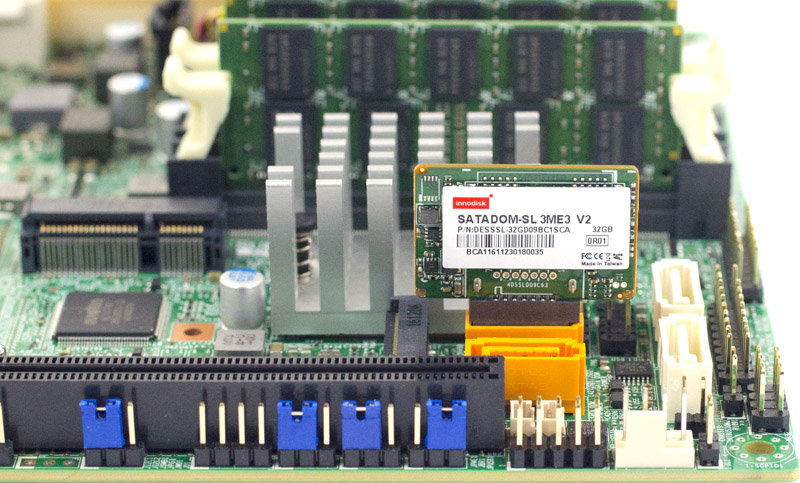
SATADOM is supported in WS2016 and later. It’s flash but its attached to a SATA connector (see image below). The idea is to do the “boot from USB” to free up a drive bay. This tiny drive plugs directly onto the SATA controller on the motherboard. Faster than USB/SD boot and more reliable.

Cloud Ready Application Platform

  • Windows Server Containers: The next generation of compute, following virtualization. Both are different techs, and going forward, both will probably exist. But containers will be the tech of choice for deploying applications: speed, ease of deployment, better densities, and more performance.
  • Nano Server: Ideal for the microkernal in Hyper-V Containers
  • Automation: PowerShell 5.0 and DSC

Now on to the new stuff

Azure File Sync

Klaas Langhout comes on stage.

I’ve covered this in depth already.

Back to Jeff. He asks Klaas if customers access the shares any differently on prem. Nope – it’s the same old file share and any Azure connectivity/tiering/sync is hidden.

Windows Defender Advanced Threat Protection (WDATP)

Using cloud intelligence to protect Windows.

  • Built into Windows Server
  • Behaviour-based, cloud-powered breach detection
  • Best of breed investigation experience
  • And more

You can sign into the Windows Defender Security Center to analyse activity to do forensics on an attack or suspicious activity, and learn how to remediate the attack.

Modern, Remote Management for Windows Server

I covered Project Honolulu earlier today.

Honolulu will remain a free download outside of Windows Server – expect updates every month.

FAQ on Honolulu

  • Price: Free
  • Edge, Chrome, Safari on Mac and more to be tested.
  • Installs on WS2012 R2 and later, Windows 10.
  • Manages Hyper-V Server 2012 and later and WS2012 and later.
  • Azure is not required.
  • AD is not required either.
  • Security: HTTS LAPS, Delegation
  • Configuration: No IIS, Agents not required. SQL not required. If you are pre-2016. you have to install WMF 5.1.
  • Positioning: Evolution of “in-box” tools. Does not replace System Center. Complementary to SycCtr, OMS, RSAT. Hopefully will eventually replace MMC-based RSAT.
  • Feedback: Via Windows Server UserVoice.
  • Extensions: It’s plugable, with alpha SDK today.

1709

On to the next release of Windows Server, coming in October.

Application Innovation

  • Container-optimized Nano Server image increase container density and performance.
  • .NET Core 2.0
  • SMB Support for containers
  • Linux Containers with hyper-V isolation
  • Windows Subsystem for Linux – to manage the above primarily

Where to Start With Containers

  • Containerize suitable existing applications. GUI-based apps aren’t suitable.
  • Transform monoliths into microservices, with new code and transforming existing code.
  • Accelerate new applications with cloud-app development.

What’s Next

Windows Server Insiders is a program to beta test and learn the new stuff in the semi-annual channel.

Post 1709 Improvements

Compute:

  • Honolulu integration
  • Shielded Linux VMs
  • Guest RDMA

Network:

  • Honolulu integration
  • Encrypted virtual networks
  • NTLM no longer required
  • SMB1 Disabled by default
  • and more

Software-Defined:

  • S2D Support for NVMe
  • S2D support for NV-DIMMs
  • Dedupe for ReFS
  • Cluster Sets to enable large scale HVI
  • Storage Replica test failover
  • Scoped volumes
  • Something on multi-resilient volumes

Windows Server – What’s New & What’s Next

Speakers:

  • Erin Chapple, General Manger Windows Server
  • Chris Van Wesep, Director Product Marketing

Erin Chapple starts things. Today they’ll talk about what’s new in Windows Server, what’s the future, and the hybrid/migration opportunities.

WS2016 Looking Back

Most cloud-ready OS:

  • Built-in security: Protection of identity (Credential Guard), secure the virtualization platform (shielded VMs, vTPM), and built-in layers of security (VSM, etc)
  • Azure-inspired infrastructure: Storage Spaces Direct, Network Controller, learnings from hyper-scale, affordable.
  • Hybrid application platform: Support for containers, built-for-purpose OS, Azure Hybrid Benefit for SA/Azure transition

Some customer case studies come up. Rackspace used Shielded VMs, Nano Server for applications (woops!) for hosting. A “large investigative government agency” needed to preserve lots of seized data (PB + per case). They used Storage Spaces Direct (S2D) on 8-node clusters, with data in VMs to isolate one investigation from another. biBERK used containers to deploy 22 apps on WS2016 Containers with Docker in less than 1 week.

The key for software-defined is the hardware. They leverage offloads so much that hardware must be more reliable. There is a Windows Server Software Defined Program (WSSD) and the site with all the info is http://docs.microsoft.com/en-us/windows-server/sddc.

Supporting You Wherever You Are

WS2016 is the basis of on-premises, Azure, and Azure Stack (hybrid). 80% of enterprises see themselves operating in a hybrid mode for the foreseeable future. 55% have a hybrid strategy in place as of a year ago. 87% are planning to integrate on-premises datacentres with public cloud.

Hybrid is not about a network connection. It’s about consistency right down to the API level: unified development, VMs, storage, data, identity, and much more.

Will Gries – Azure File Sync

This is a new hybrid service that is a part of Azure Files. Centralize storage in Azure Files, but without giving up the file server. You effectively cache data locally on file servers for fast local performance. The cloud enables sync between site, centralized backup, and easy DR.

He starts a demo. The file sync agent is installed on a WS2016 file server. It is syncing to Azure. He proves this by changing & deleting things on Azure and it syncs to the cloud. It’s all near realtime, using change notifications on file server to ensure that sync happens very quickly. Cloud Tiering enables the “cache” feature. The greyed files with an O attribute have a disk size of 0 bytes because they are stored in Azure. If he opens the file, it’s recalled from Azure Files seamlessly. Files that are able to do partial reads/writes can stream from Azure – he opens a video and we can see in the UI that it is streaming from Azure. In file properties, we can see it has downloaded the blocks via the stream, optimizing the download to only required blocks, thanks to streaming.

Back to Erin.

Windows Server Cadence

Industry is moving incredibly fast. Industries in that fast lane need server improvements faster. There will be two channels of Windows Server:

  • Semi-annual channel. An opt-in for SA or Azure customers, releasing every spring/autumn. Each release is supported for 18 months, so you can choose to skip every second release. Build = approx year/month, e.g. 1709 will be released in month 10 of 2017.
  • Long-term Servicing Channel: For everyone outside of SA/Azure or not wanting to upgrade every 6-12 months. Typical 5+5 years support program and in all channels. Name = Windows Server + Year.

Many companies will use a mix of both channels, selecting the channel based on demands of an application/service.

Windows Server Insiders will give you a sneak peek of semi-annual channel releases.

The date of the next LTSC release is not announced, but it’s going to be after 2018.

Introducing Server Core to Semi-Annual Channel

Server Core is replacing Nano Server for infrastructure and VM roles. Nano Server adoption was very low in these areas. In 1709, Nano Server is completely focused on containers. It is much smaller for containers by stripping out the infrastructure pieces. Server Core should be a “soft landing” for moving applications from Nano Server. Server Core is the MS recommended choice for infrastructure roles.

Note by me: I will continue to recommend full installations for infrastructure roles. The full GUI is not in the semi-annual channel. So if you want rapid upgrades, you better learn some PowerShell to troubleshoot your networking and drivers/firmware.

What’s New in 1709

Hybrid Application platform and Modern Management

Jeff Woolsey

Jeff tells us that containers are the same journey that we went through with virtualization. Containers will happen, but they won’t kill virtualization – they work together. We’re at the beginning of the next 10 year journey with containers. Jeff says that cloud admins, hybrid admins, IT pros, must learn containerization.

Hybrid Application Platform

  • Nano Server just wasn’t right for virtualization: drivers, installation, patching, etc. So they switched the focus entirely to containers to make it faster to deploy/update, and to get higher levels of density & performance.
  • .NET Core 2.0 and SMB support was added for containers … allows containers to store data on SMB 3.0 storage.
  • Linux containers with Hyper-V Isolation enables a cross-platform to run all kinds of containers but in a secure way (each container running real Linux kernels n a Hyper-V child partition), and Windows Subsystem for Linux. When Win10 added WSL, Microsoft wasn’t planning to do it for Windows Server. With Linux Containers, the case for Bash management on the host made this a viable option.

Telemetry shows that most people using Windows Server containers are choosing the Hyper-V model for security.

All of this is wrapped up in Modern Management.

Demo: Enabling Cloud Apps with Nano Server & Containers

This is the next generation P2V … moving applications (Docker Convert) from VMs to containers. In the demo, Jeff uses Docker to deploy a Hyper-V container in a container. It runs SQL Server & IIS. The Docker tools on GitHub converted the app to an image in less than 1 hour. Now the image is a container image which is easy to deploy. When running in a container, it uses a fraction of the resources that were used by VMs.

Next he deploys a Linux container image with Tomcat Server, on the same Windows Server host as the Windows container.

Nano Server

The base image for WS2016 Nano Server was 383 MB. In 1709 is 78 MB. With .Net it went from 413 MB to 107 MB. Those are the compressed numbers.

Uncompressed: the base image wen from 1.05 GB to 195 MB, and with .NET it went from 1.15 GB to 262 MB.

Management Re-Imagined

  • This is next-generation of “in-box” tooling.
  • Simplified, integrated and secure.
  • Extensible

Required for Server Core in the real world. The UI is HTML5 and touch friendly. It has to manage the h/w, the local VMs, and VMs in Azure.

Today we use Task Manager, MMC based tools like Hyper-V Manager, Perfmon, Device Manager, etc, CMD.EXE, PowerShell, Serer Manager, etc. Jeff mentions lots more tools Smile

Project Honolulu

A HTML5-based touch-friendly UI. It’s running on Jeff’s laptop against 4 servers under his desk back in the office. He opens the Overview (Task Manager info). Computer name and domain join are there. Environment variables, RDP are here. Restart/shutdown are here.

Roles and Features is next. No more need for Server Manager (yay!). Roles & features easily installed remotely. Events shows all the event viewer info. Note that filtering UI is much better here than in the MMC. Files allows you to browse and edit the file system on a managed server. Virtual machines allows Hyper-V VM management.

The system is agentless. Honolulu is a 30 MB MSI download to a management node which you browse to. It even works on Safari on Mac.

Honolulu will be a free download when it goes GA.

Back to Erin

What’s Next For Project Honolulu

A peek into the pipeline … things they are exploring and experimenting with.

Azure Backup in Honolulu – a wizard to set up the Azure bits and start backing up items/system state. They show some mockups of it all being driven from Honolulu instead of the Azure Portal.

The Azure Connection

Chris comes on stage to talk about Hybrid scenarios.

He starts off by talking about Software Assurance. Highlighted features:

  • Required for Semi-Annual releases
  • Hybrid Use Benefit to move to Azure  – up to 40% savings on the cost of Windows Server Azure VMs

Premium Assurance add-on adds 6 years of support to the normal 5+5 model (16 years total) for applications that cannot stay up to date, but can continue to get security updates.

If you watch this session, please note that Chris over-simplifies (a lot) the Hybrid Use benefit. It’s actually quite complex, regarding moving & co-using licenses and core counts.

End of Support

W2008/R2 end of support is Jan 2020 – 1/3 of servers fall into this space. SQL 2008/R2 end of support is July 2019.  For larger companies, they should look at cloud and/or containerization, or even re-development in serverless cloud.

Questions

  • Honolulu can manage all the way back to Ws2012
  • Not every app can/should be containerized – key thing is that you need remote management because containers don’t have a GUI.
  • Where is Honolulu installed. Can be on a PC, on the managed server, or on a centrally dedicated management server. Honolulu uses WMI and PowerShell to talk to the managed servers.

Overview of the Microsoft Azure Serverless Platform

Speakers:

  • Chris Anderson, Senior Program Manager
  • Raman Sharma, Senior Product Marketing Manager

Evolution of Application Platforms

We used to build applications on-premises. Find h/w, find someone to set it up, and then the bits, networking, etc. Counter to productivity.

IaaS meant that a VM could be provisioned faster, but still left with some delays, and still required on-going management. The current wave of SaaS is probably mostly built on IaaS.

Along came PaaS. VMs were abstracted, hiding the on-going management of the VM and guest OS. But we still have the same per-VM paradigm.

Serverless ideally reduces infrastructure to zero. There is really a server, but it’s not yours and there’s no hint of it. The app still has to run on something, but you never acknowledge its existence.

Traits of Serverless

  • Abstraction of servers
  • Event-driven start-up triggers/instant scale out or in.
  • Micro-billing instead of per-hour/month billing.

Benefits

  • Manage apps, not servers. Look after the thing you care about: the app and the code.
  • Reduced DevOps: there are no servers to fix/patch. You don’t have to scale out traditional PaaS.
  • Faster time to market

Your business can sell a service, consume data, seize an opportunity quicker than ever with serverless.

Serverless Application Platform Components

  • Functions: Execute your code based on events you specify.
  • Logic Apps: Design workflows and orchestrate processes. It’s the original serverless feature in Azure. Logic Apps tie together different things inside and outside of Azure in workflows made up of different steps.
  • Event Grid: A relatively new service in Public Preview. Manages all events that can trigger code or logic. A single interface for all such events. Manage where those events come from, and decide what you will do with those events (start Functions, Logic Apps, etc)

26-09-2017 16-18 Office Lens

  • Database: store the data
  • Storage: store data in blob/queue/NoSQL
  • Security services
  • IoT for massive numbers of devices inputing data
  • Analytics to process data realtime
  • Intelligence to use AI models to understand/action on data

Demo: Event Grid & Logic Apps (Chris)

In the Logic Apps Designer. Looks like Flow. When an event occurs to a storage account and is sent in from Event Grid, a post is sent to Teams. The body of the message is dumped into Teams, which is ugly JSON. They want to parse the JSON before posting it. A function is written in JavaScript. The function will do the required parsing of the JSON and create human-friendly output.

He adds an action between the two existing actions in the logic app designer. This will trigger the Function. The Function is passed the body of the JSON. The Function will return a response, and that is used as an input to the Teams action. That input is given a condition. If verbosity = ignore then the Teams action can be bypassed.

Now he deletes a storage account and Event Grid starts the logic app. He traces the logic app in the Portal job history – the trace shows that Team received the message from Logic Apps. After some debugging, the formatted event appeared in Teams. Quite a bit was accomplished in that process without a VM and with very little JavaScript.

Scenarios for Serverless

Short: Anything that is based on events.

  • Real-time stream processing, e.g. IoT. You have no idea when data is coming in, and how much will come in.
  • Time-based processing. E.g. collect logs and process them once per week. Why dedicate VMs/PaaS for that? Pay for the few seconds of compute that is required for the task.
  • Back-ends for mobile/IoT/web. E.g. someone uploads an image to a site, a function stores the image in a storage account, and another function processes the image (thumbnails, metadata, etc) and stores that data somewhere.
  • Real-time bot messaging. Use Logic Apps to workflow the processing of a question from a bot in Cortana Analytics and then send the result back to the bot.

Event Grid

26-09-2017 16-36 Office Lens

The list of services will grow – it’s only been in preview for a month and a half at this point.

It delivers at massive scale:

  • Sub-second end-to-end latency in 99th percentile
  • 10,000,000 events per second per region.
  • 24-hour retry with exponential back off for events not delivered

Logic Apps

  • A visual design experience without writing any code, no matter how complex it is.
  • Multiple connectors to Azure, third-party, or your own services/functions.
  • Uses a declarative definition format to work with CI/CD.

There are over 170 (and growing) connectors to orchestrate, e.g. Slack, SalesForce, Twitter, Box, Facebook, GitHub, DropBox, Pintrest, WordPress, etc.

Functions

An evolution of WebJobs from PaaS.

  • Develop locally using best of class developer tools
  • Boost productivity through triggers and bindings.
  • Choose from a variety of programming languages
  • Integrate with existing DevOps processes.

Lots of triggers: schedule, HTTP (REST or webhook), Blob storage, events, queues, queues and topics, storage tables, SQL tables, NoSQL DB, Push Notifications, Wwilio SMS Text … and one I missed.

What’s New in Functions

  • You can develop locally on Linux, MacOS, and Linux
  • Monitor serverless applications using Application Insights (now GA)
  • Trigger a function on changes in Cosmos DB
  • Securely provide access to information in Microsoft Graph through a function.
  • Trigger a function from a real-time analytics pipeline in Stream Analytics

Demo

Four volunteers go on stage. There are two IoT buttons. When they are pressed, they’ll send a message to Azure IoT, and will trigger Functions. Fastest to answer questions get most points, last gets least points. And then questions on Serverless tech come up. The scores are processed by Serverless compute using Functions. In this case, the functions were actually running on a local host (WS2016).

Customer Stories

  • Fujifilm: Online service handling 1 TB data per day. Monolithic design where code change was hard. Cosmos DB and Functions reduced latency by 95%. Development time reduced by 75%. Higher reliability. Ability to add new features and release faster and more frequently.
  • Quest: Uses serverless for a SaaS application. Able to manage millions of objects. Cut time-to-market by 2/3. No costly on-premises h/w.
  • Plexure: Service to help retailers understand “signals” from their stores to optimize sales. Built serverless with functions, even hubs, IoT, machine learning and Cosmos DB. Reduced efforts and scales on demand. Used to build infrastructure for each retailer. Now they just publish APIs.