How To Manage Azure AD in CSP

In this post I’ll describe two ways that you can use to manage Azure AD in a CSP subscription using a GUI.

CSP, CSP, CSP – that’s all you can hear these days in the Microsoft channel. In short, CSP is a new channel by which customers can buy Azure or partners can resell Azure, with a post-utilization monthly invoice.

That all sounds good – but the downside with CSP is that it only includes Azure v2 (Azure Resource Manager or ARM), unlike all of the other channels which also support Azure v1 (Service Manager). So we lose lots of features and we also lose the classic portal – no storage imports, no RemoteApp, no Azure AD, etc. We also lose the class Azure management site for managing the Azure in CSP subscription – and there’s the issue for Azure AD.

The lack of a UI for managing Azure AD does cause issues:

  • The cries of “use PowerShell” or “use this opensource stuff” suit the 1%-ers but not the rest of us.
  • We lose the ability to start doing clever RBAC using resource groups in Azure.
  • We lose all the Azure AD features, such as single sign-on.
  • We lose the Azure Ad Premium features, sold via CSP too (standalone or in EMS).

Is there a solution? Hmm, there is a workaround which isn’t pretty but it works. There are ways to manage the Azure directory:

  • You have also deployed Office 365 via CSP with the same .onmicrosoft.com domain. You can create users and Office 365 groups in the Office Admin portal.
  • You can also share the directory of the CSP account into another Azure subscription that does support Azure v1; from there, we can manage the directory.

In my lab, I have the following CSP services with a common .onmicrosoft.com domain (deployed by the reseller – my employers, in this case, because we are a Tier 2 distributor of CSP):

  • Office 365
  • EMS
  • Azure

image

I also have an Azure in Open subscription. I can easily create users in my CSP subscription using Azure AD Connect (from on premises domain) or using the Office 365 admin portal. But what about the other features of Azure AD? I’ll need to share the CSP domain with a subscription that does support the classic management portal.

Here’s what you’ll do:

  1. Use another Azure subscription that is not in CSP. Maybe you already have one; if not, start a trial and make sure you don’t enable spending – you’ll still need to verify credit card details. You won’t be charged for managing Azure AD, and you’ll still have access to the subscription when the trial ends – you just can’t deploy things that will cost money, e.g. storage, VMs, and so on.
  2. Sign into https://manage.windowsazure.com using valid Microsoft Account (Live ID) credentials of the non-CSP subscription and browse to Active Directory.
  3. Click New > Active Directory > Directory > Custom Create
  4. Select the option to Use Existing Directory. Make sure you check the box to sign out.
  5. You’ll be signed out and a new login will appear. Sign in with the admin credentials for your CSP domain.
  6. Verify that you want to share the domain. You’ll be signed out again.
  7. Sign into the classic management portal again using your non-CSP credentials. If all has worked correctly, you should be able to see and manage the CSP domain.

This is how I enabled multi-factor authentication, created users, groups, and other cool things in an CSP Azure domain.

Technorati Tags: ,

How Do I Connect Disks To Import Data/Backups To Azure?

How do you connect your disks if USB is out of the question? I recently had some experience on a customer site and learned a few things.

The first thing to note is that you always use a naked 3.5” SATA II/III disk, and never a NAS or USB disk.

You use a disk dock/duplicator. You connect this device to the machine running the import drive prep tool, and then you plug the SATA disk(s) into the dock. Microsoft lists (under “Hard Disk Drives”) 4 supported models from 3 vendors:

  • Anker 68UPSATAA-02BU
  • Anker 68UPSHHDS-BU
  • Startech SATADOCK22UE
  • Sharkoon QuickPort XT HC

The Anker and Startech models (these precise models) are:

  • Old USB 2.0 devices
  • Not distributed outside of the USA

I got my Startech SATADOCK22UE via Ebay from the USA, which cost around $100 after purchase, shipping, and import duties. The USB 3.0 Sharkoon appears to be available outside the USA via the likes of Amazon. I wouldn’t describe it as widely distributed, but it might be the best of the 4 options.

My advice: don’t take chances and get 1 of the above. I worked with a customer that bought a newer USB 3.0 European Startech dock model and the Azure drive prep tool refused to work with it:

[Error] Command failed with exception: AzImportDll.AzImportException: Could not read serial number or signature for the drive. This is a critical error an the command cannot run. This may be due to certain USB adapter or disk drivers that are not fully compatible with the operating system.

image

This was despite the fact that Device Manager has no issues with the disk which we were able to initialize and format. So keep it predictable, and make the effort to get one of the supported disk docks.

Playing with WS2016 Hyper-V – Nested Virtualization, Nano, SET, and PowerShell Direct

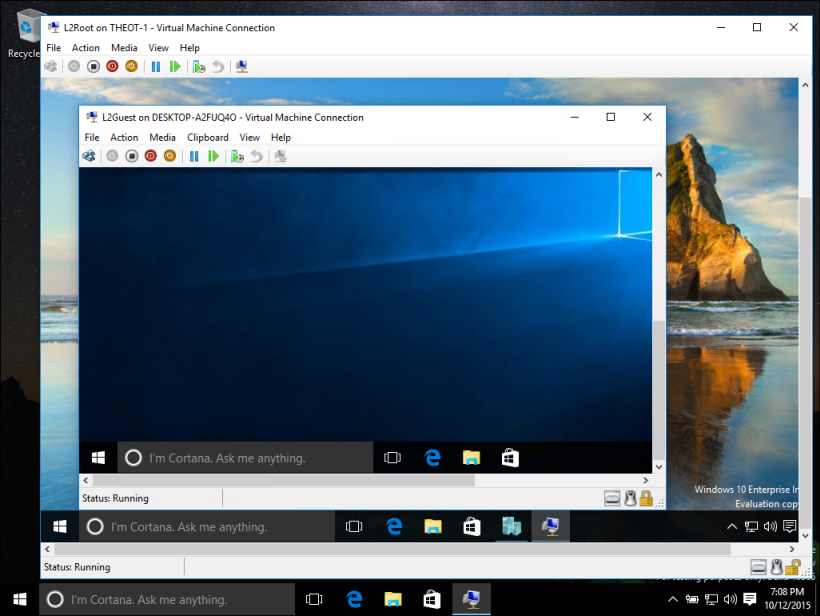
I have deployed Technical Preview 5 (TP5) of Windows Server 2016 (WS2016) to most of the hardware in my lab. One of the machines, a rather old DL380 G6, is set up as a standalone host. I’m managing it using Remote Server Administration Toolkit (RSAT) for Windows 10 (another VM).

I enabled Hyper-V on that host. I then deployed a 4 x Generation 2 VMs using Nano Server (domain pre-joined using .djoin files) – this keeps the footprint tiny and the boot times are crazy fast.

Hyper-V is enabled in the Nano VMs – thanks to the addition of nested virtualization. I’ve also clustered these machines. Networking-wise, I have given each VM 2 x vNICs, each with MAC spoofing (for nested VMs) and NIC teaming enabled.

I launched PowerShell ISE then used Enter-PSSession to connect to the host from the admin PC. And from the host, I used Enter-PSSession -VMName to use PowerShell Direct to get into each VM – this gives me connectivity without depending on the network. That’s because I wanted to deploy Switch Embedded Teaming (SET) and provision networking in the Nano VMs. This script configure the VMs each with 3 vNICs for the management OS, connected to the vSwitch that uses both of the Nano VMs vNICs as teamed uplinks:

$idx = 54

New-VMSwitch -Name External -NetAdapterName "Ethernet","Ethernet 2" -EnableEmbeddedTeaming $true -AllowManagementOS $false

Add-VMNetworkAdapter -ManagementOS -Name "Management" -SwitchName External
Add-VMNetworkAdapter -ManagementOS -Name "SMB1" -SwitchName External
Add-VMNetworkAdapter -ManagementOS -Name "SMB2" -SwitchName External

Sleep 10

New-NetIPAddress -InterfaceAlias "vEthernet (Management)" -IPAddress 172.16.2.$idx -PrefixLength 16  -DefaultGateway 172.16.1.1
Set-DnsClientServerAddress -InterfaceAlias "vEthernet (Management)" -ServerAddresses "172.16.1.40"

New-NetIPAddress -InterfaceAlias "vEthernet (SMB1)" -IPAddress 192.168.3.$idx -PrefixLength 24
New-NetIPAddress -InterfaceAlias "vEthernet (SMB2)" -IPAddress 192.168.4.$idx -PrefixLength 24

Note: there’s no mention of RDMA because I’m working in a non-RDMA scenario – a test/demo lab. Oh yes; you can learn Hyper-V, Live Migration, Failover Clustering, etc on your single PC now!

And in no time, I had myself a new Hyper-V cluster with a tiny physical footprint, thanks to 4 new features in WS2016.

Cannot Bind Parameter ‘ForegroundColor’ Error When Creating Nano Server Image

You get the following error when running New-NanoServerImage in PowerShell ISE to create a new Windows Server 2016 (WS2016) Nano Server image:

Write-W2VError : Cannot bind parameter ‘ForegroundColor’. Cannot convert the “#FFFF0000” value of type
“System.Windows.Media.Color” to type “System.ConsoleColor”.

image

The fix (during TP5) is to not use PowerShell ISE. Use an elevated PowerShell prompt instead. The reasoning is explained here by “daviwil”.

New Features in Azure – 29 April 2016

Microsoft sent out an announcement about feature changes/additions in Azure last night. Some news there that was much quicker than I expected …

Azure Container Service Generally Available

Azure Container Service helps customers manage container-based applications in production, at scale. Azure Container Service is fully integrated with the Azure portal, Azure Resource Manager, and our compute, storage, and networking resources. This supports Docker images, using familiar tools and either open-source DCOS or Docker Swarm as the underlying orchestration technology. The only cost for Azure Container Service is what you pay to use the underlying resources.

New Azure Storage Cool Tier Generally Available

Azure storage was cheap already, but it just got cheaper. Now we have a lower tier for blob storage, that can be used for services like backup, disaster recovery, or data archival. As a result, the storage pricing page has been updated to reflect the new options. Here is the pricing for block blobs (backup) in North Europe:

image

LRS, what we typically see being used for on-prem backup, costs (in North Europe):

  • €0.0084 or $0.01 per GB in cool storage
  • €0.0202 or $0.024 per GB in hot storage

Seriously, that is cheap. Microsoft has detailed the transaction pricing too (this really only affects huge deployments):

image

As you can infer from the above, cool storage really is for infrequently accessed data. Hot storage is where frequently accessed data should reside.

The SLA on cold storage is lower – at 99% which is still pretty damned good, especially for the price. You can bump that up with the RA-GRS redundancy option, where Microsoft provides a higher read SLA of  99.9% for the Cool access tier.

image

Note that I don’t yet see a way to use cool storage with Azure Backup, in either the old or the new portals. But a number of 3rd party backup tools can use it. Note that you have to create a new storage account type called BlobStorage in ARM to gain access to hot/cold, and you can convert from cold to hot, and vice versa (the above transaction costs will be charged for conversions starting on June 1st).

Azure Site Recovery Portal General Availability

The DR solution, ASR, now has support in the new Azure Portal. This adds support for ARM (CSP). Improvements include:

  • Azure Resource Manager support for all scenarios
  • First-class support for Cloud Solution Provider (CSP) subscriptions
  • Streamlined Getting Started experience for all Site Recovery scenarios
  • New Policy construct for flexible association and management
  • Functionality of Backup and Azure Site Recovery in a single vault construct

Enhanced VMware to Azure:

  • New Exclude Disk functionality when replicating VMware VMs to Azure
  • Support for Premium Storage for high-churn workloads

I still don’t see ASR as being ready in ARM. Yes, I can replicate and failover VMs, but I see Azure AD and RemoteApp as essential pieces to the solution. What good are machines in the cloud if I cannot access them? Yes, I can use point-site VPN (don’t assume you’ll have site-site VPN option from your alternative office, e.g. a hotel meeting room) and the “fun” that will cause, but how will my legacy applications perform … after I’ve spent hours installing them on new laptops I just bought? Unfortunately, Service Manager (Azure V1) continues to be my recommendation for DR solutions in Azure, and the rumblings tell me that it’ll stay that way for another 6 or so months 🙁 It’s a pity because the new ASR UI is pretty nice.

Technorati Tags: ,,

Windows Server & System Center TP5 Downloads

Here are more download links for Technical Preview releases of Windows Server 2016 and System Center. Yesterday I posted the links for downloading WS2016, but more has been made available.

My friend, John McCabe (now a PFE at the MSFT office in San Francisco), wrote a free ebook for MS Press on Windows Server 2016 Technical Preview too.

Windows Server Technical Preview 5 is Out

Microsoft has released Technical Preview 5 of Windows Server 2016 and Hyper-V Server 2016. There is also an Essentials edition preview.

image

As you can see, plans for licensing have not changed since I last spoke about this topic … and you voted … a lot.

Here is a listing of what’s new in the technical preview (this includes TP1-4). And here are the official listings for:


Technorati Tags: ,

Azure Global Bootcamp Dublin – When Disaster Strikes

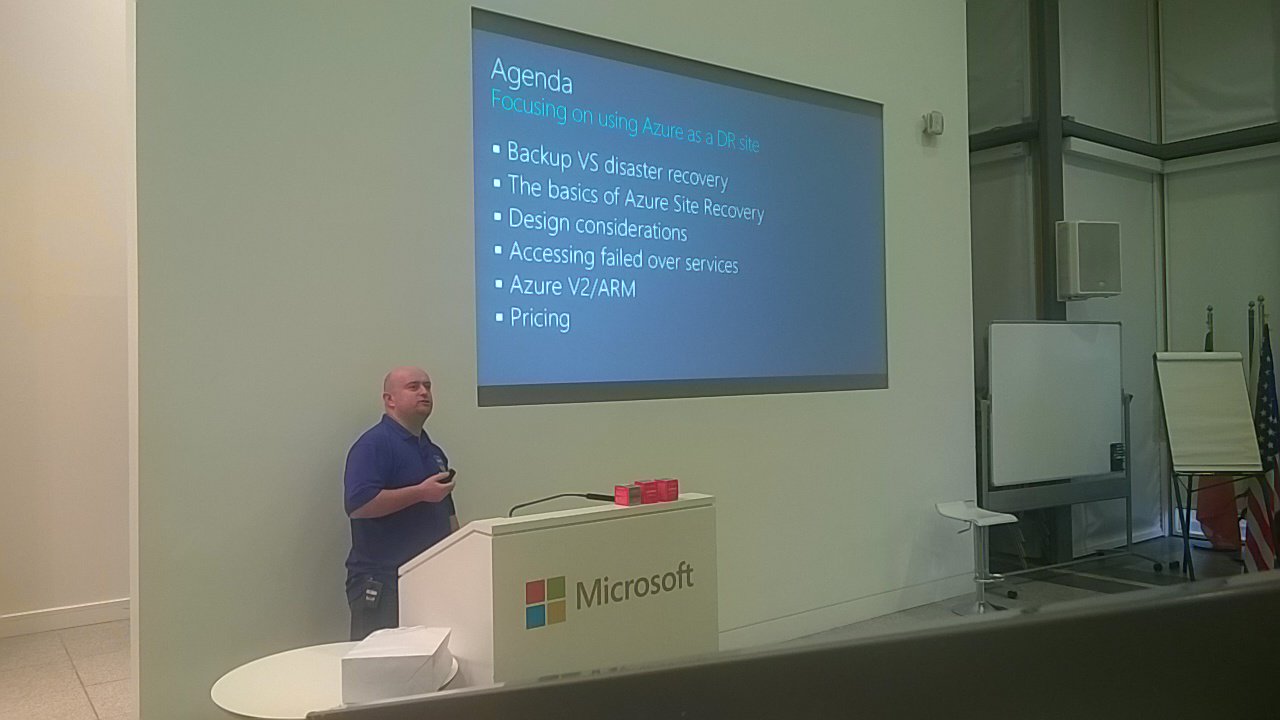
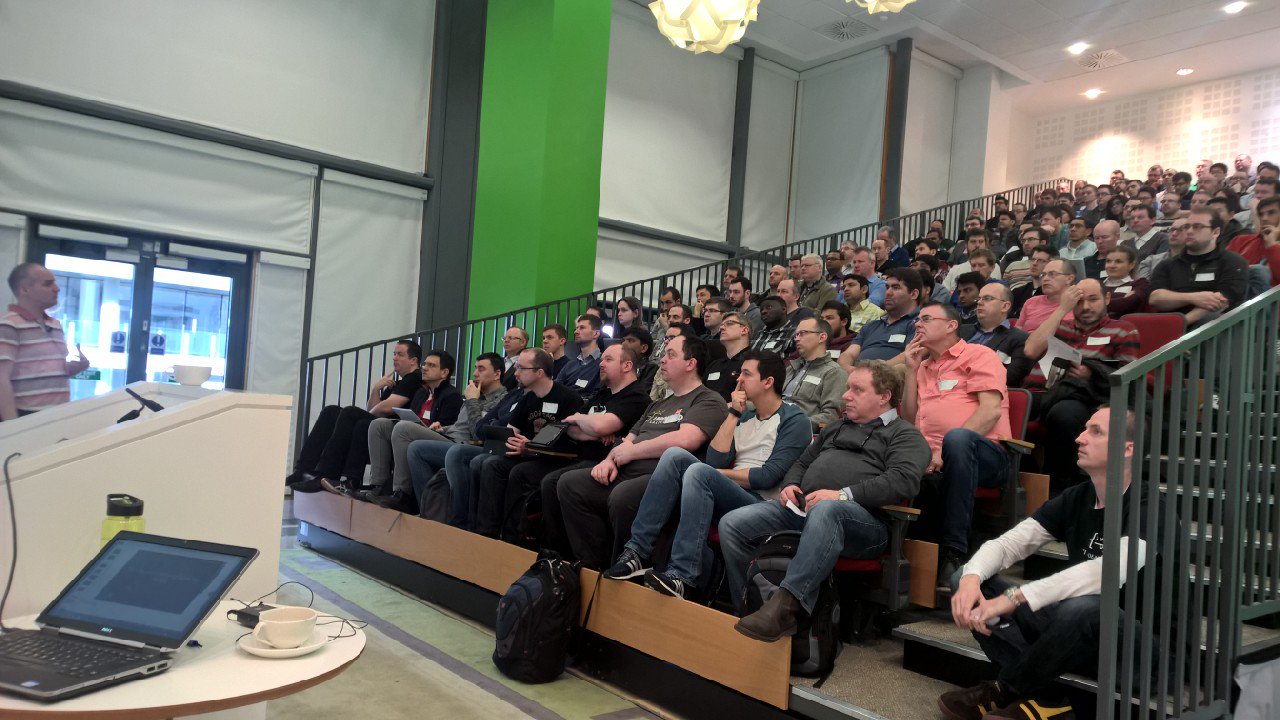
I spent Saturday afternoon in the offices of Microsoft Ireland at the very successful Azure Global Bootcamp event in Dublin. Other speakers covered a variety of topics for the 160 (approx) attendees and I wrapped up the day with a session on using Azure Site Recovery as a virtual DR site in the cloud for Hyper-V, VMware, and physical servers.

I was pretty exhausted going into the session, but it was good fun for me to do it. The crowd was engaged, and they even laughed at one or two of my attempts at humour. There was loads of engagement afterwards which was as much fun, even if maybe 95% of the audience were developers Winking smile

You can find my PowerPoint deck on SlideShare:

Here are a few photos that some folks took:

Media preview

Starting off [Image credit: Niall Moran, Microsoft]

One of the two rooms used on the day [Image credit: Ryan Mesches, Microsoft]

image

I stood between the audience and food – so I had some fun [Image credit: Rob Allen, Unity]

Media preview

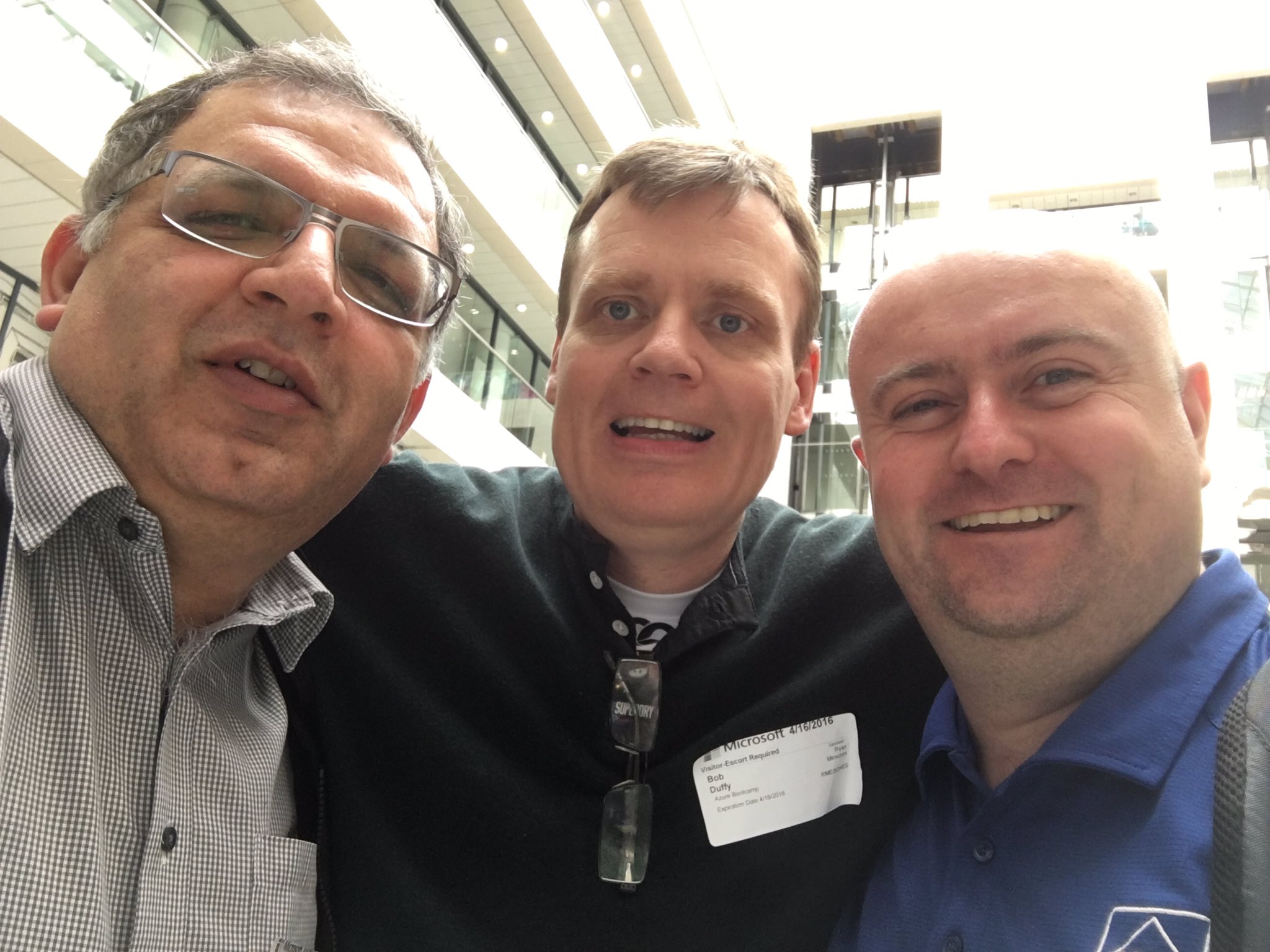
Vikas Sahni (organiser & speaker), Bob Duffy (SQL MVP and speaker), and me.

About 95% of the audience identified themselves as developers to one of the previous speakers. Around 40% of the room claimed to already have DR services in place. So I’m curious why so many stuck around for an IT pro topic on DR. Maybe they wanted a cheaper, cloud-based alternative?

Cloud & Datacenter Conference Germany

An amazing looking 1-day conference on Microsoft data centre solutions is being held in Dusseldorf, Germany, on the 12th of May. You can learn more about it register here.

CDC-Banner-Sprecher-200x200px-EN-v2

Organized by Carsten Rachfahl, MVP, this event looks quite special. All of the speakers are either MVPs, ex-MVPs, or Microsoft product group members/evangelists – including Ben “Virtual PC Guy” Armstrong of the Hyper-V team.

Sprecher Banner

There are 5 tracks:

  • Hyper-V
  • Storage & System Center
  • Cloud: security, Azure Pack, Nano Server and Containers
  • RDS, PowerShell, automation and more security
  • Public & hybrid cloud: Backup, DR, Azure security, and “Azure Germany”

I’m going to be presenting “Azure Backup – Microsoft’s Best Kept Secret” at 10:45 in Track 5.

Note: Most of the content will be delivered in German. A few of us, like me, will be presenting in English.