WPC 2016 Monday Keynote

Welcome to day 1 of the Microsoft WPC 2016, Microsoft’s sales motivation/education event for partners of Microsoft (ISVs, system integrators, OEMs, ODMs, hosting/cloud, distributors, resellers, etc), being held in Toronto, Canada. I’m in the office in Dublin, watching the stream – I don’t attend WPC because it is a sales event, but sometimes there can be relevant news for techies in the partner world.

Opening Presentation

A young woman from El Salvador talks about how she’s used Microsoft cloud technologies to work in a community torn by gang violence, doing more to empower people’s lives … something along the lines of Microsoft’s mission statement.

Then on to some “poet/performer” singing something cheesy. BTW, does Canada still have a rule to forces media to play a large percentage of Canadian artists? Singing children in colourful t-shirts. My teeth hurt.

Gavriella Schuster

image

Gavriella Schuster, Corporate Vice President forMicrosoft’s Worldwide Partner Group (WPG), sings the praises of the global partner of the year winners.

Today is all about “where we are going”. Satya Nadella will be on stage. Gavriella will be back with Judson Althoff, Executive Vice President for Worldwide Commercial Business, on Wednesday.

Satya Nadella

Satya opts again for the quiet entrance during a video (Cortana).

clip_image002

Microsoft will always be a partner-lead company, says Nadella, reaffirming that promise that is tangible with the push on cloud via the partner-lead CSP model.

Microsoft is the only ecosystem that cares about people and organizations, enabling systems to outlast them. Microsoft was the original democratizing force (in IT because of Windows and the PC). The last bit of the statement (below) is about customer results, which isn’t exclusive to MSFT tech – this includes partner and competitor tech.

clip_image004

What do CEOs mean by digital transformation? Lots of comments from different industries. More efficiencies via digital delivery, more opportunities with every customer contact, etc. Satya summarises it as changing business outcomes.

image

Where there is OPEX there are increased efforts on efficiencies, decision making and productivity. This, and the COGS expenses (Cost of goods sold – IoT, retail, etc), provide huge opportunities for partners.

I’m going to pause here.

Satya talks about conversation-based-computing being the next big platform. It must not be, if the platform (Cortana) only works in 10 countries. Moving on to Azure.

Satya puts the sales push on Azure. It’s in more places and has more security and trust than anything else – see China and Germany where the same platform runs on locally-owned infrastructure. And then it’s talk show time with GE. I’m pausing here again.

There’s some Cortana stuff which is irrelevant for all but 10 countries, On to Windows 10. No transformations will be complete without having the right devices at the edge. More personal computing are shaped by category creation moments. We are at one such moment with mixed reality – HoloLens, which MSFT is pushing as a work device long before (or ever) it’s a consumer device. Example, train aircraft engineers without purchasing a jet engine or taking a plane out of operation, and in complete safety. Here’s a demo by Japan Airline JAL.

image

And at full engine scale:

image

They hologram a throttle control from a cockpit to see how fuel flows through the engine and start it.

image

It is now available as a developer and an enterprise edition.

And to be honest, that was that.

Webinar: Introduction to EMS

A recording of this webinar can be viewed here, along with the slides and follow up reading/learning.

I am presenting a webinar on Microsoft’s Enterprise Mobility Suite (EMS) on Friday at 2pm UK/Irish time, 3PM Central European, and 9am EST.

My job has many threads. Sometimes I am down-deep in the weeds on techie stuff. Sometimes I’m delivering training. Part of what I do is raise awareness. This webinar falls into that category; the target audience is sales and technical staff that know little-to-nothing about EMS and what Microsoft can do for device/application management, identity and security from the cloud.

image

So if you want to find out what EMS can add, then tune in for this 1 hour webinar.

Optimize Hyper-V VM Placement To Match CSV Ownership

This post shares a PowerShell script to automatically live migrate clustered Hyper-V virtual machines to the host that owns the CSV that the VM is stored on. The example below should work nicely with a 2-node cluster, such as a cluster-in-a-box.

For lots of reasons, you get the best performance for VMs on a Hyper-V cluster if:

  • Host X owns CSV Y AND
  • The VMs that are stored on CSV Y are running on Host X.

This continues into WS2016, as we’ve seen by analysing the performance enhancements of ReFS for VHDX operations. In summary, the ODX-like enhancements work best when the CSV and VM placement are identical as above.

I wrote a script, with little bits taken from several places (scripting is the art of copy & paste), to analyse a cluster and then move virtual machines to the best location. The method of the script is:

  1. Move CSV ownership to what you have architected.
  2. Locate the VMs that need to move.
  3. Order that list of VMs based on RAM. I want to move the smallest VMs first in case there is memory contention.
  4. Live migrate VMs based on that ordered list.

What’s missing? Error handling 🙂

What do you need to do?

  • You need to add variables for your CSVs and hosts.
  • Modify/add lines to move CSV ownership to the required hosts.
  • Balance the deployment of your VMs across your CSVs.

Here’s the script. I doubt the code is optimal, but it works. Note that the Live Migration command (Move-ClusterVirtualMachineRole) has been commented out so you can see what the script will do without it actually doing anything to your VM placement. Feel free to use, modify, etc.

#List your CSVs 
$CSV1 = "CSV1" 
$CSV2 = "CSV2"

#List your hosts 
$CSV1Node = "Host01" 
$CSV2Node = "Host02"

function ListVMs () 
{ 
    Write-Host "`n`n`n`n`n`nAnalysing the cluster $Cluster ..."

    $Cluster = Get-Cluster 
    $AllCSV = Get-ClusterSharedVolume -Cluster $Cluster | Sort-Object Name

    $VMMigrationList = @()

    ForEach ($CSV in $AllCSV) 
    { 
        $CSVVolumeInfo = $CSV | Select -Expand SharedVolumeInfo 
        $CSVPath = ($CSVVolumeInfo).FriendlyVolumeName

        $FixedCSVPath = $CSVPath -replace '\\', '\\'

        #Get the VMs where VM placement doesn't match CSV ownership
        $VMsToMove = Get-ClusterGroup | ? {($_.GroupType –eq 'VirtualMachine') -and ( $_.OwnerNode -ne $CSV.OWnernode.Name)} | Get-VM | Where-object {($_.path -match $FixedCSVPath)} 

        #Build up a list of VMs including their memory size 
        ForEach ($VM in $VMsToMove) 
        { 
            $VMRAM = (Get-VM -ComputerName $VM.ComputerName -Name $VM.Name).MemoryAssigned

            $VMMigrationList += ,@($VM.Name, $CSV.OWnernode.Name, $VMRAM) 
        }

    }

    #Order the VMs based on memory size, ascending 
    $VMMigrationList = $VMMigrationList | sort-object @{Expression={$_[2]}; Ascending=$true}

    Return $VMMigrationList 
}

function MoveVM ($TheVMs) 
{

    foreach ($VM in $TheVMs) 
        { 
        $VMName = $VM[0] 
        $VMDestination = $VM[1] 
        Write-Host "`nMove $VMName to $VMDestination" 
        #Move-ClusterVirtualMachineRole -Name $VMName -Node $VMDestination -MigrationType Live 
        }

}

cls

#Configure which node will own wich CSV 
Move-ClusterSharedVolume -Name $CSV1 -Node $CSV1Node | Out-Null 
Move-ClusterSharedVolume -Name $CSV2 -Node $CSV2Node | Out-Null

$SortedVMs = @{}

#Get a sorted list of VMs, ordered by assign memory 
$SortedVMs = ListVMs

#Live Migrate the VMs, so that their host is also their CSV owner 
MoveVM $SortedVMs

Possible improvements:

  • My ListVMs algorithm probably can be improved.
  • The Live Migration piece also can be improved. It only does 1 VM at a time, but you could implement parallelism using jobs.
  • Quick Migration should be used for non-running VMs. I haven’t handles that situation.
  • You could opt to use Quick Migration for low priority VMs – if that’s your policy.
  • The script could be modified to start using parameters, e.g. Analyse (not move), QuickMigrateLow, QuickMigrate (instead of Live Migrate), etc.

MVP Award – Year 9

I received word this afternoon that I was awarded MVP status by Microsoft for my 9th year.

What is an MVP? According to Microsoft:

For more than two decades, the Microsoft MVP Award has provided us an opportunity to say thank you to independent community leaders and to bring the voice of community into our technology roadmap through direct relationships with Microsoft product teams and events such as the MVP Global Summit.

Microsoft Most Valuable Professionals, or MVPs, are community leaders who’ve demonstrated an exemplary commitment to helping others get the most out of their experience with Microsoft technologies. They share their exceptional passion, real-world knowledge, and technical expertise with the community and with Microsoft.

Back in 2008, I became an MVP with the SCCM expertise. My career got a jump start because now I had an inside channel to the people developing the products I was working with … sort of. I was actually working with Hyper-V then, and I was switched to the Hyper-V expertise (which was bundled into Cloud & Datacenter Management last year) in 2009.

I’ve been blogging, writing, podcasting, presenting, and teaching about Microsoft products, interacting with customers of all sizes from around the world. I’ve even had the privilege to shape some of Microsoft’s products with my feedback, based on community/customer interactions and my own hands-on experience. Trust me – knowing that cloud service X exists because I got angry (Aidan smash!), or feature Y in an on-premises product is there because me and some others were lucky enough to be in the right meeting … that’s pretty thrilling.

We’re in the middle of an era of change. Only 30 minutes ago I was recommending a complete change in something to my boss based on what Microsoft is doing, and on what I’m guessing that they’ll announce in the next year or so (no; I’m not telling). On-premises is shaking up, and the move to infrastructure in the cloud is accelerating. As an MVP, I’m privileged to be in the thick of it, getting briefed on things, having my opinion sought out, maybe impacting features by feedback, and getting an early education that I’m able to then share with you.

I’m honoured to be awarded for my 9th award as an MVP, and look forward to what lies in the year ahead.

Technorati Tags: ,

Don’t Deploy KB3161606 To Hyper-V Hosts, VMs, or SOFS

Numerous sources have reported that KB3161606, an update rollup for Windows RT 8.1, Windows 8.1, and Windows Server 2012 R2 (WS2012 R2), are breaking the upgrade of Hyper-V VM integration components. This has been confirmed & Microsoft is aware of the situation.

As noted below by the many comments, Microsoft eventually released a superseding update to resolve these issues.

The scenario is:

  1. You deploy the update to your hosts – which upgrades the ISO for the Hyper-V ICs
  2. You deploy the update to your VMs because it contains many Windows updates, not just the ICs.
  3. You attempt to upgrade the ICs in your VMs to stay current. The upgrade will fail.

Note that if you upgrade the ICs before deploying the update rollup inside of the VM, then the upgrade works.

My advice is the same as it has been for a while now. If you have the means to manage updates, then do not approve them for 2 months (I used to say 1 month, but System Center Service Manager decided to cause havoc a little while ago). Let someone else be the tester that gets burned and fired.

Here’s hoping that Microsoft re-releases the update in a way that doesn’t require uninstalls. Those who have done the deployment already in their VMs won’t want another painful maintenance window that requires uninstall-reboot-install-reboot across all of their VMs.

EDIT (6/7/2016)

Microsoft is working on a fix for the Hyper-V IC issue. After multiple reports of issues on scale-out file servers (SOFS), it’s become clear that you should not install KB3161606 on SOFS clusters either.

Block Dodgy Admins, BotNets, and Data Leakage on Azure VMs

In this post I will explain how you can use Azure Network Security Groups (NSGs) to prevent unwanted or dangerous traffic from leaving your Azure virtual machines.

Have you a written policy that prevents administrators from browsing the Internet from servers? Have you found that they find creative ways to bypass your policies? Are you worried that some malware will encrypt the data on your file or database servers? Or worse; is there a chance that some hacker will download sensitive data from your machines in the cloud?

I have a solution for you: Network Security Groups, aka NSGs. An NSG is a policy that contains a number of distributed firewall rules that either allow or block traffic. The rules (featuring stateful inspection) are simple enough:

  • Source address/location/ and port range.
  • Destination address/location and port range.
  • Allow or block.

Using a priority value (low is high, and high is low), we can stack rules to create a granular policy. For example, a low priority rule can block all inbound traffic and a high priority rule can allow TCP 3389 (remote desktop aka RDP) in.

The below rule allows HTTP traffic into a virtual subnet.

image

We can associate an NSG with:

  • A virtual machine (Azure V1 / Service Management / Classic)
  • A virtual machine NIC (Azure V2 / Azure Resource Manager / ARM / CSP)
  • A subnet in a virtual network

The preferred option is to enforce the rule at the subnet level, therefore a subnet is a security boundary and all machines in a subnet should have the same rules. If you need different rules for different machines, then add subnets. The stated best practice by Microsoft is to associate an NSG with a subnet.

An NSG contains a collection of default rules. For example:

  • All inbound traffic from the Internet is blocked, via stacking of inbound rules.
  • All traffic to the Internet is allowed.

It’s that last rule that I’m concerned with in this post. You can see the rule with a priority of 65001 below; it allows all traffic, from anywhere, to route via Azure to the Internet.

image

What does that mean?

  • Traffic can leave my Azure virtual machines and go to the Internet.
  • If I have ExpressRoute or a VPN, traffic could (if routing is enabled) route via that site-to-site connection from my office to the Internet (through Azure).

That worries me. And here’s why:

  • Admins can log into my Azure machines and browse the Internet. I don’t want that. My machines have no need to connect directly to the net; I’m going to proxy/inspect everything or I’m running an ultra-secure environment, WSUS will provide my updates, or I’ll download/upload anything I need via my PC.
  • Malware can talk to it’s controller to receive activation orders.
  • A hacker that gets onto my servers can initiate a download from my servers.

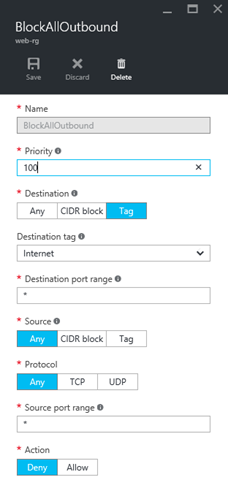
There’s one great big hammer you can swing to stop all of the above. Warning: this is a hammer and should be evaluated and tested. I can put an additional outbound NSG rule to block all outbound traffic that sources from anywhere and routes to the Internet. This rule has a higher priority (lower number) than the default rules so it will override the “allow all outbound” rule and lock down my environment.

image

A variation on this approach would be to use a much higher priority, such as 4000, for this new rule, and create other higher priority rules to allow very specific outbound access from the virtual network.

Thanks to stateful inspection, my inbound application traffic can still function via the inbound rules in the NSG, but the above rule denies all traffic from leaving this subnet for the Internet. Me 1, dodgy stuff 0.

A Word of Warning

I did compare the above to a hammer, and hammers can break things. If you follow the above, you will … break things 🙂 Azure requires that Azure VMs have the ability to reach the “Internet” zone to get updates from … Azure IP addresses (which are regarded as “Internet” by NSGs). The real solution is actually a lot more complex requiring a lot of rules to allow a lot of Azure IP ranges. Microsoft’s Keith Mayer has a solution for identifying these IP addresses (documented by Microsoft) and creating filtered outbound access to just those IP addresses using PowerShell.

Technorati Tags: ,,

New F-Series Virtual Machines in Azure

Last week, Microsoft announced a new series of virtual machines called the F-Series. There’s quite a bit in this announcement.

New Sizing

One of the things that has wrecked my head in Azure is that the virtual machines had unusual memory sizes:

  • 1.75 GB RAM
  • 3.5 GB RAM
  • 7 GB RAM
  • 14 GB RAM
  • etc

And someone will ask for pricing assistance with a request for machines with 8 GB RAM … OK … do you want 7 GB or 14 GB, because Azure is McDonalds, not a Michelin star restaurant so you get what’s on the menu. not what you fancy.

image

Other pieces of the sizing fall in line. So for example:

The F2 has:

  • 2 cores
  • 4 GB RAM (2x cores)
  • Up to 4 data disks (2x cores)

As you go up the size chart, the same pattern emerges. A F16 has:

  • 16 cores
  • 32 GB RAM (2x cores)
  • Up to 32 data disks (2x cores)

This should make sizing easier.

Note that the processor is the same 2.4-GHz Intel Xeon E5-2673 v3 (up to 3.1 GHz with Intel Turbo Boost Technology 2.0) as in the Dv2-Series, but at a lower price per core.

New Naming Standard

While Microsoft is simplifying the sizing, they have decided to change the naming standard to match the sizes. In the past we had:

  • Standard A1
  • Standard A2
  • Standard A3
  • Standard A4

The name was nothing but a label that had no correlation to either the spec or the price – in some cases, there was a drop in price as you moved up the “sizes” (see A4 to A5 or D4 to D11).

The name of the F-Series is tied to the number of cores in the machine. So, an F1 machine has 1 core. An F16 machine has 16 cores.

Before, we showed special features, such as the use of Premium Storage (S is for SSD), by adding a letter to the series of the machine. For example, a D4 virtual machine could be deployed as a DS4 virtual machine.

Starting with the F-Series, any special features are shown by adding a letter to the end of the spec. So, an F4 might be deployed as an F4s.

Availability

The F-Series is pretty widely available right now, through Azure V1 and Azure V2. Note that I am seeing a some glitches with the displayed pricing in the Azure Portal (via Open). Please get your direct/Open pricing from the official site.

image

Technorati Tags: ,

Webinar – What’s New In Windows Server 2016 Hyper-V

I’ll be joining fellow Cloud and Datacenter Management (Hyper-V) MVP Andy Syrewicze for a webcast by Altaro on June 14th at 3PM UK/Irish time, 4PM CET, and 10AM Eastern. The topic: What’s new in Windows Server 2016 Hyper-V (and related technologies). There’s quite a bit to cover in this new OS that we expect to be release during Microsoft Ignite 2015. I hope to see you there!

image

Cloud & Datacenter Management 2016 Videos

I recently spoke at the excellent Cloud and Datacenter Management conference in Dusseldorf, Germany. There was 5 tracks full of expert speakers from around Europe, and a few Microsoft US people, talking Windows Server 2016, Azure, System Center, Office 365 and more. Most of the sessions were in German, but many of the speakers (like me, Ben Armstrong, Matt McSpirit, Damian Flynn, Didier Van Hoye and more) were international and presented in English.

image

You can find my session, Azure Backup – Microsoft’s Best Kept Secret, and all of the other videos on Channel 9.

Note: Azure Backup Server does have a cost for local backup that is not sent to Azure. You are charged for the instance being protected, but there is no storage charge if you don’t send anything to Azure.

How To Manage Azure AD in CSP

In this post I’ll describe two ways that you can use to manage Azure AD in a CSP subscription using a GUI.

CSP, CSP, CSP – that’s all you can hear these days in the Microsoft channel. In short, CSP is a new channel by which customers can buy Azure or partners can resell Azure, with a post-utilization monthly invoice.

That all sounds good – but the downside with CSP is that it only includes Azure v2 (Azure Resource Manager or ARM), unlike all of the other channels which also support Azure v1 (Service Manager). So we lose lots of features and we also lose the classic portal – no storage imports, no RemoteApp, no Azure AD, etc. We also lose the class Azure management site for managing the Azure in CSP subscription – and there’s the issue for Azure AD.

The lack of a UI for managing Azure AD does cause issues:

  • The cries of “use PowerShell” or “use this opensource stuff” suit the 1%-ers but not the rest of us.
  • We lose the ability to start doing clever RBAC using resource groups in Azure.
  • We lose all the Azure AD features, such as single sign-on.
  • We lose the Azure Ad Premium features, sold via CSP too (standalone or in EMS).

Is there a solution? Hmm, there is a workaround which isn’t pretty but it works. There are ways to manage the Azure directory:

  • You have also deployed Office 365 via CSP with the same .onmicrosoft.com domain. You can create users and Office 365 groups in the Office Admin portal.
  • You can also share the directory of the CSP account into another Azure subscription that does support Azure v1; from there, we can manage the directory.

In my lab, I have the following CSP services with a common .onmicrosoft.com domain (deployed by the reseller – my employers, in this case, because we are a Tier 2 distributor of CSP):

  • Office 365
  • EMS
  • Azure

image

I also have an Azure in Open subscription. I can easily create users in my CSP subscription using Azure AD Connect (from on premises domain) or using the Office 365 admin portal. But what about the other features of Azure AD? I’ll need to share the CSP domain with a subscription that does support the classic management portal.

Here’s what you’ll do:

  1. Use another Azure subscription that is not in CSP. Maybe you already have one; if not, start a trial and make sure you don’t enable spending – you’ll still need to verify credit card details. You won’t be charged for managing Azure AD, and you’ll still have access to the subscription when the trial ends – you just can’t deploy things that will cost money, e.g. storage, VMs, and so on.
  2. Sign into https://manage.windowsazure.com using valid Microsoft Account (Live ID) credentials of the non-CSP subscription and browse to Active Directory.
  3. Click New > Active Directory > Directory > Custom Create
  4. Select the option to Use Existing Directory. Make sure you check the box to sign out.
  5. You’ll be signed out and a new login will appear. Sign in with the admin credentials for your CSP domain.
  6. Verify that you want to share the domain. You’ll be signed out again.
  7. Sign into the classic management portal again using your non-CSP credentials. If all has worked correctly, you should be able to see and manage the CSP domain.

This is how I enabled multi-factor authentication, created users, groups, and other cool things in an CSP Azure domain.

Technorati Tags: ,