DevSecOps Resolving IT Friction In The Cloud

In this post, I’m going to discuss how to solve an age-old problem that still hurts us in The Cloud with DevSecOps: the on-going friction between devs and ops and how the adoption of the cloud is making this worse.

Us Versus Them

Let me say this first: when I worked as a sys admin, I was a “b*st*rd operator from hell”. I locked things down as tight as I could for security and to control supportability. And as you can imagine, I had lots of fans in the development teams – not!

Ops and devs have traditionally disliked each other. Ops build the servers perfectly. Devs write awesome code. But when something goes wrong:

  • Their servers are too slow
  • Their architecture/code is rubbish

Along Came a Cloud

The cloud was meant to change things. And in some ways, it did. In the early days, when AWS was “the cloud”, devs got a credit card from somewhere and started building. The rush of freedom and bottomless resources oxygenated their creativity and they build and deployed like they were locked in a Lego shop for the weekend.

Eventually, the sober-minded Ops, Security, and Compliance folks observed what was happening and decided to pull the reigns back. A “landing zone” was built in The Cloud (now Azure and others are in play) and governance was put in place.

What was delivered in that landing zone? A representation of the on-premises data center that the devs were trying to escape from. Now they are told to work in this locked-down environment and the devs are suddenly slowed down and restricted. Change control, support tickets, and a default answer from Ops of “no” means that agility and innovation die.

But here’s the thing – the technology was a restricting factor when working on-premises: physical hardware means and 100% IaaS means that Ops need to deliver every part of the platform. In the cloud, technology wasn’t the cause of the issue. The Cloud started with self-service, all-you-can-eat capacity, and agility. And then traditional lockdowns were put in place.

Business Dissatisfaction

A good salesperson might have said that there can be cost optimisations but cost savings should not be a primary motivation to go with the cloud. Real rewards come from agility, which leads to innovation. The ability to build fast, see if it works, develop it if it does, dump it if it doesn’t, and not commit huge budgets to failed efforts is huge to a business. When Ops locks down The Cloud, some of the best features of The Cloud are lost. And then the business is unhappy – there were costly migration projects, actual IT spend might have increased, and they didn’t get what they wanted – IT failed again.

By the way, this is something we (me and my colleagues at work) have started to see as a trend with mid-large organisations that have made the move to Azure. The technology isn’t failing them – people and processes are.

People & Processes

Technology has a role to play but we can probably guesstimate that it’s about 20% of the solution. People and processes must evolve to use The Cloud effectively. But those things are overlooked.

Microsoft’s Cloud Adoption Framework (CAF) recognises this – the first half of the CAF is all about the soft side of things:

The CAF starts out by analysing the business wants from The Cloud. You cannot shape anything IT-wise without instruction from above. What does the business want? Do you know who you should not ask? The IT Manager – they want what IT wants. To complete the strategy definition, you need to get to the owners/C-level folks in the business – getting time with them is hard! Once you have a vision from the business you can start looking at how to organise the people and set up the processes.

Organisational Failure

Think about the structure of IT. There is an Ops team/department with a lead. That group of people has pillars of expertise in a mid-large organisation:

  • The Windows team
  • Linux
  • Networking
  • SAN
  • And so on

Even those people don’t work well in collaboration. There is also a Dev department that is made up of many teams (workloads) that may even have their own pillars of expertise – some/many of those are externals. There is no alignment or collaboration between all the parties involved in building, running, and continuously improving a workload.

DevOps

DevOps is a methodology that brings Ops and Devs together in actual or virtual teams for each workload. For example, let’s say that a workload requires the following skills from many teams/departments:

  • .NET developers
  • Application architect
  • Infrastructure architect
  • Azure operators

That might be skills from 4 teams. But in DevSecOps, the workload defines a virtual or actual team of people that will work on that application and its underlying infrastructure together. The application and infrastructure architects will design together. The devs and ops skills will work together to produce the code that will create the underlying platform (PaaS and/or IaaS) that will be continuously developed/improved/deployed using GitHub/DevOps actions/pipelines.

Agile methodologies will be brought into plan:

  • Work through epics, user stories, features and tasks (backlog)
  • That are scheduled to sprints (kanban board)
  • And are assigned to/pulled by members of the DevOps team (resource planning)

What has been accomplished? Now a team works together. They have a single vision through a united team. They share a plan and communicate through daily standup meetings and modern tooling such as Teams. By working as one, they can produce code fast. And that means they can fail fast:

  • Produce a minimally viable product
  • Test if it works
  • If it does, improve on it in sprints
  • If it doesn’t, tear it down quickly with minimal money lost

DevSecOps

In The Cloud, modern workloads are presented to clients over the Internet using TLS. The edge means that there is a security role. And in a good design, micro-segmentation is required, which means an expanded security role. And considering the nature of threats today, the security role should have some developer skills to analyse code and runtimes for security vulnerabilities.

If we don’t change how the security role is done then it can undo everything that DevOps accomplishes – all of a sudden a default “no” appears, halting all the progress towards agility and innovation.

DevSecOps adds the security role to DevOps. Now security personnel is a part of the workload’s team. They will be a part of the design process. They will be the ones that either implement in code and/or review firewall rules in the pull request. Elements of security are moved from a central location out to the repos for the workloads – the result is that the what and who don’t change; all that changes is the where.

Influence

Introducing the sort of changes that DevSecOps will require is not going to be easy or quick. We can do the tech pieces in Azure pretty easily, actually, but the people might resist and the processes won’t exist in the organising. Introducing change will be hard and it will be resisted. That’s why the process must be lead from the C-level.

Got Something To Add?

What do you think? Please comment below.

An IT Person On A Weight Loss Journey

In this post, I’m going to share a little about my weight loss journey – I’m an IT pro and the sedentary lifestyle isn’t exactly great for staying trim!

Let’s go back a few years. Back in 2016-2017 I was weighing in at around 16 stone 10 pounds (106 KG or 234 lbs); that’s a great weight for a 6’3″ NFL linebacker, not a 5’7″ IT consultant.

In the above picture with Paula Januszkiewicz, I might have been talking about new security features in Hyper-V, but I was probably wondering what pizza I might order at the hotel when I wrapped up.

Living the Good Life

When I grew up, there wasn’t a lot of money for unhealthy food. Food was homemade, sometimes even homegrown. Treats like chocolate might happen once every few weeks and during the holidays. There were no regular trips to “the chipper” for a burger, pizza didn’t exist … it was eat healthily or don’t eat.

Back when I was in school/college, I cycled to and from school and I was stick-thin at 11 stone 7 pounds – I know that’s heavy for someone my height but I was actually stick thin.

Then along came graduation, my first job in IT, and money. Every mid-morning, there was a trip to the company canteen (for a fried breakfast), followed by lunch, followed by a convenient dinner. I swear I could eat takeaway 7 days a week. I worked in international consulting, living in hotels for 6 months at a go, so I ate a lot either in the hotel or in a bar/restaurant. I remember sitting down and thinking “what’s up with my waist?” when it first rolled over my belt.  And so it went for 20+ years.

I got a real shock 4-5 years ago when I had to do a health check for some government stuff, and I was classified as … obese. The shock! That only happens to Americans that dine at KFC! It was time for a change. By now, I had a 38″ waist.

Exercise

I have done some time in the gym over the years. During one of my 6-month hotel stints (in a small wealthy town called Knutsford near Manchester, UK) I spent an hour in the gym on most days. And then I ate a 2-3 course dinner with a bottle of wine. When I exercise, I get HUNGRY. Back in the late 2000’s I spent 5-7 days a week in the gym for over half a year. I’d do up to 90 minutes of training, followed by a 14″ pizza, chicken, and fries. I’m not kidding about the hungry thing!

I live near a canal and a lot of work was being done to open up a “greenway”  that’s a path dedicated to walkers, runners, and cyclists. Not long after the obese determination, I purchased a bike and started cycling, getting out several times a week to do a good stretch. That first year I did quite a bit on the bike. I felt fitter, but not smaller. I came home and ate the same way as always. I drank lots of beer and wine.

2 years ago I was in Florida with my family for a 3-week vacation. I didn’t have enough shorts with me so I went to a nearby outlet and tried on my usual 38″ waistline. Huh! They were too … big! I ended up buying 36″ shorts and jeans that vacation and they fit just nice.

Last year, I decided that I needed to do something more. My diet needed work. I wasn’t getting time to go out on the bike anymore – a wife and kids that need me around and the pending arrival of a new baby (twins as it turned out) would kill off the hours away on the bike at a time. I joined a group that runs a simplified calorie counting scheme. The goal is that you make adjustments to reduce your calorie intake but still get to enjoy the nice things – but within limits. I seriously started at that program in August of last year. At that time I weighed 15 stone 12 pounds (100 KG or 222 lbs), not bad for an NFL running back.

Food Optimisation

The program I’m using doesn’t use the term “diet”. Diet means starving yourself. In this program, I can still eat, but the focus is on including more salad/veg (1/3 of my plate), swapping out wasteful calories, and replacing oils and butter. It has resulted in myself and my wife experimenting so much more with our cooking – even I cook, which is probably quite a shock to the takeaway industry. The results were fast. Soon all my 38″ waistline clothes went into recycling. In June of this year, I was a 34″ waist and weighing 12 stone 12 pounds (81 kg or 180 lbs), which is pretty OK for a small NFL wide receiver. This is where things went a little wrong when I was last in the gym, 10 years ago. My weight never would go lower – the 14″ pizzas (etc) didn’t help.

I miss beer 🙂 I used to love getting craft beer and trying it out. I switched over to lower-calorie whiskey & dark rum. But then my wife spotted that 0 alcohol beer has very few calories. It might be missing the buzz, but the taste is still there – perfect while cooking on the BBQ.

Running != Weight Loss

While on maternity leave this summer, my wife started walking. I tried to get out a bit on the bike but was really restricted to once or twice at the weekend. I started to join my wife on her walks on Saturdays and Sundays. We pushed the pace and really started clocking up the KMs, varying between 7-14km per walk. I could feel the difference in my fitness level as we kept walking faster.

I struggled a bit again. The summer months brought lots of good weather and I was making the most amazing homemade burgers on the BBQ, along with steak, and chicken … you get the idea. My weight was bouncing down and up.

And then my wife spotted that the gym at a local hotel was running a family deal. We could sign up the entire family, the kids could use the pool, and me and my wife could use the gym. I went the next day and I used the bike and I ran. I ran 5 KMs with a few stretches of walking to get a drink. I was shocked. Now when I say that I ran, I was crawling along at 5 kmph – not exactly Raheem Mostert burning up the injusry-causing turf on the New York Jets last year.

I ran for a week. I was a little sore. I weighed in the following week and I was up 2 lbs! What the f***? There were a few things that I realised/learned with some googling:

  • When you start/change your exercise routines, you “damage” muscle (it’s part of the building muscle process) and that causes your body to retain fluid which temporarily increases your weight.
  • Running does not cause weight loss alone. You need to still have a calorie deficit. Following up a run by pigging out does not help.
  • Muscle (which I can feel) adds weight but can cause calorie “afterburn” so you burn off more calories even when resting.

Where I Am Now

I set myself a goal of hitting 12 stone (168 lbs or 76 kg). I’m also aiming to get my waistline below 30″ – an important milestone in long-term health. I now weigh around 12 stone 7 lbs (175 lbs or 79 Kgs) and my waist is 32″. My weight is trending down over a 2-3 week period and I’m running 5 KMs, now at 9.5 kmph with sprints up to 13 kmph. If I have time, I’ll combine weights and bike with running. If I hit the 12 stone mark and I’m still carrying a few too many pounds, then I’ll aim for 11 stone 7 pounds and see how things go.

Me about a month ago.

I’m Not Missing Out – Much

I used to live on pizza. I miss it 🙂 We had a week away back in June and I gave myself a week off from the food optimisation. I ate fried food and pizza – a whole pizza – to myself. I drank nice beer every night. And my weight did go up by 4 lbs, but I lost it all within 10 days.

As I said, we’re cooking a lot. There are lots of websites and cookbooks that specialise in making nice food but with better ingredients. Last week I make double cheeseburgers using low-fat cheese and beef and they were DE-F’N-LICIOUS. We’ve been eating curries, air-fried everything, and slow cooking stuff like mad. Our fridge is full of sauces and our press is stuffed with spices. We’re at the point where restaurant food has to be pretty amazing to impress us now.

We like this series of books by an Irish couple that became well known on Instagram – they actually live near us and we bumped into them eating dinner around the corner from our home.

Amazon UK


Amazon US

 We’re also fans of the Pinch of Nom series:

Amazon UK


Amazon US

Feeling Like You Could Lose Weight?

I’m not an expert. The best advice I can give you is:

  • Start now. Make the decision. Go Bo Jackson and just do it.
  • Find the right food optimisation technique for you. I like the one I’m using because it’s flexible and isn’t about “punishing” you. My wife’s uncle did something different and shed weight in no time.
  • Exercise. This will help burn the calories. When combined with the calorie deficit of your food optimisation, you’ll see a difference.
  • Be patient. Weight loss is different for everyone. For some, there’s an instant buzz when the pounds go off. For others, they are shocked when lots of exercise leads to weight gain! Be consistent, do the right things, and be patient. It’s not about what happens today, it’s what happens over a 1, 2, 6, 12month period.

But most of all – enjoy it. I gained weight out of laziness and because I enjoyed certain foods. Now, I’m eating healthier than I ever did but I am still enjoying food – the chicken fillet burgers I had a couple of weeks ago might appear on the menu tomorrow (better than any I ever had out) and I’m looking forward to the beef curry that we’re making tonight!

Testing Azure Firewall IDPS

In this post, I will show you how to test IDPS in Azure Firewall Premium, including test exploits and how to search the logs for alerts.

Azure Firewall Setup

You are going to need a few things:

  • Ideally a hub and spoke deployment of some kind, with a virtual machine in two different spokes. My lab is Azure Virtual WAN, using a VNet as the “compromised on-premises” and a second VNet as the target.
  • Azure Firewall Premium SKU with logging enabled to a Log Analytics Workspace.
  • Azure Firewall Policy Premium SKU, with IDPS enabled for Alert & Deny.

Make sure that you have firewall rules and NSG rules open to allow your “attacks” – the point of IDPS is to stop traffic on legitimate protocols/ports.

Compromised On-Premises Machine

One can use Kali Linux from the Azure Marketplace but I prefer to work in Windows. So I deployed a Windows Server VM and downloaded/deployed Metasploit Opensource, which is installed into C:\metasploit-framework.

The console that you’ll use to run the commands is C:\metasploit-framework\bin\msfconsole.bat.

If you want to trying something simpler, then all you will need is the normal Windows Command prompt.

The Exploit Test

If you are using Metasploit, in the console, run the following to search for “coldfusion” tests:

search coldfusion

Select a test:

use auxiliary/scanner/http/coldfusion_locale_traversal

Set the RHOST (remote host to target) option:

set RHOST <IP address to target>

Verify that all required options are set:

show options

Execute the test:

run

Otherwise, you can run the following CURL command in Windows Command Prompt for a simpler test to do a web request to your target IP using the well-known Blacksun user agent:

curl -A “BlackSun” <IP address to target>

Check Your Logs

It can take a little time for data to appear in your logs. Give it a few minutes and then run this query in Log Analytics:

AzureDiagnostics | where ResourceType == “AZUREFIREWALLS” | where OperationName == “AzureFirewallIDSLog” | parse msg_s with Protocol ” request from” SourceIP “:” SourcePort ” to ” TargetIP “:” TargetPort “. Action:” Action”. Signature: ” Signature “. IDS:” Reason | project TimeGenerated, Protocol, SourceIP, SourcePort, TargetIP, TargetPort, Action, Signature, Reason | sort by TimeGenerated

That should highlight anything that IDPS alerted on & denied – and can also be useful for creating incidents in Azure Sentinel.

Understanding the Azure Virtual Desktop Resources

In this post, I will document the resources used in Azure Virtual Desktop, what they do, and how they interconnect.

This is a work-in-progress, so any updates I discover along the way will be added. You should also check out a similar post on Azure Image Builder.

Host Pool – Microsoft.DesktopVirtualization/hostpools

The host pool documents the configuration of the hosts that will provide the desktops/applications. Note that a Host Pool resource ID is required to create an Application Group.

Note, the VMs themselves are deployed using a linked template when you use the Azure Portal. My deployment used the “managed disks” template. This template deploys the VMs, runs some DSC, joins the machines to your domain. There is also a task to update the host pool.

The result of running Microsoft.DesktopVirtualization/hostpools does not create the VMs – it just manages any VMs added to the Host Pool.

The mandatory properties appear to be:

  • hostPoolType: BYODesktop, Personal, or Pooled.
  • loadBalancerType: BreadthFirst, DepthFirst, or Persistent.
  • preferredAppGroupType: Persistent, None, or RailApplications.

The full set of properties can be found in the REST API documentation.

Application Group – Microsoft.DesktopVirtualization/applicationgroups

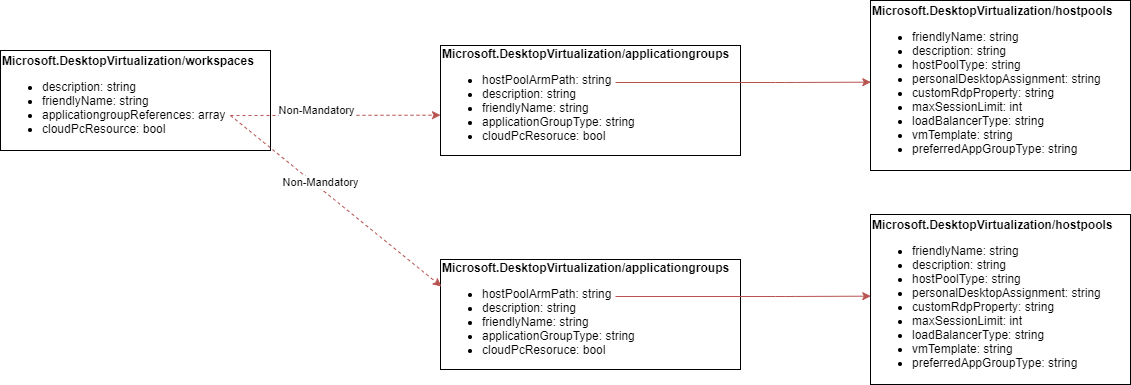
The Application Group documents the applications, user associations (the Desktop Virtualization User role is assigned to users/groups), and is associated with a Host Pool; therefore you must deploy a Host Pool resource before you deploy the planned Application Group.

The mandatory values appear to be:

  • hostPoolArmPath: The resource ID of the associated Host Pool
  • applicationGroupType: Desktop or RemoteApp

We know that Windows 365 (AKA “Cloud PC”) is built on Azure Virtual Desktop. Proof of that is in ARM, with a true/false property called cloudPcResource.

The REST API documentation has complete documentation of the properties.

Workspace – Microsoft.DesktopVirtualization/workspaces

The Azure Virtual Desktop Workspace is the glue that holds everything together. The Workspace can be associated with no, 1, or many Application Groups via a non-mandatory array value called applicationGroupReferences. You can build a Workspace before your Application Groups and update this value later. Or you can build the (1) Host Pool(s), (2) Application Group(s), followed by the Workspace.

The mandatory values appear to be:

  • applicationGroupReferences: An array value with 0+ items, each being the resource ID of an Application Group.

    Virtual Machines

The Host Pool will require virtual machines; these are created as a separate deployment. There’s nothing special here; they are virtual machines created from the Marketplace or from your own generalised image (captured or Shared Image Gallery). Two actions must be done to the VMs:

  • Domain Join: Either (legacy) ADDS (including Azure AD DS or Windows Server ADDS) or an Azure AD Join (a recent feature add).
  • Virtual Desktop agent: DSC will be used to deploy the agent. This will make an outbound connection to the Host Pool and register the VM.

AAD, AADDS, or ADDS? I prefer ADDS. This is because:

  • Most of the controls that you need are in Group Policy and AAD doesn’t do Group Policy.
  • AADDS relies on AAD which is a single-region service. If that region has AAD issues (and this happens pretty frequently) then your Azure Virtual Desktop farm is dead.
  • Third-party applications typically expect ADDS and will not support AADDS/AAD, even if it “works”.

Service Definitions in Azure Firewall

In this post, I will discuss how you can use Rules Collection Groups in Azure Firewall to aggregate your Rules Collections and Rules to be aligned with a service definition or workload definition.

Workload and Service Definitions

In an organised environment, every workload (or service) has a definition. That definition describes all of the components that make up and facilitate the workload. That includes your firewall rules.

So it would make sense if you had a way of grouping firewall rules together if those rules are used to make a workload possible. For example, if I was running an Azure Virtual Desktop pool, I might treat that pool as a workload, document it as a workload, and want all of the rules that make that pool possible to be grouped together and managed as a unit.

Challenges

The challenges I have faced with Azure Firewall and aligning rules along the model of a workload definition have been:

Realisation & Conceptualisation

I’ve always used some kind of workload-based approach but my approach wasn’t perfect. I decided to try to align rules with NSGs, placing inbound rules with the workload that was the destination. But then some workloads, such as Windows Admin Center or ADDS, require more reach, and then you get messy. And what if you have a dozen or more workloads that are atomic units but are also extremely integrated? Where do the rules go?

I’ve come to realise that rules should go with the service that they empower, regardless of destination. What made me think like that? Documentation of workloads for a forced-ad-hoc migration project that I’ve been working on for the last year. We didn’t get the chance to assess and plan in detail, so everything was an on-the-fly discovery. Our method of “place the rule with the target workload” has created very complicated ARM templates for Azure Firewall; defining a workload from a firewall perspective is very hard with that approach.

If we said that “all network rules that empower a workload go with the workload’s network Rules Collection” then things would get a bit better – a bit.

Rules Groups Collections Limitations

It is a year since Firewall Policy became generally available. Just like last year, I had some hours to experiment on Azure Firewall. I tried out the new tier, Rules Collection Groups. A reminder:

  1. Rules > Rules Collections (typed, based on DNAT, Network, or Application)
  2. Rules Collections > Rules Collection Groups

But at the time, the new tech was immature. Mixing Rules Collection types between Rules Groups was a disaster. The advice I got from the product group was “don’t do it, it’s not ready, stick with the default groups for now”.

So I did just that. That means that the DNAT rules collection,  the Network Rules Collection, and the Application Rules Collection for any workload were split into 3 deployments, the default rules group collections for:

  • DNAT
  • Network
  • Application

Each of those deployments could have dozens or hundreds of rules collections for each workload. And when you combine that with my previous approach to rules placement:

  1. It’s a mess
  2. Deploying a rule change required re-deploying all Rules Collections of a type for all workloads in using that type of Rules Collection.

A Better Approach

I have had some time to play and things are better.

Rules Alignment With Workload

I’ve discussed this already – place rules that empower a workload with the workload, not the destination workload.

If Workload X requires TCP 445 access to Workload Y, then I will create a Network Rule to Workload Y on TCP 445 in a Network Rules Collection for Workload X. The result is that all rules that make Workload X function will be in rules collections for Workload X. That makes documentation easier and makes the next step work.

Rules Collection Groups For Workload

This is the big change in Azure from this time last year. I can now create lots of Rules Collection Groups, each with a priority (for processing order). I will create 1 Rules Collection Group per workload. Workload X will get 1 Rules Collection Group.

All rules that make Workload X go into Rules Collection Groups for Workload X. I might have, depending on rules requirements, up to 6 Rules Collection Groups:

  • DNAT-Allow-WorkloadX
  • Network-Allow-WorkloadX
  • Application-Allow-WorkloadX
  • DNAT-Deny-WorkloadX
  • Network-Deny-WorkloadX
  • Application-Deny-WorkloadX

The Rules Collection Group is its own Deployment from an ARM perspective. If I’m managing the firewall as code (I do) then I can have 1 template (or parameters file) that defines the Rules Collection Group (and contained Rules Collections and Rules) for the entire workload and just the workload. Each workload will have its own template or parameter file. A change to a workload definition will affect 1 file only, and require 1 deployment only.

If you want to see an ARM template for deploying one of the workloads in my screenshot, then head on over to my GitHub.

Wrap Up

This approach should leave the firewall much better organised, easier to manage in smaller chunks if using infrastructure-as-code, be easier to document, and more suitable for organisations that like to create/maintain service definitions.

Defending Against Supply Chain Attacks

In this post, I will discuss the concepts of supply chain attacks and some thoughts around defending against them.

What Is A Supply Channel Attack?

The recent ransomware attack through Kaseya made the news but the concept of a supply chain attack isn’t new at all. Without doing any research I can think of two other examples:

  • SolarWinds: In December 2020, attackers used compromised code in SolarWinds monitoring solutions to compromise customers of SolarWinds.
  • RSA: In 2011, the Chinese PLA (or hackers sponsored by them) compromised RSA and used that access to attack customers of RSA.

What is a supply chain attack? It’s pretty hard to break into a network, especially one that has hardened itself. Users can be educated – ok, some will never be educated! Networks can be hardened and micro-segmented. Identity protections such as MFA and threat detection can be put in place.

But there remains a weakness – or several of them. There’s always a way into a network – the third party! Even the most secure network deployments require some kind of monitoring system – something where a piece of software is deployed onto “every VM”.  Or there’s some software vendor that’s deep into your network that has openings all over the place. Those are your threats. If an attacker compromises the software from one of those vendors then they will get into your network during your next update and they will use the existing firewall holes & permissions that are required by the software to probe, spread, and attack.

Protection

You still need to have your first lines of defense, ideally using tools that are designed for protection against advanced persistent threats – not your regular AV package, dumby:

  1. Identity
  2. Email
  3. Firewall
  4. Backup with isolated offline storage protected by MFA

That’s a start, but, but a supply chain attack bypasses all that by using existing channels to enter your network as if it is from a trusted source – because the attack is embedded in the code from a trusted source.

Micro-Segmentation

The first step should be micro-segmentation (AKA multi-segementation). No two nodes on your network should be able to communicate unless:

  1. They have to
  2. They are restricted to the required directions, protocols, and ports.
  3. That traffic passes through a firewall – and ideally several firewalls.

In Microsoft Azure, that means using:

  • A central firewall, in the form of a network firewall and/or web application firewall (Azure or NVA). This firewall controls connections between the outside world and your workloads, between your workloads, and importantly from your workloads to the outside world (prevents malware from talking to its human controller).
  • Network Security Groups at the subnet level that protect the subnet and even isolate nodes inside the subnet (use a custom Deny All rule because the default Deny All rule is useless when you understand the logic of how it works).
  • Resource firewalls – that’s the guest OS firewall and Azure resource firewalls.

If you have a Windows ADDS domain, use Group Policy to force the use of Windows Firewall – lazy admins and those very same vendors that will be the channel of attack will be the first to attempt to disable the firewall on machines that they are working on.

For Azure resources, consider the use of Azure Policy to force/audit the use of the firewalls in your resources and a default route to 0.0.0.0/0 via your central firewall.

An infrastructure-as-code approach to the central firewall (Azure Firewall) and NSGs brings documentation, change control, and rollback to network security.

Security Monitoring

This is where most organisations fail, and even where IT security officers really don’t get it.

Syslog is not security monitoring. Your AV is not security monitoring. You need something bigger, that is automated, and can filter through the noise – I regularly use the term “be your Neo to read the Matrix”. That’s because even in a small network, there is a lot of noise. Something needs to filter through that noise and identity the threats.

For example, there’s a lot of TCP 445 connection attempts coming from one IP address. Or there are lots of failed attempts to sign in as a user from one IP address. Or there are lots of failed connections logged by NSG rules. Or even better – all of the above. These are the sorts of things that malware that is attempting to spread will do. This is the sort of work that Azure Sentinel is perfect for – Sentinel connects to many data sources, pulls that data to a central place where complex queries can be run to look for threats that a human won’t be able to do. Threats can create incidents, incidents can trigger automated flows to eliminate the noise, and the remaining incidents can create alerts that humans will act upon.

But some malware is clever and not so noisy. The malware that hit the HSE (the Irish national health service) uses a lot of manual control to quietly spread over a very long time. Restricting outbound access to the Internet to just the required connections for business needs will cripple this control mechanism. But there’s still an automated element to this malware.

Other things to implement in Azure will include:

  • IDPS: An intrusion detection & prevention in the firewall, for example Azure Firewall Premium. When known malware/attack flows pass through the firewall, the firewall can log an alert or alert/deny the flows.
  • Security Center: Enabling Security Center “Azure Defender” (the tier previously known as the Azure Security Center Standard) provides you with oodles of new features, including some endpoint protections that are very confusingly packaged and licensed by Microsoft.

Managed Services Providers

MSPs are a part of the supply chain for their customers. MSP staff typically have credentials that allow them into many customer networks/services. That makes the identities of those staff very valuable.

A managed service provider should be a leader in identity security process, tooling, and governance. In the Microsoft world, that means using Azure AD Premium with MFA enabled for all staff. In the Azure world, Lighthouse should be used to gain access to customers’ cloud implementations. And that access should be zero-trust, powered by Privileged Identity Management (PIM).

Oh Cr@p!

These attackers are not script kiddies. They are professional organisations with big budgets, very skilled programmers and operators, and a lot of time and will. They know that with some persistent effort targeting a vendor, they can enter a lot of networks with ease. Hitting a systems management company, or more scarily, a security vendor, reaps BIG rewards because we invest in these products to secure our entire networks. The other big worry is those vendors that are deeply embedded with certain verticals such as finance or government. Imagine a vendor that is in every branch of a national government – one successful attack could bring down that entire government after  a wave of upgrades! Or hitting a well known payment vendor could open up every bank in the EU.

Understanding the Azure Image Builder Resources

In this post, I will explain the roles of and links/connections between the various resources used by Azure Image Builder.

Background

I enjoy the month of July. My customers, all in the Nordics, are off for the entire month and I am working. This year has been a crazy busy one so far, so there has been almost no time in the lab – noticeable I’m sure by my lack of writing. But this month, if all goes to plan, I will have plenty of time in the lab. As I type, a pipeline is deploying a very large lab for me. While that runs, I’ve been doing some hands on lab work.

Recently I helped develop and use an image building process, based on Packer, to regularly create images for a Citrix farm hosted in Microsoft Azure. It’s a pretty sweet solution that is driven from Azure DevOps and results in a very automated deployment that requires little work to update app versions or add/remove apps. At the time, I quickly evaluated Azure Image Builder (also based on Packer but still in Preview back then) but I thought it was too complicated and would still require the same pieces as our Packer solution. But I did decide to come back to Azure Image Builder when there was time (today) and have another look.

The first mission – figure out the resource complexity (compared to Packer by itself).

The Resources

I believe that one of Microsoft’s failings when documenting these services is their inability to explain the functions of the resources and how they work together. Working primarily in ARM templates, I get to see that stuff (a little). I’ve always felt that understanding the underlying system helps with understanding the solution – it was that way with Hyper-V and that continues with Azure.

Managed Identity – Microsoft.ManagedIdentity/userAssignedIdentities

A managed identity will be used by an Image Template to authorise Packer to use the imaging process that you are building. A custom role is associated with this Managed Identity, granting Packer rights to the resource group that the Shared Image Gallery, Image Definition, and Image Template are stored in.

Shared Image Gallery – Microsoft.Compute/galleries/images

The Shared Image Gallery is the management resource for images. The only notable attribute in the deployment is the name of the resource, which sadly, is similar to things like Storage Accounts in lacking standardisation with the rest of Microsoft Azure resource naming.

Image Definition- Microsoft.Compute/galleries/images

The Image Definition documents your image as you would like to present it to your “customers”.

The Image Definition is associated with the Shared Image Gallery by naming. If your Shared Image Gallery was named “myGallery” then an image definition called “myImage” would actually be named as “myGallery/myImage”.

The properties document things including:

  • VM generation
  • OS type
  • Generalised or not
  • How you will brand the images build from the Image Definition

Image Template – Microsoft.VirtualMachineImages/imageTemplates

This is where you will end up spending most of your time while operating the imaging process over time.

The Image Template describes to Packer (hidden by Azure) how it will build your image:

  • Identity points to the resource ID of the Managed Identity, permitting Packer to sign in as that identity/receiving its rights when using this Image Template to build an Image Version.
  • Properties:
    • Source: The base image from the Azure Marketplace to start the build with.
    • Customize: The tasks that can be run, including PowerShell scripts that can be downloaded, to customise the image, including installing software, configuring the OS, patching and rebooting.
    • Distribute: Here you associate the Image Template with an Image Definition, referencing the resource ID of the desired Image Definition. Everytime you run this Image Template, a new Image Version of the Image Definition will be created.

Image Version – Microsoft.Compute/galleries/images/versions

An Image Version, a resource with a messy resource name that will break your naming standards, is created when you build from an Image Template. The name of the Image Version is based on the name of the Image Definition plus an incremental number. If my Image Definition is named “myGallery/myImage” then the Image Version will be named “myGallery/myImage/<unique number>”.

The properties of this resource include a publishing profile, documenting to what regions an image is replicated and how it is stored.

What Is Not Covered

Packer will create a resource group and virtual machine (and associated resources) to build the new image. The way that the virtual machine is networked (public IP address by default) can normally be manipulated by the Image Template when using Packer.

Summary

There is a lot more here than with a simple run of Packer. But, Azure Image Builder provides a lot more functionality for making images available to “customers” across an enterprise-scale deployment; that’s really where all the complexity comes from and I guess “releasing” is something that Microsoft knows a lot about.


Building Azure VM Images Using Packer & Azure Files

In this post, I will explain how I am using a freeware package called Packer to create SYSPREPed/generalised templates for Citrix Cloud / Windows Virtual Desktop (WVD) – including installing application/software packages from Azure Files.

My Requirement

Sometimes you need an image that you can quickly deploy. Maybe it’s for a scaled-out or highly-available VM-based application. Maybe it’s for a Citrix/Windows Virtual Desktop worker pool. You just need a golden image that you will update frequently (such as for Windows Updates) and be able to bring online quickly.

One approach is to deploy a Marketplace image into your application and then use some deployment engine to install the software. That might work in some scenarios, but not well (or at all) in WVD or Citrix Cloud scenarios.

A different, and more classic approach, is to build a golden image that has everything installed and then the  VM is generalised to create an image file. That image file can be used to create new VMs – this is what Citrix Cloud requires.

Options

You can use classic OS deployment tools as a part of the solution. Some of us will find familiarty in these tools but:

  • Don’t waste your time with staff under the age of 40
  • These tools aren’t meant for the cloud – you’ll have to daisy chain lots of moving parts, and that means complex failure/troubleshooting.

Maybe you read about Azure Image Builder? Surely, using a native image building service is the way to go? Unfortunately: no. AIB is a preview, driven by scripting, and it fails by being too complex. But if you dig into AIB, you’ll learn that it is based on a tool called Packer.

Packer

Packer, a free tool from Hashicorp, the people behind Terraform, is a simple command line tool that will allow you to build VM images on a number of platforms, including Azure ARM. The process is simple:

  • You build a JSON file that describes the image building process.
  • You run packer.exe to ingest that JSON file and it builds the image for you on your platform of choice.

And that’s it! You can keep it simple and run Packer on a PC or a VM. You can go crazy and build a DevOps routine around Packer.

Terminology

There are some terms you will want to know:

  • Builders: These are the types of builds that Packer can do – the platforms that it can build on. Azure ARM is the one I have used, but there’s a more complex/faster Builder for Azure called chroot that uses an existing build VM to build directly into a managed disk. Azure ARM builds a temporary VM, configures the OS, generalises it, and converts it into an image.
  • Provisioners: These are steps in the build process that are used to customise your operating system. In the Windows world, you are going to use the PowerShell provisioner a lot. You’ll find other built in provisioners for Ansible, Puppet, Chef, Windows Restart and more.
  • Custom/Community Provisioners: You can build additional provisioners. There is even a community of provisioners.

Accursed Examples

If you search for Windows Packer JSON Files, you are going to find the same file over and over. I did. Blog posts, powerpoints, training materials, community events – they all used the same example: Deploy Windows, install IIS, capture an image. Seriously, who is ever going to want an image that is that simple?

My Requirement

I wanted to build a golden image, a template, for a Citrix worker pool, running in Azure and managed by Citrix Cloud. The build needs to be monthly, receiving the latest Windows Updates and application upgrades. The solution should be independent of the network and not require any file servers.

Azure Files

The last point is easy to deal with: I put the application packages into Azure Files. Each installation is wrapped in a simple PowerShell script. That means I can enable a PowerShell provisioner to run multiple scripts:

      “type”: “powershell”,
      “scripts”: [
        “install-adobeReader.ps1
        “install-office365ProPlus.ps1”
      ]
This example requires that the two scripts listed in the array are in the same folder as packer.exe. Each script is run in turn, sequentially.

Unverified Executables

But what if one of those scripts, like Office, wants to run a .exe file from Azure Files? You will find that the script will stall while a dialog “appears” (to no one) on the build VM stating that “we can’t verify this file” and waits for a human (that will never see the dialog) to confirm execution. One might think “run unlock-file” but that will not work with Azure Files. We need to update HKEY_CURRENT_USER (which will be erased by SYSPREP) to truse EXE files from the FQDN of the Azure Fils share. There are two steps to this, which we solve by running another PowerShell provisioner:
    {
      “type”: “powershell”,
      “scripts”: [
        “permit-drive.ps1”
      ]
    },
That script will run two pieces of code. The first will add the FQDN of the Azure Files share to Trusted Sites in Internet Options:

set-location “HKCU:\Software\Microsoft\Windows\CurrentVersion\Internet Settings\ZoneMap\Domains”
new-item “windows.net”
set-location “Windows.net”
new-item “myshare.file.core”
set-location “myshare.file.core”
new-itemproperty . -Name https -Value 2 -Type DWORD

The second piece of code will trust .EXE files:

set-location “HKCU:\Software\Microsoft\Windows\CurrentVersion\Policies”
new-item “Associations”
set-location “Associations”
new-itemproperty . -Name LowRiskFileTypes -Value ‘.exe’ -Type STRING

SYSPREP Stalls

This one wrecked my head. I used an inline PowerShell provisioner to add Windows roles & features:

      “type”: “powershell”,
      “inline”: [
        “while ((Get-Service RdAgent).Status -ne ‘Running’) { Start-Sleep -s 5 }”,
        “while ((Get-Service WindowsAzureGuestAgent).Status -ne ‘Running’) { Start-Sleep -s 5 }”,
        “Install-WindowsFeature -Name Server-Media-Foundation,Remote-Assistance,RDS-RD-Server -IncludeAllSubFeature”
      ]
But then the Sysprep task at the end of the JSON file stalled. Later I realised that I should have done a reboot after my roles/features add. And for safe measure, I also put one in before the Sysprep:
    {
      “type”: “windows-restart”
    },
You might want to run Windows Update – I’d recommend it at the start (to patch the OS) and at the end (to patch Microsoft software and catch any missing OS updates). Grab a copy of the community Windows-Update provisioner and place it in the same folder as Packer.exe. Then add this provisioner to your JSON – I like how you can prevent certain updates with the query:
    {
      “type”: “windows-update”,
      “search_criteria”: “IsInstalled=0”,
      “filters”: [
        “exclude:$_.Title -like ‘*Preview*'”,
        “include:$true”
      ]
    },

Summary

Why I like Packer is that it is simple. You don’t need to be a genius to make it work. What I don’t like is the lack of original documentation. That means there can be a curve to getting started. But once you are working, the tool is simple and extensible.

Enable FQDN-Based Network Rules In Azure Firewall

In this post, I will discuss how the DNS features, DNS Servers and DNS Proxy, can be used to enable FQDN-based rules in the Azure Firewall.

Can’t Azure Firewall Already Do FQDN-based Rules?

Yes – and no. One of the rules types is Application Rules, which control outbound access to services which can be based on a URI (a DNS name) for HTTP/S and SQL (including SQL Server, Azure SQL, etc) services. But this feature is not much use if:

  • You have some service in one of your VNets that needs to make an outbound connection on TCP 25 to something like smtp.office365.com.
  • You need to allow an inbound connection to an FQDN, such as a platform resource that is network-connected using Private Endpoint.

FQDN-Based Network Rules

Network rules allow you to control flows in/out from source to destinations on a particular protocol and source/destination port. Originally this was, and out of the box this is, done using IPv4 addresses/CIDRs. But what if I need to have some network-connected service reach out to smtp.office365.com to send an email? What IP address is that? Well, it’s lots of addresses:

nslookup smtp.office365.com

Non-authoritative answer:
Name: DUB-efz.ms-acdc.office.com
Addresses: 2603:1026:c02:301e::2
2603:1026:c02:2860::2
2603:1026:6:29::2
2603:1026:c02:4010::2
52.97.183.130
40.101.72.162
40.101.72.242
40.101.72.130
Aliases: smtp.office365.com
outlook.office365.com
outlook.ha.office365.com
outlook.ms-acdc.office.com

And that list of addresses probably changes all of the time – so do you want to manage that in your firewall(s) rules and in the code/configuration of your application? It would be better to use the abtsraction provided by the FQDN.

Network Rules allow you to do this now, but you must first enable DNS in the firewall.

Azure Firewall DNS

With this feature enabled, the Azure Firewall can support FQDNs in the Network Rules, opening up the possibility of using any of the supported protocol/port combinations, expanding your name-based rules beyond just HTTP/S and SQL.

By default, the Azure Firewall will use Azure DNS. That’s “OK” for traffic that will only ever be outbound and simple. But life is not normally that simple unless you host a relatively simple point solution behind your firewall. In reality:

  • You might want to let on-premises/remote locations connect to Private Endpoint-enabled PaaS services via site-to-site networking.
  • You might hit an interesting issue, which I will explain in a moment.

Before I move on, for the Private Endpoint scenario:

  1. Configure DNS servers (VMs) on you VNet configuration
  2. Configure conditional forwarders for each Private Endpoint DNS Zone to forward to Azure Private DNS via 168.63.129.16, the virtual public IP address that is used to facilitate a communication channel to Azure platform resources.
  3. Set the Azure Firewall DNS Server settings to point at these DNS servers
  4. Route traffic from your site-to-site gateway(s) to the firewall.

Split DNS Results

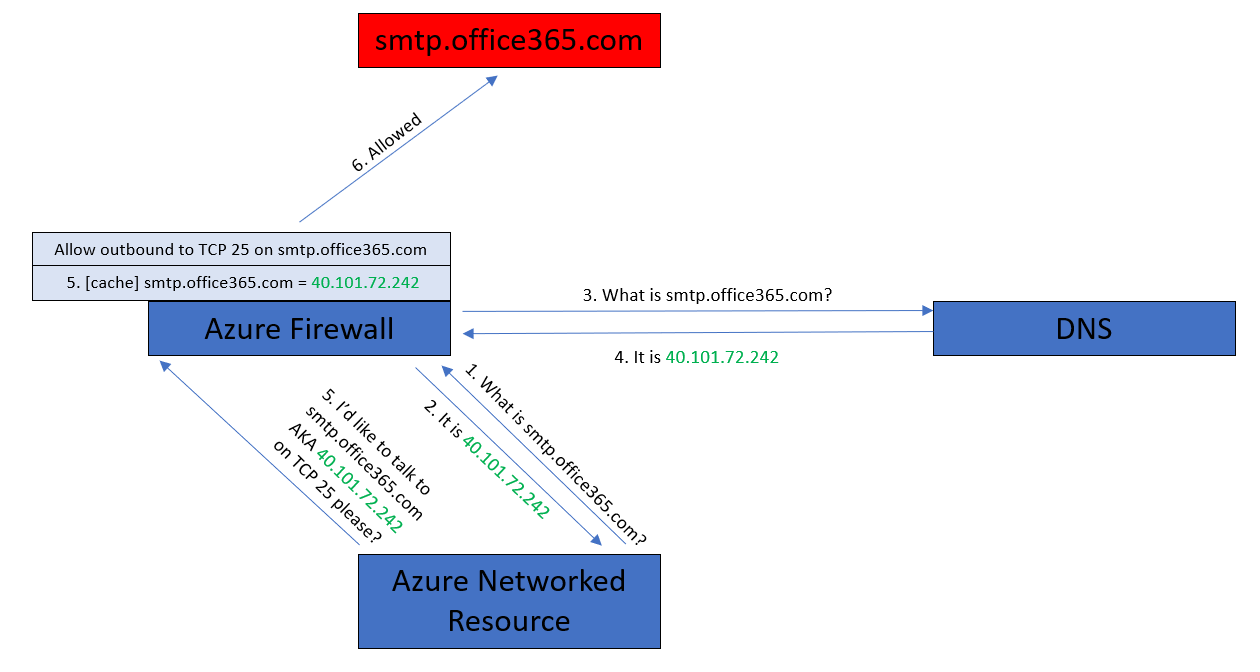
If two different machines attempt to resolve smtp.office365.com they will end up with different IP addresses – as you can see in the below diagram.

The result is that the client attempts to connect to smtp.office365.com on IP address A, and the firewall is permitting access on IP address B, so the connection attempt is denied.

DNS Proxy

To overcome this split DNS result (the Firewall and client getting two different resolved IP addresses for the FQDN) we can use DNS Proxy.

The implementation is actually pretty simple:

  1. Your firewall is set up to use your preferred DNS server(s).
  2. You enable DNS Proxy (a simple on/off setting).
  3. You configure your VNet/resources to use the Azure Firewall as their DNS server.

What happens now? Every time your resource attempts to resolve a DNS FQDN, it will send the request to the Azure Firewall. The Azure Firewall proxies/relays the request to your DNS server(s) and waits for the result which is cached. Now when your resource attempts to reach smtp.office365.com, it will use the IP address that the firewall has already cached. Simples!

And yes, this works perfectly well with Active Directory Domain Controllers running as DNS servers in a VNet or spoke VNet as long as your NSG rules allow the firewall to be a DNS client.

Recording – Introducing Azure Virtual WAN

Here is a video recording that I recorded last week called Introducing Azure Virtual WAN.

I was scheduled to do a live presentation for the (UK) Northern Azure User Group (NAUG). All was looking good … until my wife went into labour 5 weeks early! We welcomed healthy twin girls and my wife is doing well – all are home now. But at the time, I was clocking up lots of miles to visit my wife and new daughters in the evening. The scheduled online user group meeting was going to clash with one of my visits.

I reached out to the organiser, Matthew Bradley (a really good and smart guy – and someone who should be an MVP IMO), and explained the situation. I offered to record my presentation for the user group. So that’s what I did – I deliberately did a 1-take recording and didn’t do the usual editing to clean up mistakes, coughs, actually’s and hmms. I felt that the raw recording would be more like what I would be like if I was live.

The feedback was positive and I was asked if I would share the video. So here you go: