EDIT: 18 months after I wrote it, this post continues to be one of my most popular. Here is some extra reading for you if this topic is of interest:
A lot of people who will be doing this have never set up a cluster before. They know of clusters from stories dating back from the NT4 Wolfpack, Windows Server 2000 and Windows Server 2003 days when consultants made a fortune from making things like Exchange and SQL on 5 days per cluster projects.
Hyper-V is getting more and more widespread. And that means setting up highly available virtual machines (HAVM) on a Hyper-V cluster will become more and more common. This is like Active Directory. Yes, it can be a simple process. But you have to get it right from the very start or you have to rebuild from scratch.
So what I want to do here is walk through what you need to do in a basic deployment for a Windows Server 2008 R2 Hyper-V cluster running a single Cluster Shared Volume (CSV) and Live Migration. There won’t be screenshots – I have a single laptop I can run Hyper-V on and I don’t think work would be too happy with me rebuilding a production cluster for the sake of blog post screenshots 🙂 This will be rough and ready but it should help.
Microsoft’s official step by step guide is here. It covers a lot more detail but it misses out on some things, like “how many NIC’s do I need for a Hyper-V cluster?”, “how do I set up networking in a Hyper-V cluster?”, etc. Have a read of it as well to make sure you have covered everything.
P2V Project Planning
Are you planning to convert physical machines to virtual machines using Virtual Machine Manager 2008 R2? If so and you are using VMM 2008 R2 and Operations Manager 2007 (R2), deploy them now (yes, before the Hyper-V cluster!) and start collecting information about your server network. There are reports in there to help you identify what can be converted and what your host requirements will be. You can also use the free MAP toolkit for Hyper-V to do this. If your physical machine uses 50% of a quad core Xeon then the same VM will use 50% of the same quad core Xeon in a Hyper-V host (actually, probably a tiny bit more to be safe).
Buy The Hardware
This is the most critical part. The requirements for Hyper-V are simple:
- Size your RAM. Remember that a VM has a RAM overhead of up to 32MB for the first GB of RAM and up to 8MB for each additional GB of RAM in that VM.
- Size the host machine’s “internal” disk for the parent partition or host operating system. See the Windows Server 2008 R2 requirements for that.
- The CPU(s) should be x64 and feature assisted virtualisation. All of the CPU’s in the cluster should be from the same manufacturer. Ideally they should all be the same spec but things happen over time as new hardware becomes available and you’re expanding a cluster. There’s a tick box for disabling advanced features in a virtual machine’s CPU to take care of that during a VM migration.
- It should be possible to enable Data Execution Prevention (DEP) in the BIOS and it should work. Make that one a condition of sale for the hardware. DEP is required to prevent break out attacks in the hypervisor. Microsoft took security very, very seriously when it came to Hyper-V.
- The servers should be certified for Windows Server 2008 R2.
- You should have shared storage that you will connect to the servers using iSCSI or Fibre Channel. Make sure the vendor certifies it for Windows Server 2008 R2. It is on this shared storage (a SAN of some kind) that you will store your virtual machines. Size it according to your VM’s storage requirements. If a VM has 2GB of RAM and 100GB of disk then size the SAN to be 102GB plus some space for ISO images (up to 5GB) and some free space for a healthy volume.
- The servers will be clustered. That means you should have a private network for the cluster heartbeat. A second NIC is required in the servers for that.
- The servers will need to connect to the shared storage. That means either a fibre channel HBA or a NIC suitable for iSCSI. The faster the better. You may go with 2 instead of 1 to allow MPIO in the parent partition. That allows storage path failover for each physical server.
- Microsoft recommends a 4th NIC to create another private physical network between the hosts. It would be used for Live Migration. See my next page link for more information. I personally don’t have this in our cluster and have not had any problems. This is supported AFAIK.
- Your servers will have virtual machines that require network access. That requires at least a third NIC in the physical servers. A virtual switch will be created in Hyper-V and that connects the virtual machines to the physical network. You may add a 4th NIC for NIC teaming. You may add many NIC’s here to deal with network traffic. I’ve talked a good bit about this, including this post. Just search my blog for more.
- Try get the servers to be identical. And make sure everything has Windows Server 2008 R2 support and support for failover clustering.
- You can have up to 16 servers in your cluster. Allow for either N+1 or N+2. The latter is ideal, i.e. there will be capacity for two hosts to be offline and everything is still running. Why 2? (a) stuff happens in large clusters and Murphy is never far away. (b) if a Windows 8 migration is similar to a Windows Server 2008 R2 migration then you’ll thank me later – it involved taking a host from the old cluster and rebuilding it to be a host in a new cluster with the new OS. N+1 clusters lost their capacity for failover during the migration unless new hardware was purchased.
- Remember that a Hyper-V host can scale out to 64 logical processors (cores in the host) and 1TB RAM.
The Operating System
This one will be quick. Remember that the Web and Standard editions don’t support failover clustering.
- Hyper-V Server 2008 R2 is free, is based on the Core installation type and adds Failover Clustering for the first time in the free edition. It also has support for CSV and Live Migration. It does not give you any free licensing for VM’s. I’d only use it for VDI, Linux VM’s or for very small deployments.
- Windows Server 2008 R2 Enterprise Edition supports 8 CPU sockets and 2TB RAM. What’s really cool is that you get 4 free Windows Server licenses to run on VM’s on the licensed host. A host with 1 Enterprise license effectively gets 4 free VM’s. You can over license a host too: 2 Enterprise licenses = 8 free VM’s. These licenses are not transferable to other hosts, i.e. license 1 host and run the VM’s on another host.
- Windows Server 2008 R2 DataCenter Edition allows you to reach the maximum scalability of Hyper-V, i.e. 64 logical processors (cores in the host) and 1TB RAM. DataCenter edition as a normal OS has greater capacities than this; don’t be fooled into thinking Hyper-V can reach those. It cannot do that despite what some people are claiming is supported.
All hosts in the cluster should be running the same operating system and the same installation type. That means all hosts will be either Server Core or full installations. I’ve talked about Core before. Microsoft recommends it because of the smaller footprint and less patching. I recommend a full installation because the savings are a few MB of RAM and a few GB of disk. You may have fewer patches with Core but they are probably still every month. You’ll also find it’s harder to repair a Core installation and 3rd party hardware management doesn’t have support for it.
Install The Hardware
First thing’s first, get the hardware installed. If you’re unsure of anything then get the vendor to install it. You should be buying from a vetted vendor with cluster experience. Ideally they’ll also be a reputed seller of enterprise hardware, not just honest Bob who has a shop over the butchers. Hardware for this stuff can be fiddly. Firmwares across the entire hardware set all have to be matching and compatible. Having someone who knows this stuff rather than searches the Net for it makes a big difference. You’d be amazed by the odd things that can happen if this isn’t right.
As the network stuff is being done, get the network admins to check switch ports for trouble. Ideally you’ll use cable testers to test any network cables being used. Yes, I am being fussy but little things cause big problems.
Install The Operating Systems
Make sure they are all identical. An installation that is done using using an answer file helps there. Now you should identify which physical NIC maps to which Local Area Connection in Windows. Take care of any vendor specific NIC teaming – find out exactly what your vendor prescribes for Hyper-V. Microsoft has no guidance on this because teaming is a function of the hardware vendor. Rename each Local Area Connection to it’s role, e.g.
What you’ll have will depend on how many NIC’s you have and what roles you assigned to them. Disable everything except for the first NIC. That’s the one you’ll use for the parent partition. Don’t disable the iSCSI ones.
Patch the hosts for security fixes. Configure the TCP/IP for the parent partition NIC. Join the machines to the domain. I strongly recommend setting up the constrained delegation for ISO file sharing over the network.
Do whatever antivirus you need to. Remember you’ll need to disable scanning of any files related to Hyper-V. I personally advise against putting AV on a Hyper-V host because of the risks associated with this. Search my blog for more. Be very sure that the AV vendor supports scanning files on a CSV. And even if they do, there’s no need to be scanning that CSV. Disable it.
Enable the Cluster NIC for the private heartbeat network. This will either be a cross over cable between 2 hosts in a 2 host cluster or a private VLAN on the switch dedicated just to these servers and this task. Configure TCP/IP on this NIC on all servers with an IP range that is not routed on your production network. For example, if your network is 172.168.1.0/16 then use 192.168.1.0/24 for the heartbeat network. Ping test everything to make sure every server can see every other server.
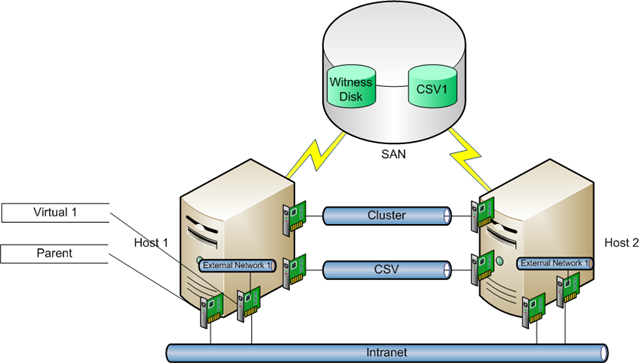
If you have a Live Migratoin NIC (labelled badly as CSV in my examples diagrams) then set it up similarly to the Cluster NIC. It will have it’s own VLAN and it’s own IP range, e.g. 192.168.2.0/24.
Enable the Virtual NIC. Unbind every protocol you can from it, e.g. if using NIC teaming you won’t unbind that. This NIC will not have a TCP configuration so IPv4 and IPv6 must be unbound. You’re also doing this for security and simplicity reasons.
Here’s what we have now:

Once you have reached here with all the hosts we’re ready for the next step.
Install Failover Clustering
You’ll need to figure out how your cluster will gain a quorum, i.e. be able to make decisions about failover and whether it is operational or not. This is to do with host failure and how the remaining hosts vote. It’s done in 2 basic ways. There are actually 4 ways but it breaks down to 2 ways for most companies and installations:
- Node majority: This is used when there are an odd number of hosts in the cluster, e.g. 5 hosts, not 4. The hosts can vote and there will always be a majority winner, e.g. 3 to 2.
- Node majority + Disk: This is used when there are an even number of hosts, e.g. 16. It’s possible there would be an 8 to 8 vote with no majority winner. The disk acts as a tie breaker.
Depending on who you talk to or what GUI in Windows you see, this disk is referred to either as a Witness Disk or a Quorum Disk. I recommend creating it in a cluster no matter what. Your cluster may grow or shrink to an uneven number of hosts and may need it. You can quickly change the quorum configuration based on the advice in the Failover Clustering administration MMC console.
The disk only needs to be 500MB size. Create it on the SAN and connect the disk to all of your hosts. Log into a host and format the disk with NTFS. Label it with a good name like Witness Disk.
I’m ignoring the other 2 methods because they’ll only be relevant in stretch clusters than span a WAN link and I am not talking about that here.
Use Server Manager to install the role on all hosts. Now you can set up the cluster. The wizard is easy enough. You’ll need a computer name/DNS name for your cluster and an IP address for it. This is on the same VLAN as the Parent NIC in the hosts. You’ll add in all of the hosts. Part of this process does a check on your hardware, operating system and configuration. If this passes then you have a supported cluster. Save the results as a web archive file (.MHT). The cluster creation will include the quorum configuration. If you have an even number of hosts then go with the + Disk option and select the witness disk you just created. Once it’s done your cluster is built. It is not hard and only takes about 5 to 10 minutes. Use the Failover Clustering MMC to check the health of everything. Pay attention to the networks. Stray networks may appear if you didn’t unbind IPv4 or IPv6 from the virtual network NIC in the hosts.
If you went with Node Majority then here’s my tip. Go ahead and launch the Failover Clustering MMC. Add in the storage for the witness disk. Label it with the same name you used for the NTFS volume. Now leave it there should you ever need to change the quorum configuration. A change is no more than 2 or 3 mouse clicks away.
Now you have:

Install Hyper-V
Enable the Hyper-V role on each of your hosts, one at a time. Make sure the logs are clean after the reboot. Don’t go experimenting yet; Please!
Cluster Shared Volume
CSV is seriously cool. Most installations will have most, if not all, VM’s stored on a CSV. CSV is only supported for Hyper-V and not for anything else as you will be warned by Microsoft.
Set up your LUN on the physical storage for storing your VM’s. This will be your CSV. Connect the LUN to your hosts. Format the LUN with NTFS. Set it to use GPT so it can grow beyond 2TB. Label it with a good name, e.g. CSV1. You can have more than 1 CSV in a cluster. In fact, a VM can have its VHD files on more than one CSV. Some are doing this to attempt to maximise performance. I’m not sold that will improve performance but you can test it for yourself and do what you want here.
DO NOT BE TEMPTED TO DEPLOY A VM ON THIS DISK YET. You’ll lose it after the next step.
Use the Failover Clustering MMC to add the disk in. Label it in Failover Clustering using the same name you used when you formatted the NTFS volume. Now configure the the CSV. When you’re done you’ll find the disk has no drive letter. In fact, it’ll be “gone” from the Windows hosts. It’ll actually be mounted as a folder on the C: drive of all of your hosts in the cluster, e.g. C:ClusterStorageVolume1. This can be confusing at first. It’s enough to know that all hosts will have access to this volume and that your VM’s are not really in your C: drive. They are really on the SAN. C:ClusterStorageVolume1 is just a mount point to a letterless drive.
Now we have this:

Virtual Networking
Hopefully you have read the previously linked blog post about networking in Hyper-V. You should be fully educated about what’s going on here.
Here’s the critical things to know:
- You really shouldn’t put private or internal virtual networks on a Hyper-V cluster when using more than one VM on those virtual networks. Why? A private or internal virtual network on host A cannot talk with a private or internal network on host B. If you set up VM1 and VM2 on such a virtual network on host A what happens when one of those VM’s is moved to another host? It will not be able to talk to the other VM.
- If you create a virtual network on one host then you need to create it on all hosts. You also must use identical names across all hosts. So, if I create External Network 1 on host 1 then I must create it on host 2.
Create your virtual network(s) and bind them to your NIC’s. In my case, I’m binding External Network 1 to the NIC we called Virtual 1. That gives me this:

All of my VM’s will connect to External Network 1. An identically named external virtual network exists on all hosts. The physical Cluster 1 NIC is switched identically on all servers on the physical network. That means if VM1 moves from host 1 to host 2 it will be able to reconnect to the virtual network (because of the identical name) and be able to reach the same places on the physical network. What I said for virtual network names also applies to tags and VLAN ID’s if you use them.
Get Busy!
Believe it or not, you have just built a Hyper-V cluster. Go ahead and build your VM’s. Use the Failover Clustering MMC as much as possible. You’ll see it has Hyper-V features in there. Test live migration of the VM between hosts. Do continuous pings to/from the VM during a migration. Do file copies during a migration (pre-Vista OS on the VM is perfect for this test). Make sure the VM’s have the integration components/integration services/enlightenments (or additions for you VMware people) installed. You should notice no downtime at all.
Remember that for Linux VM’s you need to set the MAC in the VM properties to be static or they’ll lose the binding between their IP configuration and the virtual machine NIC after a migration between hosts.
Administartion of VM’s
I don’t know why some people can’t see or understand this. You can enable remote desktop in your VM’s operating system to do administration on them. You do not to use the Connect feature in Hyper-V Manager to open the Virtual Machine Connection. Think of that tool as your virtual KVM. Do you always use KVM to manage your physical servers? You do? Oh, poor, poor you! You know there’s about 5 of you out there.
Linux admins always seem to understand that they can use SSH or VNC.
Virtual Machine Manager 2008 R2
VMM 2008 R2 will allow you to manage a Hyper-V cluster(s) as well as VMware and Virtual Server 2005 R2 SP1. There’s a workgroup edition for smaller clusters. It’s pretty damned powerful and simplifies many tasks we have to do in Hyper-V. Learn to love the library because that’s a time saver for creating templates, sharing ISO’s (see constrained delegation above during the OS installation), administration delegation, self service portal, etc.
You can install VMM 2008 R2 as a VM on the cluster but I don’t recommend it. If you do, then use the Failover Clustering and Hyper-V consoles to manage the VMM virtual machine. I prefer that VMM be a physical box. I hate the idea of chicken and egg scenarios. Can I think of one now? No, but I’m careful.
To deploy the VMM agent you just need to add the Hyper-V cluster. All the hosts will be imported and the agent will be deployed. Now you can do all of your Hyper-V management via PowerShell, the VMM console and the Self Service console.
You also can use VMM to do a P2V conversion as mentioned earlier. VSS capable physical machines that don’t run transactional databases can be converted using a live or online conversion. Those other physical machines can be converted using an offline migration that uses Windows PE (pre-installation environment). Additional network drivers may need to be added to WinPE.
You can enable PRO in your host group(s) to allow VMM to live migrate VM’s around the cluster based on performance requirements and bottlenecks. I have set it to fully automatic on our cluster. Windows 2008 quick migration clusters were different: automatic moves meant a VM could be offline for a small amount of time. Live Migration in Windows Server 2008 R2 solves that one.
Figure out your administration model and set up your delegation model using roles. Delegated administrators can use the VMM console to manage VM’s on hosts. Self service users can use the portal.
Populate your library with hardware templates, VHD’s and machine templates. Add in ISO images for software and operating systems. An ISO create and mounting tool will prove very useful.
Operations Manager 2008 R2
My advice is “YES, use it if you can!”. It’s by using System Center that makes Hyper-V so much better. OpsMgr will give you all sorts of useful information on performance and health. Import your management packs for Windows Server, clustering, your hardware (HP and Dell do a very nice job on this. IBM don’t do so well at all – big surprise!), etc. Use the VMM integration to let OpsMgr and VMM to work together. VMM will use performance information from OpsMgr for intelligent placement of VM’s and for PRO.
I leave the OpsMgr agent installation as a last step on the Hyper-V cluster. I want to know that all my tweaking is done … or hopefully done. Otherwise there’s lots of needless alerts during the engineering phase.
Backup
Deploy your backup solution. I’ve talked about this before so check out that blog post. You will also want to backup VMM. Remember that DPM 2007 cannot backup VM’s on a CSV. You will need DPM 2010 for that. Check with your vendor if you are using backup tools from another company.
Pilot
Don’t go running into production. Test the heck out of the cluster. Deploy lots of VM’s using your templates. Spike the CPU in some of them (maybe a floating point calculator or a free performance tool) to test OpsMgr and VMM PRO. Run live migrations. Test P2V. Test the CSV coordinator failover. Test CSV path failover by disconnecting a running host from the SAN – the storage path should switch to using the Ethernet and route via another host. Get people involved and have some fun with this stage. You can go nuts while you’re not yet in production.
Go Into Production
Kick up your feet, relax, and soak in the plaudits for a job well done.
EDIT #1:
I found this post by a Microsoft Failover Clustering program manager that goes through some of this if you want some more advice.
My diagrams do show 4 NIC’s, including the badly named CSV (Live Migration dedicated). But as I said in the OS installation section, you only need 3 for a reliable system: (1) parent, (2) heartbeat/live migration, and (3) virtual switch.
EDIT #2
There are some useful troubleshooting tips on this page. Two things should be noted. Many security experts advise that you disable NTLM in group policy across the domain. You require NTLM for this solution. There are quotes out there about Windows Server 2008 failover clusters not needing a heartbeat network. But “If CSV is configured, all cluster nodes must reside on the same non-routable network. CSV (specifically for re-directed I/O) is not supported if cluster nodes reside on separate, routed networks”.